To many people, Microsoft Outlook really seems bad at handling time zone changes, and that's being kind. This is in part because people don't understand that Outlook uses UTC time for appointments and adjusts the time using the time zone offset configured on the computer.
Note that this is not "an Outlook problem", as this is how computers, email clients and mail servers handle time zones.
For example, any email client will display this sent time:
Thu, 9 Jun 2005 08:16:24 -0700
as
11:16 AM
on a computer configured for the Eastern Time Zone, which has a -0400 offset during Daylight savings time.
By storing all times as UTC, Outlook doesn't need to store any other time information in the appointment and uses the local time zone when rendering the view. This allows someone in another time zone to create a meeting request and it will reflect the correct local time.
Outlook does not support an absolute time option for the calendar, which would permit you to enter 2 PM and the appointment would always stay on 2 PM, no matter how many times you changed the time zone.
Older versions don't have an option for 'in what time zone?' so that you could make an appointment for 2 PM and select Pacific time zone and it would show up as 5 PM in your calendar when the computer is using the Eastern time zone. Outlook 2007/2010 allows you to select the time zone the appointment will be held in.
Click the Time Zone button to show the time zone selectors.
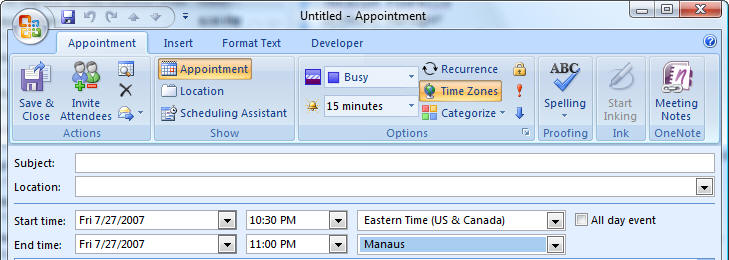
At the end of this article, we have a short list of clock utilities that will display multiple time zones, many more are available at your favorite Windows shareware sites. These are the ones I've used and like. In most cases, you'll want to disable the Windows tray clock when you use these, to avoid confusion.
Workaround
There are ways to make Outlook's use of UTC and time zone offsets time less frustrating with older versions of Outlook.
- Learn to use Outlook's dual time zone feature.
- Use a 3rd party clock utility to display 'local' time so you don't have to change the time zone on the computer.
Tip: Never change the computer time to match the 'local' time and leave the time zone set for your home time.
Dual Time Zone Settings
You can easily swap the system time between these two zones, if you need to. I prefer to leave the computer time zone alone though and use a clock utility to display the time in a different zone, in part so all day events stay on one day.
To turn on dual time zone display, go to Tools, Options, Preferences tab, Calendar Options, Time Zone button and add a second time zone. Now when you view the calendar in a day planner format, you'll see two time scales displayed. You can right click on the scale and choose Time zones... to change zones or swap them.
Dual Time Zone Method
Outlook user:
I travel to multiple time zones. My meetings happen across many zones, so I always schedule per California time. I wish there was a simple drop-down menu that I could configure to allow me to reset my system to India or China or... time without going to the calendar menu and swapping location. I have so many more than two locations that I have to set up the swap function every time I get to a new country so that my system, calendar and alarms work with my new location's time zone.Because Outlook gets the time zone from Windows and uses the Windows zone as its default time zone, you don't need to go into Outlook to change the zones, you can do it from Windows, which can be done from a command line in a couple of steps:
- Press Windows Key + R to open the Run command,
- Type or paste the following in the command field (using the desired time zone name) and press Enter
TZUTIL /s "Pacific Standard Time"Windows 7 saves at least the last 27 entries in the Run command so once you use a command, it can be selected the next time you need to change the zone.
Use Outlook's dual time zone feature and name the Default zone "Current" or something so you know it's not a specific zone then set the second zone to your home time zone and name it accordingly.
Reminder: in Outlook 2007 and Outlook 2010, you can select the zone the appointment will be in when you create the appointment. Press the Time Zone button to access this feature.
Fix Appointment Times
If you create appointments when the computer clock is set for the wrong time zone, or if you move to a new time zone, you can't change the time zone without messing up the appointment times and all day appointments will span two days. You can export the calendar to a non-Outlook format (Excel or CSV works well), then change the time zone settings and import the items back into Outlook.
- Set the computer's time zone and daylight time settings so the appointment times are correct.
- Go to File, Import and Export and follow the wizard to export the calendar to an Excel or CSV format file. Do not export to a PST.
- Correct the computer's time zone and daylight time settings so the time zone is correct for your location.
- Create a new calendar folder in your mailbox, if desired, and move the calendar items to it. Otherwise, delete them.
- Import the calendar items you exported earlier.
- When you are satisfied that the appointments are correct, delete the new calendar folder and all of the old appointments in it.
User Comments
Michael had this to say about time issues affecting Outlook users in a Citrix environment:
This is a fairly common issue being reported in relation to Outlook, but the Citrix solution is actually quite simple; We recently came across the issue on XenApp6 where the 'use local client time' policy wasn't applying. AD GPO worked for the host OS, but not within published apps. We managed to discover that the issue could be resolved by assigning the 'use local client time' policy through AMC / Delivery Service Console, not just the Citrix client policy.Problems
Always use the correct time zone and DST settings for your location. If your time zone does not honor DST, don't choose a time zone with the correct offset and disable DST.
Time zones that do not observe daylight saving time and Outlook 2010 (MSKB)
The following is from Scott in the Cayman Islands. They use the same time zone as Bogota but feel the Bogota time zone name makes them look untrustworthy, so they used Eastern US instead and disabled DST. This caused issues with appointments and I suggested they edit the time zone name in the registry to add their location. The keys are at HKEY_LOCAL_MACHINE\SOFTWARE\Microsoft\Windows NT\CurrentVersion\Time Zones\.
Thank you for your feedback. With the information you provided I was able to find a working solution. Unfortunately changing the name did not seem to work as well as I had hoped as the old name would still creep in. But the idea was spot on! I simply created a NEW time zone called Cayman Islands and set it up with the same settings as Bogota'. I used the TZEDIT tool found here: Time Zone Editor to create the time zone.I then created a script to push this to all my desktops overnight, and manually added the hive on the relevant servers. Tests internal and external show what I would expect to see even across Time Zones. The fact that my "Cayman Islands" zone is not on outside computers does not appear to be an issue as it is seems to Use TZ information sent and not an internal reference based on a name. (as I would expect)Never change the computer's time and leave it on your home time zone. You may not be able to connect to network resources if the time is off by more than a few minutes. Servers pay a lot of attention to the time zone offset - the servers don't care if your machine is set for London's time zone while in Seattle, as long as the time is correct for your time zone offset.
It's also very annoying to other users if you send an email dated hours before or after you really sent it.
Tools
More Information
About Diane Poremsky
Comments
Leave a Reply

John says
<span style="color: #000000;"> Amazing content Diane! When working with several time zones , this really makes life easier. Keep the great content! <A style="color: #000000;"HREF=""> Cheers </A>.</span>
Aes sce says
It only talks about "computer time zone"! I access my same outlook calendar from my phone, tablet and two laptops all of which could be in different time zones. I dial into the same meeting 4 times in one day to make sure I didn't miss it. My computer time zone? Which computer? Half of them update automatically when I travel. I waste a whole day on vacation trying to figure out when I was supposed to dial into a 30 minute meeting.
Diane Poremsky says
To be fair, the article is specifically about Outlook desktop for Windows, so it will only speak about the computer.
>>
I access my same outlook calendar from my phone, tablet and two laptops all of which could be in different time zones.
<
Cory says
We are using Office 365. When my boss travels, he does not want to switch the time zone so I have to manually move any meeting invites he receives from others so they will show up at the local time where he will be. I used to be able to drag them to a different time on the calendar and they would stay there. Now, they seem to stay just until I restart my/his computer. They then go back to the original time. Is there a way to have them stay where I want them to stay and not move back? I understand that if an update is sent, I will need to adjust again.
Diane Poremsky says
When you move them, do they show up in outlook on the web or on your computer at the new time?
Rick says
Is there a way to set an appointment start time in one time zone and the end time in another? I want to show flights in my calendar and want to make sure the departure and arrival times show up correctly so people make the right arrangements for my pickups. With only a time zone for the start time, this does not seem possible and I would have to adjust for time difference between 2 zones myself.
Diane Poremsky says
You can... but if the appointment has end time (arrival time) adjusted for your zone, you can send that to the pickup and it will be in the correct time for their zone. (ie, arrive in Seattle at 11AM, would show as 2PM in NYC)...
but yeah, if you want to change the end time zone, you can. Click the Time zone button in the ribbon and set the end zone.
Willy Nobbe says
I'm using a Lumia 530 W8 and a Lumia 950 W10 / Win10 pc for my agenda items witch syns with Exchange Outlook from my work.
When I make a agenda-item for example for every tuesday for several months on my Lumia 530 W8 telephone it syncs with exchange on my work perfect, but when I do the same thing on my Win10 pc/ W10 lumia 950 it shifts this appointment 1 hour forward.
Watch it: All the timezones are the same (Amsterdam +1) on lumia's / win10 PC and Exchange..
An Exchange item for every tuesday syncs perfectly with all the windows devices. But changing things on the Win10 Phone / W10 pc results in an hour shift forwared again on the exchange outlook
Diane Poremsky says
did the problems just start? Are all devices using the correct time zone and DST settings?
Steve Rose says
I have read everything I can find but still can't find a way to have Time Zone automatically on when a new appointment is made in Outlook 201x. I.e.- I don't want to have to hit Time Zone every time- I want the Time Zone to show up when creating an appointment automatically.
Any help would be appreciated.
Thanks
Steve Rose
Diane Poremsky says
The TZ field stays open until i close it (Outlook 2016) - try opening a new appt, show the zone then close without saving. that works for other settings, it might work for this.
H C says
Hi Diane,
I have a shared outlook.com calendar with my brother but when one of us creates an event the email notification received by the other shows the event time in UTC Monrovia Reykjavik. We don't use Outlook desktop client but we do use the native Windows 10 Mail & Calendar apps. I've checked both computers' local settings as well as both accounts' online/calendar settings and everything is set to EST. I've been trying to find a solution for a while now but no luck :( so any help would be greatly appreciated.
Cheers.
Diane Poremsky says
Reykjavik is the default TZ for all new accounts - you need to change the tz in Outlook online. You can check the time zone in Options or in the appointment dialog under the end date - if it is correct, change it to something else in Options then save it and change it back to the correct TZ.
Carlos Fleck says
Dear Diane,
I hope this message finds you well.
When scheduling an interview, the interviewers receive an email template with the candidate information, time and date, location.
Below the subject field, comes field "When" displaying time zone correctly and the date, e.g - Wednesday, June 28, 2017, 3:30-4:00 PM(UTC -05:00)EasternTime (US & Canada).
After that, right before the actual template message, there is another "When", a highlighted UTC time zone reference informing Wednesday, June 28, 2017 7:30 PM -08:00 PM. UTC.
I understand that the information is saved under UTC time.
My question is if there would be a way this information not to be displayed to whoever receives these notifications? Can we enable/disable this information not to be shown?
Thank you very much.
Carlos.
Diane Poremsky says
If the times only show for the recipient and not when you create the meeting, then you probably can't change it - it's how the server or recipient's client handles it. If you see it in the message before sending, the macro at https://www.slipstick.com/outlook/customize-skype-business-invitation/ shows how to change the template before sending.
Sarah Mitchell says
Dear Diane
I regularly import our school calendars from Excel via CSV to outlook, these are then shared for our staff and parents to use. We are in Cape Town which is UTC +2 and when i import the calendar data and create an ICS (via Offie365) file it shows the data as 2 hours ahead, In the past i have been able to overcome this by adding an event manually to the shared calendar, but this no longer seems to work. Do you have any advice or work arounds? Thank you so much.Sarah
Diane Poremsky says
The CSV has the times in local time, correct? It sounds like the import is using UTC then adjusting for your TZ, but it should be using local time.
This is an office 365 mailbox? If you log into outlook.office365.com, is it set to the correct time zone? Check the region and time zone at https://outlook.office.com/owa/?path=/options/regional
It shouldn't affect calendars in Outlook but could potentially affect the ics.
Timothy Korson says
I travel for a living. I make a lot of appointments for the location I will be at when the appointment occurs. Thus I want a calendar that will allow me to specify the time zone of the appointment and always display the time in that time zone. For example I live in Eastern time zone. I am traveling to Seattle next week and have appointments, airline schedules, etc that I will need to meet in that time zone. How do I get all appointments displayed in the time zone of the appointment.
Diane Poremsky says
You need to use the Time Zone button to create the appointments in the correct zone, When you make appointments in Eastern for the Pacific zone, you should click the Time Zone button and choose the correct time in that zone. When you change the computer clock to use that zone, it will be on the correct time. If you created them in ET, you'd need to leave the clock alone - there are 3rd party clocks that will show the time in other zones that make it less confusing (but most phones update to the time zone).
Jay A. Garbarino says
Hello Diane, Whenever I am searching out things to do with Outlook, your SlipStick.com site is always a place for valuable information. Thank you.
I have a question about Outlook 2007 (desktop) and the interaction with the Outlook App. I am using an Android mobile device.
When using the Calendar with recurring events I can not seem to get the desktop software and the mobile App ( even the sync with the the web app is problematic. Main issues are with teh time zones not staying linked. Another issue is if I have notes typed an ANY event (not just recurring) and the paragraph settings check the check box "Don't add space between paragraphs of the same style", I am still getting spaces added after synchronizing.
Lastly is is frustrating that if a recurring event is deleted on the mobile app ALL events are deleted. And very lastly, you can not do a search calendar events on the web based Outlook.com or mobile app. You can search teh calandar on the Outlook 2007 App.
Maybe I just need to move over to Google calendar? Is thee an way to export all of the Outlook.com events to Google.? do the Recurring events stay recurring?
Thank you in advance for any reply.
Diane Poremsky says
Notes formatting is a problem on all devices - in Outlook, the notes are RTF but they are HTML (or plain text) on devices. The line breaks get messed up in the conversion between html and RTF.
Was your account moved to the new server yet? I know the old server doesn't support calendar search but the new one does.
To export to google calendar, you need to export to CSV which breaks recurring events. It also won't sync with Outlook.
b52apl says
I export my Outlook calendar to Google Calendar every day at 5 PM so I can have the calendar on my Android devices. I'm in Chicago. I have meetings set up by people in several other time zones, like Phoenix, India and Northern Ireland. The Outlook 2013 CSV export file has the times in the meeting owner's time zone with no adjustment. I don't have admin rights on my work laptop and I can't email a PST file to my home PC where I have Outlook 2013 because it's too big. Is there a work around for this? The only thing I can think of is to forward the meetings to my home Outlook 2013 and export the meetings from there. Is there anything else I can do?
Diane Poremsky says
Are you exporting the icalendar or CSV? Can you run macros? You might be able to use a macro to to export and fix the time zones.
Annette says
I'm trying to export outlook to a csv file but I need it to reflect where I can map the time zone's so that when I create my spreadsheet of calendar entries to import back to outlook the time zone's are showing. Any ideas?
Diane Poremsky says
The export (and import) is in your local time zone - you won't have the original time zone. You could use a macro to import and kept the time zone, but the csv will need to have the correct time for the time zone. This imports from a spreadsheet - https://www.slipstick.com/developer/create-appointments-spreadsheet-data/ - as written it doesn't do the time zone but that is easy enough to add.
Annette says
I am trying to upload a long list of calendar entries but some are different time zones. How can I find the field from outlook to map and show on the spreadsheet when I export the calendar out?
Di says
Any chance of putting the time zone on both sides of the calendar?
Diane Poremsky says
No, that's not possible. Sorry.
Ron L says
Does anybody know how timezones are handled with Office365 calendar publishing? If I am in GMT+3 timezone and I send the URL for my calendar to somebody in the GMT-5 time zone, what will they see when they open it?
If it is smart, it will use the viewer's timezone. I tried to test it by changing my timezone and opening my calendar... but none of the times were adjusted. So I wonder now how it works...
Diane Poremsky says
It is supposed to adjust the time for the recipients time zone. If you change your own time zone, the appointment times should change to reflect the new time zone (4 PM ET would change to 1 PM PT)
Ron L says
Diane, it does not appear to work. On my PC which is setup for Moscow time, I've created a calendar with a single appointment for Aug 31 at 10am London time and shared it.
Here is the link:
https://outlook.office365.com/owa/calendar/af011c557f38453696a99653a7031754@terralink-global.com/824cf769c00143929f55cb86208e108f5394467005276104313/S-1-8-4043686855-4015513052-3062651899-4242025066/reachcalendar.html
I've tried changing the time zone on my PC and re-opening that link, and it always shows the same time (noon Moscow time = 10am London time).
I tried using http://www.browserling.com to virtually browse to this link from another PC in another time zone. But I still see the meeting at noon.
Can you try opening this link and checking Aug 31 to see how the meeting time is displayed?
Thanks
Jane says
Thanks Diane!
we have office 365 as our email server, but I use the outlook for mac software instead of the web app. I went into the web app anyway and checked the timezone there, and it is set to central time also. any other ideas?
Jane says
i have had several people tell me that when I accept a meeting request, it lists the time of the meeting adjusted for Monrovia, Reykjavik...but I am in Central Time. Everything I have checked in my computer settings and my outlook settings says Central Time. I'm on Outlook 2011 for Mac.
Diane Poremsky says
Are you using Office 365 Exchange online? If so, log into OWa and set the correct time zone.
Diane Poremsky says
No, no other ideas, but I'll see if i can repro.
Ammar says
Diane,
Can you please post how and what to do to get this macro running for Outlook 2011 for the MAC?
thank you.
Diane Poremsky says
Sorry, Outlook 2011 for Mac does not support VBA.
Peter Goetz says
Is there any way to sort Calendar appointments by Time Zone in Outlook 2010? I went to Ireland in November 2014. I synced my phone calendar using Samsung Kies 3 (as I have for a few years). Somewhere during or after my trip, every single appointment I've had from October 2003 till January 2015 has been doubled: one copy on New York time, and a second copy on Dublin time. There are almost 6,000 entries. If I could sort them by time zone, I could quickly delete all the duplicates, but I haven't been able to find a way to do that.
Any ideas? Alternate approaches I should take? Thanks.
Diane Poremsky says
How about sorting by last modified time? If they were all duplicated at once, they should have the same modified time. I'll see if we can use a macro to add a category if the TZ is different - then you could group by category.
Diane Poremsky says
A macro that can either set a category or a custom text field using the time zone name is here: https://www.slipstick.com/developer/code-samples/use-vba-get-appointments-time-zone/
Diana says
Hi Diane
Thank you so much, feeling embarrassed but very grateful. I neglected that step! Mystery solved as to why a time zone not on my computer outlook settings and not on my android outlook calendar kept appearing. Additionally I just was looking at outlook.com on my android which didn't have the same options as signing in on the web. Again thank you so much for your time. It is wonderful to have someone like you to ask these questions to.
Diane Poremsky says
Think nothing of it... you aren't the first and won't be the last who had mismatched Time Zones. I swear I had my outlook.com account on Eastern, especially since I've had it more than 10 years, but discovered a few weeks ago it was on Iceland's time zone. I have no idea why...
Diana says
Hi Diane
I am using outlook.com on my android phone and computer for the purposes of the calendar. I ensure that when making an appointment on my phone the calendar is set to the time zone I want. What I am finding however is when it syncs back to my computer the computer calendar sync's to a different zone - even when on my computer outlook I have set outlook to the time zone I want? Of course this leaves me confused thinking which appointment is the correct one and at times inadvertently double booking myself in working between my phone and my computer.
Your help would be greatly appreciated
Diane Poremsky says
Is outlook.com's Time Zone set to the correct zone? The TZ setting is at https://bay04.calendar.live.com/calendar/options.aspx
Ammar says
It will not do, because all my events and appointments are actually reminders and I need to see them in an agenda look. Reminders and tasks are lists and I will end up with a list of 12000 items which i will never be able to sort! :-(
Ammar says
I figured Outlook would not work with daily reminders set at the same time like a setting for 8am daily "wake up" or "take your medicine" or "exercise" ...etc, which is really a valid option that people need! I thought you may have a workaround.
As for sending emails, I mainly use Outlook (desktop) for my exchange service as well as my email apps on iPhone and iPad and all these seem OK with the time issues.
Even online login allow sending emails regardless of the time zone and time set on my computer.
My Exchange services (Apps4rent and Fastmail), Gmail, Yahoo and Hotmail do not seem to mind what my time zone is and what the clock is set at where I send from.
I have been keeping my time zone set at GMT+3 and have been manually changing the clock on my computer, iPhone and iPad to the local time wherever I am. I have just returned from a trip across three time zones and all were working well. I however lose the ability for my computer and my iPhone and iPad to auto detect where I am and set the correct time (sync)!
Thank you for your time and efforts.
Please keep up the support,
Bless you.
Diane Poremsky says
For the daily reminders, I would look at using a windows clock/reminder program instead of Outlook. The bonus is that Outlook doesn't need to be open for them to work.
Ammar says
Dear Diane,
First of all, thank you for the support and help you show and offer to us all, this is very admirable.
Can you please tell me how I can set up a recurring event that I need firing up at the same time wherever I am in the world, say like "wake up" or "take my pills at 7 am and at 11pm". Such events have nothing to do with Time Zones! If i am a frequent traveler across time zones like two to four times weekly, how can I keep track?
I have been dealing with this time zone confusion for years now and am totally unhappy with it, as hundreds of thousands seem to be as well!
To overcome this nuisance I set my computer to a non-changing time zone (no DST) and I manually change the time as I travel across the world thus keeping all my events and appointments set correctly as i entered them. This means that I cannot set the clock sync to automatic because it will change my time to my set zone not where I am and I have to manually change back to the time where I actually am!
If I have an appointment at my bank in NY at 9am, i want to be able to enter it as 9am on Nov 22nd and not having to have a PhD in "time zoneology" to figure out that if i am in Central Asia somewhere where they observe +4 1/2 GMT then he time I need to enter is 6:30pm Nov 22nd!
Why is it so difficult for Microsoft to add an option to always show events at a certain time zone, like the iOS's "Time Zone Override"; always showing the same time zone.
It seems Outlook is designed for business people who always send each other invitations for meetings, I think most of us out there use our calendars as our own agendas to remind us of what we need to do, not others!
There ... I got it off my chest :-)
Can you please guide me to how to set up a daily reminder to take my medicine at the same time regardless of where i am in the world, I am serious, most of my events are clock (time of day or night) related not time zone related.
Bless you.
Diane Poremsky says
You are correct, outlook was designed for business people who send meeting requests around the world. Outlook had two features that can help - dual time zones and time zone selector on appointment forms. With dual zones, you can always leave your home zone up. For the 9am meeting with the bank, use the time zone selector on the appt form and choose the bank's time zone. When you are halfway around the world, it will be set for the correct time in NY. The medicine example is much more difficult - if you need to take it every 24 hours, then selecting a time zone and letting it float works. If you want to take it at the same time of the day regardless of the zone, outlook sucks at it. I can't think of a good way to do that reminder.
I'm surprised you don't have issues sending email if you keep the time zone but change the computer clock - many servers won't allow access if the computer time is wrong.
Martyna says
I set up meetings for 3 different time zones. It's already handy to have 2 time zones displayed in calendar. Why we cannot add another one?
It would be easier and it would definitely help.
Diane Poremsky says
Unfortunately, they need to add 3rd TZ capability before we would be able to select it. :(
Karsten Spang says
Is there a way to tell Outlook (2007) to display a certain range of days in a different time zone when travelling. I can change the system time when I get there and set it back again when I return, but I would like to see the appointment in advance in the time zone that I will be it, and I do not want to show any other days in my home time zone.
Ideally, I want the different time zone to be in effect from the time the flight touches down at my destination until the return flight takes off.
I do not like the dual time zone solution, as the break between days are still at my home time zone.
Diane Poremsky says
No, you can't preconfigure time zones. Sorry. Dual time zones are the only option.
Say Kiat Tan says
Rather disappointed with Microsoft... If only they could step back and focus on such little and easy-to-achieve tweaks than continue to add complicated features that only 1% of the customers know/use.
Say Kiat Tam says
When you reply an email, the date/time when you received that email is printed. Why doesn't Outlook include the timezone?
Diane Poremsky says
I have no idea - I know it can be really, really confusing in international conversation.
Mitch says
Appointments are time zone independent, meeting requests are not. Diane, you previously mentioned creating appointments and forwarding them. This an acceptable workaround but only if the appointment is re-forwarded each and every time an edit occurs.
Diane Poremsky says
I don't recall mentioning that as an option for this problem. But yes, keeping them updated is harder.
Hayden Jones says
The outlook (2007) appointment, when openned, says in a time zone dropdown, that it is using "Mountain Time (us and canada)". But it is greyed out. Cannot be changed. This is NOT a time offset problem. This is an Outlook problem. I SHOULD be able to use the dropdown to change the time zone. I cannot. The dropdown is there. It's function is clear. It is greyed out. It does not work.
Diane Poremsky says
Is this a meeting you were invited to? You can't change the time zone on invitations - that would change the meeting time. It should show on your calendar in the correct time period.
How time zone normalization works in Outlook 2010 and Outlook 2013
Alicia says
I use the Outlook (2010?) calendar on my Nokia phone. Problem 1: I nearly missed a plane because when I went CST to EST on a trip, Outlook unhelpfully moved all of my appointment times to one hour ahead. Problem 2: Now that DST has set in, all of my appointment times are wrong - everything has moved one hour later. Not sure who thought that was a good idea, but if there's a way to fix this without me having to manually change everything, then STOP it from doing this ridiculous thing again, I'd sure like to know it.
Diane Poremsky says
There is a time zone tool that will move them to the correct time zone but there is no way to change how outlook works. It uses universal time and adjusts the appointment to your time zone. You need to make the appointments for the right time in the time zone you'll be visiting, or set outlook and the phone to not adjust the time zones. (Which creates problems if you use the phone as a clock.)
Rich V. says
I'm using Outlook 2007. I tried importing the ICS file, but when I did that it only imported two events, even when I deleted my calendar completely and re-entered it. As for the sync utilities, I was using Google Calendar Sync, but not it's not supported, and it kept giving me errors where the calendars didn't match times for meetings. I was hoping the CSV file would give an exact time for my zone, but when I try that, the times change, depending on who sent the meeting in what time zone (e.g., my boss sends a meeting invite, and it's fine on my calendar, but the CSV file reports the meeting is actually two hours earlier than expected). That's why I'm trying to find a good alternative.
Rich V. says
Hi. I have a question related to exporting your calendar to a CSV file. Since Google calendar's synch tool has reached end of life, I need to manually export my Outlook calendar to my Google calendar on a daily basis. The problem is, because of the UTC function, when I export the times it exports them according to the local time zone of the submitter. So for example, if I'm on PST, and the meeting was set by someone on EST, and the meeting is at 9am EST, it will show on the CSV file as 9am instead of 6am (which it DOES show when I look at Outlook). Is there a way to fix the export file so it exports local times?
Diane Poremsky says
No, you can't change how it exports. I though it included the TZ too, so the client could properly offset it.
What version of Outlook? Have you tried using ics format instead of CSV? Or looked at sync utilities?
Diane Poremsky says
The CSV i exported has the times on my calendars, in my time zone (a lunch meeting in Seattle is on my calendar at 3 pm ET), not the time of the organizer - so if Google has the same time zone as outlook, it should be correct. When i get to Seattle, my devices will update their TZ and the appointment will be correct.
Tim says
I feel like Princess Leia. "You are my only hope Obe Wan Kenobe" queue Storm Trooper theme..... lol.
I will hold out hope that you can come up with something.
Diane Poremsky says
LOL
Tim says
Hey Diane, any update?
Diane Poremsky says
No, not yet. No one has any better ideas. I don't know of any addins for outlook that can do it and I'm not sure what might work on exchange.
Tim says
Hi Diane. We used the dual time zone feature, but it only worked as a stop gap measure, once we hit a 3rd and 4th time zone we were back to square one. What we are looking to do is view the shared calendar in the time zone of the shared calendar, not in our own time zone. Must be a way, if not, hope somebody has it on the enhancement list.....
Diane Poremsky says
Yeah, it's not a good solution for you. I'm checking with developer experts to see what might work better for you.
Tim says
Hey Diane, thanks for the assist. They are appointments that we make on behalf of others. We need to have accurate access to their calendars to view available times. Once we book the appointments we place them into the other person's calendar. What we really need is to find a way for the shared calendar we are viewing to be viewed in the time zone of the 'owner' of the calendar, not in the time zone of the person who is viewing the shared calendar.
Diane Poremsky says
You can use the Dual time feature so you can see the calendar in your zone and the other zone, but you'd need to time zones all the time as you can only 'save' 1 extra zone. I'll see what I can come up with that is better.
Tim says
Here is our problem. We schdule meetings for others. They are in multiple time zones and we have shared access to their calendars. We don't schedule the meeting in our own personal calendar, but rather go into the other persons shared calendar and book it there; the issue is that when we do this the time zones get messed up. For example, I am in CST, if I go into Bob's calendar, he is in EST. The shared calendar system (from my view) forces Bob's EST calendar into my CST zone. So if I go into Bob's calendar and set a meeting for 3:00, when Bob opens his calendar in his office it shows as 4:00, but when I go look at Bob's calendar in my shared view, it forces the time back into my time zone, so it shows me that he has a meeting at 3:00 when in reality it is at 4:00. Make sense?
Diane Poremsky says
Yeah, it makes sense. I'm not sure of the best way to solve it though. These are appointments or do you create and send meeting requests on his behalf? If you know Bob is is ET, you can use the Time Zone option to set the correct time zone, but that requires you to know everyone's time zone and to remember to use it.
I'll see if i can find a better way.
Kaniass says
Yes I have exactly the same issue!
I am in GMT+8 but I am creating Appointments for people that are in GMT+1
I understood Outlook doesn't manage absolute time.
Therefore I had the idea to use the 'All day event' option. I assumed All day is All day whatever the time zone.
Result: .....tada.....
It doesn't work. It creates an event from 00:00 to 00:00 :((
Diane Poremsky says
Yeah... no, all day is generally all day in your zone. Outlook 2013/2016 should handle it better, but often doesn't, depending on the situation.
Jen Z says
Hi Diane,
Hoping you can help. I have a user who has a reoccurring appointment (she is not the organizer) that is suppose to be at 2:30 pm est. However it is showing up at 1:30 pm instead. When I look at the appontment reoccurance it shows Coordinated Universal Time in the Start Time. It is greyed out so I cannot change it. There are other users on this appointment - it is showing up correct on their Outlook. So this isolated to the user. I tried to check the organizer's calendar but it appears to be deleted. I tried to use the Microsoft Outlook tool - Permanent Time Zone Move Mode Tool but haven't had any success on this appointment. Any thoughts?
Diane Poremsky says
Does the appointment fall during March, during the period between the new DST date and the old one?
Angela Slevinsky says
The invite is being created in outlook. This user does have ah Iphone and an Ipad as well but creates the invite on his computer. The user only has one computer.
Angela Slevinsky says
Hi Diane,
Thank you for your expertise. I am having and issue where the meeting organizer and all the invitees are in the same time zone but sporadically when a meeting invite is sent it will list that the organizer created the meeting in Central time instead of the PST it was created in. We have checked the meeting organizer's computer time zone, their Outlook time zone, their Iphone time zone, the invitees computer time zone, the invitees Outlook time zone and they are all set on PST. Why does the invite say it was created in Central time when it is created in Pacific time? As I missing a time zone setting somewhere?
Diane Poremsky says
The only time zones to check would be on the computer/mail it was created on. Is he creating it in outlook or from a smartphone or OWA? does he only use one computer?
Erin says
I book meetings for my boss (we are in NYC) when he travels to Hong Kong. He likes the calendar to reflect our local time - but those that he is meeting with are always annoyed that the invite shows the middle of the night in HKT. Can outlook convert to local for them? If there a setting for that?
Diane Poremsky says
Outlook should be doing the conversion - that is why they are in the middle of the night.
He should make the meetings for the correct time where the meeting will be. He can use the dual time zone feature of Outlook to display them in the HK and NY zones - then pretend HK is NY.
If he really wants to see the HK appointments on his calendar in NY at the time they will be in HK, I'd suggest making a copy of the meeting. Send the meeting for the correct HK time (ie, 2 PM HK / 1AM NY) then copy it to an appointment for 2PM NY. I wouldn't want two copies, but I can understand why he wants to see the appointments in local time and this would be the least annoying method of doing it.
Adel Visser says
Thanks Diane,
I thought it should...but just didn't know whether to trust it! lol
Adel Visser says
Hi Diane,
Thanks for your expertise! If I make an appointment in to call someone in Eastern time zone and set up the appointment on their time zone (EDT) and I remain in my time zone (PDT), will my reminder remind me at the right time for me to call her? Or will the reminder be 3 hours later?
Adel
Diane Poremsky says
If you use the Time Zone field in Outlook 2007 (and up) when you make the appointment, you won't have to think about the offset - just make it for 12 ET and when its added to your calendar, outlook will put it at the correct local time.
Thomas Stevenson says
Yes, restarting didn't change it. But on Wednesday, it was gone. I assume this is a one off
Diane Poremsky says
I know the OT page doesn't always refresh, so if Outlook was left open for more than 24 hours, the Outlook Today page might be off. But that afaik, the appointments are on the correct date, but outlook today is a day behind.
Thomas Stevenson says
Hello Diane, I'm adjusting to Outlook 2010. In Outlook Today view, the date shows Tuesday Sept 4 but on the calendar under the today heading it shows Labor Day (which was Monday Sept 3). In the Calendar view, Labor day appears on Monday as would be expected. Is this an Outlook problem or have I misconfigured something.
Diane Poremsky says
If you restart outlook is it still on Tues?
Aric says
Hello Diane, Thanks for taking the time to answer all of these questions. I read through them and didn't see mine so here goes. In Outlook 2010 I have 3 calendars open. One of them belongs to my boss who lives in EST while I live in CST. I wanted to know if there is a way to change the format of his calendar to reflect his location of EST zone. I make appointments for him on a pretty consistent basis and it drives me nuts that I can't see the appointments in EST. They only show up on his calendar in my time zone. I have enabled the show 2 time zone feature, but it doesn't help when trying to schedule something due to how it lines up. Any thoughts?
Diane Poremsky says
Ouch. No, sorry, there is no way to change the display without changing your time zone. If you use Outlook 2007 and up, the Time Zone button on the appointment form can help you make the appointments for the correct time in his zone but you'll still see his calendar in your time zone. You can right click on the time scale and swap zones as needed - choose Change Time zone, then swap. Just don't forget to change it back.
andrew feenberg says
Sorry, my message was confusing. I proposed to keep my home time zone as I travel but manually adjust the to the local time on the phone clock. You replied that I should leave the time set to home time so it would correspond to the time zone. I really needed to know if there would be problems in my device if I changed the time without changing the time zone. That way, appointments would show up on the home screen properly. If I don't change the time manually, they would go off the home screen too early in countries with later hours than my home. If the only problems with resetting the time have to do with worldwide operations, that won't affect me as I do not have online or phone meetings.
Diane Poremsky says
I don't know the answer to the phone question - I've never tried to change the clock on the phone.
I know part of the problem with computers is that if the time is wrong, servers may not let you log on (and email time stamps are goofy). I don't know if the phone networks have any issues with times.
andrew feenberg says
I checked out the dual time zone feature and it is too much. Having always 2 zones posted alongside the calendar seems like an invitation to more mistakes. I wonder why the time needs to be correct for the time zone. That would make some phone functions useless when traveling, not just reading the time on the phone which I don't need. I did find out how to turn off automatic time zone updates on my phone but the old Windows Mobile system hides it pretty well.
Diane Poremsky says
The time zone problems are the result of worldwide corps, especially for online or phone meetings. If the meeting doesn't adjust for the time zone people wont know when the meeting really is.
andrew feenberg says
Thanks for these very clear answers. It really helps. By chance I found your answer to someone else with this problem on a different web site.
https://msgroups.net/microsoft.public.outlook.calendaring/outlook-2007-time-zone-c/68978
You suggested they turn off automatic time zone changes and just reset the clock manually. Have I understood correctly? Would that preserve all the data unchanged while traveling? So simple! But unfortunately my older windows phone does not seem to have an option for turning off automatic updating of time zones so if this is the solution I will have to get a new phone.
Diane Poremsky says
Setting the phone to not update is one solution, although not necessarily the best. It was fine back when i still wore a watch but now that my cell phone is my watch, it's not so hot. :)
Don't reset the clock - it should always be on the correct time for the time zone the computer is set for. In that thread, I told the guy he could make the appointments in his home time zone and set the phone to never update the time zone or he could use the Time zone feature in Outlook 2007 (and up) to make it for the correct time in the correct time zone.

andrew feenberg says
I need to study this dual time zone feature but my basic question is simple and unfortunately I often can't understand the descriptions at this level of detail: using it can I write the hour of an appointment in another time zone in my outlook and find it the same when I arrive in that other time zone? For example, I am in Vancouver, soon flying to France. If I enter a French appointment for 3 pm in Outlook while in Vancouver will it still be at 3 pm in France when i arrive and change time zones?
I do have one other question. Do I need to select time zones for every single appointment, or can my home appointments be in my home time zone by default?
Thanks!
Diane Poremsky says
You can't keep the time from changing as you change zones, other than by not changing zones.
When you create the French appointment, find out the time zone and create it for the correct time then select the french time zone. It might be easier for you if you add the appointment time to the subject - so you can see when it is from any time zone.
andrew feenberg says
I think I am like many other users of Outlook and a compatible mobile phone calendar. I make no appointments with others using a calendar application. I make all those appointments by email or phone and then enter the information in my calendar as a simple reminder. I also use no alarms, just post my Outlook calendar to the screen. The sophisticated calendar functionality that enables users to set times in calendars across time zones confuses me. I do not want to enter appointments at the wrong time for my own home time zone so that it will adjust to the correct time zone when I travel to the meeting place. That will confuse my memory of the meeting time. I must enter the time correctly for the place of the meeting. But if I do that, Outlook changes the time when I arrive at the meeting place because I have changed time zones. I suppose one solution would be to never change my laptop time zone and never synch my phone when I travel but it is convenient to have new meetings made in a time zone I've traveled to visible on my laptop version of Outlook. What I and many many others would really like is a calendar that works just like paper. Is there such a thing? Is this what you can do with multiple time zones set in Outlook? I can't understand from the explanations if it lets me post the times from my home zone so that they will appear correctly wherever I happen to be. If not, could you create one for us? It would be much simpler than the existing calendar to program as all it would require is a data base holding dead information, not linked to the computer clock, to alarms, or a dynamic system for universal time and time zones. I realize this will look like a step backward to programmers of the current system, but shouldn't programming respond to user needs, not vice versa?
Diane Poremsky says
There is no such a thing in Outlook, unfortunately. Using only the home time zone won't work well when you sync with smartphones - the time zone generally updates as you change zones, which will screw up the appointment time.
To make it less painful to create appointments in the correct zone, Outlook 2007 introduced the time zone selector. Use it with the dual time zone feature in Outlook and you'll see when the appointment is in both zones.
Create the appointment for the correct time and set the time zone it will be in. This eliminates needing to calculate the time. Use the dual time display to see when it is in that time zone and also in your home zone.
LSY says
Thank you for the post! It helped a lot!
I am having some issues when I am sharing my outlook calendar with my co-worker.
Both computers are set for central time (exact same timezone), but when I create an all-day event, on my calendar, it shows up as 12am-12am. However, on my coworker's outlook it comes up as 1am-1am.
so it looks like i'm taking 2 days off, instead of 1.
Do you have any solution to fix this issue?
Any help would be greatly appreciated.
Thank you!
Diane Poremsky says
The computers are not configured exactly the same. One probably has automatic DST update enabled, the other does not.
Jesse says
Diane:
I am an admin assistant who is having problems with my boss as he travels through various time zones and up until 6 mos. ago, I would go into his calendar and note the meeting times and print out the calendar and scan to him. He now has a blackberry and has advised me that how I was doing this will no longer work. When he arrives at the local time zone, his blackberry changes to that time zone and the meeting date/time that I have noted on his calendar changes and he is missing meetings. To make matters worse, I cannot make these meetings from my computer so I have to go into his office to add to his outlook calendar. His version of outlook is old that I have to go into my calendar first and set up the meeting based on the local time zone (Version 2007) and then go into his computer and add based on what date/time is noted on my outlook calendar. Now, I am reading from the comments that I still may not be doing this right because of the issue of daylight savings time. I really need to be able to learn exactly how to do this correctly. Can you point me to a good training tutorial so that I can do my job correctly. I am not tech savy and do not even have a smart phone so I would really appreciate your assistance.
Diane Poremsky says
Any chance his computer can be upgraded to at least Outlook 2007? :) i don't have any / know of any tutorials offhand.
First, you can use his Outlook if you enable dual time zone display. Your time zone will be the default zone, the secondary zone will be the one the appointment is going to be in. It's not as easy as using 2007, but it's workable. Tools, Options, Calendar to enable dual zones. You'll find the time on the Day or Week calendar and double click in it to open an appointment to that time. You'll need to adjust the time zone each time you make an appointment in a different time zone.
Secondly, you should have his computer (and yours) set on the correct time zone for your area. If you observe DST, use a time zone that observes it. If you don't use DST, choose a time zone that does not have the option. As long as both computers are on the correct time zone, everything should work correctly when the BB updates as he travels. Note, its also possible to configure the BB not to update the time zone, but if he uses it as a clock, that can get confusing.
Oh, and as insurance, put the correct local time in the message body or even in the subject "Meeting with Jim, 8 AM". He'll always have the correct local time to reference.
Dave says
Is there a way to make the time zone option always appear when you open/create an appointment in Outlook 2010? I travel between time zones a lot and I often create an appointment in one time zone for use in another. It gets confusing at times and this prompt would help me pay attention to the scheduled time in the correct time zone.
Diane Poremsky says
No, and it annoys a lot of people that it can't be visible all the time.
CCC says
Goodmorning Diane,
I've been having a problem lately with a couple of our administrative staff having issues with recurring appointments moving up an hour and changing to UTC when they leave our time zone. Every instance we've gotten to troubleshoot has been when they travel to Chicago, Central Standard Time zone, and leave Eastern Standard Time zone. Our thoughts have been that when it changes the time zones it forces the meeting times to change according to when the meeting will take place in the new time zone. ex. a meeting at 8am in EST will be occurring at 7am in CST so it changes the meeting to 7am. However when they come back to EST it doesn't switch back and it has to be manually changed and manually configured again as a recurring appt. They are accessing our 2003 Exchange server through their cellular devices while they travel. Some of the mailboxes are shared with full access rights, sometimes to multiple administrative assistant. We've looked into the Microsoft UTC time zone configuration tool and aren't sure if this is appropriate for these issues and for our environment. Just curious if you've encountered this before and/or have any suggestions to have recurring appt. times adjust both ways.
Thanks for your time,
CCC
Diane Poremsky says
Your thinking is correct - Outlook adjusts the time based on the time zone if you change the computer time zone. However I suspect the cellular devices are causing the problem. They may be updating the appointment with the wrong time zone. This is why Blackberries do not automatically update the time zone from the cell signal. (I have not noticed problems with Exchange 2007/2010 and my blackberry.) I don't know if other smartphones have the same effect on appointments.
You can test the time zone tool on a folder. It may not move the appointments, depending on how it reads the time zone but its worth a shot. However, it won't be a magic bullet to end the problem - every time someone's phone updates the problem may recur.
Lauren says
When calendar invites are sent between 2 specific domains, the time is out by 1 hour. My source domain has the TimeZoneDescription set to (GMT+02:00) Harare, Pretoria on a test appointment
My destination domain has the TimeZoneDescription set to GMT +0200 (Standard) / GMT +0300 (Daylight) when I've accepted the appointment
Timezone is set on Exchange servers and PCs on both sides to Harare/Pretoria which doesn't observe DST so I am not sure where this GMT +0300 (daylight) setting is picked up from.
From other domains there is no time issue. Please could you point me in the right direction.
Thanks
Yogesh says
I live in Thailand and do not observe dst, but frequently receive appointments from Europe who observe dst. Appointments are always logged incorrectly in the calendar (5 or 6 hours too late depending on dst). I am unable to correct the time as the appointments were not created by me and I only pressed confirm/ accept in outlook email. How can I manually change the appointment times as I am unable to make your above recommendations work? This is a serious flaw and I find it hard to believe that MS is unable to offer a better aileron and support. Thank you.
Hank says
I do not observe Daylight Savings Time, so my computer has been told not to adjust. However; when I enter appointments in Outlook, it schedules them an hour in the wrong direction! For example, I have an event at 9am EST (10am EDT) which is showing up as starting at 11am EDT. Furthermore, the warning for when meetings/events start will show up anywhere from 2 to 23 hours before the meeting. Is there a way to have a computer set on Standard Time all year without messing up Outlook? (I am using Windows 7 and Outlook 2010)
Diane Poremsky says
You will eliminate some/most of the problems if you use a time zone that does not observe DST. Outlook 2010 handles time zones and appointments differently than earlier versions (all day events stick to a day!). Appointments now include the time zone offset - rather than being based on GMT - and this doesn't play well with time zone definitions that support DST.
Bogota, Lima -5 does not observe DST - use it instead. It (and the time zone mover tool) probably will not fix 100% of the appointments but will fix most and new appointments & meetings going forward should be correct.
I thought I had an article that mentioned the 9 - 11 problem specifically. I know I repro'd it when time zone problems first came up. In any event, using a non-DST time zone should fix it.
I'm not sure why the reminders are coming up at weird times, it could be related to the time zone issues.
Tony says
Diane,
What determines these settings for a Calendar appointment? The sender's PC doesn't have this info in the ics file but one of the recipient's does (as seen below).
BEGIN:VTIMEZONE
TZID:Eastern Standard Time
BEGIN:STANDARD
DTSTART:16011104T020000
RRULE:FREQ=YEARLY;BYDAY=1SU;BYMONTH=11
TZOFFSETFROM:-0400
TZOFFSETTO:-0500
END:STANDARD
BEGIN:DAYLIGHT
DTSTART:16010311T020000
RRULE:FREQ=YEARLY;BYDAY=2SU;BYMONTH=3
TZOFFSETFROM:-0500
TZOFFSETTO:-0400
END:DAYLIGHT
END:VTIMEZONE
I've been trying to correct the offset issue but the recipient's Windows TZ and Outlook TZ are the same (UTC -5). Any other suggestions?
Thanks.
Diane Poremsky says
The user's system sets the time in UTC and the recipients normalizes it for their own time zone. It looks like the right time zone definitions are installed - DTSTART:16010311T020000 - is March 11 if it read it right, so your problem is not that Windows wasn't updated.
Are both using in a zone that supports DST and if so, using the automatically change DST setting in Windows? Outlook 2010 is fussy about using a time zone that correctly honors DST observance. If you don't observe DST, don't use a time zone that does then uncheck DST.
Not sure if this KB article might help - How time zone normalization works in Outlook 2010.
Bill Kincaid says
Outlook seems to have been designed for people who spend their careers holed up in a cubicle and never leave their one office building. I do nothing but travel, and the fact that someone sends me an appointment for 12 pm PST and it automatically changes to 2 pm in my calendar leads to nothing but confusion.
Considering how Microsoft applications are always baroque with unnecessary features and options, I always assumed this was yet another annoying complicated feature.
Diane Poremsky says
If you have your computer configured for the time zone you are in and the person who created the appointment also used the correct time zone and made the appointment for the correct time, the appointment will "move", so its always on at 12 PT, whether you are in NY, London, or Moscow. You can use the dual time zone display feature in Outlook so you can see appointments in PT or you home time and the local time.
Diane Poremsky says
Also see How time zone normalization works in Outlook 2010 (MSKB)
Craig Westcott says
In future versions of Outlook, would you please consider a function when entering all day Calendar events or, especially all day recurring events such as anniversaries and birthdays (and even more especially when these are added automatically from one's Contacts), that the display be time-zone independent. I travel a lot and to see this information span two days is a bit of a pain! Thanks!
Diane Poremsky says
What version of Outlook do you use? Beginning with Outlook 2010, all day events are time zone independent. They won't move as the time zone changes.
HP says
I am using Outlook 2010, and still my all day event times get changed based on recipient's time zone and one day event results into two days. Do I need to do some configuration change?
Diane Poremsky says
No, it should be automatic. Were the events created in an older version of Outlook?
Are you invited to a meeting? Meetings will always stick to a time period - if you're invited to a meeting that goes from 12 -12 in PT and you're in ET, outlook will put it on 9-9 because all attendees need to be on the same time zone.