If all recipients are in your address book (in Contacts or GAL) or the address is in the display name (either the address only or in this format: "Diane (diane@domain.com)" ) you can copy from the To and CC fields in any version of Outlook. Outlook will resolve the names to the contacts.
You can use any list of email addresses to create a DL (or Contact Group), including from Excel or a custom view in Outlook (with only the display name and email address visible.) The only requirement is that each member's information needs to be delimited with a semi-colon or paragraph mark (one name and address per line). If there is not a display name, the address will be used for the display name in the finished DL.
poremsky <me@gmail.domain.com>
Diane Poremsky <me@domain.com>; <diane@domain.com>;
Which Group command to use?
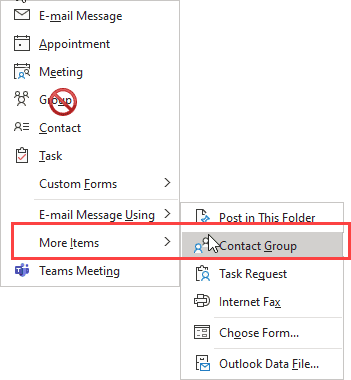
Outlook, when used with Office 365 Exchange accounts, has two types of Groups available. You need to select Contact Group, not Group. The Group command will create and Office 365 Group, which is a special type of mailbox.
From the New Items button, you need to select More Items > Contact Group.
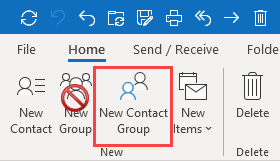
In the Contacts module, use New Contact Group.
Create a Contact Group from an Email
If you use Outlook 2010 or newer, you can hit Reply All then copy the addresses from the To and CC fields.

Paste into the members field of a Contact Group form (DL).
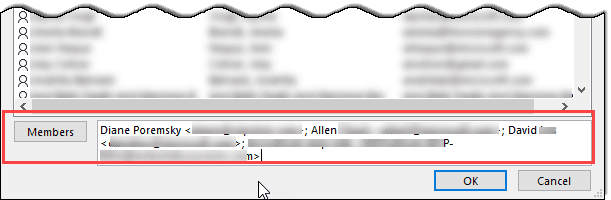
Create a DL (Contact Group) from a List of Addresses
This method is only needed if you use older versions of Outlook.
While you can get the addresses from any semi-colon delimited or one address per line list, this page was originally written to help people who wanted to create a DL from addresses in a message they were CC'd on. The instructions to create the DL once you have the list of addresses is below.
To get the addresses from the Internet header
- Right click on the message.
- Choose Message Options
- Click in the header field of the Message options dialog and press Ctrl+A to select all, Ctrl+C to copy.
- Close the dialog.
- Open a new message form and paste the header into it. I press Ctrl+A to select the signature then Ctrl+V to paste over it.
- Delete the content below the addresses and above it.
- Remove the text "To:" "CC:" and "From:"
- Use Find and Replace to replace the commas with semi-colons and tabs (^t) with a space.
If a name and corresponding address are on different lines, backspace to remove the paragraph mark. If you aren't sure, Ctrl+Shift+8 to toggle marks on and off. Or use Find and replace to replace paragraph marks (^p) with spaces. - Copy the prepared addresses. (Ctrl+A to select all, Ctrl+C to copy)
Create the Distribution list
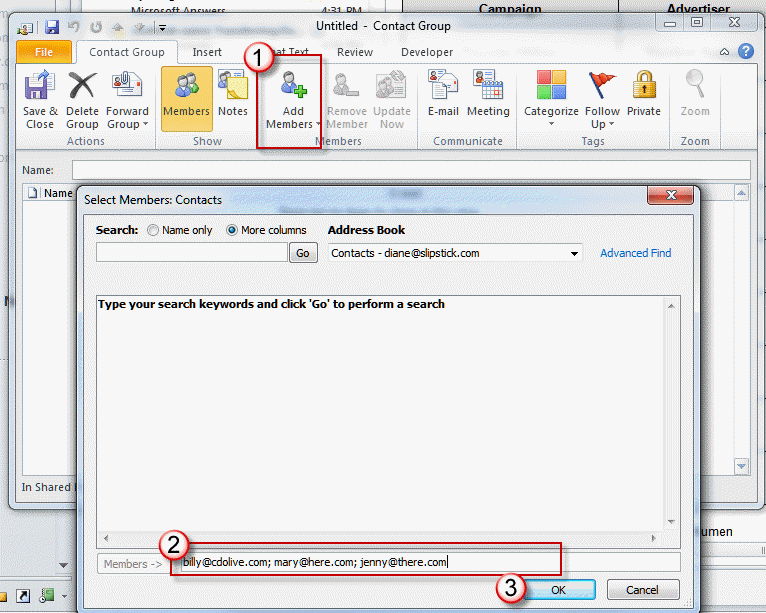
These screenshots are from Outlook 2010 but the screens look similar in other versions.
Outlook 2010 and newer
- Open a new Contact Group form
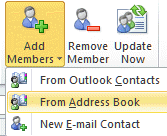
- Click on Add Members in the ribbon and select either From Outlook Contacts or From Address book

- Click in the Members field (at the bottom) (2 in the screenshot below)
- Paste (Ctrl+V) the address list into the field
- Click OK to add them to the Contact Group. (3 in the screenshot)
- Enter a name for your group in the Name field then click Save & Close.
Outlook 2007 and older
The steps to do this in the older versions of Outlook are basically the same but the labels may have changed.
- Open a new distribution list form
- Click on Select Members
- Click in the Members field (at the bottom)
- Paste (Ctrl+V) the address list into the Members field
- Click Ok to add the names to the DL
- Enter a name for your list then click Save & close.
Video Tutorial
This video tutorial shows you how to get addresses from the header of a message in your Inbox and create the distribution list.

marie says
do people i have added to the group have to respond that they agree to join group
Diane Poremsky says
No, they do not.
Brian Mallalieu says
Diane, your video does not follow Outlook 2016. But more so, PLEASE SPEAK MUCH SLOWER & PAUSE (to allow us to take each step in turn)! A number of us are not as expert as you are. There are sometimes no such dropdown lists with your stated words. I couldn't make it work, after I eventually managed to get to the stage of find & replace (even that is not called the same!) OK, but from then on?????
Diane Poremsky says
With Outlook 2016, you should be able to hit Reply all, select all in the To field and paste into the Members field of a Contact Group. Repeat for the CC field. (You don't even need to hit reply - you can copy from the message header in the reading pane, but its easier to select all when you use Reply All.)
[but i will update the video too.]
Peter Kennedy says
So i just wanted a list of my customers in one place so i could email them. So I start a contact group. Select a few names and then the programs send the ones I have select some emial to say i have put them in this group.
When did i give the program permission to send an email on my behalf.
What idiot designs a program where I dont have control over when i contact people.
Now I cant find the gorup or how to get rid of it.
Why don't you do a few simple things clearly instead of trying to put all this connectedness whichg i don wnant
Diane Poremsky says
It sounds like you created a new Office group, not a Contact Group. Contact Groups are under More Items menu. In Contacts, the Contacts Group button should be on the ribbon - but so is the Group, for an Office Group.
Georgie says
How do you add contact group members to address book as individual contact, but also include the contact card fields/metadata (company, department, job title, etc.) and not only the names and email address?
jthenke@gvec.net says
Where do I find the 'contact group form'?
Diane Poremsky says
It depends where you are in Outlook and which ribbon - the old one or the new simplified ribbon. :) Keyboard shortcut is Ctrl+Shift+L and should work from any folder.
If you are in Contacts, it's either a button on the ribbon or at the bottom of the New Contact menu - it's New Contact Group. If you are in another folder, it's under New [item] > More Items > Contact Group.
petrous molenga says
i want six contact list with six email address
Diane Poremsky says
6 contacts folder, one for each of your email accounts? Are the accounts configured as pop3 or imap? If pop3, create a new folder in the data file the account is delivered to (right click on a folder, choose New folder, then select Contacts as the folder type and the folder you want as a parent folder). You can do this with imap, but the folder won't be synced or backed up and you risk losing the contacts.
aaa says
Hi I am just wondering if there is a way to directly add a contact to a group without having to open group lists and so on. Many thanks
Nikki says
this is great for creating but I need to be able to check my entries in a contact list to make sure they are correct . W moved over from hotmail to outlook.live.com but I can find nothing to show me how to export just the contacts of a contact list - plase help
Diane Poremsky says
see https://www.slipstick.com/tutorial/create-individual-contacts-from-a-distribution-list/ for a macro to create contacts from group members. If you just want a text list, see https://www.slipstick.com/outlook/contacts/how-to-forward-a-distribution-list/
Dan says
Hi. Thanks for the tutorial.
If account is new(without any contact or email been sent/received) and we want to paste all the IDs to this new accounts' contact list, then how would we do that? I don't want to go through the route of filling up a long form to add each of the contacts.
I am talking about Outlook's latest version. i use it on IE browser.
Thanks.
Diane Poremsky says
Unfortunately, adding people to a group in a browser requires you have a contact for them. Only outlook on the desktop can add a list of addresses to a contact group. Sorry.
ETA: if you do it in outlook, the group syncs up to the server so you can use it online.
Dan says
Thank you very much. You were very prompt.
Regards.
keshia newsome says
I am using Outlook 2013. I am trying to add a group listing of emails I received as an attachment ( it was their group) to my group listing. How do I add this group to my contacts?
Diane Poremsky says
if it's an outlook contact group, just drag it to the contacts folder. if it's a text list of the addresses, one per line, copy them and paste into the members field of a new contact group.
Chris says
When I send email will the other email addresses appear or will it only show addressee's email address?
Diane Poremsky says
It depends where you put the addresses or group name - if you put it in the BCC field, recipients will not see other names. If you put in it the CC or To field, they will see other addresses.
Jude says
I'm using Microsoft Outlook 2010. I created a contact group without using email addresses. I want to change the names, such as add/remove a title of the name and cannot edit them in any way. Can anyone help me, please. I do not want to retype all of the names again and I don't want them as contacts in my email contact list.
Diane Poremsky says
It's convoluted. Create a message to the group. Expand the group and copy it (Ctrl+A, Ctrl+C) then paste it into notepad. The list will look like this: mary ellen <mary@email.com>; suzi smith <suz@domain.com>
Remove members you are editing from the contact group - outlook will skip entries that have the same email address so you can either remove all of the members or just the ones you are editing.
Make changes in the list in notepad then select all, copy - back in the group click Add members > From outlook contacts. Paste the list in the members field.
Diane Poremsky says
I forgot the second method - open the group, use forward, internet format. Open the text field, remove the stuff above the first line and edit as needed. Getting the address list this way is a little neater - it's easier to read and edit.
Remove the people you are editing from the contact group and paste the list in the members field after editing.
Andrew says
Can I display phone numbers in my (a) contact group? Thanks..
Diane Poremsky says
in a contact group aka distribution list, no, unless it's a fax # (which are electronic addresses).
John says
Is there a way to name these groups?
Diane Poremsky says
The contact group form has a name field - you can use anything for the name.
Miranda Pathania says
how do i assign a mail id to a distribution list?
Diane Poremsky says
You can't assign an email address to a distribution list unless you use Exchange server mailbox.
Miranda Pathania says
thats the thing...i don't want a contact group. Contact group will be accessed within the same server and outlook only. what if i want to send a mail to a group created in outlook from gmail? Then either i will have to import the list in gmail or write down all names one by one. I want to send a mail from gmail to a single mail id in outlook which will send the mail to multiple group members. so how do i make this mail id in outlook?
Diane Poremsky says
It sounds like you want a distribution group or a mailing list. A distribution group is available only on Exchange server - it is one address with a bunch of members and when someone sends mail to the address, it's sent out to all members. If you don't use Exchange, you need to use a mailing list.
The closest outlook comes to working like a mailing list is via Contact Groups but it's one way, outbound only. As long as you are using outlook, and email address can use the contact group but Outlook on it's own doesn't do anything like this.
Miranda Pathania says
I wish to create a single mail id for multiple people. as in I do not want to create a group---instead i want a group email id which when i use, sends mail to multiple people in the group. how do i do that?
Diane Poremsky says
That would be a contact group, formerly known as a distribution list.
Tina Cummins says
I want to create a distribution list for one of our companies, however when I go to select members there is no way to find my contacts by company...just name, display name, and email address. Any ideas for how to do that?
Diane Poremsky says
filter or sort them in contacts so you can select them as a group (remove all fields from the view except email and name), then paste into the members field.
Bette Sue says
Ok! So I created a distribution list from a previous list of emails. There were no names just emails and when I cut/pasted it put the email under the "name" as well as the email. Will persons on this list receive duplicate mailings?
Thanks!
Diane Poremsky says
If the address is in both the name and address field, no, they won't get duplicates - their address will be in the display name field though.
Elena says
This seems like a great way to accomplish what I need, however, every which way I try choosing the email addresses, when I get to the field to "paste" them, nothing happens. Same outcome whether I use shortcut key or right click and choose paste. I even tried both methods for copying, but doesn't make any difference. Any suggestions?
Diane Poremsky says
Are the addresses on the clipboard? Try pasting into an email message - if nothing pastes, the addresses aren't on the clipboard.
Jay says
Ok, now tell me how to add multiple names at a time with an Exchange distribution list. So far I have discovered no way but adding names one by one and when creating a list with a couple hundred names this a PITA. But, it is Microsoft so that's a given.
Diane Poremsky says
In the GAL? When possible, you should use a dynamic dl that uses AD properties - users are added an removed as they move around or leave the company.
Which version of Exchange are you using?
Rebecca says
I am using Outlook 2010 and using groups to send out newsletters to subscribers. However, whenever I add new subscribers to a group, they also show up in my main contacts list which I do not want. How can I keep the group contacts confined to their group so they do not appear anywhere else?.
Roeland Klein Haneveld says
Very helpfull, but does a method like this exist for Outlook 2011 (Mac)?
Diane Poremsky says
i don't think so, but will check.
flagger says
Wow... even my post didnt capture the way that the trouble occurs. Maybe because the greater than and less than signs get snagged up in HTML? I'm going to just type it out
Home (less than sign)email@emailhost.com(greater than sign)
Diane Poremsky says
Yes, you can't use greater and less, you need to use the code: < is & lt ; and > is & gt ; for greater than - 4 characters without the spaces. Or use (, {,[ instead.
If you get the addresses from the message header (as shown in the video) you should have the addresses. I paste the list into a new message body and use Find and Replace to clean it up.
flagger says
This Distribution list is nearly exactly what I'm looking for,,, but the one trouble I am having (Outlook 2007) is that when I "Paste" into the members lists, it takes the "Display Name" instead of the "email address" ... For example, I get an incoming email with 10 names on it and I want to add to a distribution list. I select all and try to paste, but those that are formatted as follows:
Home
get pasted into the address as "Home"... The same thing happens when I try to cut and paste it into Excel, even when using "paste special"...
Any thoughts on how to do this without creating a new outlook contact for every single one of these?!
Stephanie says
Brilliant!!! Thank you :)
Beverly McElroy says
I assign color categories to Outlook Contact entries such as Blue for Family members and Red for business contacts. When I sort by category, the contacts within each category are not alphabetized. Instead, they are in the same order that they were added. Is there a way to make the contacts within a color category arrange themselves in alphabetical order?
Diane Poremsky says
It sounds like you are sorting by the created date, not name field. go to view ribbon, view settings and sort by name or file as field.