This is one of my favorite Outlook features and it works with all versions of Outlook and with all Outlook folders. It also works with any application that accepts paste, not just Excel.
Create a view that contains the fields you need, then copy the rows and paste into any application that accepts paste. Some applications, like Word, require Paste Special, As Text to remove OLE formatting. Otherwise, you'll paste Outlook items, not rows of text.
- Switch to a list view, if not already using a list view.
- Right click on the row of field names and choose Field Chooser.

- Drag the fields you need to copy to the row of field names.
- Drag the fields you don't need off of the row of field names.
- Begin by selecting the text. Hold Ctrl as you scroll down or use the PgDown or End key to select the items faster.
- Press Ctrl+C to copy the selection.
- Go to Excel and paste (Ctrl+V)
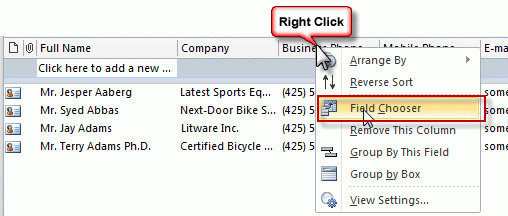
Use Format Columns to change the format of the date or number fields. To open the format columns dialog, right click on the row of field names and choose View Settings, Format Columns
You can paste into any application that accepts paste, however if you paste in Word, you need to use Paste Special, As Text.
Video Tutorial
Tips:
- Disable in-cell editing - its easier to select the rows.
- Right click on the row of field names and choose Customize, then reset to reset the view.
- Remember, you need to use Paste Special, As Text when pasting into some applications.

Marty says
I have added the column 'In Folder' and Outlook displays the folder name correctly. When I copy and paste into Excel, this column is blank. Any ideas? I have checked that the column is formatted as text in both Outlook and Excel.
Diane Poremsky says
It's blank here too, in regular views but the folder name comes through in search results - including when using the current folder scope.
Yohann says
Hello Diane,
I am sorry because I do not write in the right discussion, but a colleague and I use a query to have a look of our Outlook calendars into Excel.
The problem is that this way of doing does not take in consideration the categories in which the calendar events can be classified (my colleague do class its calendar events in various categories).
Do you have an idea about the way of doing to synchronise also the categories please?
Thank you in advance for your help.
Yohann
Patrick says
Thank you so much! I've been looking for this for a long time!
Claire says
Hi Diane, when I paste in Excel it is automatically pasting a separate row that is the header row that lists my field names. Then I have to delete that row. I am trying to add data to an existing table. How can I set it to paste without also pasting the field name row above the data?
Diane Poremsky says
I'm not aware of a way to avoid it with copy and paste. You could use a macro to send the data to excel - but depending on how frequently you do this and if you always use the same fields, deleting the row might be easier.
Leonora Caguioa says
Does it work in Mac? I can't seem to copy the list in Mac but Windows does.
Diane Poremsky says
I don't think so, but will test it to be sure.
Leonora Caguioa says
Thank you so much. I will wait for your reply.
Diane Poremsky says
Because Outlook mac does not support OLE (object linking), copy and pasting to Excel doesn't work.
Jonathan Groth says
I'm looking for a way to get the full body of the email into Excel. The exporting method outlook provided only does 250 emails, and the copy and paste method spaces out the different lines. Is there any way I can get all of the contents on one line?
Diane Poremsky says
You need to VBA to export the body. I have a code sample here https://www.slipstick.com/developer/vba-copy-outlook-email-excel-workbook/
RonKent says
I was able to export a folder consisting of several emails but I am unable to get the date and time and the entire body of the message into excel. We do not host our own emails and that may have something to do with it but I am at a loss as to how to get the entire email message, including date, time, and any attachments into an excel (CSV) file format...can anyone help?
RonKent says
I followed your presentation and understand how the contacts and calendar can be copied into an excel file but I need to copy the actual email messages along with the attendant data for import into another program. Is it possible to copy the email content into an excel or .CSV file format for later use?
Roggi Bastape says
The PROBLEM is that you don't get hour (on date data) if the date is not from curret week! I would like to have always date+hour... not only hours (if Today) or days' name (if Yesterday...)
Diane Poremsky says
Make sure you change the Column formatting. View menu, View settings - Format Columns. Default is Best Fit and gives you only the date for older items.
Choose a format that has the time included. These formats are based on your windows long and short date formats but the '12/1/17 8:49 AM' format should work then you can customize it more in Excel. (its not the selection in the screenshot - sorry)
Jeff says
Hi! I did exactly this, but I am still seeing it paste as time only for same day, Days for in week and DDMMYYYY format for anything older. Any ideas?
Edwin Woods says
Hi Diane,
Thank You! We have been looking for a simple way to copy Outlook data to excel. Do you know of a more automatic link from an outlook contact to an excel spreadsheet?
Diane Poremsky says
You can automate things like this using VBA - i have some macros on the website - search for Excel to find them.
Saad says
Hi,
I am trying to add messages field as well but it comes in different row . is it possible to be in one line?
Diane Poremsky says
Unfortunately not when you use copy and paste - the line breaks in the body lead excel to think its supposed to be in a new row.
Notto L Jensen says
I can't seem to copy a contact or list of contacts into Excel when the Home Address field is present. Everything is fine except the City State and Zip end up in the cell below the Name. I've tried this 20 times with different views, Paste Special, etc. Frustrating!
Diane Poremsky says
That is because the address fields contain EOL characters that make outlook think they belong in a new cell. If you need that field, you'll need to use a macro or the normal export function. or use the individual address fields rather the one with all parts of the address in one field.
Notto L Jensen says
Excellent! Yes, I used the different parts of the address- Home Address Street, Home Address City, Home Address State, etc instead of just Home Address and it copied over just fine. Thank You!!!
Marvin says
THANK YOU!! You saved me so much time with a simple solution! Thanks again. :)
Efthimios Spiridopoulos says
This is the best way to extract the right type of info needed. But how do we get to add fields in the view that are not showing in the Field Chooser? For example Associated Contacts and Description in Calendar as well as Notes in Contacts?
Diane Poremsky says
I'll have to look up the field name for associated contacts, but the big text field in items is 'notes' in field chooser, except in mail folders, then it's 'message'. Fields like this, that are in all folders, can be pulled from any of the 'all fields...' Groups in field chooser.
Efthimios Spiridopoulos says
Thank you Diane! I would appreciate your assistance on the associated contacts field name.
Morgan says
This does not work for me. :( There is no "Field Chooser" option for me in my version of Outlook (2016 for Mac). I am on the Calendar.
Diane Poremsky says
right click on the row of field names at the top of the list - the fields available in the mac version are listed right on that menu. However, i don't think you can copy the list on a mac.
CCCCHHHH says
How do we do the same for multiple calendars?
Diane Poremsky says
/you'd do it the same way, but one at a time... or you could use instant search to get events from all calendars then copy and paste (searching for a space in the subject usually works to find all)
KC... says
How do I do it "one at a time"? I've access to a colleague's calendar & I need to extract that data to excel. I can view his calendar alongside mine in calendar view but when I change to list view I only seem to see my calendar items.
I also tried File Export but, again, I can't get it to export his info, only mine.
humph, most frustrating!
Diane Poremsky says
Outlook is weird when you switch views - it will often change the wrong calendar if two are selected. Select the colleagues calendar, switch to list view. if it changes your calendar, select the other calendar and change to list view again. It should eventually work. :) Then you can select all, copy and paste.
>> I also tried File Export
Yeah, this only works for accounts in your profile, not shared folders.
Matt says
Oh my goodness!! This is brilliant!! I am so excited. Thank you.
Nancy says
This tutorial was helpful with exporting a table of contacts but I haven't been able to get it to work with custom "yes/no" fields. I can see the custom "yes/no" fields in the contact table view and those fields appear to be selected but the field columns are missing after I do the paste into Excel. I'm using Outlook 2013.
TP says
Hi Diane
The only problem I'm facing here is that when I copy the content, the 'Received' field is pasted with just the date, not time. E.g. If a mail was received on 6/19/2015 8:30 AM, all I get in the column is 6/19/2015.
Is there a way to fix this?
Diane Poremsky says
what is in the received column in Outlook? The date string you see should transfer - if not, what format is applied to the cell in Outlook?
James says
I still do not see how you copy and paste the date and time, only the date appears when you paste in excel!
Diane Poremsky says
Is the time included in the received time field in outlook? if not, you can change the field's format in outlook. If it is included in outlook, what format is applied to the column in Excel?
Nora says
I'm having this problem, and even though the view in Outlook shows Received in a format that includes date and time, when copied into Excel, even if the format of that column is set to date-time, the time shows as "12:00 AM" instead of the real time.
Neil says
Thank you Diane. I found this post because I was having the same issue identified here that the time stamp was not copying over into Excel. Your reply to the comment helped me figure out the solution, which is as follows: It is not enough that Outlook itself display the time. You must check the for the received column (choose "view settings", then click on "format columns" and go to your received column or other date column). The default format is "Best Fit." This format will display the time in outlook, but when copied to another application you will may the time information or other information from outlook. Instead, change the field format to the exact way you want it to display (ie,date and time). It should now copy over successfully.
Eddie says
Very cool. Never knew you could do this - but the the time data being incomplete is a real issue. I am using Outlook 2016. I can see the full time data in Outlook for all items ('Tue 11/22/2016 12:55 AM') but when you paste into Excel it loses the date data for the most recent items and loses the time data for the older items. It is like it copies the data using the Outlook view 'Show in groups' format. (where it groups the email iisting into groups like Today, Yesterday, Tuesday, Older, etc). I have disabled 'Show in groups' but it still comes across in Outlook in the same format.
Diane Poremsky says
It should work correctly if you turn off grouping before copying - otherwise you will see the behavior you describe.
Eddie says
No, turning it off before copying had no effect.
I did find the solution though (hinted at by you in a previous post).
You have to right-click on the date column ("Received" in my case).
View Settings...Format Columns
Choose the column. Then change the format from "Best Fit" to the specific date/time you want (ex. 1/5/2017 5:00 PM).
After this it came over into excel perfectly.
Thanks for your help this is a huge time saver for me.
Jeremiah says
i hereby declare you my best friend. thanks
Jeff Allen says
I'm having this problem with "time" missing from the "Received" field. Did anyone ever answer this question?
Diane Poremsky says
when you copy the content, it only copies what you see in the view - so... right click on the row of field name and choose View Settings, Format columns - then change the date format in the Received field.
TP says
Thank you so much Diane! This is extremely helpful.
chk says
Maybe the column in Excel needs to be formated for date and time instead of just the date?
Just a thought, haven't tested it yet.
Diane Poremsky says
You do need it formatted with either the full date or date and time (depending on how specific you need it) - using a simple format, like 'Thu 8/10' will put the date in that format.
Dimitris Aslanidis says
When I go to do the same and I have checked all the fields available, especially Notes, I paste them to Excel and notes are moved under the first column (names). Any workaround on this?
Thank you.
Diane Poremsky says
Are all notes affected or just some? Excel doesn't handle multi-lined notes or text that is wrapped with double quotes - it tends to split them into multiple records. You can try pasting into notepad instead but that might not work well either. If you use Export to CSV, the fields will be ok in notepad but the body/notes field will be goofy in Excel.
Cbeatty says
Darn! Okay- thank you Diane!
Cbeatty says
Hi Diane! I love this tutorial- thank you so much for posting. Have you ever done a no-export with recurring appointments? I have information typed into the message part of each appointment in a recurring appointment... but when I go to list view, I cannot access all the individual appointments, just one recurring appointment. I'd like to see/use ALL of the appointments and copy/paste them into excel. If I export them the usual way, it cuts out part of the text, only allowing a certain amount of characters.
Thanks for your help!
Diane Poremsky says
No, you can't - because each occurrence is within one appointment. You need to export them or use a macro to write out the contents of each occurrence.
Z S says
I found the resolution!! Just in case anyone else is looking for this answer. Here you go.
Z S says
Sorry, I should have been more specific. I was just very happy when I found your tutorial. Your tutorial is exactly what I've been searching for and it work perfectly when I did the copy from the calendar and the paste into Excel. Here is where I need a solution. Along with all the info that comes from the calendar (subject, location, start and end) All of the appointments on my calendar are color coded by the categorize feature. The last piece of my missing puzzle is how do I have the color associated with each appointment populate into Excel? I am creating a graph and need the colors from the appointments to populate into Excel. Thanks again for any advice you can give me.
Diane Poremsky says
You can get the category name but if you also need the color name, you could cross reference the colors with category names using print color categories to grab the colors used by the category. Should be able to work that into the macro to grab the color name.
Z S says
Diane, I have Outlook 2010. I am trying desperately to have the color coded categories in the calendar populate into Excel. Is there a solution for this? Thank you!!
Fay Roberts says
Bloody PERFECT! Thanks, Diane! :D
Elizabeth says
Hi Dianne, I'm new to this post. I'm using 2013 for the 1st time. I want to export the events of 1 year into excel. any tips?
Diane Poremsky says
To use the real Export, go to file, open & export and choose Export to a file, then CSV as the file type and finish the wizard.
Michael Meyers says
Hi Diane,
I have been using this for a few months to gather data monthly. However, I had to get my computer restaged recently and now when I use this method to copy and paste into excel, it is putting all the data in the row (from outlook) into one column (in excel), in a sense, it is concatenating the entire row when I paste- not separating the columns. Do you know if there is any setting in outlook that may have gotten changed during the restaging process that may be causing it to copy this way?
Diane Poremsky says
it wouldn't be an outlook setting - it's something with the text to columns feature in excel.
Anne Stewart says
Hello, Michael, (Diane, apologies if I shouldn't be using your page for this).
I came here to look for a solution but then persevered to find one. I've been using this method for years but had the same problem today for the first time. I was trying to paste a different selection of columns from Outlook Contacts over existing ones already pasted into Excel columns. I resolved it by deleting those columns from Excel, saving the file and closing Excel and Outlook and re-opening both. Success. I think it may have arisen because I had put a filter on the original columns.
Chris says
Hi Diane,
Excellent idea, I was using the export function but this is much simpler!
I'm trying to manage a Customer Assistance mailbox shared by multiple employees.
On the list view I've managed to created columns for FROM, RECEIVED DATE, SUBJECT.
I want to add columns for the following if possible:
- Has email been replied to? Yes/No
- Date/Time reply was sent
- Who reply was sent by (not sure if this will show their personal email or the mailbox email address)
Thanks!
Diane Poremsky says
You want this: https://www.slipstick.com/exchange/adding-extended-mapi-fields-to-outlook/ for the reply and time fields. I don't think sender's address in that CFG will give you the expected information - but the Changed by field in Outlook should show who last touched it.
Adnan Jaloudi says
Great Forum ans super Diane
Anurag Agarwal says
This reply is quite late but guess it'd help someone anyway,
Windows uses SOAP to communicate between different applications, which provides the ability to copy and paste data, formatting and objects across various applications. This is not available for Mac so paste doesn't work there.
Diane Poremsky says
SOAP is used for web communication between two OS's, for example, so windows can talk to Linux. OLE (object linking and embedding) is used in Office to copy data between programs.
https://en.wikipedia.org/wiki/Object_Linking_and_Embedding
James says
Hi - if you have a group calendar, how do you differentiate between which whose meetings are whose?
Diane Poremsky says
Add the Organizer field to the view - that should contain the name of the person who created the appointment.
James says
I can't seem to find the Organiser field. I'm using Outlook 2013 if that helps.
Diane Poremsky says
If Organizer is not listed under Calendar fields, get the From field from All Mail fields.
James says
Sorry, I've found it now I think. The calendar is made of several individual's calendars, is it possible to view or group by whose appointments are whose?
Diane Poremsky says
You can group by the Organizer/From field. Right click on it in Table view and choose Group by this field. If you want to display the appointments by date and they are not assigned to categories, you can use conditional formatting to highlight them in colors. This is less useful if there are a lot of people using the calendar, but works well for small groups.
Rachel says
Hi - can you get the replied date and time as a field setting too?
Diane Poremsky says
if you use the cfg to add those fields to the view. See https://www.slipstick.com/exchange/adding-extended-mapi-fields-to-outlook/ for details - then add the fields to the view and copy.
John says
Diane: I tried the copy and past but my user defined fields (using a check (√) box) are showing in Excel. Is there something I need to do to get these fields to copy over?
Diane Poremsky says
Try changing the formatting of the checkbox field to yes/no or true/false -right click on the row of field names, choose View Settings (Customize in older versions) then Format Columns. Select that column and change the format. (Some fields are not copyable, so it may not work- if the field name copies, then the yes/no value should.)
John says
That worked!! Thank you. :-)
Sue says
When I drag task with priority and attachments from outlook, the headers nor the information shows up on the excel spreadsheet. Is there anyway to drag them over, rather than manually update.
Diane Poremsky says
What headers are missing? Are the fields in the view in outlook?
The only fields that copy and paste (or drag) are the text-based fields. The fields that are represented by icons aren't copy & pasted, even if you switch the formatting to use text.
Amna says
Hi,
Is there a way to get the FromAddress field i.e. the email of the sender using this method? I can't seem to find this option when I go to Field Chooser.
Thank you
Diane Poremsky says
You need to create the sender;s address field first, then you can use this method. You can use the cfg here to add it to the view. https://www.slipstick.com/exchange/adding-extended-mapi-fields-to-outlook/
Sean Duffin says
This is brilliant Diane. Thanks so much!
Sean Duffin says
Hi Everyone, I am a little late to this forum, but I have a question of my own. When I copy e-mails into excel from outlook, dates for the current week come in in this format: Wed 2/12. But all dates prior come in this format: 2/7/2014. I would prefer everything to be in the 2/7/2014 (m/dd/yyyy), so that the data can be manipulated. The data in the Wed 2/12 format is displayed as text and is useless (it can't be formatted). Is there any way to do this? Thanks so Much!
Diane Poremsky says
Right click on the row of field names, choose View Settings, then format columns. Select Received from the list and change Best Fit to a number format like 2/18/2014.
Wendy Ware says
I needed this!! Thanks for the help, Diane.
Person says
for future reference, if the format for the column in outlook is set to "best fit" the copy/paste output will vary from line to line... change the column format in Outlook and it fixes the problem.
Diane Poremsky says
It shouldn't vary, but is it better to use a specific format, especially for date fields.
Inneke says
Dear all,
I cannot use list view to view shared calendar whose permission is not full access for me. Can you please help? Thanks!
Murugan Guna says
Hi Diane,
have you had a chance to look at my previous request?. Thanks for your help.
Thanks
Murugan
Diane Poremsky says
Are you using Getfolderpath function? You need to use it with non-default mailboxes.
Mike says
Diane, this is a great tip, thanks! Do you know if there is an easy way to select cells in the Outlook table view other than in complete rows? It would be easier for me to select columns or just copy and paste a subset of cells, such as a group of cells 5x3, etc. Thanks!
Diane Poremsky says
if you only want certain cells, drag the other fields off the view. Reset the view to restore them. You can select just some rows - select one row then hold shift and select the last row or hold ctrl and pick and choose the rows.
Murugan Guna says
Hi Diane,
I am pasting the entire code for others if they would use it.
1) My shared folder path
\Legacy\UK\Central Functions\140 - UK Finance\UK Central Finance\Accounts Payable UK
2) My share folder subfolder path would be (I have given my name for this eg)
\Legacy\UK\Central Functions\140 - UK Finance\UK Central Finance\Accounts Payable UK\Murugan
Option Explicit
Public oltracker As Workbook
Public Data As Worksheet
Public Const Sheet1 As String = "Data"
Dim r As Long
Sub Report()
Dim appOutlook As Outlook.Application
Dim olNS As Outlook.Namespace
Dim olFolder As Outlook.Folder
Dim olSubFolder As Outlook.Folder
Dim olItem As Outlook.MailItem
On Error Resume Next
Set appOutlook = GetObject(, "Outlook.Application")
If appOutlook Is Nothing Then
Set appOutlook = CreateObject("Outlook.Application")
End If
On Error GoTo 0
Set olNS = appOutlook.GetNamespace("MAPI")
Set olFolder = olNS.GetDefaultFolder(olFolderInbox)
Paste olFolder
End Sub
Function LastVerbText(verb As Integer)
Select Case verb
Case 102
LastVerbText = "Reply"
Case 103
LastVerbText = "Reply to All"
Case 104
LastVerbText = "Forward"
Case Else
LastVerbText = "Not Replied"
End Select
End Function
Sub Paste(olFolder As Outlook.Folder)
Dim olSubFolder As Outlook.Folder
Dim olItem As MailItem
Dim olTable As Outlook.Table
Dim olRow As Outlook.Row
Dim olTable1 As Outlook.Table
Dim olRow1 As Outlook.Row
Dim intR As Long
Dim val1()
Dim val()
Const PR_LAST_VERB_EXECUTION_TIME = "https://schemas.microsoft.com/mapi/proptag/0x10820040"
Const PR_LAST_VERB_EXECUTED = "https://schemas.microsoft.com/mapi/proptag/0x10810003"
Set olTable = olFolder.GetTable
Set Data = ThisWorkbook.Sheets(Sheet1)
With olTable
.Columns.Add "SenderName"
.Columns.Add "SenderEmailAddress"
.Columns.Add "SentOn"
.Columns.Add PR_LAST_VERB_EXECUTION_TIME
.Columns.Add PR_LAST_VERB_EXECUTED
End With
Worksheets("Data").Range("A2:G65536").Select
Selection.ClearContents
Data.Range("A1").Select
If olTable.GetRowCount > 0 Then
intR = 2
Do Until olTable.EndOfTable
Set olRow = olTable.GetNextRow
val = olRow.GetValues
Data.Cells(intR, 1).Value = olFolder.FolderPath ' Path
Data.Cells(intR, 2).Value = val(2) 'Received
' PR_LAST_VERB_EXECUTION_TIME
If IsDate(val(8)) Then
Data.Cells(intR, 3).Value = olRow.UTCToLocalTime(9)
End If
' PR_LAST_VERB_EXECUTED
Data.Cells(intR, 4).Value = LastVerbText(CInt(val(9)))
Data.Cells(intR, 5).Value = val(5) ' SenderName
Data.Cells(intR, 6).Value = val(1) ' Subject
If Data.Cells(intR, 3).Value = "" Then
Data.Cells(intR, 7).Value = ""
Else
Data.Cells(intR, 7).Value = "=RC[-4]-RC[-5]" ' Time Taken to reply
End If
intR = intR + 1
Application.StatusBar = intR
Loop
End If
For Each olSubFolder In olFolder.Folders
Set olTable1 = olSubFolder.GetTable
With olTable1
.Columns.Add "SenderName"
.Columns.Add "SenderEmailAddress"
.Columns.Add "SentOn"
.Columns.Add PR_LAST_VERB_EXECUTION_TIME
.Columns.Add PR_LAST_VERB_EXECUTED
End With
If olTable1.GetRowCount > 0 Then
Do Until olTable1.EndOfTable
Set olRow1 = olTable1.GetNextRow
val1 = olRow1.GetValues
Data.Cells(intR, 1).Value = olSubFolder.FolderPath ' Path
Data.Cells(intR, 2).Value = val1(2) 'Received
' PR_LAST_VERB_EXECUTION_TIME
If IsDate(val1(8)) Then
Data.Cells(intR, 3).Value = olRow1.UTCToLocalTime(9)
End If
' PR_LAST_VERB_EXECUTED
Data.Cells(intR, 4).Value = LastVerbText(CInt(val1(9)))
Data.Cells(intR, 5).Value = val1(5) ' SenderName
Data.Cells(intR, 6).Value = val1(1) ' Subject
If Data.Cells(intR, 3).Value = "" Then
Data.Cells(intR, 7).Value = ""
Else
Data.Cells(intR, 7).Value = "=RC[-4]-RC[-5]" ' Time Taken
End If
intR = intR + 1
Application.StatusBar = intR
Loop
End If
Next olSubFolder
Data.Columns("E:H").EntireColumn.AutoFit
Data.Columns("G:G").Select
Selection.NumberFormat = "0"
Data.Range("A1").Select
Set olTable = Nothing
Set olRow = Nothing
Application.StatusBar = False
End Sub
Murugan Guna says
Hi Diane,
With your support, I have developed an excel macro to extract all the details (received date and replied date as well) from my Outlook inbox and its subfolders. however, i am unable to extract from shared emails and its subfolders. (My shared email box is AP Queries and its subfolders are my team members
Please help....Thanks in advance
Murugan
PS: I haven't seen my question posted yesterday so pardon me if it is duplicating.
Diane Poremsky says
I lie to hold comments in the moderation queue until i have time to answer them - they are less likely to "get lost". What code do you use to get the folder? I'm pretty sure GetFolderPath function works with shared folders.
Murugan Guna says
Hi Diane,
Reaching out again...I have created excel macro which extracts data from outlook inbox and its sub folders pastes into excel along with received date, replied date and replied / forwarded and made some formulae to calculate time taken to action (i.e replied date - received date). However i am unable to tweak myself to get data from shared folder inbox and its subfolders. (Basically inbox is the department name and subfolders are the names of my team.
Thanks for your help.
Murugan
Murugan Guna says
Hi Diane,
Thank you so much..It was indeed a relief for me..:-)
Murugan Guna says
Hi Diane,
Sorry if the question is duplicated as I haven't seen my question posted here. Is there a way to extract Received date from the emails replied? .This will then enable me to calculate how many days it took to reply.
Thanks
Murugan
Diane Poremsky says
Yes, the method on this page should get you the Received date for message you received. If you need the date you sent the message and use Outlook 2010 or 2013, try a custom view with the Sent field, group by conversation and Show mail from other folders. It will only get one message at a time though.
Murugan Guna says
Hi Diane,
After my struggle gone in vain, i am reaching out for your help. I am handling a customer queries department and we do receive emails every minute. Our agreement with customer was to respond with in 2 working days. (failing which it attracts server penalty). I used all your tricks for report generation but it not giving me the desired result. 1) Macro to record incoming mail items - This gives me the new emails received in excel sheet but fails to give me whether this has been replied / forwarded and if so when and by whom.
2) other way round - From Sent items, I extracted all the sent items with all the fields but it is not giving me received date to calculate the no of days it took to reply.
Thanks for help!
Murugan
Diane Poremsky says
You need the "last verb" - using the Excel method to work the records, you can use a CFG file to get the replied to time.
Dawn says
Hi Diane,
Did you ever find a way to copy and paste for Office 2011 on a Mac? I'm trying to do the same - no luck! I used to do this all the time in years past, so this function must have been deliberately changed…wonder why?!!
Thanks in advance for your help!
Dawn
Diane Poremsky says
Hmmm. I don't know why they would have disabled it, but I'm seeing the same thing - copy doesn't work.
Anisa Khandkar says
Hi Diane,
When attempting to do this with emails, Excel formats the email contents (body) across several lines, rather than restricting the entire contents text to a single column. Is there anyway to keep the data normalized?
Diane Poremsky says
You'd need to use Export to CSV file for the body field to work as expected. This is because CSV will wrap the body in quotes, while copy and paste treats each line as a separate line. (When you export using CSV, you can use the map custom fields button to remove the fields you don't want included in the export. )
Marten says
Dear Diane,
Thanks so much for your tutorial. I normally don't write these kind of messages, but your solution helped me a lot!! (I was stuck in all kind of VBA coding which I didn't understand)
Rod says
It should but it doesn't. Outlook and Excel 2010. Excel formatted to mm/dd/yy 13:30
Diane Poremsky says
If i format the Received column in mm/dd/yyy hh:mm format, the times copy as times. Other Column formats may work, I only tested that one. Right click on the row of field name, choose View Settings, then Format Columns - change the format on the Received column to one that does not include the Day of the week.
Screenshot: https://screencast.com/t/K1yjdVfCr
Nat McLaren says
This works well, but 'Received Date' only pulls the data and not the time part, can it do both?
Diane Poremsky says
If the format includes the time, it should get both. Check the cell formatting in Excel - that can affect it too.
bijlesvoorjou@gmail.com says
Thanks for your quick reply! Microsoft programmers were very logical putting an export-option within File, Open! :)
bijlesvooryou@gmail.com says
Thanks for your reply. Apparently there are the following options:
- overwrite duplicates
- make duplicates
- not import duplicates
Diane Poremsky says
Right - that is for new items, they need one that says 'merge if email address matches'
bijlesvoorjou@gmail.com says
Is it also possible to do it the other way around? i.e. importing an excel-list in this list-view? Apperently just pasting does not work...
Diane Poremsky says
You would need to use the Import command - it wouldn't update current items, only create new ones. (So you can't use it to add a value to one field, for example, to add a birthdate.)
bijlesvoorjou@gmail.com says
Hi, i'm facing the same problem, where is this export option?
Diane Poremsky says
Look on the File menu - in Outlook 2010, it's under File, Open, Import.
Michael Briggs says
Diane - Thanks for such a simple way to do this! I was wondering if you had a solution to the problem that is created when you include the text from the "message" (or body) of the email using this method.
Right now, that part creates new rows under the other data fields (I'm sure because of the formatting of the message itself.)
Diane Poremsky says
When the message body has multiple lines, its going to break into other cells when you copy and paste. The only workaround is to use export - that will wrap the field contents in double quotes.
Vinayak says
Thank you for uploading this tutorial. It has been really helpful.
Shiva Prakash says
The best way and by far the most easiest way of exporting outlook data (Mail, calendars, etc...) to excel. I was looking at exporting to Access, but now I can import the excel file as an Access table and use accordingly.
Thanks once again. This once again highlights that KISS (keep it simple stupid) is going to be basic yard stick for complex solutions.
Julie says
Yes, I loved this trick when I was on Windows and NEED to do this in Mac now. Desperately. I cannot export the date fields. So so frustrating.
Jamesq says
Thanks for this tip, it is saving me time and brain space - so simple yet effective!!!
Joe Sheets says
Hi Diane -
For some reason I'm not getting audio with the tutorial. I tried Outlook's tool but can't get the "Received Date" field.
Would you be available for a quick (but paid) phone consult to help me transfer the contents of one PST into another ?
Thank you,
Joe Sheets
Diane Poremsky says
The received date isn't included in an export, so if that is "outlook's tool", it's 'expected behavior'.
Why do you need to transfer the contents? You can just open the old pst file in outlook - if you need to combine two pst files, either drag folders or messages from one pst file to the other pst or import the pst file.
Greg Hansen says
By the way, I'm using Outlook 2011.
Greg Hansen says
I have an Apple MacBook Pro with Microsoft Office 2011 for Mac. I tried following your steps to copy and paste e-mails from my inbox into an Excel spreadsheet. However, it won't paste them. Any suggestions? Thanks!
Diane Poremsky says
Yeah, that trick is for Window's Outlook. Sorry. I'll check and see if there is a way to make it work in Office 2011.