• Outlook User
  • New Outlook app
  • Outlook.com
  • Outlook Mac
  • Outlook & iCloud
  • Developer
  • Microsoft 365 Admin
    • Common Problems
    • Microsoft 365
    • Outlook BCM
    • Utilities & Addins

Using Outlook's Calendar Peek

Slipstick Systems

› Outlook › Using Outlook’s Calendar Peek

Last reviewed on January 18, 2018     120 Comments

Applies to: Outlook (classic)

Using Peeks is easy: click on Mail to open the Mail module. Hover over Calendar, People, or Tasks word to see a flyout or double click to open their navigation module. (If you use the Compact view, you'll see icons under the navigation pane, not the words.)
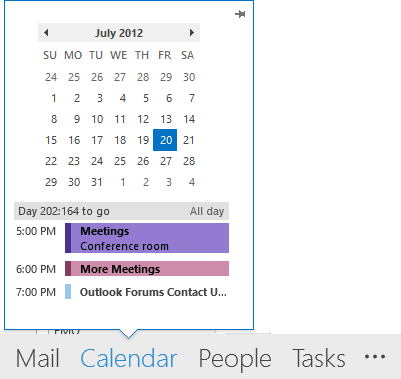
View up to the next 5 appointments
Click on the pushpin in the upper right to pin that peek open on Outlook's right edge.

Click or right-click on the three dots to open the Notes module, Shortcuts, or the Folder list and to access Navigation options.

You select today's date in the calendar peek to see all day events and upcoming appointments for 'today' and up to the next 7 days.

Select any other date in the calendar to see all day events and appointments due that day.
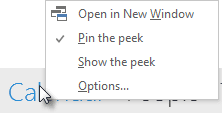
right click to see optionsRight click on a word to see options:
Open in New Window
Pin the peek
Show the peek
Options (opens the Options dialog)

All Day events are gray on the Peek; they do not use the color category color.

Compare Peek and the To-Do Bar

The Calendar peek is limited compared to the To-do Bar:

  1. It shows only the selected day's appointments and upcoming appointments for the next 7 days. You cannot limit the number of upcoming events. (Update required to see up to 7 days of appointments.)
  2. You can see only one navigation calendar at a time
  3. The navigation calendar doesn't support dragging messages to create appointments on a specific date.
  4. Dragging a message and hovering over the word "Calendar" will not open the calendar navigation pane. (You can drop the message on the calendar name or button to create a new appointment on the default calendar.)
  5. You cannot interact with the appointments in the peek or pinned peek by right clicking on the appointment.
  6. All day events are gray; they do not display on the peek using the category color.

You can drag to the word "Calendar" (seen in the screenshot) to open a new appointment with 'now' as the default time and date. Right-click & drag a message to "Calendar" and you'll see options to create new appointments as text, shortcut, attachments etc.

Pinning the peek to replicate the To-do Bar (which we've had for the last two versions) is a multistep process. You need to pin each peek individually (and unpin individually) and once pinned, it applies to the current folder type only. For example, if you pin the calendar open when viewing the Inbox, it's open in all mail folders but not shown when you view the tasks folder.

Need to look over the next 3 months? In Outlook 2007 you can drag the edge of the to-Do Bar inward and see multiple navigation calendars.
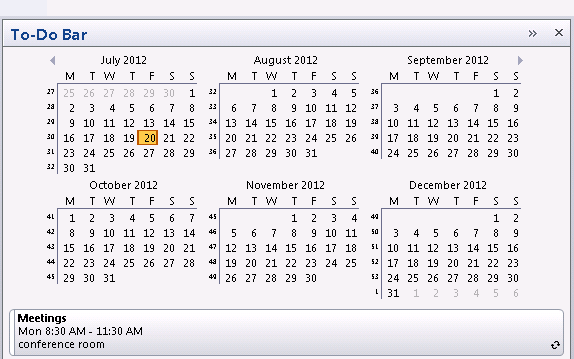
view-multiple-months

Do this with a pinned peek in Outlook and you'll still see just one month.
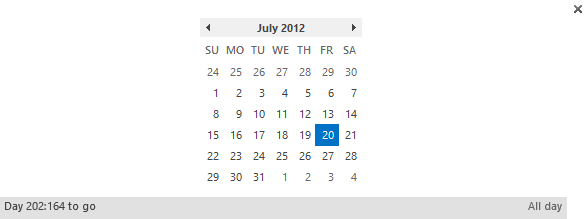
Outlook 2013 shows only one month


Tools

Outlook 2013 Add-In (To-Do Bar)

This To-Bar Bar add-in adds extended appointment calendar to see events for several upcoming days, and enhanced new email notification system to delete/flag incoming emails.

Outlook Todo Pane

A To-Do Bar for Outlook. Displays multiple calendars and several days of appointments. Select a date in the To-do bar calendar to see the upcoming appointments beginning that day. Drag and drop to create appointments. Display appointments from multiple calendars. Free.

SlickSchedule for Outlook 2013

SlickSchedule replaces the functionality missing from Outlook 2013 to create new appointments by dragging messages to a date in the To-Do Bar calendar. Click a button in the ribbon and SlickSchedule will create an appointment from an email.

Using Outlook's Calendar Peek was last modified: January 18th, 2018 by Diane Poremsky

Related Posts:

  • Calendar Reverts to Today
  • To-Do Bar Calendar View
  • Annoying Outlook 2013 Calendar Features
  • How to View a Yearly Calendar

About Diane Poremsky

A Microsoft Outlook Most Valuable Professional (MVP) since 1999, Diane is the author of several books, including Outlook 2013 Absolute Beginners Book. She also created video training CDs and online training classes for Microsoft Outlook. You can find her helping people online in Outlook Forums as well as in the Microsoft Answers and TechNet forums.

Subscribe
Notify of
120 Comments
newest
oldest most voted
Inline Feedbacks
View all comments

Dan Teet
August 17, 2022 9:47 am

Found this article and discussion by searching Calendar Peek. I did the "Try It Now" in the latest version of the Outlook client and it moved the calendar and other icons to the upper left in a column. Not bad, just different. However, the Peek changed to a calendar that I don't even have installed in the Outlook client instead of my regular work email calendar. The current Peek shows exactly what I would expect to see, my regular work appointments for the day and upcoming week. The "new" version that is supposedly "Coming Soon" doesn't show the same view. I'm hoping they don't switch to that too soon, or at least I hope when they do, it shows what I expect it to show.

0
0
Reply
Diane Poremsky
Author
Reply to  Dan Teet
August 17, 2022 9:48 am

The calendar in the peek should be your default calendar - this is the calendar in the default data file.

0
0
Reply
Maria
January 10, 2020 8:59 am

Diane, When I have the calendar peek docked for my in box it also docks it for all my other folders. When I work in folders other than my inbox I don't need to view it though. Is there a way to dock it solely on my inbox?

0
0
Reply
Diane Poremsky
Author
Reply to  Maria
January 10, 2020 9:36 am

The docking is per folder type - so it will be docked for all mail folders. Unfortunately there is not a way to dock it just to the inbox.

0
0
Reply
Maher Arafat
December 31, 2019 5:01 am

I have Outlook 2019, the peek only displays one day! How I can configure it to display 7 days?

0
0
Reply
Diane Poremsky
Author
Reply to  Maher Arafat
January 2, 2020 7:01 am

It should definitely display any appointments on the next 7 days from the date selected. It's not something that neds to be configured - but it only shows the events from the default calendar.

0
0
Reply
Christopher Bedford
September 29, 2019 6:34 pm

The "peek" pop-out seems to look only at the default "Calendar" which I don't use (technical reason - couldn't get it to sync reliably with my iPhone, which uses iCalendar). I have three calendars, aforementioned default and "Local Calendar" and "iCloud Calendar" which is synced by a 3rd Party app to my phone. All appointments are in iCloud Calendar and I don't use the others at all.

Peek at all times tells me "You have nothing scheduled in the next 7 days" irrespective of how many appointments I really have. Any way to make it look at the iCloud Calendar? There doesn't seem to be a setting in Calendar Options.

0
0
Reply
Diane Poremsky
Author
Reply to  Christopher Bedford
September 29, 2019 10:58 pm

Unfortunately, no, you can't change which calendar is used for the peek - it only uses the default calendar. iCloud cannot be set as default data file - you could probably set the local datafile as default, but it won't help if everything is in the icloud... and can introduce other problems if you have an exchange account.

0
0
Reply
Christopher Bedford
Reply to  Diane Poremsky
September 30, 2019 2:00 am

Thanks Diane! I suspected as much, although I hadn't realised it would use the default data file (obvious, though, when you think about it!)

0
0
Reply
Stephanie
June 14, 2017 8:40 am

Is it possible to dock the peek at mail tab, I want to have an overview of the calendar in the mail folder? Dock the peek/ show the peek are both grey and I can't click on them.

0
0
Reply
Diane Poremsky
Author
Reply to  Stephanie
November 16, 2017 10:12 pm

You can dock the calendar in the mail folders - with 2013 and up, docking is per folder type, so it can be docked in mail but not in contacts folders. Not sure why it would be disabled tho - definitely should dock.

0
0
Reply
Whitney
August 5, 2016 11:42 am

My all day appointments aren't showing up in the category color I gave them on the To-Do Bar. Can i fix this?

0
0
Reply
Diane Poremsky
Author
Reply to  Whitney
August 11, 2016 12:23 am

it depends on the version of outlook... but in newer version, hourly appointments should show the color. all day appt will not show the category color.

0
0
Reply
Reece
Reply to  Diane Poremsky
July 20, 2017 2:48 am

Hi, I have an issue with my outlook peek where when its pinned for a long duration of time it wont show all my meeting invites and some will be missing in the peek. I have to go into my calendar to check them instead of using the peek. Is there any way to fix this at all?

0
0
Reply
Diane Poremsky
Author
Reply to  Reece
July 20, 2017 7:25 am

If you select a different date on the thumbnail calendar and then today, do they show up?
Are the missing events on the default calendar?
Do you reboot/restart outlook daily?

0
0
Reply
David
May 12, 2016 6:25 pm

I just upgraded a users computer from windows 7 to windows 10. user is going from Outlook 2013 to 2016. After setting up their Outlook with the data files, everything migrated but the emails are not flagged from the original emails. What I don't understand is that the peek option in 2016 shows them flagged but when she tries to do a search the emails don't show anything. Can you please help

0
0
Reply
Catherine Miles
February 3, 2015 10:00 am

I have added a Who's Off subscribed calendar to my outlook 2013 but it does not show in the dock view. Can you please help?

0
0
Reply
Diane Poremsky
Author
Reply to  Catherine Miles
February 8, 2015 3:07 pm

The peek calendar only displays the default calendar in your profile, which is the calendar in your default email account or mailbox. At this time, there is no way to change this behavior.

1
-2
Reply

Visit Slipstick Forums.
What's New at Slipstick.com

Latest EMO: Vol. 30 Issue 38

Subscribe to Exchange Messaging Outlook


Support Services

Do you need help setting up Outlook, moving your email to a new computer, migrating or configuring Office 365, or just need some one-on-one assistance?

Our Sponsors

CompanionLink
ReliefJet
  • Popular
  • Latest
  • Week Month All
  • Use Classic Outlook, not New Outlook
  • OUTLOOK.EXE continues running after you exit Outlook
  • Reset the New Outlook Profile
  • How to Remove the Primary Account from Outlook
  • How to Hide or Delete Outlook's Default Folders
  • Move an Outlook Personal Folders .pst File
  • Adjusting Outlook's Zoom Setting in Email
  • Disable "Always ask before opening" Dialog
  • Removing Suggested Accounts in New Outlook
  • Shared Mailboxes and the Default 'Send From' Account
  • Opt out of Microsoft 365 Companion Apps
  • Mail Templates in Outlook for Windows (and Web)
  • Urban legend: Microsoft Deletes Old Outlook.com Messages
  • Buttons in the New Message Notifications
  • Move Deleted Items to Another Folder Automatically
  • Open Outlook Templates using PowerShell
  • Count and List Folders in Classic Outlook
  • Google Workspace and Outlook with POP Mail
  • Import EML Files into New Outlook
  • Opening PST files in New Outlook
Ajax spinner

Recent Bugs List

Microsoft keeps a running list of issues affecting recently released updates at Fixes or workarounds for recent issues in classic Outlook (Windows).

For new Outlook for Windows: Fixes or workarounds for recent issues in new Outlook for Windows .

Outlook for Mac Recent issues: Fixes or workarounds for recent issues in Outlook for Mac

Outlook.com Recent issues: Fixes or workarounds for recent issues on Outlook.com

Office Update History

Update history for supported Office versions is at Update history for Office

Outlook Suggestions and Feedback

Outlook Feedback covers Outlook as an email client, including Outlook Android, iOS, Mac, and Windows clients, as well as the browser extension (PWA) and Outlook on the web.

Outlook (new) Feedback. Use this for feedback and suggestions for Outlook (new).

Use Outlook.com Feedback for suggestions or feedback about Outlook.com accounts.

Other Microsoft 365 applications and services


New Outlook Articles

Opt out of Microsoft 365 Companion Apps

Mail Templates in Outlook for Windows (and Web)

Urban legend: Microsoft Deletes Old Outlook.com Messages

Buttons in the New Message Notifications

Move Deleted Items to Another Folder Automatically

Open Outlook Templates using PowerShell

Count and List Folders in Classic Outlook

Google Workspace and Outlook with POP Mail

Import EML Files into New Outlook

Opening PST files in New Outlook

Newest Code Samples

Open Outlook Templates using PowerShell

Count and List Folders in Classic Outlook

Insert Word Document into Email using VBA

Warn Before Deleting a Contact

Use PowerShell to Delete Attachments

Remove RE:, FWD:, and Other Prefixes from Subject Line

Change the Mailing Address Using PowerShell

Categorize @Mentioned Messages

Send an Email When You Open Outlook

Delete Old Calendar Events using VBA

Repair PST

Convert an OST to PST

Repair damaged PST file

Repair large PST File

Remove password from PST

Merge Two Data Files

Sync & Share Outlook Data

  • Share Calendar & Contacts
  • Synchronize two computers
  • Sync Calendar and Contacts Using Outlook.com
  • Sync Outlook & Android Devices
  • Sync Google Calendar with Outlook
  • Access Folders in Other Users Mailboxes

Diane Poremsky [Outlook MVP]

Make a donation

Mail Tools

Sending and Retrieval Tools

Mass Mail Tools

Compose Tools

Duplicate Remover Tools

Mail Tools for Outlook

Online Services

Calendar Tools

Schedule Management

Calendar Printing Tools

Calendar Reminder Tools

Calendar Dates & Data

Time and Billing Tools

Meeting Productivity Tools

Duplicate Remover Tools

Productivity

Productivity Tools

Automatic Message Processing Tools

Special Function Automatic Processing Tools

Housekeeping and Message Management

Task Tools

Project and Business Management Tools

Choosing the Folder to Save a Sent Message In

Run Rules on messages after reading

Help & Suggestions

Submit Outlook Feature Requests

Slipstick Support Services

Buy Microsoft 365 Office Software and Services

Visit Slipstick Forums.

What's New at Slipstick.com

Home | Outlook User | Exchange Administrator | Office 365 | Outlook.com | Outlook Developer
Outlook for Mac | Common Problems | Utilities & Addins | Tutorials
Outlook & iCloud Issues | Outlook Apps
EMO Archives | About Slipstick | Slipstick Forums
Submit New or Updated Outlook and Exchange Server Utilities

Send comments using our Feedback page
Copyright © 2026 Slipstick Systems. All rights reserved.
Slipstick Systems is not affiliated with Microsoft Corporation.

:wpds_smile::wpds_grin::wpds_wink::wpds_mrgreen::wpds_neutral::wpds_twisted::wpds_arrow::wpds_shock::wpds_unamused::wpds_cool::wpds_evil::wpds_oops::wpds_razz::wpds_roll::wpds_cry::wpds_eek::wpds_lol::wpds_mad::wpds_sad::wpds_exclamation::wpds_question::wpds_idea::wpds_hmm::wpds_beg::wpds_whew::wpds_chuckle::wpds_silly::wpds_envy::wpds_shutmouth:
wpDiscuz

Sign up for Exchange Messaging Outlook

Our weekly Outlook & Exchange newsletter (bi-weekly during the summer)


Please note: If you subscribed to Exchange Messaging Outlook before August 2019, please re-subscribe.

Never see this message again.

You are going to send email to

Move Comment




























