This page shows you how to change an Exchange mailbox account name (the name in the From field when composing a new message and in File, Account Settings, Email) and the Exchange Mailbox (including Outlook.com accounts) data file name shown in the Navigation pane.

Vote for the feature suggestion at Outlook UserVoice: Provide a feature to Customize Account Names for email accounts configured in Microsoft Outlook 2016
Using Outlook 2010 and newer with an Exchange server or Outlook.com mailbox, you cannot edit the Folder list name you see in the Navigation pane, but it's easy to change using a macro or script. You can also change it using MFCMAPI or by editing the registry.
The instructions to rename the data file display names and account names for IMAP, POP3, and Personal Folders are Rename email accounts and data files in the folder list.
Change the Account Name in Outlook 2013 and older
Outlook 2016 no longer allows you to change Exchange or Outlook.com account names in File, Account Settings. However, you can either edit the registry or use a macro to change the name. Note that changing the account name doesn't 'stick' in current versions of Outlook 2016. Use the macro method to change it when it reverts back to the email address.
Use these steps to change the Exchange server or Outlook.com account name that is shown on the File, Account Settings, E-mail tab and in the From field when you are composing a message.

- Open File, Account Settings, E-mail tab.
- Double click on the account or select it and click Change.

- Click More Settings
- Type a new name in the Exchange Account field on the General tab
- Click Ok, then Next, and Finish.
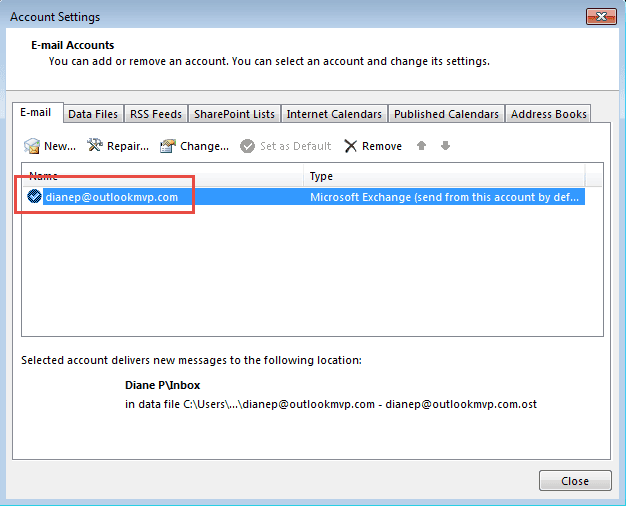

Change the Account Name in Outlook 2016
To change the name by editing the registry, press Windows key + R to open the Run command then type regedit into it and press Enter.
Before making any changes, export the profile from the registry. Right-click on the Profiles key and choose Export or see Backup Profile for a quick command line method.
- Browse to the Outlook profile key. In Outlook 2016, it's at
HKEY_CURRENT_USER\Software\Microsoft\Office\16.0\Outlook\Profiles\
Outlook 2013:HKEY_CURRENT_USER\Software\Microsoft\Office\15.0\Outlook\Profiles\ - Find your profile (most people only have one profile) then find the account's keys: Look at the keys that have subkeys - the account will be in a key named 0000000nn and your email address will be in the account name field on the right (the screenshot was taken after I changed the account name). On my computer, the account is under these subkeys:
profilename\9375CFF0413111d3B88A00104B2A6676\00000002
- Right click on the Account name value and choose Modify.
- Type in a new name then close the dialog.
- Restart Outlook for the change to take effect.

Macro to change the Account name
You can use a macro to change the name (but for most people, editing the registry will be easier.)

To use this macro, you need to install redemption.
Download Redemption Developer version
After installing Redemption, add a new module and paste the macro into the VBA editor. Change the oldName and newName values in the macro, using the account name as shown in File, Account Settings or in the From field of a new message for oldName variable and the desired name as the newName variable.
Public Sub changeAcctName()
Dim session
Dim oldName As String
Dim newName As String

oldName = "diane@domain.com"
newName = "OutlookMVP"

Set session = CreateObject("Redemption.RDOSession")
session.MAPIOBJECT = Application.session.MAPIOBJECT
Set Accounts = session.Accounts
For Each Account In Accounts
  If Account.Name = oldName Then
    Account.Name = newName
    Account.Save
  End If
Next
End Sub
Change Multiple Accounts at Once
This version of the macro uses an array to change multiple account names at once.
Public Sub ChangeAcctNamesAll()
Dim session
Dim oldName As String
Dim newName As String

Dim arrOldName As Variant
Dim arrNewName As Variant

' Set up the array
arrOldName = Array("me@slipstick.com", "me@cdolive.com", "you@slipstick.com")
arrNewName = Array("Diane (Slipstick)", "Diane (CDOLive)", "Information")

' Go through the array and look for a match, then do something
For i = LBound(arrOldName) To UBound(arrOldName)

Set session = CreateObject("Redemption.RDOSession")
session.MAPIOBJECT = Application.session.MAPIOBJECT
Set Accounts = session.Accounts
For Each Account In Accounts
  If Account.name = arrOldName(i) Then
    Account.name = arrNewName(i)
    Account.Save
  End If
Next

Next i
End Sub
Change the Folder List name using a macro or script
This macro (or script) works on all data files, however, its generally easier just to change the names using the user interface, when supported. Unfortunately you don't have that choice with Exchange Server or Outlook.com accounts as there is no UI.
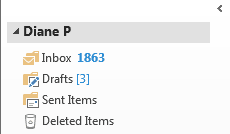
Using the macro or script, type the current display name, as seen in the navigation pane, in as the oldName and the desired name as the newName then run the macro or script. You'll need to restart Outlook for the change to take effect.
A Script version is here. This will be easier for most people to use as you just need to double click on the file to make the change (after editing the old and new names in the file.)
To use the script, download the script, edit the folder names then save it and change the extension to vbs. Double click to run it. Close Outlook and reopen it. (You don't need to change the Macro Security Settings in the Trust Center when using the script but will need to change macro security to use the macro.)
If you aren't using the description field (most people don't), the macro can add the original name to the description field. If you make a mistake, you can set the oRoot.Name to oRoot.Description to recover. To check the description field, right click on the root folder and choose Properties or Data File Properties.
Option Explicit

Public Sub ChangeFolderContainer()
Dim colStores As Outlook.Stores
Dim oStore As Outlook.Store
Dim oRoot As Outlook.folder
Dim oldName, newName As String

oldName = "Diane Poremsky"
newName = "Diane P"

'On Error Resume Next
    Set colStores = Application.Session.Stores
    For Each oStore In colStores
    Set oRoot = oStore.GetRootFolder
        Debug.Print (oRoot)

If oRoot = oldName Then
oRoot.Description = oRoot.Name
oRoot.Name = newName
End If

Next

Set oRoot = Nothing
Set oStore = Nothing
Set colStores = Nothing
End Sub
Change Multiple Names at Once
This version of the macro uses an array to change multiple datafile names at once time.
Public Sub ChangeRootFolderNames()
Dim colStores As Outlook.Stores
Dim oStore As Outlook.Store
Dim oRoot As Outlook.Folder

Dim arrOldName As Variant
Dim arrNewName As Variant

' Set up the array
arrOldName = Array("me@slipstick.com", "me@cdolive.com", "you@slipstick.com")
arrNewName = Array("Slipstick", "CDOLive", "Not Me")

' Go through the array and look for a match, then do something
For i = LBound(arrOldName) To UBound(arrOldName)

    Set colStores = Application.session.Stores
    For Each oStore In colStores
    Set oRoot = oStore.GetRootFolder
        Debug.Print (oRoot)

If oRoot = arrOldName(i) Then
oRoot.Description = oRoot.name
oRoot.name = arrNewName(i)
End If

Next
'On Error Resume Next

Next i

MsgBox "Please Restart Outlook"

Set oRoot = Nothing
Set oStore = Nothing
Set colStores = Nothing
End Sub
Use MFCMAPI
Before making any changes, export the profile from the registry. See Backup Profile for a quick command line method.
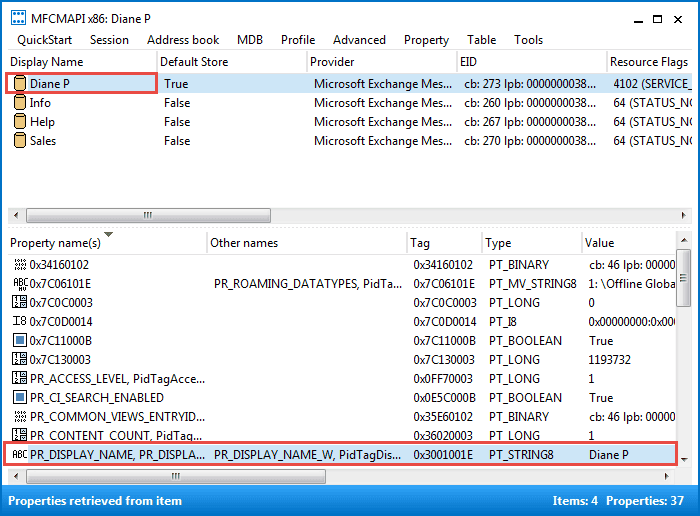
If you don't use to use the script to change the display name, you can use MFCMAPI to edit the PR_DISPLAY_NAME property.
- Download MFCMAPI and open it.
- Click Session, then Logon. If you have more than one profile, select the desired profile.
- Select the Exchange account in the list.
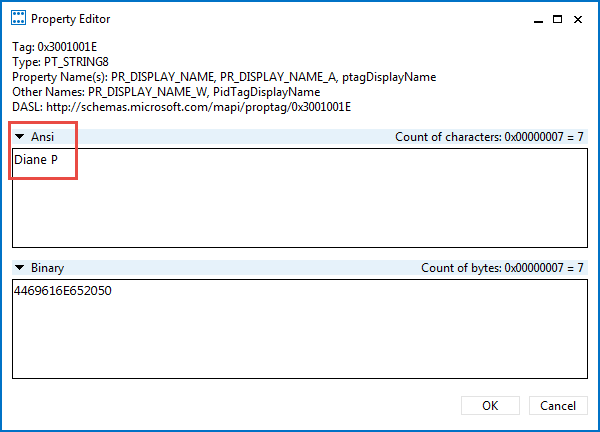
- In the lower screen, double click on PR_DISPLAY_NAME to open the Property Editor.
- Type a new name in the Ansi field.
- Click Ok to close the dialog.
- Click Session > Logoff.
- Close the MFCMAPI window.
Edit the Registry
If you know what you are doing, you can edit the registry to change the display name of an Exchange data file in the Folder list. This will not change the name in the From field, only the name in the folder list. (To change the name in the From field, go to File, Account Settings, double click on the account then More Settings. Make the name change on the first tab.)
Before editing the key, export it so you can easily fix it if the display name is messed up. (As it likely will be the first time you try editing it.)
Find your profile in the registry. (Outlook 2016's profile is under \Office\16.0\.)
HKEY_CURRENT_USER\Software\Microsoft\Office\15.0\Outlook\Profiles\profile-name\[big number]
DWORD: 001f3001
Many of the profile keys will contain this DWORD. The Exchange accounts will include the Exchange organization in readable format on the right, as seen in this screenshot.
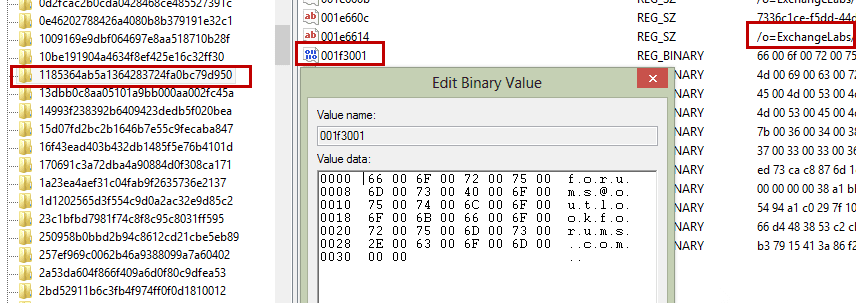
Rather than deleting the account name and reentering it, I replaced the letters, using spaces it fill in if the email address was longer than the desired display name. You need to use the same number of binary data as the original entry.
Restart Outlook to apply the name change.

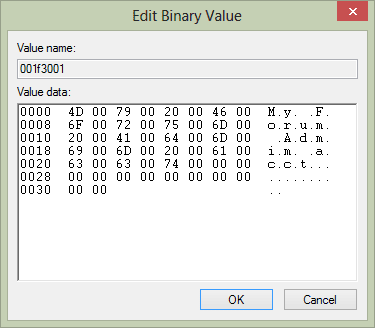
Note that my successful entry has the exact same number of binary values as the original:
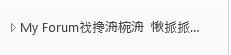
If the editing was not correct, the data file name displays with Chinese characters:
Backup the Outlook Profile Registry Keys
You can backup the registry using a command line.
- Open the Run command (Windows key + R).
- Type or paste the correct command line in the Open field and press OK.
- The Profile keys will be saved to your Documents folder.
- If you need to restore the profile, close Outlook and double click on Outlook-profile.reg.
To export Outlook 2013 profile keys:
REG EXPORT "HKEY_CURRENT_USER\Software\Microsoft\Office\15.0\Outlook\Profiles" %USERPROFILE%\Documents\Outlook-profile.reg /y
To export Outlook 2016 profile keys:
REG EXPORT "HKEY_CURRENT_USER\Software\Microsoft\Office\16.0\Outlook\Profiles" %USERPROFILE%\Documents\Outlook-profile.reg /y
Tools
Outlook uses your email address as the account name; while you can edit it for POP and IMAP accounts, you cannot easily edit Exchange account names. This tool allows you to rename Exchange mailbox account easily. |

mikolajek says
My Outlook won't rename multiple accounts.
I'm getting the error saying "ActiveX component cannot create an object" and the highlighter macro line is "Set session = CreateObject("Redemption.RDOSession")"
Is there a way to overcome this one?
Diane Poremsky says
You need to install Redemption then enable it in the VBA Editor's Tools > References.
Ivo says
Thanks a lot Diane!! You've been a fantastic Outlook resource for so many years. In my case, for more years than I care to remember, I've found a solution to all my Outlook issues and answered all my sometimes weird Outlook questions on your great site. You have my eternal gratitude and admiration. In this case, for me the registry edit did not work, but the script did. I'm running Outlook® for Microsoft 365 MSO (Version 2204 Build 16.0.15128.20196) 64-bit. Thanks again and please keep up the great work!
Mark O'Loughlin says
Editing the Account Name in the Registry no longer works for Microsoft 365, but the Macro method still works. Thanks for the tip!
Guide:
1. Show the developer tab in Outlook: Show the Developer tab - Microsoft Support
2. How to run the Macro: Run a macro in Outlook - Microsoft Support
3. Create a new macro and paste the script from this article. Remember to change “oldname” and “newname” to what you want, then save it.
4. Run the Macro
Eric says
I appreciate the plethora of options here. We have MS365 with Exchange Online & I'm in the process of changing our email domain. I've been testing it on my own email address. And, indeed, I do now have the new one as the primary & the old one as an alias. Everything has updated except Outlook & the corresponding Mail control panel, which still think I have the old one (even though recipients receive emails from my new address). Anyway, I just thought I'd mention that the initial registry edit above no longer seems to work. I found it under "00000002" and tried changing it several times, restarting Outlook, rebooting, etc., but it kept on restoring it to my old email address.
Mark O'Loughlin says
Editing the Account Name in the Registry no longer works for Microsoft 365, but the Macro method still works. Thanks for the tip!
Guide:
1. Show the developer tab in Outlook: Show the Developer tab - Microsoft Support
2. How to run the Macro: Run a macro in Outlook - Microsoft Support
3. Create a new macro and paste the script from this article. Remember to change “oldname” and “newname” to what you want, then save it.
4. Run the Macro
Ron Dullage says
Hi Diane, I had a very minor (really cosmetic) issue with Outlook 2016 that I had been struggling to resolve. Within one Minute if finding your page it was sorted.
Thank you very much indeed,
Take care and stay safe.
chris says
MFCMAPI way worked like a charm.Many thanks Diane!
Victor Ivanidze says
Hello all, there exists a tool named RenameMailbox.
Natarajan Raghunath says
Hi Diane:
I tried to change the display name in both ways, using MFCMAPI editor and also using the regedit. What happens is after some time it goes back to the original email address. My account is exchange account hosted by Microsoft. I am the only one in that exchange account. Please suggest.
Richard says
Hello,
Many thanks for the information here. I modified your script slightly to look up the samaccount name of the individual logged in and then used that name to check against the mailbox name before modifying it. We used it globally when we changed primary SMTP addresses in our organisation. I'm not a coder so excuse the messy code.
Hope it helps someone.
Matt Williams says
Hi Diane, thank you for this very helpful webpage. I'm using Outlook 2019 and I've tried every method you describe, and all of them have been successful in changing the Display Name for my exchange email accounts. What I'm having a problem with is I lose all search functionality. As I say I've tried every technique and changing the display name means search no longer works. Sometimes search works to start with, but then one account or another stops working. Rebuild the search index doesn't work, and in the search advanced tab it says everything is indexed, but when I search it just comes up with no results. Does changing the display name disconnect the search somehow? Is there any fix you know of? Many thanks
Diane Poremsky says
I am not aware that changing the name breaks search, but i will find out.
Matt Williams says
Hi Diane, thanks for your reply on the search index issue. I've been testing every renaming method for weeks now (both on my laptop and my PC) and having the same issue. All the methods work great for renaming the email accounts (though have to be redone occasionally) but all the methods seem to have the same issue with breaking the search index. Search works for a while after changing the email account name, but then it stops producing any search results. I have to change the email names again and restart the computer to reindex.
I can't find anything about this and you are the main authority on the subject from what I can tell so you really are my only hope! I've been determined not to let this defeat me, but having to rebuild the search index every few days is proving testing! Does changing the email account names for you not affect your search index? If so, then I'm just wondering why it should do in my case when I'm using the same renaming methods... Any thoughts at all would be immensely appreciated!
Thanks!
Faisal says
I used MFCMAPI to change the Mailbox name last year and it worked fine, but starting May/June 2018 it doesn't work. I'm using Office 365 on Windows 10, I have an Exchange account from my company. I used MFCMAPI to edit the account display mailbox name from xxx.xxx@xxx.com to Personal or Business, but once i restart the laptop or close and re-open the Outlook 2016 again, it reverts back. This has been happening since May/June 2018.
Diane Poremsky says
Correct, Microsoft made a change and the name changes don't stick. Using the macro should last a little longer, but not much. But... its easy enough to run when needed and you could use it in an autostart macro.
Syed Usman says
I could change that, but whenever I sent an email, the name wasn't displaying the way I had saved. It was the same. I checked again if I hadn't save it properly or saved it at all, still the name appears the same.
Please let me know where I am going wrong.
Regards,
Syed Usman
Diane Poremsky says
What version of Outlook are you using? The ability to change it is broken in current builds of 2016/365 - the changes don't stick long.
certaintechshouldbeautomatic says
Holy crap! I can't believe we have to go to this level to change the name of an account in this day and age. That is so far beyond stupid. It should be possible just by clicking on the name and choosing change. Thank you for these instructions and I was able to finally change it...but geez, it should not take this.
Andreas says
Completely agree. This is so retarded and extremely lazy by Microsoft.Then again, looking at Skype for Business and Skype these days, I'm not surprised.
Pascal says
Great tutorial (as always on this site). If only MS could make our lives easier and keep their settings Inside each program rather than forcing us to alter register...
dafd says
Thank you!!! :)
Victor says
I would like to change the name of folders like "Contacts" in an Exchange account, showing "exch contacts" instead of "contacts - e.mail@exch.xyz"
Diane Poremsky says
To the best of my knowledge, that is not possible, even using Redemption.
Thomas says
Does not work with Outlook 2016. The reason being that you cannot get to the manual entry screen that the link shows. My Outlook.com used with Outlook 2016 used to show "tjd189@outlook.com" as the sending, reply, or forwarding address and my emails. Now it shows "outlook_6A1C9BDE665559@outlook.com". So when people who received my emails reply or forward it comes back to them as no such address.
Diane Poremsky says
Correct, as stated near the top: Outlook 2016 no longer allows you to change Exchange account names in File, Account Settings. However, you can either edit the registry or use a macro to change the name. The macro is at the end of this section.
The reason you see the "outlook_ugly@" address is because you have a non-outlook.com address set as the default for the microsoft account. You need to set it to the outlook.com alias then the account name will change to the outlook.com email address (may take 24 hours) or edit the registry. You can either remove the account and add it back or use the script to change the address in the folder list.
Alan says
I've managed to change the display name of my exchange account in Outlook 2016 (Windows 10 Pro) using MFCMAPI but I'm having no success in changing the actual account name.
Following the registry changes as described makes absolutely no difference.
I've also tried downloading the script, changing the names and renaming the file with a .vbs extension but nothing happens when I double-click.
Any help greatly appreciated as to what I can try next.
Diane Poremsky says
For most people, changing the account name (as seen in the From field) is easiest by editing the registry -
HKEY_CURRENT_USER\Software\Microsoft\Office\16.0\Outlook\Profiles\[profilename]\9375CFF0413111d3B88A00104B2A6676\
The account is under one of the 000000nn values. You will need to restart Outlook for it to take effect.
Sean says
Thank you, Diane. It's nice to have my Navigation Pane tidied up again. Only one problem, I cannot change the Exchange account names as described above in the email properties windows in Outlook 2016. The boxes are grayed out and won't allow editing. So, when I click on "From" in a new email, the full email addresses are showing up. Any ideas how to get around this?
Diane Poremsky says
Yeah, they currently broke that (for the second time). I'll look into a macro to change it, otherwise you'd need to edit it in the registry.
Diane Poremsky says
I updated the page to include instructions to either edit the registry (easy - the name is a string, so its simple to edit) or using a macro. The macro requires Redemption.
Sean says
Thanks, Diane, but my issue is changing the names in the "From" field. When I go to File, Account Settings, double click on the account then More Settings, the account names are grayed out and, therefore, I cannot change the account names.
Diane Poremsky says
You can't change them from the More Settings dialog - you need to use the macro with Redemption. Or edit the Registry.
Lloyd says
Hi Diane, I get the following message on multiple computers:
Script: C:\Users\xx\Desktop\Rename Exchange folder.vbsLine: 4
Char: 15
Error: Expected end of statement
Code: 800A0401
Source: Microsoft VBScript compilation error
Any idea what's going wrong? Your script did work once for me, then it oddly stopped. Thanks!
Diane Poremsky says
Do you know which line is 4? I can't repro the error and I'm not sure if 4 is 'Set colStores =' line or a different one. If you changed the names, make sure the double quotes are all there.
Lloyd says
Yes according to Notepad it's
Dim colStores As Outlook.Storesand the 15th character is the AI've tried copying the code straight from your website again and get the same error.
What happens if you run the script with the wrong name/e-mail address in there?
Cheers
Diane Poremsky says
if the folder name is wrong it should do nothing. (I did that last night, hoping to get the same error you did.)
Are you using the vbs script or the macro? It should look like Dim colStores 'As Outlook.Stores, with an ' in front of As in the vbs script.
Lloyd says
Oh, Diane, thank you!
It turns out I confused the script and the macro. I didn't know that they actually are slightly different languages. The first time I just downloaded the script, and it worked. Afterwards, I read this page and decided I liked the feature which puts the old name in the description, so I simply copied and pasted the code off the page into the .vbs and saved.
Now it works correctly and my team are extremely pleased! Thank you again, especially for replying promptly.
Cheers
(P.S. The e-mail replies feature of this forum isn't functioning)
Diane Poremsky says
Thanks for letting me know the emails aren't working.
glyn says
Many thanks for the link to MFCMAPI I used the 64 bit version and managed to resolve my naming issue many many thanks ! much appreciated
David Ghikas says
Thank you so much Diane! Your MFCMAPI solution worked like a charm!
Curious Bob says
Hi Diane,
This info is useful for Favorite Folders. In Outlook 2007, the mailbox name is appended to the name of the Fav Folder (like: FAV_FOLDER - in MAILBOX). Shortening the mailbox name helps fit the fav folder name within the width of the nav pane.
Do you know of a way to hide the account name altogether, in the Fav Folder name? So only the fav folder name itself displays, and not the 'in ACC_NAME' part? Perhaps through editing the registry? Here is an image displaying the part I'm interested in hiding: https://s7.postimg.org/4b4twdhd7/favfoldersaccountname2.png
I'd be interested to hear your thoughts, and grateful for any advice or pointers you might be able to give.
Thanks!
Diane Poremsky says
If there are two folders using the same name, the account name is added - so, if you rename the folders so they are all unique, the account name won't show.
Curious Bob says
Thanks for your reply Diane - my screenshot didn't show it, but the folders had different names. To confirm this, I put in random names for each fav folder: https://i.imgur.com/Z6pxt9a.png
The "in [ACCOUNT NAME]" part still shows, however. Perhaps this is a limitation of Outlook 2007? If there's a way to remove it, I'd be grateful to know - and then I can go off and research on my own. Thanks for your time, as always!
Diane Poremsky says
Interesting. I don't recall that behavior in Outlook 2007 - but it's possible I forgot - I haven't used 2007 onm a regular basis in some time.
Relieved Bob says
Yes, a restart did the trick. Thanks very much again, Diane.
Grateful Bob says
Thank you so much, Diane! The second solution looks easier, so I will try that.
BTW, changing the name of the primary mailbox made the tasks/to-dos in the pane on the side of my screen disappear, so I had to revert the primary mailbox to its original name to get the tasks/to-dos to appear again. Not an issue for me, as I'm only trying to shorten the mailbox name shown after some search folders for a secondary mailbox (Outlook 2007) - but something perhaps worthwhile for others to consider.
Thanks again for your help, and for your site! I've used it quite a bit over the past few years. A lot of gems here.
Greetings from Sydney :)
Diane Poremsky says
on the to-do's - were they missing after a restart? I can understand why they'd disappear, but restarting outlook should bring them back.
zillah says
Hi Diane
I am using outlook 2013 connecting to my work Exchange server.
How can I change the ost file name ? because Exchange account name (left navigation pane) has the same as my ost file name.
Under More Settings --> General --> Exchange account has different name from name in the left navigation pane.
I am assuming if I change the ost file that would change exchange account name
Diane Poremsky says
The script on this page should work - I used it to rename a data file associated with the new outlook.com custom domain feature (because the custom domains are poorly implemented - hoping that changes before it's out of trial).
Bob says
Hi Diane,
Your script works amazingly well! This is exactly what I was after.
When testing, I accidentally forgot to take our the If oldName parameter, and all m accounts now have the same name!
Now I have no way to distinguish between accounts to rename them manually.
Is it possible to somehow have a 'For each' statement that will assign a number to each account?
I can then recycle the script to identify each code by its individual number and rename it manually.
Any help would be much appreciated :)
Thanks!
Diane Poremsky says
you can do something like this:
add Dim i with the other dim's.
before the 'for each ostore' line, add i =1
after 'for each ostore' line, add
i=i+1
use oRoot.Name = i
to number them. I tested it on my profile (after exporting the profile registry key!) and i got weird numbers, but they were all different numbers.
Diane Poremsky says
BTW, another option is to figure out which account each folder is, right click on the root and choose properties then enter the name you want to use in the description. use oroot.name = oroot.description in the macro.
BTW2 - i had to restart outlook to see the changes.
Richard says
Okay, now the macros has stopped working altogether on the shared mailbox. So I tried to use MFCMAPI but got the following error:
MAPIInitialize failed with error 0x80004005 == MAPI_E_CALL_FAILED.
Here are some known causes for this.
1 - No version of Extended MAPI is installed. Either Outlook or MAPICDO must be installed.
See https://www.microsoft.com/downloads/details.aspx?familyid=E17E7F31-079A-43A9-BFF2-0A110307611E to install MAPICDO.
2 - The 64 bit version of Outlook 2010 is installed. The 64 bit version of Outlook 2010 requires the 64 bit build of MFCMAPI.
See https://mfcmapi.codeplex.com for the latest 64 bit build of MFCMAPI.
3 - Windows Mail or Outlook Express (which do not implement Extended MAPI) is registered as the Default Mail Client.
See https://msdn.microsoft.com/en-gb/library/dd162409.aspx for information on setting the Default Mail Client.
In file MapiObjects.cpp
On line 120
Outlook is the default mail app and it's Outlook 2013?
Diane Poremsky says
I'm pretty sure you need the shared mailbox in the profile as it's own account.
I have no idea why mfcmapi is erroring - try getting the previous build.
Richard says
The macro works on the shared mailbox if I open Outlook, run it, close and re-open. It just doesn't work on following re-boots.
Diane Poremsky says
The only thing i can thing is think is that the mailbox is completely accessible right after a reboot and when you close outlook, some bits are left behind, waiting for a restart.
Richard says
I should also add what is probably the critical info... the problem combo is a mailbox that opens with the primary exchange account. It's not a second full exchange account.
Diane Poremsky says
As far as I know, you can't rename shared mailboxes - the mailbox name is set by exchange - but I'll check the registry and see if it's in the registry and if it's possible to edit the name.
Richard says
I also tried reversing the order of the two modules and it is the same one that fails.
The problem combination is OLD: "NTEU UTS Branch" NEW: "uts@nteu"
Richard says
I first tried cutting and pasting the whole script below in the same module, then changing the old/new combo.
Then I tried adding and extra old and new combo within a single instance of the script in one module.
Richard says
I have two exchange folders so made two macros following your instructions. If I run both macros, close and re-open Outlook, they both work. But then the next time I restart Outlook, only the first one runs. I've tried combining them into a single macro but couldn't get it to work. Any ideas on how to get both working? Thanks
Diane Poremsky says
post the code here and I'll take a look. The usual cause of macros not working is the macro security setting, but that would affect both.
Jean-Claude says
Thanks, this script is exactly what I need. But... you rename from old to new name. Is it possible to do it by identifying the storage to rename with its mail address ? I can do it for primary exchange account (by comparying filepath of account and storage) but not for additional exchange account (which is not consider as an account). JC
Diane Poremsky says
the additional account is a shared mailbox? I'm not sure - I'll look into it.
Jean-Claude says
Sorry, wrong word, in my case it seems to be "delegate mailbox store" (olExchangeMailbox value 1). I can list them thru the storages, but i'd like to identify them by getting their associated email addresses.
Diane Poremsky says
i think it will be called the same way as a shared mailbox - will look into it.
Xavier L. says
Hi, thanks for this macro it's very useful but is there any way to change the Account name with VBS too? I will have to change the account name on about 1000 outlook 2010/13. Thanks for your help.
Diane Poremsky says
Possibly, I'll look into it.
Jan Hanzel says
Thanks, the script works and it has done I wanted.
Nicole Dalton says
Hello. Could you post the link to the macro script? The link "Script version is here." does not take you to the macro to download it. It just brings up a picture of your example shown below the link. Thanks.
Diane Poremsky says
Hmm. I thought I posted the link last night. :( A text file containing the script is here: https://www.slipstick.com/files/change-displayname.vbs.txt
Mark says
Similarly, only Exchange Admin should run the "Change the Display Name" script for changes to make effect?
Diane Poremsky says
No, anyone can run that, it just changes the how the accounts are shown in the Navigation pane on the user's computer. Outlook uses the email address for the data file names and you can use that to change then to names. Neither change on this page affects anything except how the account is named on the user's computers.
In this screenshot of the navigation pane and the compose message form with the From menu expanded, three of the accounts use the format Outlook uses - which is the email address. I changed one account to use my name in the navigation pane and to use the domain in the accounts list. These names are also used in the Account Settings dialog, on the Data Files tab and Email tab.

Only the administrator can change the display name in messages (or in the GAL) when you use Exchange. The instructions on this page will not affect this:

Mark says
Also, I was trying to change the name in From field in Outlook 2007 following your procedure, but still when I am sending email, it shows my name in From field
Diane Poremsky says
What type of email account? THe instructions here are for Exchange server accounts, as it seen in the From picker when you have multiple accounts in Outlook, not the name the recipients see. Only the Exchange admin can change that.
If you have a different account type, you can change it in Account Settings:

Mark says
Is there any way how I can change From field when sending e-mail through MS Outlook 2010 using VBA?
Diane Poremsky says
You can send from a different account or a shared mailbox when you use VBA.
https://www.slipstick.com/developer/code-samples/send-email-address-vba/
Ian says
I'm not sure if any of the solutions in this article address the (minor) problem that I have, which is best illustrated with a couple of images (Outlook.com account, Microsoft Exchange server, in Outlook 2010 desktop on Windows 10). I may have to put them on my OneDrive in order to attach here.
Diane Poremsky says
The vbscript - https://www.slipstick.com/files/change-displayname.vbs.txt will fix the name in the folder list.
oldName = "youremail@address"
newName = "Name you prefer"
Diane Poremsky says
Thanks. (I thought I had added the link to the page but either I didn't or I'm blind.)
The macro will change it and Outlook keeps the name change better, at least it did here and it is easy enough to rerun the macro to fix it when outlook updates it.