I hear a lot of complaints about the quality of Outlook.com's spam filters and the annoyance that blocking an address sends the message to the Junk Email folder instead of deleting the message. While you can't do much about it if you use Outlook on the web, you can use a macro to do something with the messages in Outlook on Windows desktop.
You can use a run a script rule or an ItemAdd macro to watch a specific folder. Which is better? It depends on several factors, including how much mail you receive at a time. If you receive a lot of mail, a rule may be able to filter which messages the macro runs on (such as except if the sender is in my address book), while the ItemAdd macro checks every message. But the ItemAdd macro can run on specific folders.
While it might be easier to manage if you put the words in alphabetical order, if you have a long list of words, putting the most frequent words first in the list will be faster as the macro exits when it finds the first match.
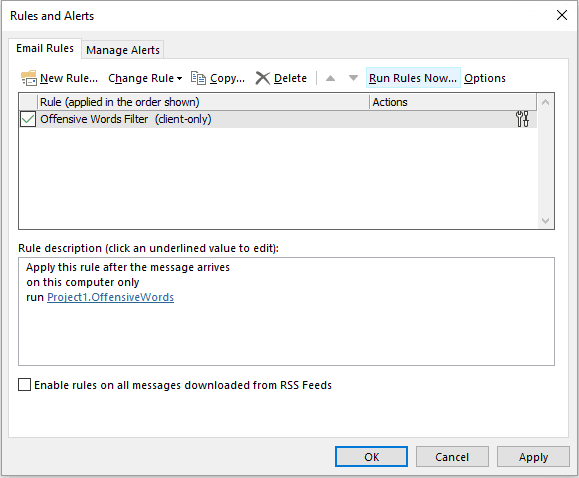
Run a script rules should be added to a module.
Sub OffensiveWords(Item As MailItem)

Dim arrSpam As Variant
Dim strBody As String
Dim i As Long

strBody = Item.Subject & " " & Item.Body

' Set up the array - use lower case
arrSpam = Array("funded", "ppp", "loan", "funding", "word5")

' Go through the array and look for a match, then do something
For i = LBound(arrSpam) To UBound(arrSpam)
    If InStr(LCase(strBody), arrSpam(i)) Then

' do whatever here
    Item.Categories = "Spammy"
    Item.Save
    Exit Sub
  End if
Next i

End Sub

' use this to test the rules script - select a message and run this macro
Sub RunAndRules()
Dim objApp As Outlook.Application
Dim objItem As Object ' MailItem
Set objApp = Application
Set objItem = objApp.ActiveExplorer.Selection.Item(1)

'macro name you want to run goes here
OffensiveWords objItem

End Sub
ItemAdd macro version
This macro runs when a new message is added to the Inbox, so to test it, copy and paste (or move) a message in the Inbox.
If you want to want a different folder, you'll change the folder in this line:
Set inboxItems = olNS.GetDefaultFolder(olFolderInbox).Items
This macro goes in ThisOutlookSession. To test it without restarting Outlook, click in the application_startup macro and click Run.
Private WithEvents inboxItems As Outlook.Items

Private Sub Application_Startup()
 Dim olApp As Outlook.Application
 Dim olNS As Outlook.NameSpace
  Set olApp = Outlook.Application
  Set olNS = olApp.GetNamespace("MAPI")
  Set inboxItems = olNS.GetDefaultFolder(olFolderInbox).Items
End Sub

Private Sub inboxItems_ItemAdd(ByVal Item As Object)

Dim arrSpam As Variant
Dim strBody As String
Dim i As Long

If TypeName(Item) = "MailItem" Then
strBody = Item.Subject & " " & Item.Body

' Set up the array
arrSpam = Array("funded", "ppp", "loan", "funding", "word5")

' Go through the array and look for a match, then do something
For i = LBound(arrSpam) To UBound(arrSpam)
    If InStr(LCase(strBody), arrSpam(i)) Then
' do whatever
   Item.Delete
   ' Item.Categories = "Spammy"
   ' Item.Save
    Exit Sub
    End If
Next i

End If

End Sub
For more information on ItemAdd macros see:
Look for the word only in the reply, not quoted text
This macro looks for words in the reply only, not in the quoted message. In order for this to work on new messages (with no quoted text), we need to use an IF statement. If From: is not found, the macro looks for the word in the entire message.
As written, the macro can look for multiple words.
Sub FindWordReply(Item As MailItem)

Dim arrWord As Variant
Dim strBody As String
Dim lBody As Long
Dim i As Long
Dim myDestFolder As Folder

Dim myNamespace As NameSpace
Set myNamespace = Application.GetNamespace("MAPI")

lBody = InStr(1, Item.Body, "From: ")

Debug.Print lBody

If lBody > 0 Then
  strBody = Left(Item.Body, lBody)
Else
  strBody = Item.Body
End If

' Set up the array - use lower case
arrWord = Array("sync", "onedrive", "onenote", "search", "word5")

' Go through the array and look for a match, then do something
For i = LBound(arrWord) To UBound(arrWord)
    If InStr(LCase(strBody), arrWord(i)) Then

' do whatever here
' to move
Set myDestFolder = myNamespace.GetDefaultFolder(olFolderInbox).Folders("reminders")

' then do whatever
    With Item
    .UnRead = True
    .Move myDestFolder
    End With

    Exit Sub
 End If
Next i

End Sub
Look for a formatted word
This version of the run a script macro looks for a word with specific HTML formatting. It will not work with RTF formatted messages and may fail with some HTML messages, depending on how it is formatted in the source code. If the messages are generated by an application, they should use an identical format for every message.
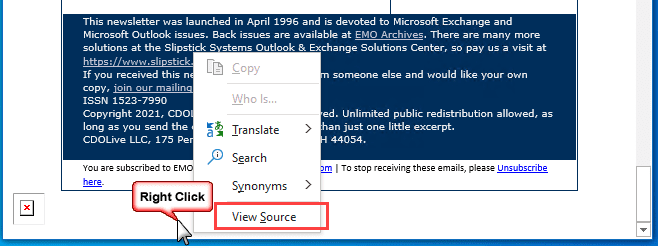
To view the message source, right click on the bottom of the message and choose View Source.
Sub FormattedWords(Item As MailItem)

Dim arrFormat As Variant
Dim strBody As String
Dim i As Long

strBody = Item.HTMLBody

'' ####
' look for multiple words
' Set up the array - use lower case
arrFormat = Array("<u>hello", "style='text-decoration: underline;'>hello")

' Go through the array and look for a match, then do something
For i = LBound(arrFormat) To UBound(arrFormat)
    If InStr(LCase(strBody), arrFormat(i)) Then

' do whatever here
    Item.Categories = "Underlined"
    Item.Save
    Exit Sub
  End If
Next i
'' ####

'' use this for just one word or format
'' instead of code above
'If InStr(1, Item.HTMLBody, "<u>Hello") > 0 Then
'    Item.Categories = "Underlined"
'    Item.Save
'    Exit Sub
'  End If

End Sub

' use this to test the rules script - select a message and run this macro
Sub RunAndRules()
Dim objApp As Outlook.Application
Dim objItem As Object ' MailItem
Set objApp = Application
Set objItem = objApp.ActiveExplorer.Selection.Item(1)

'macro name you want to run goes here
FormattedWords objItem

End Sub
How to use the macros on this page
First: You need to have macro security set to the lowest setting, Enable all macros during testing. The macros will not work with the top two options that disable all macros or unsigned macros. You could choose the option Notification for all macros, then accept it each time you restart Outlook, however, because it's somewhat hard to sneak macros into Outlook (unlike in Word and Excel), allowing all macros is safe, especially during the testing phase. You can sign the macro when it is finished and change the macro security to notify.
To check your macro security in Outlook 2010 and newer, go to File, Options, Trust Center and open Trust Center Settings, and change the Macro Settings. In Outlook 2007 and older, look at Tools, Macro Security.
After you test the macro and see that it works, you can either leave macro security set to low or sign the macro.
Macros that run when Outlook starts or automatically need to be in ThisOutlookSession, all other macros should be put in a module, but most will also work if placed in ThisOutlookSession. (It's generally recommended to keep only the automatic macros in ThisOutlookSession and use modules for all other macros.) The instructions are below.
Open the VBA Editor by pressing Alt+F11 on your keyboard.
To put the code in a module:
- Right click on Project1 and choose Insert > Module
- Copy and paste the macro into the new module.
To put the macro code in ThisOutlookSession:
- Expand Project1 and double click on ThisOutlookSession.
- Copy then paste the macro into ThisOutlookSession. (Click within the code, Select All using Ctrl+A, Ctrl+C to copy, Ctrl+V to paste.)
More information as well as screenshots are at






























Hi Diane,
Thanks for sharing these codes and ideas. Is there a way to get a warning message if I received an email from a new domain that is not listed in my outlook INBOX using a VBA code?
Your feedback is much appreciated
You could. How you do it depends on the size of the inbox - it would be too slow to check all messages each time it runs - and if you want notified only if there is a message from the domain still in the inbox or just if its a new domain you never received mail from before.
I am more interested in a warning if its a new domain that I have never received mail from before. any clues?
Thanks again, much appreciated