Line length is an issue in plain text format messages and in rich-text format (RTF) messages sent to recipients whose entries in your address book are not set up for RTF. It is not an issue in HTML messages, except when you send an HTML message to someone whose mail program can't display HTML (like cell phones).
Mail sent to the Internet may use a "content-transfer-encoding" called "quoted-printable," which does not have a fixed line length. Some e-mail programs cannot wrap "quoted-printable" text and, therefore, display it all as one lone line.
On the other hand, if you send mail using a fixed line length, when recipients reply and using Internet-style quoting, the resulting message may have lines that wrap with just one or two words on a line.
Note that the plain text line length settings are totally broken in Outlook 2002, we can offer no instructions for that version.
Outlook 2003 | Older versions | More Information
Set Line Length in Options
To set the line length of plain text messages in Outlook, you need to set the line length in Options.
In Outlook 2013 and Outlook 2010, this setting is in File, Options, Mail. Look for the Message Format section at the bottom of the dialog.
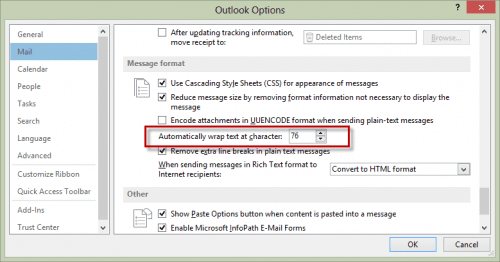
Note: The option to remove extra line breaks applies only to received email, generally making plain text messages wrap nicely in the reading pane.
In Outlook 2007 and Outlook 2003, this setting in under the File, Options, Mail Format tab, Internet Format button.
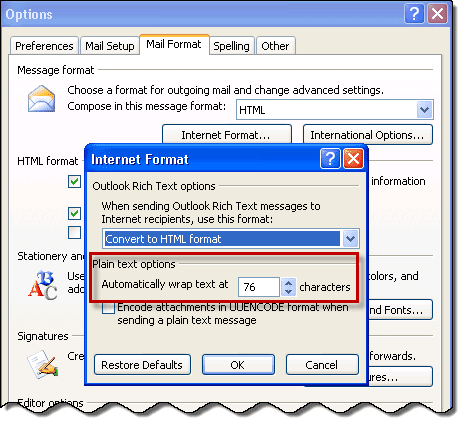
Outlook 2007, 2010 and 2013
The registry key described in Line Wrapping Does Not Appear As Expected When You Send E-Mail Messages in Outlook 2003 works in Outlook 2007, 2010, and 2013 to control line breaks in email sent using an SMTP server. This does not apply to messages sent using Microsoft Exchange server.
By setting WrapLines to 0, messages will use Quoted-Printable encoding and lines wrap.
Outlook 2013:
HKEY_CURRENT_USER\Software\Microsoft\Office\15.0\Common\MailSettings
DWORD: WrapLines
Value: 0
Outlook 2010:
HKEY_CURRENT_USER\Software\Microsoft\Office\14.0\Common\MailSettings
DWORD: WrapLines
Value: 0
Outlook 2007:
HKEY_CURRENT_USER\Software\Microsoft\Office\12.0\Common\MailSettings
DWORD: WrapLines
Value: 0
For ready-to-run registry files, see Do It For Me below.
Outlook 2003
The default setting for Outlook 2003 is to insert a hard return at the end of each line in a plain text message. This causes long URLs (ironically including many at microsoft.com) to be unusable in the received message. You can turn off these hard returns (and, by default, use quoted-printable encoding) by adding a WrapLines entry to the Windows registry, as described in this MSKB article:
Line Wrapping Does Not Appear As Expected When You Send E-Mail Messages in Outlook 2003
Outlook 2003:
HKEY_CURRENT_USER\Software\Microsoft\Office\11.0\Common\MailSettings
DWORD: WrapLines
Value: 0
This article also describes how to control the Internet encoding and the line length if you want hard returns at the ends of lines in plain text messages.
Do It For Me
If you don't want to edit the registry yourself, we have ready-to-run registry files available for Outlook 2003, Outlook 2007, and Outlook 2010. Right click on the version for your computer and chose Save target as or Save link as (FireFox) then run it from your computer. You can click on the link and run it from the webpage but some security software may block it.
Outlook 2013 Outlook 2010Outlook 2007 2003
Outlook 2000 and 98
In Corporate/Workgroup mode, choose Tools | Options | Internet E-mail and set options as described below.
In Internet Mail Only mode, choose Tools | Options | Mail Format | Settings and set options as described below.
To set a fixed line length:
- Set Encode text using to None.
- Set the line length. The default is 76 characters. Using a shorter line length will probably make your messages look better when people reply to them.
To use quoted-printable (no fixed length):
- Set Encode text using to Quoted Printable.
Outlook 97
The original Internet Mail service in Outlook 97 uses only quoted-printable for plain text messages. To be able to set a fixed line length, you must upgrade to version 8.02 or later or download the Internet Mail Enhancement Patch.
To set the fixed line length (IMEP):
- Choose Tools | Options | Internet E-mail.
- Check the box for When sending messages, wrap text at xx characters.
- Set the line length.
I'm not sure that Outlook 97 with IMEP has a quoted-printable option. I think that if you clear the box in Step 2 above, Outlook 97 defaults to a fixed 75-character line.






























When an email is replied to in Windows Outlook, an item is added to the "References" header. This header keeps growing in size on each reply until it is split up by Outlook at 1012 characters. The problem is that the RFC SMTP line length limit is 998 characters, resulting in many servers rejecting the message as having lines that are too long.
This issue has persisted for many years and Microsoft seems uninterested in fixing it. All it requires is for them to reduce the references header split length in Windows Outlook to 998 characters.
hi, I think I've spotted a problem with Outlook 2016 when replying to a long-ish email. the error is "550 maximum allowed line length is 998 octets, got 1012" the exact situation is that the email that i am replying to is displayed in full without any attachments in Outlook (it does contain some "embedded" graphics). But if i look at the server-copy of the email, it is very small but with a large attachment in ".eml" format. so when i reply, i'm assuming the .eml is again sent as an attachment, but the line length of this file exceeds the 998 limit (because it is essentially a binary file?) and so is rejected by our outgoing server for the above reason. the only solutions that i've found so far is to resend the email reply via gmail (which doesn't seem to run this check) or, within Outlook, to start with a new email, swipe the text from the email that i'm replying to and paste it in. then copy/paste the addressees. which is a bit of a faff when all i want to do is to reply "thanks"! is there a setting somewhere that can override this situation? i've… Read more »
I've tried adding DWORD: WrapLines to the registry as instructed but unfortunately it does not prevent Outlook 2013 from removing extra line breaks in plain text messages. It's not clear in your post if we should expect this registry modification to be effective for disabling the "Remove extra line breaks in plain text messages" setting (which is enabled by default).
Is it possible to change this setting by modifying the registry? We have a number of automated systems that send plain text and the missing line breaks result in confusion for the recipients (who have no idea what's going on or how to fix it). I'd like automate a solution (logon script) that would disable that setting somehow.
I am using Outlook 2010 with Exchange server. I keep getting these emails that have spaces where they should not be and as a result, the formatting is wrong. Example or . I have set the automatic wrap to 0 or 76 but either does not affect it. If that same email is sent to my gmail account, it works fine.
The exchange mail should wrap ok too, unless the server admin made some changes to the server and is forcing breaks. Are you using plain text, html or RTF formatting? Are all messages affected or just some?
I am lost. I have O365 so it must be Outlook 2013. The max figure length is set at 72 so words break in the middle and the emails look ridiculous. Isn't there an intelligent wrapping somewhere in Outlook? I use html format.
Something is wrong - the words should wrap fine in any width window when you use HTML - HTML doesn't use line breaks. What mail server do you use?
I am using Outlook templates so not sure. Just taken off the stationery and even a blank email does not wrap. I have moved the right hand margin but it goes straight back to default position.
Did the automated registry fix for 2010 and it made no difference at all. I am using stationery templates and the typing scrolls completely off the page. This is driving me crazy and I am having to use forced line breaks. Help!
Do the templates use tables for placement?
I am sorry but this article will not help me on outlook 2013. I am just trying to find out where the tab is so that I can limit the number of characters on one line to 66
File, Options, Mail, look at the bottom of the dialog for the Wrap text at setting. Default is 76. You may also want to deselect the remove extra line breaks option - it only applies to plain text mail your receive though.