• Outlook User
  • New Outlook app
  • Outlook.com
  • Outlook Mac
  • Outlook & iCloud
  • Developer
  • Microsoft 365 Admin
    • Common Problems
    • Microsoft 365
    • Outlook BCM
    • Utilities & Addins

Filing email in folders: Good or Bad?

Slipstick Systems

› Outlook › Email › Filing email in folders: Good or Bad?

Last reviewed on April 21, 2015     4 Comments

As many people will attest, I’m not a fan of moving mail into a bunch of folders. Fewer folders = Better. I get that a clean Inbox is the goal, but moving the messages to a folder named “Completed” has the same effect and uses only one folder. Add a folder or two (or more) for mailing lists and bulk mail, and you can stay under user-created 10 mail folders. Set up a Quick Step to move the messages to the folder when you are finished with them, and delete the messages you don’t need, especially bulk mail and spam.

Don’t use the Deleted Items folder for storing messages; use it for trash and empty it - don’t archive it.

I know many of you will disagree with this, but with Outlook’s filtering features (in Views, Search Folders, and Advanced Filter) and Instant Search, there is little reason to treat Outlook like the filing cabinet in the corner of your office.

However, many people still do it. Some file email by project, with everything related to the project in one folder. This makes sense, and it makes it very easy to archive the folder when the project is complete. Others like to file mail by sender name or domain. This works well when it’s just you and the sender, but is a mess when several people are involved in a thread, as it breaks the thread into multiple folders. It’s a little better in Outlook 2010/2013 because Outlook’s Show as Conversation feature can show all messages in the conversation, even if the messages are in other folders. Even so, it’s not necessary – a filter can show all messages from a person or all messages in a conversation.

So what brought on this mini-rant?

A person asked me to tweak the Move Aged Mail macro. He tweaked it to move messages to a folder matching the display name but needed help creating a folder if one did not exist.

If you want to try the macro, it’s at Macro to file Outlook email by sender's display name
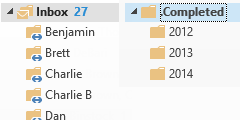
Sort by SenderAdding this capability took all of two lines, then I tested the macro. On my mailbox. That was the first mistake, but hey, it has all the mail from a lot of different people. My plan was to step into the macro a few times and make sure it worked before stopping the macro, so I lowered the age to two days, to reduce the number of clicks.

My second mistake was using the mouse to click the Step Into button, instead of the F8 key. The mouse slid and I clicked Run. Oops. 3000 messages were neatly filed in folders under my Inbox. Ok, so I'm not real good at filing the messages I'm not actively working on.

It was really great to have a clean Inbox, and a search folder quickly brought all of the messages back into one folder, but now I had well over 500 folders, many with just one or two messages.

How in the heck does anyone find anything when there are so many folders?

On the positive side, it gave me a chance to see how much mail was getting filed or deleted. I’m working on archiving or deleting the mail, folder by folder. I’ll slowly but surely get rid of all of the extra folders. Eventually.
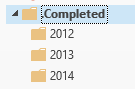
File by DateThat said, the macro works very well and I can see some use in specific cases. Rather than sorting all of my old messages into folders by sender, filing selected messages into a separate folder could be advantageous. Filing the messages by year has some practical uses too. (See, I’m not totally against filing messages!)

Tip: If you drag folders to the Deleted Items folder, you want be asked “Move folder to Deleted Items?” each time. If the Deleted Items folder is “far away” you can move it in Outlook 2013. If you have a lot of folders to delete, drag the folders into one folder then delete that folder. The annoying dialog will come up just once.


Filing email in folders: Good or Bad? was last modified: April 21st, 2015 by Diane Poremsky

Related Posts:

  • Search folders & Deleted items
  • Filing Outlook Email Messages
  • Macro to file Outlook email by sender's display name
  • New Message Indicator for Subfolders?

About Diane Poremsky

A Microsoft Outlook Most Valuable Professional (MVP) since 1999, Diane is the author of several books, including Outlook 2013 Absolute Beginners Book. She also created video training CDs and online training classes for Microsoft Outlook. You can find her helping people online in Outlook Forums as well as in the Microsoft Answers and TechNet forums.

Subscribe
Notify of
4 Comments
newest
oldest most voted
Inline Feedbacks
View all comments

Tom
May 12, 2014 3:02 pm

I dont feel to dump everything in one folder because email sometimes contain very sensitive information that cant be shared

0
0
Reply
Trav
April 29, 2014 8:23 pm

Here's my opinion... I have been using something called Clear Context for quite a while, it works great for creating the folders according to topics, to file things away (even whole threads can be filed with one click). However... I realize that having 10+ years of email in one PST is courting disaster. I do think that having ONE year of email in a PST is (at least) workable. So I have a filing system for THIS year's email. Once a year, I create a new PST for the next year's emails, and change the Clear Context topic routing to the new PST location. Some "weeding out" of the folder names will be needed (over time your topics will need to change to reflect the newer themes / categories). *What I really need a macro for is an easy way to create the same exact hierarchal folder structure (without any of the emails) in the next year's PST (i.e. "2015 Work Emails"). [Today, I copy the whole existing PST (2014), to a new PST and then I search for all emails received last year in the new PST and delete everything. Likewise I can delete all the current-year (2015) emails… Read more »

0
0
Reply
Diane Poremsky
Reply to  Trav
April 29, 2014 9:21 pm

My recommendation: Use the current pst and archive the old mail to a new pst file. The folder structure will be copied into the archive pst. This method keeps custom views, rules and other features intact.

Alternate plan: copy the pst and delete old mail from default copy and new mail from archive copy.

0
0
Reply
Karen
March 5, 2014 6:26 am

I'm a filer, but hubby & I access each others mail quite often when looking for things so it's much easier to file away certain things. But we also do a lot of project & contract work so it works for us. I've just cleared out my Sent Items, I didn't realise how many emails went back to 2012 that aren't needed to be still there, they're being archived on the HDD and deleted from my email account :)

0
0
Reply

Visit Slipstick Forums.
What's New at Slipstick.com

Latest EMO: Vol. 30 Issue 36

Subscribe to Exchange Messaging Outlook


Support Services

Do you need help setting up Outlook, moving your email to a new computer, migrating or configuring Office 365, or just need some one-on-one assistance?

Our Sponsors

CompanionLink
ReliefJet
  • Popular
  • Latest
  • Week Month All
  • Use Classic Outlook, not New Outlook
  • How to Hide or Delete Outlook's Default Folders
  • How to Remove the Primary Account from Outlook
  • This operation has been cancelled due to restrictions
  • Reset the New Outlook Profile
  • Removing Suggested Accounts in New Outlook
  • iCloud error: Outlook isn't configured to have a default profile
  • Adjusting Outlook's Zoom Setting in Email
  • Add Holidays to Outlook's Calendar
  • Online Services in Outlook: Gmail, Yahoo, iCloud, AOL, GoDaddy
  • Opt out of Microsoft 365 Companion Apps
  • Mail Templates in Outlook for Windows (and Web)
  • Urban legend: Microsoft Deletes Old Outlook.com Messages
  • Buttons in the New Message Notifications
  • Move Deleted Items to Another Folder Automatically
  • Open Outlook Templates using PowerShell
  • Count and List Folders in Classic Outlook
  • Google Workspace and Outlook with POP Mail
  • Import EML Files into New Outlook
  • Opening PST files in New Outlook
Ajax spinner

Recent Bugs List

Microsoft keeps a running list of issues affecting recently released updates at Fixes or workarounds for recent issues in classic Outlook (Windows).

For new Outlook for Windows: Fixes or workarounds for recent issues in new Outlook for Windows .

Outlook for Mac Recent issues: Fixes or workarounds for recent issues in Outlook for Mac

Outlook.com Recent issues: Fixes or workarounds for recent issues on Outlook.com

Office Update History

Update history for supported Office versions is at Update history for Office

Outlook Suggestions and Feedback

Outlook Feedback covers Outlook as an email client, including Outlook Android, iOS, Mac, and Windows clients, as well as the browser extension (PWA) and Outlook on the web.

Outlook (new) Feedback. Use this for feedback and suggestions for Outlook (new).

Use Outlook.com Feedback for suggestions or feedback about Outlook.com accounts.

Other Microsoft 365 applications and services


New Outlook Articles

Opt out of Microsoft 365 Companion Apps

Mail Templates in Outlook for Windows (and Web)

Urban legend: Microsoft Deletes Old Outlook.com Messages

Buttons in the New Message Notifications

Move Deleted Items to Another Folder Automatically

Open Outlook Templates using PowerShell

Count and List Folders in Classic Outlook

Google Workspace and Outlook with POP Mail

Import EML Files into New Outlook

Opening PST files in New Outlook

Newest Code Samples

Open Outlook Templates using PowerShell

Count and List Folders in Classic Outlook

Insert Word Document into Email using VBA

Warn Before Deleting a Contact

Use PowerShell to Delete Attachments

Remove RE:, FWD:, and Other Prefixes from Subject Line

Change the Mailing Address Using PowerShell

Categorize @Mentioned Messages

Send an Email When You Open Outlook

Delete Old Calendar Events using VBA

Repair PST

Convert an OST to PST

Repair damaged PST file

Repair large PST File

Remove password from PST

Merge Two Data Files

Sync & Share Outlook Data

  • Share Calendar & Contacts
  • Synchronize two computers
  • Sync Calendar and Contacts Using Outlook.com
  • Sync Outlook & Android Devices
  • Sync Google Calendar with Outlook
  • Access Folders in Other Users Mailboxes

Diane Poremsky [Outlook MVP]

Make a donation

Mail Tools

Sending and Retrieval Tools

Mass Mail Tools

Compose Tools

Duplicate Remover Tools

Mail Tools for Outlook

Online Services

Calendar Tools

Schedule Management

Calendar Printing Tools

Calendar Reminder Tools

Calendar Dates & Data

Time and Billing Tools

Meeting Productivity Tools

Duplicate Remover Tools

Productivity

Productivity Tools

Automatic Message Processing Tools

Special Function Automatic Processing Tools

Housekeeping and Message Management

Task Tools

Project and Business Management Tools

Choosing the Folder to Save a Sent Message In

Run Rules on messages after reading

Help & Suggestions

Submit Outlook Feature Requests

Slipstick Support Services

Buy Microsoft 365 Office Software and Services

Visit Slipstick Forums.

What's New at Slipstick.com

Home | Outlook User | Exchange Administrator | Office 365 | Outlook.com | Outlook Developer
Outlook for Mac | Common Problems | Utilities & Addins | Tutorials
Outlook & iCloud Issues | Outlook Apps
EMO Archives | About Slipstick | Slipstick Forums
Submit New or Updated Outlook and Exchange Server Utilities

Send comments using our Feedback page
Copyright © 2025 Slipstick Systems. All rights reserved.
Slipstick Systems is not affiliated with Microsoft Corporation.

:wpds_smile::wpds_grin::wpds_wink::wpds_mrgreen::wpds_neutral::wpds_twisted::wpds_arrow::wpds_shock::wpds_unamused::wpds_cool::wpds_evil::wpds_oops::wpds_razz::wpds_roll::wpds_cry::wpds_eek::wpds_lol::wpds_mad::wpds_sad::wpds_exclamation::wpds_question::wpds_idea::wpds_hmm::wpds_beg::wpds_whew::wpds_chuckle::wpds_silly::wpds_envy::wpds_shutmouth:
wpDiscuz

Sign up for Exchange Messaging Outlook

Our weekly Outlook & Exchange newsletter (bi-weekly during the summer)


Please note: If you subscribed to Exchange Messaging Outlook before August 2019, please re-subscribe.

Never see this message again.

You are going to send email to

Move Comment



























