We get a surprising number of questions from users who want to return attachments when replying to a message. Forward includes the attachments, but reply (and reply to all) do not.
Lotus Notes has an option users like - they can reply to a message and include the original attachment. Outlook doesn't have this option, based on the belief that the sender has the attachment and doesn't need another copy filling up their mailbox. Users disagree with this line of thought and usually have valid reasons for wanting to return an unedited attachment. Typically, they need to review documents and just need to say Yes or No but feel the recipient won't know which document the response refers to unless its attached. While there are better ways of reminding the recipient which document you are talking about, they prefer to include the document as it insures they can't be blamed if things go wrong.
Outlook has the reply format 'when replying, attach original message' , which attaches the original message and all of its contents, but many users find the resulting nested messages annoying when used for all replies. Fortunately, there are fairly easy ways to add the attachment to the reply that don't involve saving the attachment and attaching it.
The easiest way is to hit Forward instead of Reply. The drawbacks: it breaks threading and you'll need to address the message.
Drag the attachment(s) from the original message to the reply. You don't need to open the original message in a new window either - you can drag the attachments from the reading pane. Hold Shift when selecting the attachments if there are multiple attachments you want to send back.
Drag the message from the Inbox to the reply, or use the Insert, Item command to insert the message as an attachment.
Macro to Reply or ReplyAll with Attachments
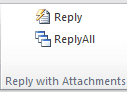 If you need to reply with attachment often, the methods above will get old fast. Fortunately, you can do this using VBA. Press Alt+F11 to open the VBA editor then copy the code samples below and paste it into ThisOutlooksession. Create two toolbar, ribbon, or QAT buttons and assign ReplyAllWithAttachments and ReplyWithAttachments to the buttons.
When you need to reply or reply all and include attachments, use the buttons.
Sub ReplyWithAttachments()
    Dim oReply As Outlook.MailItem
    Dim oItem As Object

    Set oItem = GetCurrentItem()
    If Not oItem Is Nothing Then
        Set oReply = oItem.Reply
        CopyAttachments oItem, oReply
        oReply.Display
        oItem.UnRead = False
    End If

    Set oReply = Nothing
    Set oItem = Nothing
End Sub

Sub ReplyAllWithAttachments()
    Dim oReply As Outlook.MailItem
    Dim oItem As Object

    Set oItem = GetCurrentItem()
    If Not oItem Is Nothing Then
        Set oReply = oItem.ReplyAll
        CopyAttachments oItem, oReply
        oReply.Display
        oItem.UnRead = False
    End If

    Set oReply = Nothing
    Set oItem = Nothing
End Sub
Function GetCurrentItem() As Object
    Dim objApp As Outlook.Application

    Set objApp = Application
    On Error Resume Next
    Select Case TypeName(objApp.ActiveWindow)
        Case "Explorer"
            Set GetCurrentItem = objApp.ActiveExplorer.Selection.Item(1)
        Case "Inspector"
            Set GetCurrentItem = objApp.ActiveInspector.CurrentItem
    End Select

    Set objApp = Nothing
End Function

Sub CopyAttachments(objSourceItem, objTargetItem)
   Set fso = CreateObject("Scripting.FileSystemObject")
   Set fldTemp = fso.GetSpecialFolder(2) ' TemporaryFolder
   strPath = fldTemp.Path & "\"
   For Each objAtt In objSourceItem.Attachments
      strFile = strPath & objAtt.FileName
      objAtt.SaveAsFile strFile
      objTargetItem.Attachments.Add strFile, , , objAtt.DisplayName
      fso.DeleteFile strFile
   Next

   Set fldTemp = Nothing
   Set fso = Nothing
End Sub
Reply with Edited Attachment
More common is the need to revise a document and send the edited copy back. For most people, this means saving the attachment and inserting it into the reply. But there are other methods. Office applications have a ‘send for review’ option but it creates a new message, not a reply. If neither are a concern, use the Send to, Original sender or Mail recipient (for review) option. If you need to include the original message in the reply, it is possible to edit the attachment and send the edited copy without saving the file and browsing your documents folder for it.
These specific steps work with any file type and allow users to edit and return the edited copy to the sender, without saving the edited copy to My Documents.
1. Open the message, then the attachment. This step is important, not only because opening attachments from the reading pane creates read-only attachments, but also because it’s too easy to view another message, calendar etc. while the attachment is open. When this happens, Outlook loses track of the attachment and a copy is left in the secure temp folder.
2. Edit and save the attachment.
3. Do not close the message before you save and close the attachment! As long as the message is open there is a pointer between it and the attachment and changes will be saved to the document . The copy in the secure temp folder will be deleted when the message is closed when you close the attachment, then the message.
4. Hit Forward or hit reply and drag the attachment from the old message to the new message.
5. You can now close the original message. Outlook will ask if you want to save it, click Yes to replace the original document with the edited version or choose No to keep the original.
For insurance against an “oops” moment where you accidentally save the edited copy to the original message, make a copy of the message before editing the document. Select the message, press Ctrl+C, V to make a copy. Open the copy and edit the document. After sending the edited document you can delete the copy.
Note: this will not work with Outlook 2010. All attachments use "protected view" and are read-only. You need to open the message in Edit Message mode to edit the attachment. See Edit and Save Outlook 2010's Read-Only Attachments for more information.
More Information
- Add a keyword to the subject of all messages sent
- Always Reply Using HTML Format in Outlook
- Can I use my own stationery in replies?
- Copy attachment names when replying
- Do you really want to reply to all?
- Forward Messages that were not Replied To
- Foward a Message and CC the Original Recipients
- Ignore Conversations in Outlook
- Macro to Reply, ReplyAll, or Forward and File
- Outlook Crashes When You Reply or Create a New Message
- Reply or ReplyAll with Attachments
- Reply to All Includes My Address
- Replying to Sent Messages
- Rules in Error and Reply with Template
- Run a script rule: Autoreply using a template
- Select from a List of Subjects before Sending a Message
- Selectively change message format when replying
- Use a macro to Reply with boilerplate text
- VBA Sample: Do Something When Reply is Clicked

James W Leinberger Sr says
What if you don't use MS Outlook? Can you send an attachment using "reply all." If not, what are there so many different ways to do the same thing? I use yahoo mail, and there is no such thing as "reply all." I could be wrong, but I could not find it in yahoo mail.
Diane Poremsky says
Yahoo has reply all in the website - but you can't use script with webmail. You'll need to attach the files to the message.
At the top of the Yahoo message there are two left arrows - reply and reply all - and one right arrow - forward.
Ashutosh Vats says
Welldone. Its working fine and save time.
Jaime Heredia says
Hi Diana, the tool is great, and I put in my outlook 365 and the last week work fine, but today din't work, do you know why?? I don't move anything for my outlook configuration
Jovian says
is there a way to reply with all attachment but to remove certain file types like .jpg (especially those appearing in signatures).
Victor Ivanidze says
Have a look at ReplyWithAtt for Outlook add-in: https://www.ivasoft.com/replywithatt.shtml
Wewee says
thanks for sharing
Jack says
Hello. It was very helpful, however i would like to add exceptions to this rule. My Outlook contains png files and when i use this macro, it loads them as attachments. Any idea? i am not really a programist, can you give some sort of exception line?
Fernando says
Hello Diane,
Thank you so much for these macros. They are SO practical! I'm using Office 365 and they work great with HTML formatted messages. With RTF messages, all the attachments are moved to the end of the email body in the replied email. Is it possible to keep the attachments in their original location in the body of an RTF formatted email?
Thank you again!
Veysel says
Diane Hi,
Thank you very much.
Much of an effort, really appreciated.
Moataz says
Hello Diana , thank you for the code, Could you explain in what menu did you categorize the ribbon?, I can't see the Reply / Reply All group
Diane Poremsky says
That is the "Respond" group - but you can create your own group using the macro. Select macros on the left, add a group and find your macro - click Add.
How to use Outlook's VBA Editor (slipstick.com)
Michael says
Thanks Diane for the coding, great macro!
One question pls, how can we distinguish the attachment in the body and under the subject? Is there any property to use for it?
Diane Poremsky says
The difference there is message format, which you can check. This macro should work on RTF formatted messages - if it's not visible, you need to set the location of the attachment (if not visible, it will be on the attachments menu but not visible in the message body)
This will put it in the first line -
objTargetItem.Attachments.Add strFile, , 1, objAtt.DisplayName
Elena Dimeski says
Hi Diane, thank you for this code! I am trying to change the code so that it only forwards attached documents and note image embeded in the body of an email (e.g. signature lines). 'm not very experienced in VBA and tried adding the above line in the first line, but it didn't work for me - any suggestions?.
David says
I am struggling with exactly the same issue. If the message contains images (e.g. a company logo in an email signature) the macro in this post treats those images as attachments and will attach them to the reply. I haven't found a property that differentiates those images from actual attachments that appear below the message subject, so I am left trying to run if/then/else inside CopyAttachments() to weed out pngs, jpgs, etc, which is clunky and overinclusive.
David says
I've resolved this by just using the forward to original recipients workaround here: https://www.slipstick.com/developer/code-samples/forward-message-cc-original-recipients/
It's simple and it works fine, though it consolidates all recipients into the "To" line, which is fine with me. The one change I made was add "objMsg.Recipients.ResolveAll" just before "objMsg.Display" because I was getting garbled Exchange routing in the displayed window.
Diane Poremsky says
If you need to CC some, its a little more code, but is possible.
mark creager says
Thanks! The reply all with attachments macro works, but the reply with attachments macro does not create a reply in my Outlook 2016.
Diane Poremsky says
So the ReplyAll macro above works but the reply macro doesn't? Does It display a new message?
Richard Joseph Aten says
I had the same problem. I had to rename the ReplyWithAttachments() sub to ReplyOneWithAttachments() to get it to work. My outlook did not like that procedure name for some reason.
Diane Poremsky says
What was the error message? The only thing that should be a problem is if there is another macro with the same name.
Debra says
Solution is simple. Why can't Microsoft add an option, "reply with attachments"? You could leave the option of "reply without attachments" for those individuals not wanting to include the attachments. I'm sure every organization has some employees using email who are not "computer savvy". It's not like they could handle a macro and we don't have the time to help them with every single email.
I miss my Lotus email!!!!
Amy says
Hi Diane, thank you for the above Reply/Replyall with attachments macro! It works great. My company uses two images (.png) in employees email signatures, and when using the macro it picks those images up as "attachments" in the reply email.. How can I tweak the code to not include those?
Alex says
Thank for this macro. I do have one issue with it I hope someone can help with - if the reply (all or otherwise) with attachments is done in plain text format (at a minimum when there was a prior iPhone reply or forward in the mix), once the message is sent, the body becomes an incomprehensible garble of html code. This "glitch" does not get triggered if the message format is changed to HTML prior to sending. Is there a way to make the macro automatically check if the message is in plain text and change it to HTML before it is sent out? Thank you for your help.
J.R. says
Works perfectly on Office 365. Thank you!
NMGMarques says
In the Sub CopyAttachments the variables are not defined :(
Diane Poremsky says
Either add them or remove option explicit from the top of the page. :)
Dim fso As Object
Dim fldTemp As Object
Dim strPath As String
Dim objAtt As Attachment
Dim strFile As String
John Parker says
I don't know what is happening with my code. When I execute then it shows runtime error But when I use your code in Outlook 2010 version then I really happy to see this execution. I must say you provide an exact information.
Max says
Dear Diane,
Thank you for the codes. I can't wait to see this one in action... however I keep getting an error under Function GetCurrentItem()
Set objApp = Application--> Run-Time Error 13: "Type Mismatch".
What am I missing?
Diane Poremsky says
that error means something is wrong with the item type. You'd get this error if you didn't have a message selected or opened when you ran the macro. if you have a message open or selected, i would try re-copying the code.
Peter says
Hi Diane,
This code has been working great in Outlook 2010 for years, and it saves me a lot of time. Thanks!
Now running Office 365 on a new PC, I get "Run-time error '-214767259 (80004005)': The operation failed" on "Set oReply = oItem.Reply". I have another macro that fails on this PC too, which makes me wonder if there are some software prerequisites that I'm missing. What all needs to be installed to make this macro work in Outlook 2016?
Diane Poremsky says
iIt definitely should work on 365 (I tested it on it)... the usual cause is not enabling macros, but the macro tries to run, so macro security is correct. It uses the default temp path, so its not a bad file path...
File scripting should be ok... unless a security update did something.
What error message do you get with the other macro and what line does it fail on?
Do you have all updates installed? Did you try repairing the installation?
Peter says
I eventually got it working. The error occurred when I was setting up a new PC while still using my old one for email.
The first problem was that a mail profile was created with a different name than the one on my old PC, where I had copied my .PST file from. I renamed the profile, and it started to work.
The second problem was that it was putting my name in the To field along with the original sender's. Once I configured Outlook with my email account, it started working fine.
Thanks again for this macro, Diane—I use it almost daily!
Ben says
When I run the MACRO it adds in my signature which is bunch of picture anyways just to add the attachment not the picture in my signature?
Diane Poremsky says
yeah... because it looks for all attachments in the message. If the "real" attachments are always large, much larger than the images in the signature, you could use an if statement to not include attachments under a certain size - this will also work if the real attachments are not images - the if statement will skip jpg, gif, and png. Skipping a complete filename probably won't work as the embedded image name may change - i forget the default name format, but for example, if it's image000* - you could use an if statement to skip any attachment whose name contained image00.
Luis Castanheiro says
Hello Diane, i beg your pardon for the ignorance but i have no idea on how to implement the code as you describe. Th picture on the signature is only 10KB how is the code to exclude files under 10kb?
Many thanks fro your reply.
teju says
Hi Diane,
Thanks for this code. I have one question if you could help me please. I want new message(reply/forward with some text) to open in reading pane instead of separate window. Is this possible ?
Kyle says
Hi, this is my first day with VBA and I already have a macro to add categories and almost add attachments...thanks to you!
I'm having trouble attaching a document to an email that I have already manually hit 'reply' to. The goal is to set up QAT items so I can quickly add 1-many files based on a customer request.
If the reply is in the reading pane, then a message pops out and nothing is added. When I close the message that popped out, I see the attachment is added to the file in my inbox...like it was sent from the original sender.
If I pop the message out first, then the code works, but when I close the document (don't save) the attachment is also added to the original message in the reading pane...even though it was not originally attached from the sender. I appreciate any advice you can give.
Thank you!
Kyle
====
Function GetCurrentItem() As ObjectDim objApp As Outlook.Application
Set objApp = Application
On Error Resume Next
Select Case TypeName(objApp.ActiveWindow)
Case "Explorer"
Set GetCurrentItem = objApp.ActiveExplorer.Selection.Item(1)
Case "Inspector"
Set GetCurrentItem = objApp.ActiveInspector.CurrentItem
End Select
Set objApp = Nothing
End Function
Sub zAddAttachment()
Dim myItem As Object
Dim myAttachments As Outlook.Attachments
Set myItem = GetCurrentItem()
Set myAttachments = myItem.Attachments
myAttachments.Add "C:UsersmyNameDocumentsVBA DocsOPP SURVEY.pdf", _
olByValue, 1, "Opportunity Survey"
myItem.Display
End Sub
Tim says
Hi Diane,
The reply with attachment macro works great and it will be extremely helpful for my office! One small issue that it seems to have for me is whenever I run the macro, it opens the reply in a new window. This isn't an issue if you send the email, but if I close the window without saving, there is still a draft in the reading pane so I have to delete that draft as well.
Is there a way to run the reply macro in the reading pane or without creating two drafts?
Thanks in advance for any help! Even if there's no solution it will still be really useful!
Tim
Marc says
Hi Diane,
Your code will save me unless hours at work. I have 2 questions that you may be able to help me with:
1. Is there a way to add text in the body of the email every time you hit the button along with all the other features your macro provides? for example: "Hi, thank you for your submission"
2. Is it possible to stop the "RE:" from showing up in the subject line.
Thank you so much in advance,
Marc
Chase says
Diane,
I've used your macro's before to set my zoom setting in Outlook and I love it. I am attempting to add this logic to my existing 'ThisOutlookSession' script and I think I am doing it wrong. I just pasted your entire code above directly below what I had already. When I use one of the buttons, however, I am stopped by the debugger with a message that says variable not defined... the debugger is highlighting this code:
Set fso = CreateObject("Scripting.FileSystemObject")
What am I doing wrong? I do not have enough room to paste my my entire vba 'ThisOutlookSession' script so I will have to paste it separately. Any help would be greatly appreciated.
Diane Poremsky says
The macro on this page isn't automatic and doesn't need to be in thisoutlooksession, it can go in a module.
The error is caused by option explicit at the top of the page - it requires all variables be defined. Add this right before the line that errors to take care of the error:
Dim fso As Object
Chase says
Thanks for the quick reply. I found a few more errors and was able to get past them but now nothing happens at all when I use the buttons... I removed the chunk from "ThisOutlookSession" and created its own module but am having the same problem. I manually stepped thru and got a runtime error 91 when the code was attempting to reference the 'temporary folder' and an error saying "object variable or with block variable not set". The debugger processes this line:
Set fldTemp = fso.GetSpecialFolder(2) ' TemporaryFolder
Then shows me the message and has this line highlighted:
strPath = fldTemp.Path & "\"
This is my updated CopyAttachments sub:
Sub CopyAttachments(objSourceItem, objTargetItem)
Dim fso As Object
Dim fldTemp As Object
Dim strPath As Object
Dim objAtt As Object
Dim strFile As Object
Set fso = CreateObject("Scripting.FileSystemObject")
Set fldTemp = fso.GetSpecialFolder(2) ' TemporaryFolder
strPath = fldTemp.Path & "\"
For Each objAtt In objSourceItem.Attachments
strFile = strPath & objAtt.FileName
objAtt.SaveAsFile strFile
objTargetItem.Attachments.Add strFile, , , objAtt.DisplayName
fso.DeleteFile strFile
Next
Set fldTemp = Nothing
Set fso = Nothing
End Sub
Diane Poremsky says
You'll probably get it on all of the variables. These tow should be strings -
Dim strPath as String
Dim strFile As String
when you aren't sure what type of variable it is, you can just use 'dim variable':
Dim fso
Dim strFile
This is a little more intensive and slow so you should declare the type when possible, but if you aren't sure, don't dim it as a type.
Chase says
Once again I appreciate the reply. I updated the code but the buttons still do nothing. And I am able to F8 through the entire script without being stopped. So I'm unsure what is wrong...
Sub ReplyWithAttachments()
Dim oReply As Outlook.MailItem
Dim oItem As Object
Set oItem = GetCurrentItem()
If Not oItem Is Nothing Then
Set oReply = oItem.Reply
CopyAttachments oItem, oReply
oReply.Display
oItem.UnRead = False
End If
Set oReply = Nothing
Set oItem = Nothing
End Sub
Sub ReplyAllWithAttachments()
Dim oReply As Outlook.MailItem
Dim oItem As Object
Set oItem = GetCurrentItem()
If Not oItem Is Nothing Then
Set oReply = oItem.ReplyAll
CopyAttachments oItem, oReply
oReply.Display
oItem.UnRead = False
End If
Set oReply = Nothing
Set oItem = Nothing
End Sub
Function GetCurrentItem() As Object

Dim objApp As Outlook.Application
Set objApp = Application
On Error Resume Next
Select Case TypeName(objApp.ActiveWindow)
Case "Explorer"
Set GetCurrentItem = objApp.ActiveExplorer.Selection.Item(1)
Case "Inspector"
Set GetCurrentItem = objApp.ActiveInspector.CurrentItem
End Select
Set objApp = Nothing
End Function
Sub CopyAttachments(objSourceItem, objTargetItem)
Dim fso As Object
Dim fldTemp As Object
Dim strPath As String
Dim objAtt As Object
Dim strFile As String
Set fso = CreateObject("Scripting.FileSystemObject")
Set fldTemp = fso.GetSpecialFolder(2) ' TemporaryFolder
strPath = fldTemp.Path & "\"
For Each objAtt In objSourceItem.Attachments
strFile = strPath & objAtt.FileName
objAtt.SaveAsFile strFile
objTargetItem.Attachments.Add strFile, , , objAtt.DisplayName
fso.DeleteFile strFile
Next
Set fldTemp = Nothing
Set fso = Nothing
End Sub
Diane Poremsky says
Do you get any error messages? It works fine here.
Eva Tietjen says
Is this VBA tool available in Outlook 2013?
Diane Poremsky says
Yes, VBA is available in all versions of outlook (as long as the admin didn't disable it on company computers) and this macro works on all computers.
Dave says
How can I get this code to work on meeting appointments?
Diane Poremsky says
change this:
Dim oReply As Outlook.MailItem
to
Dim oReply As object (or just to dim oReply) and see if it works with meetings.
pike says
Diane,
The code works great but I need to ReplyAll with an email in rich text with attachments in the body of the email. The attachments are layout in a table. One is signed and reattached
what is the best way?
Diane Poremsky says
Inserting a table into an RTF document using code might not be the easiest thing in the world... Is the table in the original document?
pike says
possibly
Option Explicit
Sub Reply_All_With_Imbedded_Attachments()
Dim objReply As Outlook.MailItem
Dim objItem As Object
Dim strSubject As String
Dim strMailRecip As String
Dim strMailRecipients As String
Set objItem = GetCurrentItem()
If Not objItem Is Nothing Then
strSubject = "FW: " & objItem.subject
strMailRecip = objItem.Recipient
strMailRecipients = objItem.recipients
Set objReply = objItem.CurrentItem.Forward
objReply.subject = strSubject
objReply.Recipient = strMailRecip
objReply.recipients = strMailRecipients
objReply.Display
objItem.UnRead = False
End If
Set objReply = Nothing
Set objItem = Nothing
End Sub
Function GetCurrentItem() As Object
Dim objApp As Outlook.application
Set objApp = application
On Error Resume Next
Select Case TypeName(objApp.ActiveWindow)
Case "Explorer"
Set GetCurrentItem = objApp.ActiveExplorer.Selection.Item(1)
Case "Inspector"
Set GetCurrentItem = objApp.ActiveInspector.CurrentItem
End Select
Set objApp = Nothing
End Function
Diane Poremsky says
Does it work? That's all that matters. :) (I didn't try it, but think it will fail on recipients and you would use this:
Set objReply = objItem.Forward to set the forward.)
pike says
hello Diane ,
No I haven't tested it yet , I was just playing with your sample syntax
But I will try
pike says
Hi Diane,
This is very helpful but it saves all the attachment to the attachment bar/text box.
I receive emails with many attachments layout in the body of rich text email. The attachments are in a proforma/table and one is detached,signed and reattached in the same layout and sent to the next person to sign. Is there a way to replyall but like forward with attachments in the body of the email and then copy the address to the recipents and CC to the new email?
Diane Poremsky says
Forward would definitely be easier and you can copy the addresses - i have a sample code here - https://www.slipstick.com/developer/code-samples/foward-message-cc-original-recipients/ - it puts the names in the CC field but that can be changed easily enough.
pike says
Hello Diane ,
Gosh I didn't find that example before But I will try a variation
Option Explicit
Public Sub ReplyToAllWithAttachment()
Dim strRecip As String
Dim objMsg, oMail As MailItem
Dim oUserMe, oRecipent
' For a reply or reply all, replace forward with Reply or ReplyAll
Set objMsg = ActiveExplorer.Selection.Item(1).Forward
If TypeName(ActiveExplorer.Selection.Item(1)) = "MailItem" Then
Set oMail = ActiveExplorer.Selection.Item(1)
On Error Resume Next
oUserMe = application.Session.CurrentUser
For Each oRecipient In oMail.recipients
If oRecipient oUserMe Then
strRecip = Recipient.Address & ";" & strRecip
End If
Next oRecipient
objMsg.To = strRecip & ";" & oMail.SenderEmailAddress
'change subject FW --> RE
objMsg.subject = "RE: " & Mid(objMsg.subject, 5)
objMsg.Display
End If
Set objMsg = Nothing
End Sub
I have removed the spaghetti goto code.
What is the expected error that On Error Resume Next is need?
If I know the error code I code handle the error and remove it.
Guess if I remove it I'll find out or add
If Err.Number 0 Then
System.Windows.Forms.MessageBox.Show(
"Error Number: " & Error.number & " occoured")
exit sub
end if
Diane Poremsky says
A lot of times it helps just to comment out the error handler and let VBA debug it. Most of the time it will highlight the problem line.
As written, it uses the selected message, but switching it to work with open or selected messages isn't a big deal, if you need it added.
pike says
Hello,
smaller error in the upload of greater than and less than brackets
I'll change
If oRecipient oUserMe Then
to
If not oRecipient = oUserMe Then
thank for the help .. I haven't tested but I sure its 99% complete
Diane Poremsky says
oh, yeah, wordpress removes the angle brackets in the comments - you need to enter them using the HTML code - & lt ; & gt ; is less than and greater than (without the spaces).
pike says
or
If Not oRecipient Like oUserMe Then
steven says
Hi
is there a way to exclude attachments that are embedded in the email?
Diane Poremsky says
You can check for file size or file extension and skip those, but outlook doesn't see a difference between embedded and attached - they are all in the attachment collection.
This skips small files (5KB) -
For Each oAtt In oItem.Attachments
If oAtt.Size > 5200 Then
strAtt = strAtt & "<<" & oAtt.FileName & ">> "
End If
Next oAtt
I don't have code handy that skips extensions, but for a single one you'd use something like
if right(oatt.name, 4) = ".png" then
for more types, select case would be easier.
Zara says
Hi. You code has saved me tons of time. But this is the extra bit I was searching all around. I am totally newbie to the coding so can you update the original code with this bit of code and show us the final version (which only requires copy/paste in VB) Thanks a bunch
Jim K. says
Hello. I have tired this code and it works very nicely. Thank you. I was interested in adding a line or two of code that would automatically add the text "Approved" to the body of the email reply. Any suggestions on that? Thanks, Jim
Gilles says
Set oReply = oItem.Reply creates a reply without any formatting. For instance, we lose inline pics that are in the original message. As such this command is not the same as clicking the Reply button. Is there any way to fix this?
TIA
WWWV says
I'm searching for a way to reply with automatically attached files that are saved on my computer. Is it possible with changements in the code above?
Diane Poremsky says
if you aren't copying from another message, you only need to use oReply.Attachments.Add strFile - picking up the file names would be the only issue. If you always want to send the same file every time, strFile would be the filename.
WWWV says
Yes indeed, i want to use the same file in every reply.
But, i don't really get it i think..
Where do i need to put oReply.Attachments.Add strFile ?
Thanks in advance!
Diane Poremsky says
Replace this line with it
CopyAttachments oItem, oReply
Jordan Bunster says
Phenomenal code, Diane. Works perfectly.
I'll be sharing with my teammates. I found your page through Google, but I have now bookmarked it :)
Rupert Roos says
Thanks!! This made me look really good today!
Charles says
Thanks Daine!!!!! Its working now : ) Just noticed that emails that was received as Rich Test Format where attachment are in the Body of the mail, the macro will not work.
Diane Poremsky says
Thanks for the update. It might help someone in the future - I know it's something I wouldn't have thought about.
Charles says
Hello Diane, thanks for this. We've using outlook for the first time. I've tried it and it worked perfectly. Unfortunately, after a several hours, the 2 buttons I created stopped working. I've restarted Outlook, removed the buttons, removed the macro and re-paste it.. (basically start from step 1) yet the buttons still don't work. Please help me : (
Diane Poremsky says
Did you check the Macro Security settings in File, Options, Trust Center, Macro Security. It should be on low unless you sign it with selfcert, then you'd use 'only allow signed macros'.
Heiko says
Hi Diane, thanks a lot for your great macro. Was searching for ages and this is the first one really works. Only point, it extracts as well pictures from the Email and attach it. Can I stop this somehow?
Thanks Heiko
Diane Poremsky says
You can filter out attachments by file size or extension using an If or a Select case statement.
Diane Poremsky says
Use this copyattachments macro to copy non-image or larger image attachments to the reply. It could be changed to only attach specific file types.
Sub CopyAttachments(objSourceItem, objTargetItem)
Set fso = CreateObject("Scripting.FileSystemObject")
Set fldTemp = fso.GetSpecialFolder(2) ' TemporaryFolder
strPath = fldTemp.Path & "\"
For Each objAtt In objSourceItem.Attachments
strFile = strPath & objAtt.FileName
' check file type
sFileType = LCase$(Right$(strFile, 4))
' if an image, check the size
Select Case sFileType
' Add additional file types below
Case ".jpg", ".png", ".gif"
If objAttachments.Item(i).Size < 5200 Then GoTo NextAtt End If End SelectobjAtt.SaveAsFile strFile objTargetItem.Attachments.Add strFile, , , objAtt.DisplayName fso.DeleteFile strFile NextAtt: Next Set fldTemp = Nothing Set fso = Nothing End Sub
Diane Poremsky says
Also see https://www.slipstick.com/developer/code-samples/insert-attachment-names-replying/ for a similar macro that works when you hit reply or reply all. This would copy attachments on all messages you reply to. It uses attachment names in it's present form but could be changed to add the attachment.
Fred Edwards says
Just what I was looking for. I occasionally like to reply to the sender that we need to involve someone else with the issue. With this option I simply reply and then add the Cc recipients who have all the context including the attachments. Thanks for providing a great service.
nik says
this is brilliant... thank you very much!!
Bob says
This is the problem in general with Microsoft, you have to do stuff like this to make it flexible.
Macro to Reply or ReplyAll with Attachments
Create custom buttons for reply and reply all with attachmentsIf you need to reply with attachment often, the methods above will get old fast. Fortunately, you can do this using VBA. Press Alt+F11 to open the VBA editor then copy the
How bloody stupid. Any option that forces me to essentially program something is not an option at all.
Diane Poremsky says
Most people wouldn't want to reply with attachments, because they have the attachments already and getting a copy back just fills up their mailbox quota. Adding features most people don't need would make Outlook more complicated. But Outlook is very extensible so you can make it do the things you need, without saddling everyone else with unnecessary features that weigh it down or adding a bunch of options to turn off.
cadafi says
Not sure why you have to write a macro. Have you try the below concept of MS Outlook?
Have you try to open an email and try Action >> Resend this Message.
If you use this function, your macro is not necessary since not much normal users know about VBA or coding.
Diane Poremsky says
Resend isn't the same as reply - it creates a new thread, breaking the conversation. It can work instead of Forward, although you do need to remember to change the From account, otherwise it will be from the person you are replying to (and will bounce if you use Exchange server and don't have sendas permission).
jonathandire says
Hi Diane,
My apologies if it looks like I ignored you, my last response got flagged for moderation and then disappeared. Either way I sorted it out, just was putting the 'If objAttachments.Item(i).Size in the wrong location, so it was triggering after the action had already happened.
jonathandire says
Can you believe it? It must have been your presence that beat Outlook into submission... I solved it. A simple greater than, less than mistype!
Either way, I lurk in the shadows on this site, but your coding and explanations make learning VBA easier.
Just in case, here is my code to reply with attachments but omit a certain file size
(Be gentle)
Sub ReplyWithAttachments()
Const MACRO_NAME = "Reply with Attachments"
Dim oReply As Outlook.MailItem
Dim oItem As Object
Set oItem = GetCurrentItem()
If Not oItem Is Nothing Then
Set oReply = oItem.Reply
CopyAttachments oItem, oReply
oReply.Display
oItem.UnRead = False
End If
Set oReply = Nothing
Set oItem = Nothing
End Sub
Sub ReplyAllWithAttachments()
Const MACRO_NAME = "Reply to All with Attachments"
Dim oReply As Outlook.MailItem
Dim oItem As Object
Set oItem = GetCurrentItem()
If Not oItem Is Nothing Then
Set oReply = oItem.ReplyAll
CopyAttachments oItem, oReply
oReply.Display
oItem.UnRead = False
End If
Set oReply = Nothing
Set oItem = Nothing
End Sub
Function GetCurrentItem() As Object
Dim objApp As Outlook.Application
Set objApp = Application
On Error Resume Next
Select Case TypeName(objApp.ActiveWindow)
Case "Explorer"
Set GetCurrentItem = objApp.ActiveExplorer.Selection.Item(1)
Case "Inspector"
Set GetCurrentItem = objApp.ActiveInspector.CurrentItem
End Select
Set objApp = Nothing
End Function
Sub CopyAttachments(objSourceItem, objTargetItem)
Set fso = CreateObject("Scripting.FileSystemObject")
Set fldTemp = fso.GetSpecialFolder(2) ' TemporaryFolder
strPath = fldTemp.Path & "\"
For Each objAtt In objSourceItem.Attachments
strFile = strPath & objAtt.FileName
If objAtt.Size > 6200 Then
objAtt.SaveAsFile strFile
objTargetItem.Attachments.Add strFile, , , objAtt.DisplayName
fso.DeleteFile strFile
End If
Next
Set fldTemp = Nothing
Set fso = Nothing
End Sub
Bornovalı says
Yesss, it is working. I tried all codes from Diane for removing signature files but only this code works. Many thanks. And again many thanks.
jonathandire says
Hi Diane,
I'm a major fan of your work, you have saved me countless hours by providing such a wonderful database of vb code for outlook.
I've learnt so much, but have hit a wall. I have utilised the reply with attachments successfully, however, I've tried to incorporate your 'If objAttachments.Item(i).Size > 6200 Then' into it... but have come up empty handed (and most of my hair pulled out).
Could you possibly help if you have the time. My goal is to have the macro omit files of a certain file type, size and name. (to omit signature files)
Help me Diane-wan-kenobi you are my only hope.
Jon
Diane Poremsky says
Do you get any error messages? What exactly happens? It should - but if the signature has larger attachments, you'll get them too.
Daniel Alfano says
WOW!! It works perfect!! Thanks a lot!!
Mark B. says
The VB editor part is best left to people who know how to use it. I showed this to my company's IT administrator. He did the editing for me and it works perfectly. Then I sent him the link and he is going to install it on his machine. I wouldn't be surprised if he does this for all of our computer users here at work. Thanks Diane!
aleckz says
hi Diane,
thanks for your code, had tried it and it work well.
however the replied message had leave a text of the file name and file is already out of the original location.
<>
is it possible for the created new reply mail to have the original file/s location as is?
Thanks.
Diane Poremsky says
Let me see if i understand - you save and remove the attachments and leave the file path to the saved attachment in the original message. I'm not sure what you mean by ' original file/s location' - do you want to include the attachment (or file path) or remove it?
Yogesh Sharma says
Hi Diane,
Really helpful Macro, however I have the same issue as "hefepeal" in that the original message / item is not marked as 'Read' (I'm running Outlook 2010 SP2).
I've seen your reply / fix, however I'm not 100% where in the Macro the two commands should be placed.
Can you please advise.
Many thanks.
Diane Poremsky says
Add oItem.UnRead = False to the code - at the end, before the set = nothing lines, is fine but it can go earlier.
hefepeal says
Hi Diane,
When i use your macro, and reply to the email, outlook doesn´t mark the original message as read. How can i fix this?
Regards
Diane Poremsky says
Hmmm. It should. But you can set the unread property -
item.unread = false
item.save
Ratish says
Thanks for the macro Dianne. can I request you to advise if a macro would be possible to reply with a password protected attachment? i.e. functions exactly as per above mentioned macro but the attached document is password protected in the reply email? please advise
Diane Poremsky says
If the attachment is password protected prior to adding it, yes you can. If you want to password word it as you attach it, it would depend on the attachment's application - outlook would need to open it and set the password.
Bob Sundquist says
Thank you very much. I don't understand why Microsoft makes it necessary for users to fix their software instead of just giving us a button to do this. Just what I needed.
Rod says
Hi Diane.
Thanks for that. I dont use the reading pane.
Was hoping to have the function in some type of "sub OnOpenMessage" routine.
No biggie and certainly do not spend too much time on it as I have the Icon in the QAT.
Warm regards, Rod.
Diane Poremsky says
If you aren't use the attachment preview feature, turn it off - you won't need macro.
File tab, Options, Trust Center and Click the Trust Center Settings button. Select Attachment Handling and add a check to the “Turn off attachment preview” option.
Rod says
Hi Diane,
I would like to invoke the "Edit Message" function each time I open an Email in Outlook 2010 using a Macro.
Would you be able to advise me if this is possible and if so, suggest the routine ?
Many thanks, Rod
Diane Poremsky says
I believe it's possible, but you can do that without a macro if you turn off reading page previewing for attachments.
edit-and-save-outlook-2010-attachments/
You can also add the edit button to the QAT so its easier to access.
I don't have any code handy, but will check on it.
Michal says
Thanks for help. I've decreased macro security. After it, it's working even if outlook is restarted.
Michal says
Hello Diane, I've got a problem, that created button doesn't work after Outlook restart. Project in VBA is saved and is here after restart. In my outlook it works, but doesn't work in any other outlook in office. There's only one difference - I've got administrator rights and others not.
Where can be problem?
Thanks.
Diane Poremsky says
Are macros enabled? Check that first. It is possible that VBA is disabled for non-admins, via a group policy but it should work if they are normal users.
Scott says
I know nothing about creating VB scripts and thus have no clue how to work the VB editor. Does anyone have this add in as a download that can be installed somehow?
Diane Poremsky says
I am not aware of an add-in that does this. The script is ready to use - see How to use the VBA editor for instructions. I tried to make it fool-proof, but if something isn't clear, just ask.
Steve says
Thanks so much - Very nice of you
alberto says
Diane, you are a genius; it works perfectly, thanks a lot