Outlook doesn't have a feature built in to prompt the sender to specify what folder a message should be saved in, but you can select the folder to save the message to before sending. Outlook has an option to save replies with the original when its not in the Inbox. If you want to be prompted each time, you'll need to use VBA or an add-in.
You can also use Rules to move sent messages to other folders. This works well if you need to move all messages sent to specific people or with specific words in the subject but won't work for one-off messages.
Note: The new Outlook for Windows app does not currently have an option to chose where to save sent messages.
Select the folder when sending the message | Use VBA to display a dialog
Save Replies with the Original | Using Rules to file Sent items
Tools
Select the folder when sending the message
You can select a different sent items folder for each message by selecting the folder from the Options dialog before sending the message.
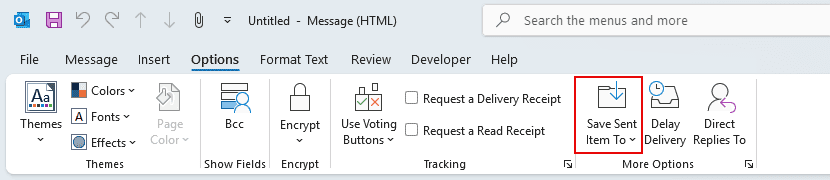
 In classic Outlook, select a different Sent Items folder using the Save Sent Item to Command on the Options ribbon.
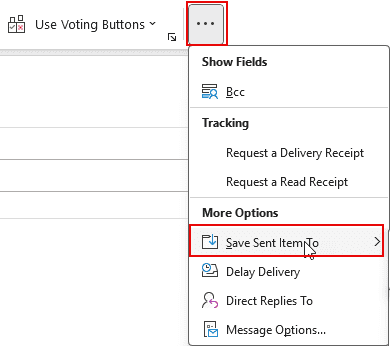
If you are using the simplified ribbon in classic Outlook, the Save Sent item to command may be in the overflow, under the three dots on the right.
If you always want to use a different folder, you can use a macro to set the Save message to folder. You could use an If statement to only move certain messages to the folder.
This sample saves the sent message to a subfolder named "Diane" under the Sent Items folder.
Private Sub Application_ItemSend(ByVal Item As Object)
  Dim objNS As NameSpace
  Dim objFolder As MAPIFolder
  Set objNS = Application.GetNamespace("MAPI")
  Set objFolder = objNS.GetDefaultFolder(olFolderSentMail).Folders("Diane")
  Set Item.SaveSentMessageFolder = objFolder
  Set objFolder = Nothing
  Set objNS = Nothing
End Sub
Use VBA to display a dialog
These two macros use the ItemSend method in the macro above, but call the folder picker so you can choose a folder each time.
From the now-defunct Outlookcode.com:
This VBA code reproduces something closer to the Notes behavior by popping up the Select Folder dialog when the user sends the message.
This code demonstrates the use of the Namespace.PickFolder method to pop up the folder list for the user's selection. Note that you must handle the situation where the user cancels the dialog, in which case PickFolder returns Nothing.
The folder must be in your default information store -- Exchange mailbox or PST file. The IsInDefaultStore() function tests for this. If you need to move items to a different folder, the solution would be to use the ItemAdd event on the Sent Items folder's Items collection. See To quarantine application file attachments for an example of using ItemAdd.
To use this code, paste it into the built-in ThisOutlookSession module in VBA in Outlook. (Press Alt+F11 to open the VBA window.)
Private Sub Application_ItemSend(ByVal Item As Object, _
    Cancel As Boolean)
  Dim objNS As NameSpace
  Dim objFolder As MAPIFolder
  Set objNS = Application.GetNamespace("MAPI")
  Set objFolder = objNS.PickFolder
  If TypeName(objFolder) <> "Nothing" And _
     IsInDefaultStore(objFolder) Then
      Set Item.SaveSentMessageFolder = objFolder
  End If
  Set objFolder = Nothing
  Set objNS = Nothing
End Sub

Public Function IsInDefaultStore(objOL As Object) As Boolean
  Dim objApp As Outlook.Application
  Dim objNS As Outlook.NameSpace
  Dim objInbox As Outlook.MAPIFolder
  On Error Resume Next
  Set objApp = CreateObject("Outlook.Application")
  Set objNS = objApp.GetNamespace("MAPI")
  Set objInbox = objNS.GetDefaultFolder(olFolderInbox)
  Select Case objOL.Class
    Case olFolder
      If objOL.StoreID = objInbox.StoreID Then
        IsInDefaultStore = True
      End If
    Case olAppointment, olContact, olDistributionList, _
         olJournal, olMail, olNote, olPost, olTask
      If objOL.Parent.StoreID = objInbox.StoreID Then
        IsInDefaultStore = True
      End If
    Case Else
      MsgBox "This function isn't designed to work " & _
             "with " & TypeName(objOL) & _
             " items and will return False.", _
             , "IsInDefaultStore"
  End Select
  Set objApp = Nothing
  Set objNS = Nothing
  Set objInbox = Nothing
End Function
If you want the user to pick a folder only when the item is sent through a specific account, you will need to structure the code as a procedure that Rules Wizard can run, rather than as an Application-level event handler. You can call the SetSaveFolder code below from a "run a script" action on an Outlook rule. The condition on the rule should be "through specified account."
Public Sub SetSaveFolder(ByVal Item As MailItem)
  Dim objNS As NameSpace
  Dim objFolder As MAPIFolder
  Set objNS = Application.GetNamespace("MAPI")
  Set objFolder = objNS.PickFolder
  If TypeName(objFolder) <> "Nothing" And _
     IsInDefaultStore(objFolder) Then
      Set Item.SaveSentMessageFolder = objFolder
  End If
  Set objFolder = Nothing
  Set objNS = Nothing
End Sub
Another variation would be to not save the item at all if the user doesn't choose a folder. You can do that by setting the DeleteAfterSubmit property to True.
Note: VBA does not work on messages created with File, Send commands in other applications or the Send to command in Windows Explorer. Send to commands use Simple MAPI, which bypasses Outlook functionality.
Use VBA to move sent items
You can use a macro to move all items sent by a specific email account. See Use a macro to move sent items for the VBA code sample. This macro will work with messages created using the File, Send commands in other applications since it processes the message after it's sent.
Save Replies with the original
If you move messages out of the Inbox, you can configure Outlook (all versions) to save replies with the original.
In Outlook 2010 and up, go to File, Options, Mail - about halfway down, in the Save Messages section, is the option to save replies with the original when its not in the Inbox.

Using Rules to file Sent items
You can create an After Sending rule to copy messages meeting specific conditions or to specific persons to a different sent folder, however, this copies the sent message. The only way to avoid saving a message in the Sent folder as well as in another folder is by disabling the option to Save all sent messages and use rules to save messages. If you use this method, your first rule(s) will save messages meeting specific conditions in the desired folders, with each rule containing the Stop processing action. The final rule applies to all messages and saves them in the Sent folder, catching all messages not processed by previous After sending Rules.
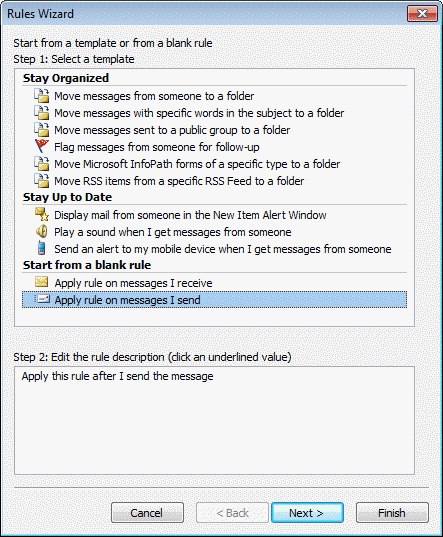
Step 1: Begin by creating a rule "from scratch", choosing a blank rule, applied on messages you send:
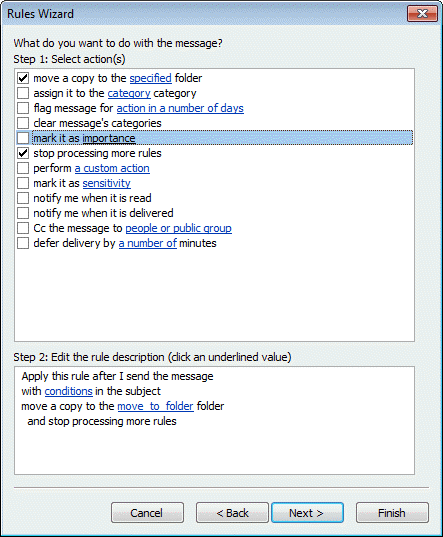
Step 2: Add your conditions and Actions, remembering to select Stop processing on each rule.
Step 3: The final Rule will have no conditions; the Action will copy messages to the Sent folder:
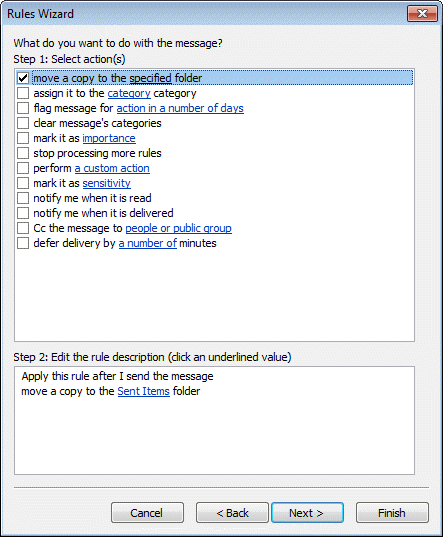
Note that when you use a rule to move a copy of the sent item, its marked as unread. You will need to use VBA to mark the copied sent message read. See Mark Sent Items “Read” after Moving to a New Folder for the necessary code.
Tools in the Spotlight
File emails from Outlook into project or client folders automatically. Match email addresses, project numbers, client names or references to a folder name located anywhere on your network. Watch as the bulk of your emails are automatically filed (ZERO clicks!) and finish the task with manual filing for emails that do not fall within the scope of a project or client folder. Organize filed emails into relevant sub-folders within your mailbox and auto purge dated email over time. Supports Outlook 2007, 2010, 2013 & 2016 |

Tools
Auto-Mate is an Outlook utility that allows you use define rules to move mail from your Inbox (or other folders) based on several criteria, including the age of the message. While Outlook rules only run as messages are downloaded or when you click Run Rules now, Auto-Mate rules run on a schedule, enabling you to apply rules to messages that have been in your Inbox for a given number of hours, days or weeks. Available in Standard or Pro Version. Outlook O365, Outlook 2019 as well as Outlook 2010, 2013, 2016, 32 and 64 bit editions. Version 12. | |
File 90% of your emails at the click of a button. Manage your Inbox and Sent Items folders. Move emails out of the Inbox to the correct folder at the click of a button. QuickFile remembers the folders used for each person and presents a short customized list each time. Use the same list to Send&File in one step instead of having to go back to your Sent Items folder. Plus many more email management features such as one-click creation of task/appointments from emails, newsletter processing, deferred non-urgent emails and much more. | |
This add-in moves both the reply and original message to the pre-defined folder. Example. Let's suppose you have a group of users that process incoming orders that come to the shared mailbox "Orders". Every email has to be replied. After a user replies to or forwards a message, the add-in will move both the original order email and reply to the "Processed" folder. | |
SimplyFile helps you file incoming and outgoing messages to the right Outlook folder with one click of a mouse. SimplyFile's state of the art algorithm learns as you file messages and suggests destination folders for filing. All you have to do to send a message to the right folder is click a button. SimplyFile also includes buttons for turning messages into Tasks and Appointments. Compatible with Outlook 2000, 2002, 2003 and 2007. Version 2.3.4.106. | |
Use Single Click Filing for Outlook to file your messages in Outlook. You can define up to 10 filing folders each with its own toolbar button and use the corresponding shortcuts (Alt+1, Alt+2, ... , Alt+0) to quickly and easily file messages. Free trial. | |
Timed Email Organizer is a brand new add-in which can replace or augment your Outlook rules. Unlike Outlook, this add-in will act on emails based on how old they are, supports ANDs, ORs, NOTs and wildcards in the conditions, and has a test mode so that you can see what the effect of a given rule would be if it were run. It will even import your current Outlook rules and automatically disable them for you. | |
Track Your Sent offers 4 ways to track your sent items: Filing, Categories, Calendar, Tasks. Re-attach your category with a reply/forward to the sent item and keep your categories local (and not expose them to the recipient) Define a default action or action(s) for just a single sent item. | |
SAM automatically sets the sender, signature, and folder for sent items based on several criteria. Use SAM to assign a sending account or SendOnBehalf address and signature to contacts, folders, or categories. Works with Outlook 2007, 2010 and Outlook 2013, 2016. |






























If you use the VBA method, will the code be included in your pst file? So for example, if I have to completely reinstall Outlook, can I restore the my backed-up pst file and have all my new Sent Email Subfolders still intact?
The VBA code won't be stored in the pst (you can copy and paste it into a message in the pst, so you have it handy) - but all of the folders you have in the pst (and the mail in them) will be in the pst file you backed up.
Diane, this is a wonderful tool that I've used for years. I copied and pasted the above code because as Outlook has changed, so has the code. I'm now using the latest O365 and have a problem similar to what someone described below. It happens with both new and reply emails. If I click Cancel after having clicked Send, it doesn't crash. Instead, it sends the message!
This used to work properly so I can only assume it's because of the way Outlook has evolved.
Any help with halting the Send would be much appreciated. I have to stop using it now as I've sent too many emails that weren't ready to go.
First of all, congratulations on the excellent content. It worked perfectly.
Do you think is there a way to move the original conversation thread from the inbox, once it is replied, to the same selected folder in send event?
You would need to use a macro... I'll see if I can come up with a way to do this.
Thank you! That would be a good boost to the productivity since we would avoid going into the inbox and moving the original email to the same folder.
I think there might be something related here : https://forums.slipstick.com/threads/97981-macro-to-move-reply-and-original-message-to-folder/
I am not sure if the final posted code is fully functional.
Hi. This is a really useful function that I have been using for years now, so thanks for that! :) Lotus Notes was not a user friendly program but I did miss the auto-file email function that our company used. Microsoft really should implement this function after all these years! Otherwise sent mail just gets all lumped together rather than filed by project. I know that these days we can rely a lot more on sort than filing but still. However, if you ever hit "cancel" instead of selecting the folder, it causes Outlook to crash (after displaying the message: "This function isn't designed to work with Nothing object and will return False". I don't know enough VBA to be able to fix this. Are you able to post an updated macro so that cancelling it just cancels the function and doesn't crash Outlook? Also are you able to make it so that you select the folder BEFORE Outlook sends the email? The whole reason I hit "Cancel" is that I realise I need to add something to or fix something in the email. So ideally you could hit "cancel" and it would take you back to the email you… Read more »
I will add a cancel handler and will look at your other suggestion.
Thanks :) I'll look forward to it.
Dear Diane,
thx for that great explenation. I tried it with my Outlook and it worked perfectly, but only once. After I rebooted my PC, the code is still shown under "thisOutlooksession" but I dont see thewindow anymore where I can choose a folder to save. Feels like the code is not activated or something like this. Is there anything else I have to do in the VBA? Thanks, David
Did you change the macro security settings in File > Options > Trust Center > Macro security?
How can I modify the above macro to save to a folder in the inbox?
This line controls where it goes:
Set objFolder = objNS.GetDefaultFolder(olFolderSentMail).Folders("Diane")
so you just need to change it to use the inbox folder to save to a folder named Diane that is in the Inbox.
Set objFolder = objNS.GetDefaultFolder(olFolderInbox).Folders("Diane")
Hi Diane,
Thanks for putting this page together!
Unfortunately, it appears outlookcode.com is no longer responding properly, so the macro for Send and File isn't available.
Could you post it directly rather than a link?
Thanks!
Outlook.com is defunct and I'm trying to get the owner to give me the site and data so I can restore it. I'll see if I can find those code samples in the wayback machine.
want to remove folder entries from "Save Sent items to" in outlook 365