The Problem: You have two email accounts. One is configured in Outlook and auto-forwarding enabled on the other, forwarding account to the personal one. You want to add the second account to Outlook, but just as an address to send messages from.
Gmail and Office 365 (and possibly others) allow you to configure multiple accounts online and select the From account when sending, however, only Office365 lets you choose these secondary addresses as a From address in Outlook without adding a second email account to Outlook. (Office365 will reply from the correct address too.)
Note: If you are using Outlook 2010 with an IMAP account set as default and one or more POP3 accounts in your profile, this method is not necessary when Outlook 2010 SP1 or greater is installed. Mailto's will correctly use the default account. See Multiple Accounts and the Default Account for details.
Create a Send-only Email Account in Outlook
The solution: Create a "send only" account in Outlook.
To do this, you need to add the account as a POP3 account and use a fake Incoming server name.
- In the Account Settings dialog, click Add.
- On the first page of the dialog, select Manually Select Server Settings and click Next
- Select Internet E-Mail
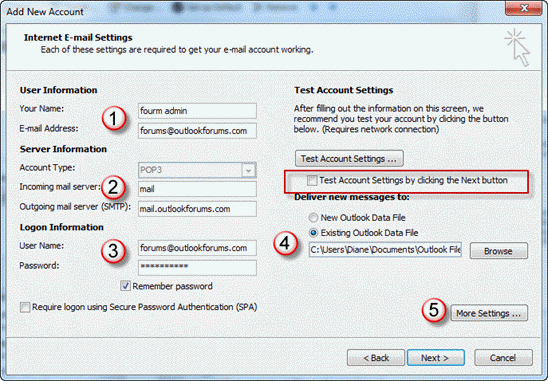
- Add the account as a POP3 account (1)
- Enter a fake Incoming server name, such as "mail" (2)
- Use the correct SMTP info for the server and logon information. (3)
- Select the data file where you want sent messages to be stored (4)
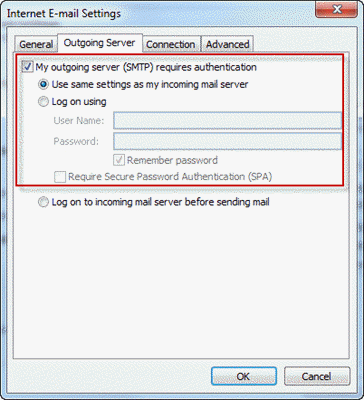
- Click More Settings and select the Outgoing server tab. (5)
- Configure authentication for the outgoing server, then close the dialog.

- Uncheck Test account settings before clicking Next to complete the dialog since the fake POP3 server name will fail.
Configure Send and Receive Settings
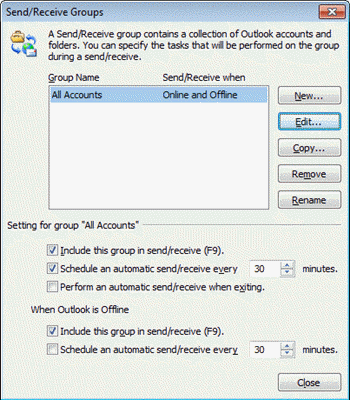
Back in Outlook, open the Send and Receive dialog by pressing Ctrl+Alt+S on your keyboard then select the All Accounts send and receive group. Click Edit.
Select the account and remove the check from Receive Mail Items.
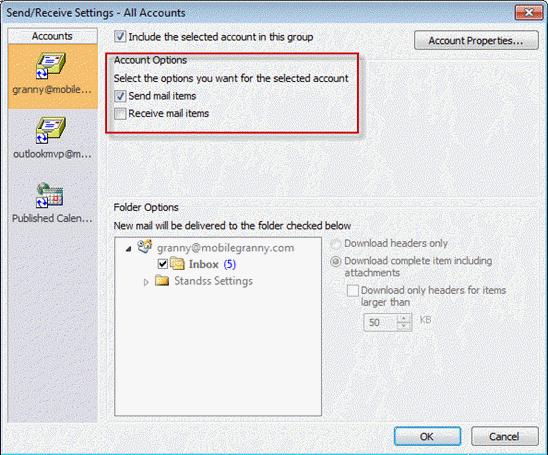
Close the dialog and return to Outlook.
When you check for mail, this account will be skipped. When you select this account while composing a message, it will be sent according to your setting (either immediately or on the next mail pass).
More Information
To create an email account to download mail and send all mail using a different account, see Choose the account to send a reply from.

Brian Tillman says
Is there a way to create a send-only account in Outlook for Mac?
Brian Tillman says
Does Outlook for Mac also support send-only accounts?
BobH says
I tried to set up a receive-only email account. Used a bogus SMTP server and disabled Send as you indicated. Unfortunately, if a user (who has multiple email accounts set up in Outlook), opens an email in that receive-only account and clicks 'reply' or 'forward', it still defaults to this account to send. If they fail to click 'From' and change the sending account, they will end up with a flood of Outlook SMTP password prompts
Diane Poremsky says
Change the bogus smtp to the one you would be sending from - make sure you use the correct username and password for the server.
BobH says
I tried setting the SMTP to correct servername with correct login info and since sending is disabled (as I described), I get "Send test email message: Cannot send the message. Verify the email address in your account properties. The server responded: 550 Request failed; Mailbox unavailable". Also, it's still defaulting to that account as sender account even though disabled in Send/Receive settings. Just trying to get Outlook to use the default sending account as defined in Account settings.
Diane Poremsky says
After adding a smtp and password that can send, enable the option to send (or use the Send command on the send & receive menu). Change the email address on the message to the one used by the sending account - not all account will allow replies from other addresses (marked #1 on the first screenshot).
BobH says
Yes, I'm aware that I can use a valid SMTP login to avoid the password errors. I guess there's no way to get Outlook to use the default sending account as defined in Account settings when replying or forwarding a message from the 'receive-only' email account - it will always try to send from that account and I must manually click 'From' to change it (?). That occurs whether or not sending is enabled or disabled in 'send/receive' settings.
Shan Pinto says
Hi Diane.
Good morning!
I have outlook 2016 with my laptop.
I used outlook.com in my phone and also in tablet most of the time.
How can I get the mail sent from phone or tab to outlook sent box?
Is there anyway?
Thanks.
Diane Poremsky says
if you are using outlook.com, it should be configured as either exchange or imap, both of which sync sent mail back to the server.
Which phone os are you using?
David Boyd says
Why is Outlook so horribly hard to configure. I am using Outlook 2016. I have a gmail account and a hotmail account. Gmail is set as the default account. My mailmerge to email Word 2016 documents all go to Hotmail's OUT Box. If I open them there (Outlook Offline) and then press send, they move to my Gmail's OUT Box. So Outlook knows what I want, just doesn't do it from Word. I have clicked the option Always Send New messages from Default accout, but I guess Outlook doesn't consider emails sent to it from Word a New Message, huh? I have checked the registry setting listed above and it is set to "1". I have restarted my computer.
In other words: none of the suggestions in your article actually work.
Nothing works. Again: why is configuring Outlook so terribly hard?
I have tried setting up a "fake" outgoing/send account, but it is not described fully. E.g. What do I use for a password for an info@website.nl account, that forwards to my gmail account, and for which I don't actually have a password. I have a gmail.com(2).ost data file and a hotmail.com.ost. Your instructions say "Select the data file where you want sent messages to be stored (4)" and then don't show the file you are using in the screenshot, thus leaving me without any information.
HELP!!!!!
Jimbotron3000 says
This no longer works since Outlook changed the account creation process. It now requires you to log in to the POP server. Do you know of any workaround?
Diane Poremsky says
Add the account using a valid servers then change the details in File, Account Settings. (Screenshot is from 1708.)
Jonathan Kay says
Since this change happened, I use the Mail Control Panel (Office16\MLCFG32.CPL) Email Accounts... instead, where it works the 'old' way as Diane describes above.
Mike Hall says
Hi Diane,
You may want to update this procedure slightly: With Outlook v1706 build 8229.2086 I can no longer use a 'fake' POP server because there is no longer an option to *not* test the account when you create it.
The work around I arrived at was to use a genuine POP server at the account creation time, and then modify the account afterwards to change to a fake POP server. What a complete pain!
Diane Poremsky says
I hate that new dialog. :( they are also blocking the ability to add an address twice.
Sandy says
My email stopped receiving messages. I believe it is Outlook 2013. Any suggestions?
Diane Poremsky says
What type of email account do you use? Any error messages? Can you send email?
Philip Oakley says
An excellent description. It was great that it worked, especially for a send only account, being worked via an alias address!
The only minor glitch was at the "Configure Send and Receive Settings" step [for Outlook 2013] where I also needed to use the drop down to locate the "Define Send/Recieve groups", which then displayed the dialog box shown (So at least I knew I'd got to the right place!). [this was via the File/Account settings/change route]
When it all worked I was able to let out one of those explosive "Yes!!" - two days of pent up frustration released!.
Jon Weban says
Using Outlook.com, I can set up additional send-only accounts online, with 3rd-party address domains and corresponding SMTP outgoing servers. Then I simply choose the desired From address, and the receiver sees the e-mail as coming from that address (with no 'on behalf of'). On my side, the mail is stored in Outlook.com's Sent folder. That's what I want, and it works fine, relaying through the appropriate 3rd party SMTP server -- as long as I am using the Outlook.com web interface, or my Outlook.com app for Android. BUT, when I set up send-only accounts in Outlook 2013 -- configured as described on this page, using either smtp-mail.outlook.com or smtp.live.com -- the receiver only sees my Outlook.com DEFAULT e-mail address, and there is no sign of the alternate address that was configured in both Outlook 2013 and Outlook.com. It appears from MIME headers that the alternate From address is just discarded by the Microsoft SMTP server during the relay process.
Is there a better way to do this (maybe with a different Microsoft SMTP server name or using some feature of EAS or IMAP?), that will both (a) preserve the alternate From address chosen in Outlook 2013, and (b) still store the outgoing mail in my Outlook.com Sent folder?
(And thanks, Diane, for your many helpful tips on this site!)
Diane Poremsky says
At this time, Microsoft doesn't allow the 3rd party addresses to be used as the From address when sending from Outlook. The only way to send using that email address is to configure the account in Outlook. Of course, when you do this, the mail is not stored in the outlook.com folder because an EAS account can't upload mail. You can configure the account in Outlook as an imap account. Use IMAP to the outlook.com server for incoming and the account's SMTP server for outgoing. Mail will be stored in the imap sent folder and uploaded.
Aviv Hassidim says
Hi Diane!
I have created a prf file that create an exchange account and a pop3 send only account.
this prf import every time a user opens outlook 2010 on RDS 2008 R2.
i did not figured how to remove the check from "Receive Mail Items" globaly by command ,gpo or registry.
i think that because the pop3 account try to send mail when outlook start the users gets outlook "not responding" for a few seconed until it released.
please suggest me how to solve my problem.
Thanks,
Aviv Hassidim
Diane Poremsky says
This setting is not set via GPO because each profile can be different. It's also not set via PRF. It doesn't look like it's stored in the registry, which means its in a hidden file in the mailbox or pst. You can double check my findings using a utility called RegShot. Scan your registry with it, then make the change and scan again. Look through the compare results.
David says
Diane--I love your site. I'm hoping you can clear something up for me. In earlier version of Outlook I created "send only" POP3 accounts that did not create a new data file. Thus, the "account" did not show up in the folder pane, but the account was listed as a "From" option and the sent items just went to the default sent items folder. Is this no longer possible in 2013? I create a new POP3 account but it seems to require a new data file. I want to simply have my outlook.com EAS files in the folder pain and nothing else (as before). Any ideas?
Diane Poremsky says
EAS accounts can't upload mail, so you can't select the EAS data file as the deliver to location. If the main account was POP3 or IMAP you could use it's data file for the (non-existent) incoming mail and sent items.
Zoltan says
Hi All,
Thanks for Diane's solution. With this solution when creating the "fake" POP account, you need to create a new .pst, as you cannot choose the .ost associated with the EAS account to store messages. This means you cannot keep your sent emails synced with your Outlook.com account. Is that right?
Diane Poremsky says
Correct, you can't move mail into an EAS data file. If you want copies in Outlook.com, you'll need to BCC (or CC) your account. Microsoft is looking into updating the EAS protocol to allow importing mail. If they do this, then you will be able to move mail into the outlook.com sent folder.
David says
Diane,
You are clearly the right person to answer my question. I have a gmail account and an outlook.com account. I have setup outlook.com to consolidate email from both accounts, (by forwarding my gmail account to outlook.com and setting up a send only account in outlook.com) and would like to use Outlook 2013 as my primary desktop email client with only one account to manage. When I receive a gmail email in the web gui for outlook.com, I can reply from the gmail address, or choose the outlook.com address. My problem is that I can't do the same thing in Outlook 2013.
My question is: how can I setup Outlook 2013 to automatically select the sending email address as the reply from address, or is there another technique that will work? Will the solution you've listed above solve my problem?
I've tried several things that haven't worked and thought you might have the solution before I draw blood from continuing to beat my head against the wall.
Diane Poremsky says
See reply using the sent to address for a macro that can set the reply address.