An interesting problem came up in the Microsoft public newsgroups this week. Richard posts:
We have a specific user requirement to auto accept meeting requests only from some selected organizers, but I don't see any choice in Rule Wizard for meeting requests. Does anyone have an idea, please?
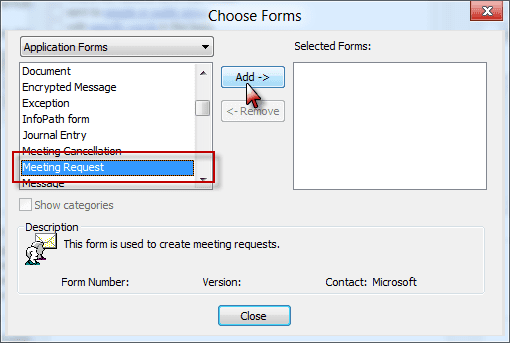
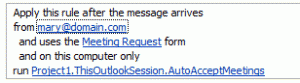 Of course I have an idea. Begin with a rule using the conditions "from people or distribution list" and "uses the specified form", choosing the Meeting Request form under Application forms.
Since there is not an action to respond to meeting requests, you'll need to use a script to accept it. Outlook MVP Michal Bednarz offers this script, which you need to add to ThisOutlookSession before creating the rule.
This was tested in Outlook 2007 and should work in any version which supports the Run a Script action.
The Basic Code
Sub AutoAcceptMeetings(oRequest As MeetingItem)

If oRequest.MessageClass <> "IPM.Schedule.Meeting.Request" Then
  Exit Sub
End If

Dim oAppt As AppointmentItem
Set oAppt = oRequest.GetAssociatedAppointment(True)

Dim oResponse
 Set oResponse = oAppt.Respond(olMeetingAccepted, True)
 oResponse.Display '.Send
End Sub
How to use
Open Outlook's VBA editor (Alt+F11), expand Microsoft Office Outlook Objects then double click on ThisOutlookSession. Type or paste the code into the module, then create the rule with the 'run script' Action and select this script
To decline a meeting, replace olMeetingAccepted with olMeetingDeclined:
Set oResponse = oAppt.Respond(olMeetingDeclined, True)
To Save with no response sent
To accept the meeting and add it to your calendar automatically, without sending a response, one of two options should work to suppress the response:
oResponse.Close (olDiscard)
or
oResponse.Close (olSave)
oResponse.Delete
The difference between the two is that olSave saves a draft of the acceptance (or decline) and if you don't delete it using the Delete line, a tentative appointment may be added to the calendar.
Sub AutoAcceptMeetings(oRequest As MeetingItem)

If oRequest.MessageClass <> "IPM.Schedule.Meeting.Request" Then
  Exit Sub
End If

Dim oAppt As AppointmentItem
Set oAppt = oRequest.GetAssociatedAppointment(True)
Dim oResponse

Set oResponse = oAppt.Respond(olMeetingAccepted, True)
' creates response, saves to drafts without sending
oResponse.Close (olSave)
' deletes draft response
' if not deleted, may create tentative appt on calendar
oResponse.Delete
End Sub
Add a Category when the meeting is accepted
This version looks for the meeting acceptance message and adds a category to the meeting, allowing you to see at a glance if it was accepted.
Sub AutoAcceptMeetings(oRequest As MeetingItem)

If oRequest.MessageClass <> "IPM.Schedule.Meeting.Resp.Pos" Then
  Exit Sub
End If

Dim oAppt As AppointmentItem
Set oAppt = oRequest.GetAssociatedAppointment(True)

Debug.Print oAppt.Subject
oAppt.Categories = "Accepted"
oAppt.Save

End Sub
Move meeting to a new calendar after accepting
This run a script macro accepts the meeting then moves it to another calendar (a subfolder of the default calendar as written). See Working with VBA and non-default Outlook Folders for the methods needed to move it to other calendar folders.
Because moving a meeting adds Copy to the subject, it picks up the original subject and replaces the subject with it after the move.
Sub AutoAcceptMeetings(oRequest As MeetingItem)
If oRequest.MessageClass <> "IPM.Schedule.Meeting.Request" Then
  Exit Sub
End If

Dim oAppt As AppointmentItem
Dim strSubject As String
Dim newCalFolder As Outlook.Folder
Dim apptMove As Object

Set oAppt = oRequest.GetAssociatedAppointment(True)
Dim oResponse
 Set oResponse = oAppt.Respond(olMeetingAccepted, True)
 oResponse.Send

strSubject = oAppt.Subject

Set newCalFolder = Session.GetDefaultFolder(olFolderCalendar).Folders("New")
Set apptMove = oAppt.Move(newCalFolder)

' use original subject and save
apptMove.Subject = strSubject
apptMove.Save
End Sub
Turn off Reminders
To turn reminders off on the meeting, add these lines to the code. It can either go right after the 'Set oAppt' line or before End Sub.
Appt.ReminderSet = False
Appt.Save
To Delete from the Inbox once processed
Add the following before End Sub:
oRequest.Delete
Apply rule to meetings scheduled for a specific day of the week
This edit uses the WeekDayName function to get the day of the week and automatically process the meeting. Use the full weekday name in the string.
dayWed = WeekdayName(Weekday(oAppt.Start))
If dayWed = "Wednesday" Then
Sub AutoAcceptMeetingsWed(oRequest As MeetingItem)

If oRequest.MessageClass <> "IPM.Schedule.Meeting.Request" Then
  Exit Sub
End If

Dim oAppt As AppointmentItem
Set oAppt = oRequest.GetAssociatedAppointment(True)

dayWed = WeekdayName(Weekday(oAppt.Start))

If dayWed = "Wednesday" Then

Dim oResponse
 Set oResponse = oAppt.Respond(olMeetingAccepted, True)
 oResponse.Send

End If
End Sub
Accept Meetings during working hours
Use this macro to accept meetings only during your working hours. Any meetings before your working time or after your day ends, you be declined. Meetings during those times will be accepted.
Sub AcceptWorkingHours(oRequest As MeetingItem)
If oRequest.MessageClass <> "IPM.Schedule.Meeting.Request" Then
  Exit Sub
End If
Dim oAppt As AppointmentItem
Dim oResponse
Set oAppt = oRequest.GetAssociatedAppointment(True)
meetingtime = Format(oAppt.Start, "h:mm:ss AM/PM")

If meetingtime < #8:45:00 AM# Or meetingtime > #6:45:00 PM# Then

Set oResponse = oAppt.Respond(olMeetingDeclined, True)
oResponse.Send

 Else

Set oResponse = oAppt.Respond(olMeetingAccepted, True)
 oResponse.Send
End If

oRequest.Close (olSave)
oRequest.Delete
End Sub
Decline if not enough lead time
This version of the macro will decline the meeting request if the meeting is on short notice. For this example, it is configured for 8 hours.
You can use either decimal points (Time + 0.333333) for the time difference or divide by hours or minutes: Time + 8/24 (or 480/1440).
Tip: If your lead time has many decimal places, the more you use, the more accurate the time, however, 5 to 6 decimal places should be accurate within a few seconds.
Sub LeadTime(oRequest As MeetingItem)
If oRequest.MessageClass <> "IPM.Schedule.Meeting.Request" Then
  Exit Sub
End If
Dim oAppt As AppointmentItem
Dim oResponse
Set oAppt = oRequest.GetAssociatedAppointment(True)

meetingtime = Format(oAppt.Start, "h:mm:ss AM/PM")
Debug.Print Time, Time + 0.333333

If Time + 0.3333333 < meetingtime Then

Set oResponse = oAppt.Respond(olMeetingDeclined, True)
oResponse.sEnd

 Else

' delete these if you want to accept/decline yourself
Set oResponse = oAppt.Respond(olMeetingAccepted, True)
 oResponse.sEnd
End If

oRequest.Close (olSave)
oRequest.Delete
End Sub
Check Free/Busy before accepting
Steve wanted to know how to decline if there was a conflict. For this we need to check Free/Busy. Checking the Free/Busy is actually fairly easy and the code we need is at Recipient.FreeBusy Method.
Set yourself as a Recipient, using your email address, display name, or alias:
Set myAcct = Session.CreateRecipient("alias@slipstick.com")
Then get your Free/Busy string:
myFB = myAcct.FreeBusy(oAppt.Start, 5, False)
You need a date to check, and we'll use the appointment start date. The Free/Busy string begins at midnight on this date.
The next value is how many minutes are in each Free/Busy "period" represented by the myFB string. After much trial and error, I've decided that 5 minutes is probably the best value, since it's the smallest time period displayed on the calendar.
The final value is True or False (if you leave it blank, it's False). False tells Outlook to either return 0 for Free (and Working elsewhere in Outlook 2013) and 1 for "not free". True returns values specific to the Show time as setting.
Next, you need to know how many time periods are between midnight and the appointment time (there are 288 5 minutes periods each day):
i = (TimeValue(oAppt.Start) * 288)
Use that value to create a string of the periods the appointment covers. If you want to build in some downtime between appointments, subtract from i before calculating ( i - 2 gives 10 min between appointments) and add the same value to the duration calculation.
test = Mid(myFB, i, oAppt.Duration / 5)
test = Mid(myFB, i-2, (oAppt.Duration / 5)+2) starts 2 periods before the start time, or in my example, leaves 10 min between the last appointment and this one.
Finally, we use InStr to look for a match within the substring that covers our appointment period. If the string contains a 1, the appointment should be declined:
If InStr(1, test, "1") Then
To help you understand the code (and check my calculations), I left my Debug.Print code in. Open the Immediate windows in the VB Editor using Ctrl+G or select it from the View menu to see the results. Those 0, 1, and 2's each represent a 5 minute block of time beginning at 12:00 AM on that date.
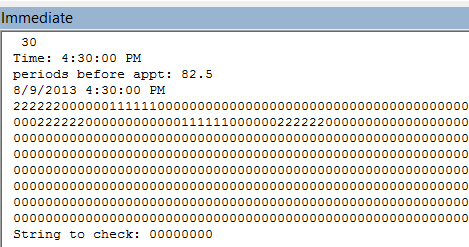
Sub CheckFreeBusy(oRequest As MeetingItem)
If oRequest.MessageClass <> "IPM.Schedule.Meeting.Request" Then
  Exit Sub
End If

Dim oAppt As AppointmentItem
Set oAppt = oRequest.GetAssociatedAppointment(True)

Dim myAcct As Outlook.Recipient
Dim myFB As String

Set myAcct = Session.CreateRecipient("alias@slipstick.com")

Debug.Print oAppt.Duration
Debug.Print "Time: " & TimeValue(oAppt.Start)
Debug.Print "periods before appt: " & TimeValue(oAppt.Start) * 288
Debug.Print oAppt.Start

myFB = myAcct.FreeBusy(oAppt.Start, 5, False)

Debug.Print myFB

Dim oResponse
Dim i As Long
Dim test As String

i = (TimeValue(oAppt.Start) * 288)
test = Mid(myFB, i - 2, (oAppt.Duration / 5) + 2)

Debug.Print "String to check: " & test

If InStr(1, test, "1") Then
 Set oResponse = oAppt.Respond(olMeetingDeclined, True)
 oResponse.Display

 Else
  Set oResponse = oAppt.Respond(olMeetingAccepted, True)
 oResponse.Display
End If
End Sub
If you want to check for specific values or consider tentative appointments as Free, you can change If InStr(1, test, "1") Then to use different values. Use If InStr(1, test, "2") or InStr(1, test, "3") Then to check for Busy and Out of Office.
| Free/Busy | Value |
|---|---|
| Free | 0 |
| Tentative | 1 |
| Busy | 2 |
| Out of Office | 3 |
| Working Elsewhere (Outlook 2013) | 0 |
How to use the macros on this page
First: You need to have macro security set to the lowest setting, Enable all macros during testing. The macros will not work with the top two options that disable all macros or unsigned macros. You could choose the option Notification for all macros, then accept it each time you restart Outlook, however, because it's somewhat hard to sneak macros into Outlook (unlike in Word and Excel), allowing all macros is safe, especially during the testing phase. You can sign the macro when it is finished and change the macro security to notify.
To check your macro security in Outlook 2010 and newer, go to File, Options, Trust Center and open Trust Center Settings, and change the Macro Settings. In Outlook 2007 and older, look at Tools, Macro Security.
After you test the macro and see that it works, you can either leave macro security set to low or sign the macro.
The macros on this page should be placed in a module.
Open the VBA Editor by pressing Alt+F11 on your keyboard.
To put the code in a module:
- Right click on Project1 and choose Insert > Module
- Copy and paste the macro into the new module.
More information as well as screenshots are at How to use the VBA Editor
More Information
More Run a Script Samples:
- Autoaccept a Meeting Request using Rules
- Automatically Add a Category to Accepted Meetings
- Blocking Mail From New Top-Level Domains
- Convert RTF Messages to Plain Text Format
- Create a rule to delete mail after a number of days
- Create a Task from an Email using a Rule
- Create an Outlook Appointment from a Message
- Create Appointment From Email Automatically
- Delegates, Meeting Requests, and Rules
- Delete attachments from messages
- Forward meeting details to another address
- How to Change the Font used for Outlook's RSS Feeds
- How to Process Mail After Business Hours
- Keep Canceled Meetings on Outlook's Calendar
- Macro to Print Outlook email attachments as they arrive
- Move messages CC'd to an address
- Open All Hyperlinks in an Outlook Email Message
- Outlook AutoReplies: One Script, Many Responses
- Outlook's Rules and Alerts: Run a Script
- Process messages received on a day of the week
- Read Outlook Messages using Plain Text
- Receive a Reminder When a Message Doesn't Arrive?
- Run a script rule: Autoreply using a template
- Run a script rule: Reply to a message
- Run a Script Rule: Send a New Message when a Message Arrives
- Run Rules Now using a Macro
- Run-a-Script Rules Missing in Outlook
- Save all incoming messages to the hard drive
- Save and Rename Outlook Email Attachments
- Save Attachments to the Hard Drive
- Save Outlook Email as a PDF
- Sort messages by Sender domain
- Talking Reminders
- To create a rule with wildcards
- Use a Macro to Copy Data in an Email to Excel
- Use a Rule to delete older messages as new ones arrive
- Use a run a script rule to mark messages read
- Use VBA to move messages with attachments

ajkessel says
This works for me for the most part on the latest Outlook 365; however, oRequest.Delete does not appear to actually delete the item. Any ideas why it's not working, or what needs to be changed?
Chris Mathison says
Hi Diane, My company has a need for several custom Outlook add-ins. Can you recommend anyone who might be interested in working with us on this? Thanks in advance.
Eric Arnst says
Diane,
This is amazing. Thank you.
For the FreeBusy macro on Outlook 2016, I noticed a couple things:
Curious to hear your thoughts on both of those items, especially the second one. I'm trying to think of scenarios where my "i + 1" might cause an issue. Seems pretty unlikely if it will ever matter if I am checking 8:05-8:30 rather than 8:00-8:30 (if that is indeed what my +1 is actually achieving, like I suspect.)
Diane Poremsky says
>> Seems pretty unlikely if it will ever matter if I am checking 8:05-8:30 rather than 8:00-8:30 (if that is indeed what my +1 is actually achieving,
Correct, that is what the +1 is supposed to check.
That it works, that is what matters. :)
Foster says
Thanks so much for this code. I am trying to implement the above codes for lead time and free/busy with some modifications. I am a novice with this coding and want to add a reply to the meeting organizer to tell them why their meeting is declined (too little notice or busy). How can I send the response with comments from within the scripts? And is it ok to run these scripts in successive rules (free/busy, then lead time)? Or do I need to put them in one script?
boredazfcuk says
This is how I'm sending comments in the appointment response... (taken from my script to decline based on working hours):
Jordi says
Thanks for this code, it is really helpful, just one question:
I understand that these macros only work while outlook is running, correct? If I have my computer switched off and I recieve a meeting invite, it will not be processed until I switch on my computer and run outlook.
Diane Poremsky says
Correct, VBA only runs when outlook is open.
Joe Murphy says
VB keeps failing on the oResponse. Close (olSave) line highlighted below.
Running Outlook for Office 365 MSO (16.0.11929.20536) 64-bit
I feel like it's a syntax error but unsure.
Sub AutoAcceptMeetings(oRequest As MeetingItem)
If oRequest.MessageClass "IPM.Schedule.Meeting.Request" Then
Exit Sub
End If
Dim oAppt As AppointmentItem
Set oAppt = oRequest.GetAssociatedAppointment(True)
Dim oResponse
Set oResponse = oAppt.Respond(olMeetingAccepted, True)
oResponse.Send
oResponse.Close (olSave)
oRequest.Delete
End Sub
Thanks!
Joe
Adam says
Is there any way to add conditions to the auto decline/accept, say if I wanted to automatically decline meeting invitations from a specific user?
Alon says
Hi.
I have a few questions / problems:
1. Lets say someone sent me a meeting and the script auto-accepted it.
Then he adds an invitee and sends the update to everyone. The script auto-declines the meeting because I'm using the FreeBusy segment and it detects the same meeting at that time slot. What can I do?
2. After the script declines a meeting, the message is deleted. But not after accepting it.
How do I do that?
3. When I get a meeting request on a time slot that's free, the FreeBusy returns 1 as any meeting received is automatically set to tentative by outlook. Anything I can do so it would return 0?
Thanks!
Diane Poremsky says
1. The update should not be detected as a new meeting. If it is, you'll need an if statement the for is a meeting update message class, to exit the macro. If using rules, you can create an exception for the meeting update form.
2. I thought that was fixed. Do you have oRequest.Delete in the code?
3 We'll need to replace 1 with 0 for the test. Either do a replace after getting the string in this line:
myFB = myAcct.FreeBusy(oAppt.Start, 5, False)
myfb = replace(myfb, "1", "0")
or change false to true and look for 2's. Using Replace might be easier.
Alon says
1. It is detected as a new meeting.
Even if I use the update class, I only want to exit if it wasn't a time change.
If it was a time change then I need to handle the FreeBusy logic again.
But then I can run into a problem again if the new updated time includes part of the old time.
Let's say if the original meeting was 10:00 - 11:00 and the new one is 10:30 - 11:00
In that case I would like to confirm it and not detect my schedule as busy... Unless the new updated meeting would be detected as tentative again... and then i have no problem. I'll have to do some tests.
Regarding item 2 - you're right. I was missing that.
Alex says
Thanks for a great script. I'm using the first scenario (the basic code) and it's working up to a point: It auto-accepts on my side but doesn't automatically send the acceptance email. Rather it just pops up an acceptance window and I then have to click send. Not a huge deal but as I'm hoping to send an acceptance as soon as the invite comes through this adds a delay (if I'm not at my machine at that very moment).
Any ideas as to why this might happen? Do I have some sort of security setting blocking automatic sending of mails?
Diane Poremsky says
It's set to display for test purposes.
Change this line:
oResponse.Display '.Send
to
oResponse.Send
and it will send it automatically.
Alex says
It's working perfectly now.Thanks Diane!
Emirhan Yasdiman says
Is it possible to auto-accept only all-day invites? I've tried the following but it does not work. Which is not a surprise since I've never wrote VBA code before. :D
Sub AcceptAllDayEvents(oRequest As MeetingItem)If oRequest.MessageClass <> "IPM.Schedule.Meeting.Request" Then
Exit Sub
End If
Dim oAppt As AppointmentItem
Dim oResponse
Set oAppt = Item
If oAppt.AllDayEvent = True Then
Set oResponse = oAppt.Respond(olMeetingAccepted, True)
oResponse.Send
End If
End Sub
Diane Poremsky says
That should have worked. Oh wait - you need this line:
Set oAppt = oRequest.GetAssociatedAppointment(True)
instead of set oappt = item.
Martyn says
Diane, first of all many thanks for this excellent resource. Has helped me to sort out a complex issue with our meeting room booking system. The only fly in the ointment is...
If someone books a meeting in a free slot, it auto accepts as expected. If they then amend the meeting e.g. change the title of the meeting then the room will auto decline the meeting when the update is sent. The updated meeting request seems to collide with the original meeting.
Is this something that you have come across before?
Diane Poremsky says
if you are sending an update, it should update. The users are inviting the resource, not creating it on the resource calendar? (inviting the calendar is the correct way to do it.)
Martyn says
Yes, the user is inviting the resource. Just been looking at the debug code. When the initial booking is made the free/busy check string is 111111111111 as the incoming booking has been tentatively added to the calendar before the free/busy check. No problem as I am saying 2 - decline, anything else - accept. When the title is changed on the booking and the update is sent, the free/busy check shows 222222222222 as the slot is indeed taken by the booking we are trying to amend. It sends out a decline message and the booking is removed from the calendar. If I send out updates again then the booking is re-added as the slot is free again.
I have attached the code we are using and I am bracing myself for the obvious error I have clearly made!
Diane Poremsky says
it almost sounds like it is seeing the subject change as a new item, not an update to an existing item. I'll take a lot at the code and see if anything jumps out.
Tyler says
oRequest.Delete seems like it will actually delete the meeting itself, not the invite email like I thought.
Diane Poremsky says
oRequest is IPM.Schedule.Meeting.Request - so it should delete the email message, not the meeting itself.
JBG says
Re: Check Free/Busy before accepting
It seems that whenever I pull the .FreeBusy time the meeting time slot being requested always shows as busy! This is even if the time was previously unbooked. It is as if the meeting was accepted before I am given the chance to decide to accept or decline. Any ideas? (PS: I do not automatically accept or decline in Options.)
Diane Poremsky says
what are you using for the value in If InStr(1, test, "1") Then ?
C Bravo says
For some reason it does not work in Outlook 2016. It seems that the MeetingItem object is not valid anymore. I had it working until Outlook 2010 but when updated to 2016 (and Office 365) it stopped. The macro is no longer available in the "Run a script" menu, nor appear as valid macro in the Macro list
Diane Poremsky says
It still works in 2016, but they did remove run a script for security reasons - it can be re-enabled using a registry key. https://www.slipstick.com/outlook/rules/outlook-2016-run-a-script-rules/
Michael says
It's actually not working for 2016 eventhough the run script option is enabled through the register.
Nate Crowe says
Trying this now in Outlook 2016. It doesn't seem to work as every time I test it, I still get the email and the choice to Accept.
Here is what I have:
Sub AutoAcceptMeetings(oRequest As MeetingItem)
If oRequest.MessageClass "IPM.Schedule.Meeting.Request" Then
Exit Sub
End If
Dim oAppt As AppointmentItem
Set oAppt = oRequest.GetAssociatedAppointment(True)
Dim oResponse
Set oResponse = oAppt.Respond(olMeetingAccepted, True)
oResponse.Close (olSave)
oResponse.Delete
oRequest.Delete
End Sub
Diane Poremsky says
ok... i can repro it not working... will need to figure out why. All i know right now is that the macro isn't running at all.
Marc says
Hello Diane,
Very interesting and useful post. Many thanks.
I have been doing some research on the web on a problem that I have with no success. Your solution is the closest I got.
I am often sent meeting requests within the day. Which annoys and hampers all the schedule.
Would it be any way to send an Decline with a certain text (like the out of office feature)?
For instance, for all meeting requests in which time of meeting minus the time of being sent is less than 12 hourse, send a decline along with a certain message (i.e. Dear sender,I am unable to check availability as this invite was sent in less than 12 hours. COuld you bla, bla, bla...?
I think this feature would be great for a lot of people.
If this problem has been addressed in other chats, please forgive me. Could you address me to where it is solved?
Many thanks again!!!!
Diane Poremsky says
it is possible. you can use the accept during working hours and change the if statement & decline part to
Slipstick visitor says
Hello Diane,
Everything works except for cancellations the
"
Set oAppt = oRequest.GetAssociatedAppointment(True)
"
part sets the oAppt object to "Nothing" so the rest of the procedure
"
If Left(oAppt.Subject, 9) = "Canceled:" Then
oAppt.Delete
End If
"
doesn't work of course. Any idea why that is and how to fix it?
Thanks
Diane Poremsky says
Deleted appt should be removed by the response... but are you deleting the request before the apt?
One thing to try, rather than deleting via associated appointment, delete it from the calendar- this is how its done for resource calendars. https://www.slipstick.com/outlook/calendar/remove-cancelled-meeting-requests-from-resource-calendar/
what is the full code you are trying to use?
Diane Poremsky says
Wilfredb says
I also noticed this isn't working in Outlook 2016. By placing msgbox's in the script I found out that all steps are done, but don't have any effect. The meeting invite mail remains in the inbox and the meeting is not auto-accepted. Would highly appreciate a fix for OL2106. This is why I have:
Sub AutoAcceptMeetings(oRequest As MeetingItem)
'MsgBox oRequest.MessageClass
If oRequest.MessageClass "IPM.Schedule.Meeting.Request" Then
Exit Sub
End If
Dim oAppt As AppointmentItem
Set oAppt = oRequest.GetAssociatedAppointment(True)
MsgBox "2"
oAppt.ReminderSet = False
oAppt.Save
MsgBox "3"
Dim oResponse
Set oResponse = oAppt.Respond(olMeetingAccepted, True)
MsgBox "4"
'oResponse.Display '.Send
oResponse.Close (olSave)
oResponse.Delete
MsgBox "5"
' delete from inbox
oRequest.Delete
MsgBox "6"
End Sub
Diane Poremsky says
its getting accepted here and the invite and acceptance are deleted... which makes it hard to figure out what is wrong on your end.
Glen says
Many thanks
Glen
Sub AutoAcceptMeetings(oRequest As MeetingItem)
If oRequest.MessageClass <> "IPM.Schedule.Meeting.Request" Then
Exit Sub
End If
Dim oAppt As AppointmentItem
Set oAppt = oRequest.GetAssociatedAppointment(True)
Dim oResponse
Set oResponse = oAppt.Respond(olMeetingAccepted, True)
oResponse.Display '.Send
End Sub
JBG says
VBA novice question... How would I exclude all meetings except between 8am - 5pm? I'm not sure how to calculate the time to exclude on the day in question.
Diane Poremsky says
Add an IF statement to check the time -
If meetingtime #6:45:00 PM# Then
'decline
else
'accept
end if
I added a macro for that here - https://www.slipstick.com/outlook/calendar/autoaccept-a-meeting-request-using-rules/#workinghours
JBG says
Excellent! Thank you!
Follow-up question... in the case of olMeetingDeclined is it possible to add a comment to the response... like "Sorry... please schedule during office hours! 8am - 6pm"? How would I do that?
Diane Poremsky says
Before the declined response send line, you'll add it:
oResponse.Body = "Sorry... please schedule during office hours! 8am - 6pm"
oResponse.Send
Zee says
I have recently found out that any script written for outlook 2007 will not work in outlook 2013. How does this script have to be updated to work in 2013?
Diane Poremsky says
Most scripts will work in Outlook 2007 and up. Even many older ones still work. Occasionally they need a little editing to work...
Which script are you using and do you get any error messages?
Max says
Hello
My Outlook session is accepting the meeting but while using the set busy as free function is not working
oAppt.BusyStatus = olFree
oappt.save
appointment is accepted but not set to show as free:
Sub AutoAcceptMeetings(oRequest As MeetingItem)
If oRequest.MessageClass "IPM.Schedule.Meeting.Request" Then
Exit Sub
End If
Dim oAppt As AppointmentItem
Set oAppt = oRequest.GetAssociatedAppointment(True)
oAppt.BusyStatus = olFree
oAppt.Save
Dim oResponse
Set oResponse = oAppt.Respond(olMeetingAccepted, True)
oResponse.Send
End Sub
Diane Poremsky says
Try moving
oAppt.BusyStatus = olFree
oAppt.Save
to right before end sub.
lara says
Hello,
The scripts work amazingly, though I had to change a few things
Sub CheckFreeBusy(oRequest As MeetingItem)
If oRequest.MessageClass "IPM.Schedule.Meeting.Request" Then
Exit Sub
End If
Dim oAppt As AppointmentItem
Set oAppt = oRequest.GetAssociatedAppointment(True)
Dim myAcct As Outlook.Recipient
Dim myFB As String
Set myAcct = Session.CreateRecipient("test@domain.com")
Debug.Print oAppt.Duration
Debug.Print "Time: " & TimeValue(oAppt.Start)
Debug.Print "periods before appt: " & TimeValue(oAppt.Start) * 288
Debug.Print oAppt.Start
myFB = myAcct.FreeBusy(oAppt.Start, 5, True)
Debug.Print myFB
Dim oResponse
Dim i As Long
Dim test As String
i = (TimeValue(oAppt.Start) * 288)
test = Mid(myFB, i, oAppt.Duration / 5)
Debug.Print "String to check: " & test
If InStr(1, test, "2") Then
Set oResponse = oAppt.Respond(olMeetingDeclined, True)
oResponse.Send
Else
Set oResponse = oAppt.Respond(olMeetingAccepted, True)
oResponse.Send
End If
End Sub
However, the problem now, is if I have a reoccurrence meeting request, how can I let it check for it all, and in case if it conflicts with just one, maybe on the second occurrence, to decline the whole. If you know what I mean.
Your help is appreciated.. And can't thank you enough for this tutorial !!
Robin says
Dear Diane,
The script is sheer brilliance. I do have an additional question though. In am receiving email messages from an application, containing an .ics file as a attachment with the appointment information. Would it be possible to convert the .ics attachment to an appointment in some way to which the code above could apply? I would like the .ics attachments to be auto accepted as well.
Thanks in advance!!
Yours sincerely
Robin
Diane Poremsky says
You should just be able to open it then save it. The macro at https://www.slipstick.com/outlook/email/save-open-attachment/ shows how to open attachments.
Marny says
Thanks Diane! I appreciate the quick response. What I meant to be ask for was a way to do this automatically. It is common for me to receive emails with several ics attachments, and I have yet to find a case where I would *not* wanted it to be directly added to my calendar.
Might you know how to make this magic happen? I have been looking at writing a script, but that is not my wheelhouse and I have been unsuccessful.
Thank you again!
Diane Poremsky says
If they are ics attachments, you'd need to open the attachments - using VBA, you'd save the attachment to the hard drive then then open it and Save. Assuming the file type is ics, this macro will save and open (its not working if they are sent as outlook appointments items, which save with the msg extension) - https://www.slipstick.com/outlook/email/save-open-attachment/ - it needs to pick the open item, save and close it (I'm having problems doing this). It also needs converted to a run a script rule (this is easy).
Diane Poremsky says
i finally figured out the error in my ways - save ics attachments - it only works on ics files. It's a run a script rule (and there is a test macro so you can test the script on a selected message rather than sending yourself messages or if you need to run it manually) - it saves the attachment to the hard drive then opens it (hidden) and saves it to the calendar. It then deletes it from the hard drive.
Marny says
Hey Robin - did you ever resolve this issue? I would be very appreciative if you would share what you learned or the workaround you implemented! :)
ravi says
Hi All I am using following code i wanted to setup this on shared calendar now its called groups in O365. i ahev applied this on my calendar it works for accepting but meeting conflict it should decline the request which is not working any idea?
Sub CheckFreeBusy(oRequest As MeetingItem)
If oRequest.MessageClass "IPM.Schedule.Meeting.Request" Then
Exit Sub
End If
Dim oAppt As AppointmentItem
Set oAppt = oRequest.GetAssociatedAppointment(True)
Dim myAcct As Outlook.Recipient
Dim myFB As String
Set myAcct = Session.CreateRecipient("rnallabapani@aisj-jhb.com")
Debug.Print oAppt.Duration
Debug.Print "Time: " & TimeValue(oAppt.Start)
Debug.Print "periods before appt: " & TimeValue(oAppt.Start) * 288
Debug.Print oAppt.Start
myFB = myAcct.FreeBusy(oAppt.Start, 5, False)
Debug.Print myFB
Dim oResponse
Dim i As Long
Dim test As String
i = (TimeValue(oAppt.Start) * 288)
test = Mid(myFB, i - 2, (oAppt.Duration / 5) + 2)
Debug.Print "String to check: " & test
If InStr(1, test, "1") Then
Set oResponse = oAppt.Respond(olMeetingDeclined, True)
oResponse.Display
Else
Set oResponse = oAppt.Respond(olMeetingAccepted, True)
oResponse.Display
End If
End Sub
James says
Diane,
So far the code works great. I have noticed that meeting requests where the rule is not applied occur when there is a time conflict on the calendar. In our office, we receive meeting requests from everyone, so that we know who is on a particular call at that time, so there will always be conflicts on the calendar. Is there anyway to modify the code to disregard the conflict and apply the rule? Thank you!
Below is the code that I am using:
Sub AutoAcceptMeetings(oRequest As MeetingItem)
If oRequest.MessageClass "IPM.Schedule.Meeting.Request" Then
Exit Sub
End If
Dim oAppt As AppointmentItem
Set oAppt = oRequest.GetAssociatedAppointment(True)
Dim oResponse
Set oResponse = oAppt.Respond(olMeetingAccepted, True)
oResponse.Close (olDiscard)
oRequest.Delete
End Sub
Diane Poremsky says
this code should accept any request that comes in. It sounds like the calendar is set to reject conflicts - that would reject it on the server, before it got to outlook.
Michael says
I'm using rules and VBA scripts similar to this and this tutorial helped me figure out how to sign the script. How ever I users and I are getting an error with the script and Outlook pops up a rule error window that says operation failed. what could cause this?
Diane Poremsky says
Did it work before you signed it? (Never sign a macro until you are done editing and testing - if you sign then edit the macro will not work).
I would remove the signature and see if it works (after adjusting the macro security settings).
Ken says
I'm using O365 with Outlook 2016. I want meeting invites that are forwarded 'on behalf of" a shared calendar to be auto accepted. When I followed the steps above and tested with an appointment that I added to the shared calendar, it auto accepted. However, when other users forward me invites, or add me to existing invites, it's not auto accepting them. Any ideas?
Thank you,
Ken
Diane Poremsky says
As long as there are no conditions in the rule, the macro should accept any meeting that comes in.
If you are trying to accept ones on a shared calendar (not your own calendar), you would need to use an itemadd macro and watch the shared calendar.
Annujan says
This works amazingly! The only question I have here is, I want my users to know that I have accepted the invite and I want them to receive an email with a message.
I see you have;
To Save with no response sent *** But how do I save with a response being sent with a message as well!
Thank you!
Diane Poremsky says
The default should be to send a response -
Dim oResponse
Set oResponse = oAppt.Respond(olMeetingAccepted, True)
oResponse.Display '.send to send
End Sub
Shran says
Thanks. Is there a way to also process meeting updates?
Diane Poremsky says
They should update automatically if you have it enabled in File, options, mail - near the bottom, in tracking options.
IT Help says
I have Outlook 2010 32bit setup with an IMAP account on Exchange 2010. Trying to use the script with all the setup instructions. I have to select the meeting request message (or the cancelled message) for them to show in calendar. Besides that, the messages are not removed/deleted from the inbox. And Cancelled meetings are still in the calendar. I don't see any warnings for scripts/macros, etc. What am I missing?
Diane Poremsky says
This macro is just to accept (or decline) initial requests. Updates and cancellations should be processed automatically. What are you settings in file, options, mail, tracking options near the bottom?
Paul says
Hello Diane,
The script works great! One issue: The Cancelled meeting appointments stay in the inbox (they do get deleted from the calendar). I read through the comments, and added a piece of code you suggested to someone else, but the result is unchanged.
Public Sub AutoAcceptMeetings(ByRef oRequest As Outlook.MeetingItem)
'Accepts calendar Requests, adds to the calendar and then deletes it
'From https://www.slipstick.com/outlook/calendar/autoaccept-a-meeting-request-using-rules/
If oRequest.MessageClass "IPM.Schedule.Meeting.Request" Then
Exit Sub
End If
Dim oAppt As AppointmentItem
Set oAppt = oRequest.GetAssociatedAppointment(True)
Dim oResponse
Set oResponse = oAppt.Respond(olMeetingAccepted, True)
oResponse.Close (olSave)
If Left(oAppt.Subject, 9) = "Canceled:" Then
oAppt.Delete
End If
oRequest.Delete
End Sub
Diane Poremsky says
For cancelled requests sent to you, check your settings in Options - File, options, mail - in the Tracking section near the bottom of the page. Auto process meetings should delete the message from the inbox when it deletes the cancelled appointment.
The message class for cancelled meetings is not IPM.Schedule.Meeting.Request, it's IPM.Schedule.Meeting.Canceled that's why this is working for cancelled meetings.
Paul says
Thanks Diane.
1. Under File, options, mail - in the Tracking section, the option for auto-process is already checked, but the cancelled meetings requests are not deleted.
2. Would you be so kind to post the code with the change you are recommending? I am not an expert (or anywhere close to it).
Thanks again for your help!
Mike V says
Hi,
This is really great. Thank you.
Can anyone tell me how I can automatically add a comment to the decline meeting?
If you're declining manually Outlook gives you the option to "Edit the response before sending."
I'd like to automatically attach some text before automatically declining the meeting.
Thanks,
Mike.
Mike V says
Hi, This is excellent, really, really excellent - thank you.
I'm trying to tweak the code slightly. I'd like to auto respond if I'm busy. If I'm not busy, I'll manually vet the meeting.
I'd like the auto respond to decline any recurrent meeting that falls outside my working day.
I'd like the auto respond to put any meeting that conflicts with busy time into my diary as tentative.
I have that working. What I'm struggling with is attaching a comment to the response. I want to let the sender know that there is a clash and that he/she should reorganise.
Here's my code, should be obvious what I'm trying. Any help greatly appreciated.
If InStr(1, test, "1") Then
If TimeValue(oAppt.Start) = #3:30:00 PM# Then
If oAppt.IsRecurring = 1 Then
Debug.Print "Recurrant meeting detected"
oAppt.Body = "You've attempted to book a recurring meeting outside of my working hours."
Set oResponse = oAppt.Respond(olMeetingDecline, False, True)
oResponse.Display
'oResponse.Send
'oAppt.delete
End If
End If
Set oResponse = oAppt.Respond(olMeetingTentative, False, True)
'oResponse.Body = "You've attempted to book a meeting when I'm already busy, or outside of my working hours." & vbCrLf & _
"The meeting has been automatically added to my calendar as a tentative appointment. I can not guarantee to attend your meeting." & vbCrLf & _
'oResponse.Display
oResponse.Send
Debug.Print "End of rule"
End If
End Sub
Bill says
I have outlook 2013 and use rules to move emails from my inbox to personal folders. Out of the blue recently when I received a calendar invite that went to my personall folder per my rules, when I accepted the invitation it would not show up on my default outlook calendar and instead showed up on another calendar outlook created that is associated with the personal folder.
Prior to this issue first occurring about a month ago, it worked perfectly (i.e. It put all appointments on my default calendar when I accepted them). I have talked to my help desk folks and they tell me the only answer is to turn off my rules. That's seems crazy to me. Can you help? Thanks very much.
Diane Poremsky says
You can add an exception to the rules to look for message type so it skips meeting requests. Have you always had a calendar folder in the pst file? If there is no calendar, the meeting should go on the default calendar but if the pst has a calendar folder, it can go on that calendar - it's not supposed to when you use Exchange server though.
If you always had the calendar folder, it's possible an update changed the behavior.
Phil says
Hi Diane
Thanks for the code - it works perfectly!
Just one small anomaly - I tried it with the original code quoted (before the Chris amendment) so am aware that when the script runs, it auto accepts in the calendar but then automatically opens a new email ready to send the response to the sender. I have then used the amendment provided by Chris to not send a response. However, it does create a response but puts it automatically into my Drafts folder. I'm using Outlook 2013.
Can I stop the response being created as a draft email, so all it literally does is auto add the appointment to my calendar and nothing else?
Diane Poremsky says
The code says to close and save but I don't recall getting drafts when I tested it. I'll retest it - if you use an imap account it could be because of some issues with drafts where they aren't properly deleted when the message is closed.
Diane Poremsky says
Try using oResponse.Close (olDiscard) to close it.
Lawrence says
Finally! A rule for appointments! Thank you!
John Kendrick says
Is there any code that can be added to mark the all day event "free" when accepting before deleting the message
Diane Poremsky says
oAppt is the associated appointment, so you'd use
oAppt.BusyStatus = olFree
oappt.save
if you need to check for all day events, use
If oAppt.AllDayEvent = True then
' set free and save
end if
Philippe Baguette says
Hi, working with Outlook 2013. Using the script hereunder. Does not seem to work at all. Have neither a new accepted appointment nor a response sent to the requester.
Any hint ?
Public Sub AutoAcceptMeetings(oRequest As MeetingItem)
If oRequest.MessageClass "IPM.Schedule.Meeting.Request" Then
Exit Sub
End If
Dim oAppt As AppointmentItem
Set oAppt = oRequest.GetAssociatedAppointment(True)
oAppt.ReminderSet = True
oAppt.Save
Dim oResponse
Set oResponse = oAppt.Respond(olMeetingAccepted, True)
oRequest.Close (olSave)
End Sub
Diane Poremsky says
is macro security set to low? Did you select this script in the run a script action?
Add msgbox "It's working!" as the first line and invite yourself to a meeting - does the dialog come up?
Philippe Baguette says
Actually, there is an improvement. With this script, the meeting request is automatically accepted and created in the agenda. However, the requestor does not receive the notification. This is not really a problem since I use this rule for syncing my own agenda at customer site with the prof. one, but I'd like to know what's the problem.
Sub AutoAcceptMeetings(oRequest As MeetingItem)
If oRequest.MessageClass "IPM.Schedule.Meeting.Request" Then
Exit Sub
End If
Dim oAppt As AppointmentItem
Set oAppt = oRequest.GetAssociatedAppointment(True)
Dim oResponse
Set oResponse = oAppt.Respond(olMeetingAccepted, True)
oResponse.Send
oRequest.Delete
End Sub
Diane Poremsky says
Do you have any idea if the response is generated? oResponse.Send should send the response - if it's generated and sent, then the mail server is the problem.
David says
Old response I know. I've been trying this and have the same issue of the requestor not receiving the notification. Email does not appear in Drafts or Sent Items. It's like it just closed without sending.
If I use oResponse.Close (olSave) it ends up in the Drafts folder.
Any thoughts?
Diane Poremsky says
This should add it without sending:
oResponse.Close (olSave)
To send it, change .display to .send:
oResponse.send
Francesco says
Hi! This was my exact problem, that is the message was being open but not sending automatically.
That's because the code in the article is setup to oResponse.display, instead of oResponse.send.
It worked now! Please change it.
BCPPS says
I don't see anything red, and I don't know any other way of testing it other than to put it in service on my desktop and try to use it. Here's my code:
Sub AutoDeclineMeetings(oRequest As MeetingItem)
If oRequest.MessageClass "IPM.Schedule.Meeting.Request" Then
Exit Sub
End If
Dim oAppt As AppointmentItem
Set oAppt = oRequest.GetAssociatedAppointment(True)
Dim oResponse
Set oResponse = oAppt.Respond(olMeetingDeclined, True)
oResponse.Display
oRequest.Delete
End Sub
Diane Poremsky says
Select a meeting request in your inbox and run this - you'll get two message boxes then the decline meeting message displays on screen. It works fine here, so if it doesn't work there, then macros aren't enabled.
Sub AutoDeclineMeetingsTest()
Dim oRequest As MeetingItem
Set oRequest = Application.ActiveExplorer.Selection.Item(1)
If oRequest.MessageClass <> "IPM.Schedule.Meeting.Request" Then
MsgBox "not a meeting request"
Exit Sub
End If
MsgBox "Step 1"
Dim oAppt As AppointmentItem
Set oAppt = oRequest.GetAssociatedAppointment(True)
MsgBox "Step 2"
Dim oResponse
Set oResponse = oAppt.Respond(olMeetingDeclined, True)
oResponse.Display
oRequest.Delete
End Sub
BCPPS says
I followed your instructions for creating a Auto Decline Meetings macro, digitally signed it, and created the rule exactly as you suggested, but when I try to enable it, I get a message stating that the rule has been deactivated, that it could be because some of the parameters are not supported. Any idea? I am running MS Win-7 & MS Office Outlook Pro Plus 2010.
Diane Poremsky says
It mostly contains an error. Are any of the lines red? Did you test it before signing it?
Bardhi says
Which code should I use if i want, to accept calendar but NOT TO SEND RESPONSE. ?
Thnx a lot ;)
Diane Poremsky says
Change oresponse.display to
oResponse.Close (olSave)
jmkelley2 says
Hi Diane,
I had a quick question. I was using the free/busy code and found that it was calculating the value of i to be 55. The time periods are in 5 minute blocks and my appointment is for 11:00 AM. The means there are 132 5 minute periods before the start time, and it kept displaying 55. I researched some more on it and found that there are actually 288 5 minute periods in a day. I change the multiplication factor on the "i =" from 120 to 288 and it now works perfectly (288 x 5)/60 = 24 hours. Did I miss something because I swear the code worked fine with 120 before?
Diane Poremsky says
I swear it worked with 120 before too (and didn't recheck it today) - it's been so long since i did it that I forget why i decided on 120 (600 minutes/10 hours) since it's clearly not how many periods are in a 24 hour day - unless I was using working hours, but that is not what I said in the text.
Diane Poremsky says
Some earlier posted this, which I missed at the time -
It looks like I transposed the numbers when I calculated it. I'm dyslexic so that is entirely possible, but I still swear it worked with 120. :)
Niveditha Pavani says
I want all my Meetings to be auto accepted and delcined automatically without login from my primary account.I have typed the code as below. but it shows an error.
Public Sub GetMails()
Dim ns As NameSpace
Dim myRecipient As Outlook.Recipient
Dim aFolder As Outlook.Folders
Set ns = GetNamespace("MAPI")
Set myRecipient = ns.CreateRecipient("XX@in.APAC.com")
myRecipient.Resolve
If myRecipient.Resolved Then
Sub AutoProcessMeetingRequest(oRequest As MeetingItem)
' bail if this isn't a meeting request
If oRequest.MessageClass "IPM.Schedule.Meeting.Request" Then Exit Sub
Dim oAppt As AppointmentItem
Set oAppt = oRequest.GetAssociatedAppointment(True)
Dim declinedReasons As String
declinedReasons = ""
If (oAppt.Location = "") Then
declinedReasons = declinedReasons & " * No location specified." & vbCrLf
End If
If (HasConflicts(oAppt)) Then
declinedReasons = declinedReasons & " * It conflicts with an existing appointment." & vbCrLf
End If
If (DateTime.DateDiff("h", DateTime.Now, oAppt.Start) < 24) Then
declinedReasons = declinedReasons & " * The meeting's start time is too close to the current time. " & vbCrLf
End If
Dim oResponse As MeetingItem
If (declinedReasons = "") Then
Set oResponse = oAppt.Respond(olMeetingAccepted, True)
oResponse.Body = _
" Please collect the key from sekr place Near and make the entry in the meeting room register. "
Else
Set oResponse = oAppt.Respond(olMeetingDeclined, True)
oResponse.Body = _
"This meeting request has been automatically declined for the following reasons:" & vbCrLf & _
declinedReasons
End If
oResponse.Send
oRequest.Delete
End Sub
Function HasConflicts(oAppt As AppointmentItem) As Boolean
Dim oCalendarFolder As Folder
Set oCalendarFolder = ThisOutlookSession.Session.GetDefaultFolder(olFolderCalendar)
Dim apptItem As AppointmentItem
For Each apptItem In oCalendarFolder.Items
If ((apptItem.BusyStatus olFree) And (oAppt apptItem)) Then
If (apptItem.Start oAppt.Start) Then
HasConflicts = True
Exit Function
End If
End If
End If
Next
HasConflicts = False
End Function
End If
End Sub
can you Help me with the code correction and also i want to do the same with Multiple Mailbox
Diane Poremsky says
What line errors and what is the error message?
Niveditha Pavani says
Hello,
Without using a Rule, is there any code where Outlook picks the meeting request automatically from the Multiple mailbox for auto acceptance.
Diane Poremsky says
If you want all meetings autoaccepted, you can configure outlook to accept them, but its all or nothing. You may need to log into each mailbox to configure it for each mailbox.
You need to use a rule and script to autoaccept some but not all meetings.
Geert Roovers says
Yea, I git it to work. I needed to use my user name instead of my full e-mail address in Session.CreateRecipient("").
Also, I did need to change the 120 to 288. You just exchanged 12 5 minute periods in an hour to 5 12 minute periods :-)
Thanks a bunch, this script is already making my out of office time easier to manage.
Geert Roovers says
Hi! In the check for Free/Busy, you say "Next, you need to know how many time periods are between midnight and the appointment time (there are 120 5 minutes periods each day)"
Now generally, in my 24 hour day, I have 288 5-minute periods (12 in an hour, 24 hours in a day, 24 * 12 = 288).
Unfortunately, I cannot check if I need to change the values because of my second question:
Set myAcct = Session.CreateRecipient("")
Does not seem to work. At least the printout of myAcct doesn't yield anything. I'm using my e-mail address, but apparently the returned string is empty. Any ideas?
Sorry for digging up an old thread, but people keep inviting me while I'm out of the office. Google brought me here.
Steve says
Can someone help with code that will delcine meetings if there is a conflict?
Diane Poremsky says
You'll need to check free busy - maybe something like this
Dim myAcct As Outlook.Recipient
Dim myFB As String
Set myAcct = myol.CreateRecipient("my alias")
' False returns 1 for busy, oof, or tentative, 0 for free
' true returns 1,2,3 or 0. So you could accept if free or tentative (1)
myFB = myAcct.FreeBusy(oAppt.Start, oAppt.duration, False)
if myFB <> 0 Then
'accept
The code is untested so it might not be exactly right - basically, you need to get the start date and time and duration and check it against your free busy. You could search the calendar on the date and time and look for busy appt, but i think using free/busy is more efficient.
Diane Poremsky says
This is why I get nothing done on.. someone asks a question that is more interesting than work. :)
I added a macro to the page that appears to work - my math/logic might be off.
larry says
I got it to work, looks like you have to close outlook and open it back up (if you don't close outlook it does not save the code) then accept the marco as a trusted publisher again. here is the code I used.
Sub AutoDeclineMeetings(oRequest As MeetingItem)
If oRequest.MessageClass "IPM.Schedule.Meeting.Request" Then
Exit Sub
End If
Dim oAppt As AppointmentItem
Set oAppt = oRequest.GetAssociatedAppointment(True)
oAppt.ReminderSet = False
oAppt.Save
Dim oResponse
Set oResponse = oAppt.Respond(olMeetingDeclined, True)
oRequest.Close (olSave)
oRequest.Delete
End Sub
Larry says
Also I'm using outlook 2013 not sure if that matters. But I have to manually click Decline with do not send a response for it to be removed from my calendar.
Larry says
No it doesn't work, it still adds it to my calendar, even though it does not accept the event. I don't want it to show up on my calendar at all because it still pops up with a reminder even if I don't accept the event.
Larry says
Hi all I could use some help. I'm trying to auto decline and not send a response to the sender. I also don't want it to show up on my calendar, but for some reason it still shows up on my calendar and gives me a reminder. I don't know what I'm doing wrong, here is my code.
Sub AutoDeclineMeetings(oRequest As MeetingItem)
If oRequest.MessageClass "IPM.Schedule.Meeting.Request" Then
Exit Sub
End If
Dim oAppt As AppointmentItem
Set oAppt = oRequest.GetAssociatedAppointment(True)
Dim oResponse
Set oResponse = oAppt.Respond(olMeetingDeclined, True)
oRequest.Display
oRequest.Close
oRequest.Delete
oAppt.ReminderSet = False
oAppt.Save
End Sub
Diane Poremsky says
The decline should remove it from the calendar.
Did you try it without these two lines?
oAppt.ReminderSet = False
oAppt.Save
This worked for me -
Sub AutoDeclineMeetings(oRequest As MeetingItem)
If oRequest.MessageClass <> "IPM.Schedule.Meeting.Request" Then
Exit Sub
End If
Dim oAppt As AppointmentItem
Set oAppt = oRequest.GetAssociatedAppointment(True)
Dim oResponse
Set oResponse = oAppt.Respond(olMeetingDeclined, True)
oResponse.Close (olSave)
oRequest.Delete
End Sub
fabian says
Hi, as part of the acceptance, I would like to add a 15 min appt 'block' of time to myself to avoid back to back meetings...I'm struggling to find the 'end time' of the meeting I am accepting and use it to set the start time of my 'block' appt. Any suggestions greatly appreciated.
Diane Poremsky says
Start here: copy meeting details
you'd change the fields to this:
oAppt.subject = "Downtime: " & cAppt.subject
oAppt.Start = cAppt.End
oAppt.Duration = 15
Diane Poremsky says
if you are using an autoaccept rule, try something like this to create the companion appointment. I haven't tested it yet, but it looks like it is correct.
Sub AutoAcceptMeetings(oRequest As MeetingItem)
If oRequest.MessageClass <> "IPM.Schedule.Meeting.Request" Then
Exit Sub
End If
Dim oAppt As AppointmentItem
Set oAppt = oRequest.GetAssociatedAppointment(True)
Dim cAppt As AppointmentItem
Set cAppt = Application.CreateItem(olAppointmentItem)
cAppt.subject = "downtime: " & oAppt.subject
cAppt.Start = oAppt.End
cAppt.Duration = 15
cAppt.Location = oAppt.Location
cAppt.Save
Dim oResponse
Set oResponse = oAppt.Respond(olMeetingAccepted, True)
oResponse.Display
End Sub
Brandon says
Diane, I applied the script and the rule in it's entirety works great. I have a monkey wrench to throw into this though. What if I'd like to keep this rule in effect but, I'd also like updates on meeting requests (changed times, dates, ect.) to come through the users inbox and alert them. Any ideas?
Brandon
Diane Poremsky says
You can add on If.. then statement to look for Update in first part of the subject and exit if found.
If left(orequest.subject, 6) = "Update" then
Exist Sub
End if
You can't autoaccept and leave the request in the inbox. If you want to autoaccept, you could create an email with the update.
Pierre says
Not possible?
Diane Poremsky says
it's possible- you need to move the declaration out of the () and into the macro:
Sub AutoAcceptMeetings(oRequest As MeetingItem)
Sub AutoAcceptMeetings()
Dim oRequest As MeetingItem
This works with selected item:
Sub AcceptMeetings()
Dim oRequest As MeetingItem
Dim oAppt As AppointmentItem
Set oRequest = Application.ActiveExplorer.Selection.Item(1)
Set oAppt = oRequest.GetAssociatedAppointment(True)
Dim oResponse
Set oResponse = oAppt.Respond(olMeetingAccepted, True)
oResponse.Send ' or .Display
End Sub
Madison says
Hello! I have the same question as another person above. I receive automatically generated calendar requests based on my training schedule. I automatically accept them using the script above with no problem. If my class is cancelled, I get an auto-generated cancellation. I'd like to create a rule with a script that will automatically remove those cancelled items (My rules are excuted based on the subject line). Will someone share a modified script to auto remove cancelled items from my calendar? I'm assuming I would use the "MeetingCancellation" form. Thanks!
Diane Poremsky says
It would be "meeting cancellation" - and I'd probably use an if to look for the worked cancelled ,
If Left(oAppt.Subject, 9) = "Canceled:" Then
oAppt.Delete
End if
Varada Raghu says
Hi Daine,
I have problem with meeting request responses. i have requested my colleague to attend a meeting through a shared calender , when he accepts it, there should be a response mail in shared mailbox, but i'm not receiving any mail from him and also i have tried with many users like this but "no" response mail after they have accepted it. please suggest me what could be the issue with this?
Diane Poremsky says
Are you a delegate to the shared mailbox?
Hans says
Hi Diane,
many thanks for this great idea!
Unfortunatly it does not work and I have no glue why not.
I created the rule - no Problem. But when I execute the rules the VBA code is not called. I checked it with a break point. I also checked the "first" steps of the rules. Instead calling the code I copied the meeting requests to anohter folder - works fine.
In consequence there must be a problem with the macro call out of the rule.
Any idea?
My enviroment: Outlook Prof. Plus 2010/Exchange Server
Many Greetings from Germany
Diane Poremsky says
Try removing the If... End If block.
Roland D says
Dear Diane
thanks for your fast reply. However, somehow it does not work....
The code I have entered is
--------------------------------------:
Sub AutoAcceptMeetings(oRequest As MeetingItem)
Dim oAppt As AppointmentItem
Set oAppt = oRequest.GetAssociatedAppointment(True)
Dim oResponse
Set oResponse = oAppt.Respond(olMeetingAccepted, True)
oAppt.ReminderSet = False
oAppt.Save
End Sub
-------------------------------------------
The script should in Outlook:
-accept the meetings automatically
-avoiding to send a feedback
-removing any reminder to avoid being disturbed all the time by the popping-up of the reminders
Thank you very much for your hint where the error might be....
Diane Poremsky says
Does any of it work? It looks good - except you need to add oResponse.Close (olSave) to keep from sendinf the response.
Sub AutoAcceptMeetings(oRequest As MeetingItem)
Dim oAppt As AppointmentItem
Set oAppt = oRequest.GetAssociatedAppointment(True)
Dim oResponse
Set oResponse = oAppt.Respond(olMeetingAccepted, True)
oResponse.Close (olSave)
oAppt.ReminderSet = False
oAppt.Save
End Sub
Roland D says
I would like to have meetings accepted. However, I don't like the reminders attached to the invitation. Have you an idea how the script at the top need to be modified to have automatically accepted the meeting invitation, and at the same time removing automatically any reminder for said meeting?
Thank you very much in advance for your comments!
Diane Poremsky says
You'd add oAppt.ReminderSet = False to the code. Oh, and oAppt.Save.
Pierre says
This looks very cool but I was wondering if this could also be executed via a macro toolbar button instead of a rule. I have this case where I want to look at the meeting invite before I "decline without answer". This sub does not show in the available "macros".
Shelly Spradley says
I have a question. I don't want to run a script using the client but is there a way that when an appointment gets placed say on a Resource that something runs to send it out to a distribution list and automatically accepts the appointment, places it on the calendar and deletes it from the users Inbox.
Diane Poremsky says
Assuming a mailbox, server side rules (you need to long into the mailbox to set it up). If a public folder, use Folder Assistant. At least for the send to a DL - accepting / processing it can only be done by the recipient.
Sara says
This has been great as it shows me how to set up a rule to accept a meeting and send a response, but I also want to assign it to a category and show the time as free. Can I add those two things to the rule or to the macro? If the macro, what would the VBA code look like?
Diane Poremsky says
You can add any field supported by appointments.
The change would look like this -
oResponse.Save
With oAppt
.Categories = "New Appt"
.BusyStatus = olFree
.Save
End With
End Sub
While you could insert the With-End With block right after the Set oAppt line, the category is added but the busy status isn't changed until after you send the response, so it needs to be after the response.
Jeff B. says
When I closed Outlook it asked if I wanted to save the VBA project (even though I had been saving. After I launched Outlook again the script/rule worked. Thank you for all the great ideas and help.
Diane Poremsky says
Asking to save doesn't necessarily mean anything - the littlest thing could cause it to ask to Save changes. The only thing I can think is that it was macro security and restarting it fixed it.
Jeff B. says
I am using Outlook 2010 with MS Exchange server. I am trying to automatically accept meeting requests from a specific individual, not send a response, and have it remove the event from my inbox after accepting. I have the following script code called from a rule for all items from the specific user but nothing happens when I get events from them. Is this something to do with using exchange server or the way the meeting requests are coming from the sender?
Sub AutoAcceptMeetings(oRequest As MeetingItem)
If oRequest.MessageClass "IPM.Schedule.Meeting.Request" Then
Exit Sub
End If
Dim oAppt As AppointmentItem
Set oAppt = oRequest.GetAssociatedAppointment(True)
Dim oResponse
Set oResponse = oAppt.Respond(olMeetingAccepted, True)
oResponse.Close (olSave)
oResponse.Delete
oRequest.Delete
End Sub
Diane Poremsky says
You have this set up in a rule? That is all you need, well, along with not configuring Outlook to autoaccept meetings.
Rahul Thakur says
AppointmentRequest Class
Rahul Thakur says
Hi Steve,
Many thanks for your post, we have an issue here we use MS CRM Dynamics2011 with Outlook 2010 on our client systems.
CRM is on premises hosted.
Issue is that client uses a shared calender for all appoitments, and we create appoitments from CRM which goes to the person who is responsible to attend the meeting.
But as for other it needs to appear in the shared calendar as well so that no one else book the same slot for another appoitment. For this i have created a Outlook rule for a specific subject to clone the appoitment in the shared calendar.
Bot the only way i am able to make it work is when the person accepts the appoitment and send the reply to the generator of that appoitment.
For this i am trying to use you script at the individual Outlook so that any appoitment with a apecific subject are auto accepted.
you script is working fine for any appoitments created from Outlook but not for appoitments created from CRM.
Is that a form diffrence between the both?
It will be a great help if you have any ideas to resolve the issue.
Regards
Rahul
Diane Poremsky says
Use a list view and add the message class field to the view - what message class does the CRM generated appointments use?
Mark Fern says
I'm trying to set the appointment to free, but it's not working.
Diane Poremsky May 15, 2012 at 2:14 pm | Permalink
You need to set the busystatus and save it –
oAppt.BusyStatus = olFree
oAppt.Save
This exact code did not work, so I've tried variations. Any suggestions would be helpful. Here's my code:
Sub AutoAcceptMeetings(oRequest As MeetingItem)
If oRequest.MessageClass "IPM.Schedule.Meeting.Request" Then
Exit Sub
End If
Dim oAppt As AppointmentItem
Set oAppt = oRequest.GetAssociatedAppointment(True)
Set oAppt.BusyStatus = olFree
oAppt.Save
Dim oResponse
Set oResponse = oAppt.Respond(olMeetingAccepted, True)
oResponse.Display
End Sub
Steve Ahlers says
The original script works great. I made a slight modification to have an automatic reply sent to the user who was scheduling the meeting. I use my solution as a virtual machine running Outlook 2010 for managing a Conference Room Calendar. Here is the full script:
Sub AutoAcceptMeetings(oRequest As MeetingItem)
If oRequest.MessageClass "IPM.Schedule.Meeting.Request" Then
Exit Sub
End If
Dim oAppt As AppointmentItem
Set oAppt = oRequest.GetAssociatedAppointment(True)
Dim oResponse
Set oResponse = oAppt.Respond(olMeetingAccepted, True)
oResponse.Send
oRequest.Delete
End Sub
Riaz says
This is great. I am using this script but it seems to be giving error with Outlook 2010. Is there a version for this for Outlook 64 ? Is there a way to have a rule like this on Exchange Server to say accept meeting from a particular address. Say CEO sends out an invite and it should be auto accepted by all employees.
Diane Poremsky says
It works with 2010 64-bit, also 2013. It's more likely a typo or something that got messed up in the copy and paste. To use something like this on exchange, you'd need to use event sinks.
Christine Lisi says
This feed is very complicated, so I can't tell who is responding to what. I'm basically trying to do the same thing that Tim Sherburn is, which:
1. Auto Decline Meeting from specific user(s)
2. Send the Decline message back to the meeting organizer with a generic message
3. No meeting should show on my calendar; dimmed or otherwise
Can someone help with my script? This is what I have based on responses above but I know the oMsg section is incorrect and I'm confused as to what to put on the oResponse line. Here is what I have:
Sub AutoDeclineMeetings(oRequest As MeetingItem)
If oRequest.MessageClass“IPM.Schedule.Meeting.Request” Then
Exit Sub
End If
Dim oAppt As AppointmentItem
Set oAppt = oRequest.GetAssociatedAppointment(True)
Dim oResponse
Set oResponse = oAppt.Respond(olMeetingDeclined, True)
oResponse.Send
oRequest.Delete
Dim oMsg As MailItem
Set oMsg = Application.CreateItem(olMailItem)
oMsg.To = oRequest.organizer ‘need the correct field name
oMsg.Subject = “Sorry, I must decline ” & oRequest.Subject
oMsg.Body = “reply text goes here”
oMsg.Send
End Sub
Jonathan says
I had an issue where 'responses' were kept in my Drafts (didn't want responses going out in this case). So I changed the code in the oResponse section as follows:
Dim oResponse
Set oResponse = oAppt.Respond(olMeetingAccepted, True)
' oResponse.Close (olSave)
oResponse.Delete
oRequest.Delete
End Sub
picki says
If an auto-accepted meeting is cancelled: Is there any chance to process the cancellation in a way that the calendar entries are deleted?
Tim Sherburn says
I've been fighting with this for quite a while now and figured I'd just out and ask. I'm trying to configure this script to auto-decline appointments sent from a specific address. I've got the rule working and it appears to decline the appointments and delete the messages, but I keep getting my calendar filled up with they shaded versions of the appointments. I'd like the script to auto-decline and NOT send a response to the requestor.
Here is my script:
Sub AutoDeclineMeetings (oRequest As MeetingItem)
If oRequest.MessageClass "IPM.Schedule.Meeting.Request" Then
Exit Sub
End If
Dim oAppt As AppointmentItem
Set oAppt = oRequest.GetAssociatedAppointment (True)
Dim oResponse
Set oResponse = oAppt.Respond(olMeetingDeclined, True)
oResponse.Close (olSave)
End Sub
Diane Poremsky says
The tentative appt should be removed when the meeting is declined.
If you want to decline without sending a response, use a rule to delete meetings requests from the addresses. That should remove the tentative copy from the calendar. (Although it doesn't here - possibly because I have my test mailbox open in 3 different Outlooks.)
oAppt.Delete should also remove the tentative if decline doesn't.
Amanda Marie says
This is awesome! Just one question, what do I do if I want to accept the meeting request, but want the time to appear as free on my calendar?
Diane Poremsky says
You need to set the busystatus and save it -
oAppt.BusyStatus = olFree
oAppt.Save
Steve Ahlers says
I changed the following:
oResponse.Display to oResponse.Send
Otherwise the Accepted reply was not being sent.
Tracey Brown says
This all worked for me. Thanks so much for the notes.
However, I want to be able to display the calendar on a wide screen for general information. Although the appointments are "accepted," placed on the calendar and no response is sent -- which is exactly what I wanted it to do -- the appointments stay in the lighter color and are hard to read. Does anyone know how to change the appearance of an appointment without having to go to each one and formally accept? I just need them to be easier to read.
Thanks!
Diane Poremsky says
This is the only calendar in your view? Once accepted, they should look like any other meeting or appointment. However, if you have two calendars overlaid, the appointments on the "bottom" calendar are lighter.
Christine Lisi says
It's not working. Sorry for the multiple posts but it will not allow me to EDIT my original post. Thanks!
Christine Lisi says
I would like to add a generic text response to the sender via the code. Can you help?
Diane Poremsky says
This is untested and may need (will probably need) tweaked to work - but you can add something like this to the code to autoreply to the meeting organizer.
Dim oMsg As MailItem
Set oMsg = Application.CreateItem(olMailItem)
oMsg.To = oRequest.organizer 'need the correct field name
oMsg.Subject = "Sorry, I must decline " & oRequest.Subject
oMsg.Body = "reply text goes here"
oMsg.Send
Christine Lisi says
Office 2010/32 bit
One of the Director's here wants to Auto-Decline Meeting invitations from specific users. I know how to set up this type of rule, but need your script. I would like the meeting to be automatically declined, and then I will set the rule up to send an automatic reply to the user. Will the script you have posted (I've changed it to "DECLINE") work? I am going to test it now, but here's my code:
Sub AutoDeclineMeetings(oRequest As MeetingItem)
If oRequest.MessageClass "IPM.Schedule.Meeting.Request" Then
Exit Sub
End If
Dim oAppt As AppointmentItem
Set oAppt = oRequest.GetAssociatedAppointment(True)
Dim oResponse
Set oResponse = oAppt.Respond(olMeetingDeclined, True)
oResponse.Display
End Sub
Diane Poremsky says
Yes, it should work. If you need to send a generic autoreply, you add a few more lines to this script and have the one script do it all.
Scott Redding says
Exchange Server.
Scott Redding says
There are no forms to choose from on either option (Personal forms or Application forms) Is there something special I need to do when saving the script?
Diane Poremsky says
No, nothing special you need to do - those are outlook's standard forms so you should see them. Are you using Outlook in online mode to your exchange server? That might be a factor.
As I mentioned earlier, you don't really need that condition anyway...
Scott Redding says
Diane,
I followed the steps above but am apparently missing something in the process. When I go set up my rule and choose 'uses the form name form' I have no forms to choose from. I am running Outlook 2007 with Exchange 2003.
Diane Poremsky says
Technically, you don't need that condition as the code checks for meetings too:
If oRequest.MessageClass <> "IPM.Schedule.Meeting.Request" Then
Exit Sub
End If
I use it so the rule doesn't run on every message.
But I believe you are looking at Personal forms in the left dropdown. Choose Application forms.
Screenshot
Haik says
Thanks, this was super useful
Mr Brinson says
When I use the "Save with no response sent," It automatically saves the message response to my drafts folder. What can I do to fix this?
Christin says
Excellent! Thanks so much for this.
However, I do have one question on a modification: I'm trying to auto-accept all-day event invitations, not meeting requests (it's how my company handles employee late/out/leaving early notifications). I'm fairly sure Outlook treats meetings and all-day events as different forms (creating a new meeting creates "Untitled - Meeting," where creating a new all-day event creates "Untitled - Event"), and the set-up you described doesn't work on these event invitations. I checked out the available forms, but couldn't find anything that sounded like the all-day event invitation form. Do you have any insight on how I can solve this problem? Thanks again!
Diane Poremsky says
I think they use the same form - test it by inviting yourself to an all day event then check the message class in the inbox - turn off the reading pane to drop to a one line view then right click on the row of field names and choose Field Chooser. Under one of the All [forms] lists, find meeting class and drag it to the row of field names.
Diane Poremsky says
It works but it needs to be saved, oh and you don't need Set.
Dim oAppt As AppointmentItem
Set oAppt = oRequest.GetAssociatedAppointment(True)
oAppt.Sensitivity = olPrivate
Dim oResponse
Set oResponse = oAppt.Respond(olMeetingAccepted, True)
oResponse.Display
oAppt.Save
picki says
Thanks for the quick reply. The "private setting" via
Set oAppt.Sensitivity = olPrivate
didn't work. Any idea on how to fix it?
arul patrick says
excited ! gr8 wrk yar :)
In my case i am trying to make one of my meeting room as a user .
So when a request is sent to a user(meeting room) it should get auto accepted and a confirmation mail sould be sent depending uppon the availability . If its not available meaning the user (the meeting room) is blocked by some other user for that particular time, it should show a not available or the next available slots .
Guys can some one of u help me ?
sharad says
it is gr8 help for me. tks.
is there any micro which declines meeting request
outlooke should accept 4 meeting request of starting at same time.but should decline if 5th meeting for same time. it is for shared calendar where multiple people works on same calendar.
picki says
Is there any chance to make the calender items "private" right with auto-acceptance?
Diane Poremsky says
possibly... you need to set the sensitivity... I have not tested this (and won't have time until this afternoon) - but something like this might work:
Set oAppt = oRequest.GetAssociatedAppointment(True)
Set oAppt.Sensitivity = olPrivate
vin says
I got a problem with sending, which is the last step. Basically I get the window of the decline message but it is not being sent automatically, I need to click on the "Send" button.
Does anybody know how to fix this ?
Diane Poremsky says
Try changing .Display in the last line to .Save. (.Display is great when you need to verify it is working.)
vijay says
Is there a way to extend this and decline for meetings scheduled from say 10pm to 6am?
Diane Poremsky says
There might be, but I can't think of a way offhand - I'll ask my dev expert friends. If its a problem, we recommend creating busy appointments for the off-time so people won't try to schedule that period. If the problem is with working in a different time zone and people forget that, use it in the subject, something like "I'm in Eastern TZ and work 9AM-5PM"
Eric says
I was only able to open VB editor once (and was interrupted half way through), but now the ALT+F11 to open it no longer works. Any thoughts ?
Diane Poremsky says
Close Outlook and try renaming VbaProject.OTM file - in Windows 7, you can paste %appdata%\microsoft\outlook into the address bar of windows explorer to jump to it.
Henrique says
A pop up shows up and I have to wait 5 seconds to be able to click Ok. I think David had the same issue, couldn't identify any solution in the forum. Any ideas ?
Diane Poremsky says
Can you send me a screenshot? (to diane at slipstick ) This shouldn't bring up the one dialog that brings up a delay. Also, which version of Outlook?
Laza_C says
This is awesome... I just had ~140 meeting requests from the same person in my inbox to set up multiple monthly meetings for the whole year and this accepted and processed them w/in 45 seconds... saved me an hr! Thanks a lot!!! Very cool stuff.
Me says
is there a way to accept canceled meetings? delete the if they were canceled?
Chris says
I want the meeting organizer to be able to see who has accepted the invitation. Adding oResponse.Close (olSave) works perfectly but does not alow the organizer to see that it was accepted. So I do want a "response" to be sent to the meeting organizer in a sense... but I dont want the user to get a popup where they have to accept/enter a response manually.
Diane Poremsky says
Hmm. It should work - the response is received, but not processed. I'll try and figure out why - I'm not sure if its my settings or the script. (None of my responses ae processing.)
Chris says
Is there a way to Send a response without having the invitation pop up when received? I want the organizer to be able to see who has accepted without the recipient having to type in a message. In other words, the equivalent of "Send the response now." when accepting meetings... but automatic.
Thanks! :)
Diane Poremsky says
Christopher posted that you need to add oResponse.Close (olSave) before the End Sub to accept without sending a response.
David Hall says
What if there is a meeting already scheduled for the same time of the new request? Is there any way of addressing a scheduling conflict?
Diane Poremsky says
Not within the script. You can do it if you have Outlook configured to not accept if a conflict but it will accept (or decline) everything - the rule won't do you any good.
David says
I implemented the code above, along with the "Save with no response sent " and "Delete from the Inbox once processed" portions. Unfortunately, when the script runs, I get a security popup (the one where I have to wait five seconds to click yes). I have signed the script using my CAC digital certificate and also set the macro security settings to medium. Anyone have any ideas?
I am running WINXP SP3 and Outlook 2003 SP3 in a WIN2003 domain environment with Exchange 2003 servers.
David says
Forgot to add-
I also tried signing with a regular code signing certificate and that didn't work.
I tried the code below and it seemed to break the auto accept code above.
--------
OlSecurityManager.DisableOOMWarnings = True
On Error Goto Finally
Sub AutoAcceptMeetings(oRequest As MeetingItem)
If oRequest.MessageClass "IPM.Schedule.Meeting.Request" Then
Exit Sub
End If
Dim oAppt As AppointmentItem
Set oAppt = oRequest.GetAssociatedAppointment(True)
Dim oResponse
Set oResponse = oAppt.Respond(olMeetingAccepted, True)
oResponse.Close (olSave)
End Sub
Finally:
OlSecurityManager.DisableOOMWarnings = False
-------
Diane Poremsky says
Is the cert set as a trusted cert? Or try using selfcert (and then trust yourself.)
David says
The CAC cert is trusted through a CA and the code signing cert is a selfcert and then I trusted myself.
Ron says
I tried the setting to enable all macro, but it made no difference.
Christopher Pharo Gl says
Same issue. Ended up running "selfcert.exe" which comes with the office package, create a certificate, and then choosing Tools - Digital signature in the VBA editor, choosing the newly created certificate as a signature. Upon restart, outlook asks if I want to trust it, I answer "trust all from..." and the macro has been running fine ever since.
Ron says
Also had a problem - it worked once, then never again. Exchange 2003 with OL2010 on terminal server. I am looking for some app to do this now - hoping codetwo may do it.
Diane Poremsky says
What is your macro security set on?
Christopher Pharo Gl says
Change the last part of the code to:
Set oResponse = oAppt.Respond(olMeetingAccepted, True)
oResponse.Close (olSave)
And the appointment will be saved, no response will be sent.
I also added
oRequest.Delete
at the bottom to remove it from my inbox once processed.
This is Outlook 2010 32bit.
Jamie Kitson says
oRequest.Delete didn't work for me so I just added "delete" to the rule.
David says
I set this up for meetings with Subject lines that look like vacation notices (I get a lot) but discovered it has a problem when the meeting request does not require a response. In order for it to process without errors pulling up Visual Basic for debugging, I adjusted it to conditionally handling the oResponse:
If oAppt.ResponseRequested Then
Set oResponse = oAppt.Respond(olMeetingAccepted, True)
oResponse.Close (olSave)
Else 'no object to close if response was not requested
Call oAppt.Respond(olMeetingAccepted, True) 'meeting is still accepted to calendar
End If
Bob says
In addition to Christopher's changes, I also had to add oResponse.Delete at the end, otherwise it would end up as an unsent message in my Drafts folder.
Diane Poremsky says
It works here in 32-bit Outlook 2010. Do you get any error messages?
Christopher Pharo Gl says
It *worked* in 2010/32. After I rebooted, the script no longer seems to run? It's there, it's selectable from the rules wizard, but doesn't appear to be executed. Added a breakpoint, and that never triggers.
Christopher Pharo Gl says
Seems like scripts run from the rules have a tendency to wreak havoc with the VBAProject.OTM-file. Deleted it, and now the script runs fine.
Diane Poremsky says
That's usually because of macro security. you need it set on medium (allow all to run, with warning)
LT says
This doesn't seem to work with Outlook 2010. Any suggestion?
Sadie says
Thank you so much for posting this code. I'm wondering if there is somethig similar for "not sending a response". So, when I've added the rules you have above with the code, the meeting notice accepts, but it pops open a response email where I could type a response. I have to click send on that email for it to be added to my calendar. can that step be elimanted with a rule??
Sarah says
I've used this code and it does add it to my calendar but it only pulls up the email to send the response without actually sending it to the meeting requestor. Any suggestions for how to reply using the accept meeting template?
Diane Poremsky says
Change oResponse.Display to oResponse.Send to automatically send it. Display is great during testing so you can see what is happening, then switch to Send to fully automate it.
Maxima9 says
Help please. I know nothing about coding. Followed Diane's instructions on "How to use" section. Got through this part:
"Open Outlook's VBA editor (Alt+F11), expand Microsoft Office Outlook Objects then double click on ThisOutlookSession. Type or paste the code into the module."
But I don't understand what this part means? "then create the rule with the 'run script' Action and select this script."
Please help. Thanks in advance.
Diane Poremsky says
You need to go back to Outlook and create a rule using Rules & Alerts, choosing run a script as the action.
If you are still confused, see the video tutorial at the bottom of https://www.slipstick.com/developer/code-samples/open-hyperlinks-email-message/ - creating a run a script rule is at about 40 seconds in and lasts about 20 seconds.