To many people, Microsoft Outlook really seems bad at handling time zone changes, and that's being kind. This is in part because people don't understand that Outlook uses UTC time for appointments and adjusts the time using the time zone offset configured on the computer.
Note that this is not "an Outlook problem", as this is how computers, email clients and mail servers handle time zones.
For example, any email client will display this sent time:
Thu, 9 Jun 2005 08:16:24 -0700
as
11:16 AM
on a computer configured for the Eastern Time Zone, which has a -0400 offset during Daylight savings time.
By storing all times as UTC, Outlook doesn't need to store any other time information in the appointment and uses the local time zone when rendering the view. This allows someone in another time zone to create a meeting request and it will reflect the correct local time.
Outlook does not support an absolute time option for the calendar, which would permit you to enter 2 PM and the appointment would always stay on 2 PM, no matter how many times you changed the time zone.
Older versions don't have an option for 'in what time zone?' so that you could make an appointment for 2 PM and select Pacific time zone and it would show up as 5 PM in your calendar when the computer is using the Eastern time zone. Outlook 2007/2010 allows you to select the time zone the appointment will be held in.
Click the Time Zone button to show the time zone selectors.
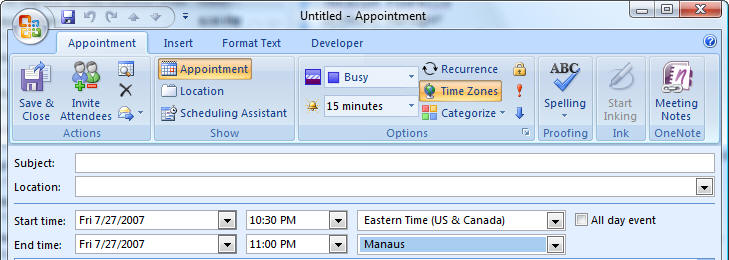
At the end of this article, we have a short list of clock utilities that will display multiple time zones, many more are available at your favorite Windows shareware sites. These are the ones I've used and like. In most cases, you'll want to disable the Windows tray clock when you use these, to avoid confusion.
Workaround
There are ways to make Outlook's use of UTC and time zone offsets time less frustrating with older versions of Outlook.
- Learn to use Outlook's dual time zone feature.
- Use a 3rd party clock utility to display 'local' time so you don't have to change the time zone on the computer.
Tip: Never change the computer time to match the 'local' time and leave the time zone set for your home time.
Dual Time Zone Settings
You can easily swap the system time between these two zones, if you need to. I prefer to leave the computer time zone alone though and use a clock utility to display the time in a different zone, in part so all day events stay on one day.
To turn on dual time zone display, go to Tools, Options, Preferences tab, Calendar Options, Time Zone button and add a second time zone. Now when you view the calendar in a day planner format, you'll see two time scales displayed. You can right click on the scale and choose Time zones... to change zones or swap them.
Dual Time Zone Method
Outlook user:
I travel to multiple time zones. My meetings happen across many zones, so I always schedule per California time. I wish there was a simple drop-down menu that I could configure to allow me to reset my system to India or China or... time without going to the calendar menu and swapping location. I have so many more than two locations that I have to set up the swap function every time I get to a new country so that my system, calendar and alarms work with my new location's time zone.Because Outlook gets the time zone from Windows and uses the Windows zone as its default time zone, you don't need to go into Outlook to change the zones, you can do it from Windows, which can be done from a command line in a couple of steps:
- Press Windows Key + R to open the Run command,
- Type or paste the following in the command field (using the desired time zone name) and press Enter
TZUTIL /s "Pacific Standard Time"Windows 7 saves at least the last 27 entries in the Run command so once you use a command, it can be selected the next time you need to change the zone.
Use Outlook's dual time zone feature and name the Default zone "Current" or something so you know it's not a specific zone then set the second zone to your home time zone and name it accordingly.
Reminder: in Outlook 2007 and Outlook 2010, you can select the zone the appointment will be in when you create the appointment. Press the Time Zone button to access this feature.
Fix Appointment Times
If you create appointments when the computer clock is set for the wrong time zone, or if you move to a new time zone, you can't change the time zone without messing up the appointment times and all day appointments will span two days. You can export the calendar to a non-Outlook format (Excel or CSV works well), then change the time zone settings and import the items back into Outlook.
- Set the computer's time zone and daylight time settings so the appointment times are correct.
- Go to File, Import and Export and follow the wizard to export the calendar to an Excel or CSV format file. Do not export to a PST.
- Correct the computer's time zone and daylight time settings so the time zone is correct for your location.
- Create a new calendar folder in your mailbox, if desired, and move the calendar items to it. Otherwise, delete them.
- Import the calendar items you exported earlier.
- When you are satisfied that the appointments are correct, delete the new calendar folder and all of the old appointments in it.
User Comments
Michael had this to say about time issues affecting Outlook users in a Citrix environment:
This is a fairly common issue being reported in relation to Outlook, but the Citrix solution is actually quite simple; We recently came across the issue on XenApp6 where the 'use local client time' policy wasn't applying. AD GPO worked for the host OS, but not within published apps. We managed to discover that the issue could be resolved by assigning the 'use local client time' policy through AMC / Delivery Service Console, not just the Citrix client policy.Problems
Always use the correct time zone and DST settings for your location. If your time zone does not honor DST, don't choose a time zone with the correct offset and disable DST.
Time zones that do not observe daylight saving time and Outlook 2010 (MSKB)
The following is from Scott in the Cayman Islands. They use the same time zone as Bogota but feel the Bogota time zone name makes them look untrustworthy, so they used Eastern US instead and disabled DST. This caused issues with appointments and I suggested they edit the time zone name in the registry to add their location. The keys are at HKEY_LOCAL_MACHINE\SOFTWARE\Microsoft\Windows NT\CurrentVersion\Time Zones\.
Thank you for your feedback. With the information you provided I was able to find a working solution. Unfortunately changing the name did not seem to work as well as I had hoped as the old name would still creep in. But the idea was spot on! I simply created a NEW time zone called Cayman Islands and set it up with the same settings as Bogota'. I used the TZEDIT tool found here: Time Zone Editor to create the time zone.I then created a script to push this to all my desktops overnight, and manually added the hive on the relevant servers. Tests internal and external show what I would expect to see even across Time Zones. The fact that my "Cayman Islands" zone is not on outside computers does not appear to be an issue as it is seems to Use TZ information sent and not an internal reference based on a name. (as I would expect)Never change the computer's time and leave it on your home time zone. You may not be able to connect to network resources if the time is off by more than a few minutes. Servers pay a lot of attention to the time zone offset - the servers don't care if your machine is set for London's time zone while in Seattle, as long as the time is correct for your time zone offset.
It's also very annoying to other users if you send an email dated hours before or after you really sent it.
Tools
More Information
About Diane Poremsky






























<span style="color: #000000;"> Amazing content Diane! When working with several time zones , this really makes life easier. Keep the great content! <A style="color: #000000;"HREF=""> Cheers </A>.</span>
It only talks about "computer time zone"! I access my same outlook calendar from my phone, tablet and two laptops all of which could be in different time zones. I dial into the same meeting 4 times in one day to make sure I didn't miss it. My computer time zone? Which computer? Half of them update automatically when I travel. I waste a whole day on vacation trying to figure out when I was supposed to dial into a 30 minute meeting.
To be fair, the article is specifically about Outlook desktop for Windows, so it will only speak about the computer.
>>
I access my same outlook calendar from my phone, tablet and two laptops all of which could be in different time zones.
<
We are using Office 365. When my boss travels, he does not want to switch the time zone so I have to manually move any meeting invites he receives from others so they will show up at the local time where he will be. I used to be able to drag them to a different time on the calendar and they would stay there. Now, they seem to stay just until I restart my/his computer. They then go back to the original time. Is there a way to have them stay where I want them to stay and not move back? I understand that if an update is sent, I will need to adjust again.
When you move them, do they show up in outlook on the web or on your computer at the new time?
Is there a way to set an appointment start time in one time zone and the end time in another? I want to show flights in my calendar and want to make sure the departure and arrival times show up correctly so people make the right arrangements for my pickups. With only a time zone for the start time, this does not seem possible and I would have to adjust for time difference between 2 zones myself.
You can... but if the appointment has end time (arrival time) adjusted for your zone, you can send that to the pickup and it will be in the correct time for their zone. (ie, arrive in Seattle at 11AM, would show as 2PM in NYC)...
but yeah, if you want to change the end time zone, you can. Click the Time zone button in the ribbon and set the end zone.
I'm using a Lumia 530 W8 and a Lumia 950 W10 / Win10 pc for my agenda items witch syns with Exchange Outlook from my work.
When I make a agenda-item for example for every tuesday for several months on my Lumia 530 W8 telephone it syncs with exchange on my work perfect, but when I do the same thing on my Win10 pc/ W10 lumia 950 it shifts this appointment 1 hour forward.
Watch it: All the timezones are the same (Amsterdam +1) on lumia's / win10 PC and Exchange..
An Exchange item for every tuesday syncs perfectly with all the windows devices. But changing things on the Win10 Phone / W10 pc results in an hour shift forwared again on the exchange outlook
did the problems just start? Are all devices using the correct time zone and DST settings?
I have read everything I can find but still can't find a way to have Time Zone automatically on when a new appointment is made in Outlook 201x. I.e.- I don't want to have to hit Time Zone every time- I want the Time Zone to show up when creating an appointment automatically.
Any help would be appreciated.
Thanks
Steve Rose
The TZ field stays open until i close it (Outlook 2016) - try opening a new appt, show the zone then close without saving. that works for other settings, it might work for this.
Hi Diane,
I have a shared outlook.com calendar with my brother but when one of us creates an event the email notification received by the other shows the event time in UTC Monrovia Reykjavik. We don't use Outlook desktop client but we do use the native Windows 10 Mail & Calendar apps. I've checked both computers' local settings as well as both accounts' online/calendar settings and everything is set to EST. I've been trying to find a solution for a while now but no luck :( so any help would be greatly appreciated.
Cheers.
Reykjavik is the default TZ for all new accounts - you need to change the tz in Outlook online. You can check the time zone in Options or in the appointment dialog under the end date - if it is correct, change it to something else in Options then save it and change it back to the correct TZ.
Dear Diane,
I hope this message finds you well.
When scheduling an interview, the interviewers receive an email template with the candidate information, time and date, location.
Below the subject field, comes field "When" displaying time zone correctly and the date, e.g - Wednesday, June 28, 2017, 3:30-4:00 PM(UTC -05:00)EasternTime (US & Canada).
After that, right before the actual template message, there is another "When", a highlighted UTC time zone reference informing Wednesday, June 28, 2017 7:30 PM -08:00 PM. UTC.
I understand that the information is saved under UTC time.
My question is if there would be a way this information not to be displayed to whoever receives these notifications? Can we enable/disable this information not to be shown?
Thank you very much.
Carlos.
If the times only show for the recipient and not when you create the meeting, then you probably can't change it - it's how the server or recipient's client handles it. If you see it in the message before sending, the macro at https://www.slipstick.com/outlook/customize-skype-business-invitation/ shows how to change the template before sending.