A spate of recent updates caused problems in Outlook and the short-term fix is to uninstall the update; however, updates can’t be uninstalled from the Click-To-Run installations of Office, and almost all users have the Click-To-Run installation.
Instead, you will need to revert to an earlier version.
First, you need to disable Office updates. If you don’t disable updates, the problem update will reinstall itself. You can disable updates from the File menu in any Office application.
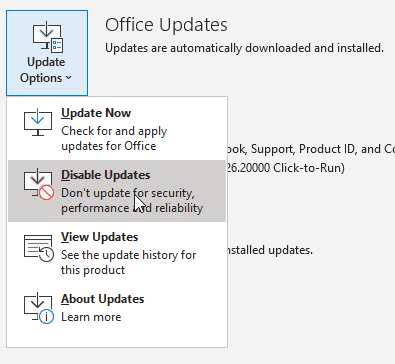
In Outlook (this is an Outlook help site after all), go to File, Office Account, Update Options and click on Disable Updates.
Next, create an appointment in your calendar for 30 days from now to remind yourself to check for updates. In many cases, the “bad” file will be removed or replaced with a corrected update, and you can allow Office to install updates without reinstalling "trouble" after a few weeks have passed.
Now you’re ready to roll back the click-to-run installation.
Windows 10: Start typing cmd on the Start screen in the task bar search field to find the Command Prompt then click Run as Administrator
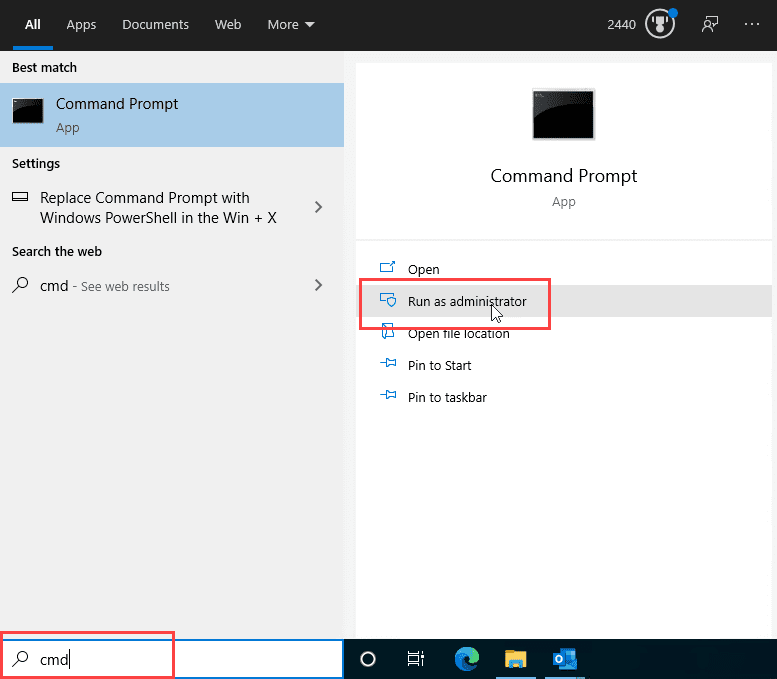
Older Windows version: Right click on the Start button and choose Command Prompt (Admin). If you don't see Command Prompt on the menu, you'll need to type cmd on the Start screen to find the Command Prompt then right click on it and choose Run as Administrator
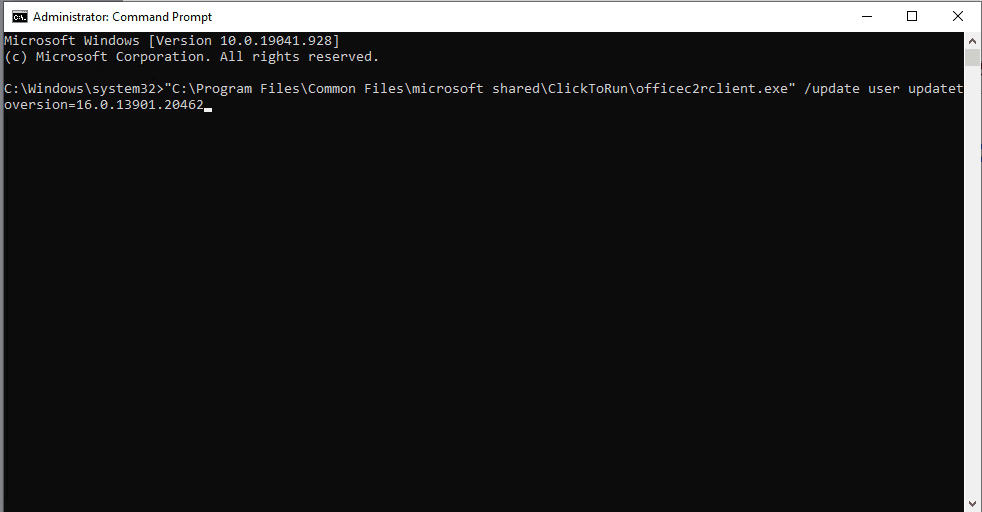
If you are using Outlook 2016, 2019, or 365, copy the following line, then right click in the command prompt window to paste it. Replace xxxx.yyyy with the build number you want to revert to. You can look up build numbers at Version numbers of update branches for Office 365 clients.
"C:\Program Files\Common Files\microsoft shared\ClickToRun\officec2rclient.exe" /update user updatetoversion=16.0.xxxxx.yyyyy
April 22 2024
There are a couple of bugs in Outlook 2016 and newer and reverting to an older version will fix it.
The first: The Out of Office indicator bar on appointments is the same color as the appointment (either calendar color or category color). This command line will revert to the previous build.
"C:\Program Files\Common Files\microsoft shared\ClickToRun\officec2rclient.exe" /update user updatetoversion=16.0.17328.20184
The second: Outlook 2016 has the newer interface in Outlook 2019/2021 with larger reply / forward buttons. To revert that you need to go back several weeks then up to the January 2024 build.
"C:\Program Files\Common Files\microsoft shared\ClickToRun\officec2rclient.exe" /update user updatetoversion=16.0.16924.20150
Then this to update to the January 9, 20 Version 2312 update to keep the old buttons.
"C:\Program Files\Common Files\microsoft shared\ClickToRun\officec2rclient.exe" /update user updatetoversion=16.0.17126.20132
| Release Date | Command |
|---|---|
| July 2021 | "C:\Program Files\Common Files\microsoft shared\ClickToRun\officec2rclient.exe" /update user updatetoversion=16.0.14131.20320 |
| April 23 2021 | "C:\Program Files\Common Files\microsoft shared\ClickToRun\officec2rclient.exe" /update user updatetoversion=16.0.13901.20462 |
| March 30 2021 | "C:\Program Files\Common Files\microsoft shared\ClickToRun\officec2rclient.exe" /update user updatetoversion=16.0.13901.20312 |
Press Enter and the "update" will download and install.

Outlook 2013
Outlook 2013 users will change the directory to the path of officec2rclient.exe. To do this, in the command prompt window, type (or copy and right-click paste) the following if you are running 64-bit Office:
cd %programfiles%\Microsoft Office 15\ClientX64\
or this if using the 32-bit version of Office:
cd %programfiles%\Microsoft Office 15\ClientX86\
You’ll revert to a previous version of Office by running officec2rclient using a command line in this format, where 15.0.xxxx.xxxx is the previous version.
officec2rclient.exe /update user updatetoversion=15.0.xxxx.yyyy
The command line you'll use will look something like this (this is the July 2014 build):
officec2rclient.exe /update user updatetoversion=15.0.4631.1002

You can get the Office 2013 version numbers from Microsoft Office 2013 Click-to-Run virtualization or Office 2016 versions here: Version and build numbers of update channel releases for Office 365 clients
Choose Online Repair. Once repair is complete you can check your version to verify it updated properly. Note: you'll probably be asked to log in again and verify your license.

More Information
How to revert to an earlier version of Office 2013 or Office 2016 Click-to-Run (MSKB)
Version and build numbers of update channel releases for Office 365 clients

Blake Ramsey says
Dear Diane,
The code you show with "updatetoversion=16.0.xxxx.yyyy" appears to be just for Outlook 2016 as the build number is xxxx.yyyy. I want to update Outlook 365 with a build number of Version 2408 (Build 17928.20114). Is there a difference in the cmd command for such? Or you just use the 17928.20114 after the updatetoversion=16.0. anyway? Was thinking the 16.0 stood for 2016. Just don't want to mess it up!
Diane Poremsky says
It's the same command - the article was written when they used 4-digit numbers.
You'll use this:
updatetoversion=16.0.17928.20114
Joseph says
Much appreciated. I followed your instructions and removed the crazy search... went back to the old search and its ok than that ugly one. Thanks
Tomasz says
Hi Diane, could you advise if there's any way to revert to OneNote old look? The new one (https://insider.microsoft365.com/en-us/blog/introducing-new-layout-options-in-onenote-on-windows) is much less efficient for me - many visual features that made navigation smooth were erased from ON with the recent update. Many thanks!
Diane Poremsky says
No, I'm not aware of a way to roll it back. Sorry.
Andrew says
Hi Diane,
I recently reset my old laptop to a clean Windows 10.
I reinstalled Microsoft Outlook 2016 Home & Business - 16 MSO (16.0.13 901.204 36) 64-bit and put all my accounts back. Ever since then, no HTML pictures/images will show on the reading pane (right-hand side) of the email.
I followed your instructions here, but it did not work. Of the 3 release date commands you cited here, does it matter which one I use? I think I copied the top one (July 2021).
Any ideas where I may have gone wrong?
Thank you.
Andy
Andrew says
Hi Diane,
I find you the most accomplished brain regarding Outlook. I am having trouble with Outlook 2016 not showing HTML content on the reading pane in my email accounts. Have you any idea what will fix this? I have tried all the basic things that Google recommends you try, but to no avail. Cheers,Heathsideboy.
isa L says
Thank You Diane ! it works !
ashton says
I tried reverting back to a previous installation, but the changes aren't being applied, or at least that's what I think. I'm trying to go back to a previous installation of Word, as the new updates haven't been to my liking, but each time I've reverted back to another installation nothing has changed with the Word application. If there's any solution, it would be greatly appreciated!
Diane Poremsky says
did you disable automatic updates? Did you roll back far enough to undo the changes?
Jim says
Hi Diane,
Sor some reason the comment I posted yesterday I am unable to find. I am currently running Office 2021 LTSC. The version Version 2108 (Build 14332.20461)
I am looking to roll back to Version 2108 (Build 14332.20447)
Of note. I have downloaded and installed this from a network drive. So it is not connecting to the cloud for the install. Is that perhaps why?
In addition, I need to test this out with Office 2019 as well. Same install method.
Thanks!
Jim says
Hello,
Is this valid for Office 2021? I am trying to do this but it does not seem to work.
Diane Poremsky says
It is valid for office 2021. What build are you at now and what build do you want to roll back to?
Jim says
Hi Diane,
I just made a new reply sorry. For some reason this was not appearing for me a short while ago.
Chris says
I had Office 2016 Pro Plus MSI installed, and then Microsoft did something in July which I can't find any info on, because one day I fired up OneNote 2016, and instead found that it was now suddenly OneNote 2019 C2R… A full upgrade had occurred without consent or interaction from me… And there's nothing at all listed for Office in the Control Panel's "Installed Updates". There's also no entry for v2019 in Add-Remove Programs - it's actually still listed there as v2016... And if I click "Change" for that entry, it only offers "quick repair" or "online repair". So my questions then: (1) Where is the published info on this move from Microsoft? And (2) How do I revert back to 2016 MSI? Thank you.
Tolu says
Hello, I noticed when I wanted to revert back to Office 2016, Microsoft had pulled the software off their sites. How else can I go back to Office 2016?
Diane Poremsky says
Do you have a license linked to your Microsoft account? Should be able to download from account.microsoft.com. If you did not add the key to a Microsoft account and did not save the officesetup.exe, I'll see if I can find a link.
https://support.microsoft.com/en-us/office/download-and-install-or-reinstall-office-2019-office-2016-or-office-2013-7c695b06-6d1a-4917-809c-98ce43f86479
Siva says
Hi how can i roll back to 2019 from 2021
Diane Poremsky says
Since its a separate program, you would uninstall 2021 then install 2019 (you need a license for 2019).
Jeff says
Recently received Office build 14827.20158, and neither the steps above nor any other support posts are able to remove it and revert back to 14701.20290. The current build is causing multiple instances of Access to open and stay open which then throws a "cannot open more databases" error to occur.
Jan says
Hello, I´am not able to repair Outlook 365 athought I have installed the build from Dec 2020. This advice worked for each 2019 version which I needed to repair but for this 365 not. Help please.
Diane Poremsky says
It will work - what version are you trying to roll back to?
Jan says
Actual version which I´v installed is 2002 build 12527.21416. I will be satisfied with any functional version. Thanks a lot
Diane Poremsky says
That is a really old build. Is there are reason you haven't updated it? The last release for the slowest lane is 12527.21952 - basically a couple of security fixes newer. Anything older is "not supported" by Microsoft.
This is (IMHO) the last know good build for Office 365 - from April 23. That's version 2013.
"C:\Program Files\Common Files\microsoft shared\ClickToRun\officec2rclient.exe" /update user updatetoversion=16.0.13901.20462
Jan says
I´ve changed to version 16.0.13901.20462 but autocomplete still shows wrong. That's why I tried older and older versions.
Diane Poremsky says
Is it still opening upward and has a large autocomplete list?
If you have the subscription version you need to use the registry key to get the small list, but it is always small in the one-time purchase version.
The (good) Autocomplete list is back (slipstick.com)
Jan says
Thank you so much. This is what I needed.
Murray Brown says
Unfortunately, this did not work for me.
Diane Poremsky says
What happened when you tried? Any error messages? You cannot rollback windows store installs, only click to run.
Nils Leitner says
Thank you 1000x for this info. Saved a lot (!) of time.
jeff knight says
A million thumbs up! This triggered an update for my CTR version that was stuck at the RTM version.
Johan99 says
Dear Diane,
Thanks for your information.
Uninstalling the latest Update works perfect by your descriprion.
Tim says
I am getting the error: The latest version of Office approved by your system admin is installed on your computer.
But this is my computer already so I am the system admin.
Diane Poremsky says
Which suite are you using? Did you buy it at a store, get it from your employer, or get a subscription at office.com? It looks like it might either be the retail version or a volume license - they are on different update schedules and only get security updates. (The build # in the screenshot is a yr old, it's from about Jan/Feb 2016.)
Tim says
I am using Office 365 ProPlus, Version 1609, Build 7369.2118. The office was not bought at a store, but came installed with my Surface Pro 4 tablet that I am using. I do have a subscription through office.com
The version that you saw me trying to roll back to is Version 1511, Build 6366.2062 which is the version from January 25 / 2016
Tim says
**Update** One solution found
I was trying to use an update that was on the "Current" Channel, and my computer was on the "Deferred" channel. I did not realize that these channels were even a thing.
So after applying an update to switch from the Deferred Channel to the Current Channel. I can choose the update that I want to use.
Microsoft Office, does not throw an error screen to say "HEY YOUR UPDATE DOESNT EXIST ON THIS CHANNEL" Nope. They just say that your as up to date as your admin wants you to be.
Diane Poremsky says
The channel you are on is in the File, Office Account (or Account in the other office apps) -its listed right under Microsoft Office [suite name].
Tom says
This didn't work, I receive the following message:
Your Up to date! The latest version of office approved by your system admin is installed on your computer.
Diane Poremsky says
Is this a company computer? if so, you are stuck with the version/updates they have tested. Sorry.
Kevin says
i have the same issue "the latest version of office approved by your system admin is installed on your computer".
I started with build 7466.2038. I was able to downgrade to builds 7369.2055, 7369.2054, 7369.2038 using the method above.
But when I tried to downgrade to build 6965.2092, I got the "latest version is installed" message.
Using office365 university on windows 10.
Howard Walker says
I did this and when I ran the on line repair tool, it came up with an error after deleting the existing version. I had to get Microsoft to re-install my office.They used the same version as was on the machone when it stopped working, and I still get asked for passwrods every few seconds. I have now had to stop using the product as it no longer is usable.
Olaf says
Hi
I was glad to find your article having huge problems with Access and Access Runtime 2013: The "Access" has a higher version than the runtime as it is being updated by the click-and-run, not so the Runtime version.
Unfortunately I can not compile an access database accdb to an access database accde and use the runtime to start it. It's not only my problem, it's a real problem for many developers.
Unfortunately the method you described did not work for me.
I did as advised, but my Office 2013 Plus seemed to be installed back to the latest update available (again, passing the SP1 and runtime version numbers).
Do you have any idea?
Diane Poremsky says
No, I don't but maybe someone else does. I'll check with my contacts and see if there is a solution.
Olaf says
Hi
thanks for the reply, I wanted to inform you - and all others interested, that with help from Bill Mosca (https://www.thatlldoit.com/) I was able to solve it!
Bill Mosca - That'll Do IT wrote (in my opinion very important: 1st sentence of 2nd paragraph):
"Hello Olaf
As far as I know the 2013 SP1 runtime has been fixed. I might be wrong, but I seem to remember hearing that. Don’t expect the runtime version number to match the full version. That rarely happens. Just get the latest one.
Installing both the full version and the runtime on the same computer is a big mistake. I strongly advise against that. If you are testing to see how a database will work under the runtime just create a copy of the file and change the extension to ACCDR."
-> What did I do? Read my reply to Bill:
"THANKS for your reply. I removed the runtime from my development PC - and - all of a sudden - it seems to work!
On a test (virtual) PC (Win 7, 64 bit + 64bit Access Runtime) I was able to open a version which I had created with a 64bit version "full" Access. I did not try to create a 32 bit version (as I would need to install Office 32bit on a virtual machine for testing first) - but I guess it would also work."
Olaf
Søren Andersen says
I was a bit too quick, I deleted my account and the problem disappeared. However the other forums I have seen, this will probably only be a temporary relief from the problem.
I'm not using any network utilities to see what specifically is sent/received. How do I turn on logging in Outlook?
Diane Poremsky says
Hopefully, it will fix it - its supposed to. The update made some changes to imap and outlook needs to resync the data file. A new account should sync it once, using the new changes.
Logging: File, Options, Advanced - scroll to the bottom - its the second check box from the bottom. Restart outlook and let it run for a bit, then go in and disable it. Log files are in the temp directory at C:\Users\username\AppData\Local\Temp\outlook logging. There may be two other folders created in the temp folder, but imap logs will be in outlook logging folder.
Søren Andersen says
The office suite is Microsoft Office Home and Business 2013.
What do you mean by removing the datafile? Do you mean deleting the account in outlook and reconfiguring it? Or can I just delete a specific file to let Outlook resync?
The problem is that outlook 2013 isn't showing that it is using any data, there is no way to see in the program, that it's devouring bandwidth, it just happens in the background.
Regarding the fixit, I have already tried reinstalling office anew in the hope that it would fix my general problem with integratedoffice, but with no success.
I did try another version number in the cmd, but also no luck. Same error.
All the while automatic updates were turned off.
Diane Poremsky says
Don't remove the account, just the specific data file. It's in %localappdata%\microsoft\outlook - type or paste that into the address bar of windows explorer and press Enter to open the folder. Delete the ost file for your imap account and restart outlook.
Warning: before closing Outlook to do this, check the calendar, contacts, tasks, notes folders labeled "this computer only" for contents. If you have content in those folders, move them to a pst file to back them up before deleting the pst file.
Are you using any networking utilities to see what is being sent/received? Or turn on logging in Outlook.
Søren Andersen says
integratedoffice.exe throws me a general error message, when I try to do:
integratedoffice.exe REPAIRUI RERUNMODE version 15.0.4535.1511
Any idea on what is going wrong?
I need to roll back from the november update, because Outlook 2013 with three IMAP accounts is eating away bandwith on my mailserver like crazy!
Diane Poremsky says
Which office suite do you have?
If outlook trying to resync over and over? it will resync everything once. Have you tried removing the data file and letting it sync it fresh? That will still use bandwidth, but should work "as expected" and stop once its synced.
On to the error - I know some people get messages that it can't be found - this fixit addresses that problem. Not sure it will work on a general error, but its worth a try.
Did you try other version #? (I don't think that is the problem though.)
Oh, and turn off automatic updates.
Matt says
I ran this command and instead of rolling back to the previous version, it uninstalled Office 2013.
Diane Poremsky says
Interesting. Did you enter a valid version number to roll back to?
Ademar Zarembski says
Hello Diane,
Could you help me, please?
I'm looking for command line parameters to integratedoffice.exe.
I would like to change update settings such as updatebaseurl and updateenable, after the product is installed. Also, force a update by command line.
Thank you.
Ademar
Diane Poremsky says
I'll see what i can find out.
Diane Poremsky says
Ok, i checked on this and I'm told no, you can't do any of that stuff at this time.