• Outlook User
  • New Outlook app
  • Outlook.com
  • Outlook Mac
  • Outlook & iCloud
  • Developer
  • Microsoft 365 Admin
    • Common Problems
    • Microsoft 365
    • Outlook BCM
    • Utilities & Addins

Office 2013's color scheme

Slipstick Systems

› Outlook › Outlook 2013 › Office 2013’s color scheme

Last reviewed on May 9, 2016     244 Comments

Applies to: Outlook (classic)

I mentioned this issue in another article but because it is a big problem for many people, it generates a lot of questions *and* almost all comments are negative, it bears repeating.

The most frequently asked question to date is how to change the interface color. Outlook (and all of the Office apps) are so… white. Blindingly white. Hurts your eyes white.

As bad as the blue, silver, black, or green color schemes were in older versions of Outlook, for many users they would be better than all white.

Following all of the complaints with the Preview, Microsoft added 3 color options to the final version. You can have any color you like, as long as it's gray... choosing between white, light gray, or dark gray. Outlook 2016 tweaked the colors a little, adding a 'colorful' theme and black.

You can also add a little gray scale decoration to the upper right corner of the application. It's cute eye candy, nothing more, and in the RTM build there are currently 14 designs to choose from.

Turning down the screen brightness will help, a lot. I've always kept the brightness set low and the white in Outlook 2013 RTM was livable. I didn't realize how bright the default settings were until I got a new tablet. Whoa! The default settings are really bright, even on the system that adjusts the brightness to match the room's ambient light.

Add lines to break up the message list

This tip is from James:

Go to View -> View Settings -> Other Settings and add some dots between the messages.

This is the same View Settings dialog found at the bottom of the menu when you right-click on "All Unread", or the sort order labels.
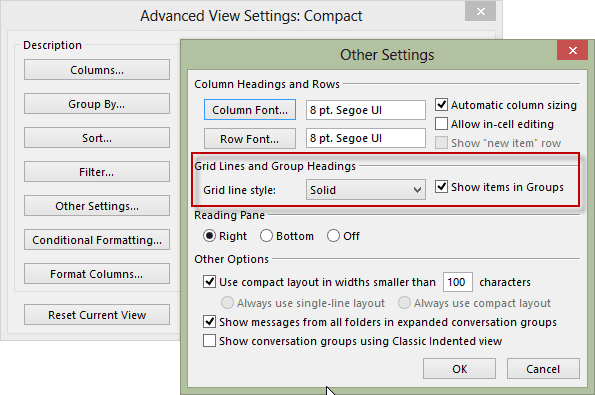
Advanced view settings for Grid lines

In the RTM screenshots below, I use a solid line to separate the messages - dots worked fine in older versions of Outlook but dots are all but invisible on my screens in Outlook 2013.

White Color scheme Outlook 2013 RTM
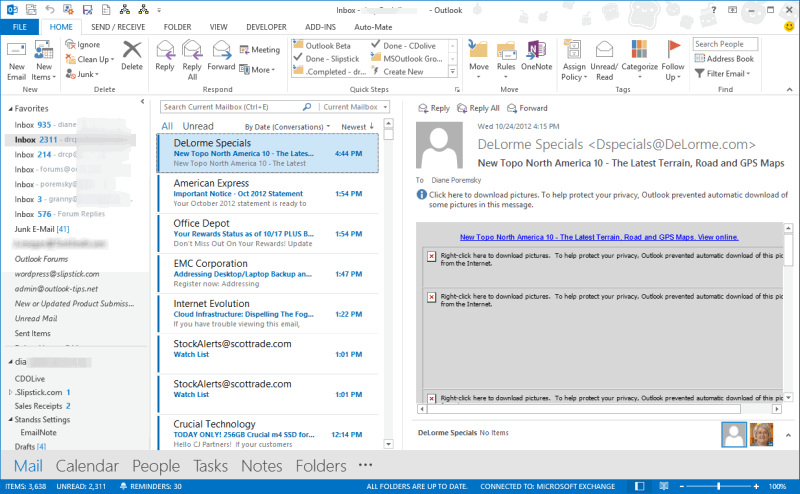
Outlook 2013 RTM - white color scheme

Light Gray color scheme

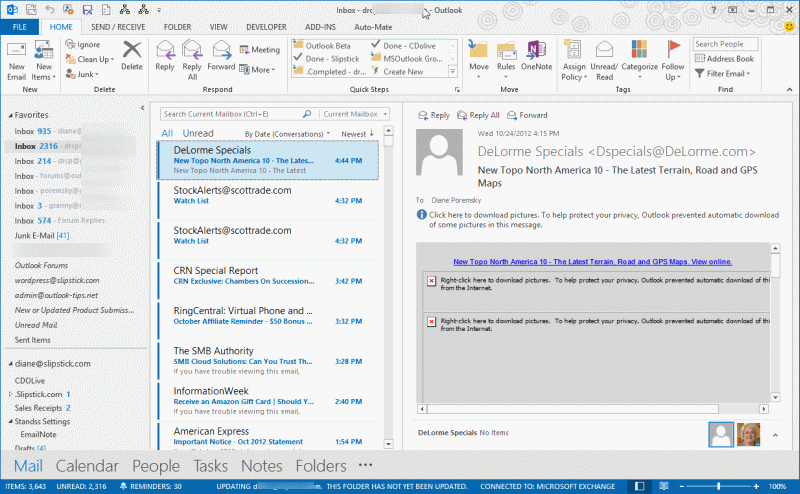
Outlook 2013 Light Gray Theme

Dark Gray scheme

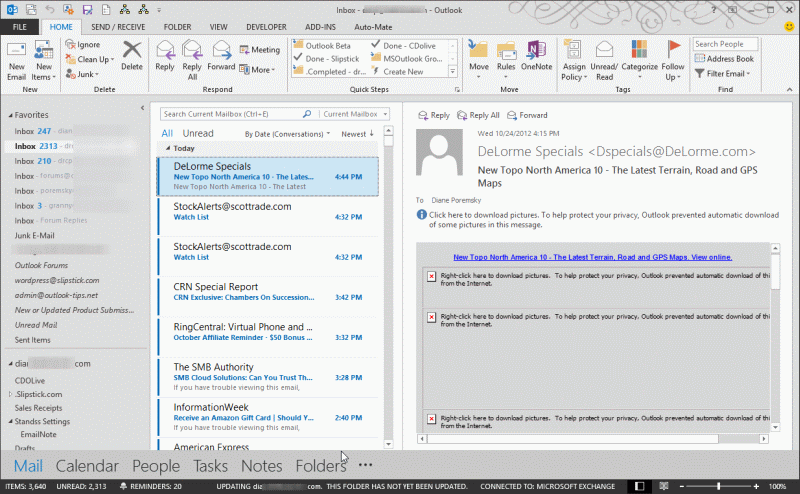
Outlook 2013 Dark gray scheme

Change the color or background design

To change the color scheme or the background design in the final version (not Preview), go to File, Account in any Office application (in Outlook, go to File, Office Account).
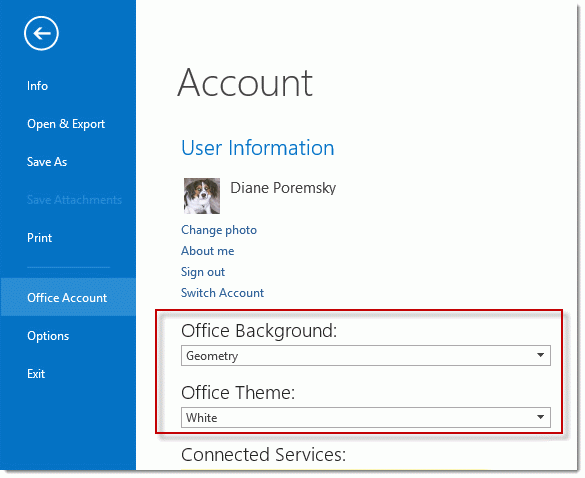
Change the color and backgroup in File, Office Account

Office 2013's color scheme was last modified: May 9th, 2016 by Diane Poremsky

Related Posts:

  • Calendars aren’t printing in color
  • Some Outlook 2007 users are having problems printing calendars with th
    Printing Calendars with Color Categories
  • Make 'Today' stand out more in the calendar
  • Use PowerShell to Export and Import Categories

About Diane Poremsky

A Microsoft Outlook Most Valuable Professional (MVP) since 1999, Diane is the author of several books, including Outlook 2013 Absolute Beginners Book. She also created video training CDs and online training classes for Microsoft Outlook. You can find her helping people online in Outlook Forums as well as in the Microsoft Answers and TechNet forums.

Subscribe
Notify of
244 Comments
newest
oldest most voted
Inline Feedbacks
View all comments

James Karter
January 31, 2019 9:51 am

I just installed Office 2016. I liked (or maybe got used to) the Dark Grey theme in Outlook 2013, and the theme colors are vastly different in Outlook 2016. I hate it so far. I wish they had kept it the same or renamed it to something else. I still think Colorful is too bright. Worst of all, with Office 365, the themes are persistent across all applications. Ugh.
Regards.

1
0
Reply
Danny
March 29, 2017 4:51 pm

I had installed Office 2013 but due to the color issue I installed Office 2010. Now, in Excel 2010 when I try to use Save and Send, it says This action is not supported while an older version of Outlook is running. When I close Outlook 2010 it tries to send through Outlook 2013 but gets stuck in the outbox.
How do I force Excel to send through Outlook 2010?

0
0
Reply
Diane Poremsky
Author
Reply to  Danny
March 29, 2017 11:48 pm

did you uninstall 2013? if you aren't using it, you should uninstall it. Then repair the office 2010 install.

0
0
Reply
Danny
Reply to  Diane Poremsky
March 30, 2017 9:21 am

How do I repair the 2010 install?

0
0
Reply
Diane Poremsky
Author
Reply to  Danny
March 30, 2017 10:07 am

Go into Control panel, programs and features - locate office then click Change.
https://www.slipstick.com/tutorial/repair-office-2010-2007-2003-installations/

0
0
Reply
Danny
Reply to  Diane Poremsky
March 30, 2017 10:11 am

I did find and run the repair. Now when I press Save and Send it gives the error General Mail failure. Quit Microsoft Excel, restart the mail system, and try again.
Any suggestions?
Should I uninstall 2010 and reinstall?

0
0
Reply
Diane Poremsky
Author
Reply to  Danny
March 30, 2017 11:47 am

You could try that... i'm guessing that, for some reason, the permissions on outlook.exe is wrong. Uninstall/reinstall should fix the settings. (might be worth scrubbing office before reinstalling but it removes everything, including profile). But first, see if this helps - Check the properties for your outlook shortcut. Under the compatibility tab uncheck "run as administrator". BTW, you shouldn't need to use run as administrator - if you do, then your permissions are not correct.

0
0
Reply
Danny
Reply to  Diane Poremsky
March 30, 2017 12:13 pm

Run as administrator was not checked.

0
0
Reply
Diane Poremsky
Author
Reply to  Danny
March 30, 2017 12:27 pm

I'm assuming outlook works normally, it's just sending from other apps that fails... is outlook open or closed when you try to send from Excel? Try both ways and see if the results are the same. Is the workbook saved? (I believe it needs to be saved.)

I would try uninstall, reboot, reinstall.

0
0
Reply
Danny
Reply to  Diane Poremsky
March 30, 2017 4:38 pm

I got the message whether Outlook was opened or closed. I uninstalled 2010, rebooted, reinstalled. Now Save and Send appears to work!
Office retained the activation and retained my customized ribbon bar, etc. I'm happy!

0
0
Reply
David
November 16, 2016 6:35 pm

I just installed Office 2016. I liked (or maybe got used to) the Dark Grey theme in Outlook 2013, and the theme colors are vastly different in Outlook 2016. I hate it so far. I wish they had kept it the same or renamed it to something else. I still think Colorful is too bright. Worst of all, with Office 365, the themes are persistent across all applications. Ugh.

1
0
Reply
Katie
September 30, 2016 12:25 pm

Hi I suffer from Meares Irlen syndrome as do many people who don't even know and this bright whiten on outlook 2013 is SERIOUS! I have only just had my computer updated and within hours I'm trying to put it back to 2010 due to blinding headaches and feeling sick. How do we get in touch with microsoft about this?
https://irlen.com/what-is-irlen-syndrome/#

2
0
Reply
Diane Poremsky
Author
Reply to  Katie
February 5, 2017 10:06 pm

Microsoft is aware of the issues - its a little better in Outlook 2016. It helps a lot to turn the brightness down about 20%.

0
-1
Reply
Vic
September 16, 2016 1:47 pm

I Hate the look of Office 2013 and Windows 10. They are both garbage to me. I am keeping Windows 7 as long as it is supported and Office 2010 until they CHANGE the options in Office and the look of Win 10!

9
0
Reply
Cam
September 12, 2016 10:22 am

i hate this! i wish we had different colors, i work in an company full of hundreds of people and everyone hates this new outlook, it's too bright. With all that technology you decided we could use stars to decorate the background, we are here to work, so more color schemes would be more appropiate since we are not in high school trying to make things look cute, we just want to be able to bear the bright white color and dark gray doesn't make an difference. This new 2013 sucks!!!!!!!

13
-1
Reply
Carla
September 2, 2016 11:54 am

Please please please give us more colors to choose from! This is killing my eyes.

4
0
Reply
Lulu
October 1, 2015 11:07 am

I agree, give us some colors! Even the dark gray is not dark and everything still blends together. Disappointed that an upgraded version doesn't have more customization options. I have to look at this every day, all day, it would be nice to have some change from time to time.

27
0
Reply

Visit Slipstick Forums.
What's New at Slipstick.com

Latest EMO: Vol. 31 Issue 3

Subscribe to Exchange Messaging Outlook


Support Services

Do you need help setting up Outlook, moving your email to a new computer, migrating or configuring Office 365, or just need some one-on-one assistance?

Our Sponsors

CompanionLink
ReliefJet
  • Popular
  • Latest
  • Week Month All
  • Use Classic Outlook, not New Outlook
  • How to Remove the Primary Account from Outlook
  • Disable "Always ask before opening" Dialog
  • Reset the New Outlook Profile
  • How to Hide or Delete Outlook's Default Folders
  • This operation has been cancelled due to restrictions
  • Removing Suggested Accounts in New Outlook
  • Change Outlook's Programmatic Access Options
  • Adjusting Outlook's Zoom Setting in Email
  • Remove a password from an Outlook *.pst File
  • Opt out of Microsoft 365 Companion Apps
  • Mail Templates in Outlook for Windows (and Web)
  • Urban legend: Microsoft Deletes Old Outlook.com Messages
  • Buttons in the New Message Notifications
  • Move Deleted Items to Another Folder Automatically
  • Open Outlook Templates using PowerShell
  • Count and List Folders in Classic Outlook
  • Google Workspace and Outlook with POP Mail
  • Import EML Files into New Outlook
  • Opening PST files in New Outlook
Ajax spinner

Recent Bugs List

Microsoft keeps a running list of issues affecting recently released updates at Fixes or workarounds for recent issues in classic Outlook (Windows).

For new Outlook for Windows: Fixes or workarounds for recent issues in new Outlook for Windows .

Outlook for Mac Recent issues: Fixes or workarounds for recent issues in Outlook for Mac

Outlook.com Recent issues: Fixes or workarounds for recent issues on Outlook.com

Office Update History

Update history for supported Office versions is at Update history for Office

Outlook Suggestions and Feedback

Outlook Feedback covers Outlook as an email client, including Outlook Android, iOS, Mac, and Windows clients, as well as the browser extension (PWA) and Outlook on the web.

Outlook (new) Feedback. Use this for feedback and suggestions for Outlook (new).

Use Outlook.com Feedback for suggestions or feedback about Outlook.com accounts.

Other Microsoft 365 applications and services


New Outlook Articles

Opt out of Microsoft 365 Companion Apps

Mail Templates in Outlook for Windows (and Web)

Urban legend: Microsoft Deletes Old Outlook.com Messages

Buttons in the New Message Notifications

Move Deleted Items to Another Folder Automatically

Open Outlook Templates using PowerShell

Count and List Folders in Classic Outlook

Google Workspace and Outlook with POP Mail

Import EML Files into New Outlook

Opening PST files in New Outlook

Newest Code Samples

Open Outlook Templates using PowerShell

Count and List Folders in Classic Outlook

Insert Word Document into Email using VBA

Warn Before Deleting a Contact

Use PowerShell to Delete Attachments

Remove RE:, FWD:, and Other Prefixes from Subject Line

Change the Mailing Address Using PowerShell

Categorize @Mentioned Messages

Send an Email When You Open Outlook

Delete Old Calendar Events using VBA

Repair PST

Convert an OST to PST

Repair damaged PST file

Repair large PST File

Remove password from PST

Merge Two Data Files

Sync & Share Outlook Data

  • Share Calendar & Contacts
  • Synchronize two computers
  • Sync Calendar and Contacts Using Outlook.com
  • Sync Outlook & Android Devices
  • Sync Google Calendar with Outlook
  • Access Folders in Other Users Mailboxes

Diane Poremsky [Outlook MVP]

Make a donation

Mail Tools

Sending and Retrieval Tools

Mass Mail Tools

Compose Tools

Duplicate Remover Tools

Mail Tools for Outlook

Online Services

Calendar Tools

Schedule Management

Calendar Printing Tools

Calendar Reminder Tools

Calendar Dates & Data

Time and Billing Tools

Meeting Productivity Tools

Duplicate Remover Tools

Productivity

Productivity Tools

Automatic Message Processing Tools

Special Function Automatic Processing Tools

Housekeeping and Message Management

Task Tools

Project and Business Management Tools

Choosing the Folder to Save a Sent Message In

Run Rules on messages after reading

Help & Suggestions

Submit Outlook Feature Requests

Slipstick Support Services

Buy Microsoft 365 Office Software and Services

Visit Slipstick Forums.

What's New at Slipstick.com

Home | Outlook User | Exchange Administrator | Office 365 | Outlook.com | Outlook Developer
Outlook for Mac | Common Problems | Utilities & Addins | Tutorials
Outlook & iCloud Issues | Outlook Apps
EMO Archives | About Slipstick | Slipstick Forums
Submit New or Updated Outlook and Exchange Server Utilities

Send comments using our Feedback page
Copyright © 2026 Slipstick Systems. All rights reserved.
Slipstick Systems is not affiliated with Microsoft Corporation.

:wpds_smile::wpds_grin::wpds_wink::wpds_mrgreen::wpds_neutral::wpds_twisted::wpds_arrow::wpds_shock::wpds_unamused::wpds_cool::wpds_evil::wpds_oops::wpds_razz::wpds_roll::wpds_cry::wpds_eek::wpds_lol::wpds_mad::wpds_sad::wpds_exclamation::wpds_question::wpds_idea::wpds_hmm::wpds_beg::wpds_whew::wpds_chuckle::wpds_silly::wpds_envy::wpds_shutmouth:
wpDiscuz

Sign up for Exchange Messaging Outlook

Our weekly Outlook & Exchange newsletter (bi-weekly during the summer)


Please note: If you subscribed to Exchange Messaging Outlook before August 2019, please re-subscribe.

Never see this message again.

You are going to send email to

Move Comment