• Outlook User
  • Exchange Admin
  • Office 365
  • Outlook Developer
  • Outlook.com
  • Outlook Mac
  • Outlook & iCloud
    • Common Problems
    • Outlook BCM
    • Utilities & Addins
    • Video Tutorials
    • EMO Archives
    • Outlook Updates
    • Outlook Apps
    • Forums

Use PowerShell to Import Appointments

Slipstick Systems

› Exchange Server › Cmdlets › Use PowerShell to Import Appointments

Last reviewed on December 4, 2018     6 Comments

February 7, 2014 by Diane Poremsky 6 Comments

An Exchange administrator needs to import new appointments into several calendars. Their current method is labor-intensive: someone imports the CSV files into each calendar every day. The admin was looking for a macro to make the process easier. While it is possible to use a macro in Outlook to speed the process up, it’s even faster to use PowerShell on the Exchange server.

Although Exchange doesn’t include a cmdlet to import appointments from a CSV file, Dave Barrett published a script that does just this: PowerShell: Script to import calendar items into Exchange mailbox from CSV file

To use this script, you need to:

  1. Install the EWS Managed API
  2. Copy the Import-CalendarCSV.ps1 to the Exchange directory at C:\Program Files\Microsoft\Exchange Server\V14\Bin (Not required, but it’s easier to use if you do)
  3. Configure Exchange Impersonation. You can use the mailbox owner username and password in the cmdlet, instead of impersonation.
  4. Create CSV file using, at minimum, these fields: Subject, Start Date, Start Time, End Date, End Time

Now you are ready to import the CSV into one mailbox using this command

Import-CalendarCSV -CSVFileName F:\Imports\calendar.csv -EmailAddress alias@domain.com -Impersonate $true

If you aren't using Impersonation, you need to add the username and password to the cmdlet:

Import-CalendarCSV -CSVFileName F:\Documents\calendar.csv -EmailAddress alias@domain.com -username alias@domain.com -password thepassword
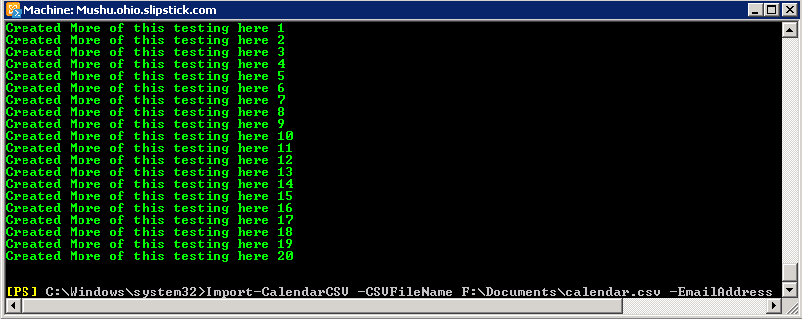
Use powershell to import appointments

Using just the required fields, Free/Busy will be set to Busy and a reminder is set based on the user’s default reminder options.

The Administrator wanted to import notes in the Body, change the Free/Busy state, as well create some All Day Events and set reminders, so we added columns to the CSV for Body, LegacyFreeBusyStatus, IsAllDayEvent, IsReminderSet and ReminderMinutesBeforeStart.

Use Busy, Free, or Tentative as values in the Free/Busy column. The IsAllDayEvent and IsReminderSet columns are left blank for "no"; you can use anything for yes: 1, "x", or the word "Yes" is suggested.

Enter a number for ReminderMinutesBeforeStart (1440 is 1 day). If reminder minutes are set but the reminder isn’t set, a reminder won’t be triggered. If a reminder is set but the reminder minutes field is blank, the reminder is 0 minutes.

Values can be hard-coded in the script. Use 1 for Yes and 0 for No in Yes/No fields such as IsAllDayEvent and IsReminderSet.

$Appointment.LegacyFreeBusyStatus = [Microsoft.Exchange.WebServices.Data.LegacyFreeBusyStatus]::Tentative;
$Appointment.IsAllDayEvent=1;
$Appointment.IsReminderSet=0;

More Information

Tweaked script I use and a sample CSV file
Get the PowerShell script here: Import-CalendarCSV.ps1
A list of field names is available here: CalendarItem
Cross-reference field names with the list here: Appointment members

Use PowerShell to Import Appointments was last modified: December 4th, 2018 by Diane Poremsky
  • Click to share on Twitter (Opens in new window)
  • Click to share on Facebook (Opens in new window)
  • Click to share on LinkedIn (Opens in new window)
  • Click to share on Reddit (Opens in new window)
  • Click to share on Skype (Opens in new window)
  • Click to share on Pocket (Opens in new window)
  • Click to share on Tumblr (Opens in new window)
  • Click to share on Pinterest (Opens in new window)
  • Click to print (Opens in new window)

Related Posts:

  • How to configure room calendars so you can share Exchange 2010 Free/Bu
    Sharing Exchange 2010 Calendars with Outside Users
  • Import Calendar Events into all Mailboxes in Exchange Server
  • Adding Appointments to Other User's Calendar
  • How to Show Appointments as "Free" by Default

About Diane Poremsky

A Microsoft Outlook Most Valuable Professional (MVP) since 1999, Diane is the author of several books, including Outlook 2013 Absolute Beginners Book. She also created video training CDs and online training classes for Microsoft Outlook. You can find her helping people online in Outlook Forums as well as in the Microsoft Answers and TechNet forums.

6
Leave a Reply

2500
Photo and Image Files


Audio and Video Files


Other File Types


2500
Photo and Image Files


Audio and Video Files


Other File Types


  Subscribe  
newest oldest most voted
Notify of
AllMight
AllMight

Not sure if this post is still checked but I did all the steps and am getting an error is not recognized as a cmdlet

Vote Up00Vote Down Reply
January 15, 2019 11:54 pm
Diane Poremsky
Diane Poremsky

What version of Exchange are you using?

Vote Up00Vote Down Reply
January 16, 2019 8:23 am
bicky
bicky

great script, thank you.
By default this script import the appointments to the default calendar, Is there anyway to specify the non-default calendar ?

Vote Up00Vote Down Reply
December 6, 2015 12:41 pm
Diane Poremsky
Diane Poremsky

This script is written to use the default calendar- it might be possible to change it but my PowerShell skills are not good and i don't know how to do it.

Vote Up00Vote Down Reply
December 7, 2015 12:26 am
Sergei
Sergei

Is there a way to make this script overwrite duplicate appointments?

Vote Up00Vote Down Reply
March 12, 2015 6:17 pm
Diane Poremsky
Diane Poremsky

No, not to my knowledge. Sorry.

Vote Up00Vote Down Reply
April 16, 2015 12:53 am

Visit Slipstick Forums.
What's New at Slipstick.com

Latest EMO: Vol. 24 Issue 16

Support Services

Do you need help setting up Outlook, moving your email to a new computer, migrating or configuring Office 365, or just need some one-on-one assistance?

Subscribe to Exchange Messaging Outlook


Our Sponsors

  • Popular
  • Latest
  • Week Month All
  • Adjusting Outlook's Zoom Setting in Email
  • Change your Password and Server Settings in Outlook 2016
  • Security Certificate Warning in Microsoft Outlook
  • Pictures Don't Display in Outlook Messages
  • How to Remove the Primary Account from Outlook
  • The Signature or Stationery and Fonts button doesn't work
  • Two Copies of Sent Messages in Outlook
  • Outlook is Not Recognized as the Default Email Client
  • Outlook's Rules and Alerts: Run a Script
  • Save Sent Items in Shared Mailbox Sent Items folder
  • Delete Subfolders using a macro or PowerShell
  • Use PowerShell to Bulk Change Contacts
  • The Help function is disabled in Office apps
  • Warn Before Sending: Checking Contact Categories
  • Delay sending a message with Outlook closed?
  • Using Outlook’s Send to OneNote button
  • Outlook Folder List: Unread Message Count Position
  • Fixed: Outlook displays all messages in plain text
  • Use PowerShell to Export and Import Categories
  • Outlook Mobile apps and Government Cloud Accounts (GCC)
Ajax spinner

Newest Code Samples

Delete Subfolders using a macro or PowerShell

Use PowerShell to Bulk Change Contacts

Warn Before Sending: Checking Contact Categories

Use PowerShell to Export and Import Categories

Search Calendars for Appointments

Delete duplicate messages using a macro

Resize images in an Outlook email

Update Folder Permissions using VBA

Adjusting Outlook's Zoom Setting in Email

Move email items based on a list of email addresses

Recent Bugs List

Microsoft keeps a running list of issues affecting recently released updates at Fixes or workarounds for recent issues in Outlook for Windows.

Office Update History

Update history for supported Office versions is at Update history for Office

Windows 10 Issues

  • iCloud, Outlook 2016, and Windows 10
  • Better Outlook Reminders?
  • Coming Soon to Windows 10: Office 365 Search
  • Outlook Links Won’t Open In Windows 10
  • BCM Errors after Upgrading to Windows 10
  • Outlook can’t send mail in Windows 10: error Ox800CCC13
  • Missing Outlook data files after upgrading Windows?

Outlook 2016 Top Issues

  • The Windows Store Outlook App
  • Emails are not shown in the People Pane (Fixed)
  • Calendars aren’t printing in color
  • The Signature or Stationery and Fonts button doesn’t work
  • Outlook’s New Account Setup Wizard
  • BCM Errors after October 2017 Outlook Update
  • Excel Files Won’t Display in Reading Pane
  • Outlook 2016: No BCM
  • Exchange Account Set-up Missing in Outlook 2016

Repair PST

Convert an OST to PST

Repair damaged PST file

Repair large PST File

Remove password from PST

Merge Two Data Files

Sync & Share Outlook Data

  • Share Calendar & Contacts
  • Synchronize two computers
  • Sync Calendar and Contacts Using Outlook.com
  • Sync Outlook & Android Devices
  • Sync Google Calendar with Outlook
  • Access Folders in Other Users Mailboxes

Convert to / from Outlook

  • Converting Messages and Calendar or
    Address books
  • Moving Outlook to a New Computer
  • Moving Outlook 2010 to a new Windows computer
  • Moving from Outlook Express to Outlook

Recover Deleted Items

  • Recover deleted messages from .pst files
  • Are Deleted Items gone forever in Outlook?

Outlook 2013 Absolute Beginner's Guide

Diane Poremsky [Outlook MVP]

Make a donation

Calendar Tools

Schedule Management

Calendar Printing Tools

Calendar Reminder Tools

Calendar Dates & Data

Time and Billing Tools

Meeting Productivity Tools

Duplicate Remover Tools

Mail Tools

Sending and Retrieval Tools

Mass Mail Tools

Compose Tools

Duplicate Remover Tools

Mail Tools for Outlook

Online Services

Productivity

Productivity Tools

Automatic Message Processing Tools

Special Function Automatic Processing Tools

Housekeeping and Message Management

Task Tools

Project and Business Management Tools

Choosing the Folder to Save a Sent Message In

Run Rules on messages after reading

Help & Suggestions

Outlook Suggestion Box (UserVoice)

Slipstick Support Services

Contact Tools

Data Entry and Updating

Duplicate Checkers

Phone Number Updates

Contact Management Tools

Sync & Share

Share Calendar & Contacts

Synchronize two machines

Sharing Calendar and Contacts over the Internet

More Tools and Utilities for Sharing Outlook Data

Access Folders in Other Users Mailboxes

View Shared Subfolders in an Exchange Mailbox

"Live" Group Calendar Tools

Home | Outlook User | Exchange Administrator | Office 365 | Outlook.com | Outlook Developer
Outlook for Mac | Outlook BCM | Common Problems | Utilities & Addins | Tutorials
Outlook & iCloud Issues | Outlook Apps
EMO Archives | About Slipstick | Advertise | Slipstick Forums
Submit New or Updated Outlook and Exchange Server Utilities

Send comments using our Feedback page
Copyright © 2019 Slipstick Systems. All rights reserved.
Slipstick Systems is not affiliated with Microsoft Corporation.

You are going to send email to

Move Comment