I haven’t posted a Lazy Programmer’s macro in a long time but the opportunity to do some lazy programming arose this week when a user wanted to replace Bing in the Smart Lookup function with Google. While this is not possible, you can use a macro to (mostly) replicate the feature using your favorite search engine.
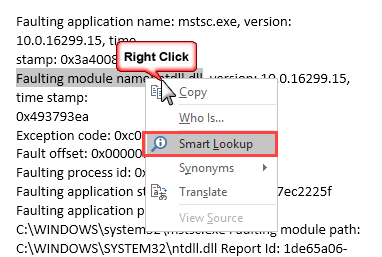
Outlook 2016's Smart Lookup feature is locked in to using Bing as the search engine. My question is would it be possible to write macro which adds an option to the context popup menu when text in an email is selected and right-clicked, that would allow us to search with Google - even if it meant calling out to an external browser?
Is it doable? Sure. We can send the selected word or phrase to your favorite search engine in your favorite browser. We’re not able to add to the right-click context menu or open the search in a side panel using a simple macro; you could do this using an addin, which is beyond the scope of the Lazy Programmer series.
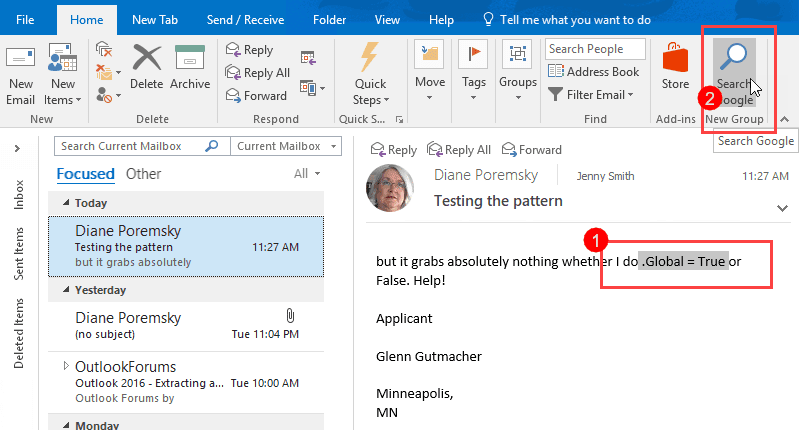
With this macro, you select the word or phrase then click the button on the ribbon:
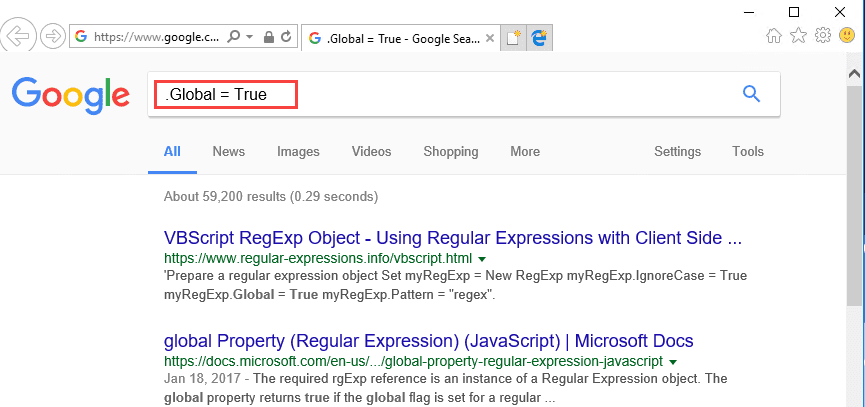
The selected text is sent to the search engine:
To put this together, we take code from two macros here at slipstick.com. We start with the macro at Create Task or Appointment and Insert Selected Text to create a variable from the selected text, while removing the code that creates the task. Then we send the search URL to a browser. Done.
Thanks to the GetCurrentItem function, this macro will work with selections in the reading pane, in an open message, or when composing a message. You'll need to customize the ribbon or Quick Access Toolbar in the main Outlook window, an open message, and in the compose form.
October 9 2018: Changed macro to use the default browser (and added a version to use in Word.)
If you are using 64-bit Office, the Private Declare Function ShellExecute macro will be in red - you need you use this as the first line, with PtrSafe between Declare Function:
Private Declare PtrSafe Function ShellExecute _
Private Declare Function ShellExecute _
  Lib "shell32.dll" Alias "ShellExecuteA" ( _
  ByVal hWnd As Long, _
  ByVal Operation As String, _
  ByVal Filename As String, _
  Optional ByVal Parameters As String, _
  Optional ByVal Directory As String, _
  Optional ByVal WindowStyle As Long = vbMinimizedFocus _
  ) As Long

Sub SearchGoogle()
' Set reference to Word object model
' in VBA Editor, Tools, References

Dim objMail As Object 'Outlook.MailItem
Dim objWord As Word.Application
Dim objInsp As Inspector
Dim objDoc As Word.Document
Dim objSel As Word.Selection
Dim strPhrase As String
Dim oApp As Object
Dim lSuccess As Long

On Error Resume Next

Set objMail = GetCurrentItem()

' copy the selection to the clipboard
Set objInsp = objMail.GetInspector
    If objInsp.EditorType = olEditorWord Then
        Set objDoc = objInsp.WordEditor
        Set objWord = objDoc.Application
        Set objSel = objWord.Selection

        strPhrase = objSel
    End If

Dim strURL As String
' send to google search
strURL = "https://www.google.com/search?q=" & strPhrase

' start browser code block

lSuccess = ShellExecute(0, "Open", strURL)

' end browser code block

Set objMail = Nothing
Set objSel = Nothing
Set objInsp = Nothing
Set objWord = Nothing
End Sub

 Function GetCurrentItem() As Object
    Dim objApp As Outlook.Application

    Set objApp = Application
    On Error Resume Next
    Select Case TypeName(objApp.ActiveWindow)
        Case "Explorer"
            Set GetCurrentItem = objApp.ActiveExplorer.Selection.Item(1)
        Case "Inspector"
            Set GetCurrentItem = objApp.ActiveInspector.CurrentItem
    End Select

    Set objApp = Nothing
End Function
Customizations
You can change the search engine url to any search engine. Common search urls are in the table below.
| Search Engine | URL to use |
|---|---|
| https://www.google.com/search?q= | |
| DuckDuckGo | https://duckduckgo.com/?q= |
| Yahoo | https://search.yahoo.com/search?p= |
| Merriam-Webster dictionary | https://www.merriam-webster.com/dictionary/ |
If you want to open the link in a Google and it is NOT set as your default browser, you need to set the path to the browser and call it using Shell.
Use this to call Chrome. (Change the file path to use Firefox):
' start browser code block

Dim browserPath As String
browserPath = Chr(34) & "C:\Program Files (x86)\Google\Chrome\Application\chrome.exe" & Chr(34)
' use double quotes around multiword phrases
Shell (browserPath & " -url " & Chr(34) & strURL & Chr(34))
DoEvents

' end browser code block
Use this to use Internet Explorer:
' start browser code block

Set oApp = CreateObject("InternetExplorer.Application")
' use CLng(2048) to open in a new tab in the current window
oApp.navigate strURL ', CLng(2048)

  oApp.Visible = True

'wait for page to load before passing the web URL
  Do While oApp.Busy
  DoEvents
  Loop
' end browser code block
Replicate Word's Smart Lookup
This version of the macro works in Word. Copy and paste the code into Word's VBA editor and create a button the ribbon (or assign a shortcut to the macro.)
To use it: Select the word or phrase and run the macro. This will open a tab in your default browser with the search criteria.
If you are using 64-bit Office, the Private Declare Function ShellExecute macro will be in red - you need you use this as the first line, with PtrSafe between Declare Function:
Private Declare PtrSafe Function ShellExecute _
Private Declare Function ShellExecute _
  Lib "shell32.dll" Alias "ShellExecuteA" ( _
  ByVal hWnd As Long, _
  ByVal Operation As String, _
  ByVal Filename As String, _
  Optional ByVal Parameters As String, _
  Optional ByVal Directory As String, _
  Optional ByVal WindowStyle As Long = vbMinimizedFocus _
  ) As Long

Sub SearchGoogleWord()
    Dim lSuccess As Long

Dim objWord As Word.Application
Dim objDoc As Word.Document
Dim objSel As Word.Selection
Dim strPhrase As String
Dim oApp As Object

On Error Resume Next

Set objWord = Word.Application
Set objSel = objWord.Selection

strPhrase = objSel

' send to google search
Dim strURL As String

strURL = "https://www.google.com/search?q=" & strPhrase

lSuccess = ShellExecute(0, "Open", strURL)

Set objSel = Nothing
Set objWord = Nothing
End Sub
How to use the macro on this page
First: You need to have macro security set to low during testing. The macros will not work otherwise.
To check your macro security in Outlook 2010 and newer, go to File, Options, Trust Center and open Trust Center Settings, and change the Macro Settings. In Outlook 2007, look at Tools, Macro Security.
After you test the macro and see that it works, you can either leave macro security set to low or sign the macro.
Open the VBA Editor by pressing Alt+F11 on your keyboard.
To put the code in a module:
- Right click on Project1 and choose Insert > Module
- Copy and paste the macro into the new module.
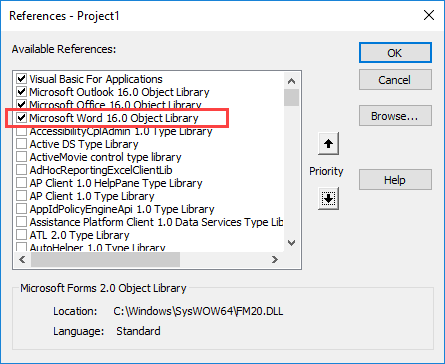
Set a reference to Word Object Library
This macro uses the Word Object Library. If you receive a "User-defined type not defined" error, you didn't to set a reference to the Word object library.
- Go to Tools, References menu.
- Locate the object library in the list and add a check mark to it. (Word object library version number will match your Outlook's version number.)

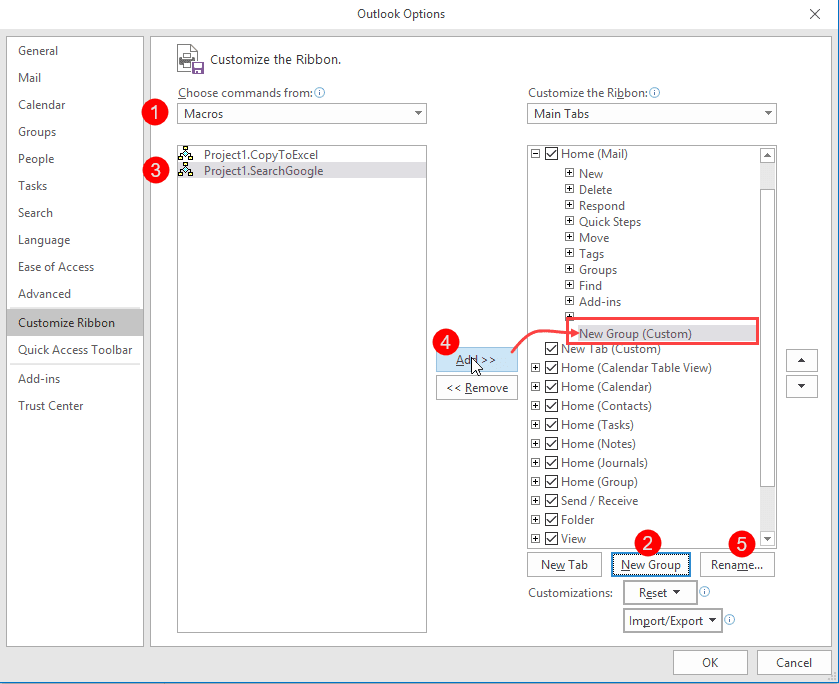
Add the macro to a button on the ribbon
- Open File, Options, Customize Ribbon
- Select Macros from the Choose commands from dropdown (1)
- Add a New Group to the ribbon (2)
- Select the Search macro (3)
- Click Add to add the macro to the new group. (4)
- Click Rename to give it a friendly name and an icon. (5)
If you prefer using the Quick Access Toolbar, add a macro button to it instead.
More information as well as screenshots are at How to use the VBA Editor






























Thank you for this.
Diane,
The Word macro above works well with Mozilla, but not with latest versions of Edge or Chrome. With the latter 2 browsers only the first word of a string is passed to the browsers. I've reset Mozilla as the default browser. Just wondering if you might be able to replicate this on your system and offer comments?
15 mins later...
And of, course the moment I post it fixes itself...
Hi,
This seems to be working nicely! Thanks a lot.
Just one concern. When you haven't selected any word and simply click the ribbon button, why does it search for random letters? For example, I am in outlook, in ht inbox, some email is selected and without selecting any text, I just click Search Google(The name I gave to the ribbon button) for fun, and it searches Google for the letter W or sometimes A or T or any random letter. How can we prevent this from happening? I hope I was able to express my concern properly.
Thank you so much for posting this code. Me and people in my company have to use Outlook a lot. From Outlook they 1-(copy an items catalog number), 2-(open a new page), many other steps, until they finally get the result. With this I am helping them cut time by half or more!
So thank you so much! It has been very helpful.
I worked it out. Just needed double quotes round the search phrase strURL. Here's the amended Chrome browser code:
Dim browserPath As String
browserPath = Chr(34) & "C:\Program Files (x86)\Google\Chrome\Application\chrome.exe" & Chr(34)
Shell (browserPath & " -url " & Chr(34) & strURL & Chr(34))
DoEvents
Sorry for all the messages.
Love your work!
thanks for the information!
Just found one snag with the macro. When using Chrome as the browser, then selecting a multiple word phrase and searching, it launches separate tabs in the browser for each word. The first word is searched for, but the following words in the other tabs go in without the search URL. Using IE it captures and searches for the whole phrase together in one go, as expected.
Any idea what I'd need to change to make Chrome behave the same as IE?
Thanks Diane. Nice work, works a treat.