Many users have discovered that it is really slow to delete folders from Outlook. You need to:
- Select the folder.
- Click Delete.
- Click Ok that you really do want to delete the folder.
- Repeat for the next folder
Dragging folders to Deleted Items used to be faster (and still is, in older versions of Outlook): drag the folder to the Deleted items folder, or if you had a lot of folders to delete, drag to one of the folders you are going to delete (creating subfolders) then delete the 'parent' folder and answer the 'are you sure' dialog once. Now even that asks if you really want to delete the folder.
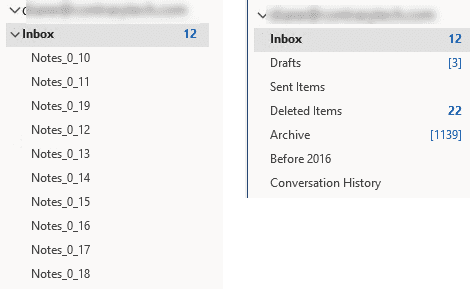
To speed it up you can use a macro or PowerShell.
The macro on this page runs on the selected folder, moving all subfolders to the deleted items folder. You'll need to select the Deleted items folder and run it again to permanently delete the folders.
The two PowerShell scripts delete subfolders of the Inbox (or subfolders of a specific folder) or all folders beginning with the same name, at the same level as the Inbox. They also delete the folders from the deleted items folder.
Use PowerShell to delete all subfolders
The first script deletes the subfolders under the Inbox, the second script permanently deletes all of the subfolders in the Deleted Items folder.
To change the default parent folder, change the folder number in this line (a list of common folder values is at the end of the powershell script listings):
$Folder= $MAPI.GetDefaultFolder(6)
Powershell instructions are below.
$olApp = new-object -comobject outlook.application
$namespace = $olApp.GetNamespace("MAPI")

# delete subfolders from Inbox folder
$Folder = $namespace.GetDefaultFolder(6)
$SubFolders = $Folder.Folders
$count = $SubFolders.Count
$count
$SubFolders | % {$_.Delete()}
# End Inbox

$olApp.Quit | Out-Null
[GC]::Collect()
Permanently Delete Folders
$olApp = new-object -comobject outlook.application
$namespace = $olApp.GetNamespace("MAPI")

# permanently  delete subfolders from Deleted items folder
$Folder = $namespace.GetDefaultFolder(3)
$SubFolders = $Folder.Folders
$count = $SubFolders.Count
$count
$SubFolders | % {$_.Delete()}
# End permanently delete folders

$olApp.Quit | Out-Null
[GC]::Collect()
Delete folders in a secondary data file
To delete from a secondary or non-default data file in your profile, you need to identify the data file by name. This will be the name you see in the folder list, in most cases it will be your email address but may be Outlook Data file or Personal Folders.
$Folders = $namespace.Folders.Item("alias@domain.com")
then reference the folder by name:
$Folder = $Folders.Folders.Item("Folder name")
You'll run the same script twice, once with the folder you are deleting subfolders from, then for the deleted items folder.
$olApp = new-object -comobject outlook.application
$namespace = $olApp.GetNamespace("MAPI")
$Folders = $namespace.Folders.Item("alias@domain.com")

# delete subfolders from the parent folder
$Folder = $Folders.Folders.Item("Folder name")

# to permanently delete subfolders from Deleted items folder
#$Folder = $Folders.Folders.Item("Deleted Items")

$SubFolders = $Folder.Folders
$count = $SubFolders.Count

$SubFolders | % {$_.Delete()}
# End permanently delete folders

$olApp.Quit | Out-Null
[GC]::Collect()
Delete subfolders by name or using wildcards
To delete a specific subfolder by name, use this line:
$SubFolder = $Inbox.Folders | Where-Object {$_.Name -eq "Notes_0"}To change the default parent folder, change the folder number in this line:
$Folder= $MAPI.GetDefaultFolder(6)
To delete a group of subfolders by a matching string in the folder name, use the -like operator. In addition, this sample shows how to delete folders at the same level as Inbox.
$SubFolder = $Inbox.Parent.Folders | Where-Object {$_.Name -like "Notes_0*"}To use, you can copy and paste the code in a new powershell window and press Enter. Powershell instructions are below.
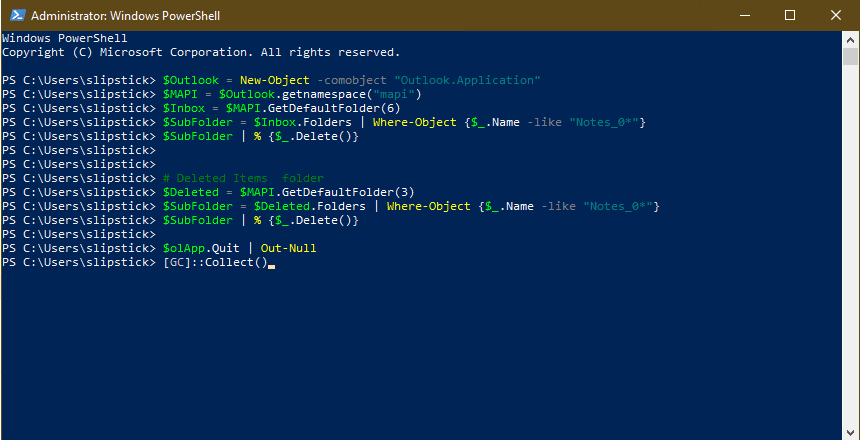
This version of the PowerShell script permanently deletes the folders after moving them to the Deleted folder. You may want to split it into two scripts.
$Outlook = New-Object -comobject "Outlook.Application"
$MAPI = $Outlook.getnamespace(“mapi”)
$Folder= $MAPI.GetDefaultFolder(6)

# Delete subfolders that begin with the same keyword
# This sample deletes folders at the same level as Inbox
$SubFolder = $Folder.Parent.Folders | Where-Object {$_.Name -like "Notes_0*"}
$SubFolder | % {$_.Delete()}
# End Delete folders

# permanently  delete subfolders from Deleted items folder
$Deleted = $MAPI.GetDefaultFolder(3)
$SubFolder = $Deleted.Folders | Where-Object {$_.Name -like "Notes_0*"}
$SubFolder | % {$_.Delete()}
# End permanently delete folders

$olApp.Quit | Out-Null
[GC]::Collect()
| Name | Value | Description |
|---|---|---|
| olFolderCalendar | 9 | Calendar folder. |
| olFolderContacts | 10 | Contacts folder. |
| olFolderDeletedItems | 3 | Deleted Items folder. |
| olFolderDrafts | 16 | Drafts folder. |
| olFolderInbox | 6 | Inbox folder. |
| olFolderJunk | 23 | Junk Email folder. |
| olFolderNotes | 12 | Notes folder. |
| olFolderSentMail | 5 | Sent Items folder. |
| olFolderTasks | 13 | Tasks folder. |
Delete specific folders using VBA
Use this macro to delete all folders that begin with the same name. Edit this line for the folder name and the character count as needed.
If Left(olTempFolder.Name, 6) = "Notes_" Then
To use, select the parent folder (can be the mailbox root, which may be your email address or 'Outlook Data File') then run the DeleteFolders macro.
Public Sub DeleteFolders()
Dim oFolder As Outlook.Folder

' Select the parent folder
Set oFolder = Application.ActiveExplorer.CurrentFolder
ProcessFolder oFolder

End Sub
Sub ProcessFolder(CurrentFolder As Outlook.MAPIFolder)

    Dim i As Long
    Dim olNewFolder As Outlook.MAPIFolder
    Dim olTempFolder As Outlook.MAPIFolder
    Dim olTempFolderPath As String
     ' Loop through the items in the current folder.
    For i = CurrentFolder.folders.count To 1 Step -1

      Set olTempFolder = CurrentFolder.folders(i)
              Debug.Print olTempFolder
      If Left(olTempFolder.Name, 6) = "Notes_" Then

    ' prints the folder name only
             olTempFolder.Delete
     End If

    Next
     ' Loop through and search each subfolder of the current folder.
    For Each olNewFolder In CurrentFolder.folders

       ProcessFolder olNewFolder

    Next
End Sub
Delete all subfolders using a macro
To use this macro, select the parent folder then run the macro. It will delete all subfolders from the selected folder. Select the Deleted items folder to permanently delete the folders.
Macro instructions are below.
Public Sub DeleteFolders()

Dim oFolder As Outlook.folder

' Select the parent folder
Set oFolder = Application.ActiveExplorer.CurrentFolder
ProcessFolder oFolder

End Sub
Sub ProcessFolder(CurrentFolder As Outlook.MAPIFolder)

    Dim i As Long
    Dim lCountOfFound As Long
    Dim olNewFolder As Outlook.MAPIFolder
    Dim olTempFolder As Outlook.MAPIFolder
    Dim olTempFolderPath As String
     ' Loop through the items in the current folder.
    For i = CurrentFolder.Folders.count To 1 Step -1

        Set olTempFolder = CurrentFolder.Folders(i)

        ' prints the folder name only
          Debug.Print olTempFolder
             olTempFolder.Delete

        lCountOfFound = lCountOfFound + 1

    Next
     ' Loop through and search each subfolder of the current folder.
    For Each olNewFolder In CurrentFolder.Folders

         'Don't need to process the Deleted Items folder
        If olNewFolder.Name <> "Deleted Items" Then
            ProcessFolder olNewFolder
        End If

    Next
   MsgBox lCountOfFound
End Sub
How to use the macro on this page
First: You need to have macro security set to the lowest setting, Enable all macros during testing. The macros will not work with the top two options that disable all macros or unsigned macros. You could choose the option Notification for all macros, then accept it each time you restart Outlook, however, because it's somewhat hard to sneak macros into Outlook (unlike in Word and Excel), allowing all macros is safe, especially during the testing phase. You can sign the macro when it is finished and change the macro security to notify.
To check your macro security in Outlook 2010 and newer, go to File, Options, Trust Center and open Trust Center Settings, and change the Macro Settings. In Outlook 2007 and older, look at Tools, Macro Security.
After you test the macro and see that it works, you can either leave macro security set to low or sign the macro.
The macros on this page should be placed in a module.
Open the VBA Editor by pressing Alt+F11 on your keyboard.
To put the code in a module:
- Right click on Project1 and choose Insert > Module
- Copy and paste the macro into the new module.
- Press F5 or the Run button to run the macro.
More information as well as screenshots are at How to use the VBA Editor
Using PowerShell Scripts
To use, right-click on the Start menu in Windows 10 and click on the Windows PowerShell entry. Paste the entire script in the PowerShell window and press Enter.
Note: This PowerShell script will not work with the Windows Store version of Office. You'll need to use the macro version if you have the Windows store version of Office installed.
Saving PowerShell Scripts
If you want to save the script as a .ps1 file, paste it into Notepad and save it with the extension .ps1. To open it in the PowerShell IDE, type powershell on the start menu and click on Windows PowerShell IDE when the PowerShell app is found. Paste the script in the editing window.
To use it, you need to allow local scripts by running this command:
Set-ExecutionPolicy RemoteSigned
To run your saved .ps1 file, right-click on the script and choose Run with PowerShell.
More Information
Add or Delete folders, using a list of folders in a text file: Create new Outlook folders using PowerShell
See OlDefaultFolders enumeration (Outlook) for the full list of folder enumerations.






























Hi there Diane
So is there any update/enhancement to just delete empty Folders?
Which would seem to be the obvious Use Case'
Hello, ¿how I can move mails massive of an folder a subfolder etc?
Awesome work, thank you! This just saved me from having to manually delete 162 folders..
I ran the following script on a secondary mailbox named "SortedMail". I tried running all the lines by pasting them in together and hitting Enter, and also by pasting them in one by one and hitting Enter after each line. Both approaches produced the same error message. The script was
$olApp = new-object -comobject outlook.application
$namespace = $olApp.GetNamespace("MAPI")
$Folders = $namespace.Folders.Item("SortedMail")
#$Folder = $Folders.Folders.Item("Deleted Items")
$SubFolders = $Folder.Folders
$count = $SubFolders.Count
$SubFolders | % {$_.Delete()}
$olApp.Quit | Out-Null
[GC]::Collect()
The error message for the all-at-once case was
You cannot call a method on a null-valued expression.
At line:7 char:18
+ $SubFolders | % {$_.Delete()}
+ ~~~~~~~~~~~
+ CategoryInfo : InvalidOperation: (:) [], RuntimeException
+ FullyQualifiedErrorId : InvokeMethodOnNull
In the one-by-one case, a slightly different error message appeared after the line
$SubFolders | % {$_.Delete()}
You cannot call a method on a null-valued expression.
At line:1 char:18
+ $SubFolders | % {$_.Delete()}
+ ~~~~~~~~~~~
+ CategoryInfo : InvalidOperation: (:) [], RuntimeException
+ FullyQualifiedErrorId : InvokeMethodOnNull
Hi, the powershell option works like a treat for us. Is this also possible on an online archive in outlook? We hope someone has figured that one out as well and can give us the code.