Use this code sample and function to display the Internet header of selected message in a new message form.
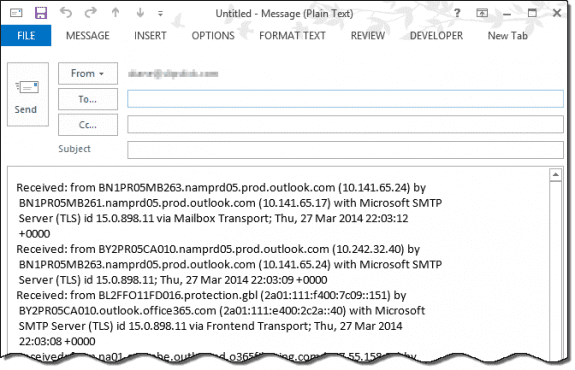
Tested in Outlook 2013, 2019, 2021, and Outlook 365, also works in Outlook 2010 and 2007.
The PowerShell version does not require you to change Outlook security settings. to use, select one or more messages then run the script.
clear

$olApp = new-object -comobject outlook.application
$PropName = "http://schemas.microsoft.com/mapi/proptag/0x007D001E"

$olFolder = ($olApp.ActiveExplorer())
$Selection = $olFolder.Selection

foreach ($olMsg in $Selection) {
$oPA = $olMsg.PropertyAccessor
$value = $oPA.GetProperty($PropName)

$Mail = $olApp.CreateItem(0)
$ndatetime = Get-Date -Format g
$Mail.Subject = $olMsg.subject + ' ' +$ndatetime
$Mail.Body = $value
$Mail.display()
}
Save it as a *.ps1 then right-click and choose Run with PowerShell.
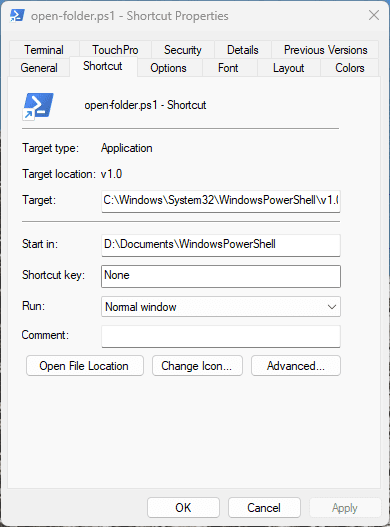
Or create a shortcut and pin it to the taskbar or Start menu. The target will be
powershell.exe -file "C:\path\to\filename.ps1"
Note: Windows will add the full path to powershell.exe to the shortcut.
VBA method to get message header
Sub ViewInternetHeader()
    Dim olItem As Outlook.MailItem, olMsg As Outlook.MailItem
    Dim strheader As String

    For Each olItem In Application.ActiveExplorer.Selection
        strheader = GetInetHeaders(olItem)

        Set olMsg = Application.CreateItem(olMailItem)
        With olMsg
            .BodyFormat = olFormatPlain
            .Body = strheader
            .Display
        End With
    Next
    Set olMsg = Nothing
End Sub

Function GetInetHeaders(olkMsg As Outlook.MailItem) As String
    ' Purpose: Returns the internet headers of a message.'
    ' Written: 4/28/2009'
    ' Author:  BlueDevilFan'
    ' //techniclee.wordpress.com/
    ' Outlook: 2007'
    Const PR_TRANSPORT_MESSAGE_HEADERS = "http://schemas.microsoft.com/mapi/proptag/0x007D001E"
    Dim olkPA As Outlook.PropertyAccessor
    Set olkPA = olkMsg.PropertyAccessor
    GetInetHeaders = olkPA.GetProperty(PR_TRANSPORT_MESSAGE_HEADERS)
    Set olkPA = Nothing
End Function
Write the header to a text file
This version of the above macro writes the header to a text file and opens it in Notepad. (You'll need the Function GetInetHeaders from above).
If you want to open it in another Text application, replace "notepad " with the file path and name, making sure to leave the space after the filename.
  Sub ViewInternetHeader()
    Dim olItem As Outlook.MailItem, olMsg As Outlook.MailItem
    Dim strheader As String

    For Each olItem In Application.ActiveExplorer.Selection
        strheader = GetInetHeaders(olItem)

' ### write to a text file
Dim FSO As Object
Dim strFile As String
Dim strFolderpath As String

Set FSO = CreateObject("Scripting.FileSystemObject")

' save to documents
strFolderpath = CreateObject("WScript.Shell").SpecialFolders(16)
    strFile = strFolderpath & "\header.txt"
Set objFile = FSO.CreateTextFile(strFile, True) ' True overwrites the file
Debug.Print strFile

    objFile.Write "" & strheader
    objFile.Close

 Call Shell("notepad.exe " & strFile, vbNormalFocus)

' ### end write to text file

    Next
    Set olMsg = Nothing
End Sub
Get Specific Values from the header
But combining RegEx and the macro above we can get specific values out of the header. In this example, we're getting the address in the Return-Path.
If you need two or more values, you'll use a Case statement to loop through the header. See Get two (or more) values from a message for an example.
Sub GetValuesFromInternetHeader()
    Dim olItem As Outlook.MailItem, olMsg As Outlook.MailItem
    Dim strHeader As String
    Dim strResult As String
    Dim strResults As String
    Dim Reg1 As Object
    Dim M1 As Object
    Dim M As Object

    For Each olItem In Application.ActiveExplorer.Selection
        strHeader = GetInetHeaders(olItem)

      Set Reg1 = CreateObject("VBScript.RegExp")
    With Reg1
        .Pattern = "(Return-Path:\s(.*))"
        .Global = True
    End With

    If Reg1.test(strHeader) Then

        Set M1 = Reg1.Execute(strHeader)
        For Each M In M1
' 0 = everything in the first set of ()
' 1 = everything in the second set of ()
        Debug.Print M.SubMatches(0)
        strResult = M.SubMatches(1)

' do something with the result
        strResults = strResult & vbCrLf & vbCrLf & strResults
        Next
    End If

    Next

        Set olMsg = Application.CreateItem(olMailItem)
        With olMsg
            .BodyFormat = olFormatPlain
            .Body = strResults
            .Display
        End With
    Set olMsg = Nothing
End Sub

Function GetInetHeaders(olkMsg As Outlook.MailItem) As String
    ' Purpose: Returns the internet headers of a message.'
    ' Written: 4/28/2009'
    ' Author:  BlueDevilFan'
    ' //techniclee.wordpress.com/
    ' Outlook: 2007'
    Const PR_TRANSPORT_MESSAGE_HEADERS = "http://schemas.microsoft.com/mapi/proptag/0x007D001E"
    Dim olkPA As Outlook.propertyAccessor
    Set olkPA = olkMsg.propertyAccessor
    GetInetHeaders = olkPA.GetProperty(PR_TRANSPORT_MESSAGE_HEADERS)
    Set olkPA = Nothing
End Function
Send a Spam Report
If you need to send a spam report to your ISP, you can use a macro to automate it. This macro will work on one message or a selection of messages.
If the macro is not creating a body that can be processed by the reporting service, try changing the 0x007D001E value to 0x007D001F. This returns PR_TRANSPORT_MESSAGE_HEADERS_W instead of PR_TRANSPORT_MESSAGE_HEADERS. See Geldner's thread and answer here: Problem submitting SPAM using Outlook VBA Form
Sub ForwardSpam()
    Dim olItem As Outlook.MailItem, olMsg As Outlook.MailItem
    Dim strHeader As String
    Dim strFWHeader As String
    Dim strNote As String

    For Each olItem In Application.ActiveExplorer.Selection
        strHeader = GetInetHeaders(olItem)

    strNote = "boilerplate note, if needed"

      Set olMsg = olItem.Forward
       With olMsg
        .To = "report@address.com"
        .BodyFormat = olFormatPlain
        .Body = strNote & vbCrLf & vbCrLf & strHeader & vbCrLf & vbCrLf & olItem.Body
        .Display ' change to .send when satisfied
       End With
    olItem.Delete
  Next
    Set olMsg = Nothing
End Sub

Function GetInetHeaders(olkMsg As Outlook.MailItem) As String
    ' Purpose: Returns the internet headers of a message.'
    ' Written: 4/28/2009'
    ' Author:  BlueDevilFan'
    ' //techniclee.wordpress.com/
    ' Outlook: 2007'
    Const PR_TRANSPORT_MESSAGE_HEADERS = "http://schemas.microsoft.com/mapi/proptag/0x007D001E"
    Dim olkPA As Outlook.propertyAccessor
    Set olkPA = olkMsg.propertyAccessor
    GetInetHeaders = olkPA.GetProperty(PR_TRANSPORT_MESSAGE_HEADERS)
    Set olkPA = Nothing
End Function
Using PowerShell Scripts
To use PowerShell scripts with Outlook, start typing PowerShell on the start menu and open Windows PowerShell when it comes up. Windows PowerShell ISE has a script pane at the top, which is useful if you want to edit the script.
Paste the entire script in the PowerShell window and press Enter or the Run button if using PowerShell ISE.
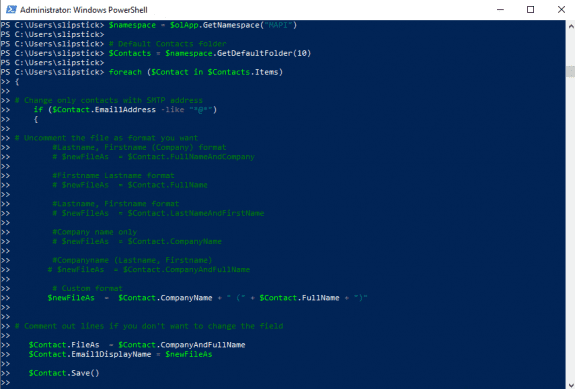

Note: PowerShell scripts will not work with new Outlook or Outlook on the web.
Saving PowerShell Scripts
If you want to save the script as a .ps1 file, paste it into Notepad and save it with the extension .ps1. To open it in the PowerShell IDE, type PowerShell on the start menu and click on Windows PowerShell IDE when the PowerShell app is found. Paste the script in the editing window.
To use it, you need to allow local scripts by running this command:
Set-ExecutionPolicy RemoteSigned
To run your saved .ps1 file, right-click on the script and choose Run with PowerShell.
How to use macros
First: You will need macro security set to low during testing.
To check your macro security in Outlook 2010 or 2013, go to File, Options, Trust Center and open Trust Center Settings, and change the Macro Settings. In Outlook 2007 and older, it’s at Tools, Macro Security.
After you test the macro and see that it works, you can either leave macro security set to low or sign the macro.
Open the VBA Editor by pressing Alt+F11 on your keyboard.
To put the code in a module:
- Right click on Project1 and choose Insert > Module
- Copy and paste the macro into the new module.
More information as well as screenshots are at How to use the VBA Editor
More Information
Retrieving Internet Headers Using VBA in Outlook 2007/2010 Includes a code sample to use with Run a Script rule.
For Outlook 2003 and older, see Get Internet header VBA code sample for Outlook 2003.






























It would be nice to be able to get a specific part of the Internet Headers, for instance the Reply-To adress, and to display it in a new column (custom view). Very useful against spoofing ! I have tried to design a custom form for this purpose... but to no avail...
That is possible, using propertyaccessor or regex to find a value in the header.
https://www.slipstick.com/developer/read-mapi-properties-exposed-outlooks-object-model/
https://www.slipstick.com/developer/code-samples/outlooks-internet-headers/#values
use .Pattern = "(Reply-To:\s(.*))"
Is there an easy way to mod the Spam Report macro so that it strips any blank lines from the header when creating the email report? Outlook, for some reason, often creates blank lines in headers and it causes SPAMCOP.NET to choke.
this is excellent.
How do I create a text file with the exact same information as the email that the 1st macro made?
Use this in place of the code that creates a message in the first macro
' ### write to a text file Dim FSO As Object Dim strFile As String Dim strFolderpath As String Set FSO = CreateObject("Scripting.FileSystemObject") ' save to documents strFolderpath = CreateObject("WScript.Shell").SpecialFolders(16) strFile = strFolderpath & "\header.txt" Set objFile = FSO.CreateTextFile(strFile, True) ' use False if you don't want to overwrite Debug.Print strFile objFile.Write "" & strheader objFile.Close Call Shell("notepad.exe " & strFile, vbNormalFocus) ' ### end write to text filewow, thanks.
very helpful.
So much information! Wow.
Is there any way to filter the header and only write the date/time received to the text file? Is there a way to break out each piece of information, like recipient?, sender?
Are all of these 'Objects'?
You can get anything out of the header using regex, but the common fields are in vba - receivedtime, subject, sendername and senderemailaddress, recipient all are stored in fields accessible by VBA.
Get the fields, then write the strings to the text file.
With olItem
strName = .SenderName
strSender = .SenderEmailAddress
strTime = .ReceivedTime
End With
I just figured out that it'll work..... just not with a user form.
Would you be willing to modify it to work with a user form, or to put an output into a user form/label on a form?
Hi.
In trying the code for the first one above, I get a run time error on the
.display under the With operation.
It tells me that it cannot perform that operation because a dialogue box is open, and needs to be closed. I have two dialogues open.
1- the program itself.
2- the user form I've created. I close the user form, and it still throws the error.
I'm using office 365.
Thank you.
Supercallifragilisticexpialidocious
Well done. Thank's a lot!
Dear Diane,
Thanks for your code . would you please me , i want to add some condition to code after extraction of few details. such as ; Reply To; From; To; and etc.
please help me to add some condition on it.
Thanks in advance.
Dear Diane,
Thanks for your code . it was really helpful to me . in the email headers i was trying to remove particular line from every header.
"h=sender:from:reply-to:to:subject:mime-version:content-type:list-unsubscribe:x-report-abuse:form-sub;"
please help me to find solution on this .
you'll change the pattern to find it...
.Pattern = "(h=(.*)-sub)"
Do you actually need to remove it from the header or need to copy it out of the header? VBA can't edit the internet header - you may be able to use Redemption (outlookspy.com) to edit it but i don't have code samples. If the line nver changes, you can use the replace function to remove it.
Dear Diane,
Thanks for response,
From the header i am extracting few details , such as;
.Pattern = "(To:\s(.*))"
but in result i am getting this , as both Contains To: ,
can u help to get exact match of string what i am searching . as code is not understanding that i am looking only for "To" not
"Reply-to."
Reply-To: Jon Luchette
To: Ernie Bourassa