When you use a VBA macro to save messages or files you can hard code the file path, use the user account's My Documents folder, or select a folder on the hard drive. The first two methods are fairly short and sweet.
Note: this function will work in any Office application, it is not specific to Outlook. (Actually, it's not specific to Office either, it's a general VB function.)
Dim strFolderpath  as String
strFolderpath = "C:\OLAttachments\"
Or use this to save to a folder using the user's profile in the path (example, C:\Users\Diane\)
Dim enviro As String
enviro = CStr(Environ("USERPROFILE"))
strFolderpath = enviro & "\OLAttachments\"
For more examples, see Using Windows environment variables in Outlook macros
If you want to bring up a folder picker dialog, you need to use a function, such as the one below.
Add the function to your project and call the folderpath using the following format. You can use any valid file path, either a drive letter or network path (\\). If the path is not valid, the folder picker will show all folders (desktop level), as seen in the screenshot.
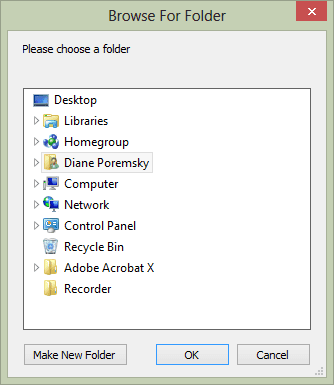
strFolderpath = BrowseForFolder("C:\Users\username\documents\")
Use this to save the file:
strFile = strFolderpath & "\" & strFile
(The lines above can be used in Save Attachments to the hard drive)
BrowseForFolder Function
Function BrowseForFolder(Optional OpenAt As Variant) As Variant
  Dim ShellApp As Object
  Set ShellApp = CreateObject("Shell.Application"). _
 BrowseForFolder(0, "Please choose a folder", 0, OpenAt)

 On Error Resume Next
    BrowseForFolder = ShellApp.self.Path
 On Error GoTo 0

 Set ShellApp = Nothing
    Select Case Mid(BrowseForFolder, 2, 1)
        Case Is = ":"
            If Left(BrowseForFolder, 1) = ":" Then GoTo Invalid
        Case Is = "\"
            If Not Left(BrowseForFolder, 1) = "\" Then GoTo Invalid
        Case Else
            GoTo Invalid
    End Select
 Exit Function

Invalid:
 BrowseForFolder = False
End Function
Save attachments macro using BrowseForFolder
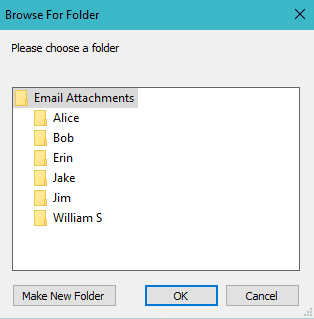
This macro uses BrowseForFolder function when saving email attachments on the selected message. When you use this function, you can browse to or create subfolders but cannot "browse up" to a folder above the preselected root.
Public Sub SaveAttachmentstoFolder()
Dim objOL As Outlook.Application
Dim objMsg As Outlook.MailItem 'Object
Dim objAttachments As Outlook.Attachments
Dim i As Long
Dim lngCount As Long
Dim StrFile As String
Dim strPath As String
Dim StrFolderPath As String
Dim strDeletedFiles As String
Dim sFileType As String

On Error Resume Next

Set objOL = CreateObject("Outlook.Application")
Set objMsg = objOL.ActiveExplorer.Selection.Item(1)

' Get the BrowseForFolder function http://slipstick.me/u1a2d
StrFolderPath = BrowseForFolder("D:\My Stuff\Email Attachments\")

    Set objAttachments = objMsg.Attachments
    lngCount = objAttachments.Count

    If lngCount > 0 Then

    For i = lngCount To 1 Step -1

    StrFile = objAttachments.Item(i).FileName
    StrFile = StrFolderPath & "\" & StrFile
    objAttachments.Item(i).SaveAsFile StrFile

    Next i
    End If

ExitSub:

Set objAttachments = Nothing
Set objMsg = Nothing
Set objSelection = Nothing
Set objOL = Nothing
End Sub
To make this macro portable when you use a folder under the user's directory, replace StrFolderPath = BrowseForFolder("D:\My Stuff\Email Attachments\") with the following:
Dim StrUserPath as Variant
Dim enviro As String
enviro = CStr(Environ("USERPROFILE"))

StrUserPath = enviro & "\Documents\Email Attachments\"
StrFolderPath = BrowseForFolder(StrUserPath)

Pedro says
Hi Diane,
i'd like to modify the macro to prompt for a folder location on a file as dialog.
Is it possible?
Diane Poremsky says
If you want to use the office file pocker from word or excel, I have an example here - https://www.slipstick.com/outlook/hyperlink-templates/#fileopen
it uses objectname.FileDialog(msoFileDialogFolderPicker) - Outlook doesn't have a filedialog of its own, so you need to use word or excel's.
Yohann says
Hello, thank you for the code BrowseForFolder. Do you know if it possible to open a more complete browser (I mean with favorites and also shortcuts)?Thank you.
Yohann
Diane Poremsky says
You can use the file open browser (or Save) from word or excel to see all folders.
https://www.slipstick.com/outlook/hyperlink-templates/#fileopen
Yohann says
Thank you.
Zsolt says
I seem to have some problem with the function. For some reason it takes the environment variable, opens the select folder window. I select it, then it exits the function and immediately calls the function again. This time, the environment variable is not passed. I tried to figure out why the function is called twice, but not sure. Maybe any ideas?
Diane Poremsky says
Are you using the macro code on this page or other code?
Reuben Dayal says
Hi Diane,
This code is working great! I want to ask you if the folder picker can let me select shortcut links as well? I have all my important folder shortcuts saved in \Documents\Favourites folder. However, the current folder picker only allows me to select a folder and not further quick navigate to the final folder via my shortcuts. Any suggestions?
Thank you so much.
Diane Poremsky says
No, it won't let you select shortlinks. Sorry. You'd need to write a custom picker. It wouldn't be hard, if you only ever wanted to use those links... as you wont be able to select other folders, only the links.
Steve Underhill says
Hi Diane - great work you do here - thanks!
I have BrowseForFolder working perfectly. is there a way to hard code only a handfull of choices, like 4, subfolders from the folder that BrowseForFolder returns? I ask because on my corporate network there are dozens of subfolders in the returned folder but I only use 3 or 4 of them at anytime. The drive is shared by many so I can't move my folder into their own subfolder.
Thanks again!
Diane Poremsky says
AFAIK, no, you can only hard code the parent folder.
Steve says
Ok, thanks.
Antonio says
Hi Diane Poremsky
On Outlook 2013 I'm looking for a specific macro that could change the default path for the Attach File Command Button at Ribbon every time a call a macro .
Can you please post some code that can help me
Thanks!
nathan says
Your website has help massively with what I'm trying to achieve, I have got my emails saving to my documents but I'm wanting to add to the macro so you can select the folder on a server using a input text box. how would this be done. I'm not clued up on VBA code so any assistance would be greatly appreciated.
Diane Poremsky says
You'd use the network path - \\server\path in the link.
Kaustubh Thakur says
Ican't get the Browsefor Folder function to work. The savemsg macro is working as expected and I can make a copy of the desired msg in the "My Documents" folder. How do I incorporate the browseforfolder function? Thanks in advance!
Simon Toomer says
Thanks for your site it's extremely helpful.
Is it possible to write a script that allows me to save an email with the from and to fields after the date and before the subject field?
Ains says
Hi Diane,
Great code! However, when I created a new folder in the "Browse For Folder" directory screen and rename it, it does not reflect the new folder name immediately. I need to close and re run the code to see the renamed folder.
Because of this, the code cannot run smoothly at one go.
Any idea why?
Diane Poremsky says
Offhand, no idea, but I'll take a look at it.
jsomso says
It seems the "OpenAt" value must be one of the ShellSpecialFolderConstants values. That's not very useful.
Diane Poremsky says
you can pass a path when you call the function. However, when you pass a path, that folder is the 'root' folder - you'll only be able to access subfolders.

joe says
Hi Diane, I'm so close to having this working, and hoping you can help me with this last piece! I'm trying to use the folder picker function and Can't seem to figure out how to pass it the strFolderpath as in your example above... how are you calling that test sub from the function?
Thanks,
Joe
Diane Poremsky says
Yes, I call the function from the sub.
joe says
That's what I thought, but I'm finding that when i call it from the sub, it doesn't return the user's path selection back to the savemessagesas sub... so no matter what, the save path is always just the hard coded strFolderPath string... any idea's where I might be going wrong?
Thanks
Hiro says
Hi Diane,
Your website is great, incredibly useful!! Thanks.
Can we get "Save as" instead of having "Browse For Folder",? If we can get "Save as", we can copy and paste the target folder path into "file name" and can get destination folder easier (to me), otherwise I need to navigate the folder.
Sorry but I don't have good macro knowledge, so if you help me, super appreciated.
Hiro
segroB says
You can set the startdir value (assuming the rootdir isn't changing) as an input box value, with a default value of wherevery you want...this way you want opt to either paste a file path in, or click "ok" and it will go to your default.
Personally, I call this macro indirectly with another one-line-macro that includes a variable related to the file path I want (e.g. a macro that I add to my qat with the only line as "call SaveToFolderLocation ("xyz")".
In the SaveToFolderLocation macro (my mod'ed version of the Ms. Poremsky's SaveMessageAsMsg() macro), "xzy" defines the root and start directories via an if/then or "select/case"...
I can clarify better if I can get my pc to let me reply (browser is giving me problems), but I apologize if this isn't clear; I am responding from my phone.
segroB says
You can create a simple macro that has an inputbox and set that macro to an icon in your quick access toolbar....if you click "ok" without entering a value, it will simply call the macro, otherwise it uses your defined filepath...applcations may vary.
e.g.
sub userDefinedLocation ()
dim loc as string
loc = InputBox(Prompt:="File Path?: ", Title:="User-Defined Filepath", Default:="Default")
if loc = "Default" then call BrowseForFolder()
else: BrowseForFolder(loc)
end if
end sub
Sudhansu says
Hi Diane, It was so nice of you for sharing pick a folder code for Outlook. It made my job much simpler and quick. Many thnx again. I need one more advise on saving mail to same pick up folder. in above code mail is saved in one up folder.
Diane Poremsky says
So you want to save it in the same folder on the hard drive as it was in outlook? I have a macro that does that -
https://www.slipstick.com/developer/saving-messages-to-the-hard-drive-using-vba/
mark99k says
Thanks SO much for this, Diane. This was incredibly helpful.
Izbi says
Is there any way to remember the last filepath so that you don't have to browse through multiple folders again. This is because I want to save emails individually.
Diane Poremsky says
To the best of my knowledge, no, you can't remember the last path, at least not with this simple code. I'm sure more complex code could do it, but I don't have any code samples.
segroB says
I've combined a few of Ms. Poremsky's macros to do the following two things:
indirect macro to define pre-set filepath (root and sub)
messagebox to ask you what to name saved message (skips this and saves with hard-coded default settings when multiple emails are selected...inputbox can be used to copy/paste filepath value (s)...set a default value to a generic location for time when you don't want/need to specify the path.
ABE says
i am sorry on Microsoft outlook 2010 i am using window 7
i need to create a Macro
just need to say ( GOT IT )
not computer savy still need screen shot or some one to walk me step by step
Diane Poremsky says
Do you need to send a reply to an email? See send-a-new-message-when-a-message-arrives for one code sample.