You can create Tasks from email messages by dragging the message to the task button the Navigation pane.
If you want the message attached, right click and drag. When you drop the message, you'll have the option to copy the message as text or an attachment or move it as an attachment.
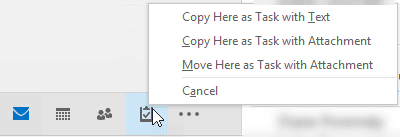
If you want the message inserted as text in the Task body and also attached, open the message and use the Copy to command (look on the File menu in newer versions or Edit menu in older versions.) Then insert the message as an attachment.
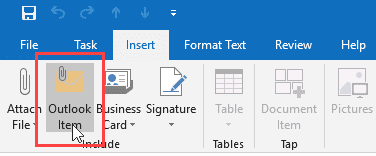
If you need to add other attachments to the message, you can either Outlook Item command on the Insert tab or drag it to the open task. To add files from your hard drive, use Attach File command or drag then from Windows Explorer.
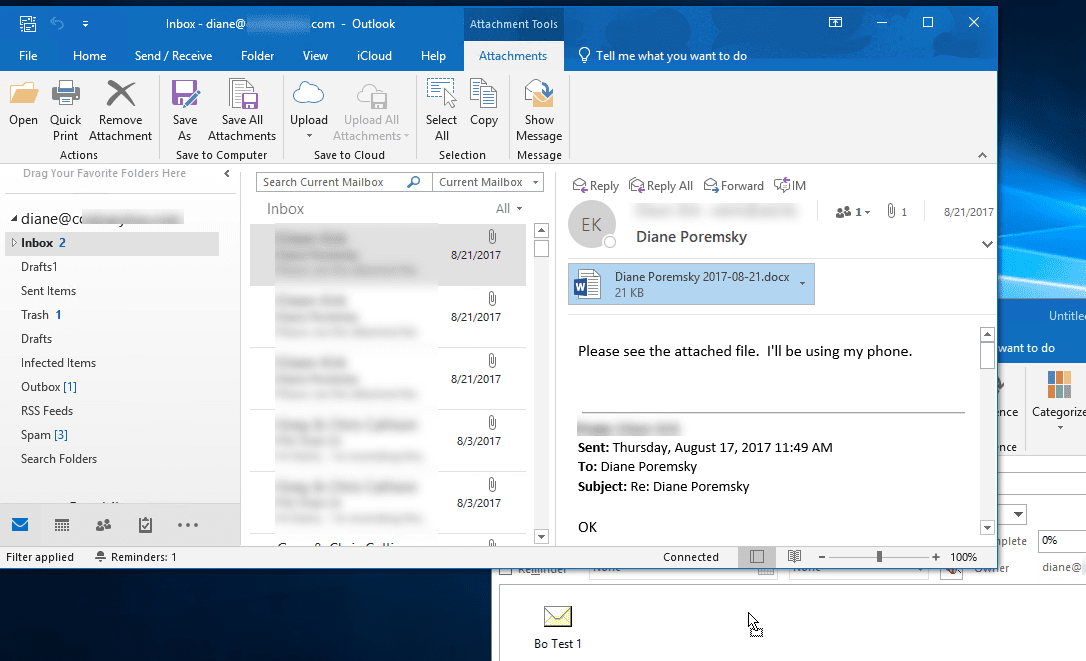
You can also drag attachments from messages in the Reading pane to the open task. Hold Ctrl to select multiple attachments. (You can also drag attachments from opened messages to other Outlook items.)
Tip: If you resize Outlook so that its not full screen and arrange the task so its not completely under Outlook, its easier to drag messages and attachments to it.
More Information
This method works equally well for Contacts, Appointments, and Journal and in all versions of Outlook. (Only the location of the Move to and Copy to commands vary between versions.)

Sam says
Hi there. I'd need your precious help. Before installing W10 on my W8.1 PC, I moved and saved all emails from Outlook 2010 Inbox into a regular MWord folder. I installed W10 then tried to move all those email-files (.msg) back into the Inbox using "drag and drop" technique. It worked perfectly in my Toshiba PC. But in my Asus PC it gives me the known message of "Creating a new item it will take time . . ." and if I click "yes" it forwards all selected batch emails as attachments. Any solution on this problem? Thank You. Sam.
Diane Poremsky says
That messages usually comes up when the items are not all email messages, and you are trying to add them to a mail folder. Try moving fewer items at a time
Sam says
Thank you for you reply. All emails are (.msg). As I said I moved them from Inbox to a regular MW folder for saving them. Then I tried to move them back from the folder to Inbox. At this point I received that message. So they are all (.msg) files, I checked that. I also played with the number of items. No matter how many I try to move, I receive the same message. I tried 1, 3, 5, 10, 20 and so on. Same message. I also tied the right click > copy. This works but the messages (after being in the Inbox) do not appear as they were in the Inbox before. For example, the "From" section reports only my name, so I cannot see the sender and this is not helpful at all. In this case they appear as in the folder and makes no difference to have them in the Inbox.
Diane Poremsky says
if you double click to open, do they look ok? You can use a macro to save them in a folder
Import Messages from File System into Outlook Folders (slipstick.com)
Sam says
so you suggest me to download and use a tool other than repairing something in Outlook or W10, correct?
Diane Poremsky says
it's unlikely to be a problem with windows or outlook - you should be able to add each one to outlook by opening and saving - but that is slow. The macro will open each message and click Save for you. It won't set any land speed records, but also doesn't mean sitting in front of the computer clicking.
Sam says
Yes, I know how it works by opening each one. However, does anyone have a clue what is this all about? Any approximate idea? I installed W10 the same way exactly on a Toshiba laptop and there is no problem at all with the same files. How that can be explained?
jerome frederick says
Good Afternoon,
In my workplace we are always assigning tasks through emails that contain attachments. But i noticed even when making a quick step you are unable to assign a task from an email that will contain both the body text of the email along with the attachment. What I am wondering is there any possible way for me to click on the email with the attachment and have both the attachment and the text body appear all on one task. I know i can copy the attachment over but it is time consuming and we are looking for a faster way to get this done.
Thank you