In this video tutorial I'll show you how to manually add an email account in Outlook.
Outlook 2016, 2019 or "Outlook 365"
The new account wizard will configure the server names and port numbers, but you do need to choose Advanced Options > Let me set up my account manually on the initial dialog.
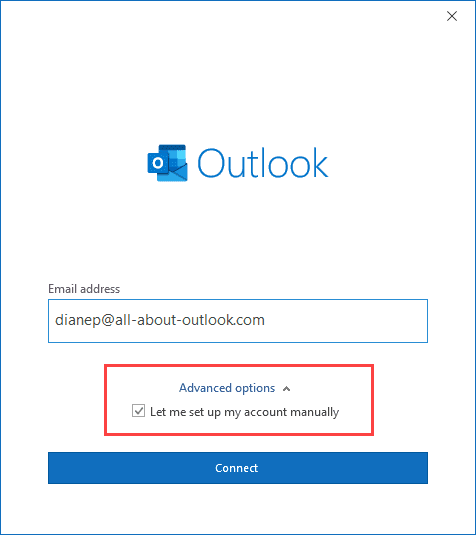
After you click Connect, choose the account type.

Outlook will query the email server to get the correct server names and port numbers.
If you need to change the account settings or your password later, open the Send & Receive settings (keyboard shortcut is Ctrl+Alt+S) then click Edit and select the account then Account Properties.
You can also set up the account using the Manage Profiles dialog. You can do this from Control panel, search for mail or use the /manageprofiles switch.
To use the /manageprofiles switch, right-click on the Start button and choose Run or press Windows key + R to open the Run command.
Type or paste the following into the Open field and press Enter or click OK to restart Outlook. (There is a space before /.)
outlook.exe /manageprofiles
Click Profiles to create a new profile or Email accounts to view or edit your account if you only have one profile.
Outlook 2007
Before you start, make sure you have the correct POP3 and SMTP account names to use. If you need to use a specific port number or SSL, you'll need that information too.
The setting for Gmail, Hotmail (Outlook.com), GoDaddy, and Yahoo can be found at Online services.
- Go to Tools, Account Settings, New
- Select Microsoft Exchange, POP, IMAP or HTTP then click Next
- Select Manually configure account settings or additional server types then click Next
- Select Internet E-mail then click Next
- Type in your desired display name and email address

- Select POP3
- Enter the Incoming mail server name (POP3)
- Enter the Outgoing mail server name (SMTP)
- Enter your username and password
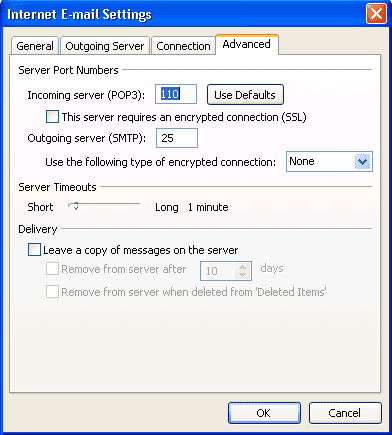
- If you need to authenticate with the outgoing server or change the port number, click More Settings
- To authenticate with the Mail server, switch to the Outgoing server tab and select the correct authentication option
- Enter port numbers and SSL settings on the Advanced tab
- Test your account settings
- Return to Outlook


Leave a Reply