It's easy to create your own stationery in Outlook (or your favorite HTML editor). The main thing to remember is that Outlook's stationery picker stores the Stationery in the "roaming application data" path.
In currently supported versions of Windows, stationery is at C:\Users\%username%\Application Data\Microsoft\Stationery. You can jump to this folder by typing or pasting the following shortcut into the address bar of Windows File Explorer.
%appdata%\microsoft\stationery
Please note: Office installs the default stationery to C:\Program Files\Common Files\microsoft shared\Stationery or at C:\Program Files (x86)\Common Files\microsoft shared\Stationery if using 32-bit Office on Windows 64-bit, but you should save user-created stationery in the Stationery folder in the AppData path as listed above. The microsoft shared path is not writable by user accounts, and in older versions of Outlook, stationery added to this folder was not visible in the Stationery picker.
To create the stationery using Outlook's editor:
- Click the New button to open a new message form. If your default format is not HTML, change it to HTML (Format text tab in Outlook 2007/2010; Format menu in older versions.)
- Insert your images and any other elements you want to use and adjust the sizes as needed (don't use huge images in email stationery!)
- When you are finished, go to the File, Save as menu and switch to the Stationery folder at C:\Users\username\Application Data\Microsoft\Stationery (type or paste the shortcuts above to easily jump to the folder.)
- Change the Save as file type to HTML and type in your desired file name. Save the HTML design.

Now when you want to use your stationery, you can select it from the New Items, Email message using... More stationery dialog. It will be added to the Email message using MRU (most recently used) menu after the first use.
This works with all versions of Outlook. In older versions, you'll use the Actions, New message using menu to open the stationery picker.
Using a background image
If you want to use a background image, you can use one of two methods. The first method inserts a background image on the entire page while the second method inserts an image which you can type over, such as for a header.
Method 1: Insert a background image
To insert a background image, switch to the Options ribbon (Outlook 2007 and up).
Expand Page Color, select Fill effects, Picture tab and select a picture.
Method 2: Send image behind text
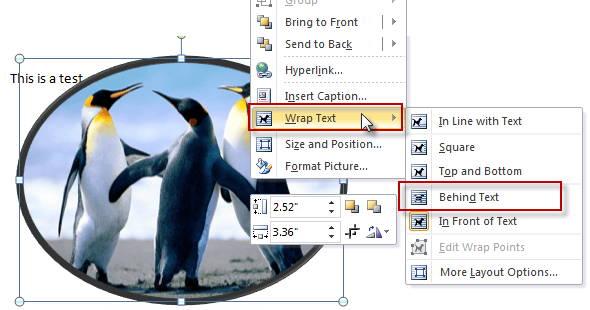
To send a picture behind text, insert the image then right click on the image, choose Wrap Text > Send Behind text.
Adjust the margin
You can adjust the margin on the left if you are using a border image. If the ruler is not visible, click the show ruler icon at the top of the scroll bar on the right then move the left margin markers inward. Do not adjust the right margin, as it will have unintended results.
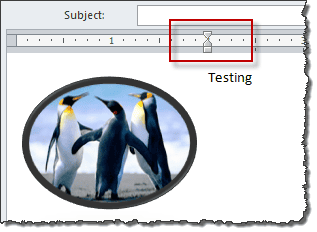
If you create a top banner and want to type under it, you'll need to press enter to slide the cursor down.

John says
Like Don I found that the custom stationery font starts a couple of lines down from the top.
So, I examined the source code html in Notepad.
I found the html in custom stationeries can be more than 400 lines of code, mainly in the section.
I edited the body section and found I could get the stationery font to start at the top.
However, the html varied so there is no simple rule for editing it.
So, I went to the microsoft shared/stationary folder and looked at the html for stationery there. Just one line! Including simple style attributes for the font and
I changed the font style attributes for my custom stationery.
I had to add the # with hex numbers because without it the font colour doesn't work in 2013.
I changed the body background to my jpg
I saved it (renamed) in %appdata%\microsoft\stationery as recommended above.
I saved my jpg in the same folder.
Now I can churn out stationery by the dozen.
I hope this is helpful.
Marcie Marshall says
Hi Diane, Your instructions for stationery were great but I am trying to find instructions for creating a theme. Do you have any handy? Thanks!
Diane Poremsky says
No, I don't. sorry. As far as I know, you can't create new themes, only edit existing themes.
Richard Prior says
Diane
I have been using HTML Email templates for years with different versions of MS Office.
Have just installed Office 2013, and besides the changes to the user interface, (I use short codes for nearly every command), many aspects of this release of Office appear to be retrograde.
Specifically
In Office 2003, I can establish a default template that is used every time "new mail message" is selected.
Then when I wish to change the defaullt Template it is only 4 clicks on the Tools menu to change the Email Template.
In Office 2013
It seems that there is no simple way to set up a default email template that is triggered by a single click. (Home / New Items / More items / Choose form / User templates in file system / Select email template) I make that 7 clicks.
I have long derided Microsoft after investing in 300 licences of Windows Beta for UKs no. 2 bank. In those days a team of 2 system engineers could download 300 new versions of Windows in no more than 15 minutes. Try achieving the same performance levels today.
Is there any answer to the problem of creating a Default template that will be actioned by a single click from Outlook Home Page.
Diane Poremsky says
You can use VBA to skip 6 steps - instructions are here : https://www.slipstick.com/outlook/hyperlink-templates/
ben says
Hi,
I've got 3 diferents profiles and i cant find a way to set up a diferent HTML stationery for heach of my email adresse but It's actualy possible to set diferents signatures...
The thing is when I "email message using...." then I have to change manualy the sender's email adresse ! it's one clic to much for me.
I'd like to have a default stationery for each one of the profile is that possible?
Diane Poremsky says
No, its not possible, but it might be doable. I'll have to put on my thinking cap. Are you using 3 accounts in one profile or 3 separate profiles? (You need to restart outlook to change profiles.)
Don @ MCSDon says
Hi Diane, I have created a custom stationery and everything is working very well except for some reason my stationery is coming in two lines down from the top of the page. How can I get it to start right at the top?
Diane Poremsky says
It's HTML and *should* start at the top. If you open the HTML page in a browser, does it start at the top? What version of Outlook and what type of email account?
Diane Poremsky says
BTW, if you use Exchange 2010 , this may apply: Background image is displayed incorrectly in an email message when a disclaimer rule is enabled in an Exchange Server 2010 environment
Richard says
People giving tutorials need to get it right...... If your using Win7 64bit and MS Office Outlook 2010 32bit then your files need to be placed in "C:\Program Files (x86)\Common Files\microsoft shared\Stationary", you will then be able to see and use your new stationary.
Diane Poremsky says
Common shared is the location Office uses for the stationery it installs by default. Users should use the path under their user account as per the instructions on this page - that folder path is synced to the server if you use roaming profiles and is more likely to be backed up by backup programs or copied before a reformat (just need to copy the entire user directory). If you save stationery to the stationery folder in %appdata%\microsoft\stationery, it will be listed in the stationery picker in all versions of Office. A Stationery folder in My Documents is not used by office and should not be used for user-created stationery (in Outlook).
Additionally, you don't need admin permission to save to the appdata folder and, in older versions of Outlook, stationery you add to the shared stationery folder is not listed in the stationery/theme picker.
Simon Pointer says
Hi All, I'm having a similar problem. I have created my background in word, saved as HTML and placed in the (C:\Program Files\Common Files\microsoft shared\Stationery) folder. I can see it if I navigate to this folder. When I open outlook (2010) and go to mail options then stationary, I can't see my new stationary. The only thing that looks different if I navigate back to the folder is all of the other stationary's have a HTML and a JPG mine only has a HTML, but it has also created a folder within the stationary folder. Any help would be greatly received.
Diane Poremsky says
If you move (or copy) the stationery to the Stationery profile under your user account, does it work? Copy or paste %appdata%\microsoft\stationery into the address bar of windows explorer and press enter to open the folder.
If you use an image in the stationery, you should have it in the folder, but if no images, then you only need the html file.
Ashley Armes says
Thank you. I attempted the template folder method in the group mailbox by saving a draft and copying into my template folder. The problem is when I sent the message, it no longer appeared in the template folder. If I want to use it multiple times, how do I keep it in the folder after sending it once?
Diane Poremsky says
If it copied a template (oft file) to the folder, it shouldn't disappear after sending. (Oft files in folders don't disappear here.)
Ashley Armes says
Is there any way to create templates in a Group mailbox? Everything I have tried goes away after being sent and it seems the templates are being saved on the individual computer vs. the mailbox. We are a group that would like to share staitionary thru the mailbox and not have to save on each computer.
Diane Poremsky says
Stationery is per user - you'd need to push it out to all users who have access to the mailbox (can use a logon script). You could save a template and copy it to a folder in the shared mailbox. Users would open the folder and double click on the template to use it. You could also publish it as a custom form to the Inbox, but this can result in winmail.dat files being sent - and the recipients would only see plain text messages. Drafts would work too, as long as everyone used Forward or copied the draft., otherwise you'll lose it.
Fareeed says
I am glad I don't feel stupid any any longer. I have also tried everything!!!
Jim says
W7 pro and outlook 2010, created and saved as told. files appear in stationery file but when trying to change the theme it does not show up in the list. Any suggestions. works fine in XP but not in w7 pro.
Diane Poremsky says
I'm out of ideas - it should work if the templates are in the correct folder. Maybe someone else will have an idea.
Diane Poremsky says
BTW, on the theme, you need to set a default theme from the Format Text tab - Change Styles button. Select the colors and fonts etc then Set as Default. Outlook seems to always use this over the theme set in stationery.
SusanAbbott (@SusanAbbott) says
I've tried this several ways. I can get the new stationery into a theme, but it does not show up in the stationery list at all. it also does not show up under new items.
Basically, i have to change the theme, and change the colors, every time.
Diane Poremsky says
Where are you saving it on the hard drive? If saved in the correct Stationery folder, it will be in the More Stationery list until you use it the first time.
Barry says
Diane - thanks for your link. I can see the page, and can 'View the templates', but when I click 'See How it's Done' I get a completely blank pop-up (i.e. with an image missing icon').
I tried signing in first, but still the same missing image. So I can't get any further.
Also - re images in 2007. I was using a .png which 2007 seems to have converted to .gif. Is there an issue with transparent .png's in Outlook 2007?
Diane Poremsky says
I'm not sure if 2007 supports transparent png. The pop up uses flash (i think) - I'm getting a lot of blank flash objects when i surf and i think the current version of flash is broken in IE because i did not change my settings. It is working in firefox this morning - very slow to load, but it loads and plays.
Barry says
Outlook is very widely used, but doesn't seem to be able to create visually appealing emails (ie including images) that can be seen by other widely used email clients.
The people at Campaign Manager explain how to create such templates using THEIR software,
https://www.campaignmonitor.com/blog/post/3363/updated-applying-a-background-image-to-html-email
but how can one do it in Outlook?
Even versions of Outlook don't seem to be compatible:
For instance:
If I create one with a background image in Outlook 2000 - the image doesn't get displayed in e.g. Outlook 2007
If I create it in 2007 it displays incorrectly in 2000.
Can anyone point me to some guidance?
Thanks
Diane Poremsky says
See https://office.microsoft.com/en-us/makeovers/microsoft-outlook-2010-5-minute-makeovers-FX102628955.aspx for some template samples and ideas. Those templates look good in many clients. In some versions of outlook you can't use background images in tables/cells in email but most other features will work in all versions of outlook.
MAUREEN CORBETT says
In my old version of outlook (2003) I set up a new stationery page as my default email template so when I used Ctrl+N it automatically opened my stationery. I need my email messages to appear as a normal business letter with the Company Header - both I and the network adminstrator have tried saving the template to the Outlook stationery file but have been denied the right to do this! Is there a fix for this!
Also when I print a copy of the email for the file it prints information on the top that I do not need - I have tried everything to try and change the print settings without any luck!
Why does Microsoft insist in trying to make us fit their mold and not give us the ability to create what we actually need!
Diane Poremsky says
If the problem is just that you cant save the stationery - did you check the permissions on the stationery folder? What is the exact error message?
if you don't want the header text, you need to use the View in browser command and print from the browser.
Gayling says
I have Windows 7 and Outlook 2010.
Gayling says
This did not work for me. I have it saved in a draft and I have saved it as a html and I copied the places you told me to save it, but have not been able to pull it back up as stationary or a html. What am I doing wrong?
Diane Poremsky says
In Outlook 2010, did you go to New Items button > Email message using > More Stationery ? The HTML message you saved to the Stationery folder (%appdata%microsoftstationery) should be listed in the stationery folder under the file name you used when you saved it
Phaedron says
Okay, thanks Diane, but you seem to be teasing. How do we set the image as the body background when creating the HTML?
I have looked at a number of options but I just can't find anything suggesting it - using Outlook 2010. I've been deep into Style Inspector and surrounds, but nothing hints at 'body background'.
Yes, okay, you're right about c:\Users\Phred\AppData\Roamingvmicrosoft\stationery - what I put there is working now, with Standard User permissions. It's a sensible way Win7 is organised.
One thing you don't mention is how to edit the stationery we're creating. Getting that .html file back after Save as.. is a challenge, to me.
I've saved the original item as a message (goes to Drafts). I suppose that would do.
Unfortunately, I now seem to have my embedded graphic occupying the 'standard template', if that's the expression. 'New' brings it up in a blank/new message by default. Can you tell us how to retreat a little?
(We can't edit these posts, at least for a while, after sending them, can we..?)
Finally - completely by accident I found that the graphic under your Tutorial sub-heading, above, IS A LINK to a video!
A more prominent prompt would be handy.
What would be nice to see included, in the video, or even in your instructions, is how to create, save, edit, invoke and USE stationery, i.e. how we should expect the stationery* to behave - whether it will act like a piece of paper printed with designs and colours that we use in the analogue, real world, and call... stationery.
*and themes, for that matter.
Diane Poremsky says
I always create it using an HTML editor, although you can do it in Outlook too except Outlook is not a very good HTML editor. Once the stationery is saved you either need to open a message using the stationery then edit and resave, or open the HTML file in an HTML editor.
In Outlook to set a background: go to Options, page color, fill effects. Pick your image on the last tab.
The video is supposed to have a play button, but i see its really hard to see. I need to update it anyway... I made it in a hurry for someone so it covers the very basics only. I'm not sure about editing comments here. I can but that doesn't count. :)
Phaedron says
This doesn't seem right ot me.
On my Win7 machine the path to stationery is c:\Program Files\Common Files\microsoft shared\Stationery
- a mixture of emf, gif, htm [sic] and jpg files.
The folder at c:\Users\Phred\AppData\Roaming\microsoft\stationery is empty.
That's where %appdata%microsoftstationery takes me.
Okay, using admin rights and putting the set of htm and lpg files/folders in the common folder the 'stationery' is there to work.
I'd have thought that stationery would simply be a background surface-printed image, but it's an integral 'template', the image as much a part of the new message as the text; you have to Send it Back like ordinary WordArt. Huh?
Is this how's it's intended?
Diane Poremsky says
How it works depends on how the stationery is created. You need to set the image as the body background when creating the HTML
The appdata path is recommended for user defined stationery - you shouldn't need to change the permissions to save files there and it's more easily backed up - most backup software will get the user path, but not program files path - because everything in programs can be restored by reinstalling the application.