All versions of Microsoft Outlook support Archiving. You can use either AutoArchive to move or delete older messages, appointments, or tasks as they age or use manual archiving to move or delete messages in a specific folder and it's subfolders at any time.
You can configure each folder to have unique autoarchive settings or apply one setting to all folders.
If you use an Exchange server mailbox with an online Archive mailbox, Archiving in Outlook is disabled.
Configure Outlook's AutoArchive
To enable, review, or disable the AutoArchive settings in Outlook 2010 and newer, open the AutoArchive dialog from File, Options, Advanced, AutoArchive.
In Outlook 2007 and older, look for AutoArchive on the Tools, Options, Other dialog.
To check for folder-specific settings, right click on the folder and choose Properties, then AutoArchive tab.
If you want to run AutoArchive at any time, use the AutoArchive option on the File, Tools menu (Outlook 2016), File, Clean Up menu (Outlook 2010 & 2013) or in Tools, Mailbox Clean Up, AutoArchive in Outlook 2007.
Configure the Global AutoArchive Settings
Choose how frequently you want AutoArchive to run. Default is 14 days but you can choose any number between 1 and 60 days. If you are using AutoArchive to clean out your Deleted Items and Junk Email folders, choose a lower number, such as every 1 to 5 days. To disable or turn off AutoArchive, deselect this option.
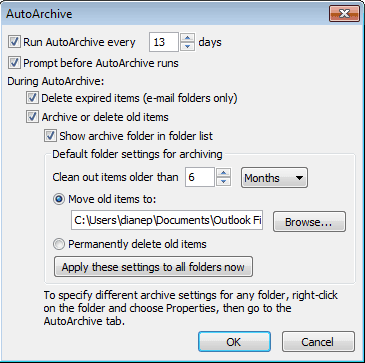
Do you want to be notified before AutoArchive runs? When the prompt comes you, you will be able to cancel it if you think it will interrupt your work.
Do you want to delete expired email? Default setting: Delete expired email.
Archive or Delete old items? If this is not selected, only expired messages will be deleted.
Show Archive folder in the folder list? Choose Yes if you want to keep the archive.pst in your profile. This makes it easier to find archived messages.
At what age do you want items to be archived? You can choose up to 60 days, weeks, or months (5 years). By default, the age is based on the last Modified date, not the received date. Editing, replying, or copying an Outlook item can change the last modified date. See AutoArchiving by Received Date to configure Outlook 2007 or Outlook 2010 to archive by received date.
Select the pst file you want to move archived items to or permanently delete old items. You can create a new pst file or use the default archive.pst which Outlook will create in the default location for pst files. (In Outlook 2010, this is in your My Document\Outlook Files folder.) If you permanently delete old items, archived items will be deleted and you will not be able to recover them.
Apply these settings to all folders. Use this only if you want to use the settings as the default for all folders. I don't recommend doing this if you have a lot of folders you don't want to archive, as you'll need to change the setting for each folder individually.
Configure AutoArchive settings for each folder
If you want some folders, such as Deleted Items or Junk Email, to use different settings, you can change the properties for that folder.
Right click on the folder and choose Properties then switch to the AutoArchive Tab. You will be able to turn off AutoArchiving, apply the default AutoArchive settings, or configure settings unique to this folder.
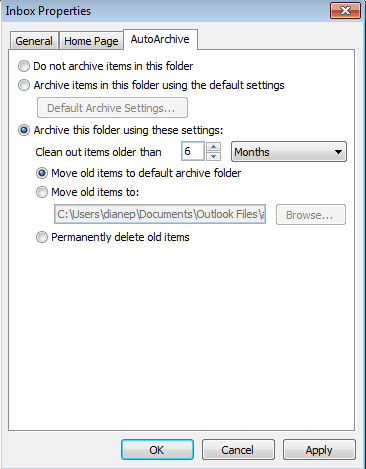
These settings are specific to each folder and are not applied to subfolders. You'll need to change each folder individually.
Manually Archive Messages
If you prefer not to use AutoArchive, you can manually archive at any time. Look for the manual Archive command on the File menu.
In Outlook 2013 and up, the manual Archive option is called Clean up old items. (The button for Archive button on the ribbon moves messages to a folder called Archive.)

 In Outlook 2010, it’s under File, Cleanup Tools. In Outlook 2007 and older, it's at File, Archive.
Using Clean up old items (or Archive in older versions of Outlook), you can archive the entire data file using the AutoArchive settings or archive the contents of one folder and it’s subfolders based on a specific date. If you want to archive all folders in an account, select the top level folder (where your account name is), select a date then click Ok to begin archiving.

Video Tutorial
More Information
Housekeeping and Message Management tools for Outlook
Configuring Outlook's AutoArchive settings tutorial
How to Automatically Empty Deleted Item Folder
Create an Outlook rule to expire mail after a certain number of days
Archiving Tools for Exchange Server
How to read items archived using AutoArchive
Description of the Outlook 2010 hotfix package (outlook-x-none): April 26, 2011
How to change the criteria that Outlook 2010 uses to archive different item types
Description of the Office Outlook 2007 hotfix package (Outlook-x-none.msp): December 14, 2010

Bangun Tri Haryadi says
good morning, i need your help,
can we create auto archive for client? i use windows 2012 R2 server, i just create group policies in windows server but there are no change for client pc,
the methode i use :
any method that can change the policies for this case? i need your help.
thank you very much
Peedoe says
How can I use autoarchive or rules to move items from my inbox to another folder on the server? When trying to setup autoarchive, it seems to only let me delete or move to a .PST file. I need to keep them on the exchange server, just not all of them. We are moving to O365 with 1GB from onsite with 250MB so want to keep as much on server as possible. However, I sync the inbox with my phone and only want to keep the last month in the main inbox and move the older ones to a secondary inbox that doesn't sync. Prefer to have an automatic way such as autoarchive or a rule, but rules only seem to run when the email first arrives, not time based.
Diane Poremsky says
autoarchive wont archive to the online archive. you can set policies on folders to move mail to the online archive though. if the folder is not in the online archive, you're out of luck on automatic moves. you'll need move them manually - quick steps or the new Archive button will be a bg help.
Jack Folliard says
Diane - how can I reset all folders back to no auto archiving? I want to start over and individually set each folder the way I want them to be.
Thanks!
Mike says
Diane, I have the same problem as Jasper. I have a folder where I move any e-mail that I do not want archived. I set up the autoarchive on that folder to "Clean out items older than 1 day" and I selected the "Permanently delete old items" button. Nothing ever gets deleted from the folder. I try leaving Outlook on, I try shutting it down and restarting it. I would think that each day, autoarchive would delete anything that is 1 day old... but that is not happening. Any idea why?
Diane Poremsky says
What type of email account is it? Is the folder in the default data file? AutoArchive only works on the default data file, not additional data files in the profile.
If it's in the default data file, it definitely should archive it after 24 or 48 hours - Outlook uses the last modified date, so with it set to one day, it should autoarchive no later than the 3rd day, if the modified date changes.
Jasper says
Hi Diane, I am using outlook 2010 on an exchange server as well. I have changed the global settings to auto-archive every 1 day, and set specific settings for individual folders to run every 1 day as well to permanently delete unwanted messages. I have rules setup to move messages to certain folders, with one being a folder that I want cleared out daily. I can do a manual archive with these settings, and everything works fine. But it never runs overnight or when I open Outlook every morning. Is there something I'm missing? Also, is there a way for it to run when I'm OOO? I receive a lot of emails daily, and my mailbox can fill up quickly. Just being gone for two days can cause my mailbox to fill and me to not receive any other emails.
Diane Poremsky says
AutoArchive is client side only - outlook needs to be running for it to work. Does it work at all if you wait? I'm not sure how long after outlook opens that autoarchive runs, but i thought the 1 day setting on the folder is 24 hours after the message was moved to it, not any time the next day.
Do you use Exchange? If so, and if policies are enabled, you could apply policies to the folder and the server will remove them the next time 'mailbox manager' runs. (Might only be weekly tho.)
himal says
Hi Diane, I am using outlook 2010 on an exchange server. I have just upgraded laptops. On the old laptop I have the exchange folders and then manual locally archived folders for each exchange folder. The new laptop using outlook 2010 doesnt allow me to click file, mailbox cleanup, achieve. Its greyed out. It also doesnt allow me to import the pst file from the old that I have already exported. Saying outlook files pst disabled on this computer.
Any thoughts?
AJ says
I have a question regarding how the archiving process works in Outlook. If I delete a folder from my Exchange mailbox, will it sync that deletion in my archives or only delete it from my Exchange account? I am using Outlook 2010, and I clearly haven't round the correct search terms to find this answer (maybe because I don't know enough about the terminology).
In case my question/motivation isn't clear, I have a folder in my Exchange inbox called "Topic 1," which has subfolders for each year. I don't need to keep more than the most recent year on my Exchange account, but I still want to have access to the folders/message in my archive file for the account. After archiving the messages, the folder that used to contain the older messages still remains in my Exchange account (with no messages in the folder). I have been afraid to delete that folder in the Exchange account in case Outlook tries to sync that deletion in the archives and deletes my messages. My fear of deletion means I end up with empty folders cluttering my "Topic 1" folder.
I'd appreciate any help you could give. Even though I'm not an IT person and just use MS products, your posts have been really helpful when I've come across questions/problems.
Diane Poremsky says
When you delete a file or folder in outlook, it syncs that change back to Exchange, but it will not delete it from an archive - either a pst archive or an Exchange online archive. This applies to other accounts too - you would need to delete it from the archive if you wanted to remove it from the archive.
AJ says
Thanks for the help!
Stephen B says
Good day
My last employer didn't back up everything on the network, so I started doing my own to my own external drive. This included archiving the .pst files from Office 2010.
Now I need to get the address of a vendor and am trying to open the archive files with Office 2007 without success.
In the first instance the system is trying to open the 10gb file with Notebook - it is too large for that.
Grateful for advice!
Stephen B
Diane Poremsky says
Any error messages? The pst should open in 2007. Copy the pst from the external drive to the hard drive - outlook often balks at opening files on external drives.
JT says
Hoping you can help; on Exchange 2010 Standard/Outlook 2010 Professional, the Archive button under Cleanup tools is enabled (no online Archive mailbox feature set) and the feature works fine.
However, on the same account but with Outlook 2013, the Archive button is greyed out.
I checked the registry and no keys in place for manually enabling/disabling this feature.
Any ideas why this might be?
Diane Poremsky says
It's disabled/removed from outlook if online archiving is supported by the mailbox... except, if you use the Home or Standard version of Office, then archive is available (because the home/standard version doesn't have all features the enterprise version does).
dennisgaudenzi says
UPDATE: I went in and manually archived every main folder & sub folder - except for Sent Items. No issues. I even archived a folder that had 14k emails and 3.8GB of data in it with no problem (sent items is only 1.4GB). Something in sent items is messing this up.....
dennisgaudenzi says
Hi Diane, just following up on this - thank you.
dennisgaudenzi says
Hi Diane, thanks for getting back to me. Sent mail has about 25k messages in it, nothing too crazy. Nothing really noticeable happens when i run it - it cruises through alot of directories. Does not seem to be a standard spot that it does. Maybe as it hits Sent Items? Not sure. I just ran ScanPST. It found 166 errors that it wanted to repair. I did repair (made back up first - learned my lesson about that the hard way in the past!) and it went fine. No issues opening the file. I ran the auto archive and it was going fine until it crashed in the middle of synching Sent Items. =( It actually ran for a few seconds in there. I ran it again and it crashed on a different folder. I actually made a brand new PST earlier this year to start full and fresh, I am very surprised that there are any errors. Any thoughts?? Maybe the archive folder is corrupt? I create 1 archive folder per year and drop everything for that year in there. Then go to the next year in june of the following year (i keep 6 months in my regular PST).
Diane Poremsky says
Run scanpst 3 times - it often tasks 3 passes to fix everything. You could browse the innards using MFCMAPI and see if anything looks odd - like maybe your folder count doesn't match what MFCMAPI shows. not knowing what 'odd' looks like, you probably won't find anything.
Sort the sent folder by message size - any super large messages? What about 0 size? 0 size could indicate a corrupt message.
dennisgaudenzi says
when you say "browse the innards using MFCMAPI", how do you do that? I reviewed Sent Items, nothing 0 size. Biggest is 13MB. Compacted (took off about 1.5GB of size - now we are at 6.3GB). Ran Scan PST again. Found 166 more errors (only 161 the first time), repaired. Ran ScanPST again, found 166 errors again, repaired, said it was successful. Ran one more time - went MUCH faster. Still said 166 errors. Any way to see those errors? I Ran autoArchive again and it failed. Something is messing it up in that folder..... thanks again for the help!
Dennis says
Hi Diane,
Whenever I run autoarchive (safe mode or regular) it crashes. My file is starting to get pretty big (6gb) and I am very good about keeping things clean and orderly. Not sure it is crashing on a certain folder, though I did see it crash once on my largest folder - sent mail. Any thoughts to fix so it will run normally? Each time I run manually it crashes. Thanks in advance for the help!!!
Dennis
Diane Poremsky says
At what point does it crash?
How many messages are in the sent folder? Is the only noticeably bad behavior during archive? Have you run scanpst on the pst?
The pst isn't excessively huge, so the file size should be the problem. I would ruin scan pst on it though - if a corrupt message is causing problems, scanpst will fix it.
Alexandr Elizarov says
Hello thank you for your site! May be you no: is it possible to setting up Outlook's AutoArchive Feature by macros or script?Because our users so lazy, they dont want to read manuals.
Diane Poremsky says
You can enable it using GPO - its a reg key.
Alexandr Elizarov says
Do you have link? or some information? thank you.
Diane Poremsky says
You can push the keys out using a logon script. My recommendation is to use the gpo to configure it on your system then get the keys from the policy key at HKEY_CURRENT_USER\Software\Policies\Microsoft\Office\15.0\outlook\preferences - there are up to 11 keys that control this and it's easier to configure this way. You could also configure it in Outlook and export those keys - remove or edit any that point to a specific path on your computer. (You can use RegShot to watch the registry for changes so you know where to look for the keys, but they should all be under the preferences key as they are for policies. )
Alexandr Elizarov says
And it impossible use script, because our admins dont like creating new GPO, this is why i want to use script for doing that.
greg says
Yes regarding the self-diagnosis outlook does, because I usually see the gears at the bottom when I open it and it says (when I hover over the gears) that it is doing a data file check. Still, when I do run scanPST it does find errors. Probably because it is an old, large file.
Diane Poremsky says
You'll always find errors - most are so minor outlook tells you not to worry about it.
Greg says
Keep coming back to your site; you really do a great job of explaining things in enough detail but plain enough English! Might need some 1-on-1 help, and I would contact you separately for that. - - - Question on archiving: Rather than using Outlook's archiving feature, I have always in the past created a new data file (NOT just a folder, but an actual new data file) called, for example, "2012 email". I then create "inbox" and "sent" folders inside of that new data file. I can then Open and Close that data file from Outlook's File menu when needed. That way, it opens only if I manually open it b/c I need a 2012 email (in this example). Once I create the folder, I manually highlight all the 2012 emails in my main Outlook inbox, and move them into the inbox folder in the 2012 data file, and do the same with 2012 sent emails. I have found that this gives me more manual control over when outlook does and does not bother to "load" those data files; if I don't need a 2012 email, it doesn't touch those. Am I nuts to do it this way? ---- And related question, I have also realized that of course I need to compact after I move this stuff out, in order to shrink the pst file size, but lately I have heard that this can be dangerous if there are any file errors at all in the pst file before compacting it, so I guess it's best to run pstscan beforehand. Is pstscan safe? Thanks! (I'm using Outlook 2010 Professional on Windows 7.)
Diane Poremsky says
There is nothing wrong with doing it your way - it gives you much better control over what gets archived.
Compacting is not inherently dangerous and we don't recommend using scanpst just for the sake of using it. Outlook will self-compact and self-repair as needed (all those times outlook loads slow? it is running scanpst), so unless you need the space, if you let outlook open, it will work on compacting the data file when it's idle. It may take a few days, but it will eventually get it compacted.
Victor Delta says
Doh! You're absolutely right - thank you. I'd overlooked the fact that I recently imported many of the messages and then had to change their class to IPM.Post (using DocMessageClass as suggested elsewhere on this really useful website!). Guess there isn't a simple way to reset the modified dates to the same as the received dates - so will just have to let a few months elapse so the messages auto archive automatically. Could always do a manual archive but it would be very laborious given the number of folders I have!
Thanks again,
V
Diane Poremsky says
Yeah, with outlook 2003 your options are limited to using an add-in, waiting, or manually archiving. This is one time that using subfolders would be really helpful - you could archive the folder and all subfolders.
Victor Delta says
Using Outlook 2003, for some unknown reason, my auto-archives only archive my top level folders. Despite checking all the individual folder settings, the others are simply left as they are.
Any ideas?
V
Diane Poremsky says
Did you check the modified date field and verify it is not newer than the archive date?
ROGER BERTRAND says
Thanks Diane for the good Info.
May I ask you for one additional, this time with respect to an Outlook Security Meesage that I want to override.
I have an EMailer (Kare´'s Power Tool Emailer) that I use to send me notifications on given taks and activities. Now every time I have to click on ALLOW so that it sends to me.
Would you be kind enough to provide me with a REG file to install whatever KEY is necessary to override this securety check or do you know of FREEWARE to manage this issue.
Regards,
Roger
ROGER BERTRAND says
Hello Diane,
Thanks for the info. I will look up the file.
One quick question, I run automatic update and all the likes to have everything top notch updated all the time and especially MS products. How do I know if the HOTFIX is in?
Thanks,
Roger Bertrand, P. Eng..
Diane Poremsky says
Hotfixes are usually not installed by automatic updates. If they hotfix is later rolled into an update or SP, it will be installed as part ofthe update.
The lazy way to check if something is installed is to install the hofix. If it says its already installed or the version is not found, it's probably installed. Or set the registry keys and restart Outlook and see the changes the hotfix introduces are available.
Otherwise, you need to check for KB articles- many times the KB article for the hotfix will say it was superseded by a later fix or update.
Diane Poremsky says
Are you sure you aren't looking at HKEY_CURRENT_USERSoftwareMicrosoftOfficeOutlookAddins?
In any event, I posted a ready-to-run reg file. Save (then run) or Run from the web - accepting all of the prompts. If you want to see what it contains, open it in Notepad.
ROGER BERTRAND says
HKEY_CURRENT_USERSoftwareMicrosoftOffice14.0OutlookPreferences
In my REGISTRY I cannot see PREFERENCES, I only have ADDINS.
Where do I put that EKY then?
Regards,
Roger Bertrand, P. Eng.