Many of Microsoft Outlook's dialogs have a "Never show this dialog again" checkbox. When checked, a registry key is set that lets Outlook know that you never want to see that dialog again. If you change your mind, you'll need to edit the registry to enable the dialog. Administrators can use these keys to disable the alerts, however it's generally better if the user sees the dialog and decides for themselves if they want to see the dialog again.
Browse to this registry key - replacing the xx with your version number:
HKEY_CURRENT_USER\Software\Microsoft\Office\xx.0\Outlook\Options\General
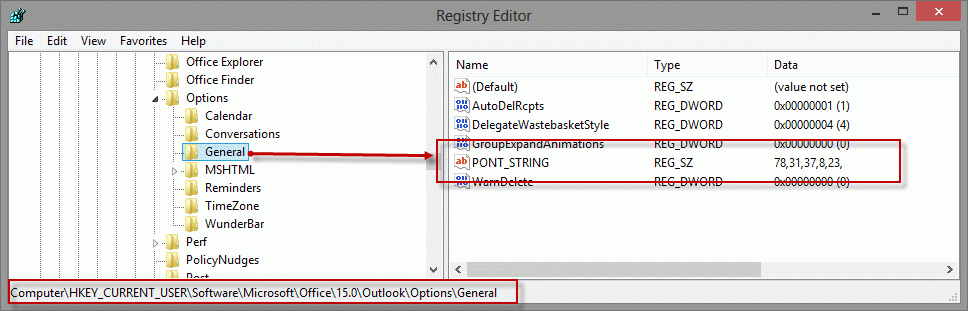
Look for the PONT_STRING value:
REG_SZ: 31,37,8,23,
| Version numbers: | Version numbers: | |||
|---|---|---|---|---|
| Outlook 365 | 16 | | | Outlook 2016, 2019, 2021 | 16 |
| Outlook 2013 | 15 | | | Outlook 2010 | 14 |
| Outlook 2007 | 12 | | | Outlook 2003 | 11 |
| Outlook 2002 | 10 | | | Outlook 2000 | 9 |
Each dialog that has been disabled is listed in this value as a number, separated by commas. You can delete one number or all of the values.
Instructions to show the dialog which appears when you press Ctrl+Enter is here
The Open or Save dialog that displays when you open an attachment is not controlled by this registry key. It is a windows setting and applies to all attachments of that type that are "downloaded" either from email or from an Internet site. Steps to change this setting are here.
Dialogs which do not use PONT_STRING:
Send using Ctrl+Enter | Read Receipt Response
HTML/Plain text Compatibility Checker | File Open or Save Checkbox
Dialog Values
The values I've identified (so far) and the dialogs they are associated with are listed below.
| Value | Dialog |
|---|---|
| 8 | "Do you want to turn the Journal on?" dialog seen when you first access the Journal. |
| 10 | Run Rules dialog: Rules will only be run on items in mail folders. (Seen when Include subfolders is selected.) |
| 11 | Booked Resources Dialog: The resources for the meeting were successfully booked. |
| 13 | Expand Distribution list dialog (Outlook 2003 and up): "If you expand the list, Outlook will replace the list with its members. You will not be able to collapse it again." |
| 23 | |
| 28 | View menu, View in Internet Zone to view an HTML message in the Internet zone (Outlook 2003 and earlier). "The HTML message you are opening contains script. Scripts are usually safe to run, though may contain malicious content. Do you want to run the script on this message?" |
| 30 | Dismiss All in Reminders dialog: "Are you sure you want to dismiss all these reminders?" |
| 31 | Bulk action in Grouped view dialog: "This action will apply to all items in the selected groups." |
| 32 | Reply or Forward message with blocked external content: "To complete this action, Outlook must download content from a server other than your e-mail server. This could verify to the sender that your e-mail address is valid and increase the amount of junk e-mail you receive in the future." You can change this setting on Tools, Options, Security tab, Change Automatic Download Settings button. "Warn me before downloading..." option. |
| 35 | Add to Blocked senders dialog: "The sender of the selected message has been added to your Blocked Senders List, and the message has been moved to the Junk E-mail folder." |
| 36 | Add to Safe Senders list: "The sender of the selected message has been added to your Safe Senders List." |
| 37 | Junk Email Dialog: "Outlook has downloaded a message that appears to be Junk E-mail. This message was automatically moved to the Junk E-mail folder. You should check the Junk E-mail folder regularly to ensure that you do not miss e-mail that you want to receive." |
| 39 | Dialog appeared when deleting a group of meeting requests. "Deleting this message header without downloading the rest of the item might prevent meeting, voting, and read or delivery receipt responses from being saved." |
| 40 | Dialog seen when you work online with an Exchange server account and add an address to the Junk email list: "The Junk E-mail Filter is not available for your Microsoft Exchange e-mail account because you are working online. To enable the Junk E-mail Filter for this account, switch to Cached Exchange Mode." |
| 41 | Open HTML message in Internet browser (Outlook 2007). "If you open this message in your browser, the security settings will be different from those in Outlook, and dangerous content may not be blocked. Do you want to continue?" |
| 42 | Phishing warning, Outlook 2003 SP2: "Some links in this message might connect to unsafe or fraudulent sites. To help protect your security, links have been turned off in this message. Click the Infobar for options to turn on links in this message." |
| 44 | After accepting a meeting request while in the Calendar, the meeting request in the Inbox will have a "no response required" button when viewed in the reading pane. "Your calendar has been updated automatically. This meeting request will now be deleted." |
| 46 | Phishing warning, Outlook 2007: "This might be a phishing message and is potentially unsafe. Links and other functionality have been disabled. Click on the InfoBar to enable functionality (not recommended). Read more about e-mail safety." |
| 47 | Plain Text Junk Email, Outlook 2003 SP2 and Outlook 2007: "To help protect your personal information, this message has been converted to plain text. Links and other functionality have been disabled. To restore functionality, move the message to the Inbox." |
| 48 | Outlook 2007's share RSS feed dialog. This dialog does not have a 'Do not show' check box - it is a one time only dialog and answering yes or no automatically adds it to the registry. "Outlook, Windows Internet Explorer, and other applications save lists of RSS Feeds that you subscribe to. The Common Feed List in Microsoft Windows maintains one synchronized list of RSS Feeds. Do you want your RSS Feeds in Outlook to be synchronized with the Common Feed List?" |
| 52 | Deleting messages grouped by conversation in a SharePoint list linked to Outlook 2007: "[subject]" represents an entire discussion topic on SharePoint. Deleting it will cause all related posts in this conversation to be deleted as well. Are you sure you want to continue? |
| 53 | Windows Desktop Search dialog: "Windows Desktop Search is currently deactivated" -- contributed by Heiko Herrmann |
| 55 | Dialog seen when deleting multiple completed tasks while in the To-do folder: "Deleting these items will also delete the associated e-mail messages and/or contacts. Do you want to continue?" Clicking yes (to continue) will delete the item from its folder as well as remove it from the To-Do list. If you want to keep the item, right click on the completed check and choose Clear Flag instead. |
| 56 | Dialog seen when you create a rule that applies to RSS feeds: Do you want to apply all existing and future rules to messages downloaded from RSS Feeds? |
| 58 | Dialog seen when you delete (flagged) items in the To-do list. "Deleting this item will also delete the e-mail message. Do you want to continue?" |
| 59 | Search Folder warning for IMAP accounts: IMAP Search Folders based on criteria of message size, recipient, or sender do not work on messages already downloaded. To fix this, remove your IMAP e-mail account, and then add it again. |
| 60 | Desktop search is not installed. (Outlook 2007) "Windows Desktop Search is not currently installed or not up to date. Outlook will not be able to provide fast search results when using the new Instant Search functionality unless this Windows component is installed. Please contact your system administrator." -- contributed by Glenn Turner |
| 63 | Ignore Conversation dialog: The selected Conversation and all future messages will be moved to the Deleted Items folder. |
| 64 | Stop Ignoring Conversation dialog: Do you want to stop ignoring this conversation and move it to the Inbox folder? |
| 65 | Disable Always Move Conversation dialog: New items in the selected conversation are being moved to the [foldername] folder. Do you want to stop moving new items? |
| 67 | Suppresses the warning message when you run Clean Up Conversations which says "All redundant messages in the current conversation will be moved to the [designated cleanup or Deleted Items] folder." |
| 68 | Suppresses the warning message when you run Clean Up Folder which says "All redundant messages in the current folder will be moved to the [designated cleanup or Deleted Items] folder." (Thanks John Legate!) |
| 69 | Suppresses the warning message when you run Clean Up Folder & Subfolders which says "All redundant messages in the current folder & subfolders will be moved to the [designated cleanup or Deleted Items] folder." |
| 70 | Suppresses the message "No messages were cleaned up" message when you run the Clean Up Folder action and no redundant messages were removed from the selected folder." (Thanks John Legate!) |
| 72 | Dialog seen when adding more than 99 addresses to a distribution list. (Outlook 2007 SP2 and later) "This distribution list contains more members than supported when using Outlook 2007 Service Pack 1 or earlier. Do you want to save changes to the distribution list?" |
| 73 | Dialog seen when applying a Quick Step & Clean Up to a conversation. This action will apply to all items in the selected conversation. |
| 75 | Exchange Server mailboxes only. Dialog seen when moving messages to another folder with different retention policies. "Moving items can change their retention policy. Changes are processed by the server and will appear within 24 hours. When the retention policy for an item changes, it may cause the item to expire immediately." |
| 76 | Dialog seen when you move or delete a message within a conversation. "This action will apply to all items in this part of the selected conversation." |
| 78 | Dialog seen when deleting email conversations (Outlook 2010 and up): Delete applies to all items in this folder that are part of the conversation. |
| 79 | Dialog seen when a delegate deletes a meeting request (Outlook 2010): Deleting this meeting request also removes the meeting from the calendar for [user]. When deleting a meeting request that hasn’t been accepted, the meeting is removed from the calendar. | 84 | Dialog confirmation when dragging a message into a Group mailbox: Are you sure you want to move messages to the "GroupName" group? Others will be able to see the message content. |
Send using Ctrl+Enter
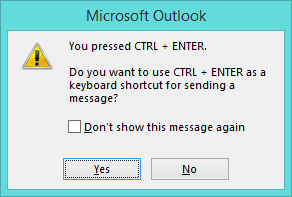
When you press Ctrl+Enter in Outlook 2007, you'll be presented with a warning dialog:
You pressed CTRL+ENTER.
Do you want to use CTRL+ENTER as a keyboard shortcut for sending a message?
If you check the box to never show this dialog again, change the setting in Outlook 2010 and up at File, Options, Mail. About halfway down is the option to use Ctrl+Enter to send. In Outlook 2007, it's at Tools, Options, Preferences tab, Email options, Advanced options.
If your version of Outlook doesn't have this option, you'll need to delete the CtrlEnterSends DWORD from the following key, where xx is your version of Outlook.
HKEY_CURRENT_USER\Software\Microsoft\Office\xx.0\Outlook\Preferences
If CtrlEnterSends value is not there, look for it in the HKey_Users hive:
HKEY_USERS\S-1-5-21-4258444267-1753787663-1470392329-1002\Software\Microsoft\Office\xx.0\Outlook\Preferences
When you restart Outlook the dialog will reappear.
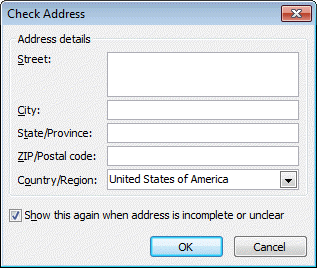
Check Address
Contact's Check Address dialog that comes up when the address field is incomplete or unclear.
Use Alt+D to bring the dialog up again.
HKEY_CURRENT_USER\Software\Microsoft\Office\xx.0\Outlook\Contact\
DWORD: ConfirmAddress
Value: 0 or 1
Read Receipts
The dialog when you reply to a message requesting read receipts:
[sender] requested a read receipt be sent when message '[subject]' is read. Do you want to send a receipt?
Is turned off and on in Tools, Options, Preferences, Email Options, Tracking with the choices of always respond, never respond, or ask each time.
HTML/Plain text Compatibility Checker
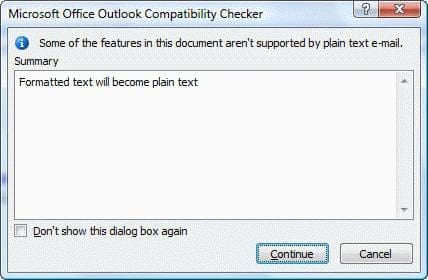 The dialog comes up when you change an HTML formatted message to plain text or paste images into a plain text message body.
This setting is stored in the following registry key:
HKEY_CURRENT_USER\Software\Microsoft\Office\xx.0\Word\Data
Value: SettingsWordMail
Outlook reads this key when it loads and updates this key when it exits, so you'll need to close Outlook before deleting the value.
File Open or Save Checkbox
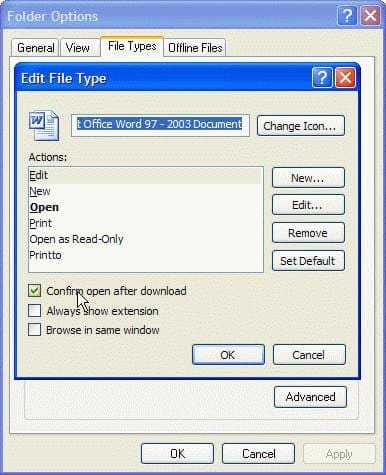 When you open an email attachment (or download a file using IE) you are presented with a dialog with options to Open or Save and it may include a "always do this option" checkbox.
If you check this box and change your mind, you need to change the behavior using Window's File settings.
Windows XP and earlier:
- Open Windows Explorer (or My Documents)
- Go to Tools, Folder Options menu, File tab.
- Select the document type you need to change
- Click the Advanced button.
- Add (or remove) the check from Confirm after download to change the behavior.
Vista: Vista does not expose this dialog so you'll need to edit the registry. This data is stored under the following key. Delete the file type from the list to reset it.
HKEY_CURRENT_USER\Software\Microsoft\Windows\Shell\AttachmentExecute\{0002DF01-0000-0000-C000-000000000046}

Kent says
This site seems to have been around for a while, but it still works for restoring dismissed warning dialogs. Thank you for helping the community with this post. Had to look at a bunch of sites before finding yours, and none of them had a solution.
Leandro Travaglia says
Thank you very much ! With your tip i re-enabled the "HTML/Plain text Compatibility Checker" on my Outlook 2019!!!
Laura says
Hi,
I have outlook 2016 on my PC, and I would like to restore that same dialog that I dismissed and have now changed my mind on (the dialog said: "The sender of the selected message has been added to your Blocked Sender List" "Dont show me this again"), so I've opened regedit and gone down to the Computer\HKEY_CURRENT_USER\Software\Microsoft\Office\16.0\Outlook level ... but I don't see any sub-levels there named Options\General --- the only listing I have is "Resiliency\DoNotDisableAddinList". I pressed F3 and did a search on PONT_STRING, but it found nothing.
Do you have any suggestions for other registry settings that might apply in my situation? Not sure why mine is so different looking .... ?
Thank you!
Diane Poremsky says
Was Resiliency the only key under outlook? You should have a long list (around 40ish), including Profiles. If you only have a few, you have the windows store version - you can confirm in File > Office Account in Outlook - after the version and build #, does it say click to run or windows store? That should be the only reason why you can't see the pont_string key.
If you have the windows store version, close outlook then add the pont_string value with just one number (8 would be one you'd likely never need) - you'll need to create each folder in the path - outlook reads the registry and copies it to it's own registry hive - fingers crossed it overwrites the current values.
Eilona says
Hello,
I am trying to get back the dialogue box for when I paste images in a plain text message body. I have gotten to the \Word\Data\SettingsWordMail section. Now what do I delete? I am scared to delete something I shouldn't as there is a lot of data in here.
Diane Poremsky says
You need to delete the entire SettingsWordMail value - outlook will recreate it using the default settings.
Eilona says
Thank you! It worked the second time I did it. I forgot to close Outlook before deleting the data the first time.
Simon says
Just an update to the doc. 84 is the dialog confirmation when dragging a message into a Group mailbox.
"Are you sure you want to move messages to the "GroupName" group? Others will be able to see the message content. Continue?"
Diane Poremsky says
Thanks for bringing it to my attention!
Steven says
Worked, Thanks!!
Pearly Amendola says
Fantastic piece ! I was enlightened by the facts . Does anyone know where my company might be able to acquire a template DA 31 document to fill out ?
withenty says
I have a slightly different question. I want the warning #32 above enabled and I want to lock it down so it is always enabled. How do I control this setting by GPO? I was able to find a way to control all the other Trust Center/Automatic Download settings in Outlook 2013..
Frank Perez says
Diane,
I got to this point
HKEY_CURRENT_USER\Software\Microsoft\Office\xx.0\Outlook\Options\General
but I'm unable to delete the value 37. What do I do next to delete it? It is the only value in Point_String. I can highlight that but am afraid to delete it.
Diane Poremsky says
You can't screw it up. :) Just delete all the values and Outlook will show you the dialogs and add them back as you tick "don't show again".
rimetree says
How can I invoke the "send from other e-mail address" dialog using VBA? I can't find any reference to it anywhere. This appears when you select From > Other E-mail Address when composing a new message.
Thanks,
Doug
Diane Poremsky says
That would be .SentOnBehalfOfName
https://www.slipstick.com/developer/code-samples/send-email-address-vba/
LizR says
Hi, I've been trying to stop the “Are you sure you want to dismiss all these reminders?” dialog from coming up every time I dismiss a reminder. I keep on ticking the box saying that it won't show me the dialog again, and it keeps showing it to me again...
In my registry key I have the values "30,37,36,32,35," which I would expect to disable that dialog, but obviously that doesn't work. It's driving me mad. Any ideas???
Thank you!
Diane Poremsky says
30 is the reminders dialog, so it should be disabled. What version of Outlook do you use? It's possible its a different setting and I can check in that version.
Diane Poremsky says
BTW, in Outlook 2013, PONT_STRING 30 disables it and it's sticking for me, so far. I restarted Outlook to see if it stayed disabled, but not the computer, and yes, it stayed disabled.
Are you using any type of registry cleaner?
Doug says
It's Outlook 2010, we looked at the Attachment Handling section but that doesn't control the warning, and doesn't prompte the warning itself, it just prompts to enable the application used to preview the attachment which is a one time option unless you go back in an disable it again. My coworker said that he used to be prompted for the preview. Oh well, not too big of a deal.
Diane Poremsky says
Is it a separate dialog or the one embedded in the reading pane?
Doug says
Hi Diane, I have a coworker who used to be prompted with a warning when previewing an attachment containing a checkbox for "Always warn before previewing this file type". They accidentally unchecked it for a specific file type and would like the warning back. The warning still appears for other file types (DOC, PDF) but not for pictures (JPG, GIF) however when we go to the registry, HKEY_CURRENT_USER\Software\Microsoft\Office\Previewers doesn't exist. We attempted to create it and then added the keys for the file types and added DWORD PONTState:0 and rebooted but it didn't resolve the issue. Do you have any suggestions?
Diane Poremsky says
What version of Outlook? The previewer key is only for other attachment types. Images are previewed automatically (using the default preview handler) - you can turn the previewer off but not set it to ask. The setting is in the Trust Center, Attachment Handling. Click Attachment and Document Previewers and deselect the one for images.
George says
how and where do i locate the registry for my MS Outlook 2007 (HKEY_CURRENT_USER\Software\Microsoft\Office\12.0\Outlook\Options\General).
i want the message 'This action will apply to all items in the selected groups.
Box says: Please do not show me this dialog again.
i want to see this again. i had cjhecked the box when deleting inbox emails from the same person.
how do i restore this message? thank you.
Diane Poremsky says
Press the Windows key + R to open the run command then type regedit into the field and press enter. either browse the registry or press F3 and search for PONT_STRING. Double click on PONT_STRING when its found and delete 31. from the list.