While it's usually not necessary to relocate the offline cache (*.ost) used by an Exchange account, it is possible to move it to another folder or partition. For the most part, it only makes sense to move it if the C: drive is full or a smaller SSD.
Outlook 2013 and newer IMAP ost files are moved using the ForcePSTPath key.
Moving the offline cache so its easier to back it up is generally pointless: it's an offline copy of your Exchange mailbox and it can only be opened by the account that created it. If you try to use an old cache file, Outlook will complain that it doesn't match the server mailbox. If the server fails and there is no server backup, the contents of the current, most up-to-date *.ost can be used to repopulate the server. In short, if you want a usable backup of your mailbox, export the contents to a *.pst file instead of including the *.ost in a backup file.
If you need to recover data from an orphaned ost file, I have a list of commercial recovery software listed at Convert an Offline File (.ost) to a Personal File (.pst)
With that disclaimer out of the way, if you do need to relocate the offline file, you can move it using one of the following methods.
- Set the ForceOSTPath registry key. This is the recommended method but you need to set the key before creating the account in your profile.
- Use Symbolic links or Junction points in Windows to redirect the folder to a new location.
- Set the OST file location while adding the account to your profile.
- Trick Outlook into letting you choose the ost file by using a renamed PDF file.
Using ForceOSTPath to set the file location
The easiest way to change where Outlook says the OST files is setting the ForceOST registry key, however you need to do this before you add the account to your profile, or remove the account and add it back after setting the key. Administrators can set the key using GPO or a log on script.
The ForceOSTPath key is supported in current versions of Outlook. In Outlook 2010 and up, it will apply to new accounts in a profile, while in Outlook 2003 and 2007, it applies only to new profiles.
You need to set this key before you add the account to your profile.
To set the registry key:
- Open the registry editor (Press Windows key + R to open the Run command.
- Type regedit in the Open field and press Enter.)
- Browse to the Outlook key for your version (listed below).
- Create a string value named ForceOSTPath
- Right click on ForceOSTPath value and choose Modify
- Paste the path into the field and press Enter. (You can use variables if you are using group policy to push it out to your users.)
Outlook 2016
HKEY_CURRENT_USER\Software\Microsoft\Office\16.0\Outlook
Expandable String Value: ForceOSTPath
Value data: full path you want to use
Outlook 2013
HKEY_CURRENT_USER\Software\Microsoft\Office\15.0\Outlook
Expandable String Value: ForceOSTPath
Value data: full path you want to use
Outlook 2010
HKEY_CURRENT_USER\Software\Microsoft\Office\14.0\Outlook
Expandable String Value: ForceOSTPath
Value data: full path you want to use
Outlook 2007
HKEY_CURRENT_USER\Software\Microsoft\Office\12.0\Outlook
Expandable String Value: ForceOSTPath
Value data: full path you want to use
Outlook 2003
HKEY_CURRENT_USER\Software\Microsoft\Office\11.0\Outlook
Expandable String Value: ForceOSTPath
Value data: full path you want to use
Common variables
| Variable | Typical value (May vary) |
|---|---|
| %APPDATA% | C:\Users\{username}\AppData\Roaming |
| %LOCALAPPDATA% | C:\Users\{username}\AppData\Local (default for OST files) |
| %USERPROFILE% | C:\users\{username} |
| %WINDIR% | C:\Windows |
Symbolic Links or Junction Points
You can use Symbolic Links or Junction Points to repoint the file or folder where the .ost is stored. You can use this method to move the folder to the new location or just the data file.
To create a Symbolic Link, you'll use the MKLINK Command line.
- Close Outlook.
- Move the ost-file or pst-file from its original location to its new location.
The default location is %locaappdata%\Microsoft\Outlook - Open a Command window using Run as Administrator. Type cmd on the Start menu, right-click on Command Prompt or cmd.exe and choose Run as administrator. you'll need to enter the administrator password or Yes to allow the prompt.
- Use the mklink command in this format: mklink "C:\old-path" "D:\New path". If you are moving just the data file, you'll need to include the data filename. Quotes are required if the path contains spaces.
For example:
mklink %localappdata%\Microsoft\Outlook\diane@contrarytech.com.ost "D:\Outlook Data Files\diane@contrarytech.com.ost"
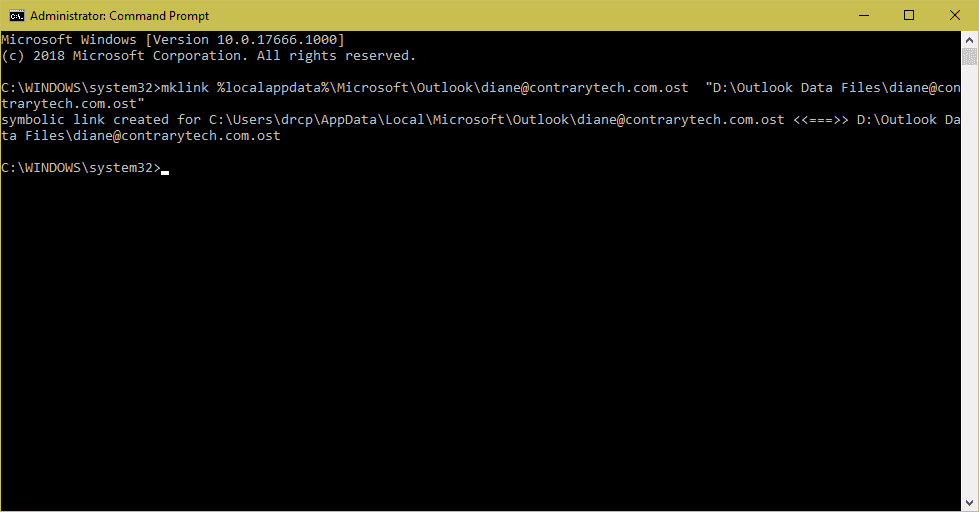
When you use a symbolic link to move a file, a shortcut is created in the default folder location. If you want to revert back to the original location, delete the shortcut to break the link.

If you prefer to use PowerShell to create the symbolic links, use the New-Item cmdlet. You'll need to use quotes if the path contains spaces. If you don't want to use the exact path, call the environment variable like this: $env:localappdata
You will need to move or rename the original file before running the powershell.
New-Item -Path $env:localappdata\microsoft\outlook\diane@contrarytech.com.ost -ItemType SymbolicLink -Value "D:\Outlook Data Files\diane@contrarytech.com.ost"
Create a Symbolic link for a folder
To create symbolic links to a folder, you need to move, delete, or rename the folder you are creating the symlink for. In this example, it's the Outlook folder. If the folder exists, the powershell will error.
New-Item -Path $env:localappdata\microsoft\outlook\ -ItemType SymbolicLink -Value "D:\Outlook Data Files\"
Move the OST and recreate the account
If you have an existing ost file, you can move the .ost file, remove and recreate the account in the profile using the Control panel, Mail applet and point it to the new location.
- Copy your .ost file to the new location. You can skip this step if you want to create a new .ost file.
- Open File, Account Settings or open the profile in Control panel, Mail.
- Remove the account from your profile.
- Click New
- Enter your username and password and let Outlook find your account information
- Select the Change account settings option, and then click Next

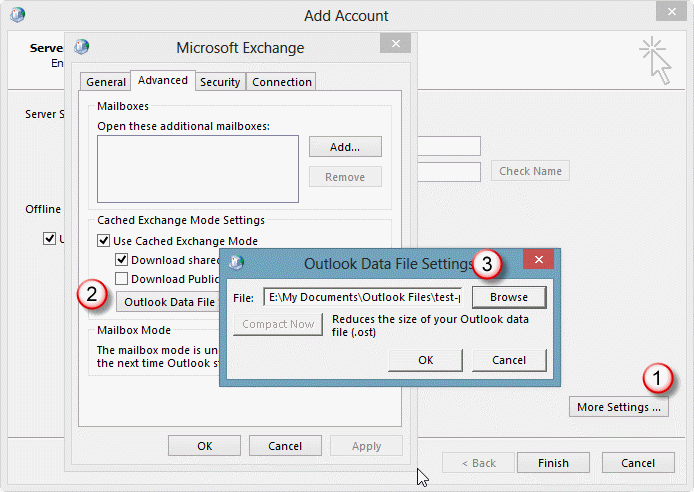
- Click More Settings (1)
- On the Advanced tab, click Outlook Data File Settings. (2)
- Click Browse (3), browse to the .ost file that you copied in step 1, and then click Open.
- If you want to create a new .ost file, browse to the new location, enter a filename, and then click Open. Outlook will create the new .ost file.
- OK your way back to Outlook then restart Outlook.
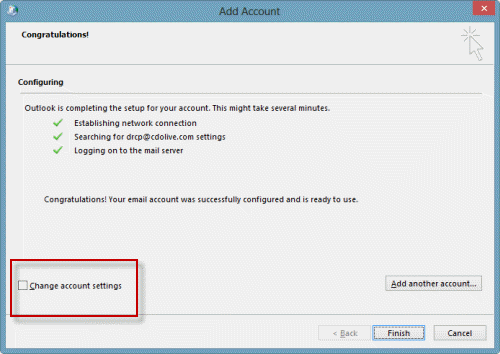
Tip: You can jump to the ost location in Windows XP, Vista, or Windows 7/8 by typing or pasting this command into the address bar of Windows Explorer and pressing Enter:
%localappdata%\Microsoft\Outlook
Move the *.ost in Outlook 2010 and older
In Outlook 2010 and older, you can move the ost used by cached Exchange to another location by disabling offline mode then changing the path on the Advanced tab of the Exchange account properties.
If you want to move the ost before you create a profile, use the ForceOSTPath registry value.
- Open Account Settings
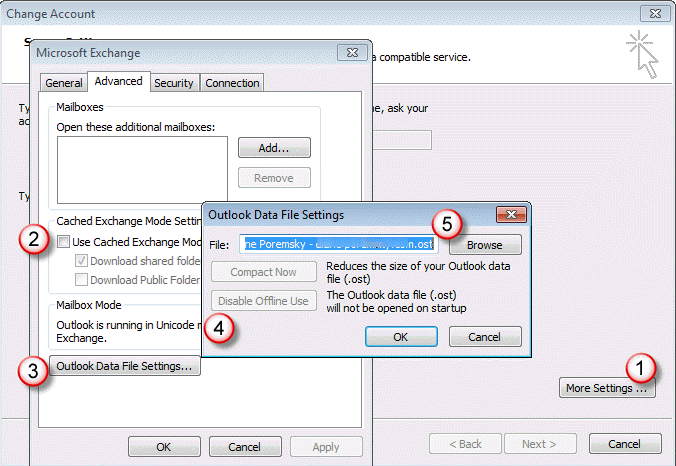
- Click More Settings (1)
- Deselect Use Cached mode (2) and click Apply.
- You can close Outlook and move the ost file now. If you want to create a new .ost file, you can skip this step.
- Click Outlook Data File button (3)
- Disable offline use (4) if Browse button is not enabled
- Click Browse button to select moved ost file (5)
Not Recommended PDF Method
This method is not recommended as it can break your address book. You'll need to let Outlook create new ost files and re-sync your mailbox.
- Close Outlook.
- Open Windows Explorer and type or paste %localappdata%\microsoft\outlook in the address bar then press Enter.
- Copy a PDF file into the folder.
- Copy the ost name, then rename the ost file by adding -old to the end of the name. (This is easier if you have Show Extensions enabled.)
- Rename the PDF file using the old ost file. You need to change the extension to ost.
- Open Outlook.
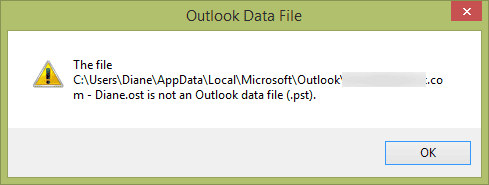
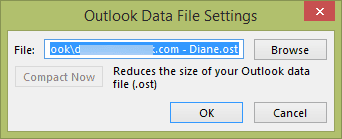
- Outlook will complain that it can't use the ost.
- Browse to the new location.
More Information
The steps to move IMAP, POP, Sharepoint or Internet calendar pst files are similar. Outlook 2007, 2010, and 2013 support the ForcePSTPath registry value, which changes the default *.pst path for POP3, IMAP, and SharePoint data files. See How to move the IMAP personal folder (*.pst) for more information.

a a says
Outlook ignored the relocated+symlinked data files; it recreated and repopulated the data files in original (default) location, which is where the symlinks are.
Diane Poremsky says
Something isn't right... I'll test it again. Try junction points and move the folder.
a a says
Did the symlink method work for anybody?
Diane Poremsky says
I've used both (symlink and junction points) in the past and both worked for me. Which OS are you on?
nolgaviria says
Thnaks a lot for share
Waleed says
Wow.. The last trick did it all!
Thanks for sharing!
Jose says
Thank you DIane!
Łukasz says
That part about Symbolic Links helped me with problem of moving IMAP .ost file from C: to other drive - THANK YOU VERY MUCH! It was realy usefull! :)
Pawel says
Explained perfectly. Thx, thx, thx, ... * 100
Rick says
Re Method #3, it should be noted that it won't let you remove an account if your only Data File entry is the OST. You'll need to add a dummy data file, perhaps the sample PST, first.
However, when you do that and you later try to remove that data location from the profile (even when done via Control Panel), you'll get "You cannot delete this outlook data file. Configuration information in the file is being copied. You can delete the file after this information is being copied."
And I don't think it ever is. So maybe it's best to create a new profile if going this route, all the more reason not to go this route and instead use the Registry.
Diane Poremsky says
Yeah... that is a problem any time you need to remove the last account and dont want to make a new profile.
After adding the pst, restart outlook, wait a minute or so then close it. You should be able to delete the pst now....
Siva Chellapermal says
Hi,
I have my email at work MS office 2010. Our mail is via exchange so I only have an OST file. I will soon leave the Company and my account will be deleted. I have managed to copy the OST file to a private hardisk. What can you recommend so that I can be bale to open this file after I leave the company
Diane Poremsky says
if at all possible, export to a pst instead of using the ost - then you wont need to do anything to recover the data. To get anything out of the pst later, you'll need to use a utility to recover.
You'll find a list of ost to pst conversion utilities here:
https://www.slipstick.com/problems/pst-repair/convert-an-exchange-offline-file-ost-to-a-personal-file-pst/
R_K says
I think I found a simple solution to this issue... Since the problem is that the Browse button is disabled... Let's just enable it!
I tried this on a whim, but it works in Outlook 2016. It definitely works for Exchange OST files - but I think the IMAP OST will work as well with the correct sequence.
A 1-line Autohotkey script does the trick:
Control, Enable,, Button1, Outlook Data File SettingsSimply:
- Close Outlook, and launch Mail (32-bit) from Control Panel
- Data Files
- Double-click the Exchange data file entry
- Advanced, Outlook Data File Settings
- Now, go run the Autohotkey script, and the Browse button is enabled!
- Rename & move your original OST to whatever, then select it
- Ok, Ok, Close
Bingo!
M_K says
R_K provided what seems to be a brilliant tip for cutting through the clutter, I used it to vary the location of 3 OSTs from default location. Virtually effortlessly. This included downloading and installing AutoHotkey, packaging your 1 -line scriptv as an .AHK file, and right-clicking the file and clicking Run as an administrator in its context menu. The Browse button activated and this made moving each OST trivial.
Perhaps Microsoft might like to take this on board. Anyway, great tip much appreciated.
anil says
can you share the script please. as i am unable to find it
Z_B says
R_K Thanks! I'd just like to add that you do have to add a line put a hotkey to trigger the script. In my example below I used alt+O to enable the button. Once I completed this I killed the script from running in my tray. It worked seamlessly for me as well.
!O::
Control, Enable,, Button1, Outlook Data File Settings
Muhammad Usman says
Regarding "Outlook 2013 or Outlook 2016, the Browse button is disabled.
There are two recommended methods to move the ost file: use the ForceOSTPath registry key or select the ost location when you add the account to the profile, both of which require you to remove and re-add the account to Outlook. "
I want to add info that in office 2013 ost location can be set only using POP3 protocol for IMAP there is no option of selecting location for ost file.
Diane Poremsky says
When you use imap, outlook puts the ost in the default location. You can use the registry key to set a new default location - use forcepstpath for imap and pop, forceostpsth for exchange.
>> ost location can be set only using POP3 protocol for IMAP there is no option of selecting location for ost file.
if you are using pop, you aren't using imap or an ost. :)
If you want to move an ost file, set the forcepstpath (yes, that key) and remove the imap account from your profile and add it back. if you use 'this computer only' folders, make sure you back up those contents first.
Muhammad Usman says
Thank you Diane
Krishna says
but on windows 8 machine we did not find registry key or where to change it, Can you please help in this
Diane Poremsky says
If the key does not exist you need to create it.
John Banks says
Sorry - in follow up to my previous comment, I managed to set up another email address thus removing the default from the one I am having trouble with, thus being able to delete it. However, I couldn't get to the add account and exchange settings screens because it looks like MS have changed this since you wrote this guide.
I have tried to attach the screen I see when I follow step 4 but the clip icon doesn't allow me to. It's a white box with "Welcome to Outlook" "Enter an email address to add to your account" then an advanced options to manually set up my account check box (more below) and a "connect" button. After checking manual set up and clicking connect, it lets me choose between 6 account types (Office365, Outlook.com, google, Exchange, POP or IMAP) and the next screen only gives me options to change servers and ports and encryption methods - no additional options. Then it sets up my email but doesn't allow me to choose my OST anywhere. As I'm sure you know, when trying to change the ost in Account Settings, settings, the browse button is greyed out. Any help appreciated please. Thanks.
Diane Poremsky says
The best way to move an ost these days is by setting the forceostpath (for exchange/outlook.com) or forcepstpath (for imap) before adding the account to the profile.
They changed the new account screen a few builds ago but you can access the older screens via control panel, mail.
John Banks says
Hi Diane. I had Windows issues so have done a clean install of all software and am trying to set up my saved Outlook 2016 ost file into Outlook again.
I'm falling over on step 3 of the "move ost file in Outlook 2016" process as it won't let me delete the one I created when loading the software because I "need to create a new one first". So I try creating a new one without deleting but it's the same email address so it says it's "already been created". So I'm in a catch 22. I have tried copying my ost into the folder where it has created a new ost file and amending the file name to trick it into using that one, but upon loading Outlook it tells me it can't as that was created for use with a different account.
Please can you offer some advice on how I can get out of this loop and reinstate my ost file on Outlook?
Many thanks,
John
Diane Poremsky says
>>> I had Windows issues so have done a clean install of all software and am trying to set up my saved Outlook 2016 ost file into Outlook again.
This is not going to work - the ost file is tied to the profile and account that created it. Outlook won't use it in a new profile. If you exported the profile keys and restored them, then it would work as that was the profile/account that created it.
Sergio C says
I was wondering if it is safe to create a symbolic link of the Outlook folder where all the pst / ost files are located instead of creating a symbolic link for each ost / pst. Has anyone encountered issues doing this?
Diane Poremsky says
i do links to the folders when i do it. If at all possible, it is better to set the foceostpath / forcepstpath keys before adding the accounts though. This avoids the need for the symbolic links.
Bruce says
This was the best looking approach I found. Microsoft's recommendations were not even close to matching their current software for Outlook 2016.
But I consistantly had trouble on Step 11. On the last "OK", I would get a RUNDLL32 error. Then when I started Outlook, I would see the new account adn the right file, but I was told that the file was an ancient format adn it needed to be unicode to work. It was unicode (or whatever the right way is to say the format. I made that change many years ago).
David McLain says
I have a little different situation. Three client computers running XP SP3, and Otlook 2007. We moved our email to a remote host and shut the Exchange server down. Needless to say new accounts had to be created alongside the Exchange accounts and now some of the mail being sent from the new (set as default) accounts hang in the outbox. Since the Exchange accounts are still present, every send/receive generates an error due to the fact the Exchange account is offline. Is there a way to delete the Exchange accounts while merging the data with the new accounts? I'm sure the ghost Exchange accounts are causing the problem. Thanks in advance!
Webmaster says
I would export the exchange account to a pst then remove it. It's also possible to disable send and receive on the exchange account but it's safer to export it - no risk of losing the contents of they are in a pst.
David McLain says
Hi Diane, my situation is a little different. We moved our email hosting offsite, so the Exchange server is no longer in service or online. I have 3 clients running Windows XP, SP3 and Outlook 2007 where the default account was Exchange. I have created new accounts for our external email. The problem is when I delete the Exchange accounts, the mail for that account is no longer accessible. How can I merge, or join the Exchange mailbox with the new mailbox? The Exchange account is causing some email to hang in the outbox.
Diane Poremsky says
Sorry I missed this earlier. You need to export the contents of the mailbox before you remove the account from outlook then you can import it back into the new mailbox (or just keep using the pst.)
Diane Poremsky says
Sorry I missed this earlier. You need to export the contents of the mailbox before you remove the account from outlook then you can import it back into the new mailbox (or just keep using the pst.)
https://www.slipstick.com/problems/pst-repair/convert-an-exchange-offline-file-ost-to-a-personal-file-pst/ has more information
JJ Lukas says
I had too many email accounts on the default profile in Outlook 16, and it was causing Outlook to crash constantly. Now i must make separate profiles for each person/business. I have saved all the old .ost files, which are much larger than the new ones created when i remake each email account. How can i use the old .ost files to recover my offline content with this method since i must make individual profiles? Some accounts are Microsoft Exchange, some are Active Synch (not what i want, but still waiting for MS to convert them to Exchange) and the majority are IMAP accounts. If i use the ForceOSTPath method, how do i set the "Value data: full path you want to use" for each account??
Thanks
Diane Poremsky says
Unfortunately, you can't reuse old ost files in a new profile. Generally speaking, everything online is in the ost file. It will also have sync issues and if you have 2013/2016 and set the ost as default, it might have some calendar, contacts, and tasks. But, oftentimes the file size difference is just "white space" created by deleting or moving mail that hasn't been recovered yet.
If you set forceostpath, all of the profiles will use the same path.
JJ Lukas says
What would be different if we need to do this for more than one Outlook profile?
Diane Poremsky says
No, the process would be the same. If you set the reg key for forceostpath, all profiles will use that path.
sahil says
thank u so much for the useful information
Laura G says
Thanks for the reply. I think I'll sit tight and wait for my accounts to move then try again - do you have a link to any further information about this (when are accounts moving, and how will I know)? All I've seen is a brief message on the Office help page about improvements coming to the Outlook.com web experience - I assume that's what you're referring to.
Sorry if I'm asking stupid questions - I'm just an average home user who only gets technical when I have to!
Diane Poremsky says
I know there is nothing about requesting a move - the only information they've published is here: https://blogs.office.com/2015/05/21/new-ways-to-get-more-done-in-outlook-com/
Laura G says
Hi
I've tried to follow these instructions to move my ost file, but I don't get the More settings option mentioned in step 7 - all I get is a page for Server settings for Exchange ActiveSync. There is nowhere to change the data file.
My email accounts are Hotmail accounts, and the PC is running Windows 10 & Office 2016 on a 365 subscription.
I really need to move these files, as the C: drive is a small SSD for the operating system, and all data (in theory) is on a different drive.
Should I have changed the %appdata% variable some time in the past - if so, how do I fix things?
I'm not really comfortable editing the registry, so reluctant to follow that route unless there is no alternative - I much prefer to do things through the menu systems and the official routes :)
Diane Poremsky says
You can't use this method to change Outlook.com ost files that were created using Active Sync. You need to use the forcepstpath key - https://www.slipstick.com/outlook/config/how-to-move-the-imap-personal-folder-pst/
(After you account moves to the new outlook.com server and you add it to your profile as an exchange account, the steps on this page will work.)
Gary Halmbacher says
Hi Diane
I spent HOURS trying to figure out how to move those .ost files, and while your explanation was not as straightforward as I would like, you were the only one EVEN IN THE HUNT as to how to do this.
As usual, Microsoft "help" was useless; I always to other sites first. My problem was Windows 10, Outlook 2016. Microsoft had not included ANY references to W10, and while it is likely W8 and W10 are the same, when one has an issue, precision is paramount.
I unsuccessfully used the ForceOSTPath, which did not help. It was your second comment, buried in the replies, using the ForcePSTPath, that did the trick.
I believe Microsoft has added most of this complexity through incompetence as opposed to malice. As a business owner who has to deal with the ever changing Microsoft products, my feeling is that they should create a STABLE and WELL DOCUMENTED OS and Office package that has an update cycle of about 7 years, about twice the length of time of their current cycle and more in line with product life cycles such as MRP systems that businesses typically see.
Should any company create a package such as this (maybe some flavor of Linux?), I am sure Microsoft would see a wholesale abandonment of their products.
Regards and thanks for the help,
Gary Halmbacher
President
Intellicon, Inc..
dsparrow says
Tried all the solutions, made the registry keys, deleted the account then made new account, still creates the massively oversized OST files for the IMAP accounts on a too small Drive C. Curse you Microsoft! Give me back my Outlook 2010! Maybe its time to switch to a Mac.
Diane Poremsky says
IMAP datafiles need to use forcepstpath key, not forceostpath.
https://www.slipstick.com/outlook/config/how-to-move-the-imap-personal-folder-pst/
Wyndham says
I share the frustration of many expressed here.
Regardless of the reason, people should be able to move the location of OST files if they wish to do so. It really shouldn't matter if the reason is good nor not. Personally, I believe I have a 'good' reason, but part of me also simply objects to being forced to do something whether I want to or not.
The fact that there is so much vigorous discussion on the subject surely requires a proper response from Microsoft.
ManhhHa says
My computer using pst is default, do you have command to switch default to ost file?
Diane Poremsky says
What type of email account? Which version of Outlook?
You can't change a pst to an ost, but if you have an account that uses an ost, you should be able to set it as the default data file.
ToL says
Hello Diane,
Thank you for your fine explanation on moving the Outlook .ost file.
We have just started using Office365 Business Premium and need to have all Outlook data on an external usb disk.
I succeeded in moving the .ost file from the C:\Users\xxx\AppData\Local\Microsoft\Outlook\ directory to the external usb disk by making a new profile like described above and that worked fine.
Only think that has left me confused is how to move the other files and directories from C:\Users\xxx\AppData\Local\Microsoft\Outlook\ to the external usb disk. These files still seem to be used and updated while using the new Outlook profile and some seem to include sort of confidential information.
These files and directories include:
C:\Users\xxx\AppData\Local\Microsoft\Outlook\....
gliding (empty dir)
Offline Address Books (active dir)
RoamCache (active dir)
*.Autodiscover.xml
Inferences*.xml
Could you please explain how to move all files and directories from C:\Users\xxx\AppData\Local\Microsoft\Outlook\ to an external usb disk? Thank you very much!
Diane Poremsky says
Sorry I missed this message earlier. If you use forceostpath, some of those files will move with the ost. To move everything you need to use junction points or symbolic links to move them.
Diane Poremsky says
also, if you are using the 'this computer only' folders for calendar and contacts, export the folders to a pst before you do anything.
Amer says
Hi Diane. I am using Office 365 Home Premium and I have ten Gmail accounts that I am viewing on Outlook in an IMAP setting. I don't have any other emails accounts other than with Gmail. I am running out of space on my C: drive and would like all Outlook related data moved to a new drive on my computer. This was the case previously when I was using Outlook 2010, but after updating, I seem to have taken a turn for the worse on my C: drive. I have spent over 6 hours with various Microsoft technical support people and they have just wasted my time. Please advise if it is possible to move all Outlook data to another drive with IMAP settings for Gmail accounts.
Diane Poremsky says
zack says
Thanks Diane, we will give that a try. Hope it works because we have about 200 PCs that we are going to be replacing soon.
Thanks again for all the help you provide to the Exchange community. I know I can usually find an answer here when faced with an exchange/outlook problem.
Gabriel says
Did copying the existing OST from another computer with the same name work for you?
Diane Poremsky says
Try the method here: https://blogs.technet.com/b/outlooking/archive/2015/05/22/outlook-initial-ost-deployment.aspx - it might not work in your scenario, but it's the only way to open the ost in another profile.
zack says
I hope I did not miss this in the original post, but will this work if you are moving the OST to a new computer? So far the only thing that has seemed to work is creating a new user profile on the new PC and letting exchange rebuild the ost file, which will kill a WAN network.
Diane Poremsky says
Try this: Copy the old ost file. Configure the Outlook account and start Outlook. When it shows 'Connected to Exchange Server', close Outlook. Make sure that it is not open in the notification tray. Find the new ost file and overwrite it with the copy. The names must be the same! Re-start Outlook.
bob says
To those people who have trouble relocating gmail etc ost's, it could be that the location is being set in group policy. If it is, it will override your attempts to relocate it.
check HKCU\Software\Policies\Microsoft\Office\15.0\Outlook
for the forcePST and forceOST keys. if they're there, change them and recreate your account in outlook before the group policy has a chance to reapply.
Keith M says
I found a way to move existing OST files without rebuilding profiles. I just moved over 600 OSTs for my users without a single profile needing to be rebuilt.
1. Move the OST to the new location
2. Break the path to the old location. I used a symbolic link command that pointed to a bogus OST destination. You could delete the directory that the old OST used to live in, but that might cause other issues
3. Start Outlook. It will complain that it didn’t see the OST and will prompt you to browse to it. At that point, you can repoint Outlook to the OST file that is in the new location.
If you are a network admin, trying to move OSTs to a new location, here is what I did:
- Created a list of all OST files that needed to be moved. Converted that list into a .bat file that did two things:
o Move the ost from its current location, to its new location
o Create a symbolic link in the old location that points to a non-existing location
Here is an example of what my .bat file looked like:
move u:\AmandaC\AmandaC.ost o:\AmandaC
mklink "u:\AmandaC\AmandaC.ost" “put_bogus_path_here\AmandaC.ost"
- Created a GPO that sets Outlook to use Offline Cache and sets the destination folder (apply to all users ahead of time. It won’t do anything on pre-existing Outlook profiles)
- Created a GPO that runs a script on login. I used WinBatch to create the script, which does the following:
o Check to see if the file “ost.txt” exists in the user’s home directory. If so, exit (the script already ran for this user)
o If ost.txt doesn’t exist, open outlook. Wait for the Data File location error to appear and click the browse button. The default browse location will be what you set in the GPO above.
o Select the OST in the browse list. OK, OK,…
o Copy ost.txt to the user’s home directory so the script won’t run again for them
o Outlook will open using the OST file in the new location, using the same profile, with any PSTs that were attached, etc… Nothing is lost!
Shailendra says
Did not help as I never got the option to change the OST file path under settings. Browse button is disabled by default and taking default user location for OST file.
Diane Poremsky says
Did you disable cached mode first? The button is disabled if cached mode is enabled.
zachiP says
can someone help? i have an existing ost and i want to import pst but to use it as default data file - i know you can do that via account setting (set as defualt). but how can i do that without GUI involved -->. registry or COM object?
Diane Poremsky says
A PRF can set the default data file. The registry key that sets the default varies with each profile, so its difficult to do using code or via the registry. I'm not aware of any utilities that will do it.
Cyn says
Not techie, but followed your directions and when I went to enter the profile it said the path to the data file was invalid. I know it's right because I navigated to it about a million times before I found your article. Hotmail, Outlook 2013, Windows 8.x?
Diane Poremsky says
This is with a Hotmail account? You can't move the ost, you need to use the forcepstpath key (yes, 'force pst', not 'force ost') to move it. note that unless you have a small drive and need to move it to a larger one, there is little reason to move it as backups aren't usable - an ost can only be opened by the account that created it.
Use the forcepstpsth registry key and then remove the account from your profile and add it back.
https://www.slipstick.com/outlook/config/how-to-move-the-imap-personal-folder-pst/
Jim Watson says
Having tried ForcePSTPATH, ForceOSTPATH, symbolic links, directory junctions, etc etc, I have now decided to give up before my head explodes.
Diane Poremsky says
I have no idea why its not working - it should - and exploding heads aren't good. :)
Jim Watson says
What really burns me is the fact that prior to the reinstall I had no problem moving the darned things.
:(
Diane Poremsky says
It *should* work - I have absolutely no idea why its not working now. The folder path your are using does exist, and have the right permissions, correct? (If it's on a drive that wasn't reformatted and you reinstalled windows, permissions could be the problem.)
Jim Watson says
Checked the permissions, could see nothing wrong, but to be sure I opened up the target volume and folders to full control by any user.
Still no joy.
Is there perhaps an event log which might give a clue as to what's gpoing on?
Diane Poremsky says
No, sorry, Outlook doesn't log actions like this.
Jim Watson says
One is an Exchange account (Hotmail), the other is IMAP (Gmail).
I deleted both accounts, set up the keys, then recreated the accounts.
Also tried junction points and symbolic links but Outlook apparently ignored those.
What I find really frustrating is that I have just reinstalled Windows 8.
In the previous install I had managed to move both PST and OST files without any problem.
The wonders of Windows. :(
Diane Poremsky says
The ForcePSTPath should work for both of those account types, provided you remove the account from the profile and recreate the account.
Jim Watson says
I know it should work, but unfortunately on my system it does not.
Jim Watson says
Hi Diane,
I have tried just about every published solution regarding this and I have had no success.
No issues with the PST file but the OST files refuse to play.
I'm running Office 2013 on Windows 8.1 PRO X64.
Here is a link to a snapshot of my Registry settings for Outlook:- https://dl.dropboxusercontent.com/u/33500869/Outlook1.JPG
Diane Poremsky says
Which account type are the ost files for? Did you create the accounts in Outlook AFTER setting the key?
D says
Will this action create a new *.ost file in the new location, which will include everything from the old *.ost file + plus new stuff that will be added, while the old *.ost file will be discontinued (for lack of a better word)? Right
I want to make sure, that in the new location there will be all the emails from the ost file from the old location
Diane Poremsky says
With an Exchange ost, everything is stored on the server, so yes, everything will resync.
Vijay Arora says
There is a slight change in Office 2013 with OST redirection in the registry key. Try below, it should definitely work for you.
Open registry and go to below path>>
[HKEY_CURRENT_USERSoftwareMicrosoftOffice15.0OutlookOST]
Create new string value >> ForceOSTPath
Double click on it and put desired path under "Value Data"
Create outlook profile and check the location you have given under "Value Data"
This worked fine for me.
Vijay
Diane Poremsky says
Sorry, that key is not correct, it won't work in the OST path. It works in either HKCU\Software\Microsoft\Office\15.0\Outlook or HKCU\Software\Policies\Microsoft\Office\15.0\Outlook
Vijay Arora says
Diane when you run outlook 2013 for the first time it create OST under HKCUSoftwareMicrosoftOffice15.0Outlook
I have created Sting Value as ForceOSTPath and OST redirection is working fine for me.
HKEY_CURRENT_USERSoftwareMicrosoftOffice15.0OutlookOST
Diane Poremsky says
The OST folder is only created if Outlook needs to create it, it's not created by default. It's used by some keys, such as NoOST, but is only created when needed. The ForceOSTPath (and ForcePSTPath) key does not go under OST, it can either be under HKCU\Software\Microsoft\Office\15.0\Outlook or as a Group policy at HKCU\Software\Policies\Microsoft\Office\15.0\Outlook
https://support.microsoft.com/kb/2752583
Anon says
None of this crap is accurate for Outlook 2013. Idk where this dumb ***** got her degree, but there's no button in the Advanced tab to change the location. This entire page is worthless.
Diane Poremsky says
Normally, I let the nasty people stew for a few hours, days, or weeks as I work to help everyone else, but I will happily point out that you are wrong - there is a button on the advanced tab in Outlook 2013 -
 .
.
I'm going to take a wild guess and say you aren't using an Exchange mailbox (the topic of this page, as mentioned in the first line) and that is why you don't have the button on the Advanced tab. I'll make another guess that you are using an IMAP account and missed the notice in yellow that says: Outlook 2013 IMAP and EAS (Outlook.com/Hotmail) ost files are moved using the ForcePSTPath key.
(oh, and I don't allow bad language on my website.)
smichels62 says
That's nice to know. For a minute there I was thinking maybe I'd gotten more senile or something. I knew I wasn't going insane since I did that a long time ago. Also, I saved the links you posted about Shell folders and Junction Points so I can check them out later. Might be useful, who knows.
Thanks again,
Scott
smichels62 says
I just noticed at the top of the page where it says to use the ForcePSTPath key for Hotmail. Don't know how I missed that. I think I got confused since the Hotmail stuff gets stored in an .ost file but the name of the key to use has "PST" in its name. Something's just not quite right with that, IMO.
Scott
Diane Poremsky says
You didn't miss a thing. :) I updated the page after I verified it worked with the EAS ost. (It doesn't work with the Outlook Connector ost.) Thanks for bringing it to my attention, I checked the key and updated the pages because of your query.
smichels62 says
Diane,
It looks like the ForcePSTPath key did it. I appreciate your help.
Thanks,
Scott
smichels62 says
What are "junction points"? Also, I tried deleting the account before setting the ForceOSTPath then created the account.
Thanks,
Scott
Diane Poremsky says
It's a symbolic link to a directory which then functions as an alias of that directory See https://www.kellys-korner-xp.com/xp_shell_folders.htm and https://msdn.microsoft.com/en-us/library/bb968829%28VS.85%29.aspx to learn more about junction points. But you don't need them - like IMAP ost files, outlook.com ost files can be moved using the ForcePSTPath key.
Scott says
I just installed Office 365 Home Premium on my computer yesterday and I have a Hotmail account that I'm trying to set up with Outlook. I have an SSD drive so I'm trying to move the OST file off of it (as I see others are trying to do). I tried doing it through the Mail applet as shown in the article but that didn't work. I also tried setting the ForceOSTPath in the registry and it didn't work either. Please let me know what else, if anything, I can try.
Thanks,
Scott
Diane Poremsky says
If the ForceOstPath doesn't work, you'll need to use junction points. Note that forceostpath only works with accounts created after you set the key, it won't work with existing accounts.
Lubor says
The move does not work for me either. I have exactly the same problem as described above by Mohamed Azher. I set the ForceOSTPath. I don't see the "advanced tab" either. And the OST file is created in the "old" default location even before I perform "7.Select the Change account settings option, and then click Next".
Diane Poremsky says
Are you moving an Exchange ost or IMAP? Outlook 2013 IMAP ost files are controlled by the ForcePSTPath key, not the ost key.
JB says
I am trying to move the IMAP (OST) file. Do I need to set the forcePSTpath as well? I doesn't look like it is making a PST at all, just the OST in %localappdata%\microsoft\outlook. I have tried setting the forceOSTpath to no avail. If I make a new profile (or a new account, since I have 2013), it does not seem to use this setting.
Diane Poremsky says
Outlook 2013 IMAP accounts use an OST but the ForcePSTPath key still controls where the IMAP data file goes. You don't need the forceostpath key if you don't have exchange, only the forcepstkey is needed for imap. you will need to remove the imap account from your profile and add it back after setting the key and restarting outlook.
JB says
Have you figured out anything with the people who are having trouble with IMAP and not being on Exchange. I have tried the registry change (even the automated one from MS) and it doesn't work and the setting when doing a new profile isn't there since I'm not using exchange.
Diane Poremsky says
Are you trying to move the IMAP data file? You need to use the forcepstkey for all versions, including Outlook 2013.
Mohamed Azher says
I have the same problem, i am trying to configure my gmail account with outlook 2013. I tried setting ForceOSTPath but it does not work with new profiles/accounts. Also also the part where you say to select Outlook Data File Settings in the advance tab is not even there for me either.
No matter what i do the datafile gets created in the c:
Diane Poremsky says
I'll test it with Outlook.com and IMAP accounts - it *should* work but its possible they broke it in 2013.
John Brown says
I've tried this multiple times and cannot get the ost file to move to my D: drive. I completely uninstalled Office and wiped the registry settings for it so I could start clean. I added the ForceOSTPath key and then created the account in Outlook. It always uses the default C: location and of course I'm unable to change it.
When I tried the create a new profile option, the part where you say to select Outlook Data File Settings in the advance tab is not even there, so I'm pretty much stuck. I'm trying to get this ost file off my SSD drive to conserve space to no avail. NOTHING should be this difficult to move a location. I don't understand why they made it harder in 2013, I'm sort of regretting that I upgraded now.
Diane Poremsky says
That tab is used with Exchange mailboxes. What type of email account are you using? Which version of Outlook?
Ron says
Oh, you are my hero. I was searching for this for 2 days! I had to relocate the OST file on my tablet to save my internal memory. Strugling with all the articles before Outlook 2013 I finally found this article! Thank you so very much!!