One of the most annoying Outlook BCM error messages is the message that BCM can't find a database on the server.
The Computer SERVERNAME does not contain any shared Business Contact Manger databases. Please confirm that a shared Business Contact Manager database is stored on the computer.
When you get this error it means one of two things: that SQL is not listening on TCP/IP ports or it can't find the database.
Recommendation: Do not enter a different name for the BCM database. Use the database name that the BCM database tool suggests.
If you are using the database name BCM suggested and can't connect, verify the SQL service is running.
If the SQL service is running, verify the TCP/IP protocol is enabled and correct TCP Port assigned.
To check the TCP/IP setting, open the SQL Server Configuration Manager and expand SQL Server Network Configuration. Select Protocols for the SQL instance you are using for BCM (MSSQLSERVER in my screenshot, it may be different on your system).
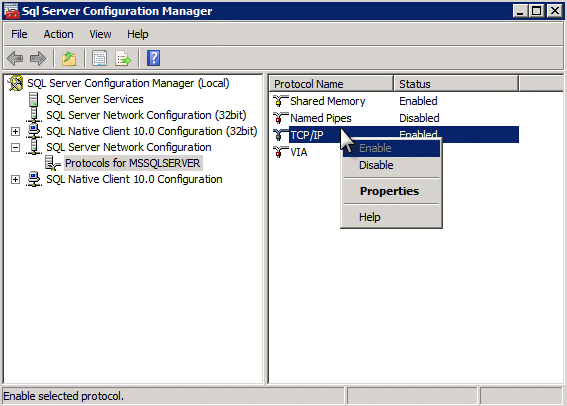
If TCP/IP is disabled, right click on it and Enable then try to connect remotely. If it fails or is already enabled, right click on Named Pipes and TCP/IP and disable both. Restart the SQL instance (in Administrative Tools, Services) then re-enable Named Pipes and TCP/IP. Restart the SQL instance you are using once more.
Right click on TCP/IP and select Properties then select IP Addresses tab. If the IP All-> TCP Port is blank, set it to "5356" (high enough so that no other services are likely using it) and restart the SQL instance. If it has a port number, don't change it, but verify the port is not blocked at the firewall. If you changed the port number, make sure it is open on the firewall. (Note, you may only have 1 IP# port listed; I have 8 because this system runs several Virtual Machines.)

User Accounts
You will need to create a user account on the server that matches the computer logon account name for each user who will accessing the database. For example, I log into my computer as dianep and need an account on the computer running SQL server called dianep. The password for the user account on the SQL/BCM database server needs to match the password I use to log into my computer. Don't worry about the domain or computer name used for the log on, the username and password are what matters.
To create the user account or change the password, type Windows key + R to get the Run command then enter control userpasswords2.
Note that, although Windows allows you to change your account name, the name you see on the Start menu may not be your "real" account name. If you changed your user account name previously, your real account name is the name used on your account folder in C:\Users. This is the name you must use for your account on the BCM server.
You cannot use a Microsoft account login on Windows 8 and connect to a shared SQL database. You can share a database on Windows 8 if both computers use a Microsoft account logon.

John says
Running BCM 2013 on a small network of 5 windows 10 PC's (Upgrqaded from Win 7) and everything was working fine until yesterday one of the PC's can no longer connect to the remote database. The User is still listed on the remote PC any ideas what could have changed overnight? All other Users are running as usual.
Thanks
John
Lottermann says
Hi Diane, I recently deactivated the BCM Add-In in Outlook 2013 on one client for some reason. After activating it again, I could not connect to BCM server with this client anymore. Error: Cannot verify your remote user account on computer xyz. BCM client seems to see the server, but cannot verify the login. Other BCM clients work fine.
Client: Windows 10 1607 64-bit with Outlook 2013 32-bit and BCM 32-bit
Server: Windows 10 1607 64-bit with Outlook 2013 32-bit and BCM 32-bit and SQL Server 2012 SP3
Any idea?
Diane Poremsky says
Hmm. I wonder if an update broke something - you're the 3rd person with problems. You aren't using a microsoft account as the windows logon are you?
Lottermann says
If you get the error: Connection Not Completed “…your password on the remote computer must match your password on the local computer.” the following steps will help to let verify your logon credentials as matching correct and establish a connection to your BCM Server.
The solution is to edit the Group Policy settings on the BCM Server Machine to get access with any BCM Client as a regular User (not only as Administrator).
Steps to be taken:
1. Open the Group Policy Editor (gpedit.msc).
2. In the console tree, click Computer Configuration, click Windows Settings, click Security Settings, click Local Policies and then click Security Options.
3. Find the policy setting “Network access: Restrict clients allowed to make remote calls to SAM” in the details pane, double-click it, “Edit Security” and add the USER you want give access to BCM Server, and then click OK.
This worked for me with Windows 10 (1809), Outlook 2013 with BCM 2010 Add-In.
James Haynes says
Diane, i had to take the time to leave this comment cause it saved me and i should have spotted it, but you saved my tail. i know its an old post and thread, but i have a client that needed BCM migrated and it wouldnt find the dang server. couldnt figure it out for the life of me and ill be danged if the port was blank.
thanks so much! big UPS!
Daniel says
Hi Diane, I have a problem with BCM 2010-2013 in the 'Surface Pro4', the fields with information and the dropdown fields are smaller than the normal size and I only can see a little piece of the characters . Have you got any idea?
If you say me where I can send you a capture of screen maybe able to better understand my problem.
Diane Poremsky says
What display zoom % are you using? Did you change any of the Font sizes (In Display Settings) to more than 10pt? Do the fields work as expected (but are very small) if you use 125%?
dtobal says
Hi Diane,
I am getting the this issue.
I have 04 computers using a shared database over SQL 2008 R2 Express.
When the users are listing the contacts in the BCM, and scroll the list... Outlook crashes.
I have an identical log about this "unable to compute property value identificated 112"
In Windows Event Viewer, Outlook has an error "Critical error - fail on memory sharing 66105237, type 30".
I already checked database using two methods:
- Checked directly in SQL Manager (dbcc check)
- Checked in BCM Share tool - Check database
In both checks, my database is okay.
I did test with a new profile connecting to the database. Same error.
Thanks
Denilson.
Oliver Bergeron says
Dianne
I am running BCM with Windows 8, microsoft office professional suite and my calender are duplicated.
Sean Perkins says
Diane,
Thank you for your article, it has proven to be extremely helpful. I am running into one problem however. I currently have Outlook 2013 ( installed with a MS 365 account) running on a dedicated Win 7 pro pc. I have two clients connected successfully running Windows 8 and windows 7. I am trying to add an additional user that has a Surface Pro with Outlook 2013 (using the same 365 account). When I share the db using the database tool for BCM his user name is listed twice, once as database user and once as administrator (his windows group affiliation). I select both users and it seems to share correctly, however when I go back in it is only sharing his db user account. When he tries to connect it says that no database is found. Any suggestions?
Thank you for your help.
Sean
Diane Poremsky says
The surface user is signed in using a local login, not a microsoft account? Does it work if you disable the firewall on that computer?
Denilson Tobal says
Diane,
Will BCM Database Tool run over Windows 2012 Foundation?
Reading Microsoft download page... I didnt see win2012... Any tip?
Supported Operating System
Windows 7, Windows 8, Windows Server 2003 R2 (32-Bit x86), Windows Server 2008, Windows Vista Service Pack 1
Windows 8, Windows 7, Windows Vista, Windows XP Service Pack 2, Windows Server 2008, Windows Server 2003 Service Pack 1, Windows Small Business Server 2008, Windows Small Business Server 2003.
Prerequisites:
Microsoft .NET Framework 3.5 SP1, Micorsoft SQL Server 2008 SP2 or Microsoft SQL Server 2005 SP3 (32-bit only)
Thanks,
Denilson
Diane Poremsky says
I haven't tried it, but it should work. (I think that page needs updated.)
G F says
WS2012 is basically windows 8. Should work fine.
Prashandh says
Hi Diane,
Iam trying to create the BCM database using the database tool on server 2012 but it wont let me to create one..It says "Database creation failed.The operation has been rolled back..It recognizes the instance MSSMLBIZ but creation is failing.. Could you please help me with this.
Troubleshooting steps taken:
all services running using local system
TCP\IP protocol enabled
Port # declared.
Also i created the DB manually but again it wont show under the instance for me to share it..
Thank you!
-Prashandh
Diane Poremsky says
It is supposed to work and you need to use the newest BCM tool - https://support.microsoft.com/kb/2813691 - one of the known issues from that kb -
User cannot create new database when SQL Server 2012 services logged on as Network Service
If a user of the BCM Database Tool is using SQL Server 2012 on Windows Server 2008 and is logged in as a Network Service, they may see the following error message:
Cannot create a new database. The operation has been rolled back. Please make sure the database service is running.
The workaround is to log on as a Local System instead of as a Network Service.
Uninstall information
ciro545 says
Im having a strange problem. We have a shared database and everyone is connected no problem. The issue we are having is that changes made at the device that is sharing BCM are not syncing to other computers. I've tried taking them offline and online but have not had any luck. Ive also tried deleting thier offline databases and reconnecting with no luck. Any suggestions?
Diane Poremsky says
Are you sure they are still using the shared db? You can create an export file and import it into the master db, then re-share it.
Carmen says
I have version 4.00.12006.00 BCM 2010.
Diane Poremsky says
That looks like the newest one. I'll see if i can repro it and figure out what is going on.
Carmen says
Hi Diane,
I have a new problem with my BCM – hoping you can help. I added Developer to my Ribbon. Trying to Design my Business Project form. Inside a business project, I click, “Form Layout”, “Developer”, “Design This Form”. I am able to create new fields, change page names, etc. No problems. When I try to save or run the form, I get the following error, “BCM cannot save this item because it does not recognize some of the properties”. If I try to publish, I get, “BCM cannot publish this form because it does not recognize some of the properties”. Any help on this would be appreciated.
Thank you!
Carmen
Diane Poremsky says
Which version of Outlook and BCM are you using? I'm guessing (will check though) that you might be adding Outlook properties not supported in BCM.
Carmen says
Outlook and BCM 2010
Diane Poremsky says
I'll see if i can repro, but do you have the latest BCM update installed?
Sam says
Hello Diane,
Hope you can help me. 8 hours today spent trial and error attempting to connect to BCM Database using client computer. Both machines running 64 bit windows 8.1, office home & business 2013, Outlook 2013 & BCM version 4.00.12006.00 installed from the same download.
Apparently the client can see the server having achieved the 1> signal on several attempts including just a minute ago using the cmd prompt. The right ports are open (5356) on both machines, (appropriate wizards were used) and user credentials are apparently correct on both machines.
The problem occurs upon choice to "Connect to Remote Database" --> the correct computer (or computer\instance,port) is inputted, the wizard works its magic and then reports in the table simply "No databases found".
I hope there's something I can try that I haven't already?
Thanks
Sam
Diane Poremsky says
Are you using Windows 8? If so, you need to use a local login, not a Microsoft account (unless you use the same ms account to log into every computer.)
I'm not sure that would result in that error message though, since it seems to connect but can't find the db. Are you using the default database name?
VolumeTwo says
Hi! Is there any way to get BCM 2013 to work with SQL Server 2014
Diane Poremsky says
I'll have to look into it. What happens when you try to set it up?
VolumeTwo says
When I use the BCM 2013 Database Tool to create a database, it doesn't pick up any of my SQL Server 2014 instances. I read that you said it works with SQL Server 2012 and I followed all your instructions about enabling TCP/IP and Named Pipes but the BCM Database Tools just throws an error saying no instances of SQL found :-(
Diane Poremsky says
As far as I know, you can't use SQL 2014 with BCM. Sorry.
VolumeTwo says
Hi Diane, it just never picks up on any of SQL 2014 instances when I use the BCM Database Tool. It seems to pick up on SQL 2008 instances only. I read a post from you another site saying it works with SQL 2012 so I was hoping you could suggest how to make it work with 2014 if you have time.
Diane Poremsky says
Hmmm. I wonder what they changed in SQL2014 - my ad serving software won't work with it either. I'll see what i can find out.
VolumeTwo says
Hi Diane, did you manage to get anywhere with this? I'm just about to give up on using BCM :-(
Diane Poremsky says
No, I haven't gotten any info on it yet. What language is you office/bcm? They will be releasing an update soon and I might be able to get you an early copy. In not sure if it will fix this problem but its worth a try.
VolumeTwo says
English version.
Carmen says
Hi Diane,
Just wanted to let you know I have finally gotten back on my BCM. It was a name resolution problem. So now I connect to the remote database via the host's ip address. Had to reconfigure my firewall (thankfully my 3rd party firewall has a learning mode!), and all is well! Thanks for your efforts. They led me in the right direction :)
Diane Poremsky says
thanks for the update. I'm sure it will help others.
Carmen says
IPv6 says "no internet connectivity". IPv4 says "internet". Any direction from here?
Diane Poremsky says
No, sorry, I'm still out of ideas. :)
Carmen says
Also, I don't know if it matters, but we are now on cable internet, not dsl.
Diane Poremsky says
I'm suspicious of the change, but the actual service won't make a difference. The modem that came with it could be the problem if it is trying to be dhcp server. I don't know if ipv6 is a factor - sql needs to listen on it, but you can't even get into the machine over the network.
Carmen says
Yes, modem and router are separate devices. Here are the results I got from Computer 2:
Tracing route to computername [f380::7c3e:c566:1732:e05%11]
over a maximum of 30 hops:
1 <1 ms <1 ms <1 ms computername.enhwi-2an3 [fe80:7c3e:c566:1732:e05]
Trace complete.
Carmen says
Can you give me a little simpler direction with this one? I don't quite understand your direction. This is our layout. Modem (and router) is on Computer 1, xp. My computer is Computer 2, Win7. BCM remote database is on computer 3, xp. If you can give me more detail about from which computer to do what action, that would be great!
And, yes, I have permission full control given from Computer 3 to my Computer 2. I don't know how to ping or what a tracert is. Sorry.
Diane Poremsky says
So everything is routed through Computer 1? The modem and router are separate devices?
On #2 or 3, open a cmd prompt and type
tracert computer1name
The result should be 1 hop. If it hits more than one computer, that could be where the problem is.
Tracing route to baloo.ohio.slipstick.com [192.168.0.22]
over a maximum of 30 hops:
1 <1 ms <1 ms <1 ms Baloo [192.168.0.22]
Trace complete.
Carmen says
Just on a whim, I set up some folders on the host computer to share with the network. I've done that in the past with no problem. Today, even though the folders "Desktop" and one in "My Documents" say they are sharing, they are not showing up in the Network. The host computer is an xp. Mine is a windows 7. Seems it is not sharing anything at all, even with firewalls shut down...
Diane Poremsky says
Did you give Everyone permission? Can both computers ping each other? Try a tracert - it should be computer > your lan router > other computer - but I'm wondering if it's going through the dsl router (and hitting a firewall there).
Carmen says
No, I've tried that. Both firewalls off at the same time. Still no luck.
Diane Poremsky says
I'm out of ideas right now, sorry.
Carmen says
Yes, we have a router. Didn't have to make any changes on the router or computers when we switched from DSL to cable. All network and internet connections just picked right up. The only issue has been the BCM remote connection.
Diane Poremsky says
It's probably something stupid we are overlooking, but just changing the internet connection shouldn't affect it. If you turn off the firewalls on the two affected machines, does it work?
Carmen says
We switched from DSL to cable on the 9th
Diane Poremsky says
Well, that sure is suspicious. Did any of the settings on the computers change? Do you have a separate router handling the internal network traffic or does the dsl modem handle the internal network too?
Carmen says
Yes, I did a system restore last week, earlier on into the issue. It did not help. I had no updates between 8/28 and 9/11. The problem occurred on 9/9.
Diane Poremsky says
And that is right often you switched to DSL?
Carmen says
Yes, I shut down the firewall on both computers and tried to connect. Same message. Any other ideas?
Diane Poremsky says
I'm stumped at the moment. I'm guessing an update did it - if you can identify the updates installed right before it stopped working, or use system restore to go back, it might fix it.
Carmen says
In relation to my comment above, the only thing that I am aware of that changed and possibly affected us was that we switched from DSL to cable internet. Is it possible the new modem could have done something? We are still able to connect via our private network, so I wouldn't think that would be the issue, but I don't know if BCM "saw" something different, or how to check to be sure....
Diane Poremsky says
This shouldn't matter, especially if you just swapped out a modem. The only way possible for this to affect is if it is acting as a DHCP server and gave out different ip addresses to the machines. if BCM is looking for machine2 at 192.168.0.10 and its now at 192.168.2.45, it could be a problem - but i thought BCM only used machine names, not ip.
Carmen says
Thank you for your reply. No, no errors in Event Viewer. I have added BCMFirewall and BCMSQLNetprot to firewall exceptions. Still no luck.
I am able to see the remote computer, because the error says, “The Computer SERVERNAME does not contain any shared Business Contact Manger databases. Please confirm that a shared Business Contact Manager database is stored on the computer.”
The host computer is set correctly. Still says the database is shared - no errors on that side. Even when I shut down firewalls I still cannot connect.
Any other thoughts? Thank you.
Diane Poremsky says
did you check the firewall on "Computer SERVERNAME" too?
Carmen says
Hi Diane,
I have been using BCM 2010 for a few months - private network between 2 computers. No server. A few days ago, I lost connectivity to the remote database and have not been able to re-establish. I have spent days troubleshooting all I can read on the internet. Uninstalled and reinstalled BCM AND all my Office H&B 2010 suite.
I have checked all you wrote above.
The one suggestion I keep coming back to but can't get an answer from anyone is this:
You may also receive this error message if there is a third-party firewall on the Business Contact Manager server.
To resolve this problem, follow these steps:
Click Start, click Run, type wscui.cpl in the Open box, and then click OK.
Click Windows Firewall.
On the Exceptions tab, click Microsoft Small Business, and then click Edit.
Verify that the TCP port number is 56183.
MY problem, is, when I look on the firewall exceptions on the host computer, "Microsoft Small Business" is not listed. I cannot edit or select what is not there! If I click "Add", I am able to find the "Microsoft Small Business" folder in program files, but I don't know what file to select from there. Please help!
Diane Poremsky says
it's possible a windows update did something to block it - or the update caused a problem with the services. Are there any errors in Event Viewer? (Check both computers. The 'can't find other computer' error can be helpful.) Are the BCM or SQL services disabled?
The exe's are BCMFirewall and BCMSQLNetprot
C:\Program Files\Microsoft Small Business\Business Contact Manager\en-US
David Harrison says
Thanks. Worked for me. Ensuring the connecting client PC had an account with a password was what solved it for me.
Liam Ceh says
Thanks for the reply. So if i have 2 computers with different microsoft logins, it is not currently possible to share a BCM database between them?
As for the SQL Agent Service - I have gotten a few different errors that I can find in the error logs (with computer and user names redacted):
In SQLAGENT log
"This installation of SQL Server Agent is disabled. The edition of SQL Server that installed this service does not support SQL Server Agent"
In ERRORLOG log
"Error: 18456, Severity: 14, State: 38. Login failed for user 'CLIENT-PC\USER'. Reason: Failed to open the explicitly specified database. [CLIENT: ]"
"Dedicated administrator connection support was not started because it is disabled on this edition of SQL Server. If you want to use a dedicated administrator connection, restart SQL Server using the trace flag 7806. This is an informational message only. No user action is required."
"The SQL Server Network Interface library could not register the Service Principal Name (SPN) for the SQL Server service. Error: 0x54b, state: 3. Failure to register an SPN may cause integrated authentication to fall back to NTLM instead of Kerberos. This is an informational message. Further action is only required if Kerberos authentication is required by authentication policies."
"Configuration option 'Agent XPs' changed from 1 to 0. Run the RECONFIGURE statement to install."
Liam Ceh says
Hi Diane I noticed you've added down the bottom
"You cannot use a Microsoft account login on Windows 8 and connect to a shared SQL database. You can share a database on Windows 8 if both computers use a Microsoft account logon."
I am running Windows 8 with Office 2013 on both of the computers but despite tring every fix on the web, It's still telling me it can't find the database on the server. Perhaps it has somthing to do with both computer's having Microsoft account login's as their user accounts (e.g. xxxx@outlook.com)?
I'm also unable to get the SQL Server Agent service to start despite my best efforts... not sure if it's related
Diane Poremsky says
Microsoft logins can't be used as a login to the sql server. When you use file sharing and need to log on, windows using the first name of the account, in my case, Diane. I tried a user account on the SQL server for Diane and my Microsoft account password. No deal.
If i share the database on my desktop directly with my laptop (not using a separate sql server), both of which use the same Microsoft account to log on, I can share it without issue.
I don't think the SQL agent problem is related. What does the event viewer give you as a reason for the failure?
Carey Vandenberg (@CareyVandenberg) says
I cam across this thread when searching for the problem of my SQL isn't starting (so BCM says). I am using Outlook 2013 and SQL 2008. SQL was starting before but but now it isn't. I uninstalled SQL and reinstalled but that didn't do it. As well, I reinstalled Office 2013 but that too... no change.
Diane Poremsky says
When did the problems start? Go into Programs and Features, Add or Remove Programs, then click the Installed updates link. sort by date. What was installed around the time it stopped working.
Kevin says
Hi Diane,
We have two office locations. We do not have a central server. We store our data on Box.com. My question is, can we use BCM 2010 and have each user access the same database that is stored on one of our computers? How? We have 10 employees. Thanks.
Kevin
Diane Poremsky says
Each office can share a BCM install between themselves but BCM can't be shared over the internet. To share it with the other office, the people that are not local would need to use VPN to sync up.
Bryan says
No, its his personal computer (trusted) and uses a different login.
Diane Poremsky says
Have him create a user account on the computer that uses the same alias as his log on at work. Password needs to be the same too.
Oliver Bergeron says
Hello Diane
Have you had any luck with my issue. Thanks
Oliver
Diane Poremsky says
it looks like support was correct (for once). Sorry.
Bryan says
We have a MS Small biz server hosting BCM 2010, and i have a user that uses a personal laptop to access the vpn and do some work at home in the evening. BCM requires you to have access to the domain, and his laptop is on a workgroup. When i try to add a new user, it just says it cant find the user XX.
How can I add him without adding the machine to the domain?
Diane Poremsky says
Is he using the same username and password at home as he uses at work? Computer name doesn't matter - but if he is jsmith at work, he needs to use jsmith on the home computer. Password also needs to be the same.
Oliver Bergeron says
Hello Diane
I have two computers sharing a BCM database. I was told by a level 2 Microsoft technician that the "add to my calendar" tab will not function on a shared database and that the calendar feature will also not work on a shared database. What can I do to fix this problem?
Thank you
Oliver
Diane Poremsky says
There are features that won't work or won't work as expected because the other computer may not have a copy of the item. I'll check into it.
Amir says
Yes I had it turned on on the Desktop. It is not the old but it is my Home desktop and I keep my master data on it. Hence trying to share from the new laptop which is win 8.
Amir says
Yes, file & print sharing is on and BCM 2010 on both machines.
Diane Poremsky says
So you can connect to the shared database on New Computer but New Computer can't connect to a shared database on old computer? You don't have a home group on the old computer, do you?
Amir says
Hi Diane - I am trying to share Win7 Desktop BCM with Win8 Laptop. I can do the opposite of this but not the way I want it. I want to keep the desktop as the server.
The desktop can see MSSMLBIZ instance on the laptop via BCM and SQL Management studio. The Win 8 laptop cannot see or connect to share DB on desktop or cannot login thru Mgt studio. In BCM it says that the does not have a shared BCMdata base.
I am using the same user id to be able to work on my laptop with an offline copy/ Also my firewall ports are identical on both machines.
My old Win XP laptop connects to the shared BCM DB just fine like the old days.
Any help will be greatly appreciated.
Diane Poremsky says
Is file & print sharing enabled on windows 8 machine?
Both computers have the same version of Outlook and BCM installed?
Mark says
Brilliant - Thank you so much! :)
Magnus says
Hi Diane
I can connect to the SQL server (SQL 2008 R2 SP2 Express) from my Outlook 2010 BCM. It logs me right in but the the next screen that pops up where I am supposed to select database to connect to, only states "cannot find any database".
I have created a database on the SQL-server using the BCM 2010 database tool and obviously added the correct user data since I can connect and login. BUT there is no databse in the list? What have I missed?
Please shed some light on this. Already went through install / re-install, different PC's etc. but all ends with the same resultt, Outlook client (BCM) can connect to SQL server but there is not database to chose/select/connect to.
/Magnus
Diane Poremsky says
Have you tried the steps in this KB article? https://support.microsoft.com/kb/901164
Tom says
Hello, I have attempted everything and still I cannot connect to a remote database. I have BCM 2010 on several Windows 7 machines and one Windows 8 machine and none can connect with each other.
Diane Poremsky says
Do you get any error messages? Disable the firewall to see if it works?
Jamie Flournoy says
Hi Diane:
I'm running BCM on a Windows2000 desktop that I call my "server" in a small workgroup. I've successfully connected to machines to the BCM Database, but now I'm struggling with a new laptop that I recently purchased to replace my current laptop. My username on both laptops is my first name and last name and when I go in to Share Database and try to add my same user name (based on how it reads in the Users folder), I get the error message "The specified User already exists". Any ideas on what I might be doing wrong?
Diane Poremsky says
If the usernames and passwords are the same for the old and new systems, it should work - no need to add a new user account. All BCM looks at is if the windows user matches one on the BCM server.
Tim says
I'm getting this exact error with my BCM. Before finding this, I un-installed and re-installed outlook and BCM, I figured this might help. When I try to re-connect to my Remote Database, I continue to get this error. Any insight would help.
I have walked carefully walked through the steps laid out above.
User Account is established with passwords.
SQL Server configurations enabled.
IP address the same.
After all this I'm still getting this same error.
Diane Poremsky says
Did it ever work? If yes, check firewalls on both computers - make sure SQL is allowed. If you changed the port # on the SQL instance, you also need to change it on outlook's side and allow it through the firewall.
Are you using the default name for the database?
Rod says
What if I want my users to logon with their domain accounts? Isn't this possible?
Rod says
Hi, so you are telling me that I need to create local accounts on the server where I want to have the BCM 2010 database? And then I need to "know" my users password in order to create these local accounts?
THis is a system administrative nightmare.
Are you sure users can't logon to BCM2010 database with their domain accounts?
Diane Poremsky says
Did you try it? BCM was designed for small businesses who don't use domains and these instructions are targeted to those users. (I'll check it on a domain computer.)
If all computers log into the domain, the computers *should* be logged in correctly. You just need to make sure they have permissions needed to access the BCM computer.
John says
Thanks Diane! This is exactly the problem I was having and that solved it in less than 2 minutes. You're awesome.
Sarven says
Hi, i can connect to the bcm database on the server with the built in administrator account on the desktop but with any other user i get the password error whereas all password and user names match on the server and client sides. Any suggestions?
Diane Poremsky says
Are you using microsoft account to log on to the computer? You need to use a local user account.
Sarven says
No, i'm using a local account :(
Diane Poremsky says
Sorry I missed this earlier. Did you get this working yet?