With previous versions of Microsoft Outlook you could select a contact, then choose Actions, New letter to contact to create a letter or envelope from a contact. For various reasons, this feature was removed from Outlook 2007. While you could use Mail Merge, its overkill for a single letter or envelope. Instead, use the Address book in Word's Envelope and Label wizard, or try my copy and paste method.
- Create a custom Address view in Outlook that displays only the fields you need.
- Select the contact and press Ctrl+C to copy.
- Switch to Word.
When creating an envelope, open the Envelope dialog (Mailings ribbon) and Ctrl+V to paste the address.
For letters, use Paste Special, as text. If you use plain Paste you'll paste the contact, not the address.
Use the Address Book
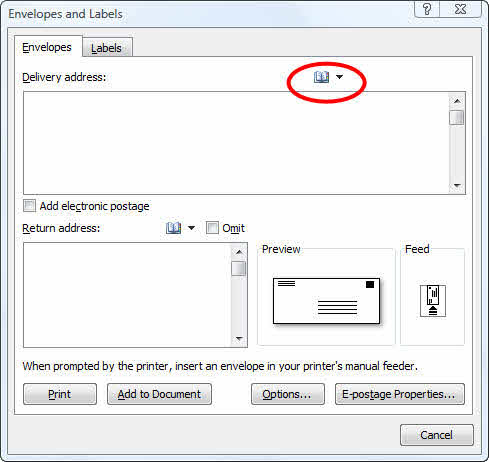
You can select addresses from the Address book using the Envelope and Label wizard.
Click the button to open the Outlook Address book, or select a previously insert name from the drop down.
More Information
If you use Paste Special, As text often, get PureText or a similar utility to convert it to plain text before pasting.
This works in all versions of Outlook and Word.

Leave a Reply