The problem: you have several POP3 accounts and want to combine them into one mailbox and have the email accessible on your smartphone and other computers.
The solution: Use Gmail to collect the email from your accounts.
This works great, as long as you use the Gmail web interface as you can configure Gmail to reply from the address the message was sent to. If you want to download the mail into Outlook, Outlook is going to reply using the gmail address, because it replies using the account that downloaded the message.
Fortunately, Gmail lets you send mail using the connected addresses, even when you use Outlook to send the email. You need to have Gmail configured to send using the account in Settings, Accounts and Import.
Note: These steps may work with any account that lets you collect mail from other server and send mail using any address. It won’t work with Outlook.com at this time, unless the additional addresses are in Microsoft's domains (outlook.com, Hotmail, MSN, etc).
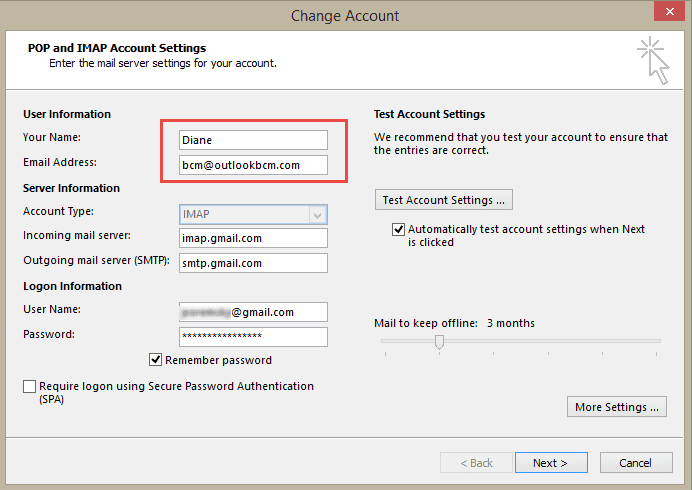
If you want to set a specific account as the default address, enter it in the Account Settings dialog. Replace the name and email address at the top of the dialog with the address you want to have set as default. If you use one of your addresses here, you won't need to add the address to the macros.
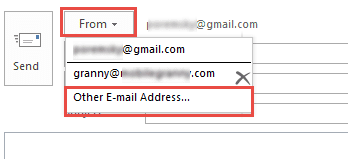
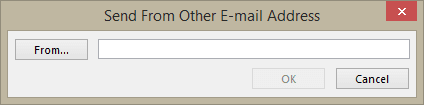
To send using one of the other accounts Gmail is collecting mail from, you can select the From > Other Email Address command and type the address in the Send From Other Email Address dialog.
The message header will contain the gmail address, but it won’t be exposed in Outlook.
Return-Path:
Received: from MyHP (my-ip)
by mx.google.com with ESMTPSA id v37sm4082638qge.29.2014.10.24.06.31.34
for
(version=TLSv1 cipher=ECDHE-RSA-AES128-SHA bits=128/128);
Fri, 24 Oct 2014 06:31:34 -0700 (PDT)
From:
To:
Set up the Gmail Account to Send and Receive Your Other EMail Accounts
In Gmail, go to Settings, then Accounts and Import and Add your accounts to the Send mail from section.
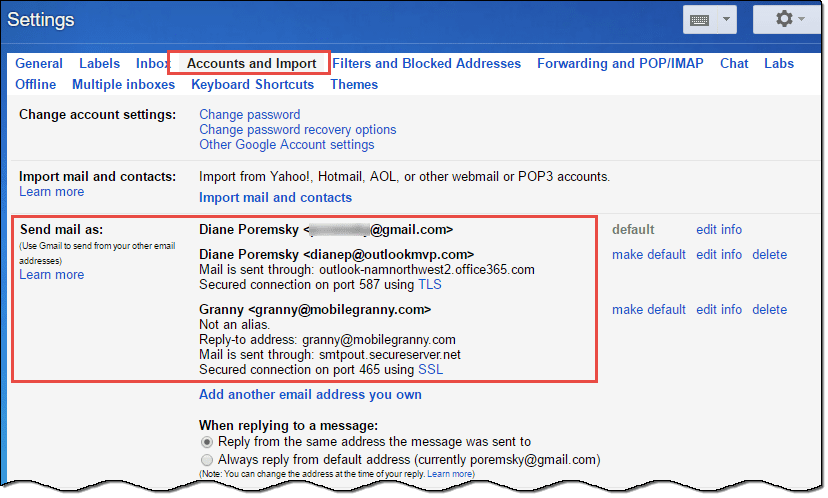
In Outlook, use auto account setup to add the Gmail account to your profile. If your POP3 accounts are in your profile (and also configured as an account you can send from in Gmail), you can remove them from Outlook's Email tab in File, Account Settings.
To send a message using one of the POP3 accounts in Gmail:
- Open a new message.
- Click From and select Other Email Address.

Note: If you previously used the address, it’s listed in the section above Other Email Address. Select it and return to the message form.
- Type your POP3 address in the Send From Other Address dialog then click OK to return to the message form.
- The selected address is listed next to the From field.
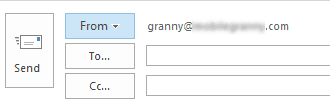
As easy as that is to do, you can use a macro to automate the process. You can also use a macro to open a new message using a specific address and to check the address on outgoing messages.
This will not work with Outlook 2013's "inline replies". Replies and Forwards will be opened in a new Window.
Reply from the address a message was sent to
The following code checks for your specified email addresses in the To/CC field. If it finds one of your addresses, it inserts it in the From field of the reply, the same as if you had used From > Other Email Address field and typed the address in the Send From Other Email Address dialog.
If one of your addresses is not on the recipient list, the reply will be from the default address.
This macro works with Gmail accounts. It does not work with Outlook.com accounts at this time.
This set of macros goes into the ThisOutlookSession module. It runs when Outlook starts and watches for the Reply, ReplyAll, and Forward buttons to be clicked. you can kick start it during testing by clicking in the Startup macro then clicking Run.
Option Explicit
Private WithEvents oExpl As Explorer
Private WithEvents oItem As MailItem
Dim oResponse As MailItem
Dim myAddy As String

Private bDiscardEvents As Boolean


Private Sub Application_Startup()
   Set oExpl = Application.ActiveExplorer
   bDiscardEvents = False
End Sub

Private Sub oExpl_SelectionChange()
   On Error Resume Next
   Set oItem = oExpl.Selection.Item(1)
End Sub

' Reply
Private Sub oItem_Reply(ByVal Response As Object, Cancel As Boolean)
   Cancel = True
   bDiscardEvents = True

Set oResponse = oItem.Reply

'run the afterReply macro
 afterReply
'clear myAddy variable
 myAddy = ""

End Sub

Private Sub oItem_Forward(ByVal Response As Object, Cancel As Boolean)
   Cancel = True
   bDiscardEvents = True

Set oResponse = oItem.Forward

'run the afterReply macro
 afterReply
'clear myAddy variable
 myAddy = ""

End Sub

Private Sub oItem_ReplyAll(ByVal Response As Object, Cancel As Boolean)
   Cancel = True
   bDiscardEvents = True

Set oResponse = oItem.ReplyAll

'run the afterReply macro
 afterReply
'remove your address from reply all
 RemoveRecipients oResponse
'clear myAddy variable
 myAddy = ""

End Sub

Private Sub afterReply()

Dim Recipient As Outlook.Recipient
Dim strRecip As String

 ' get a list of recipients
For Each Recipient In oItem.Recipients
 strRecip = Recipient.Address & ";" & strRecip
Next Recipient

'check the list for your addresses
'add more elseif lines as needed
If InStr(strRecip, "bcm@outlookbcm.com") > 0 Then
  myAddy = "bcm@outlookbcm.com"

  ElseIf InStr(strRecip, "granny@domain.com") > 0 Then
  myAddy = "granny@mobilegranny.com"

  ElseIf InStr(strRecip, "alias@msn.com") > 0 Then
  myAddy = "alias@msn.com"

End If

' set the address as the from address
  oResponse.SentOnBehalfOfName = myAddy
  oResponse.Display

End Sub


' remove your address from reply all
Private Sub RemoveRecipients(Item As Outlook.MailItem)
  Dim RemoveThis As VBA.Collection
  Dim Recipients As Outlook.Recipients
  Dim R As Outlook.Recipient
  Dim i&, y&
  Set RemoveThis = New VBA.Collection

  RemoveThis.Add myAddy

  Set Recipients = Item.Recipients
  For i = Recipients.Count To 1 Step -1
    Set R = Recipients.Item(i)

    For y = 1 To RemoveThis.Count
      If LCase$(R.Address) = LCase$(RemoveThis(y)) Then
        Recipients.Remove i
        Exit For
      End If
    Next
  Next
End Sub

' check the from on new messages before sending
Private Sub Application_ItemSend(ByVal Item As Object, Cancel As Boolean)
 Dim prompt As String
 Dim strAddress As String

On Error Resume Next

  If Item.SentOnBehalfOfName <> "" Then
   strAddress = Item.SentOnBehalfOfName
   Else
   strAddress = Item.SendUsingAccount
   End If
If Not Left(LCase(Item.Subject), 3) = "re:" And Not Left(LCase(Item.Subject), 3) = "fw:" Then

      prompt$ = "You sending this from " & strAddress & ". Are you sure you want to send it?"
       If MsgBox(prompt$, vbYesNo + vbQuestion + vbMsgBoxSetForeground, "Check Sending Account") = vbNo Then
         Cancel = True
       End If
End If

End Sub
Reply Using the Correct Account Video Tutorial
New Messages using a specific address
To use this code, right click on Project1 and choose Insert > Module. Paste it in the module and update the addresses. If you need more than 3 addresses, duplicate one of the account subs, then change the sub name to something unique (like your email alias or domain name) and replace the email address.
To use, you need to create button on the ribbon for each account sub then click the button when you want to send a new message from a specific account.
Public strFromAddress As String

' Account macros go here
Public Sub mobilegranny()
strFromAddress = "granny@mobilegranny.com"
SendMessageFrom
End Sub

Public Sub outlookbcm()
strFromAddress = "bcm@outlookbcm.com"
SendMessageFrom
End Sub

' Main macro; do not edit
Private Sub SendMessageFrom()
Dim oMail As Outlook.MailItem

Set oMail = Application.CreateItem(olMailItem)
    oMail.SentOnBehalfOfName = strFromAddress
    oMail.Display

Set oMail = Nothing

End Sub
New Messages Using a Specific Address Video Tutorial
How to use macros
First: You need to have macro security set to low during testing. The macros will not work otherwise.
To check your macro security in Outlook 2010 or 2013, go to File, Options, Trust Center and open Trust Center Settings, and change the Macro Settings. In Outlook 2007 and older, it’s at Tools, Macro Security.
After you test the macro and see that it works, you can either leave macro security set to low or sign the macro.
Some macros need to be in ThisOutlookSession, others go into a module or can be placed in either ThisOutlookSession or a module. The instructions are below.
Open the VBA Editor by pressing Alt+F11 on your keyboard.
If you are told to put the code in a module:
- Right click on Project1 and choose Insert > Module
- Copy and paste the macro into the new module.
If you are told to put the macro code in ThisOutlookSession:
- Expand Project1 and double click on ThisOutlookSession.
- Copy then paste the macro into ThisOutlookSession. (Click within the code, Select All using Ctrl+A, Ctrl+C to copy, Ctrl+V to paste.)
More information as well as screenshots are at How to use the VBA Editor






























Hi Diane,
I really need to do something like this in Outlook 365 on the computer. When a user clicks 'Reply', I need the macro to read the subject line.
If it says "MQ ID:" in the subject line, then "SentOnBehalfOf" needs to be changed to a certain email address.
Could you please let me know if this is possible or not possible? I've been working on this problem for weeks now and I don't want to keep working on it if it's impossible.
Thank you,
Mark
You are a goddess! Your Reply from the address a message was sent to is great.
Now I need to create fixed signatures for these aliases that come from my Gmail account. Do you have anything on this issue? Thanks!
I love you. You're amazing. I've been fighting this REPLY TO problem for YEARS. I even called Microsoft asking for a solution and they said there wasn't one. But your script solved everything for me. You're the BEST!
This feature of Gmail is time-saving, but I am worried that when Gmail will have the AI technology to fix the Gmail temporary error 500, so our account won't get blocked by Gmail. However, you can know the reasons why this error occurs so you can prevent from this type of error.
Hi Diane, with the 'New Messages using a specific address' macro, could you suggest some code to have the new message start with a specified mail signature in it?
As I only have one account that aggregates all my others I can't assign a signature to each from address from the GUI, so wondering if this might be possible from VBA.
Many Thanks
Nick
You can use this code to change the signature - if the signature name is the email address you're using, it might be easier. If not, you need to set the signature name when you set the From account.
Set objFSO = CreateObject("Scripting.FileSystemObject")
'Edit the signature file name on the following line as needed
Set objSignatureFile = objFSO.OpenTextFile(strSigFilePath & myAddy & ".htm")
strBuffer = objSignatureFile.ReadAll
objSignatureFile.Close
Sorry Diane, the website feedback form strips the less than, greater than brackets, so it doesn't quite read as intended.
It didn't take much testing to figure the normal email syntax works in this case. So advice to users is when editing the lines
myAddy = "granny@mobilegranny.com"
you are able to use a syntax
myAddy = "Granny Smith <granny@mobilegranny.com>"
but use the less than, greater than type brackets that email programs understand.
Yeah, that is a problem with wordpress. :( For future reference, if you type out the HTML code for it, it will work < ; > ; without the spaces.
I simply have to shout - THANK YOU. This makes me look so much more professional without half my work emails coming from my private address because I forgot to change the from field... For information I am aggregating my accounts through Fastmail.
One question:
From my default address emails appear from: Name Surname
But when using this Macro the email just comes from the email address which makes a subtle difference for recipients when sorting etc. Is it possible to have the Name format?
Answer:
https://www.slipstick.com/outlook/using-gmail-master-account-reply-using-correct-account/#comment-198846
I simply have to shout - THANK YOU. This makes me look so much more professional without half my work emails coming from my private address because I forgot to change the from field... For information I am aggregating my accounts through Fastmail.