Categories and flags are not available in all of my folders in Microsoft Outlook. I can use categories and flags on mail in my POP3 account but categories are not available in my IMAP account and flags are limited to one flag, no reminder. Why?
The IMAP protocol doesn't support the Category and Flag properties on messages and assigned categories and flags are not synced back to the IMAP server. If you need to use categories, you need to use a POP3 account instead or move the messages to a local pst file. In place of flags (and their reminders), drag the message to Tasks (or Calendar) and set the reminder.
If using IMAP is a requirement, you can either move the mail to separate folders to separate it or use Automatic Formatting (Conditional formatting in Outlook 2010) to highlight messages meeting specific conditions. If you need reminders, drag the message to the Tasks folder and create a task with a reminder.
Categories and Flags in Outlook 2013 and newer
If having special "this computer only" folders with reduced capabilities in Outlook's IMAP accounts isn't bad enough, I'm left scratching my head when I look at the half-removed Flag and Category features users have come to expect in Outlook. There is no reason why full flags and categories shouldn't work in an ost file, but users are stuck with the IMAP implementation, where flags are limited to on or off and the Categories button is non-existent.
Whether you can add a category to an appointment or contact or add a category or reminder to a task depends on what view you are using and whether you know all the right tricks.
The category picker is missing from appointments. But you can add categories if you assign keyboard shortcuts to at least one category and apply it. Once you add a category to an appointment, you can open the category MRU by right clicking on the category bar in the open appointment.
In Contacts, all of the flag options are available. The keyboard shortcuts work for categories and as with the other Outlook items, once a category is applied, you can right click on it and make changes. You can even add categories from the options dialog (File, Properties). Yes, in the wacky world of Outlook 2013 IMAP accounts, the category picker on the Options dialog is disabled on mail, appointments, and tasks but it works on Contacts.
A user discovered the trick to creating full reminders and color categories on tasks: select more than one. When you right click on one task, you'll get the short IMAP version of the context menu, with options to Flag, Mark Complete, or Delete. The only option for Categories is Clear All Categories (when you click on the Category column). Select 2 or more tasks and viola! The full flag and category menus appears on the context menu. In an open Task, the Categorize button has one option: clear all but keyboard shortcuts will add categories… and yes, the full category menu is available on the right-click context menu.
The user went on to add "My solution right now is to just have a "dummy" task that I can select with the other tasks I want to change, but it's a pain to work around a bug like this, especially since Microsoft is expecting me to pay monthly for the software."
Flags with IMAP accounts
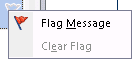 When an IMAP account is configured in Outlook, there is just one option for flags: either flagged or not flagged.
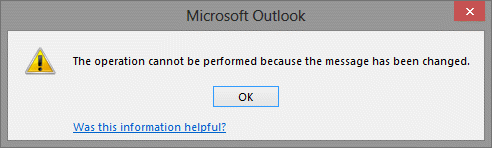
You may occasionally receive an error message when flagging items in IMAP accounts. This error is because Outlook is syncing with the server. Select a different message then switch back to the original message and you should be able to flag messages without error.
The operation cannot be performed because the message has been changed
If you need to set a reminder, drag the message to the Task folder to create a task.
Using Categories with IMAP Accounts Workaround
These instructions are for Outlook 2010 and below or Outlook 2013 and newer when you have a separate pst file for calendar and contacts, in addition to the IMAP data file. Use the instructions in the next section when you use only the IMAP account and use the 'this computer only' folder for Calendar and Contacts.
While you can't change how flags work (except by moving the mail to a local pst), it is possible to trick Outlook into letting you add categories to IMAP messages.
The easy way:
- While viewing a folder in a data file that supports categories, expand the Categories button and choose All Categories to open the Color Category manager.

- Add keyboard shortcuts to your categories. Since you are limited to 10, start with the most frequently used categories.
- Select (or open) the message and press the shortcut. Yes, the shortcuts work on IMAP messages.
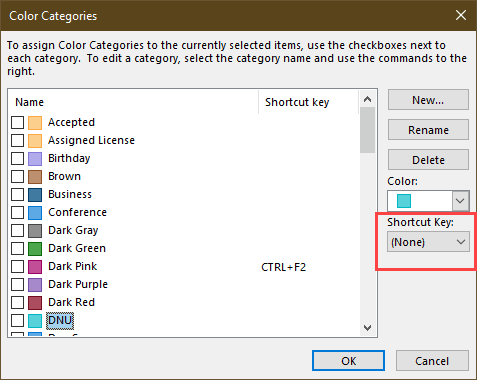
If you need to assign a category that does not have a keyboard shortcut assigned, add a category using a shortcut then open the message and right-click in the category area above the subject field.
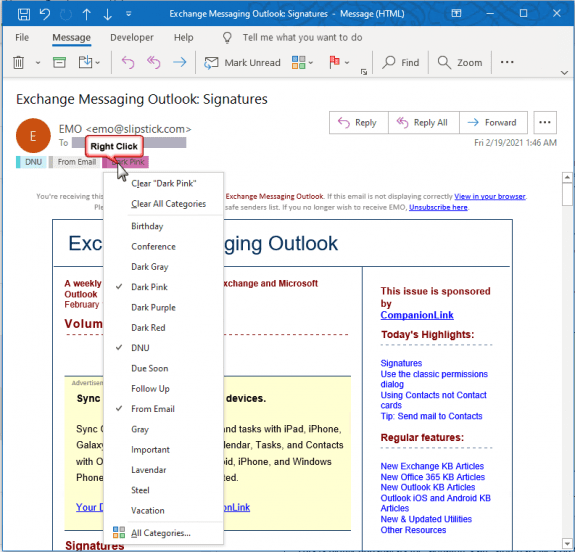
Choose the category from the list before removing existing categories from the message.
In most cases, the category name will "stick" and sync to other computers running Outlook. However, colors are per message store so each computer will have it's own list of colors. How to Upgrade to Color Categories has instructions on how to quickly add categories to your master category list.
View the Categories in the Message List
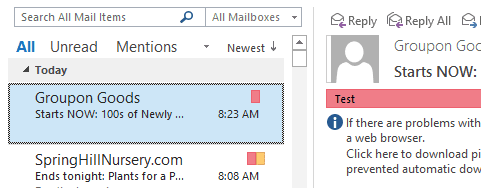
The default IMAP view removed the Categories column from the message list view but you should see the category in the Reading pane or in opened messages. To see the category colors in the message list, you will need to customize the view.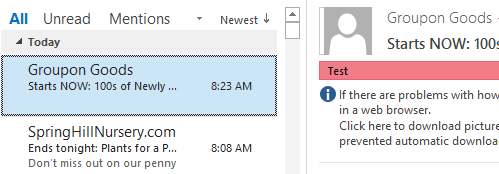
- Switch to the View tab.
- Click View Settings button.
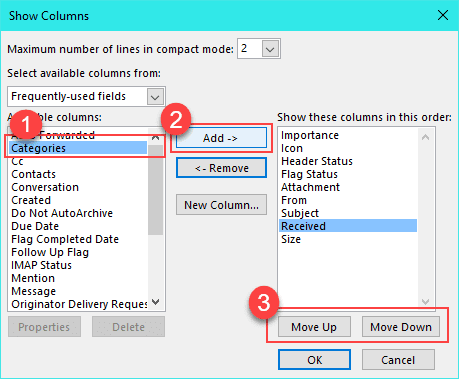
- Click Columns.
- Select Categories, click Add.
- Move Categories up or down to place it just after Subject.
- Close dialogs.
Outlook 2013 and newer with only the IMAP data file
The instructions above are for IMAP accounts in Outlook 2010 and below, or when you have a .pst file in a profile with an IMAP account in Outlook 2013 and newer. When you don't have a .pst in your profile (and are using the 'this computer only' folder for Calendar and Contacts), you can set up category shortcuts using these steps:
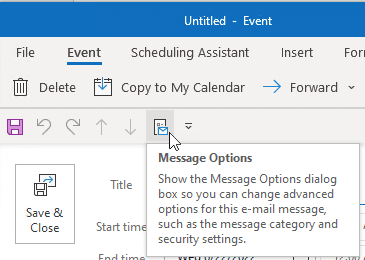
- Open a new Contact (or Appointment form) and click it's File, Properties button. Note: this only works on new items. After you save and close the item, the category button is disabled.
- Click on Categories at the bottom then All Categories. (This only works on new contacts, appointments, and tasks. After the item is closed and reopened, the category button is disabled.)
- Set up some categories and assign keyboard shortcuts.
- Close the dialog.
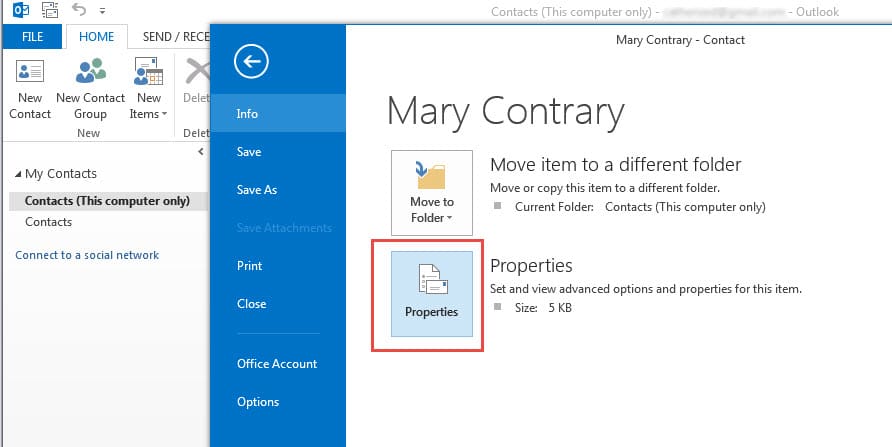
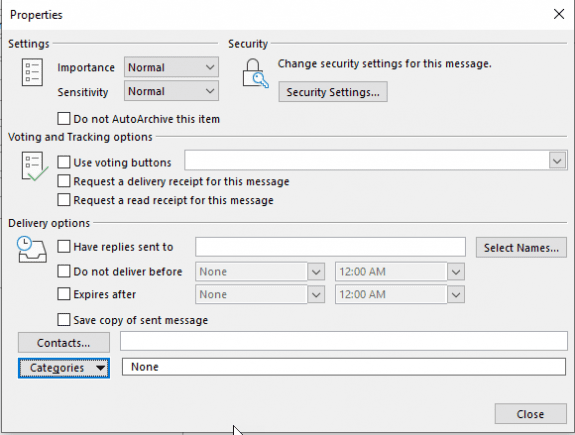
Now you can use the shortcuts to assign categories to email, appointments, and contacts. After you add a category to an item, you can right-click on the Category InfoBar (see screenshot in previous section above) and select other categories.
Add Category Field to the View
You can customize the Message list view and add the Category field to the view. However, this only allows you to use the quick click category. You can open the message and right click on the category bar to select more categories.
Using Category Shortcuts Video Tutorial
Use VBA to Display Category Options
Paste this into the VB Editor and add it to the toolbar or ribbon. Click the toolbar button to open the Category dialog. Add it to the QAT, ribbon, or toolbar. This works with messages or other Outlook items selected in the list views or opened in a new window.
Public Sub CategorizeIMAP()
     Dim sel As Outlook.Selection
     Set sel = Application.ActiveExplorer.Selection

    If sel Is Nothing Then
         Exit Sub
     End If

    Dim obj As Object
     Dim selCats As String
     Dim gotCats As Boolean

    For Each obj In sel
         If Not gotCats Then
             obj.ShowCategoriesDialog
             selCats = obj.Categories
             gotCats = True
         Else
             obj.Categories = selCats
             obj.Save
         End If
     Next obj
 End Sub
Adding Categories to Opened Items
This simple code can be added to the QAT, toolbar, or ribbon of any Outlook form. It only works on opened items but will work on recurring appointments.
Add the following code to the VB Editor and then add a button to the QAT, Ribbon, or Toolbar of any Outlook form. Click the button to open the Category dialog.
This code does not work with selected messages in the message list, you need to open the message (or other Outlook item) in a new window. This macro will work with recurring appointments.
Public Sub ShowCategoriesDialog()
'by Michael Bauer
'http://www.vboffice.net/en/developers/assign-email-categories-before-sending

  Dim Item As Object
  Set Item = Application.ActiveInspector.CurrentItem
  Item.ShowCategoriesDialog
End Sub
This version of the macro will work with either an opened item or a selected item. (If you select more than one item, it only works on the first item.)
You can use this macro as you create items or use it to add categories later. It will work with recurring events.
It only works with the opened or first selected event; it does not work on multiple selections.
Public Sub CategorizeIMAPItems()
    Dim objApp As Outlook.Application
    Dim Item As Object

    Set objApp = Application

   Select Case TypeName(objApp.ActiveWindow)
        Case "Explorer"
            Set Item = objApp.ActiveExplorer.Selection.Item(1)
        Case "Inspector"
            Set Item  = objApp.ActiveInspector.CurrentItem
    End Select

    If Item Is Nothing Then Exit Sub

     Dim obj As Object
     Dim selCats As String
     Dim gotCats As Boolean

With Item
         If Not gotCats Then
             .ShowCategoriesDialog
             selCats = .Categories
             gotCats = True
         Else
             .Categories = selCats
             .Save
         End If
End With

End Sub
How to use macros
First: You will need macro security set to low during testing.
To check your macro security in Outlook 2010 or newer, go to File, Options, Trust Center and open Trust Center Settings, and change the Macro Settings. In Outlook 2007 and older, it’s at Tools, Macro Security.
After you test the macro and see that it works, you can either leave macro security set to low or sign the macro.
Open the VBA Editor by pressing Alt+F11 on your keyboard.
To put the code in a module:
- Right click on Project1 and choose Insert > Module
- Copy and paste the macro into the new module.
More information as well as screenshots are at How to use the VBA Editor
Tools in the Spotlight
Category Manager allows sharing of color categories; it adds a sidebar to the folder view as well as opened items, in which you can group your categories and assign them lightning fast; and it adds a reminder, which optionally prompts you if you forget to assign a category. Version 3 |

Tools






























DIANE YOU HAVE SAVED MY WORK EMAIL! THANK YOU THANK YOU!
If the IMAP protocol doesn't support categories then how does Thunderbird do it? In Thunderbird I can completely customize Tags (same as categories in Outlook) to the yin yang as well as create tons of new ones for IMAP email accounts. Also, the work around instructions above for categories re: IMAP don't seem to apply to Outlook 2021. I don't see a "Properties" button option anywhere in 2021. Thank you. Your updated info is much appreciated.
Outlook 2021 has properties - on the File tab. also under Options (called Options there - but only for new calendar & contacts. )
Do Thunderbird categories sync back to the server? Outlook's categories did not and users were confused so Microsoft removed the capability.
Thanks Diane, but I'm confused. I'm talking about the Mac version and I don't see properties under the file tab as you've outlined in your response nor do I see Options anywhere. Also, I've been using the latest Thunderbird Mac and with IMAP emails you can customize Tags and attach them to emails just like categories in (non IMAP) Outlook emails. I don't care if they sync back to the server. All I care about is being able to attach tags to emails so my life is made easier trying to search for similar or the same emails in the same category. What am I missing?
The workarounds in this article are for classic Outlook for Windows. I'll check on my mac, but I don't think there are any tricks you can use to make categories work in it.
Thanks a lot to You for these article! Microsoft make our life harder, but thanks to You we save time - and spend saved time to enjoy out life! thnx one more time!
Thank you so much for this guide. Now I can have the colour categories in my work e-mail.
Hi There,
we are using outlook 365 app and when we add new categories they are not showing the Message preview untill we close and reopen outlook.
Is there a fix to this it has only just started to do this over the last week
Hi Diane,
I just shifted to Outlook 2016 now with an IMAP account and I have imported my old pst file (with emails and tasks).
And while all my emails have synced, may tasks are not syncing from outlook to my email server.
But the main problem is what I'm having with is the way my tasks are working in outlook:
1) Once a right click a task it only shows flag message, mark complete and clear flag- previously it gave me many options for changing dates etc.
2) I cannot even drag and move a task up and down from the task list.
Please can you help in solving this problem.
1. This is a limitation of IMAP accounts. They don't fully support flags, so you only havd flag on, flag off.
2. This is due to the view you are using.
https://www.outlook-tips.net/tips/tip-drag-reorder-todo-list/
Actual tasks do not sync with IMAP accounts. they should be in a folder named 'tasks (this computer only)'
Another method seems to have worked so far. In Outlook365 email, I do a Search for a particular sender's email address. When the list of emails from and to that sender comes up, I apply a Category, like "Medical." The categories SEEM to stick, although it's a little flaky. I do the same in Calendar. When I search for a recurring appointment and the list of occurences comes up, Outlook lets me assign a Category, like "Bills." In the past, the categories have all disappeared when I did a Sync with my Google calendar. But using this method, the categories and their colors seem (again: seem, again: so far) to stick.
Yes!! I'm so happy I found this article! I'm in the same boat as another commenter--I use Gmail and Outlook, and first Gmail forced me to upgrade to Office 2019 because of the additional security required; then they forced me to switch to IMAP, and then I found I couldn't use my beloved color categories. The procedure with IMAP only data file worked like a charm. I don't use Contacts, but so what? It worked! Thank you thank you thank you!!!