• Outlook User
  • New Outlook app
  • Outlook.com
  • Outlook Mac
  • Outlook & iCloud
  • Developer
  • Microsoft 365 Admin
    • Common Problems
    • Microsoft 365
    • Outlook BCM
    • Utilities & Addins

Create a journal entry for Word documents in Outlook 2013

Slipstick Systems

› Outlook › Journal › Create a journal entry for Word documents in Outlook 2013

Last reviewed on April 23, 2015     11 Comments

Applies to: Outlook (classic)

This series of Word macros will create a new Journal entry in Outlook 2013 when you create a new Word document or open an existing Word document. It also reminds you to close the Journal item when you are done editing. A similar macro can be used with Excel.

To use, paste the code into Word's VB Editor and set a reference to the Outlook object model in Tools > References.
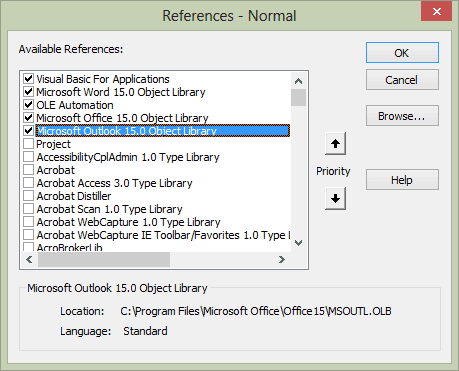
Set a reference to Outlook in Word's VB Editor

Sub autonew()

 Dim ol As New Outlook.Application
 Dim oJournal As JournalItem
 Dim fName As String
 
    fName = InputBox("Enter a Filename", "Subject")
    ActiveDocument.SaveAs fName
 
 Set oJournal = ol.CreateItem(olJournalItem)

 With oJournal
    .Subject = fName
    .Categories = "new doc"
    .Type = "Microsoft Word"
    .StartTimer
    .Save
    .Display
 End With
 
 Set ol = Nothing
 Exit Sub
UserCancelled:
 Set ol = Nothing
 End Sub

Sub autoopen()

 Dim ol As New Outlook.Application
 Dim oJournal As JournalItem
 Dim fName As String
 
 fName = ActiveDocument.Name
 
 Set oJournal = ol.CreateItem(olJournalItem)

 With oJournal
    .Subject = fName
    .Categories = "open doc"
    .Type = "Microsoft Word"
    .StartTimer
    .Save
    .Display
 End With
 
 Set ol = Nothing
 Exit Sub
UserCancelled:
 Set ol = Nothing
 End Sub

Sub autoclose()
MsgBox "Don't forget to close the journal!"
End Sub


Create a journal entry for Word documents in Outlook 2013 was last modified: April 23rd, 2015 by Diane Poremsky

Related Posts:

  • Copy Outlook Journal Entries to OneNote
  • Outlook Journal Tools
  • Use an Outlook Macro to Send Files by Email
  • Mail merge and Send from a Distribution Group

About Diane Poremsky

A Microsoft Outlook Most Valuable Professional (MVP) since 1999, Diane is the author of several books, including Outlook 2013 Absolute Beginners Book. She also created video training CDs and online training classes for Microsoft Outlook. You can find her helping people online in Outlook Forums as well as in the Microsoft Answers and TechNet forums.

Subscribe
Notify of
11 Comments
newest
oldest most voted
Inline Feedbacks
View all comments

Greg
January 22, 2018 4:01 am

Thanks for this, I've had the journal working for me for a while based on the hints you give above (I do a slightly different thing but essentially it achieves the same aim). However, I find the "Open" event is not working with sharepoint controlled documents, in particular for the case where the document is opened without checking it out, and then the "check-out" button is used in word (as opposed to using "check-out" directly in sharepoint. Is there an event I can use in word that will trigger when check-out/Check-in is used? Also I have implemented a similar structure in Excel but just can't seem to capture the open / close events. This is not a sharepoint issue, it just seems to be missing something. I've created the even references from VBA itself so I'm sure its not a simple spelling error etc. : Private WithEvents App As ApplicationPrivate Sub App_WorkbookOpen(ByVal Wb As Workbook) Call JournalStartEnd Sub One difference I can see is that Word still has a 'normal.docm' into which I can place these macros, while excel seems to have discontinued the related 'book.xls'. I have the macros in a xlsm located in the start-up folder, and most… Read more »

0
0
Reply
Diane Poremsky
Author
Reply to  Greg
February 11, 2018 9:19 pm

>> excel seems to have discontinued the related 'book.xls'.
the personal workbook is still supported.

Have you tried recording a macro and checking a document out? i know you can write to sharepoint fields, but i did not trying checking files out.

0
0
Reply
Chris
June 6, 2017 12:06 pm

What changes are in the excel code and how do I plug it into Excel?

0
0
Reply
Diane Poremsky
Author
Reply to  Chris
June 6, 2017 2:17 pm

You need to use the auto start and auto exit macro names (i thought it was Workbook_Open & Workbook_BeforeClose, but it might be auto_open, auto_close) - and change activedocument to the one supported by excel (activeworkbook)

0
0
Reply
Dee
January 3, 2017 1:32 pm

Is there an update for how to get this to work with office 2016? I use the journal extensively and am really angry the auto journaling no longer exists. Really appreciate that you have taken the time to figure this out. Thanks!

1
0
Reply
Denis TORTEL
February 18, 2016 4:25 am

Thank you for this sharing.
I have two questions about this macros.

Don't you think that we can automatically create the journal entry in autoclose ?

Can I use autoopen() and autoclose() for eMails ?

I try several event to catch when a mail was created, but none are working. My goal is to record the time spend to write an e-mail.

0
0
Reply
Diane Poremsky
Author
Reply to  Denis TORTEL
February 18, 2016 11:16 am

These are word macros, not Outlook macros. autoopen and autoclose don't work in Outlook email, only in Word. To catch new mail, you need to watch for a new inspector. the code sample at https://www.slipstick.com/developer/code-samples/default-subject-messages/ watches for new items - it could create a journal item instead of setting the subject.

0
0
Reply
wendy mcintosh
July 19, 2015 9:19 am

nd to know how to start writing in windows journal

0
0
Reply
Diane Poremsky
Author
Reply to  wendy mcintosh
July 29, 2015 10:31 pm

The Windows Journal? Hit the Windows key on your keyboard and type journal to find the windows journal - then just start typing.
The Outlook Journal folder (what this article is about) is on Outlook's Folder list.

0
0
Reply
Kat Farber
July 14, 2015 1:03 pm

How do you add this code to Word?

0
0
Reply
Diane Poremsky
Author
Reply to  Kat Farber
July 16, 2015 10:04 pm

In word, press Alt+F11 to open it's VBA editor and add it to the template then save.

0
0
Reply

Visit Slipstick Forums.
What's New at Slipstick.com

Latest EMO: Vol. 30 Issue 38

Subscribe to Exchange Messaging Outlook


Support Services

Do you need help setting up Outlook, moving your email to a new computer, migrating or configuring Office 365, or just need some one-on-one assistance?

Our Sponsors

CompanionLink
ReliefJet
  • Popular
  • Latest
  • Week Month All
  • Use Classic Outlook, not New Outlook
  • OUTLOOK.EXE continues running after you exit Outlook
  • Reset the New Outlook Profile
  • How to Remove the Primary Account from Outlook
  • Move an Outlook Personal Folders .pst File
  • How to Hide or Delete Outlook's Default Folders
  • Adjusting Outlook's Zoom Setting in Email
  • Disable "Always ask before opening" Dialog
  • This operation has been cancelled due to restrictions
  • Removing Suggested Accounts in New Outlook
  • Opt out of Microsoft 365 Companion Apps
  • Mail Templates in Outlook for Windows (and Web)
  • Urban legend: Microsoft Deletes Old Outlook.com Messages
  • Buttons in the New Message Notifications
  • Move Deleted Items to Another Folder Automatically
  • Open Outlook Templates using PowerShell
  • Count and List Folders in Classic Outlook
  • Google Workspace and Outlook with POP Mail
  • Import EML Files into New Outlook
  • Opening PST files in New Outlook
Ajax spinner

Recent Bugs List

Microsoft keeps a running list of issues affecting recently released updates at Fixes or workarounds for recent issues in classic Outlook (Windows).

For new Outlook for Windows: Fixes or workarounds for recent issues in new Outlook for Windows .

Outlook for Mac Recent issues: Fixes or workarounds for recent issues in Outlook for Mac

Outlook.com Recent issues: Fixes or workarounds for recent issues on Outlook.com

Office Update History

Update history for supported Office versions is at Update history for Office

Outlook Suggestions and Feedback

Outlook Feedback covers Outlook as an email client, including Outlook Android, iOS, Mac, and Windows clients, as well as the browser extension (PWA) and Outlook on the web.

Outlook (new) Feedback. Use this for feedback and suggestions for Outlook (new).

Use Outlook.com Feedback for suggestions or feedback about Outlook.com accounts.

Other Microsoft 365 applications and services


New Outlook Articles

Opt out of Microsoft 365 Companion Apps

Mail Templates in Outlook for Windows (and Web)

Urban legend: Microsoft Deletes Old Outlook.com Messages

Buttons in the New Message Notifications

Move Deleted Items to Another Folder Automatically

Open Outlook Templates using PowerShell

Count and List Folders in Classic Outlook

Google Workspace and Outlook with POP Mail

Import EML Files into New Outlook

Opening PST files in New Outlook

Newest Code Samples

Open Outlook Templates using PowerShell

Count and List Folders in Classic Outlook

Insert Word Document into Email using VBA

Warn Before Deleting a Contact

Use PowerShell to Delete Attachments

Remove RE:, FWD:, and Other Prefixes from Subject Line

Change the Mailing Address Using PowerShell

Categorize @Mentioned Messages

Send an Email When You Open Outlook

Delete Old Calendar Events using VBA

VBA Basics

How to use the VBA Editor

Work with open item or selected item

Working with All Items in a Folder or Selected Items

VBA and non-default Outlook Folders

Backup and save your Outlook VBA macros

Get text using Left, Right, Mid, Len, InStr

Using Arrays in Outlook macros

Use RegEx to extract message text

Paste clipboard contents

Windows Folder Picker

Custom Forms

Designing Microsoft Outlook Forms

Set a custom form as default

Developer Resources

Developer Resources

Developer Tools

VBOffice.net samples

SlovakTech.com

Outlook MVP David Lee

Repair PST

Convert an OST to PST

Repair damaged PST file

Repair large PST File

Remove password from PST

Merge Two Data Files

Sync & Share Outlook Data

  • Share Calendar & Contacts
  • Synchronize two computers
  • Sync Calendar and Contacts Using Outlook.com
  • Sync Outlook & Android Devices
  • Sync Google Calendar with Outlook
  • Access Folders in Other Users Mailboxes

Diane Poremsky [Outlook MVP]

Make a donation

Mail Tools

Sending and Retrieval Tools

Mass Mail Tools

Compose Tools

Duplicate Remover Tools

Mail Tools for Outlook

Online Services

Calendar Tools

Schedule Management

Calendar Printing Tools

Calendar Reminder Tools

Calendar Dates & Data

Time and Billing Tools

Meeting Productivity Tools

Duplicate Remover Tools

Productivity

Productivity Tools

Automatic Message Processing Tools

Special Function Automatic Processing Tools

Housekeeping and Message Management

Task Tools

Project and Business Management Tools

Choosing the Folder to Save a Sent Message In

Run Rules on messages after reading

Help & Suggestions

Submit Outlook Feature Requests

Slipstick Support Services

Buy Microsoft 365 Office Software and Services

Visit Slipstick Forums.

What's New at Slipstick.com

Home | Outlook User | Exchange Administrator | Office 365 | Outlook.com | Outlook Developer
Outlook for Mac | Common Problems | Utilities & Addins | Tutorials
Outlook & iCloud Issues | Outlook Apps
EMO Archives | About Slipstick | Slipstick Forums
Submit New or Updated Outlook and Exchange Server Utilities

Send comments using our Feedback page
Copyright © 2026 Slipstick Systems. All rights reserved.
Slipstick Systems is not affiliated with Microsoft Corporation.

:wpds_smile::wpds_grin::wpds_wink::wpds_mrgreen::wpds_neutral::wpds_twisted::wpds_arrow::wpds_shock::wpds_unamused::wpds_cool::wpds_evil::wpds_oops::wpds_razz::wpds_roll::wpds_cry::wpds_eek::wpds_lol::wpds_mad::wpds_sad::wpds_exclamation::wpds_question::wpds_idea::wpds_hmm::wpds_beg::wpds_whew::wpds_chuckle::wpds_silly::wpds_envy::wpds_shutmouth:
wpDiscuz

Sign up for Exchange Messaging Outlook

Our weekly Outlook & Exchange newsletter (bi-weekly during the summer)


Please note: If you subscribed to Exchange Messaging Outlook before August 2019, please re-subscribe.

Never see this message again.

You are going to send email to

Move Comment



























