This page covers mail options for online services such as AOL, Outlook.com (including MSN and Hotmail), GoDaddy, iCloud, and Yahoo.
If you enabled two-factor authorization on your account you will need to use an app password in Outlook, not your real password
To access "webmail" in Outlook, your email account needs to support POP3 or IMAP unless there is a third party add-in available. The exception is Outlook.com, which syncs Outlook.com's calendar and contacts with Outlook 2010, Outlook 2013, and Outlook 2016 using Microsoft Exchange account type.
Gmail | Hotmail/MSN/Outlook.com | iCloud | GoDaddy | Yahoo! | AOL | Tools
Gmail
Gmail supports both POP3 and IMAP. You need to enable it in Gmail's Mail settings. You can control how much mail Gmail allows POP3 or IMAP clients to download from this page and what Gmail does with their copy after you download the messages.
If you have enabled 2-factor authentication in Gmail, you need to use an app password in Outlook. If you are not using 2-factor, you will need to enable less-secure apps. Additional information and a list of sync utilities to sync Gmail Calendar & contacts is available at "Configure Gmail Accounts in Outlook".
Coming soon to Outlook: sync Gmail calendar and contacts using the Microsoft Cloud.
Note that Gmail's labels aren't true folders in Gmail but are treated as IMAP folders in Outlook. As a result, you'll download the mail twice, once in All Mail folders and again by label. Outlook 2013 and above does not sync this folder to Outlook; if you use an older client, you can unsubscribe to this folder. Right-click on the root level of the IMAP pst (where it typically has your email address) and choose IMAP folders from the menu to subscribe or unsubscribe folders. Subscriptions are saved per server, so the changes will apply to all email clients you access the mailbox with.
Note: Google Apps users need to get the server names from their account settings.
Gmail POP3, IMAP, and SMTP Server Settings
To configure Gmail accounts for POP3, use
Incoming mail server: pop.gmail.com
Use Port: 995 and SSL (More Settings, Advanced tab)
To configure an IMAP account, use the following server name. Note that if you use Outlook's Auto Account Setup feature, the account should be configured as an IMAP account by default.
Incoming server: imap.gmail.com
Use port 993, SSL (More Settings, Advanced tab)
Outgoing mail server (SMTP): smtp.gmail.com
Use Port 587, Use TLS (More Settings, Advanced tab) or Port 465 and SSL.
Require Authentication (Outgoing Server tab)
This screenshot shows the server settings for GMail IMAP and SMTP. If your version of Outlook has the option to Do not save sent items, it should be checked for Gmail IMAP accounts as Gmail will save sent messages for you.
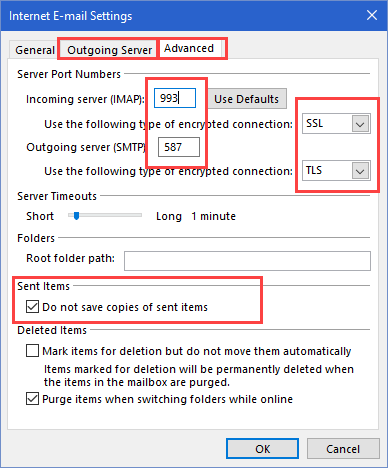
To control whether full messages or just headers are downloaded, hit Ctrl+Alt+S to open the Send/Receive dialog. Select the email group and click Edit. Then select the IMAP account - change the download option in Receive mail. If you use 'custom behavior', select each folder to configure. In Outlook 2013 and above, full messages are downloaded by default.
| Service | Server | Port |
|---|---|---|
| Incoming POP server | pop.gmail.com | 995/SSL |
| Incoming IMAP server | imap.gmail.com | 993/SSL |
| Outgoing SMTP server | smtp.gmail.com | 587/TLS |
Hotmail, MSN, Outlook.com
Outlook.com accounts support Microsoft Exchange, POP3, IMAP. POP3 downloads only the Inbox, while IMAP syncs all email folders. Additionally, Microsoft Exchange syncs Calendar and Contacts. Microsoft Exchange service is recommended if you use Outlook 2010, 2013, or 2016. Outlook 2003 and Outlook 2007 will need to use POP3 or IMAP and sync email-only. (Until October 31 2017, Outlook 2007 users can use Microsoft Exchange. See "Outlook 2007 with Office 365 and Outlook.com" for more information.)
As Outlook.com is using Office 365 on the backend, you should use auto-account setup to configure the account as an Exchange account. If you want to use IMAP, use the IMAP settings below. POP3 support is disabled by default but can be enabled in Outlook.com account settings. See "Outlook.com Migration Status" for step-by-step instructions for re-configuring accounts.
POP3 and IMAP work with all versions of Outlook and with all POP3 and IMAP mail clients.
Outlook.com IMAP Configuration
To set up an Outlook.com IMAP account in Outlook, you'll need to use the manual setup option. Server settings are below; don't forget to set the Outgoing Server tab (in More Settings) to authenticate with the mail server.
Incoming IMAP Server: outlook.office365.com
Outgoing SMTP Server: smtp.office365.com
Click More Settings button, then Advanced tab. Select SSL as the encryption type for the incoming server. The port should change to 993 automatically. Change the SMTP encryption to TLS and the port number to 587.
Screenshots and step-by-step instructions are at Setting up an Outlook.com IMAP account
Outlook.com POP3 Configuration
POP3 support is disabled by default for Outlook.com accounts. If you want to use POP3, enable it in Outlook.com's Options.
Incoming server name: outlook.office365.com
Outgoing server: smtp.office365.com
While setting up the account, click on the More Settings button and on Outgoing Mail Servers tab, select the My server requires authentication box. Most people will need to use the default option of Use same settings as my incoming server.
Click the Advanced tab, and under Server Port Numbers, enter the following information:
In the Incoming mail (POP3) box, type 995.
In the Outgoing mail (SMTP) box, type 587.
Under both Outgoing mail (SMTP) and Incoming mail (POP3), select the ‘requires secure connection (SSL)’ check box. In Outlook 2007, choose Auto; use SSL for Outlook 2003.
Under Delivery, select the Leave a copy of messages on server check box if you want to see your messages when you use Hotmail in a web browser, your mobile phone, or other e-mail programs. By default, Outlook will delete the messages from the Hotmail server when they are downloaded to your computer.
We have screenshots of these dialogs at Configuring Hotmail, Live, or MSN Support in Microsoft Outlook
| Service | Server | Ports |
|---|---|---|
| POP Server | outlook.office365.com | 995/TLS |
| IMAP Server | outlook.office365.com | 993/TLS |
| Outgoing Mail | smtp.office365.com | 587/STARTTLS |
HTTP Protocol in Outlook 2003 and 2007
Microsoft long ago discontinued HTTP (WebDAV) support for Hotmail accounts. If you want to use a mail client, you'll need to use autodiscover to set up Microsoft Exchange service (recommended), POP3 or IMAP (any email client). For more information, see MSN (and Hotmail) Access Denied?.
Exchange ActiveSync (EAS) was turned off in February 2017 for use by Outlook desktop clients (it still works for smartphones). If you want to sync calendar and contacts to your desktop, you must use Outlook 2010 or newer and autodiscover to configure the account as Microsoft Exchange account type.
iCloud
When you use the iCloud add-in in Outlook, it should set up the account correctly. If you need to set up the account yourself, use auto-account setup or the following server information.
You will need to use 2-step authentication if you don't use the iCloud addin to add the account to Outlook.
| Service | Server | Port |
|---|---|---|
| Incoming IMAP mail server | imap.mail.me.com | 993/SSL |
| Outgoing SMTP mail server | smtp.mail.me.com | 587/SSL |
Username: Use your iCloud alias or your full iCloud email address.
Password: Your iCloud password or app password
In More Settings, check these settings:
Outgoing Server tab: Use SMTP authentication.
Advanced tab: Use SSL (or Auto) for both incoming and Outgoing servers. Incoming port is 993, Outgoing port is 587.
GoDaddy
While not a true online service, it is very popular with users and many users struggle to get it working in Outlook. GoDaddy supports POP3 (in addition to webmail) with the lowest-end accounts (including free accounts received with domain registration) and POP3 or IMAP on higher value paid accounts.
The incoming mail server will be one of the following: pop.secureserver.net, mail.domain_name.tld, or pop.domain_name.tld. Use Port 110 or 995 for SSL. (Replace domain_name.tld with the domain name you purchased).
If your account supports IMAP, use imap.domain_name.tld or imap.secureserver.net
The outgoing mail server can be either smtp.domain_name.tld or smtpout.secureserver.net. GoDaddy supports ports 25, 80, and 3535; or if you need SSL support, port 465. Make this change in More Settings > Advanced tab. GoDaddy does not always require authentication. Try it without authentication and if it fails, configure authentication on the Outgoing tab, choosing the option to authenticate with the incoming address and password.
| Service | Server | Ports |
|---|---|---|
| Incoming POP server | pop.secureserver.net | 995/SSL |
| Incoming IMAP server | IMAP.secureserver.net | 993/SSL |
| Outgoing SMTP server | smtpout.secureserver.net | 465/SSL |
The most up-to-date information is in GoDaddy's Help files at
Yahoo!
As of October 2020, Yahoo (and AOL) require an app password with Outlook. See Using Yahoo and AOL accounts in Outlook for more information.
As of November 2013, Yahoo! provides free POP3 access to all subscribers (Plus accounts are now "Ad Free" accounts). You can also use IMAP, which is recommended because it syncs changes with all computers and devices.
Yahoo supports Second Sign in verification, which is also known as two factor authentication. You will need to use a special app password in Outlook at this time. Two factor authentication is recommended because it makes it more difficult, if not impossible, for a spammer or hacker to use your email account. To enable it, go to the Gear icon > Account Info > Set up your second sign-in verification
Yahoo! IMAP Settings
As of February 9 2011, the IMAP server names and ports are
Incoming Server - imap.mail.yahoo.com
Outgoing Server - smtp.mail.yahoo.com
Username: full Yahoo email address
Password: your Yahoo password
Click More Settings button to access these settings on the Advanced tab:
Incoming Port - 993 (requires SSL)
Outgoing Port - 465 or 587 (requires SSL/TLS or Auto)
On the Outgoing Server tab, select My outgoing server (SMTP) requires authentication box and Use same settings as my incoming mail server.
imap-ssl.mail.yahoo.com, port 143 also works for the incoming server
For best results, disable Outlook's option to purge deleted items on folder change. This appears to cause sync errors.
Yahoo! POP3 settings
Incoming Mail Server: pop.mail.yahoo.com
Outgoing Mail Server: smtp.mail.yahoo.com
User Name: Your Yahoo ID. You may need to use your full Yahoo email address.
Password: Your Yahoo password.
DO NOT enable Require logon using Secure Password Authentication
Click More Settings.
On the Outgoing Server tab, select My outgoing server (SMTP) requires authentication box and Use same settings as my incoming mail server.
Configure the server ports on the Advanced tab.
Incoming server (POP3) port: 995
Select This server requires an encrypted connection (SSL)
Outgoing server (SMTP) port: 465, 587, or 25
Set the encryption type to SSL or TLS
I recommend leaving a copy of messages on the server.
| Service | Server | Port |
|---|---|---|
| Incoming POP server | pop.mail.yahoo.com | 995/SSL |
| Incoming IMAP server | imap.mail.yahoo.com | 993/SSL |
| Outgoing SMTP server | smtp.mail.yahoo.com | 587/SSL |
Video Tutorial
[wpvideo 5W13UCEn w=600]
America Online
As of October 2020, AOL requires an app password with Outlook. See Using Yahoo and AOL accounts in Outlook for more information.
AOL subscribers can use Outlook to read their AOL e-mail accounts. AOL supports both POP3 and IMAP, with AOL recommending IMAP. When you use autodiscover to setup your account, Outlook will use IMAP. If you want to use POP3, you need to configure it yourself.
POP3 Account configuration:
Incoming Mail Server: pop.aol.com.
More setting dialog: use port 110 for standard or 995 for SSL connections. AOL recommends setting Outlook to Leave messages on the server.
Outgoing Server address: smtp.aol.com. Use port to 587 or 465 for SSL.
IMAP account configuration:
Incoming Mail Server: imap.aol.com
Outgoing Server: smtp.aol.com
More Settings: On the Outgoing server tab configure the outgoing server to use Authentication, choosing the Use same settings as my incoming mail server option. On the Advanced tab, configure the SMTP to use port 587. OK the dialogs and setup is complete.
| Service | Server | Port |
|---|---|---|
| Incoming POP server | pop.aol.com | 995/SSL |
| Incoming IMAP server | imap.aol.com | 993/SSL |
| Outgoing SMTP server | smtp.aol.com | 587/SSL |
More Information
If you are new to IMAP, the messages are stored on your server and a copy is downloaded to your local machine. When you delete the messages locally, a line is drawn through the message in Outlook's message list indicating the message is marked for deletion. To delete the message from the server (and remove it from Outlook), you need to Purge the messages from the server (Edit, Purge deleted messages menu).

Dr. Cobus Klopper says
Good Day Diane
Hope you can help. Been having this pop up for a long time.
Diane Poremsky says
What are you using for the server names? It needs to match the certificate. If you can't use a server name that matches you can use a hosts file to do it.
Security Certificate Warning in Microsoft Outlook (slipstick.com)
Andrea says
Diane, your help has been invaluable over the years, but I'm still struggling to understand how my Yahoo IMAP acccount works with Outlook 2016 and what I can and cannot do as far as "subscribing" to folders and how that works. When I set up my Yahoo IMAP account on my desktop, in order for emails to download from the server to Outlook, it seems I need to specify "Inbox" as the "Root folder path." When I do this, Yahoo "Inbox" emails are downloaded, but none of the emails in Yahoo "Folders" are downloaded. Can you explain why that is or point me to one of your wonderful tutorials that explains it? Thanks so much!
Diane Poremsky says
My yahoo works fine without a root folder.... did you right click on the top of the mailbox (should be your email address), choose IMAP folders... then query - the subscribed folders tab shows subscribed folders, all folders are shown on the fist tab. Select folders on the first tab then click the subscribe button to subscribe to folders.
Teri says
I am using Yahoo basic mail, Chrome, & Windows 7. No gear icon to be found anywhere for me to get into settings, preferences, headers, etc.
Problem = When I Reply or Forward an email it has all this code looking stuff and it breaks up and stretches out all of the communication. How do I fix this? I have been searching for a solution for 7 hours now and finally found you.
Thank you in advance.
Diane Poremsky says
Are you using Yahoo in Outlook or just yahoo in a web browser? In the browser, there is a gear icon to the right of your name near the top of the page. I don't know if there are any settings that will control this though.
Annie says
I have managed to configure my yahoo email to outlook (thank you) I can receive emails but am unable to forward/reply or send a new email.
The buttons are greyed out? I have an activate button on the top of the screen but dont want to buy. Can you help?
Diane Poremsky says
You need a license for Office. If the trial expired Outlook drops to read-only mode - you can't create new items which includes forwards or replies. There is no way to continue to use office legally without buying it.
Gary Jackson says
Would someone please tell me how to get rid of the Google interest based e-mails that show up at the top of my list of e-mail every time I open it up? They are certainly not of interest to me, they are just a pain in the butt!
Diane Poremsky says
this is at gmail.com ? Go to https://mail.google.com/mail/u/0/#settings/inbox and deselect promotiions.
Bob Corder says
Regards,
Bob Corder
Janice says
I have tried to add yahoo to my Outlook 2016 and I keep receiving the same message stating that my user name/password or security settings may be incorrect. My user name and password are correct, so it must be my security settings. Please tell me how to fix this. Thank you so much.
Diane Poremsky says
do you use multifactor passwords to log in from a web browser? If so, you need to use an app password in outlook.
Create app passwords at https://login.yahoo.com/account/security
Zoe says
Thank you so much! This saved me hours of frustration
Me__ says
I'm trying to set up my Yahoo email with Mac Mail. I actually want it to be a POP account, but it won't give me the option. It automatically sets it up as IMAP and I can't find a way to change it. I've even tried the preferences in Yahoo mail, but I can't find a way to do it from there either.
Diane Poremsky says
You can't change the account once it was added but you can remove and read the account. Try putting in a fake password so you get the account setup dialog - where it will ask for the server name - you can change to pop3 there.

I shoulda taken this screenshot before hitting the button to add the account...
Jason Young says
thank you so much for the video tutorial. If it wasn't for that video, I would never have worked out that W10 was changing the outgoing server port and that I had to use Auto and not SSL!!
Bal dobe says
Hi Diane
Hope that you can help.
I have just done a fresh install of windows 10 and reinstalled office 2016. Now I cannot link my outlook to my yahoo mail accounts. I have the free accounts for two yahoo emails, one is at yahoo.de and the other at yahoo.co.uk.
I spent 2.5 hours at the Ms store and they still did not fix the issue. I can connect outlook into my gmail account so the issue seems to be between outlook and yahoo. My outlook was working fine this morning until I did the system reinstall.
One guy as the Ms store said that it was because I did not have a paid yahoo account.
Hope that you can help.
Bd
Diane Poremsky says
Guy at ms store is nuts. :) What happens when you try? Are you using multifactor authentication? if so, you need to use an app password.
Doug says
So you want to use OUTLOOK for your gmail account
Step 1. goto gmail account
Step 2. click on box with 9 little square [Google Apps]
Step 3. select My Account
Step 4. left column - Signing in to Google
Step 5. scroll to bottom - Allow less secure apps: ON
- I use pop 3
pop.gmail.com
smtp.gmail.com
username@gmail.com
password
remember
----------------------------
check outgoing server
-----------------------------
advanced tab
995 ssl
587 auto
leave on server
---------------------------been using it for years
Doug says
Juno - has always supported pop3
pop.juno.com
smtp.juno.com
usename@juno.com
password =
remember password
-------------------
check outgoing server
-------------------
Advanced tab
995 ssl
465 ssl
leave on server
-----------------------been using it for years
Diane Poremsky says
Is this for the free accounts too or only for the premium accounts?
Bary says
Thanks it was really helpful
Bonnie Hendrix says
I have yahoo email, windows 10 and outlook 2013.
Today trying to add imap yahoo account to outlook on my laptop. trying to follow
https://answers.microsoft.com/en-us/office/forum/office_2013_release-outlook/how-do-you-add-a-yahoo-e-mail-to-outlook-2013/de4ef2ac-823a-4a58-8dae-da4732fe03ab?auth=1 instructions. I kept receiving the enter username and password screen for the server imap.mail.yahoo.com . I setup second signon verification so I setup an app password for outlook(check require login using Secure Password Authentication - SPA) and tried again same results. Suggestions?
Diane Poremsky says
Don't use SPA - that is an old auth method and few accounts support it any more. You'll need two settings changed under more Settings - outgoing auth uses same as incoming and the ports (& SSL/TLS) on the Advanced tab.
Bonnie Hendrix says
I tried again to setup yahoo account on outlook without the SPA and still receive enter username and password screen for the server imap.mail.yahoo.com.
Diane Poremsky says
Are you using multifactor authentication or the yahoo feature that texts you a one time password? If so, you need to use an app password.
Rosi Garcia says
I had the same problem on windows 10! As I have the settings on the windows mail and works perfectly. So I copied the settings from windows mail to outlook winmetro.imap.mail.yahoo.com/993/SSL and winmetro.smtp.mail.yahoo.com/465/SSL. Without SPA. My emails accounts are free. Hope it helps!
akhalesh kumar gupta says
i hav gmail acount i can all settings in my microsoft outlook 2003 wat i can not send and rec.mail so ple.healp me
Diane Poremsky says
What happens when you try?
see https://www.outlook-tips.net/tips/gmail-outlook-unable-connect-password-prompts/ for one possible cause.
Kingsley says
Thanks for the tutorials, everything worked fine.
Shelda Lockwood says
Thanks so much, every time I get a new laptop I have this same problem.
Elaine Keller says
Thanks for this information. I kept getting the "server connection timeout" error. Nothing that Microsoft suggested worked. Your suggestion to change the port for outgoing mail to one of the other of GoDaddy's three settings finally got my Outbox cleared.
Gil Barba says
I am an old man (77) and I thought I knew something about email. Guess what, I don't know anything. I installed outlook 2013 and am trying to create an email account. I went thru the process of creating one only to have it tell me that it cannot connect to the server. No matter what I do, I still cannot connect to the server. There is no disrespect here, I just wanted you to know that there is at least one person that cannot follow the leader. God Bless.
Diane Poremsky says
What type of email account is it? Outlook.com, POP3, IMAP etc?
Jesse MacDougall says
Thank you for the video, it solved my problem!
Aznive says
none of the outgoing server settings are working for yahoo.ca free accounts.
the incoming test works like a charm but rejects every outgoing setting that was provided on your site above.
i tried every combination of settings for 465, 587, 25, ssl, tls, auto etc. no go :(
Diane Poremsky says
What error message does it give you?
Kolin says
Same problem - this is the message I get. I've tried every comination of outgoing server settings you've suggested. When I use, 587 and TLS I get this one:
Send test e-mail message: The connection to the server was interrupted. If this problem continues, contact your server administrator or Internet service provider (ISP).
kodl says
Sorry, but none of those settings are working as of January 14.2014.
Diane Poremsky says
For which account type?
Sadaf says
No worries, no I didn't set any filters. No error messages either, it looks like linked but when I try and sync, only sent mails show up, Inbox doesn't reflect in outlook.
Jose says
Thank you..thank you..thank you!!!!!..it work`s great for me..(Windows 7 Ultimate 64 bits, Outlook 2013 32 Bits.
Renee says
After 30 minutes of live help with Microsoft, I found out that you can't have Google verifications on when setting up a gmail account in Outlook, Apple Mail, etc. Once turned off, worked like a charm. Then, Google sends an email indicating the verifications have been turned off with directions on how to turn them back on and fix the issues in syncing it with other mail programs.
Diane Poremsky says
You mean the two step verification? You can use it with google, but you need to use the application specific password, not your real password and the pin.
From https://security.google.com/settings/security?hl=en&pli=1
Some applications that work outside a browser aren't yet compatible with 2-step verification and cannot ask for verification codes. Manage your application specific passwords
usman says
Thanks for help diane, ur soo genius
udayan says
Thanks for the help...could do it easily though i am not an IT guy :)....much appreciated.....Tx...Cheers!!!
Teri says
Thank you for your efforts. I was ready to pull my hair out.
Donald says
Thanks for the help with this. I've tried several different sites with now success until I got here.......took me 2 minutes after reading your instructions. Very easy.....
Albert says
Many Thanks Diane, the instructions were very useful. :) Albert
Humayun says
I am very much thankful for your yahoo tutorial. It worked for me.
Regards....
Nathalya says
Hi, Diane.
I'm having a problem with my Outlook Account. I have installed the Google Apps Sync for Microsoft Outlook and when I make a change in my contacts or notes, the picture linked with the contact disappears and also my notes which were there before
Diane Poremsky says
What version of Outlook are you using? I'll have to test it and see if i can repro.
Sadaf says
Hi
I've followed the very helpful video to try and link free yahoo account to outlook 2013. It connects but my inbox doesn't show any of the emails that I have. Drafts and Sent folders show emails.
appreciate your help
Diane Poremsky says
Sorry, I don't know how i missed this comment. Do you have any filters set? Do you get any error messages?
Ernest says
Diane
Thanks much. I'll do a fresh hook up.
e
Ernest says
Diane
I have all the Adobe stuff. But I still can't get the IMAP connection working per transfer of folders from Yahoo. I used the directions above for Yahoo plus. it fails the trial email test.
Diane Poremsky says
These are the setting I used just this week to set up my yahoo account as imap. Do need to use the email address as the username - alias@yahoo.com format.

Ernest says
Hi Diane
One question above may have been to access or move Yahoo "folders" not MS folders. The email I selected for a folder I created doesn't seem to have moved to Outlook. I need to make a record of that one Yahoo folder in particular. Ideally I'd like to make everything in that folder a pdf file. I have the Yahoo paid email and Outlook 2010. Cheers
Diane Poremsky says
Are you using IMAP or POP3? POP3 is inbox only while imap will sync all folders that are subscribed.
Acrobat has a really nice PDF page feature that can turn a folder full of messages into a PDF file containing each message, fully indexable. They also have a 30-day free trail if you don't own it.
jusmartin says
I'm having the same issue in 2013. It accepts the incoming server but not the outgoing server. I'm using a free account
Diane Poremsky says
This is yahoo? Do you get any error messages?
These settings worked for me - you will get a security dialog because Outlook doesn't 'trust' the yahoo certificate.
Outgoing Server – smtp.mail.yahoo.com
Outgoing Port – 465 or 587 (requires SSL/TLS or Auto)
Fauzan Parewangi says
how about outlook 2013 ??
i duplicate by video but can't send test e-mail message, can't find the e-mail server.
Diane Poremsky says
Yahoo works the same in Outlook 2013. Are you using a paid Yahoo plus account or a free account?
upset264 says
Followed instructions in the video for Yahoo, worked like a charm!
powergate77 says
No, however, my outlook recaliberated itself to the original state, and I was able to follow your step by step manual...And it WORKS!!! Thank you very very much. You are AMAZING!
powergate77 says
Hi Ms. Diane,
I followed your tutorial in setting up my free yahoo and outlook account. While it seemed like I was succesful in setting up the account, I'm unable to proceed in opening my outlook mail after set up. It says: "The connection to Microsoft Exchange is unavailable. Outlook must be online or connected to complete this action". What can I do?
Diane Poremsky says
In Control panel, search for mail - look at the profile. Are any of the accounts listed as a Microsoft Exchange account?
Mark says
i can also get through "log on to incoming mail server" but it fails when it tries to send a test email. I have set the timeout higher already. I am using a free Yahoo account.
Diane Poremsky says
Which outgoing port are you using? You need to use 465 or 587 and SSL or Auto.
Eduardo says
Dear Diane,
Great tutorial. Thank you very much.
Dan says
I have read all the above posts and I still have a dilemma. A friend wants to move her att.net mail account that is 'run' by Yahoo! Mail. She wants to put all her contacts into Outlook from Yahoo! [no problem, I exported a .CSV file]. She wanted all the mail that she had in her inbox to be in her Inbox in Outlook [again, not a problem, I set the parameters in Yahoo! to allow "POP", so I "POPed" in, and got all the messages. However, she has many, many e-mails she is saving already in folders, and wants to move those mails to a corresponding folder in Outlook [THAT is the problem] HELP?? :)
Diane Poremsky says
Folders as in Windows Explorer folders? Drag them to the folder in outlook - you can select all that belong in one Outlook folder, but I would probably do it in groups of 50ish or so. Drop them on either the folder in Outlook's folder list or in the message list of the folder where she wants to store them.
irina lak says
I followed your instructions and can get "log on to incoming mail server" but it fails when it tries to send a test email. The error says: connection to server was interrupted. Any suggestions?
Diane Poremsky says
In More Settings, set the timeout higher.
what type of email account?
ME Aguirre says
Thank you, the yahoo set up went very smoothly! Great advice!
Joe Diaggio says
I recently loaded MS Office Pro 2010. I have a free yahoo email account. I just purchased this laptop 3 days ago brand new. When loading my yahoo account to Outlook it failed. I inadvertently emailed a company (I thought they were Microsoft support) After about 1/2 hour of trying, the person said he was an accredited software tech and it would cost me $139 to REPAIR my computer at which time I asked him to return my system as he had found it and I would disconnect. He immediately disconnected. I just wanted to say THANK YOU for the great instructions and tutorial. It took 5 minutes to connect Outlook to my Yahoo! account. Again Thanks.
Diane Poremsky says
You're welcome. (I hope the 'tech' didn't install anything - some of those places are scammers.)
Alex says
I am using Outlook 10 32 bit with a main hotmail account and this works fine. I am keen to add a couple of other accounts, one is an Exchange one, the other one a POP3 Google-based one and get all the e-mails delivered into my hotmail account in Outlook. I have suceeded adding the Exchange account, however I am having 2 different accounts and 2 different calendars right now. Is there any way to sort this out ?
Thanks,
Alex
dporemsky says
Because Exchange (like Hotmail) is a server-based account, you'll have two data files. While it is possible to change the folders Exchange uses for delivery, it will delete the mail from the Exchange server (and upload it to your hotmail account) and can make a mess of your Exchange calendar and can result in all replies coming from the hotmail account.
The same applies to the gmail pop3 account - if you deliver it to the hotmail folder it will upload all the mail to the hotmail server and replies may come from your hotmail account.
We recommend using separate data files for each account and putting the folders you use the most on the Favorite Mail folder. Calendars and contacts can be moved to a new group then collapse the group to hide the folders, but you may still have a few things created in those folders. How to create groups: https://www.slipstick.com/tutorial/using-navigatio...