After years of using POP3 accounts, IMAP accounts take some getting used to. They are more like Exchange or Hotmail accounts, in that they store mail on the server and download a copy of the messages and sync changes back to the server. But calendar and contacts aren't supported on the IMAP server, so you need two data files and the IMAP data file cannot be set as your default.
Another area of confusion: all mail is stored on the IMAP server. If you want to delete it from the server you need to delete the mail from Outlook or move it to a local pst file, which will remove it from the server.
Default Data File | Deleted Items | Sent Items Folder
Outlook 2013
Outlook 2013 changes how the special folders (Send items, Junk Email, Drafts, Deleted items) are handled. If Outlook matches the folder names with server -based folders, it will use those folders. Otherwise, it uses folders in the IMAP data file.
For more information, see:
Configuring special IMAP folders in Outlook 2013
What you need to know about IMAP accounts in Outlook 2013
Default Data File
This is a fairly typical question from Outlook users who are new to IMAP accounts:
When I try and setup a new profile in outlook 2010 it creates two data files:
C:\Users\username\Documents\Outlook Files\Outlook Data File - profile_name.pst (default)
C:\Users\username\AppData\Local\Microsoft\Outlook\imap_address - profile_name.pstThe folder configured for mail delivery is C:\Users\username\AppData\Local\Microsoft\Outlook\imap_address - profile_name.pst (default)
When I run Outlook, I have two data files on the left pane. How do I get rid of the extra "Outlook data file" and make "imap_address" the default data file?
There is nothing wrong with Outlook; creating a new profile will not "fix" it, because there is nothing to fix. Outlook needs two data files when you have an IMAP account in your profile. The local folder contains calendar, contacts and tasks, while the IMAP data file caches the email on your computer and syncs changes with the IMAP server.
As implemented natively in Outlook, IMAP folders support only message and post items, not Outlook's special contact, appointment, task, journal and sticky note items. As a result, you need that second pst file. However, InsightConnector makes it possible to use special Outlook items in IMAP folders. This component also allows you to use your IMAP folders as your default folders in Outlook, getting around the limitation described above.
Outlook does not provide a way to empty and re-sync folder contents. If you want to clear a folder and resync it with the server, you'll need to delete the .pst file and start over with a new one.
Deleted Items
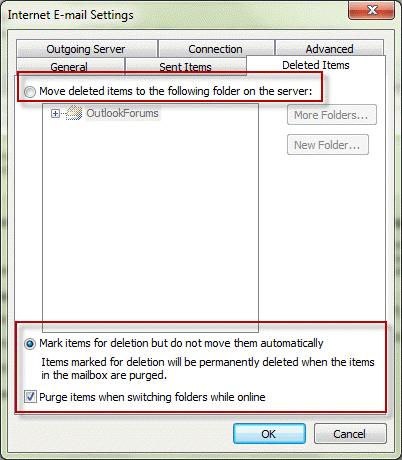
Outlook 2007 and Outlook 2010 have improved support for IMAP accounts, including the ability to choose what folder to use for Sent items (online or local) and in Outlook 2010, you can choose a Deleted Items folder.
To purge deleted messages from an IMAP account, connect to the account with the File | Connect To <account> command, then choose Edit | Purge Deleted Messages. Only Outlook 2007 and 2010 can purge messages automatically when you change folders.
To configure Outlook 2010's Deleted items, go to File | Account Settings and double click on the IMAP account. Click More Settings then Deleted Items tab to make your selection.
Sent Items Folder
Prior to Outlook 2007, Outlook normally files items sent via an IMAP account file into the default Sent Items folder in the local Personal Folders .pst file. To have items file instead into a folder in the IMAP hierarchy, you can use the Rules Wizard, as described in the article at How to Save Sent Items on an IMAP Server.
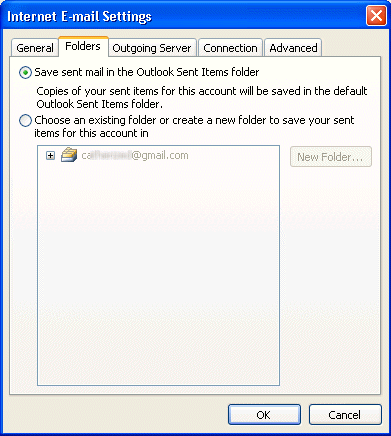
Beginning with Outlook 2007, you can select a Sent items folder for IMAP accounts. Outlook should ask what sent folder you want to use the first time you use an IMAP account. If not, or to change it later, go to Tools, Account Settings, double click on the IMAP account then click More Settings. Select the Sent Folders tab to choose the Sent Items folder. In Outlook 2010 and up, Account Settings in on the File tab.
Save Sent Items on the IMAP server
Users of Outlook 2007 and older need to use a rule or VBA to save their sent items in the IMAP account's sent folder. See Use a macro to move sent items for instructions and VBA code sample. When possible, you should use the macro to move sent message, not a rule. This macro can be used with Outlook 2007 and up, to move items sent using File, Send by email commands in other applications.
Note: when you use rules, if you don't disable the option to Save sent items, you'll have two copies of the sent items - one in the local pst file and a copy on the IMAP server - and the messages you copy will be marked unread. See Mark sent items read for a macro that can mark the messages read.
[wpvideo S2BZ7DZD w=600]
Outlook Today
You can show any IMAP folder's unread messages total in the Outlook Today page by customizing Outlook Today and choosing the folders to display in Outlook Today. You can choose any folder(s) in your Outlook profile. (Thanks to Tim Gortner on the outlook-users discussion list for the tip.)
Configure Startup Folder
If you use a newer version of Outlook you can select any folder in your IMAP account to open when Outlook first starts. If you use an older version of Outlook you can still start in any IMAP folder but need to use a command line to set the folder.






























My wife's android tablet outlook app is all of a sudden asking her to sign in. She has not had to sign in for over 2 years and does not remember her sign in. We reset the sign in with the IMAP provider and it still will not let her sign.
We recently converted to IMAP. We receive emails on 3 separate computers with 3 separate users. If one of us deletes an email, it deletes on all 3 computers. How do I set it up so that each user has their own inbox so that the deletion on 1 will not delete on the other 2? Thanks
When you are sharing a mailbox, you need to use POP3 or not delete messages. IMAP won't leave it in the mailbox if you delete on one computer.
Diane, In response to a question I posted on Microsoft Community I received an email from Microsoft with a link to your page that answered questions about switching from POP3 to IMAP. I now understand why I have a new, separate set of IMAP folders in addition to my original Personal Folders. Now I have a new question. When I delete an email in the IMAP Inbox, the program merely draws a line through the file instead of moving it to either the IMAP Deleted Messages folder or the Deleted Items folder in the local Personal Folders. How do I make deleted emails move out of the IMAP Inbox into another folder? Thx.
What version of Outlook? Outlook 2010 and 2013 have options for deleted items in More Settings. Or set a view to hide messages marked for deletion.
iCloud is enabled as an address book. I even changed the order so the iCloud Contacts would show as the top item on the drop down when I open Address Book or hit the TO button. I thought copying the iCloud Contacts to the PST file would do it but it doesn’t. Have you heard of this before? I wonder what most people do to manage Junk Mail...
I was hoping that I was missing something and you would be able to point me in the right direction. I guess this is as good as it will get for now. How should I go about asking Microsoft to include something better in a future release?
Thanks, John
I think it's just a limitation of the imap account's ability to filter junk mail. The filter only works when the entire message is downloaded and with imap accounts, headers come first which can affect the filter.
This question deals with Junk Mail. I have always managed Junk Mail with Outlook. I recently converted to 4 IMAP accounts and no POP accounts. I see that I have a ‘Junk Mail Options’ for each account. I also have installed the ‘Apple iCloud Control Panel’ so I have that account called iCloud where all the contacts, tasks, and calendar reside. So I have 6 accounts down the left side of the panel. Previously, with all the POP accounts going to the same PST file, I could go to ‘Junk Mail Options’ and set ‘Safe Lists Only’ on the ‘Options’ tab and then to the ‘Safe Senders Tab’ and checked the box ‘also trust email from my Contacts’ and this was a great way to sort out the junk. Now, that check box doesn’t seem to make any difference. I copied my contacts from the iCloud account to the old PST file with no luck so I copied my Contacts email addresses to the ‘Safe Senders’ list for each account - but I am wondering if there is a better way??
Hmm. I hadn't noticed that with the icloud. Is the icloud enabled as an address book? I thought that would allow it to be used as an address source in the junk filter. (If you click the To button and icloud listed in the address book dialog, it is enabled as an address book.)
As for your method to create the list, yes, that is the best option if the 'trust contacts' option didn't work for you.