• Outlook User
  • New Outlook app
  • Outlook.com
  • Outlook Mac
  • Outlook & iCloud
  • Developer
  • Microsoft 365 Admin
    • Common Problems
    • Microsoft 365
    • Outlook BCM
    • Utilities & Addins

Category Colors Don't Display in Inbox

Slipstick Systems

› Outlook › Category Colors Don’t Display in Inbox

Last reviewed on October 27, 2016     35 Comments

One complaint I hear every now and again is that colors won't show in the Categories column in Outlook.  The colors do show in an opened message or in the reading pane, but not in the message list. This is a bug in all recent versions of Outlook and it's easily fixed.

Category colors are missing

This happens when you move the Categories column to the left of the From field, or more accurately, immediately to the right of a field that uses an icon. If the field on the left is a text field, the colors will show.

Moving the category field will bring the colors back

Resetting the view will fix it (because it will move the category field to the far right); if you want the Categories field to the left of From, you can change the field on the left to use text instead of an icon format and the color block will display once again.

For example, when the Reminder field is an icon, you'll see a bell in the column. When it's set to On/Off, you see the word On when a reminder is set.

Text field example

To make this change, switch to the View tab, select View Settings then Format Columns. Select the field right before Categories and choose one of the text options (Yes/No, True/False, or On/Off).
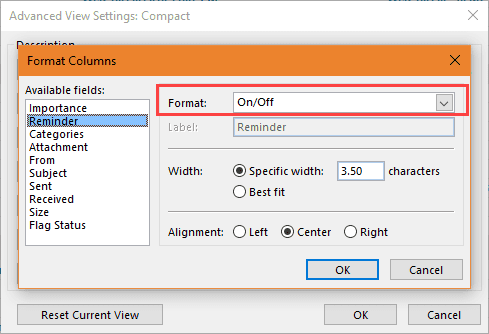
Change the column format to Text


Category Colors Don't Display in Inbox was last modified: October 27th, 2016 by Diane Poremsky
Post Views: 149

Share this:

  • Share on Facebook (Opens in new window) Facebook
  • Share on X (Opens in new window) X
  • Share on Reddit (Opens in new window) Reddit
  • Share on Bluesky (Opens in new window) Bluesky
  • Share on Mastodon (Opens in new window) Mastodon
  • Email a link to a friend (Opens in new window) Email

Related Posts:

  • Creating New Color Categories
  • Outlook View Tricks
  • View Shared Calendar Category Colors
  • To set up Outlook Subcategories

About Diane Poremsky

A Microsoft Outlook Most Valuable Professional (MVP) since 1999, Diane is the author of several books, including Outlook 2013 Absolute Beginners Book. She also created video training CDs and online training classes for Microsoft Outlook. You can find her helping people online in Outlook Forums as well as in the Microsoft Answers and TechNet forums.

Comments

  1. Debbie McCarthy says

    January 29, 2025 at 12:20 pm

    will the inbox display more than one color if the email is assigned to multiple categories

    Reply
    • Diane Poremsky says

      January 29, 2025 at 3:56 pm

      It will show up to 3 color swatches. If you assign more than 3 categories, you'll only see the last 3 assigned in the message list. The rest will be visible on the message when you open or preview it.

      Reply
  2. Cecile says

    September 20, 2023 at 6:31 pm

    Thank you :)

    Reply
  3. Yogesh S Kulkarni says

    February 1, 2022 at 2:52 pm

    You are a gem Diane. I was on the verge of pulling my hair because of this highly annoying bug. Googling was returning anything but your simple and no-nonsense solution. It was sheer wastage of time till I found this post by you. Thanks a ton for saving so many lives.

    Reply
  4. blablabla says

    November 12, 2021 at 10:16 am

    Thank you so much, worked perfectly to solve this annoying bug...

    Reply
  5. pawan says

    August 18, 2021 at 10:42 am

    Thanks this was really helpful

    Reply
  6. SharonW. says

    April 22, 2021 at 12:13 pm

    As with others here, thank you. I also spent copious (and stupid) amounts of time trying to figure this categories issue out. This was super helpful.

    Reply
  7. Bob Mager says

    March 11, 2021 at 6:11 pm

    Also, for some reason, the External lead word in the subject line directs the email to the OTHER tab folder, opposite of FOCUS emails. I happen to like this feature. But for some reason recently, it has stopped working and the FOCUS folder is receiving all the emails, both External and normal. I go in and select "send to OTHER for all future like emails" but it isn't working.
    Bob

    Reply
    • Diane Poremsky says

      March 12, 2021 at 1:10 am

      That happened to me around the end of the year. I had to send a bunch of bulk mail to the other tab. Sending to other is working here.. I asked Microsoft if there was an option to reset the focuses/other filter - and there isn't.

      Reply
  8. Bob Mager says

    March 11, 2021 at 6:07 pm

    i notice that the "TO" field doesn't populate under the SENT emails folder. Sometimes it does, other times not so much. Can I fix this? Bob

    Reply
  9. Phil says

    February 13, 2021 at 8:29 am

    Thank you - worked for me

    Reply
  10. Ran says

    December 11, 2020 at 1:21 pm

    Thanks a lot! This problem is just weird and stupid and bothered me for half an hour!

    Reply
  11. Rimous143 says

    June 30, 2020 at 3:41 am

    Thank you, It's work! This issue is so strange. Microsoft should stop to hire those people from the street.

    Reply
  12. Nichole Willey says

    June 27, 2020 at 6:50 pm

    This did not fix my issue, I can see one color but can't see when it has two? 

    Reply
    • Diane Poremsky says

      June 27, 2020 at 10:42 pm

      Did you move the categories to the left of the name field? How wide is the field?

      Reply
  13. Lilly says

    June 7, 2020 at 1:14 pm

    Additional comment. This fix didn't work. I have an additional problem that might be related. My display font is very thin, pixelated, not dense is the best I can do with descriptors. I've gone so far as to reinstall office 365 and there is no improvement.

    Reply
    • Diane Poremsky says

      June 8, 2020 at 7:44 am

      I don't think this is the affecting the categories - it sounds like maybe the display font is missing or is corrupt. Can you post a screenshot?

      Reply
  14. Lilly says

    June 7, 2020 at 1:00 pm

    didn't work for me. The format column option is is dimmed in all instances. And categories in some views are gone.
     

    Reply
    • Diane Poremsky says

      June 8, 2020 at 7:43 am

      Do you have the category field on the left?

      Did you reset the view?

      Reply
  15. Peter says

    March 31, 2020 at 10:35 pm

    Very helpful, thanks.

    Reply
  16. Marie Alm says

    January 15, 2020 at 5:04 pm

    Sure enough. That worked like a charm. I clicked-and-dragged my Categories column to be btwn the From and the Subject. And Bingo! The color blocks appeared. Before that, the Categories was to the right of the Attachments column which is an icon. MS is so very Frustrating!! Thanks Diane for the excellent, easy to do/hard to find remedy!!

    Reply
  17. G B says

    March 3, 2019 at 11:02 am

    Beautiful, thanks for the fix, and the explanation. Very distressing when that happened, especially since those colors dictate the priority of the things I need to get done!

    Reply
  18. Katy says

    February 26, 2019 at 9:00 pm

    Thankyou! easy fix for an annoying bug!

    Reply
  19. David says

    January 24, 2019 at 3:50 pm

    Amazing the bugs that drive you nuts. Thanks for the simple fix. Would have never deduced that on my own.

    Reply
  20. Tomas says

    January 17, 2019 at 2:39 am

    Soooo happy with your advice.. Many many thanks!

    Reply
  21. Cathy D says

    September 3, 2018 at 4:34 pm

    Thanks, this is very helpful.

    Reply
  22. John Pollock says

    August 3, 2018 at 4:41 pm

    Thank you so very much. screen real estate is tight, and a single character color blob is way better than a long text field. Can't thank you enough!!!!!

    Reply
  23. Charlie Spencer says

    June 6, 2018 at 4:14 pm

    Thanks! I did some experimenting and found you can position the 'Follow-up Flag' column to the left of Categories to display the colors. I don't use flags so there's no text value to clutter the row.

    Reply
  24. cat says

    May 25, 2018 at 2:42 am

    I solved it thanks to you!
    ms should fix this. :)

    Reply
  25. Brett says

    May 11, 2018 at 1:26 pm

    This is the strangest fix, but it does work. Thanks for sharing.

    Reply
  26. Pa De says

    April 30, 2018 at 4:34 pm

    Thank you so much. This bug was making me threaten violence against my computer (even though the SW was to blame and PC is an innocent victim.)

    I'm starting to think Microsoft wants me to get fired! First they take away reminders for meetings getting focus (and just quietly they blink at the bottom of the screen where nobody looks now) and then I couldn't even prioritize with any visual way to see what my priority was except by reading a bunch of stuff (colors are must faster!).

    Reply
    • Diane Poremsky says

      April 30, 2018 at 8:23 pm

      >> First they take away reminders for meetings getting focus
      They are bringing it back in current builds of Outlook 2016.

      Reply
  27. Zack says

    April 20, 2018 at 9:12 am

    Is there a way to do this in reverse to allow the categories to be blank and allow the user to assign these manually by right click quick assign? This would be in outlook 2016.

    Thanks

    Reply
    • Diane Poremsky says

      April 23, 2018 at 12:01 am

      I'm not sure what you mean - the category field is normally blank until the user sets a category. Users can use the quick click setting or right click on the category field to choose a category.

      Reply
  28. Ricardo Saucedo says

    January 16, 2018 at 4:20 pm

    Thanks for this tip, this was certainly useful :)

    Reply

Leave a Reply Cancel reply

Your email address will not be published. Required fields are marked *

Visit Slipstick Forums.
What's New at Slipstick.com

Latest EMO: Vol. 31 Issue 8

Subscribe to Exchange Messaging Outlook


Support Services

Do you need help setting up Outlook, moving your email to a new computer, migrating or configuring Office 365, or just need some one-on-one assistance?

Our Sponsors

CompanionLink
ReliefJet
  • Popular
  • Latest
  • Week Month All
  • Deleting Auto-Complete Entries No Longer Works
  • Use Classic Outlook, not New Outlook
  • How to Remove the Primary Account from Outlook
  • How to Hide or Delete Outlook's Default Folders
  • Disable "Always ask before opening" Dialog
  • Change Outlook's Programmatic Access Options
  • Adjusting Outlook's Zoom Setting in Email
  • Removing Suggested Accounts in New Outlook
  • Reset the New Outlook Profile
  • Understanding Outlook's Calendar patchwork colors
  • Deleting Auto-Complete Entries No Longer Works
  • Sync Issues and Errors with Gmail and Yahoo accounts
  • Error Opening iCloud Appointments in Classic Outlook
  • Opt out of Microsoft 365 Companion Apps
  • Mail Templates in Outlook for Windows (and Web)
  • Urban legend: Microsoft Deletes Old Outlook.com Messages
  • Buttons in the New Message Notifications
  • Move Deleted Items to Another Folder Automatically
  • Open Outlook Templates using PowerShell
  • Count and List Folders in Classic Outlook
Ajax spinner

Recent Bugs List

Microsoft keeps a running list of issues affecting recently released updates at Fixes or workarounds for recent issues in classic Outlook (Windows).

For new Outlook for Windows: Fixes or workarounds for recent issues in new Outlook for Windows .

Outlook for Mac Recent issues: Fixes or workarounds for recent issues in Outlook for Mac

Outlook.com Recent issues: Fixes or workarounds for recent issues on Outlook.com

Office Update History

Update history for supported Office versions is at Update history for Office

Outlook Suggestions and Feedback

Outlook Feedback covers Outlook as an email client, including Outlook Android, iOS, Mac, and Windows clients, as well as the browser extension (PWA) and Outlook on the web.

Outlook (new) Feedback. Use this for feedback and suggestions for Outlook (new).

Use Outlook.com Feedback for suggestions or feedback about Outlook.com accounts.

Other Microsoft 365 applications and services


New Outlook Articles

Deleting Auto-Complete Entries No Longer Works

Sync Issues and Errors with Gmail and Yahoo accounts

Error Opening iCloud Appointments in Classic Outlook

Opt out of Microsoft 365 Companion Apps

Mail Templates in Outlook for Windows (and Web)

Urban legend: Microsoft Deletes Old Outlook.com Messages

Buttons in the New Message Notifications

Move Deleted Items to Another Folder Automatically

Open Outlook Templates using PowerShell

Count and List Folders in Classic Outlook

Newest Code Samples

Open Outlook Templates using PowerShell

Count and List Folders in Classic Outlook

Insert Word Document into Email using VBA

Warn Before Deleting a Contact

Use PowerShell to Delete Attachments

Remove RE:, FWD:, and Other Prefixes from Subject Line

Change the Mailing Address Using PowerShell

Categorize @Mentioned Messages

Send an Email When You Open Outlook

Delete Old Calendar Events using VBA

Repair PST

Convert an OST to PST

Repair damaged PST file

Repair large PST File

Remove password from PST

Merge Two Data Files

Sync & Share Outlook Data

  • Share Calendar & Contacts
  • Synchronize two computers
  • Sync Calendar and Contacts Using Outlook.com
  • Sync Outlook & Android Devices
  • Sync Google Calendar with Outlook
  • Access Folders in Other Users Mailboxes

Diane Poremsky [Outlook MVP]

Make a donation

Mail Tools

Sending and Retrieval Tools

Mass Mail Tools

Compose Tools

Duplicate Remover Tools

Mail Tools for Outlook

Online Services

Calendar Tools

Schedule Management

Calendar Printing Tools

Calendar Reminder Tools

Calendar Dates & Data

Time and Billing Tools

Meeting Productivity Tools

Duplicate Remover Tools

Productivity

Productivity Tools

Automatic Message Processing Tools

Special Function Automatic Processing Tools

Housekeeping and Message Management

Task Tools

Project and Business Management Tools

Choosing the Folder to Save a Sent Message In

Run Rules on messages after reading

Help & Suggestions

Submit Outlook Feature Requests

Slipstick Support Services

Buy Microsoft 365 Office Software and Services

Visit Slipstick Forums.

What's New at Slipstick.com

Home | Outlook User | Exchange Administrator | Office 365 | Outlook.com | Outlook Developer
Outlook for Mac | Common Problems | Utilities & Addins | Tutorials
Outlook & iCloud Issues | Outlook Apps
EMO Archives | About Slipstick | Slipstick Forums
Submit New or Updated Outlook and Exchange Server Utilities

Send comments using our Feedback page
Copyright © 2026 Slipstick Systems. All rights reserved.
Slipstick Systems is not affiliated with Microsoft Corporation.