• Outlook User
  • New Outlook app
  • Outlook.com
  • Outlook Mac
  • Outlook & iCloud
  • Developer
  • Microsoft 365 Admin
    • Common Problems
    • Microsoft 365
    • Outlook BCM
    • Utilities & Addins

Rules Wizard, Filters, and Views

Slipstick Systems

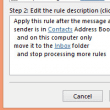
The Rules Wizard for Microsoft Outlook automatically processes both incoming and outgoing messages. You set conditions similar to those used for Microsoft Outlook filters, then indicate what action(s) you want to be performed on messages that meet those conditions.

Rules in the Rules Wizard apply to only to mail at the time its downloaded. They can be applied to mail after its downloaded using the Run Rules Now command.

For Microsoft Exchange Server users, Rules Wizard automatically converts rules created with the Inbox Assistant feature (which Rules Wizard replaces). Exchange Server users also have an Out of Office Assistant for handling such things as vacation notices and Folder Assistant rules that run on public folders. See Server-based vs. client-based rules.

Filters are used with Search folders, Custom Views, and Advanced Find. Filters are used with Outlook items in the data file and show or hide but do not move items. You can apply filters to any Outlook item type, not just email. Filters can show, hide, or highlight items in different colors based on a variety of conditions and criteria.

Although Outlook does not support locking views against changes, you can lock view in Outlook 2010 using VBA. See How to prevent changes to Outlook views for a code sample.
Rules Wizard, Filters, and Views was last modified: October 10th, 2023 by Slipstick

Rules and Tools to Filter Junk Mail

Outlook includes a Junk Email filter. This filter cannot be updated by the end user and Microsoft stopped releasing updates for it in November 2016. For most users, setting the Junk email filter set to high is good enough, especially if their mail is also scanned by a server side anti-spam filter. If it does  
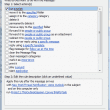
Create a rule to run a script

Create a Task from an Email using a Rule

Create tasks from email as they arrive using a simple script and Rules Wizard. With a slight variation, you can create a task from the message you are reading in the reading pane. Complete instructions and ready-to-use code samples included.
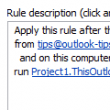
Run a Script Rule: Forwarding Messages

An Outlook user asked how to automatically change the subject of a message and forward it to another address. Using a "run a script" rule is one option and we show you how to do it.
automatic reply icon

To Make Automatic Reply Rules

Using Microsoft Outlook, you can create rules to reply automatically to incoming messages with the Rules Wizard and Out of Office Assistant.
lock views

How to prevent changes to Outlook views

It's not hard to image this scenario: you create a custom view, everything is just the way you like it. Then you accidentally sort by a different column. Outlook saves the changes and your perfect view is ruined. In the early versions of Outlook, users were presented with a "Do you want to save changes?"  
run a script is missing

Run-a-Script Rules Missing in Outlook

Microsoft released an update to disable any existing run-a-script and run application rules. This update affects Outlook 2010 and newer. Run a script and Run applications can be enabled using a registry key.

Receive a Reminder When a Message Doesn't Arrive?

Use a run a script rule to set reminders to alert you if a new message (such as routine server alerts) doesn't arrive within a specified time.

Create a rule to delete blank senders in Outlook.com

Create a rule to delete spam with no sender address

How to create a rule that deletes messages with no address in the From field, in either Outlook on the we or Outlook desktop software.
Disable New Mail Notifications for Some Accounts

How to disable new email notifications for some email accounts in your Outlook profile, using either Outlook for Windows or Outlook for Mac.
Junk mail icon

Understanding the Safe and Blocked Senders lists

Understanding and using Outlook's Junk Mail Safe Sender, Safe Recipient, and Blocked sender's lists.

Show a Desktop Alert when Rules move messages

Problem: Rules are moving messages to other folders but you'd like to see the desktop alert that shows the sender and subject for a few seconds in the lower right corner of your screen. Or you only want the desktop alert to display for messages from certain people. Solution: Create a rule with the action  

Using Rules Wizard

The Rules Wizard for Microsoft Outlook automatically processes both incoming and outgoing messages. You set conditions similar to those used for Microsoft Outlook filters, then indicate what action(s) you want to be performed on messages that meet those conditions. Rules in the Rules Wizard apply to only to mail at the time its downloaded. They  
others also in To field

Filter mail when you are not the only recipient

A user wanted "a rule that will perform an action if I am the only one in the To box, even when there are others in the CC box". He also asked for a rule "that will perform an action if I am included in the To box but am not the only one in the To box".
Script in the VBA Editor

Outlook's Rules and Alerts: Run a Script

How to use Outlook's Rules Wizard Run a Script action to process messages using VBA. Using Run a Script rules will allow you to use actions not available in the Rules Wizard.

Send a New Message when a Message Arrives

How to use a Run a Script rule to have Microsoft Outlook automatically send a new email message using a template to new email addresses when a message meeting specific conditions arrives.

Next Page »
Visit Slipstick Forums.

Latest EMO: Vol. 30 Issue 36

Support Services

Do you need help setting up Outlook, moving your email to a new computer, migrating or configuring Office 365, or just need some one-on-one assistance?

Subscribe to Exchange Messaging Outlook


Our Sponsors

CompanionLink
ReliefJet
  • Popular
  • Latest
  • Week Month All
  • Use Classic Outlook, not New Outlook
  • How to Remove the Primary Account from Outlook
  • How to Hide or Delete Outlook's Default Folders
  • Reset the New Outlook Profile
  • This operation has been cancelled due to restrictions
  • Removing Suggested Accounts in New Outlook
  • iCloud error: Outlook isn't configured to have a default profile
  • Adjusting Outlook's Zoom Setting in Email
  • Add Holidays to Outlook's Calendar
  • Online Services in Outlook: Gmail, Yahoo, iCloud, AOL, GoDaddy
  • Opt out of Microsoft 365 Companion Apps
  • Mail Templates in Outlook for Windows (and Web)
  • Urban legend: Microsoft Deletes Old Outlook.com Messages
  • Buttons in the New Message Notifications
  • Move Deleted Items to Another Folder Automatically
  • Open Outlook Templates using PowerShell
  • Count and List Folders in Classic Outlook
  • Google Workspace and Outlook with POP Mail
  • Import EML Files into New Outlook
  • Opening PST files in New Outlook
Ajax spinner

Recent Bugs List

Microsoft keeps a running list of issues affecting recently released updates at Fixes or workarounds for recent issues in classic Outlook (Windows).

For new Outlook for Windows:Fixes or workarounds for recent issues in new Outlook for Windows .

Outlook for Mac Recent issues: Fixes or workarounds for recent issues in Outlook for Mac

Outlook.com Recent issues: Fixes or workarounds for recent issues on Outlook.com

Office Update History

Update history for supported Office versions is at Update history for Office

Outlook Suggestions and Feedback

Outlook Feedback covers Outlook as an email client, including Outlook Android, iOS, Mac, and Windows clients, as well as the browser extension (PWA) and Outlook on the web.

Outlook (new) Feedback. Use this for feedback and suggestions for Outlook (new).

Use Outlook.com Feedback for suggestions or feedback about Outlook.com accounts.

Other Microsoft 365 applications and services

New Outlook Articles

Opt out of Microsoft 365 Companion Apps

Mail Templates in Outlook for Windows (and Web)

Urban legend: Microsoft Deletes Old Outlook.com Messages

Buttons in the New Message Notifications

Move Deleted Items to Another Folder Automatically

Open Outlook Templates using PowerShell

Count and List Folders in Classic Outlook

Google Workspace and Outlook with POP Mail

Import EML Files into New Outlook

Opening PST files in New Outlook

Newest Code Samples

Open Outlook Templates using PowerShell

Count and List Folders in Classic Outlook

Insert Word Document into Email using VBA

Warn Before Deleting a Contact

Use PowerShell to Delete Attachments

Remove RE:, FWD:, and Other Prefixes from Subject Line

Change the Mailing Address Using PowerShell

Categorize @Mentioned Messages

Send an Email When You Open Outlook

Delete Old Calendar Events using VBA

Sync & Share Outlook Data

  • Share Calendar & Contacts
  • Synchronize two computers
  • Sync Calendar and Contacts Using Outlook.com
  • Sync Outlook & Android Devices
  • Sync Google Calendar with Outlook
  • Access Folders in Other Users Mailboxes

Diane Poremsky [Outlook MVP]

Make a donation

Mail Tools

Sending and Retrieval Tools

Mass Mail Tools

Compose Tools

Duplicate Remover Tools

Mail Tools for Outlook

Online Services

Calendar Tools

Schedule Management

Calendar Printing Tools

Calendar Reminder Tools

Calendar Dates & Data

Time and Billing Tools

Meeting Productivity Tools

Duplicate Remover Tools

Productivity

Productivity Tools

Automatic Message Processing Tools

Special Function Automatic Processing Tools

Housekeeping and Message Management

Task Tools

Project and Business Management Tools

Choosing the Folder to Save a Sent Message In

Run Rules on messages after reading

Help & Suggestions

Submit Outlook Feature Requests

Slipstick Support Services

Buy Microsoft 365 Office Software and Services

Visit Slipstick Forums.

What's New at Slipstick.com

Home | Outlook User | Exchange Administrator | Office 365 | Outlook.com | Outlook Developer
Outlook for Mac | Common Problems | Utilities & Addins | Tutorials
Outlook & iCloud Issues | Outlook Apps
EMO Archives | About Slipstick | Slipstick Forums
Submit New or Updated Outlook and Exchange Server Utilities

Send comments using our Feedback page
Copyright © 2025 Slipstick Systems. All rights reserved.
Slipstick Systems is not affiliated with Microsoft Corporation.