A big point of confusion with people and Exchange in Office 365 is around the concept of the email in-place archive. There are some important things that should be pointed out when it comes to this in-place archive:
- Every Exchange Online plan (except Kiosk plans) have the ability to have an in-place email archive.
- By default, on all plans, the in-place email archive is disabled for all users. An administrator must enable it before it can be accessed.
- The in-place email archive contents are stored ONLY in the cloud. They are never synced to a desktop as the Inbox is.
- The in-place archive folders are only visible with the Outlook version in the Professional Plus product. Other versions of Outlook will not display the archive folders even though they may be present and enabled.
- Plans that include Exchange Online Plan 2 (E3, E4) have an unlimited archive. Plans that have Exchange Online Plan 1 (Business, and E1) have a current limit of 50GB of storage between the Inbox and the Archive. For example, in Exchange Online Plan 1 you could have a 25GB Inbox and a 25GB Archive, or a 10GB Inbox and 40GB archive. With Exchange Plan 1 the total size of the Inbox combined with the in-place archive cannot exceed 50GB.
You can enable the in-place archive using the Exchange admin portal or using PowerShell.
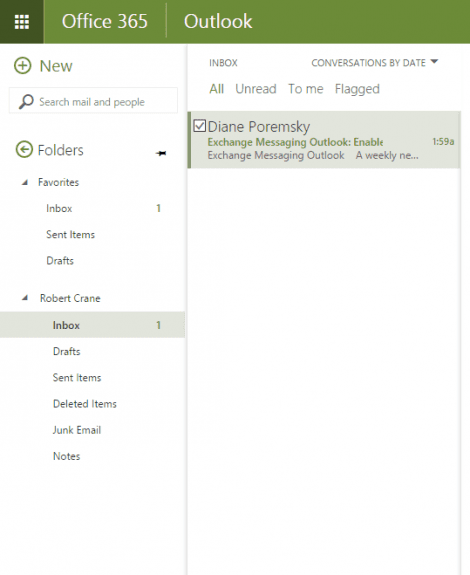
You can see that the mailbox currently has an Inbox and other default folders but no archive mailbox.
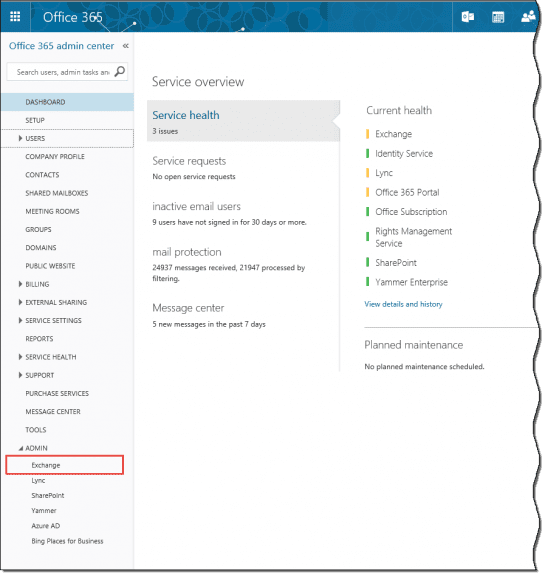
The first step is to login to the Office 365 admin portal as an administrator and select Exchange in the lower left corner of the window to log into the Exchange admin center at //outlook.office365.com/ecp/.
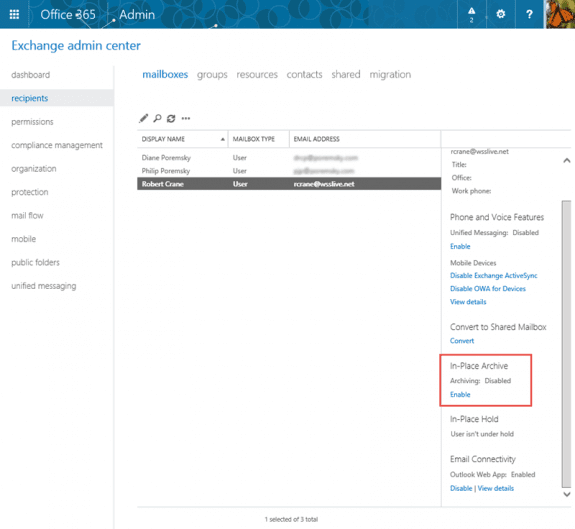
Select recipients then mailboxes and then select the mailbox you wish to enable the in-place email archive. From the information in the right hand side panel select Enable under the In-Place Archive heading.
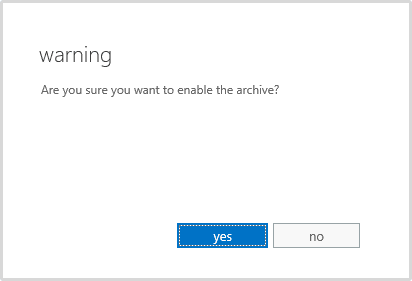
Select yes to enable the in-place archive.
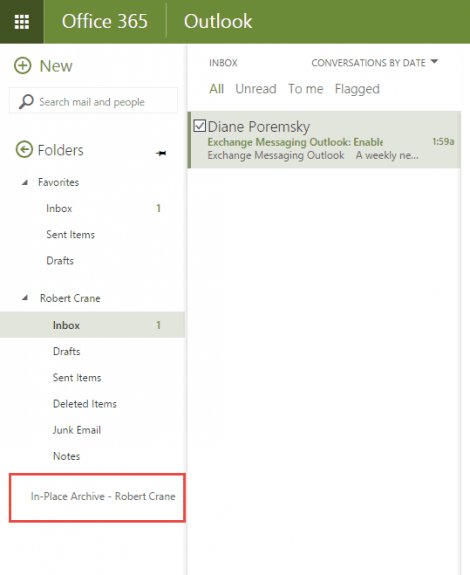
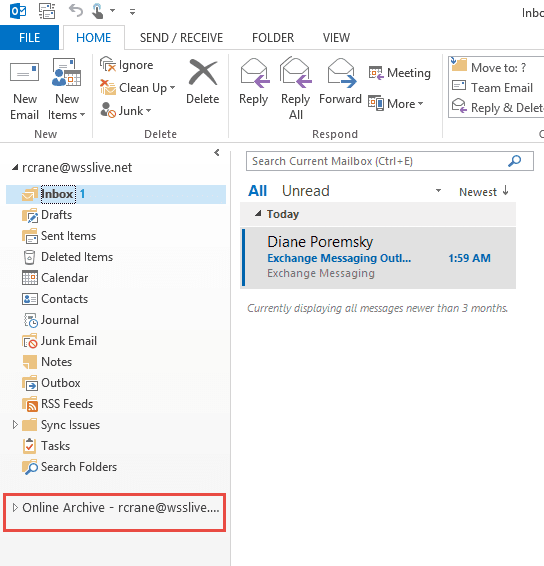
After a few minutes (the process is not instantaneous) a new folder will appear in your Outlook web called In-Place Archive – <name> or in Outlook desktop called Online Archive -<name>.
The folder list in Outlook Web Access looks like this:
In Outlook desktop, the online archive is in the folder list:
The archive is now ready to use. Users can drag and drop items into the archive folders and email policies (user and organizational) can now utilize that folder.
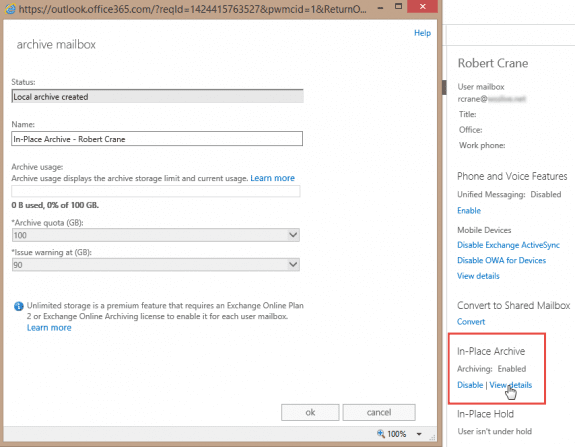
As an administrator, if you again look at the mailbox, under in-place archive you will see an option View Details. Selecting that will show you a window providing details of the mailbox. Remember, this options vary depending on the Exchange Online plan the mailbox is subscribed for.
Using PowerShell to enable Online Archive
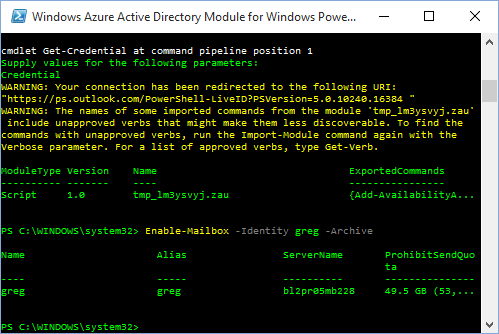
You can of course do the same thing with PowerShell, using the enable-mailbox command:
Enable-Mailbox –Identity user@domain.com -Archive
To set all mailboxes to use the online archive, use this format:
Get-Mailbox | Enable-Mailbox –Archive
To enable the archive only on usermailboxes, use
Get-Mailbox -ResultSize unlimited -Filter {(RecipientTypeDetails -eq 'UserMailbox')} | Enable-Mailbox –Archive
When archive is enabled, the default retention policy is applied to the mailbox. To apply a specific retention policy to a specific mailbox, use
Set-Mailbox -Identity user@domain.com -RetentionPolicy policy-name
To set a specific retention policy for all mailboxes, use
Get-Mailbox | Set-mailbox -RetentionPolicy policy-name
More Information
Exchange Online Archiving Service Description (TechNet)
How to apply Retention Policies to all mailboxes
Enable-Mailbox






























In order to reduce the load on my Computer, I've used OWA for searches within the personal archive of a shared mailbox instead of the Outlook client. Since recently, I can only open the OWA Shared Mailbox itself, but the related Online Archive keeps "loading" and never shows up.
I checked via the Outlook client software and the Archive is still there (so, luckily no data lost).
Is it a setting at the server-side that might have changed, or should I rather look in my browser settings?
Test in a private browser and see if it works - if yes, clear the cache and cookies.
As far as I know, nothing changed but will check on it.
Is it working with office 2016 standard
That is what used to be Business, so yes, it should work with it.
Hi, Online archive is not working in outlook 2016, i can see the online archive in outlook on left pane and set policy on some folders to move items older than 1 week to online archive but nothing happened, Any help will be highly appreciated.
Outlook 2016 pro plus
Exchange 2013
Thanks!
Is the mailbox manager process enabled and running on a schedule?
Hi Christine,
good news, you can find all the requirements here: https://technet.microsoft.com/en-us/library/dn922147(v=exchg.150).aspx
Outlook license requirements for accessing an archive mailbox
To access their archive mailbox using Outlook, users need one of the following licenses.
Outlook in Office 365 subscriptions
Outlook in Office 365 ProPlus
Outlook in Office 365 Enterprise E3
Outlook in Office 365 Business
Outlook in Office 365 Business Premium
Outlook retail licenses
Outlook 2016 stand-alone
Outlook 2013 stand-alone
Outlook volume licenses
Outlook 2013 stand-alone
Outlook 2013 included with Microsoft Office Professional Plus 2013
Outlook 2010 stand-alone
Outlook 2010 included with Microsoft Office Professional Plus 2010
Hi Diane, I was wondering if there is a specific version of Outlook needed (like Pro Plus) to see the online archive. We have read some articles indicating it has to be a particular type of Outlook installation, meaning those with Office 365 Home or a retail version of Office with Outlook wouldn't be able to see it. Thanks for any expertise you can lend to this. We consider Slipstick to be an authority in all things Outlook.
You need ProPlus to see the archive. They are supposed to be adding it to the business premium subscription, but it wasn't added last i checked. (It might be by now.)
It will not be in Home or the retail version.
Hi,
Is there any way to access archived mails from the native IOS mail app on iPhones/iPads, or do you need to use OWA to retrieve mails in the Online Archive ?
I enabled Online Archiving yesterday. The oldest mail in my archived inbox dates 2 years old. I tried to search for the Sender and the subject from my native mail app, but can not find those mails.
Not sure whether I'm to impatient (I waited one day), or whether OWA is required to do this.
Thanks,
Mario
(O365 Enterprise E3)
Hi Diane,
Is there anyway to hide the online archive of a delegated account? I have 6 delegated accounts as well as my own but i also can see all their archives, it's just making my mailbox list too busy, any ideas?
Thanks
Andy
How did you open the accounts in your profile? i didn't think they showed up if opened as a shared account, but will double check.
Thanks again Diane for your site. Your sample screenshot showed an Online Archive mailbox provisioned at 100GB. Do you know what is currently the largest size this can *actually* grow to, when you're supposed to have "unlimited" archiving? I ran into this issue with my family member's Exchange Online Plan 2 over a year ago. IIRC his Archive mailbox had an initial quota of 50 or 100 GB (I forget), but I was told that it would automatically grow each time it was close to being full. I think still ended up having to contact them to manually increase the Archive to 170GB, but after that we'd hit a roadblock! I had a month-long back-and-forth with the Exchange escalation team, they kept trying different things in PowerShell and consulting the product engineers. But they finally gave up and said they couldn't increase the Archive quota past 170GB. I'm not sure why, but this was apparently a surprise to them. They then told me to just create shared mailbox(es) which doesn't require an additional user license. The idea was for me to manually transfer older emails to this shared mailbox (which has its own 50GB quota). As an additional consolation, they… Read more »
Sorry I missed this earlier.
E2 archives are supposed to be unlimited now. In they past they were limited to 50GB and they set a default of 100GB when they raised it to unlimited - all mailboxes should have been raised automatically to 100GB within a few months of the increase. I'll see if i can find out anything about this.
Transferring mail to a shared mailbox is a PITA (but will solve the problem for now)... but it will eventually be full too. While you can keep making more shared boxes, searching is a pita.
>> They increased his primary mailbox to a non-standard quota of 100GB, but the server is still set to warn him when he approaches (and passes) the 50GB mark!
it sounds like they didn't raise the warning level when they raised the quota - see https://technet.microsoft.com/en-us/library/aa998353(v=exchg.160).aspx for the cmdlet to change it. But... i'm surprised they raised the mailbox to 100GB - i thought that was limited to 50 GB.