I have a Days of the Year HOL file that creates all day events that count the days of the year, up and down "Day 5: 360 to go" but as the days are past, I don't need to know what day it was and prefer a cleaner calendar. While it's easy enough to delete yesterday's event today, I don't always remember to do it.
I could use Search to find the older events "location:"days of the year" start:<12/10/2022" then select all and delete them. But I'm lazy.
The solution: a macro I run every now and again to delete the events in the "Days of the Year" location.
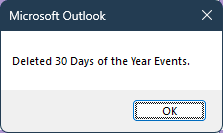
I delete all of the events prior to today, but you could keep the last week's events by changing one line:
tStart = Format(Now -1, "Short Date")
to
tStart = Format(Now - 14, "Short Date")
With a little tweaking, you can use the macro to delete by subject, category or even just by date.
Sub DeleteDaysYearFast()

  Dim objOutlook As Outlook.Application
  Dim objNamespace As Outlook.NameSpace
  Dim objSourceFolder As Outlook.MAPIFolder
  Dim fCount As Integer

  Dim CalItems As Outlook.Items
  Dim ResItems As Outlook.Items
  Dim sFilter As String
  Dim iNumRestricted As Integer
  Dim itm As Object
  Dim tStart As Date

  Set objOutlook = Application
  Set objNamespace = objOutlook.GetNamespace("MAPI")
  Set objSourceFolder = objNamespace.GetDefaultFolder(olFolderCalendar)

  ' Get all of the appointments in the folder
  Set CalItems = objSourceFolder.Items

   ' Sort all of the appointments based on the start time
   CalItems.Sort "[Start]"

   CalItems.IncludeRecurrences = False

    tStart = Format(Now - 14, "Short Date")
   'create the Restrict filter
   sFilter = "[Start] <= '" & tStart & "' And  [Location] = '" & "Days of the Year " & Format(Date, "yyyy") & "'"

   ' Apply the filter to the collection
   Set ResItems = CalItems.Restrict(sFilter)

   iNumRestricted = 0

   fCount = ResItems.Count
 Debug.Print ResItems.Count
   'Loop through the items in the collection.

   For counter = fCount To 1 Step -1

Set itm = ResItems.Item(counter)

   iNumRestricted = iNumRestricted + 1

Debug.Print itm.Subject & itm.Start
itm.Delete

   Next counter

Debug.Print (iNumRestricted & " Days of the Year events were deleted")

Set objSourceFolder = Nothing

End Sub
Delete Microsoft 365 Focus Time appointments
In addition to removing old Days of the Year events, I also want to remove old Focus Time events. This removes events older than 7 days. Rather than using the Location field, it looks for words in the subject field.
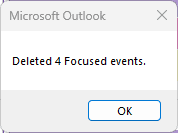
To delete events with multiple subjects or by partial subjects, use a SQL filter:
sFilter = "@SQL= (" & """urn:schemas:calendar:dtstart""" & " <= '" & tStart & "' AND (" _
& """urn:schemas:httpmail:subject""" & " LIKE '%word or phrase 1%' OR " _
& """urn:schemas:httpmail:subject""" & " LIKE '%word or phrase 2%' OR " _
& """urn:schemas:httpmail:subject""" & " LIKE '%word or phrase 3%'))"
Sub DeleteFocused()

  Dim objOutlook As Outlook.Application
  Dim objNamespace As Outlook.NameSpace
  Dim objSourceFolder As Outlook.MAPIFolder
  Dim fCount As Integer

  Dim CalItems As Outlook.Items
  Dim ResItems As Outlook.Items
  Dim sFilter As String
  Dim iNumRestricted As Integer
  Dim itm As Object
  Dim tStart As Date

  Set objOutlook = Application
  Set objNamespace = objOutlook.GetNamespace("MAPI")
  Set objSourceFolder = objNamespace.GetDefaultFolder(olFolderCalendar)

  ' Get all of the appointments in the folder
  Set CalItems = objSourceFolder.Items

   ' Sort all of the appointments based on the start time
   CalItems.Sort "[Start]"

   CalItems.IncludeRecurrences = False

    tStart = Format(Now - 7, "Short Date")
   'create the Restrict filter
   sFilter = "[Start] <= '" & tStart & "' And  [Subject] = '" & "focus time" & "'"

   ' Apply the filter to the collection
   Set ResItems = CalItems.Restrict(sFilter)

   iNumRestricted = 0

   fCount = ResItems.Count
 Debug.Print ResItems.Count
   'Loop through the items in the collection.

   For counter = fCount To 1 Step -1

Set itm = ResItems.Item(counter)

   iNumRestricted = iNumRestricted + 1

Debug.Print itm.Subject & itm.Start
itm.Delete

   Next counter

Debug.Print (iNumRestricted & " Focus time appointments were deleted")

Set objSourceFolder= Nothing

End Sub
How to use the macros on this page
First: You need to have macro security set to the lowest setting, Enable all macros during testing. The macros will not work with the top two options that disable all macros or unsigned macros. You could choose the option Notification for all macros, then accept it each time you restart Outlook, however, because it's somewhat hard to sneak macros into Outlook (unlike in Word and Excel), allowing all macros is safe, especially during the testing phase. You can sign the macro when it is finished and change the macro security to notify.
To check your macro security in Outlook 2010 and newer, go to File, Options, Trust Center and open Trust Center Settings, and change the Macro Settings. In Outlook 2007 and older, look at Tools, Macro Security.
After you test the macro and see that it works, you can either leave macro security set to low or sign the macro.
The macros on this page should be placed in a module.
Open the VBA Editor by pressing Alt+F11 on your keyboard.
To put the code in a module:
- Right click on Project1 and choose Insert > Module
- Copy and paste the macro into the new module.
More information as well as screenshots are at How to use the VBA Editor





























