This macro still needs some work, specifically in testing for attachments and copying them to the page. It may also need more fields added and useless fields removed (which is no big deal). I am testing this only with Outlook 2010; it may work with Outlook 2007 versions if OneNote references are changed. It errors in Outlook 2013.
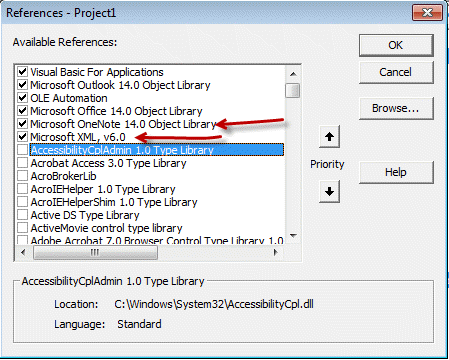
To use, you need to set a Reference to OneNote14 and XML in Tools, Reference.
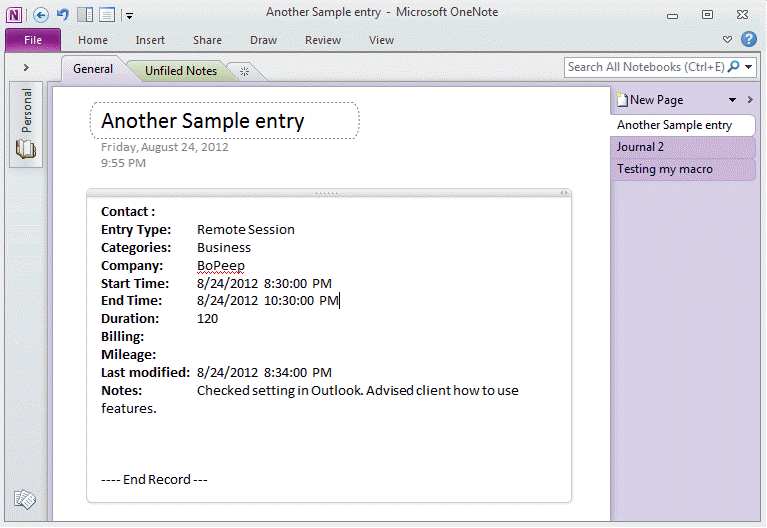
Select one or more Journal entries and run the macro. The selected journal items are added to OneNote, one journal entry per page.
By linking Contacts to OneNote (in the same OneNote section), you can make the journal entries subpages of the contacts.
Sub CopyJournalToOnenotePage()

Dim oJournal As Outlook.JournalItem
Dim oContact As Outlook.ContactItem
Dim spLinks As Outlook.Links
Dim spLink As Outlook.Link

Dim strJournal As String
Dim strContact As String

Set Selection = ActiveExplorer.Selection

For Each oJournal In Selection
Set spLinks = oJournal.Links

strContact = ""

For Each spLink In spLinks
    Set oContact = spLink.Item
    strContact = oContact.FullName & "; " & strContact
Next

Set spLink = Nothing

strJournal = "<b>Contact : </b>" & vbTab & strContact & vbCrLf & _
    "<b>Entry Type:</b>" & vbTab & oJournal.Type & vbCrLf & _
    "<b>Categories:</b>" & vbTab & oJournal.Categories & vbCrLf & _
    "<b>Company:</b>" & vbTab & oJournal.Companies & vbCrLf & _
    "<b>Start Time:</b>" & vbTab & oJournal.Start & vbCrLf & _
    "<b>End Time:</b>" & vbTab & oJournal.End & vbCrLf & _
    "<b>Duration:</b>" & vbTab & oJournal.Duration & " minutes" & vbCrLf & _
    "<b>Billing:</b>" & vbTab & oJournal.BillingInformation & vbCrLf & _
    "<b>Mileage:</b>" & vbTab & oJournal.Mileage & vbCrLf & _
    "<b>Last modified: </b>" & vbTab & oJournal.LastModificationTime & vbCrLf & _
    "<b>Notes: </b>" & vbTab & vbTab & oJournal.Body & vbCrLf & vbCrLf & "---- End Record ---"

    Dim oneNote As OneNote14.Application
    Set oneNote = New OneNote14.Application

    ' Get all of the Notebook nodes.
    Dim nodes As MSXML2.IXMLDOMNodeList
    Set nodes = GetFirstOneNoteNotebookNodes(oneNote)
    If Not nodes Is Nothing Then
        ' Get the first OneNote Notebook in the XML document.
        Dim node As MSXML2.IXMLDOMNode
        Set node = nodes(0)
        Dim noteBookName As String
        noteBookName = node.Attributes.getNamedItem("name").Text

        ' Get the ID for the Notebook so the code can retrieve
        ' the list of sections.
        Dim notebookID As String
        notebookID = node.Attributes.getNamedItem("ID").Text

        ' Load the XML for the Sections for the Notebook requested.
        Dim sectionsXml As String
        oneNote.GetHierarchy notebookID, hsSections, sectionsXml, xs2010

        Dim secDoc As MSXML2.DOMDocument
        Set secDoc = New MSXML2.DOMDocument

        If secDoc.LoadXML(sectionsXml) Then
            ' select the Section nodes
            Dim secNodes As MSXML2.IXMLDOMNodeList
            Set secNodes = secDoc.DocumentElement.SelectNodes("//one:Section")

            If Not secNodes Is Nothing Then
                ' Get the first section.
                Dim secNode As MSXML2.IXMLDOMNode
                Set secNode = secNodes(0)

                Dim sectionName As String
                sectionName = secNode.Attributes.getNamedItem("name").Text
                Dim sectionID As String
                sectionID = secNode.Attributes.getNamedItem("ID").Text

                ' Create a new blank Page in the first Section
                ' using the default format.
                Dim newPageID As String
                oneNote.CreateNewPage sectionID, newPageID, npsDefault

                ' Get the contents of the page.
                Dim outXML As String
                oneNote.GetPageContent newPageID, outXML, piAll, xs2010

                Dim doc As MSXML2.DOMDocument
                Set doc = New MSXML2.DOMDocument
                ' Load Page's XML into a MSXML2.DOMDocument object.
                If doc.LoadXML(outXML) Then
                    ' Get Page Node.
                    Dim pageNode As MSXML2.IXMLDOMNode
                    Set pageNode = doc.SelectSingleNode("//one:Page")

                    ' Find the Title element.
                    Dim titleNode As MSXML2.IXMLDOMNode
                    Set titleNode = doc.SelectSingleNode("//one:Page/one:Title/one:OE/one:T")

                    ' Get the CDataSection where OneNote store's the Title's text.
                    Dim cdataChild As MSXML2.IXMLDOMNode
                    Set cdataChild = titleNode.SelectSingleNode("text()")

                    ' Change the title in the local XML copy.
                    cdataChild.Text = oJournal.Subject
                    ' Write the update to OneNote.
                    oneNote.UpdatePageContent doc.XML

                    Dim newElement As MSXML2.IXMLDOMElement
                    Dim newNode As MSXML2.IXMLDOMNode

                    ' Create Outline node.
                    Set newElement = doc.createElement("one:Outline")
                    Set newNode = pageNode.appendChild(newElement)
                    ' Create OEChildren.
                    Set newElement = doc.createElement("one:OEChildren")
                    Set newNode = newNode.appendChild(newElement)
                    ' Create OE.
                    Set newElement = doc.createElement("one:OE")
                    Set newNode = newNode.appendChild(newElement)
                    ' Create TE.
                    Set newElement = doc.createElement("one:T")
                    Set newNode = newNode.appendChild(newElement)

                    ' Add the text for the Page's content.
                    Dim cd As MSXML2.IXMLDOMCDATASection
                    Set cd = doc.createCDATASection(strJournal)

                    newNode.appendChild cd


                    ' Update OneNote with the new content.
                    oneNote.UpdatePageContent doc.XML


                End If
            Else
                MsgBox "OneNote 2010 Section nodes not found."
            End If
        Else
            MsgBox "OneNote 2010 Section XML Data failed to load."
        End If
    Else
        MsgBox "OneNote 2010 XML Data failed to load."
    End If

    Next

Set oJournal = Nothing
Set oContact = Nothing

End Sub

Private Function GetAttributeValueFromNode(node As MSXML2.IXMLDOMNode, attributeName As String) As String
    If node.Attributes.getNamedItem(attributeName) Is Nothing Then
        GetAttributeValueFromNode = "Not found."
    Else
        GetAttributeValueFromNode = node.Attributes.getNamedItem(attributeName).Text
    End If
End Function

Private Function GetFirstOneNoteNotebookNodes(oneNote As OneNote14.Application) As MSXML2.IXMLDOMNodeList
    ' Get the XML that represents the OneNote notebooks available.
    Dim notebookXml As String
    ' OneNote fills notebookXml with an XML document providing information
    ' about what OneNote notebooks are available.
    ' You want all the data and thus are providing an empty string
    ' for the bstrStartNodeID parameter.
    oneNote.GetHierarchy "", hsNotebooks, notebookXml, xs2010

    ' Use the MSXML Library to parse the XML.
    Dim doc As MSXML2.DOMDocument
    Set doc = New MSXML2.DOMDocument

    If doc.LoadXML(notebookXml) Then
        Set GetFirstOneNoteNotebookNodes = doc.DocumentElement.SelectNodes("//one:Notebook")
    Else
        Set GetFirstOneNoteNotebookNodes = Nothing
    End If
End Function
More Information
The basic OneNote macro came from OneNote 2010: Create New Pages Programmatically Using OneNote.CreateOneNotePage
JournalItem Properties






























Hello
I use the Outlook 2016. Now I have the following problem: Dim spLinks As Outlook.Links "Links" is no longer there. What do I have to use?
Thanks Patrick
Diane,
I hope you can help me with this macro as I am a real Neophyte with VBA. I tried setting this up copying the instructions into VBA and have an error:
"Compile Error: User-Defined type not defined"
with the following section highlighted:
Dim secDoc As MSXML2.DOMDocument
Set secDoc = New MSXML2.DOMDocument
Can you help me fix this???
Thanks
You need to set a reference to xml and OneNote in tools, references.
Thanks very much for your reply Diane, you've given me a great starter. If I find myself with some time to look at this and come up with a solution I'll let you know
Regards,
Chris.
Hi Diane, this is great :)
did you ever update this to take attachments?
Also, is there a way to set the one-note date, time etc from the Journal note?
Regards,
Chris.
No, I haven't had time to figure out how to do attachments with it. I haven't done much (read: none) programming in OneNote so I'm not as familiar with the features. As for dates, I have no idea. We can get the date from outlook easily enough but i don't know if the date field is writable via vba in onenote.
Hi Diane, any chance you have a way to log a OneNote entry into the Journal in Outlook 2010? I'd like to see that when I look at my Journal, it shows that I took notes of a meeting in OneNote. Thanks, Tim
I'll look into it... not sure it will be possible though.
Thanks Diane! - This is a very good start for exporting Journals to OneNote.