These code samples show you how to use a run a script rule to send an auto response, including the received date and when the recipient should expect a follow up response. The first sample uses a template for the reply, the second macro replies to the incoming message.
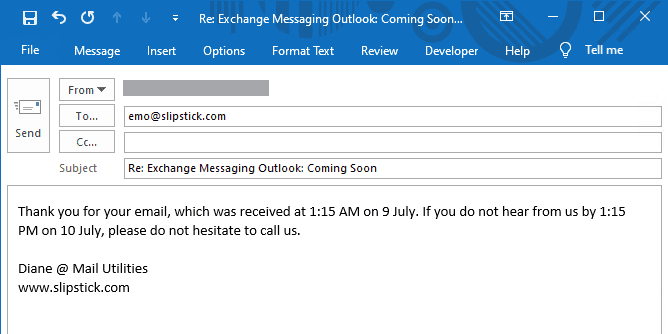
Autoreply using a template
This macro sample uses a template with fields that will be replaced with the date and times. A template is easier when you want to reply with a longer message. If you have a signature added automatically, remove the signature from the template before saving it.

At the end of this macro is a small "stub macro" so you can test the macro on a selected message, rather than sending and receiving messages to test it.
Sub AutoReplywithTemplateTime(Item As Outlook.MailItem)
Dim oRespond As Outlook.MailItem

' This sends a response back using a template
Set oRespond = Application.CreateItemFromTemplate("C:\Users\username\AppData\Roaming\Microsoft\Templates\replydate.oft")

iDate = Item.ReceivedTime
oDate = Item.ReceivedTime + 1.5
Debug.Print iDate, oDate

strInDate = Format(iDate, "D MMMM")
strOutDate = Format(oDate, "D MMMM")
strInTime = Format(iDate, "h:nn AM/PM")
strOutTime = Format(oDate, "h:nn AM/PM")

strBody = Replace(oRespond.Body, "[InTime]", strInTime)
strBody = Replace(strBody, "[OutTime]", strOutTime)
strBody = Replace(strBody, "[InDate]", strInDate)
strBody = Replace(strBody, "[OutDate]", strOutDate)

With oRespond
   .Recipients.Add Item.SenderEmailAddress
' if subject is in template remove this line
    .Subject = "Re: " & Item.Subject
    .Body = strBody

' use this for testing, change to .send once you have it working as desired
    .Display
   ' .Send
End With
Set oRespond = Nothing
End Sub


' Use this macro to test the rule without needing
' to send messages. Select a message and run this macro
Sub RunAutoReplywithTemplateTime()
Dim objApp As Outlook.Application
Dim objItem As Object ' MailItem
Set objApp = Application
Set objItem = objApp.ActiveExplorer.Selection.Item(1)

'macro name you want to run goes here
AutoReplywithTemplate objItem

End Sub
Autoreply to the message
This example has the response in the macro and inserts the time and date into the response string. This method works better if you are inserting a shorter response.
At the end of this macro is a small "stub macro" so you can test the macro on a selected message, rather than sending and receiving messages to test it.
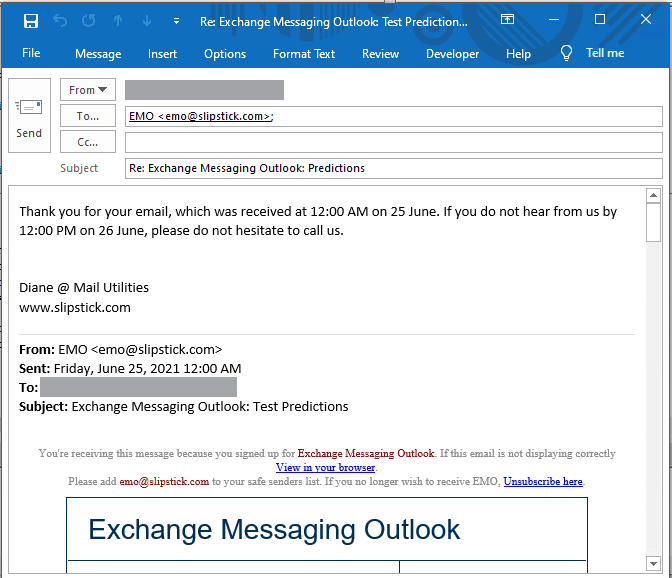
Sub AutoReplywithTime(Item As Outlook.MailItem)
Dim oRespond As Outlook.MailItem

' Use this for a real reply
 Set oRespond = Item.Reply

 ' use for new message
'Set oRespond = Application.CreateItem(olMailItem)


iDate = Item.ReceivedTime
oDate = Item.ReceivedTime + 1.5
Debug.Print iDate, oDate

strInDate = Format(iDate, "D MMMM")
strOutDate = Format(oDate, "D MMMM")
strInTime = Format(iDate, "h:nn AM/PM")
strOutTime = Format(oDate, "h:nn AM/PM")


strBody = "Thank you for your email, which was received at " & strInTime & " on " & strInDate & ". " & _
"If you do not hear from us by " & strOutTime & " on " & strOutDate & ", please do not hesitate to call us."


With oRespond
' use if starting with a new message
   ' .Recipients.Add Item.SenderEmailAddress
    .Subject = "Re: " & Item.Subject
    .HTMLBody = strBody & .HTMLBody

' use this for testing, change to .send once you have it working as desired
    .Display
 '   .Send
End With
Set oRespond = Nothing
End Sub


' Use this macro to test the rule without needing
' to send messages. Select a message and run this macro
Sub RunAutoReplywithTime()
Dim objApp As Outlook.Application
Dim objItem As Object ' MailItem
Set objApp = Application
Set objItem = objApp.ActiveExplorer.Selection.Item(1)

'macro name you want to run goes here
AutoReplywithTemplateTime objItem

End Sub
How to use the macros on this page
First: You need to have macro security set to the lowest setting, Enable all macros during testing. The macros will not work with the top two options that disable all macros or unsigned macros. You could choose the option Notification for all macros, then accept it each time you restart Outlook, however, because it's somewhat hard to sneak macros into Outlook (unlike in Word and Excel), allowing all macros is safe, especially during the testing phase. You can sign the macro when it is finished and change the macro security to notify.
To check your macro security in Outlook 2010 and newer, go to File, Options, Trust Center and open Trust Center Settings, and change the Macro Settings. In Outlook 2007 and older, look at Tools, Macro Security.
After you test the macro and see that it works, you can either leave macro security set to low or sign the macro.
Macros that run when Outlook starts or automatically need to be in ThisOutlookSession, all other macros should be put in a module, but most will also work if placed in ThisOutlookSession. (It's generally recommended to keep only the automatic macros in ThisOutlookSession and use modules for all other macros.) The instructions are below.
The run a script macros on this page should be placed in a module.
The ItemAdd macro needs to go into ThisOutlookSession.
Open the VBA Editor by pressing Alt+F11 on your keyboard.
To put the code in a module:
- Right click on Project1 and choose Insert > Module
- Copy and paste the macro into the new module.
To put the macro code in ThisOutlookSession:
- Expand Project1 and double click on ThisOutlookSession.
- Copy then paste the macro into ThisOutlookSession. (Click within the code, Select All using Ctrl+A, Ctrl+C to copy, Ctrl+V to paste.)
More information as well as screenshots are at How to use the VBA Editor
More Information
A short list of Run a script macros at slipstick.com:
- Filter mail when you are not the only recipient
- Process Mail that was Auto Forwarded by a Rule
- Filter messages containing spam or other words
- Creating an AND rule in Outlook Rules
- Search PDF Attachments and Forward
- Run-a-Script Rules Missing in Outlook
- Blocking Mail From New Top-Level Domains
- How to Process Mail After Business Hours
- Create Appointment From Email Automatically
- Open Hyperlinks in an Outlook Email Message
- Talking Reminders
- Receive a Reminder When a Message Doesn't Arrive?
- Delegates, Meeting Requests, and Rules
- Run Rules Now using a Macro
- Automatically Add a Category to Accepted Meetings
- Save and Rename Outlook Email Attachments
- Use a Rule to delete older messages as new ones arrive
- Convert RTF Messages to Plain Text Format
- Outlook AutoReplies: One Script, Many Responses
- Use VBA to move messages with attachments
- Save all incoming messages to the hard drive
- Run a script rule: Reply to a message
- Sort messages by Sender domain
- Use a Macro to Copy Data in an Email to Excel
- Save Outlook Email as a PDF

Francois says
Hi Diane,
My colleagues have duty assigments on one or two weekends per year. I'd like to send them a reminder e-mail just before their assigment. For example, I have a list of colleagues, the date if their assigment, and I'd like that Outlook creates e-mail alerts automatically from that list.
Is there a VBA macro to do this?
Thanks
Francois