To resend a sent message, you need to open the message in the Sent Items folder then go to the Move group and choose the Actions, Resend this message... command.
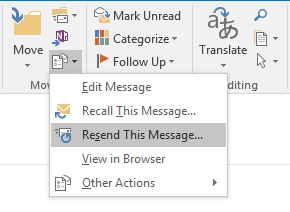
You can save a few steps using a macro. You'll still need to select the message you want to resend, but the macro will do the other steps for you. You can change the subject, add new recipients, or change other fields.
This macro works in Outlook 2013 and above, on the open or selected sent item. The message will briefly display on screen before it's sent, or remove the olResendMsg.Send line to click Send yourself.
Sub ResendSentEmail()
'works in Outlook 2013/2016
  Dim myItem As Outlook.MailItem
  Dim objInsp As Outlook.Inspector
  Dim objActionsMenu As Office.CommandBarControl
  Dim olResendMsg As Outlook.MailItem

  ' get current item & open if needed
  On Error Resume Next

  Select Case TypeName(Application.ActiveWindow)
    Case "Explorer"
   Set myItem = Application.ActiveExplorer.Selection.Item(1)
   myItem.Display
    Case "Inspector"
      Set myItem = Application.ActiveInspector.CurrentItem
    Case Else
  End Select
  On Error GoTo 0

  If myItem Is Nothing Then
    MsgBox "Could not use current item. Please select or open a single email.", _
       vbInformation
    GoTo exitproc
  End If

 ' run the resend command
    Set objInsp = myItem.GetInspector
    objInsp.CommandBars.ExecuteMso ("ResendThisMessage")

' get the opened compose message form & send it
' delete these lines if you don't need to auto-edit or to auto-send it
Set olResendMsg = Application.ActiveInspector.CurrentItem

' update fields if needed
olResendMsg.Subject = myItem.Subject & " (resend)"
olResendMsg.Send

  ' close orig email
  myItem.Close olDiscard

exitproc:
Set myItem = Nothing
Set objInsp = Nothing
Set objActionsMenu = Nothing
Set olResendMsg = Nothing
End Sub
Resend Selected Messages
This macro runs on selected messages in the Sent Items folder and resends all. I merged this macro with the macro at Work with Selected items in any folder.
Sub ResendSelectedEmail()
'works in Outlook 2013/2016
  Dim objOL As Outlook.Application
  Dim currentExplorer As Explorer
  Dim Selection As Selection
  Dim myItem As Outlook.MailItem
  Dim objInsp As Outlook.Inspector
  Dim objActionsMenu As Office.CommandBarControl
  Dim olResendMsg As Outlook.MailItem

  ' get current item & open if needed
  On Error Resume Next

    Set objOL = Outlook.Application
    Set currentExplorer = objOL.ActiveExplorer
    Set Selection = currentExplorer.Selection

For Each myItem In Selection
     myItem.Display
 ' run the resend command
    Set objInsp = myItem.GetInspector
    objInsp.CommandBars.ExecuteMso ("ResendThisMessage")

' get the opened compose message form & send it
' delete these lines if you don't need to auto-edit or to auto-send it
Set olResendMsg = Application.ActiveInspector.CurrentItem

' update fields if needed
olResendMsg.Subject = myItem.Subject & " (resend) " & Date
olResendMsg.Send

  ' close orig email
  myItem.Close olDiscard

Next
exitproc:
Set myItem = Nothing
Set objInsp = Nothing
Set objActionsMenu = Nothing
Set olResendMsg = Nothing
End Sub
How to use macros
First: You will need macro security set to low during testing.
To check your macro security in Outlook 2010 or 2013, go to File, Options, Trust Center and open Trust Center Settings, and change the Macro Settings. In Outlook 2007 and older, it’s at Tools, Macro Security.
After you test the macro and see that it works, you can either leave macro security set to low or sign the macro.
Open the VBA Editor by pressing Alt+F11 on your keyboard.
To put the code in a module:
- Right click on Project1 and choose Insert > Module
- Copy and paste the macro into the new module.
More information as well as screenshots are at How to use the VBA Editor

Rafe says
Many thanks.
It is a great help for me.
I send daily few reports to the same recipients with same subject but with different text. So, your macro save many time for me.
Tolga says
Diane, thanks a lot for the macro. It really helped me write my macro.
One bit of question: I use olResendmsg.Close (olSave) but it is not saved in Drafts. Outlook sends the email immediately.
Is this specific to "ResendThisMessage" execution, or is there a point I need to consider?
Many thanks!
Diane Poremsky says
You want to save a copy as a draft? When you send, that removes the draft copy -
This saves a draft - because I'm not sending.
olResendMsg.Close (olSave)
'olResendMsg.Send
Jason says
Does this still work in Microsoft Office 365?
Diane Poremsky says
Yes, it works in all current versions of outlook.
Jason says
It looks like this will remove the re-sent e-mail from the ‘Sent’ folder? How do you prevent that?
Diane Poremsky says
It shouldn't remove the one already in the sent folder - buit will add the reset copy. The .close oldiscard line refers to save changes when you close a message.
Jason says
Got it, thanks Diane! Is there a way so we can select multiple emails to resend at one click of the macro button? Currently I can only resend one at a time. If I select multiple emails and try resending, only one will go through.
Diane Poremsky says
The updated macro for multiple messages is at https://www.slipstick.com/developer/code-samples/macro-resend-message/#selected.
Jason says
Hi Diane! Is there a way to select multiple emails to resend? It seems like we can only select one email to resend at a time. Thank you!
Diane Poremsky says
`As written, it is for one at a time, but could be tweaked to do multiples.
eric says
I have an odd problem in Outlook 2019: if I click resend this message on a message opened from an archive pst file and I edit the subject and body, the email will go out with only the subject edited, but the body remains unchanged. this only happens if the message came from an archive, if I pull from my main outlook file resend works fine and I can edit both the subject and body. The only workaround is to open the message, edit it, save it as a draft and then send it, otherwise the body changes will not be retained.
Diane Poremsky says
Is this an exchange account or IMAP? I've seen this behavior with both, but not for a long time and not in current versions.
If you edit the body first, does it make a difference?
eric says
No its POP3
No it doesnt make any difference if i edit body first.
Thank you.
eric m says
no its a POP account. editing the body first doesnt make any difference. I got a new pc and installed outlook 2019 again and it didnt do it at first, now its doing it again on the new pc as well.
eric m says
I found that the problem disappeared when I made sure that there was an email address entered in the "Reply Email" address box under the account settings for each email account that was setup. Not sure why having this address in the box would matter but in this case it did.
Chris says
Heey Diane,
I would deeply appreciate if you can help me with it.
The idea is a macro that resend the first correo (on the same correo, not making a new one) making a reminder to the distinataries of that correo with a predefined message like "we remind you.."
I would like this to work for multiple emails with different characteristics but the reminder or message will eventually be forwarded.
You would help me a lot. Please.
Thanks.
G M says
Thank you! This works perfectly and is exactly what I was looking for.
Matthias says
Works fine for me, Thank you!
I removed "olResendMsg.Send" to check / edit the mail before sending it.
Celeste Hill says
Is it normal that after the resend is done, it destroys the original message? How would you modify this to keep the original message in tact and just close it?
One more question - I'd like to do this macro on a series of messages saved within one folder in my sent items. What can I add to this to, once it's done with one message, to move down to the next item in the folder, and run it again until it's all done with every message in the folder?
TIA!
Diane Poremsky says
How it is destroying it? It shouldn't affect the original at all - all it does is run the command to resend. if you don't want it closed, remove this line - myItem.Close olDiscard - that will leave the open message on screen.
To run it on all messages, you need to put it together with this one - https://www.slipstick.com/developer/code-samples/working-items-folder-selected-items/ - you'll put this is the ' do whatever section (you'll also need the dim'sat the top).
Dim objInsp As Outlook.Inspector
Dim objActionsMenu As Office.CommandBarControl
Dim olResendMsg As Outlook.MailItem
obj.Display
Set objInsp = obj.GetInspector
objInsp.CommandBars.ExecuteMso ("ResendThisMessage")
Set olResendMsg = Application.ActiveInspector.CurrentItem
olResendMsg.Subject = obj.Subject & " (resend)"
olResendMsg.Send
obj.Close olDiscard
Robert says
Hello,
You merged these to work with all items in a folder, what would need to be added to resend all selected items in a folder instead?
Vishal says
Hi Diane,
I need your help in terms of creating a macro which would duplicate a active new email with its contents + attachment into another new email. The ideas is to same email to multiple recipients but not using bcc option.
I would deeply appreciate if you can help me with it.
Thanks & Regards,
Vishal
Diane Poremsky says
Non-macro method: save to drafts, ctrl+C, V to copy and paste or click Forward to send a copy of the draft.
Another option is to use a macro to do a mail merge only in outlook- https://www.slipstick.com/developer/merge-email-without-using-word/ - it uses a template but it will work with the open message. It works on a single contact but that could be changed to use selected contacts.