Please note that the advice on this page reduces Outlook's security level and could leave you open to an exploit that takes over Outlook and sends mail on your behalf. We highly recommend you use up-to-date antivirus software that Outlook can detect and leave these settings alone.
But, when all else fails... there is a way to disable the programmatic access warning in Outlook 2007 and up. Note that these settings apply to access to the Outlook Object Model, SimpleMAPI access to Outlook has its own registry key.
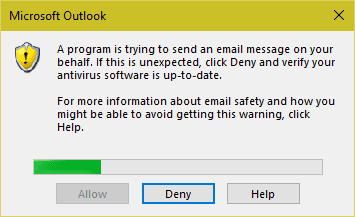
How can I change the programmatic access options. They are greyed out and I cannot change them. I have an application that sends email out. I have to click on the allow/deny for each email. I want to be able to turn this off and on so I can avoid this message.
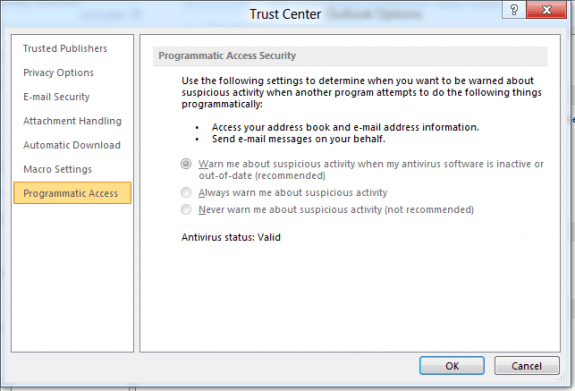
These settings are only enabled if the current user is an administrator on the computer. Non-administrator users can see the current setting but will not be able to change it. Programmatic Access settings can also be controlled through Group Policy.
Run Outlook as Administrator
Note: To change the Programmatic Access setting in Outlook's Trust Center, you need to run Outlook as an Administrator. You only need run as administrator one time, and once you make the change it will be in effect for all Outlook profiles on the computer.
When Outlook is pinned to the desktop Taskbar, hold Ctrl+Shift and right click on the Taskbar icon.
To use Outlook.exe found using Windows Search, right click on the Outlook shortcut and choose Run as Administrator from the menu. If you don't see Run as Administrator listed as an option, hold Ctrl+Shift as you right click on the Outlook shortcut.
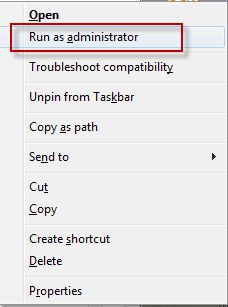
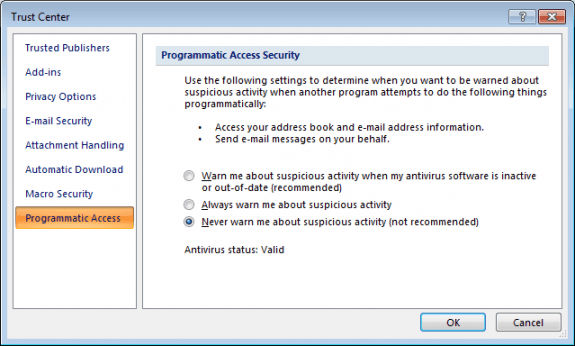
After Outlook loads, go to Tools, Trust Center (Outlook 2007) or File, Options, Trust Center (Outlook 2010 and up) and change the Programmatic Access setting.
The next time you restart Outlook, start it in "normal" mode.
Edit the Registry
If you prefer to edit the registry instead, you need to add the following key to the registry (create the key if it doesn't exist).
You'll need to restart Outlook for the changes to take effect.
Outlook 2016
HKEY_LOCAL_MACHINE\SOFTWARE\Microsoft\Office\16.0\Outlook\Security
DWORD: ObjectModelGuard
Value: 2
You can also set the keys below. As always, if the keys don't exist in the registry, you'll need to create them.
HKEY_CURRENT_USER\Software\Policies\Microsoft\Office\16.0\outlook\security
DWORD: PromptOOMSend
Value: 2
DWORD: AdminSecurityMode
Value: 3
DWORD: promptoomaddressinformationaccess
Value: 2
DWORD: promptoomaddressbookaccess
Value: 2
Outlook 2013
HKEY_LOCAL_MACHINE\SOFTWARE\Microsoft\Office\15.0\Outlook\Security
DWORD: ObjectModelGuard
Value: 2
You can also set the keys below. As always, if the keys don't exist in the registry, you'll need to create them.
HKEY_CURRENT_USER\Software\Policies\Microsoft\Office\15.0\outlook\security
DWORD: PromptOOMSend
Value: 2
DWORD: AdminSecurityMode
Value: 3
DWORD: promptoomaddressinformationaccess
Value: 2
DWORD: promptoomaddressbookaccess
Value: 2
Outlook 2010
HKEY_LOCAL_MACHINE\SOFTWARE\Microsoft\Office\14.0\Outlook\Security
DWORD: ObjectModelGuard
Value: 2

HKEY_CURRENT_USER\Software\Policies\Microsoft\Office\14.0\outlook\security
DWORD: PromptOOMSend
Value: 2
DWORD: AdminSecurityMode
Value: 3
DWORD: promptoomaddressinformationaccess
Value: 2
DWORD: promptoomaddressbookaccess
Value: 2
Outlook 2007
If you are using Outlook 2007, the keys are as follows.
HKEY_LOCAL_MACHINE\SOFTWARE\Microsoft\Office\12.0\Outlook\Security
DWORD: ObjectModelGuard
Value: 2

HKEY_CURRENT_USER\Software\Policies\Microsoft\Office\12.0\outlook\security
DWORD: PromptOOMSend
Value: 2
DWORD: AdminSecurityMode
Value: 3
Do It For Me
If you don't want to use Run as Administrator or Edit the registry, we have the following registry files you can download and run. These files set the values in both keys.
Double click to run the registry file. After adding the keys to the registry, you'll need to restart Outlook for the changes to take effect.
Outlook 2016 Outlook 2013
Outlook 2010 Outlook 2007
Note that you may need to right click and use Save as (or Save Link as in Firefox) - make sure the file extension is .reg.
Simple MAPI
The section above applies to Object Model access, but it's also possible to send mail using Windows SimpleMAPI, which works with the default email client, which may not be Outlook. If you are sending email using SimpleMAPI, you need to set PromptSimpleMAPISend value to avoid the Allow/Deny dialog.
Outlook 2016
HKEY_CURRENT_USER\SOFTWARE\Policies\Microsoft\Office\16.0\Outlook\Security
DWORD: PromptSimpleMAPISend
Value: 2
Outlook 2013
HKEY_CURRENT_USER\SOFTWARE\Policies\Microsoft\Office\15.0\Outlook\Security
DWORD: PromptSimpleMAPISend
Value: 2
Outlook 2010
HKEY_CURRENT_USER\SOFTWARE\Policies\Microsoft\Office\14.0\Outlook\Security
DWORD: PromptSimpleMAPISend
Value: 2
Outlook 2007
HKEY_CURRENT_USER\SOFTWARE\Policies\Microsoft\Office\12.0\Outlook\Security
DWORD: PromptSimpleMAPISend
Value: 2
Do It For Me
If you don't want to edit the registry to add the PromptSimpleMAPISend value to the registry, use one of the prepared reg files to set the key.
Double click to run the registry file. After adding the keys to the registry, you'll need to restart Outlook for the changes to take effect.
Outlook 2016 Outlook 2013
Outlook 2010 Outlook 2007
Automation Security Tools
These tools will allow you to bypass the security settings.
Tools
ClickYes Pro is a tuning tool for Microsoft Outlook security settings. It allows you to configure which applications can automatically send emails using Outlook and access email addresses stored in Outlook address book. ClickYes Pro runs as a background task providing a convenient icon in the taskbar notification area to manage allowed applications. It uses an encrypted storage and is highly secure and safe. Client and Server versions available. Works with Outlook 2000 - Outlook 2010. | |
Clicks the security dialog buttons automatically, but can be set to start in a suspended state. Developers can activate and suspend automatic clicking of the security dialogs programmatically. (HINT: Use &H2 instead of WM_CLOSE) Free. | |
Developers can use this to avoid the security prompts in Outlook. | |
Outlook Redemption works around limitations imposed by the Outlook Security Patch plus provides a number of objects and functions to work with properties and functionality not exposed through the Outlook object model. Redemption supports Outlook 98, 2000, 2002, 2003, 2007, 2010, 2013, 2016 (both 32 and 64 bit) (Outlook 97 is not supported by the Safe*Item objects) as well as the standalone version of MAPI (no Outlook installed). | |
Security Manager for Microsoft Outlook is a one-line programming tool that allows you to bypass security settings and avoid security warnings, alerts or prompts in add-ins and applications that interact with Microsoft Outlook. Security Manager is developed for .NET, VCL and ActiveX platforms (VB.NET, C#, C++, Visual Basic 6, Delphi, VBA, Word MailMerge) and supports MS Outlook 2000, Outlook 2002 (XP), Outlook 2003, Outlook 2007 and Outlook 2010 with / without service packs. |
More Information
Description of the Office Outlook 2007 hotfix package (Outlook-x-none.msp): April 26, 2011
Security Behavior of the Outlook Object Model

Jakub Rycombel says
Thanks for that hints. That helpded me a lot!
burhanb says
Thank you my sister.
Reg Pitt says
Are there any settings in Webroot that would prevent banners/ pictures/ images from showing in emails in Windows 10 Outlook 2013? I get the following message:
"The linked message cannot be displayed. The file may have been moved, renamed, or deleted. etc."
And when I click on it, I get the following message:
"Your organization's policies are preventing us from completing this action for you. For more info, please contact your help desk."
I’ve logged on as administrator and changed Trust Settings but it doesn’t seem to matter. Would any of the listed tools resolve this problem?
Diane Poremsky says
That error sounds like it a browser issue -
https://www.slipstick.com/problems/this-operation-has-been-cancelled-due-to-restrictions/
Cuneyt Parlayan says
Thank you so much for sharing this; I was about to give up while the ultimate solution was to start outlook as administrator in order to edit the programmatic access settings! I desperately needed this to run my program on windows server 2012 r2 which reads emails from outlook.
Marcelo Scofano Diniz says
Thanks a lot for share this info.
I'm trying to run a fine piece of code from CPearson - modEnumValueNames, that uses VBIDE and MSFORMS to read a enum and from it create a function that return it's string "name".
It functions on Word and others Office VBA, except in Outlook, where I'm developing... And it functions in Word with even a more restrictive policy, but only in Outlook it gives the Programmatic access to Office VBA project is denied...
I did all MS MS and your's tricks and, unfortunately, isn't working with Outlook Office 365 (Office 16.0).
Any ideas?
Programmer says
Thanks for all the great info!
Matt Petersen says
Thanks for all the great info - having difficulty getting the correct reg key entries to make this work on Windows 10 64bit with Office 365 2016 32bit. Any help appreciated. Have tried the ClickYesPro app which works perfectly but would like to be able to do this via the registry. Have already tried turning off the programmatic warnings which hasn't helped.
Cheers
Matt
Diane Poremsky says
it *should* work as long as you use the 16.0 keys - but the June 2017 security update may have messed things up.
Is the trust center option set to warn about all or only warn if there is no up-to-date antivirus software?
Matt Petersen says
Trust centre is set to never warn, manually changed this by running as administrator and then setting this value. I used the Reg file below and imported it.
ivano says
That guide worked for me until the arrive of the new "clickToRun" version of outlook.
I saw there are different registry keys , you can see it from this post
https://support.microsoft.com/it-it/help/3189806/-a-program-is-trying-to-send-an-e-mail-message-on-your-behalf-warning-in-outlook
unfortunately, this is not working for me in some configurations (W10+Office2016 Click to Run version)
and the problem of the programmatic security message is back!
I'm not able to disable it in the old methods proveded here
Any suggestions?
many thanks
Ivano
Diane Poremsky says
i was able to make the change using run as administrator - this set the new key for ObjectModelGuard. I tried testing the old keys, but not triggering the warning dialog doesn't mean much - i don't normally see it anyway.
Did you try setting the keys in policies?
ivano says
Hello Diane and thanks for your reply,
Yes, i tried setting the "policies" key in the classic method using your reg file,
than i run outlook as administrator and the programmatic security was editable.
Now the situation is:
1)HKEY_LOCAL_MACHINESOFTWAREMicrosoftOfficeClickToRunREGISTRYMACHINESoftwareWow6432NodeMicrosoftOffice16.0OutlookSecurity
ObjectModelGuard = 2
2)HKEY_LOCAL_MACHINESOFTWAREMicrosoftOffice16.0OutlookSecurity
ObjectModelGuard = 2
3)policies key edited following the guide
The messages are still there!
4)HKEY_CURRENT_USERSOFTWAREMicrosoftOffice16.0OutlookSecurity
PromptSimpleMAPISend = 2
and the SECOND message of the programmatic security is gone, BUT i still have to click on the first message.
This is the one that gave permissions to "access" and send emails for 1,2,5 or 10 minutes
I need to disable it too, or i have to restart the application that is sending files to outlook every time
thanks again
Ivano
Diane Poremsky says
I made sure i have the newest GPO templates and checked the keys - they split the functions into different keys. based on the names, I think the first two are the ones you need. Make sure they are under the policies key:
HKEY_CURRENT_USER\Software\Policies\Microsoft\Office\16.0\outlook\security"promptoomaddressinformationaccess"=dword:00000002
"promptoomaddressbookaccess"=dword:00000002
"promptoomformulaaccess"=dword:00000002
"promptoommeetingtaskrequestresponse"=dword:00000002
"promptoomsaveas"=dword:00000002
"promptoomsend"=dword:00000002
"promptsimplemapinameresolve"=dword:00000002
"promptsimplemapiopenmessage"=dword:00000002
"promptsimplemapisend"=dword:00000002
"promptoomcustomaction"=dword:00000002
"adminsecuritymode"=dword:00000003
ivano says
Thanks Diane!
HKEY_CURRENT_USERSoftwarePoliciesMicrosoftOffice16.0outlooksecurity
Was the right place to edit!
Problem solved!
very gentle and professional , compliments!
Ivano
Diane Poremsky says
Thanks for the confirmation.
Diane Poremsky says
These are the keys generated by group policy. Remove any you think you don't want/need then remove the txt extension and run it. See if that helps...
Are you using 32 or 64 bit Office? Which subscription do you have? Some policies don't work with the consumer and small business versions. When a policy key doesn't work, the keys may work in the office path (remove 'policies' from the key) but not all do.
Jiniv Thakkar says
Thanks you so much, running outlook as Administrator was the best and simplest solution I found.
I wish I could give you an Oscar for such an awesome post.
Cheers !
Dirk says
Hi Diane,
I have an Outlook 2010 with Ex2013, set these reg keys through a GPO (checked, GPO works at the client), but still get the warning.
Anything else I can do?
Cheers
Dirk
Diane Poremsky says
I'm wondering if an update did something... you aren't the first outlook 2010 user and a user with outlook 2016 had the warning when accessing the address. Is one of the grayed out options selected (as in the second screenshot) ? In investigating the user with outlook 2016, i discovered the options were grayed out if the reg key was set - removing them and setting another key seemed to fix it - see if this works for you:
[HKEY_CURRENT_USER\SOFTWARE\Policies\Microsoft\office\14.0\outlook\Security]
"promptoomaddressinformationaccess"=dword:00000002
"promptoomaddressbookaccess"=dword:00000002
Jørgen Fundingsrud says
Is there any caveats using Windows 2008 R2 remote desktop services? I have a user complaining, and none of the registry keys seem to work. Office version is 2010 Pro and the users are of cource standard users, not admins.
Diane Poremsky says
The only issue is generally with cached mode. The reg keys *should* work but i would definitely add them as group policy (so all are under policies key). These keys are all available in the group policy office templates.
Also, if nothing is selected in the greyed out section, delete the keys you added.
Jeff Owens says
Greetings
I am seeking guidance on how to allow copernic desktop search programmatic access to outlook 2016
Operating System Microsoft Windows 6.2 Professional 64-bit
E-mail Microsoft(R) Outlook 16.0.6741.2063
Copernic Desktop Search 5
Version 5.2.1.9280
In the past I have opened outlook as an administrator and ticked never warn me about suspicious activity
Recently something has changed and those options are grayed out
As well as that I have made the changes recommended in your post under Edit the Registry and DO It For Me
I havent tried the Automation Security Tools as they appear to apply to earlier versions of Micrososft Office and Outlook
Would appreciate any suggestions
Thanks in advance
Diane Poremsky says
Try removing all of the keys listed on this page - it worked here to allow admin mode to work. Also, it might work to set these two values:
[HKEY_CURRENT_USER\SOFTWARE\Policies\Microsoft\office\16.0\outlook\Security]
"promptoomaddressinformationaccess"=dword:00000002
"promptoomaddressbookaccess"=dword:00000002
Annihilannic says
The registry settings in the downloadable Outlook 2013 .reg file seem to differ from the ones in the article text. Is this an error, or are they equivalent? The "Policies" component of the registry path for the PromptOOMSend and AdminSecurityMode setting is missing from the .reg file.
Diane Poremsky says
they are the same - polices key is used in group policy but it works for anyone, even if not using group policy.
Jean says
Hello,
I'm not able to get rid of this warning using such a simple code as this line in a Excel VBA module : ActiveWorkbook.SendMail "j.doe@test.com", "Tested at " & Time(), Null
I'm using Windows 10 64 bits with Office 365 64 bits. All registry hacks suggested have been done, computer restarted also.
Diane Poremsky says
That is using simple mapi, not the outlook object model, and uses a different key -
[HKEY_CURRENT_USER\SOFTWARE\Microsoft\Office\16.0\Outlook\Security]
"PromptSimpleMAPISend"=dword:00000002
You'll need to restart Outlook and Excel after setting the key.
Russell says
The outlook 2016 options don't work
Diane Poremsky says
Which options? Did you restart Outlook?
Jannick says
Thankssss! Perfect! I used the .reg download. Thanks.
ABhijeet says
Hi
In my Office i am using Outlook 2010 & i want copy paste .msg file which email send & delete from sent item folder from outlook
Abhijeet says
Hi
I have macro that macro send 500 emails with attachments problem is each email send pop message allow deny each time i want to click allow button and i want to delete emails from send item because if not deleted then memory size full & macro will hang. I want after sending email then that email copy paste in one folder (.msg file) & deleted from sent item automatically Please tell me how to do this
Diane Poremsky says
What version of Outlook do you use? Newer versions that have an antivirus installed shouldn't be asked about sending.
Do you want to delete the sent item as you send it?
Sean K says
I tried several of these options. The one that I got to work was to switch the icon that runs Outlook to "run this program as administrator" under properties->compatibility.
Adding user to administrators group did not work. Running the outlook.exe as administrator did not work (as it tried to login as administrator on a domain) and adding the keys to the registry manually did not work.
Jimbus says
Sean K's solution worked for me.. Not sure why that one method of running as an administrator is different from another, but it is.
F SCIORILLI says
Sean K's solution worked for me..
Miles says
This worked for me too. I tried adding all the reg keys manually (2008r2 RDS) and click to run Office 2016. It wasn't until I changed Outlook.exe to run as Administrator that it started to work.
Mike says
Sorry this is NOT working for Windows 7 and Outlook 2007 with latest patches.
Diane Poremsky says
Did you restart Outlook?
Mike says
YES, i had to choose the Local Machine Hive (not user hive) under:
HKEY_LOCAL_MACHINE\SOFTWARE\Wow6432Node\Microsoft\Office\12.0\Outlook\Security
then just set ObjectModelGuard to 2.
All other values you used above were not needed.
I have WIN7 + Office 2007.
After restarting it worked.
Elouise says
Thanks I found "mail merge toolkit" which works wonderfully.
Priya says
Can you please share the link to the toolkit?
Diane Poremsky says
That would be the utility from MAPIlab https://tools.slipstick.com/mailmerge
elouise says
Good morning,
I need advice on the following:
I am sending out Email mail mergers as attachments. Each attachment is personalized. This I can do.
My problem is I need the attachment to be a pdf attachment and I need to include a message in the body of the email.
Is this possible in Outlook 2013?
Kind Regards,
Elouise
Diane Poremsky says
I don't think it's possible, at least not right out of the box. You'd need to use a program or a macro to do it.
Craig says
Adobe Pro provides this functionality
Jason says
Hi does this actually work well, to send bulk email to clientele?
Diane Poremsky says
Do you mean does Outlook work for bulk mail? Yes, you can use it.
Matei says
thanx man...great info...It was so useful
Eduardo Fernández says
The bad thing about click yes pro is that If you develop a massive email software sender, the yes click software consumes A LOT of memory and it will click yes for all the responses you will have, imagine if its 1000 mails.
paul says
I down loaded the click yes pro- was the fix
thanx all
Eduardo Fernandez says
Hey Diane, I really appreciate this post but didn't work for me. I already got the final solution for this and it's working for all Outlook versions.
You will need to add 3 new reg in the following REGEDIT path:
HKEY_CURRENT_USER\Software\Policies\Microsoft\Office\(Your outlook version)\Outlook\Security
Inside Security you must add or modify :
o PromptSimpleMAPISend
o PromptSimpleMAPINameResolve
o PromptSimpleMAPIOpenMessage
All of them must are DWORD and have value 2 hex.
After this you must check the following path :
HKEY_LOCAL_MACHINE/SOFTWARE /Microsoft/Office/(here you choose your outlook version)/Outlook/Security
IF the path doesn't exist then create it.
Inside security must be a DWORD named "ObjectModelGuard" with value 2 hex.
then restart and try again if the problem persists.
I have tried this on W.XP & W7.
Best Regards,
Eduardo Fernández
Thompson says
Awesome, Thanks Eduardo, after entering those additional keys it worked like a charm for me.
Anonymous says
How is this done in Outlook 2013? I am not even seeing a "Run As Administrator" option when I right click my Outlook 2013 icon and the registry key used in Outlook 2010 appears to not exist in Outlook 2013.
Diane Poremsky says
Are you one the Start Screen? Run as admin is on the bottom bar.
Diane Poremsky says
The key is the same, but the version number is 15. I updated the registry files to include Outlook 2013.
Lloyd says
worked a treat. thanks!
anzoth says
Hi, I'm running Office 2010 and Avast Free Antivirus. The suggested option did not work for me. It is not a work computer (no admin policies). Any suggestions?
tks,
bjosephs says
Thanks - that did the trick!
Prashant says
Hi, I have tried suggested option. (Run As Administrator and change the options to "Never Warn me...". But when I am running as normal user, still the change is not applied, and it is disable for me and it is not allowing to change any option in it.
OS: Windows 7 Professional
Outlook: Office 2007
looking forward for solution for this.
Thank you in advance.
Prashant
Diane Poremsky says
Is this a work computer? The admin may have a policy in effect.
Adev says
Excellent thx it worked very well for me.
Vikas says
Hello,
Can we set password for outlook rules and alert settings???
Please let me know.
Thanks in advance.
Regards,
Vikas
Diane Poremsky says
No, sorry, you can't password that dialog. You can disable the button using group policy - I even have the code for Rules & Alerts listed there.
John says
If its on 2008, go to c:\Program Files (x86)\Microsoft Office\Office12\OUTLOOK.EXE, right click on outlook.exe and click Runas Adminstrator.. then you change the settings in Trust centre.. it worked for me
Vowani says
These warnings started popping up on my system after installing a utility which synchronizes my Outlook Contacts with Google Contacts.
Fortunately, I found a safe way to eliminate the warnings from Outlook, while keeping it protected from malware. It turned out the warnings wre not caused by that utility itself. They occured because Outlook, for some reason, was not (yet) recognizing my anti-virus program as valid.
Here's how I solved it.
1) Open Outlook 2010, go to "File/Options/Trust Center" menu item, and then click on the "Trust Center Settings" button at the right side of the dialog box.
2) From there, select the "Programmatic Access" menu item. At the bottom of this dialog, note what your "Antivirus status" is. If it is "Invalid" then close Outlook, navigate to where its "OUTLOOK" program icon is on your disk (typically it sits in the "Program Files (x86)/Microsoft Office" folder), and then right-click this icon and select "Run as administrator" from the pop-up-menu. If you get a warning, then select "allow" or "yes" to continue.
3) Then in Outlook, go back to Programmatic Access as described above, and you should see your antivirus status updated to "valid" (assuming you have an up-to-date antivirus program on your computer).
4) Exit Outlook. Then open it the way you usually do. The warnings should now be gone.
This way, your Outlook application will be protected from malware, and you should no longer see warnings when other applications try to access Outlook.
OARS says
We tried the registry changes and they didn't make a difference. But, we did find the following software (in Polish) that DOES work!
Outlook Warning Doctor from Code Two:
https://www.codetwo.pl/freeware/outlook-warningdoctor/
HS says
Thanks for the registry fix. Worked like a charm. :)
David says
Hi Diane,
The systems admin and myself have tried turning off the warnings via Outlook, Public Folders Security, Group Policy and registry edits (including the ones you listed above) and we still get the warning coming up.
Our environment is Windows 7 and Outlook 2010 (also happened on XP running Outlook 2010) - running as a user or local admin
We're at a loss as to why it is still happening, so any advice or URL's (maybe a windows KB article that's hidden away somewhere) would be great.
Trying to find an option that wont require the purchase of third party software if we can help it...
kind regards,
-david
Clive says
Thanks for the quick response Diane.
I installed ClickYes Pro and it works seamlessly. Absolutely brilliant! I cant believe how much time i wasted on this when an application was readily available for purchase.
Again, thanks!
Clive says
Our company uses an accounting package which has a function that emails monthly statements - However, Outlook asks for permission to send each and every individual email, requiring the user to sit and click "allow" hundreds of times. I have tried the above-mentioned recommendations, but no joy...
Workstation-
Windows 7 - latest update
Outlook 2007 - latest update
Accounting package - MYOB premier
Server -
SBS 2011
Logged into the workstation as administrator.
The programatic access option in Trust Centre is available - I have selected the 3rd option.
I have run the registry files you provide.
Rebooted the workstation.
Is there something on SBS that could be overiding the settings?
Any advice or info would be greatly appreciated. Thanks in advance.
Diane Poremsky says
It's possible that the SBS server is configured to force the approval (using GPO). Outlook 2007 and up should allow access if two conditions are met: you have valid AV and the 3rd party software is written properly.
In your registry, are there any keys under HKEY_CURRENT_USERSoftwarePoliciesMicrosoftOffice12.0outlook ? If a policy is in force, it would be under the policies key.
ClickYes, the Mapilab or codetwo utilities should be able to bypass the dialog. Links to all 3 are here.
Diane Poremsky says
BTW, the admin could also block it using a form in a public folder.
MSDN info on Outlook security
zengmin says
I,m using the outlook 2007, I have done as you have told , but the Programmatic Access Options is still unenable