The Outlook Today feature in Microsoft Outlook is a Web-like view of your upcoming appointments and current tasks, plus the status of key e-mail folders. You can also use it to search for someone in your Contacts folder.
What's really nice about Outlook Today is the way it organizes all this information in one location, with just enough color coding to make it easy to view.
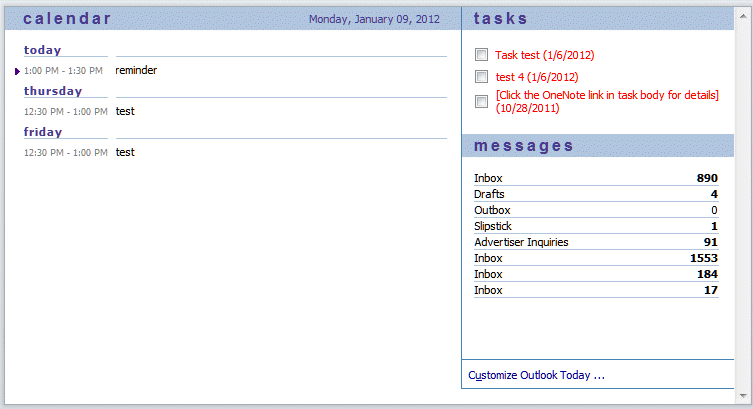
While you are limited to displaying appointments and tasks from your default calendar, you can add message folders from any data file in your profile to display in the Messages list.
Note that Outlook Today is a deprecated feature and may be removed from future versions of Outlook. The To-Do Bar was created to replace Outlook Today (and display upcoming appointments and task while viewing any folder).
Setup | Usage | Customization | Limitations | Known Problems | More Information
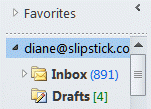
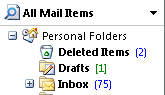
Beginning with Outlook 2010 (and newer), the Outlook Today Icon is not on the ribbon. You can add it to the Quick Access Toolbar to make it easier to access. It can also be accessed by clicking on the top-level folder of the default data file, however the icon no longer indicates which folder is the Outlook Today folder, as seen in these screen shots from Outlook 2007 and Outlook 2010:
For specific instructions to customize the Quick Access Tool Bar, see Customizing the Quick Access Toolbar (QAT). The Outlook Today command is under 'All Commands'.
Setup
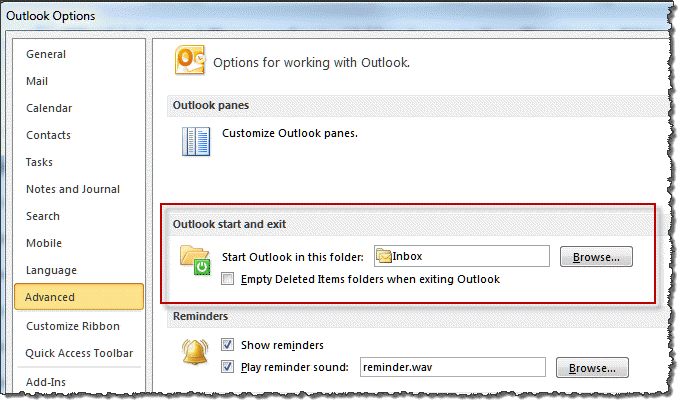
Outlook Today is included in Outlook 98 and later versions. There is no special setup procedure. In early versions of Outlook, Outlook Today was the default start-up folder; in new versions the Inbox is the default start-up folder so you'll need to change this if you want Outlook to display Outlook Today first.
To display Outlook Today when you start Outlook:
- Choose Tools | Options | Advanced Options. In Outlook 2010, You'll go to File, Options, Advanced.
- Under Startup in this folder, choose Outlook Today.
To change various display options:
- Click Outlook Today in the Outlook Bar
- On the Outlook Today page, click Customize Outlook Today or Options.
- Make your changes and then Save.
Note that the Winter theme places the Customize button on the bottom, not at the top as it is in other themes.
To point Outlook Today in Outlook to a specific web page:
- Make a backup of your system registry.
- Run the Registry Editor (regedit.exe).
- Navigate to the HKEY_CURRENT_USER\Software\Microsoft\Office\xx.0\Outlook\Today subkey. (Where xx = your version of Outlook.)
- Create a new STRING value, named URL.
- For the value of URL, enter the address of the web page you want to view when you click Outlook Today.
Usage
To see more information about any appointment, task or mail folder:
- Click that item.
To search in your Contacts folder:
- Type a name in the Find a Contact box, then click go. Outlook searches the Full Name field for the name you entered.
To mark a task as completed:
- Click the checkbox next to it. Note that completed tasks will show for the rest of "today" unless you set the completed date to "yesterday".
Customization
The Outlook Today page can be customized. Simple customization through the user interface:
- The customization options that are available for your Outlook Today view in Outlook
- Editing the Outlook Today screen -- How to use the Windows registry to modify the settings for Outlook Today if the Customize Outlook Today button no longer functions
Advanced customization requiring HTML and other programming skills:
Customizing Outlook Features -- Chapter 4 in the Outlook 98 Deployment Kit; explains how to replace the HTML in the resource .dll
Limitations
Without customization, Outlook Today cannot display a list of the items in your Inbox, Outbox or Drafts folder -- only the number of items awaiting action. Only information from your main Calendar, Tasks, Inbox, Drafts and Outbox folders is displayed. You cannot add links to other folders or to Web pages to Outlook Today (see note on customization above).
You can search for contacts only in your main Contacts folder.

Kay Castillo says
Hi, Diane. In this post https://forums.slipstick.com/threads/91413-2010-outlook-today-looks-like-an-empty-email-box/
you asked if the user's problem began after an upgrade to IE11.
Outlook Today blanked out on my laptop after an upgrade to IE11. I have checked the settings, etc., in the registry and don't see anything odd. I have a VM on which Outlook Today is performing just fine - the registry settings seem to be the same. I would REALLY love to get that operable again because it's so much cleaner than the sidebar MS is pushing now.
Sony Singh says
Hi Diane,
When i click on "outlook today" i get a prompt instructing me to download an MSO file - when i click open i get and error stating this is not a valid Win32 application. When i click cancel i get an error stating Navigation to this page has been cancelled. Any ideas?
I am running Microsoft Outlook 2010 having upgraded from 32b to 64b Windows 7 OS (all was working fine on the 32b build)
Diane Poremsky says
Have you tried repairing the office install?
Bonnie Burn says
I trust what you say. I dragged emails from my Inbox into my Clients' Folder... All has been fine... except an hour ago... my Outlook Clients' Folder only starts with "Last week." I have spent an hour trying to get my Clients folder to show me emails starting with TODAY... instead it keeps showing me last week. They do show-up on my owa version.
Please help!
Diane Poremsky says
Check the computer date setting and reset the view.
Greg says
Great info - Thanks.
Kyan Hall says
I have a client who receives, "The folder you selected does not let you search other folders at the same time. to search other folders, clear the check box next to this folder". What are some reasons clients wouldn't be able to add any folders to the Outlook Today messages area? How can this be fixed?
Diane Poremsky says
That message typically means it's in a public folder or different pst.
What version of Outlook does your client use?