When you print an email message with images attached and include the attachments in the printout, you'll see the Print Picture wizard dialog during the print process:
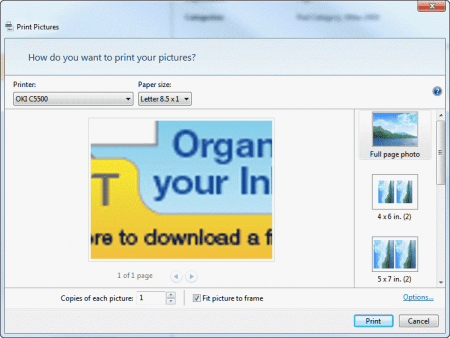
This is because the Windows Photo Viewer is set as the default application for viewing this image type (and probably for all image types). This is the default setting on new Windows installations.
In order to stop seeing this dialog, you need to change the default application for viewing images.
- Open My Documents and find an image of the same file type.
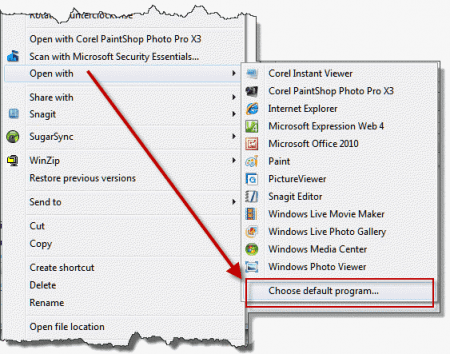
- Right click on the image and choose Open with.

- Select Choose default program.. at the bottom of the menu.
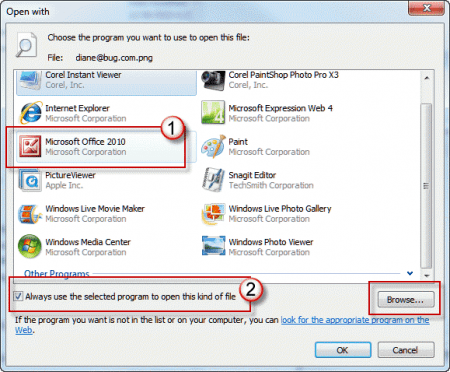
- Select a different image viewer. Most installations should have Paint and Microsoft Office (also known as Picture Manager) listed as options, but depending on what other programs are installed, you may have a long list of programs to choose from.
- If the program you want to use is installed but not listed, click the Browse button to locate it.
- Make sure the Always use the selected program to open this kind of file option is checked before you click Ok to exit the dialog.
Close the application when it opens and return to Outlook. The attached images will now print without bringing up the Print Picture dialog.
More Information
If you need a better picture viewer, there are a number of good (and often free) viewers available, such as IrfanView.

Roy Hutton says
Yeah, same here, the jpeg file type is now associated with office 2010 but just brings up that picture viewer instead of the windows one....
Diane Poremsky says
When yo change the association, the picture will open in the new program. Attachments that aren't pictures should use that application for printing. Pictures are different, especially in Windows 8/10, because they removed the ability to set the print application in default programs.
William says
I have the same issue. I've been waiting for months for a solution (which I thought would be in Windows 10), however, it appears to do the same thing...any ideas?
Cat P says
Unfortunately, this did not work for me - the print wizard still pops up every time. (Outlook 2010 on Windows 7).