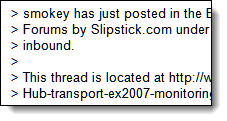
Internet-style quoting consists of putting a > or other character in front of the original message when you reply or forward it. Recipients can easily distinguish the original message from your comments. This method is preferred on many Internet mailing lists that transmit in plain text only
The default setting in current versions of Outlook in no quoting, no indentation. This can be changed to use a quote prefix, indent quoted messages, or attach quoted messages. We do not recommend using the Indent or Attach options.
Note that the quote prefix character (usually ">") is applied only to plain text messages. When you enable this option and reply to an HTML message, the quoted message is prefaced with a blue line.
Outlook 98 or later | Other Tools | Notes | More Information
Outlook 2010, 2013, 2016
- Choose File, Options, Mail
- In the Replies and forwards section (about halfway down the dialog), choose Prefix each line of the original message.
- Enter the desired prefix character in the Preface each line in a plain text message with: field.

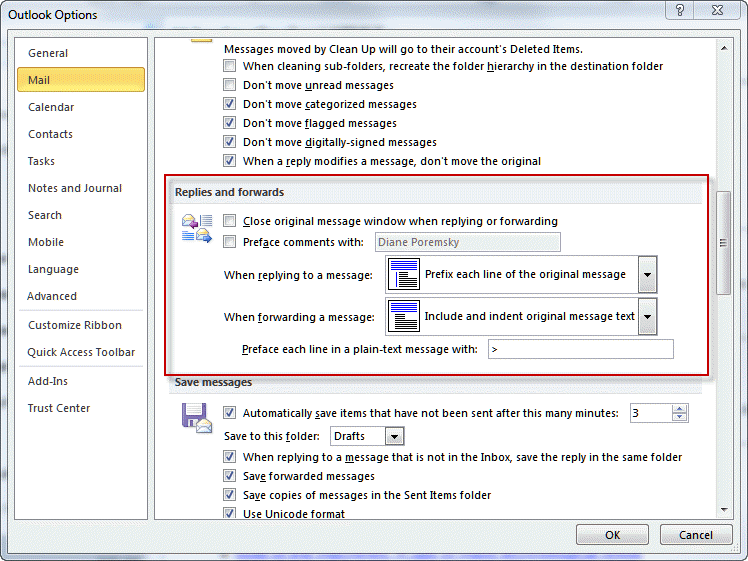
We highly recommend using > as the character as its the commonly accepted quote-prefix.
Outlook 2007 and older
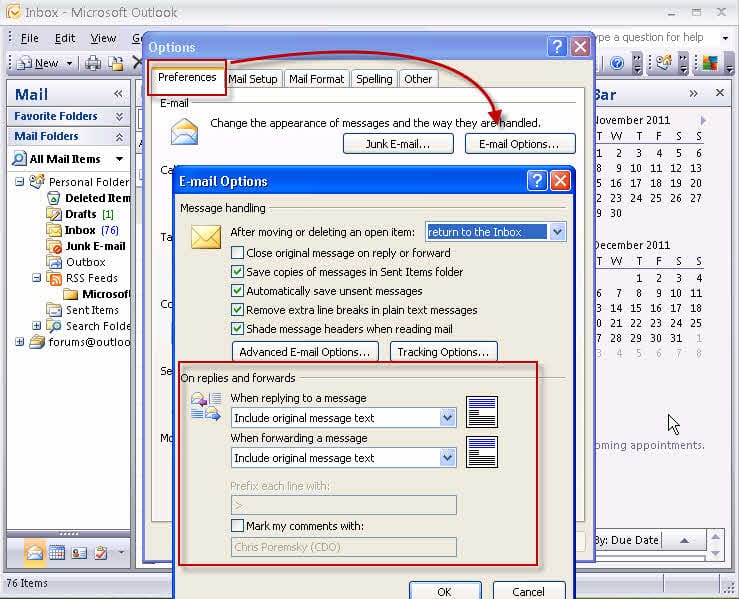
- Choose Tools | Options. On the Preferences tab, click E-mail Options.
- Under When replying to a message and When forwarding a message, choose Prefix each line of the original message.
- Set the prefix character(s) under Prefix each line with.
- Click OK twice.
Outlook 2016 for Mac
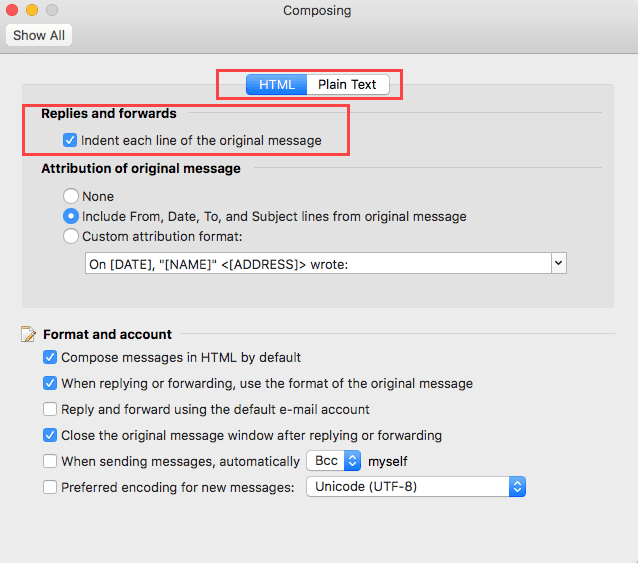
Outlook for Mac doesn't support changing the reply format to include line prefixes. The only option is to indent or not (with separate options for HTML or plain text message format). Unlike Outlook for Windows, you can change the reply header format.
To access the options in Outlook for Mac, click on Outlook in the top bar and choose Preferences from the menu then click Composing.
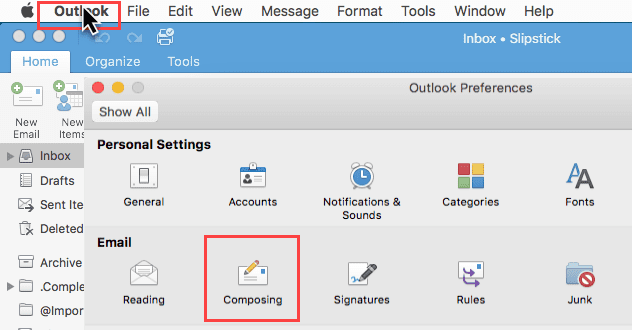
The only reply format option is to indent the original message (or not). This setting can be different for HTML and plain text messages. Outlook for Mac users also have the option to customize the reply header block.
Tools
Exchange/Outlook add-on to create custom replies, forwards, signatures -- inserting any type of boilerplate text into your message. Templates are stored in Outlook or Exchange folders and can contain scripting elements (in VBScript or ET's own script language) to build replies that use information from the incoming message. Various extensions can handle such tasks as mailing list subscriptions. For a rotating quote, download the Rotating Text template. Has some issues with Outlook 2002 -- make sure you get the latest update, disable RTF templates, and don't try to use ET as a custom action in Rules Wizard. |

Jeff Hammond says
How can I make this work in Mac Outlook 2016? These option are not present there.
Diane Poremsky says
Outlook for Mac lacks many of the options that Outlook for windows has... the closest it comes to this is in Outlook > Preferences > Composing - you can set it to indent the lines (but not add carets >) and change the reply header.
Sean says
Thanks for the article Diane... It is annoying that Outlook won't let you choose to prefix HTML messages with the > character rather than the line.
As an aside, this is the first time I've heard > referred to as a caret... wherever I've worked (Europe, Australia and NZ) a 'caret' has always been ^ and > and < have always been 'greater than' and 'less than' symbols. What do you call the ^ character?
Diane Poremsky says
you are correct - its not really a caret, but its less typing :) less than or angle bracket would be the proper term. I clearly wasn't thinking when i typed it.
Christophe says
Is there any way (possibly using VBA) of coloring different level of quotations when receiving plain text messages?
Diane Poremsky says
No, the editor doesn't support that in plain text messages.
Kevin says
Anyone know how to do this with webmail?
Diane Poremsky says
In OWA or other email read in a browser? You are limited to what the server's mail application provides. I'm not aware of any way to change it. I'm not aware of any browser extensions that could change it either, but that might be worth looking into.
Didi says
Thanx a lot!
Didi says
How can I change these properties using VBA?
I like your posts :-)
-Didi
Diane Poremsky says
The settings in Options are stored in the registry. You can either use a reg file or set it using vba.
read-and-change-a-registry-key-using-vba has code to read, change, delete, and add keys & values.
Name says
Wrong instructions for Outlook 2007. In the Options tab there is no such thing as Preferences tab and email options.
Will search the Internet for better information.
Diane Poremsky says
Um... where are you looking? There *is* a Preference tab in Tools, Options (its the default tab) and it has Email options on it. (Will add a screenshot to the instructions.)