• Outlook User
  • New Outlook app
  • Outlook.com
  • Outlook Mac
  • Outlook & iCloud
  • Developer
  • Microsoft 365 Admin
    • Common Problems
    • Microsoft 365
    • Outlook BCM
    • Utilities & Addins

Outlook 2013 IMAP Troubles

Slipstick Systems

› Outlook › Outlook 2013 › Outlook 2013 IMAP Troubles

Last reviewed on February 15, 2021     69 Comments

Applies to: Outlook (classic)

After the latest round of Office 2013 updates, some IMAP users are reporting their Inbox is not listed in their profile, is empty, or their IMAP accounts aren't syncing.

This is the result of the November 12 2013 updates, KB2837618 and KB2837643. In addition to the IMAP problems, Outlook may crash shortly after it starts, users with Exchange 2007 mailbox may have problems setting out of office replies, retrieving free/busy or using add-ins (such as Lync) that use the SMTP address property, due to problems with autodiscover.

If the only problem is with an IMAP account, I don't recommend uninstalling these updates as they add some IMAP improvements and you'll have a better IMAP "experience" with these updates installed. If Outlook is crashing or you use Exchange 2007, you'll probably want to uninstall the update.

If you have custom folders created in Outlook, confirm they are synced up to the server before changing the root folder. When you change the root folder, Outlook re-syncs the mailbox and folders that have not synced up will be lost if you don't have a backup copy.

There are two possible fixes for IMAP accounts. The first, and preferred, method is to add Inbox to the IMAP root.

Set a Root Folder

To do this, go to File, Account Settings and double click on your affected IMAP account. Click More Settings button then switch to the Advanced tab.

In the Root folder path field type Inbox. Exit the dialog and perform a send and receive. (If the Inbox is not your root folder, setting Inbox as the root won't work, as it will hide all of the other folders.)
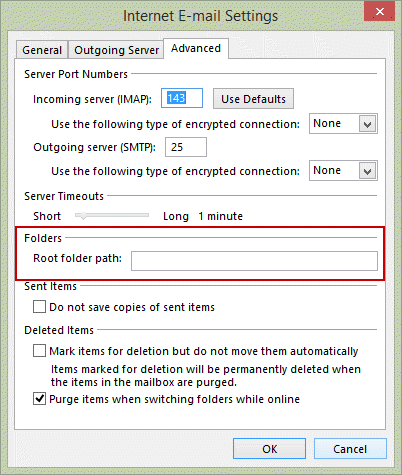
Set a root folder for the imap account

If that doesn't work, try disabling the option to show only subscribed IMAP folders.

Show only Subscribed Folder

Right click on the IMAP Inbox folder and choose IMAP folders. At the bottom of the dialog is an checkbox for When displaying hierarchy in Outlook, show only the subscribed folders. Remove the check then close the dialog to return to Outlook. Click Send and Receive.
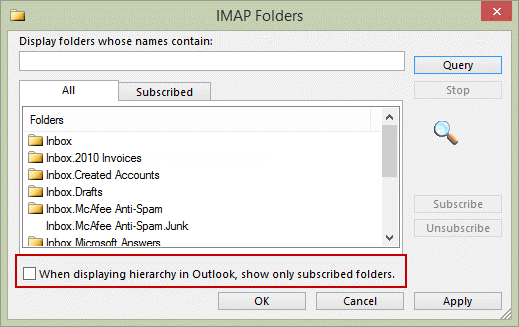
Show subscribed imap folders

If the IMAP account still doesn't work, Outlook is crashing, or you connect to Exchange 2007, you need to uninstall the updates or revert to an earlier build of Office 2013.

If you are using a click-to-run version of Office 2013, follow these steps to roll back:

First, disable Updates:

  1. Start Word.
  2. Click File, and then click Account.
  3. In the Product Information column, click Update Options, and then click Disable Updates.

Go to Microsoft Office 2013 Click-to-Run virtualization to find the previous version number.

In the Start search field in Windows 7 or on the Start screen in Windows 8, type cmd. Right click on it on choose Run as Administrator.

If you have Office installed in a 32-bit version of Windows, type or paste this in the command prompt window:
cd %programfiles%\Microsoft Office 15\ClientX86

If you're using 64-bit version of Windows, use this command line
cd %programfiles%\Microsoft Office 15\ClientX64

Type or paste this command to revert to the previous product update, replacing the nnnn with the version number you want to revert to:
officec2rclient.exe /update user updatetoversion=15.0.nnnn.nnnn

Press Enter to begin the uninstall process.

Uninstall updates for volume licensing installations
To uninstall Office 2013 Volume licensing updates or Windows updates from Control Panel's Program and Features. Click on View Installed Updates, locate the update(s) and uninstall.
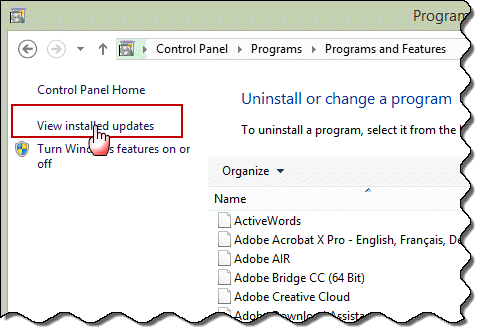
Click View Installed Updates to find and remove the updates

Outlook 2013 IMAP Troubles was last modified: February 15th, 2021 by Diane Poremsky
Post Views: 5

Related Posts:

  • Understanding Outlook 2013 Updates
  • Using IMAP Accounts in Outlook
  • Outlook crashes when viewing HTML Messages
  • Outlook Favorites: Folder Order Frequently Changes

About Diane Poremsky

A Microsoft Outlook Most Valuable Professional (MVP) since 1999, Diane is the author of several books, including Outlook 2013 Absolute Beginners Book. She also created video training CDs and online training classes for Microsoft Outlook. You can find her helping people online in Outlook Forums as well as in the Microsoft Answers and TechNet forums.

Subscribe
Notify of
69 Comments
newest
oldest most voted
Inline Feedbacks
View all comments

Ryan MVP
July 22, 2019 11:46 am

I suggest the following workaround, which is simpler to put into practice than the proposed one and, most importantly, has a 100% success rate (at least until now – and we had to pull it off quite a lot ): Go to Control Panel> Mail > E-Mail Account. In the popup window that will appear, take note of all the IMAP accounts (E-Mail panel) and the .ost file paths (Data Files panel). Navigate through the folder containing the .ost files (you can easily do that from the Data Files panel using the Open file location button). Create a new BACKUP_yyyyMMdd folder within the folder containing the .ost files. Move all the .ost files related to the IMAP accounts that you identified earlier. Launch MS Outlook again. During its startup phase, Outlook should automatically retrieve all the IMAP messages from the configured mail accounts from the mail server, reconstructing the .ost files that we moved earlier. The whole procedure could last a few minutes or even a few hours, depending on the connection speed and/or the number of messages to be recovered. The good news is that the messages will be retrieved in order of arrival (from the most recent to… Read more »

0
0
Reply
jpn
February 15, 2019 5:02 am

Work fine for me (Outlook 2016)

Thank you

0
0
Reply
Michael Van Dam
May 24, 2017 1:31 pm

Sorry for the typo "now" two problems fixed!

0
0
Reply
Michael Van Dam
May 24, 2017 1:30 pm

This website is awesome - no two problems fixed due to your detail.

0
0
Reply
Edgar
August 22, 2016 7:56 am

Diane @ I create a new pst file  and the *.pst file "Set as Default"
move person folder to new *.pst file. and withholding of folder is hidden.
You now what is solution.

0
0
Reply
Diane Poremsky
Author
Reply to  Edgar
August 22, 2016 11:30 pm

I'm not sure i understand the problem. Is it the issue here - https://www.slipstick.com/developer/code-samples/change-outlook-folder-type-export/ ?

0
0
Reply
Heather
August 5, 2016 6:07 pm

Hi Diane, I have been using Outlook 2013 for a while with terrible syncing issues. E-mail never syncs automatically and sometimes when I do send/receive it just hangs. When it finally syncs, it pulls down the last 3-4 hours all in one shot. (I've adjusted all the settings for this already).

Here's my MAIN PROBLEM ...

I just tried adding "inbox" to the root directory and when i went back to outlooks, all of my sub-folders are gone (all of my work related folders, sent mail, junk, etc.). I tried removing inbox and going through that process again, but all of the folders are still not displaying. I checked the IMAP folders directories and see them all there - I clicked on the subscribed tab and they are all listed there as well.
So it seems like they are THERE, just not displaying in the folder list. I could use some help trying to retrieve this. Thanks, Heather

0
0
Reply
Diane Poremsky
Author
Reply to  Heather
August 22, 2016 11:28 pm

The folders are there - setting Inbox as the root just changes how outlook displays them. Have you closed and reopened Outlook? That should fix it.

0
0
Reply
Heidi
June 6, 2016 4:09 pm

I was having an issue with my outlook folder not syncing to the server (outlook correct, imap was 'behind' and not showing the folder). I typed INBOX into the root folder box and my Outlook reverted to the server. Now a whole folder of emails is gone, and removing 'inbox' from the root folder path does not help. Do you know if there is a way I can recover my emails?

0
0
Reply
Ron Olson
April 20, 2016 11:40 am

Thanks for the Outlook tips.

I use Outlook 2013 and have multiple accounts connected including Yahoo IMAP.

I have many folders/subfolders sometimes going four levels deep. The structure was started in Yahoo (before IMAP) but expanded in Outlook. I noticed recently that while some Outlook created folders were in Yahoo/web, some were not. And vice versa.

I did the right click/IMAP Folders on my Yahoo IMAP top level folder, and enabled "When displaying hierarchy in Outlook, show only subscribed folders".

This successfully added some folders/subfolders created in Yahoo/web to show up in Outlook.

However, there were folders in the same IMAP hierarchy that showed up only in Outlook. Those have disappeared (along with the mail in them).

I did almost all my folder/subfolder structure in Outlook, so I know many of them do show up in Yahoo/web.

Any idea how I can get access to the folders/emails that no longer show up?

Thanks

0
0
Reply

Visit Slipstick Forums.
What's New at Slipstick.com

Latest EMO: Vol. 31 Issue 3

Subscribe to Exchange Messaging Outlook


Support Services

Do you need help setting up Outlook, moving your email to a new computer, migrating or configuring Office 365, or just need some one-on-one assistance?

Our Sponsors

CompanionLink
ReliefJet
  • Popular
  • Latest
  • Week Month All
  • Use Classic Outlook, not New Outlook
  • How to Remove the Primary Account from Outlook
  • Reset the New Outlook Profile
  • Disable "Always ask before opening" Dialog
  • This operation has been cancelled due to restrictions
  • How to Hide or Delete Outlook's Default Folders
  • Adjusting Outlook's Zoom Setting in Email
  • Mail Templates in Outlook for Windows (and Web)
  • Removing Suggested Accounts in New Outlook
  • Remove a password from an Outlook *.pst File
  • Error Opening iCloud Appointments in Classic Outlook
  • Opt out of Microsoft 365 Companion Apps
  • Mail Templates in Outlook for Windows (and Web)
  • Urban legend: Microsoft Deletes Old Outlook.com Messages
  • Buttons in the New Message Notifications
  • Move Deleted Items to Another Folder Automatically
  • Open Outlook Templates using PowerShell
  • Count and List Folders in Classic Outlook
  • Google Workspace and Outlook with POP Mail
  • Import EML Files into New Outlook
Ajax spinner

Recent Bugs List

Microsoft keeps a running list of issues affecting recently released updates at Fixes or workarounds for recent issues in classic Outlook (Windows).

For new Outlook for Windows: Fixes or workarounds for recent issues in new Outlook for Windows .

Outlook for Mac Recent issues: Fixes or workarounds for recent issues in Outlook for Mac

Outlook.com Recent issues: Fixes or workarounds for recent issues on Outlook.com

Office Update History

Update history for supported Office versions is at Update history for Office

Outlook Suggestions and Feedback

Outlook Feedback covers Outlook as an email client, including Outlook Android, iOS, Mac, and Windows clients, as well as the browser extension (PWA) and Outlook on the web.

Outlook (new) Feedback. Use this for feedback and suggestions for Outlook (new).

Use Outlook.com Feedback for suggestions or feedback about Outlook.com accounts.

Other Microsoft 365 applications and services


New Outlook Articles

Error Opening iCloud Appointments in Classic Outlook

Opt out of Microsoft 365 Companion Apps

Mail Templates in Outlook for Windows (and Web)

Urban legend: Microsoft Deletes Old Outlook.com Messages

Buttons in the New Message Notifications

Move Deleted Items to Another Folder Automatically

Open Outlook Templates using PowerShell

Count and List Folders in Classic Outlook

Google Workspace and Outlook with POP Mail

Import EML Files into New Outlook

Newest Code Samples

Open Outlook Templates using PowerShell

Count and List Folders in Classic Outlook

Insert Word Document into Email using VBA

Warn Before Deleting a Contact

Use PowerShell to Delete Attachments

Remove RE:, FWD:, and Other Prefixes from Subject Line

Change the Mailing Address Using PowerShell

Categorize @Mentioned Messages

Send an Email When You Open Outlook

Delete Old Calendar Events using VBA

Repair PST

Convert an OST to PST

Repair damaged PST file

Repair large PST File

Remove password from PST

Merge Two Data Files

Sync & Share Outlook Data

  • Share Calendar & Contacts
  • Synchronize two computers
  • Sync Calendar and Contacts Using Outlook.com
  • Sync Outlook & Android Devices
  • Sync Google Calendar with Outlook
  • Access Folders in Other Users Mailboxes

Diane Poremsky [Outlook MVP]

Make a donation

Mail Tools

Sending and Retrieval Tools

Mass Mail Tools

Compose Tools

Duplicate Remover Tools

Mail Tools for Outlook

Online Services

Calendar Tools

Schedule Management

Calendar Printing Tools

Calendar Reminder Tools

Calendar Dates & Data

Time and Billing Tools

Meeting Productivity Tools

Duplicate Remover Tools

Productivity

Productivity Tools

Automatic Message Processing Tools

Special Function Automatic Processing Tools

Housekeeping and Message Management

Task Tools

Project and Business Management Tools

Choosing the Folder to Save a Sent Message In

Run Rules on messages after reading

Help & Suggestions

Submit Outlook Feature Requests

Slipstick Support Services

Buy Microsoft 365 Office Software and Services

Visit Slipstick Forums.

What's New at Slipstick.com

Home | Outlook User | Exchange Administrator | Office 365 | Outlook.com | Outlook Developer
Outlook for Mac | Common Problems | Utilities & Addins | Tutorials
Outlook & iCloud Issues | Outlook Apps
EMO Archives | About Slipstick | Slipstick Forums
Submit New or Updated Outlook and Exchange Server Utilities

Send comments using our Feedback page
Copyright © 2026 Slipstick Systems. All rights reserved.
Slipstick Systems is not affiliated with Microsoft Corporation.

:wpds_smile::wpds_grin::wpds_wink::wpds_mrgreen::wpds_neutral::wpds_twisted::wpds_arrow::wpds_shock::wpds_unamused::wpds_cool::wpds_evil::wpds_oops::wpds_razz::wpds_roll::wpds_cry::wpds_eek::wpds_lol::wpds_mad::wpds_sad::wpds_exclamation::wpds_question::wpds_idea::wpds_hmm::wpds_beg::wpds_whew::wpds_chuckle::wpds_silly::wpds_envy::wpds_shutmouth:
wpDiscuz

Sign up for Exchange Messaging Outlook

Our weekly Outlook & Exchange newsletter (bi-weekly during the summer)


Please note: If you subscribed to Exchange Messaging Outlook before August 2019, please re-subscribe.

Never see this message again.

You are going to send email to

Move Comment




























