The April 26 2011 update fixes a problem with IMAP accounts where the new mail icon is not visible. Outlook 2010's April 26, 2011 hotfix
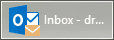
In previous versions of Outlook, there was a "new mail" icon placed in Window's notification tray, alerting users to new messages. In Outlook 2010 on Windows 7 or Windows 8, an envelope icon is placed in the notification area of the tray as well as on the large icon in the taskbar.
The Outlook icon on the task bar changes if there are new messages. This change is, in part, because of changes to the notification tray itself.
| No new mail | New Mail | Small taskbar icon |
|---|---|---|
 |  |  |
When you use the standard "large" icons, you'll see the New Mail icon, if you use small icons, you won't get the envelope on the icon.
Note: Outlook 2013's Taskbar icon also displays the new mail envelope on the large taskbar icon.
Notification Area
The new mail envelope is also added to the notification area. However, because many of the icons in the notification tray are hidden, you may not see it.
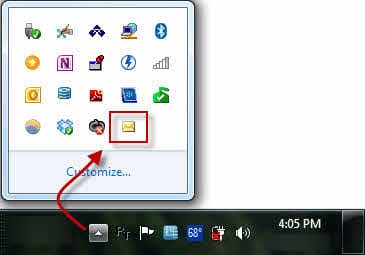
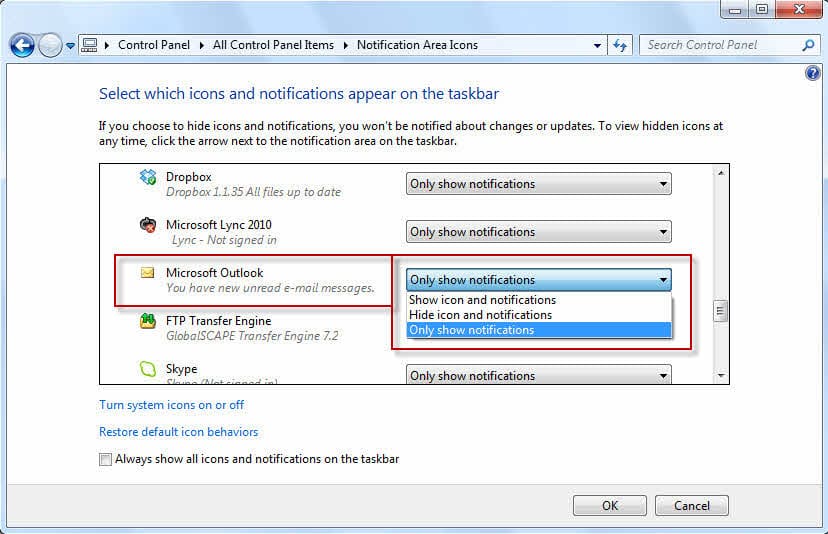
You can change the settings so the new mail envelope is always visible in the notification area (system tray).
- Click the Customize link in the overflow (or Right click on the Taskbar and choose Properties, then Customize button)
- Locate the two Outlook icons - one is for the program and uses the Outlook icon that is displayed in the Taskbar (and in the icon screenshot above). The second one is the envelope icon.
- On the envelope icon's entry, choose Show icon and notifications from the Behaviours to the right of the icon and program name.
Desktop Alert
New Mail icon with IMAP accounts
When using the RTM version of Outlook, IMAP accounts do not display a new mail icon. The fix for this is included in Outlook 2010 SP1.
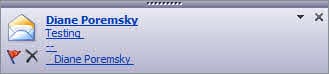
When using IMAP accounts, you'll get the new mail envelope (when SP1 is installed) but will not see the blue Desktop Alert. This is expected behavior and is unlikely to change in current versions.

Keith says
Hi Diane, I have 2 accounts connected with my Outlook 2010, and I'm wondering if it is possible to set it so that the new mail envelope in the notification area only displays for new mail for one of the accounts and not for the other?
Diane Poremsky says
No. Some of the mail notification options can be turned off globally then triggered using rules, but the enveloper is not controlled by rules. The envelope can be turned off in file, options, mail but you can't selectively enable it via rules.
Bill Ajemian says
I have created separate pst files for different projects, and set up rules so that if I get an email, for example that is related to a specific project it will go to that pst file's inbox. My problem is when a new item comes in, I do not get an notification on in the notification area for that email. I only get notifications for the default folder. How do I modify the new pst folders to get notifications for them? It would be helpful, since I would be waiting for a specific email from someone, and sometimes miss it unless I go into outlook.
Thanks
Diane Poremsky says
Add display desktop alert and/or play a sound to the rule.
Manny Zohar says
Thank you MS for keeping me confused in the last 32 years with your half baked software.
Don Page says
I am having a problem that has just started about 2 weeks ago with my Outlook 2010. I have 2 IMAP accounts/profiles set up and both had been working just fine. Now, for some reason, one of the accounts is having trouble connecting to the server. I get "Can not connect to server" errors, but it does seem to eventually connect and download the messages. The email I have put in the box below is not the IMAP account I am having trouble with.
Diane Poremsky says
Who is the problem account with? It may be a problem with the server, not outlook. It could also be a problem caused by an update. See if any updates (outlook or windows) were installed right before the problem started. But because only one account is affected, I'm not sure its an update causing the problem.