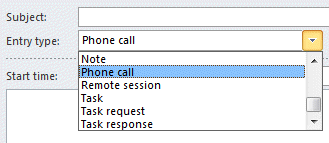
The Journal comes with a limited number of entry types but you can easily add more by editing your registry.
As always, you should backup your registry before editing it.
You need to open the registry editor. To do this, go to Start Menu, Run (or the Start Search field in Vista/Windows 7) and type regedit to open the Registry Editor.
- Browse to HKEY_CURRENT_USER\Software\Microsoft\Shared Tools\Outlook\Journaling.
- Use the File, Export menu to back up this key before editing.
- To add a new key, right-click the Journaling key, select New, Key. Enter a name for the entry type, such as "Incoming Phone Call". Your new key name doesn't have to match the descriptive text that will appear in the Entry Type field, but you'll find it easier if it does.
- Add values to your new key. You need two basic values for your new key to work:
Description: A string value. This is the text that appears in the Entry Type field of the Journal Entry. It doesn't have to be the same value as the registry key, but may be easier if the description is the same as the key name. This key is required to display on the Entry type list unless you specify a binary DescriptionID.
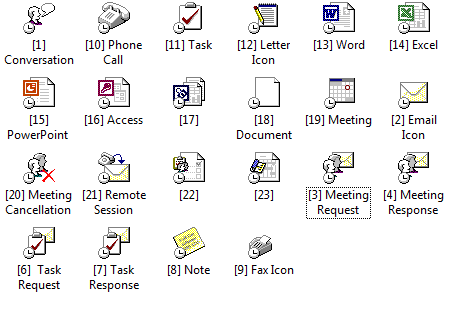
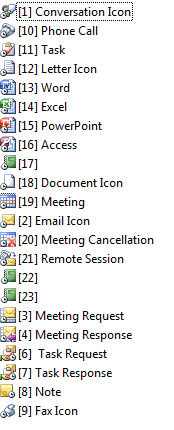
Large Icon: A string value from 1 to 23 that appears in square brackets ("[17]"). This value determines which icon Outlook uses for items of this entry type in the Table, Icon, and Timeline views. Default is a blank sheet of paper if you omit this key. Number 24 and above is the standard yellow envelope. The large and small icons and their corresponding numbers are shown below. - You can delete any entry types that you don't want, with the exception of the Phone Call entry. You can rename the Phone Call entry by adding a Description string value with the text you prefer and deleting the DescriptionID field.

Tabitha Odell says
I can't find journal entry in Outlook 2016, can you tell me where it is?
Diane Poremsky says
it's hidden - open journal folder and press ctrl+n or click the new button.
see https://www.slipstick.com/outlook/journal/making-the-journal-work-in-outlook-2013/ for more information.
Jenn says
Thank you! This was exactly what I needed! I work in a law office, and have to keep track of every single interaction with clients, especially indigent defense clients. Outlook's Journal feature is perfect for that. I needed to make an entry for "Payment", and read several articles trying to figure out how to do so. This was the first article I found that finally outlined it in a way that I--as only an intermediate computer user--could understand.
Paul says
What happens if I make this change in the registry and then sometime later migrate to the next release of Outlook or possibly update my computer - even if I use the same version (new installation) of Outlook? Are the journal entries that I've added to my new entry type lost? This is very important to understand because I want to have a 'family' journal type to keep a family diary.
Diane Poremsky says
The journal items won't be lost and they *should* retain the custom entry type if you don't edit them, but at most, the custom entry type would revert to one of the defaults (Phone, probably). The content in other fields in the journal item won't be affected.
Doug Anderson says
Thank you for the help, this was exactly what I was looking for.
Krzysztof Dymicki says
Thank you.
Krzysztof Dymicki says
And how to automatically register PDF files I use during my work? Not only MS specific file types?
Diane Poremsky says
Adding PDF to the journmal types requires the app supports VBA, so adding PDF is not possible. Sorry.