A visitor asked how to send mail from a shared email account:
We have several users that need the ability to view, send and receive emails for different accounts. We can get everything set up correctly except for one piece. Anytime a person sends out an email it is sent from the wrong mailbox and also shows up in the incorrect sent box.... We don't have a selection of which account to send from.
Delegates of shared accounts who can send mail on behalf of and have full control of all the folders in the shared account can save sent items and deleted items in the mailbox owner's folders. However, a registry key may need to be set.
You need to use Cached Exchange mode for this to work!
In all versions of Outlook, there are two basic ways to control where sent mail is saved for the secondary account. Assign the user Send as permissions then save the email to the secondary account's Sent Items folder using rules or a registry value, or add the second account as an IMAP account.
If your mailbox is located on Exchange Server 2010 or newer (including Office 365 Exchange Online), the Exchange administrator can configure similar behavior on the server. Because this new feature is handled by the Exchange server, Outlook can be configured for Online or Cached Exchange Mode. However, the Exchange server feature only works if the Outlook DelegateSentItemsStyle registry value is disabled.
See Save Sent Items in Shared Mailbox using an Exchange Server Cmdletfor more details.
Saving Sent Items in the Shared Mailbox
To save items in the Sent folder with the mailbox open as a secondary mailbox, you will either need to use "After sending" rules or a registry hack. Either way, your default Exchange account will need to have Send as permission and create permission on the Sent items folder.
This applies to Deleted items as well. See Deleted items for the registry key.
First, in the Active Directory, give the user's account send as permission on the accounts he needs to send from. The user then types that address in the From field (or click the From button and select it from the GAL) when preparing the message.
Delegates with permission to send email on behalf of another user should have the correct permission already. However, SendAs permission will eliminate mail being sent "on behalf of" the mailbox owner.
In the secondary mailbox, the user's account will need permission to create items in the Sent Items folder. This can be set from Outlook. Right click on the Sent Items folder and choose Properties, then Permissions tab. The user needs sufficient permissions to create items in the folder.
With Outlook 2003, 2007, or 2010, the sent message can be moved to the secondary account's Sent folder automatically if a registry key is set and appropriate hotfixes or updates are installed.
Users of all version of Outlook can use after sending rules or an add-in to move the sent messages to move sent items to the correct folder.
While you can open secondary mailboxes Outlook 2010, you can also open the account as a second Exchange account. However, we recommend delegates use the "old" method of opening the shared mailbox as a secondary account in their profile.
When the user has Full Access rights to the mailbox, the mailbox is opened in the profile automatically in Outlook 2007 and 2010.
DelegateSentItemsStyle Registry Value
To move sent messages to the correct sent items folder in Outlook 2010, 2007, or 2003, you need to enable a registry setting. (If you have the latest service pack for your version of Outlook, the hofix may be installed.)
Outlook 2016
Open the registry editor and browse to:
HKEY_CURRENT_USER\Software\Microsoft\Office\16.0\Outlook\Preferences
DWORD: DelegateSentItemsStyle
Data Value: 1
Outlook 2013
Open the registry editor and browse to:
HKEY_CURRENT_USER\Software\Microsoft\Office\15.0\Outlook\Preferences
DWORD: DelegateSentItemsStyle
Data Value: 1
Outlook 2010
In Outlook 2010, you need to have SP1 (or greater) installed. Open the registry editor and browse to:
HKEY_CURRENT_USER\Software\Microsoft\Office\14.0\Outlook\Preferences
DWORD: DelegateSentItemsStyle
Data Value: 1
Outlook 2007
In Outlook 2007, install the June 30, 2009 hotfix, described in KB article 970944. Then open the registry editor and browse to
HKEY_CURRENT_USER\Software\Microsoft\Office\12.0\Outlook\Preferences
DWORD: DelegateSentItemsStyle
Data Value: 1
Outlook 2003
For Outlook 2003, you need this hotfix package. Once its installed, open the registry editor and browse to
HKEY_CURRENT_USER\Software\Microsoft\Office\11.0\Outlook\Preferences
DWORD: DelegateSentItemsStyle
Data Value: 1
With all versions you will need to close and restart Outlook for the registry change to take effect.
Do It For Me
If you don't want to edit the registry yourself, I have ready-to-use registry files you can download and run to set the DelegateSentItemsStyle.
Outlook 2016 Outlook 2013 Outlook 2010
Outlook 2007 Outlook 2003
Who sent the message?
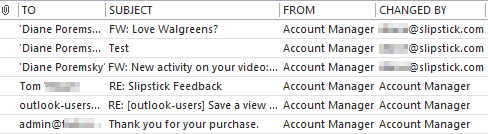
If you need to know who sent the message, you can add the change by field to the Sent Items folder.
To do this, right click on the row of field names and choose Field Chooser. Select All Mail Fields then find Changed By in the list.
Create a Second Account
If editing the registry to enable the add the DelegateSentItemsStyle registry value is not an option, you can add the additional accounts to the profile as IMAP accounts, then select the account when composing the message.
If you have Outlook 2010, an IMAP account is not necessary as you can add additional Exchange mailboxes to your Outlook profile as additional Exchange accounts. Note that this is not recommended for users with delegate permissions to the mailbox. These users should use either the DelegateSentItemsStyle registry key (or after sending rules) or create an IMAP account.
How to Edit the Registry
Press Windows key + R to open the Run dialog, type regedit and press Enter.
- Browse the registry and locate HKEY_CURRENT_USER\Software\Microsoft\Office\xx.0\Outlook\Preferences (Where xx is your version of Outlook.)
- Right click on Preferences key and select New, DWORD Value.
- Type (or paste) DelegateSentItemsStyle for the DWORD
- Double click on DelegateSentItemsStyle to open the Edit dialog then type 1 for the Value data and close the dialog.

Don't forget to close and restart Outlook!
Tools
Lucatec Mask Add-in for Outlook is used with Exchange server accounts, allowing replies from a shared mailbox or public folder, automatically entering the folder or mailbox's email address in the From field. Lucatec Mask will automatically determine the correct sender address to use based on the mailbox or public folder the user is currently using in Outlook. It also offers the option to move or copy the sent message to the relevant account's Sent Items folder (or Public Folder). It supports shared Exchange Server accounts and Public Folders with email addresses. Works with Outlook 2000-2010. Version 3 | |
RightFrom automatically fills in the correct From address when the user is responding to a message in another user's Exchange mailbox. Also RightFrom utility can associate the signatures with the mailboxes. When John Doe navigates to Sales mailbox and clicks the "New message" button, the From: field will be populated automatically with "Sales" and the salesperson (non-default) signature will be added to the message automatically too. | |
Timed Email Organizer is a brand new add-in which can replace or augment your Outlook rules. Unlike Outlook, this add-in will act on emails based on how old they are, supports ANDs, ORs, NOTs and wildcards in the conditions, and has a test mode so that you can see what the effect of a given rule would be if it were run. It will even import your current Outlook rules and automatically disable them for you. | |
Outlook COM add-in for Exchange Server users who need to send mail from a second mailbox. The add-in ensures that messages sent with the second mailbox's From address or deleted from the second mailbox stay in the Sent Items or Deleted Items folder of the second mailbox. | |
SAM automatically sets the sender, signature, and folder for sent items based on several criteria. Use SAM to assign a sending account or SendOnBehalf address and signature to contacts, folders, or categories. Works with Outlook 2007, 2010 and Outlook 2013, 2016. |
MSKB Articles
When you send an e-mail message from a shared mailbox in Outlook 2007, the sent message is not saved in the Sent Items folder of the shared mailbox
Description of the Outlook 2007 hotfix package (Outlook.msp): June 30, 2009
Items that are deleted from a shared mailbox go to the wrong folder in Outlook
An e-mail message does not appear in a user's mailbox if the e-mail message was sent on behalf of the user by a delegate in Outlook 2003
Description of the Outlook 2003 hotfix package: June 18, 2008

Odie says
Hi Diane,
I have an exchange 2016. When user is sending an email from the shared mailbox with BCC the sent email goes to her personal mailbox and the shared mailbox. But the BCC only shows in her mailbox not to the shared mailbox. We tried to install registry keys and resetup the Outlook. It works the email now goes to the shared mailbox and she can now see the BCC. But she also wants to see it on the own sent items. Any suggestion? Would rule is the only fix?
Diane Poremsky says
I'll need to test it. A rule should solve the problem though.
Andreas says
Hello Diane,
thanks a lot for sharing your knowledge. I used the Outlook 2013 REG File
to fix the sent item issue for a user mailbox (not a shared one). The customer
runs Exchange 2010. After that REG fix the function "send on behalf" does
not work any longer for him. Do you hane any clue what went wrong?
Regards from berlin - Germany,
Andreas
Diane Poremsky says
If you remove the key and restart outlook, does send on behalf of work again? It shouldn't affect it at all and sounds more like permissions were changed on the server that affected it.
Andreas says
Dear Diane,
thank you for your quick answer. I aggree, this only can be a server issue and I
could fix it. I checked the permission of the mailbox user and it was correct.
Here was the problem: the address "from" in outlook pointed to an outdated
address reference.
Best regards,
Andreas
Diane Poremsky says
>> Here was the problem: the address "from" in outlook pointed to an outdated
the shared address was outdated? That will do it - delete it and reselect it from the GAL (i would use the gal, not the offline address book).
Mike Delaney says
Hi Diane,
I'm using Group Policy to push the DelegateSentItemsStyle registry entry, and it is working. I have a question though regarding the customizing of the view settings. When I add the Changed By field in the shared mailbox, the field does not display my name as the sender. It displays the shared mailbox name.
I was assigned Full Access permissions to the shared mailbox via the Exchange server and was not delegated permission. Is delegate permissions required in order to have my username appear in the Changed By field?
Diane Poremsky says
When you have full access, your account is an owner and you act as the mailbox. You would need to have on send on behalf of permissions instead to see your name in the sent folder - either applied alone or in delegate permissions.
Sam says
Just wanted to drop and and thank you for the info here. Really helped me sort out a head scratcher on our exchange/outlook. Also made the up front staff happy.
Jay Libove says
Hi Diane,
Vaguely related; when I click the From: dropdown when composing a new email, I get a list of the real email accounts configured in Outlook, and I get the ability to manually type an Other Email Address to put in the From: of a particular message that I compose.
Usually, Outlook remembers these Other Email Addresses, so I can see them in the From: dropdown in future and not have to re-type them every time.
I've recently fresh-installed two of my systems, with Windows 10 and Office 2016.
On one of them, Outlook 2016 does remember my Other Email Address and show it to me in the From: dropdown ... but on the other it doesn't remember.
I've done some research on this and not quite found the answer (see https://social.technet.microsoft.com/Forums/office/en-US/6ad4c9a9-48d1-454b-be07-62e39275dfe7/outlook-2016-remember-other-email-address-from-dropdown-for-future-emails?forum=Office2016ITPro ).
Can you comment? Why wouldN'T Outlook 2016 on one particular installation remember a manually entered Other Email Address?
How can I force Outlook 2016 on that computer to remember the other address?
thanks,
-Jay
Diane Poremsky says
Well, it should remember the ones you added. This is stored in the registry so it sounds like the registry is not getting updated for some reason - do you have any addins or applications that access outlook data and could be preventing it from closing cleanly?
Does it keep the list if you add it manually? (use the correct account key - if you added the same accounts in the same order, the account key should be the same on both systems).
Mark Wong says
Hi Diane,
I also had similar issue as Jay
Our user had two Exchange account with same profile,
Outlook do not save the send from address
Every time send mail from Shared mailbox,
user need key in the From: address again
If this is registry issue, how to fix?
Diane Poremsky says
There are normally two reasons why it doesn't remember - wrong permissions on the registry (it shouldn't be this if other settings stick) and the address is mistyped.
If you open outlook using run as admin and try to send from the address, does it save it? That would point to a registry permission issue. (The key is stored in the Accounts section in the profile.)
Mark Wong says
Sorry for late reply,
Outlook run as admin no help,
and very sure the sender address is correct
The user only had single exchange account in OUTLOOK is working fine
Eric says
Is there a way to make a user default to send as the shared mailbox, by them clicking reply/reply all from within the shared mailbox? And for it to use the correct signature?
BTW thanks for this post, haven't tried it yet, but I wanted this functionality with the sent/deleted items folders.
Diane Poremsky says
If you have send permissions, replies and forwards should use the correct account - new messages won't but you can use a macro to do this. If the shared mailbox is mapped, not added as a new account, the signature won't change automatically but a macro can change it.
Mark says
Hi Diane,
If you create an “Additional Mailbox” but on a different Exchange Server, what happens when your initial (or primary Exchange Server) goes down?
I.E.:
So site “A” has you Exchange Server and your personal exchange account.
Site “B” has a Group/Shared account.
You setup your personal account with the Shared ‘group’ account that is at another site (let’s say Site “B”).
If site “A” server goes down. Obviously send/receive from your personal won’t work, but can you send emails from the Group/Shared account?
I ask, because the Group/Shared account ‘feels’ like a child account of the primary/personal exchange account.
Also, does the “Send As” make a difference for this scenario?
Thanks in advance.
Mark
Diane Poremsky says
I have not tested this scenario - I'm going to say it wouldn't send because it's dropped in your outbox. Send as won't matter, because it still uses your mailbox's outbox.
Brett Snowball says
The registry entry works a treat and when a new email is sent from Outlook 2013 (Windows 7 & Exchange 2010 SP1) as a 'send on behalf', it goes to the 'on behalf' sent items. However, my client does a lot of 'send to-mail recipient' emails from pdf/excel/word files but it always goes to their own personal sent items rather than the 'on behalf of' sent items. Is this a design feature or am I missing something? Has anyone else noticed this behavior?
Diane Poremsky says
it's a limitation of the send to command. If he is sending from windows explorer, using the send to shortcut, you can customize it - signatures and stationery will work too. https://www.slipstick.com/outlook/create-a-custom-send-to-shortcut/
if you are sending using an application's file, send to command, i don't have a workaround for it.
jjjeroenski says
Hi Diane,
Still nothing solved or workaround about this ?
Found online some posts with same issue but nobody with an answer, strange because the pdf > mail button is well know and a lot used...
Thanks in advance
Diane Poremsky says
the way the File, Send command connects into Outlook, prevents this from working. if you use a current version of Exchange server, the method here should work to add it to the shared mailbox - https://www.slipstick.com/exchange/save-items-shared-mailbox-exchange-server-cmdlet/
jeff Scharfenberg says
This registry entry didn't do the trick. I have a client on office 2010 SP2. Not sure what else to do. When he uses his other email address the sent emails go to his personal one, not the one he is sending from.
Rogier van Teeseling says
In Outlook 2013 with Exchange 2013, just create a second e-mailaccount in Outlook and all sent items will go to the right folder.
You need full rights on the shared mailbox.
In Outlook, go to File -> Account Settings -> New
Fill in the emailaddress of the shared mailbox and click next.
Af says
I came here to find only one answer which is "How to get the delegate email addresses automatically appear in the from section rather than writing them manually every time?" Thanks!
Diane Poremsky says
You'd need to use a macro. The macro here - https://www.slipstick.com/outlook/using-gmail-master-account-reply-using-correct-account/#new - will work.
Victor Ivanidze says
Or use this tool: https://ivasoft.biz/unisent.shtml
Simon Erichstrup says
Not fixing what he was asking
Ron Bigham says
Awesome!!! HR person happy that a "Careers" mailbox has the reply email in its own sent folder and not mixed in the HR person's sent folder. The permission settings on the "Careers" sent folder along with the Office Outlook 2010 registry edit worked perfectly. Thanks so much. It is always nice when IT can make HR happy... ron
Jonatan says
Hello Diane,
I been looking all over for information on this, but have not yet been able to find it. I've noticed that as you mentioned in the article this only works for when users are working on cache mode. I've tested this when the users are on online mode, and was able to get it working by turning off the DelegateSentItems registry; however, the setting will go back to enabled once they reboot their computer.
Now I'm wondering why this happens. I was thinking about setting a GPO to just keep it off, but I wanted to know the reason before placing something else out there.
I appreciate your help, have a great day!
Diane Poremsky says
Are you setting the key using group policy? If so, every time the user account is logged on the registry key is set.
Jonatan says
Hello Diane,
No GPO. In fact I been thinking of making one just to keep it off.
Diane Poremsky says
That should work - policy overrides user settings. If you open outlook then close it and reboot right after making the change, do the values stick? Any registry cleaners or security software that could be resetting the value?
Jonatan says
Hello Diane,
The value does revert back to on.
No registry cleaners, or security software that could cause this.
Diane Poremsky says
That is with the set it and restart outlook test? Try policy.
James Kemp says
Hi, Diane!
For a user, I added a second email account ("Reception") so that it could be set as the default account - not just added to the existing account (via mailbox > properties > advanced > advanced tab > add).
Both ways mean you can see the Reception folders in the navigation pane, but adding it as a second account and setting it as default profile means that when she sends emails, it defaults to be sent "From" "Reception" - success!
However, all the emails from that account have now been added into her mailbox as well - presumably to the local OST file.
All those emails are also in her webmail.
Is there a way to have the account as the default profile (simply so that whenever she hits send or reply, it is "From" "Reception" account), but not have all the emails added into her mailbox - she can happily access the emails from the navigation pane as she does with the previous receptionists inbox, because she was given access to it.
Regards,
James
Diane Poremsky says
What version of outlook? Did you set the delegatesentitems key? (Actually, in thinking about this more, if the account is in the profile as an account, this has no bearing.)
Is she a delegate for the account? Is she getting the delegate copies?
It should work to just have the account in her profile as a second account - if she selects the mailbox before sending mail, Outlook 2010 or 2013 will use the correct From address.
Gabrielle Gagnon says
I didn't see an answer to the part of the question that dealt with selecting which account to actually send the message from.
In Outlook 2010, when you create a mail message, you can click the Options tab, and select "From" to view the From field in the message envelope. In Outlook Exchange this is a dropdown list. Select "Other E-mail Address..." and then enter the sender's address.
This works fine for sending messages manually, but I'd like to know how to do this from VBA. I'm an admin for a resource, and the resource mailbox has been added as a secondary mailbox to my account. Whenever someone schedules time on it, we have a VBA program that formats and sends alerts to interested parties. The problem is the alerts often get sent under my name instead of the resource's, and I haven't been able to find a way to set that in the program. (I can enter the resource mailbox address in the From field, but when I send it, the Exchange server always returns the message to the resource saying it is undeliverable "#550 5.6.2 STOREDRV.Submit; subscription not found##) Does anyone know how to solve this problem? I tried iterating through accounts, but only one account is in my profile.)
Cynep says
This can also be addressed at Exchange 2010 server, removing the need to be in "cached mode": https://support.microsoft.com/kb/2632409
Chris says
Hi Diane,
is there a way to get this done without activating the Cached Exchange mode?
Best regards,
Chris
Diane Poremsky says
The only other way is with a macro. Did you test it in non-cached mode? It works for some people, some of the time. (It may be inconsistent enough to make it worthless in online mode.)
Johan says
no cached mode, anti-virus isn't blocking it either. I solved it with the Delegate Move Message plug-in, now it works as it should.
Thanks!
Diane Poremsky says
That's work too. :)
Diane Poremsky says
That'll work too. :)
Johan says
Hi Diane,
Thanks for the quick response!
no network promblem, sending mail from the default account goes fine. we are not using cached mode, so that can't be the problem.
I will do some more testing today to see if I can specify the problem.
Diane Poremsky says
If you aren't using cached mode, it shouldn't stick. What antivirus do you use? Is it scanning outgoing email?
Johan says
Hi Diane,
Thanks for the trick, but I have one problem.
The sent message is moved to the correct sent items folder, but I also stays in my outbox folder.
Any suggestions?
Thank you, Johan
Diane Poremsky says
Hmm. That usually means there is a network problem.
What version of Outlook?
Do all sent messages stick or just some?
Are you using cached mode? Try disabling caching shared folders.
Igor Kondrasovas says
Hello,
Thank you for the post...
However, I was not able to make it work changing the registry configuration. I am running Outlook 2013 - Brazilian Portuguese and event the "\Preferences" registry is not available. I tried to manually add it, but nothing happened after restarting outlook.
Any additional tips?
Thank you,
Igor.
Diane Poremsky says
It *should* work, and yes, if the key doesn't exist, add it. Did you try using the reg file under D0 it for me for Outlook 2013?
bugfree says
Thank you for this very useful article. registry key change did the trick for me
Di Ring says
thanks for this but it is not moving the sent message to the shared mailbox sent items like other versons. Any advice please?
Diane Poremsky says
Which version of Outlook? Did you restart Outlook? Is the reg key correct- no typos?