I hear from a lot of users who don't like how Outlook handles sent items with an IMAP account. In older versions of Outlook, IMAP sent items use the local Sent Items folder. While Outlook 2007 and 2010 can be configured to use the IMAP sent folder, when you use a Send by email command in other applications, the sent item goes into the local data file, ignoring the account configuration. Outlook 2013 uses XLIST from the IMAP server to determine the sent items folder, but if the IMAP server doesn't support XLIST, the sent item might be saved locally. Outlook 2016 and newer handles it better, using the folder the server uses or one named Sent Items.
For Exchange users, Sent Items are stored in the account's mailbox (and have an option use the option to Save sent items with the original, if not in the Inbox). But Shared mailboxes save a copy in the users own Sent Items folder by default, but the shared mailbox may be configured save a copy in the shared mailbox sent folder too.
You can solve this problem by monitoring the Sent Items folder and moving sent messages to the desired folder.
Outlook 2013 users who want to move IMAP messages to a local pst file can use this macro too, however, it will not move the messages immediately. They need to sync down from the IMAP server first.
To use the macros on this page, you need to use the GetFolderPath macro from GetFolderPath.
You'll also need to set macro security to low to test the macro.
Press Alt+F11 to open the VBA editor. Expand Project1 and Microsoft Outlook Objects then double click on ThisOutlookSession. Paste the code into ThisOutlookSession. GetFolderPath can be pasted below this macro or in a new module.
To use this with multiple accounts, copy the IF... End IF block and change the account name and folder path for each account.
The account name and the data file name are usually the same - in Outlook 2010 and newer, both are the email address by default.
You need to use the account name as seen in File, Account Settings (or in the From field if you have multiple accounts) and the data file name (and path to the Sent folder) as seen in the folder list.
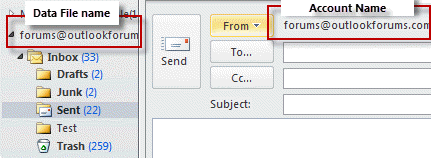
You can get the path to the sent folder from folder properties. Right click on the sent folder, choose Properties. Select the path from the Location field (without the \\) and the folder name from the name field.
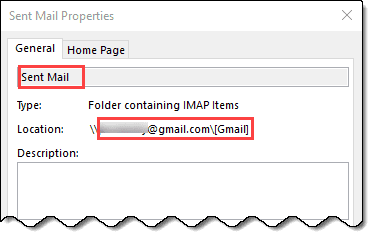
Note: this macro will work with any account type.
These macros start when Outlook starts. To test it without restarting Outlook, click in the Application_Startup macro and click the Run button (or press F5).
Only move Sent mail from one account
This macro checks the sender address and only moves mail sent from that address.
Private WithEvents Items As Outlook.Items

Private Sub Application_Startup()
    Set Items = Session.GetDefaultFolder(olFolderSentMail).Items
End Sub

Private Sub Items_ItemAdd(ByVal Item As Object)

If Item.SendUsingAccount = "alias@domain.com" Then
' Get the GetFolderPath function from http://slipstick.me/getfolderpath
    Set MovePst = GetFolderPath("data file name\Inbox\Sent")
    Item.Move MovePst
End If

End Sub
Move Sent mail from Shared Mailbox
This version of the macro works with Exchange Server shared mailboxes. It can either use the GetfolderPath function or resolve the shared mailbox. The Exchange server needs to be configured to save sent items in the shared mailbox.
Private WithEvents olSentItems As Items
Dim olSent As folder
Dim olInbox As folder

Private Sub Application_Startup()
  Dim objNS As NameSpace
  Set objNS = Application.Session

' Uses GetFolderPath Function
'  Set olSentItems = GetFolderPath("Outlook Sales\Sent Items").Items
'  Set olInbox = GetFolderPath("Outlook Sales\Inbox")

' looks up shared mailbox name
  Dim objOwner As Outlook.Recipient
  Set NS = Application.GetNamespace("MAPI")
  Set objOwner = NS.CreateRecipient("olsales")
    objOwner.Resolve

 If objOwner.Resolved Then
 ' MsgBox objOwner.Name
 Set olInbox = objNS.GetSharedDefaultFolder(objOwner, olFolderInbox)

' Because using objNS.GetSharedDefaultFolder(objOwner, olFolderSentMail) triggers an error
 Set olSentFolder = olInbox.Parent.Folders("Sent Items")
 Set olSentItems = olSentFolder.Items
 End If

Set objNS = Nothing
End Sub


Private Sub olSentItems_ItemAdd(ByVal Item As Object)

MsgBox "New Item"
    Item.Move olInbox
End Sub
Using Multiple IMAP accounts in Outlook 2013 and newer
Beginning with Outlook 2013, IMAP sent messages are stored in the IMAP account's sent folder and you'll need to watch each sent folder for new items.
Because each account in this example is moving sent items to the same data file, we can set the MovePst as a global variable.
This macro will also work with Exchange accounts and POP accounts that have their own pst files for incoming mail.
Private WithEvents Items As Outlook.Items
Private WithEvents GmailItems As Outlook.Items
Private WithEvents AliasItems As Outlook.Items
Dim MovePst As Outlook.Folder

Private Sub Application_Startup()
'watch default account sent folder
    Set Items = Session.GetDefaultFolder(olFolderSentMail).Items

' Use the GetFolderPath function from http://slipstick.me/getfolderpath
'watch other sent folders
    Set GmailItems = GetFolderPath("me@gmail.com\[Gmail]\Sent Mail").Items
    Set AliasItems = GetFolderPath("diane@domain.com\Sent Items").Items

' set move pst
    Set MovePst = GetFolderPath("Outlook Data File\Sent Items")

End Sub

Private Sub Items_ItemAdd(ByVal Item As Object)
    Item.Move MovePst
End Sub

Private Sub GmailItems_ItemAdd(ByVal Item As Object)
    Item.Move MovePst
End Sub

Private Sub AliasItems_ItemAdd(ByVal Item As Object)
    Item.Move MovePst
End Sub
Multiple IMAP accounts in Outlook 2010 and older
If you are using multiple accounts, you can use IF statements to selectively move messages. This works with Outlook 2010 and older only, because Sent items are moved into the default pst.
Private WithEvents Items As Outlook.Items

Private Sub Application_Startup()
    Set Items = Session.GetDefaultFolder(olFolderSentMail).Items
End Sub

Private Sub Items_ItemAdd(ByVal Item As Object)
' Get the GetFolderPath function from http://slipstick.me/getfolderpath

If Item.SendUsingAccount = "alias@domain.com" Then
   Set MovePst = GetFolderPath("data file name\Inbox\Sent")

ElseIf Item.SendUsingAccount = "alias@domain1.com" Then
   Set MovePst = GetFolderPath("data file name1\Inbox\Sent")

ElseIf Item.SendUsingAccount = "alias@domain2.com" Then
   Set MovePst = GetFolderPath("data file name2\Inbox\Sent")

Else
 Exit Sub

'    Item.UnRead = False
    Item.Move MovePst
End If

End Sub
You could also use Case statements to set the correct Move path.
Move all sent messages
This macro assumes you have only one IMAP account in Outlook (and it's set as default data file) or one or more POP accounts in Outlook using the same data file and want to move the mail sent from all accounts to a different folder.
Outlook 2013 (and newer) users who want to move IMAP messages to a local pst file can use this macro too, however, it may not move the messages immediately. Sent messages need to sync down from the IMAP server first.
Private WithEvents Items As Outlook.Items

Private Sub Application_Startup()
    Set Items = Session.GetDefaultFolder(olFolderSentMail).Items
End Sub

Private Sub Items_ItemAdd(ByVal Item As Object)
' You need the GetFolderPath function from http://slipstick.me/getfolderpath
    Set MovePst = GetFolderPath("data file name\Inbox\Sent")
    Item.UnRead = False
    Item.Move MovePst
End Sub
How to use the macros on this page
First: You need to have macro security set to the lowest setting, Enable all macros during testing. The macros will not work with the top two options that disable all macros or unsigned macros. You could choose the option Notification for all macros, then accept it each time you restart Outlook, however, because it's somewhat hard to sneak macros into Outlook (unlike in Word and Excel), allowing all macros is safe, especially during the testing phase. You can sign the macro when it is finished and change the macro security to notify.
To check your macro security in Outlook 2010 and newer, go to File, Options, Trust Center and open Trust Center Settings, and change the Macro Settings. In Outlook 2007 and older, look at Tools, Macro Security.
After you test the macro and see that it works, you can either leave macro security set to low or sign the macro.
Macros that run when Outlook starts or automatically need to be in ThisOutlookSession, all other macros should be put in a module, but most will also work if placed in ThisOutlookSession. (It's generally recommended to keep only the automatic macros in ThisOutlookSession and use modules for all other macros.) The instructions are below.
The macros on this page need to go into ThisOutlookSession.
Open the VBA Editor by pressing Alt+F11 on your keyboard.
To put the macro code in ThisOutlookSession:
- Expand Project1 and double click on ThisOutlookSession.
- Copy then paste the macro into ThisOutlookSession. (Click within the code, Select All using Ctrl+A, Ctrl+C to copy, Ctrl+V to paste.)
More information as well as screenshots are at How to use the VBA Editor

Api says
Hi
What is the code for macro to archive sent emails from a specific shared mailbox to the shared sent folder?Now the sent email is archived in the sent personal folder
Diane Poremsky says
This part of the shared mailbox code gets the sent folder -
Set olInbox = objNS.GetSharedDefaultFolder(objOwner, olFolderInbox)
Set olSentFolder = olInbox.Parent.Folders("Sent Items")
Where should it be archived?
This line moves it to the Inbox -
Item.Move olInbox
If you want mail your send from the shared mailbox to go into the shared mailbox sent folder, that can be done using a registry key or the admin can configure exchange to do it.
Save Sent Items in Shared Mailbox Sent Items folder (slipstick.com)
Fabiano Cid says
Hi
Dear Diane,
Can you explain in a short video?
I need move all messages from IMAP sent folder to a PST outlook 2019 folder every time.
Tim says
Hi, I have multiple POP3 inboxes in Outlook and a single IMAP account. Can you provide the complete VBA code I can use to ensure that any Sent emails from any of the POP3 accounts (wildcard ideally rather than having to specify each account) also get copied/moved to the sent folder of the IMAP account?
Diane Poremsky says
A wild card won't work - you need to watch each Sent folder.
Private WithEvents olSentItemsA As Items
Private WithEvents olSentItemsB As Items
Private WithEvents olSentItemsC As Items
Set olSentItemsA = GetFolderPath("AcctA\Sent Items").Items
Set olSentItemsB = GetFolderPath("AcctB\Sent Items").Items
Set olSentItemsC = GetFolderPath("AcctC\Sent Items").Items
And you need an ItemAdd for each -
Private Sub olSentItemsA_ItemAdd(ByVal Item As Object)
Item.Move olInbox
End Sub
Private Sub olSentItemsB_ItemAdd(ByVal Item As Object)
Item.Move olInbox
End Sub
Private Sub olSentItemsC_ItemAdd(ByVal Item As Object)
Item.Move olInbox
End Sub
Tumer says
Dear Diane,
ı hope you are well, I would like when ı try to modified your code in outlook ,outlook cant find recipient or To . would you help me.
Private WithEvents Items As Outlook.Items
Private Sub Application_Startup()

Set Items = Session.GetDefaultFolder(olFolderSentMail).Items

End Sub
Private Sub Items_ItemAdd(ByVal Item As Object)
Dim RecipientAddress As Variant
If RecipientAddress = " John, Smith (Canada) " or " john.smith@example.com"
' Get the GetFolderPath function from http://slipstick.me/getfolderpath
Set MovePst = Outlook.Session.Folders("2020").Folders("sent").Folders("ABC")
Item.Move MovePst
'End If
End Sub
when I made If statement with recipient / To doesnt check and move correct destionation.
what is my mistake ?
best Regards
Tumer
Abhijeet says
Hi
I have macro that macro send emails with attachment but 500 emails to send so i can not add those in sent item folder
from setting i remove this add after sending email to sent item folder
problem is some emails send without attachments so i want identify which emails sent with & without attachments so please tell me any macro that copy paste emails from sent item folder paste in particular folder (Folder is created on Desktop) & then delete that permanently
Please help me
Meaning says
Please help me! I want save sent item as .msg to disk outlook use IMAP protocol
Diane Poremsky says
You want to do this using macros? See https://www.slipstick.com/developer/code-samples/save-selected-message-file/ - there is one for sent messages. If you just want to save one or two now and again, you can drag the message from sent items to the hard drive. or open it and use the same command.
Pietro says
Thanks for the tutorial. I would like to use this script for a slightly different function: I need to save the emails added to the "Sent" folder in a local archive, without removing them from "Sent" folder.
I tried this:
Private Sub Items_ItemAdd(ByVal Item As Object)
If Item.SendUsingAccount = "name.surname@domain.com" Then
Set MovePst = GetFolderPath("abcd\Fold")
Dim Copied As Object
Set Copied= Item.copy
Copied.Move MovePst
End If
End Sub
But it returns "Run-time error '-2147221233 (8004010f)'"
Can you help with this? Thank you in advance.
Fabio says
I was finding IMAP way too complicated...I decided to go back to all pop accounts but I still would like to try something else. What are your thoughts on Google Apps Sync for Outlook?
Fabio says
I'm wondering if this would work for Aliases...I decided to switch from POP3 to IMAP (Google Apps) because I wanted to be able to sync with another computer, but I had 3 other aliases configured as additional email addresses with their own pop/smtp settings....I just disabled the ability to retrieve email and used them for sending purposes. I tried doing that with IMAP, but it seems to create a separate set of folders for each alias...somehow I think this configuration doesn't really work with aliases at least this macro might be able to move between IMAP accounts.
Diane Poremsky says
The method you tried *should* work, but like you said, imap creates more folders. Setting it up as a pop3 account would work.
https://www.slipstick.com/outlook/config/how-to-create-a-fake-pop3-account/
The macro can move the sent mail into the gmail imap folder.
Pete says
Using VBA and Outlook for the first time (2010 Version) I get an error with MovePST variable not defined. I have copied your code verbatim and annotated as necessary.
Diane Poremsky says
That usually means something was not declared and you are using option explicit. Add this as the first line under
Private Sub Items_ItemAdd(ByVal Item As Object):
Dim MovePst as Outlook.folder
if that errors, use just
Dim MovePst
Gary Wood says
Many thanks, Diane - this is now working perfectly. Thank you so much for your help - much appreciated.
Gary Wood says
Hi Diane, I'm sorry to post again about this, but I was wondering if you've had a chance to look at the code, yet? This is the only code I can find online that comes close to what I need to do, and it would be great if we can get it working with Outlook 2013.
Diane Poremsky says
I see what the problem is - the code was messed up, it's just checking the accounts, not the message.
use this for the if -
If Item.SendUsingAccount = "name1" Then
Gary Wood says
OK, no worries - I don't mean to rush you, of course. Thanks again for continuing to try and help with this.
Gary Wood says
Hi Diane, Just wondering if you had any more thoughts on this, please? I'm in the process of switching email providers, and am keeping my fingers crossed that we can get this code to work, so I can simplify my setup!
Diane Poremsky says
I'm trying to get caught up on things here and haven't had a chance to test it thoroughly yet.
Gary Wood says
Outlook 2013 32-bit. Thanks for continuing to look at this for me.
Gary Wood says
Sorry to post again before you've had a chance to reply, Diane, but I think I know what's happening now - just not how to fix it!
Of the two accounts I have listed in the code, I tried changing the first one to something that doesn't exist. Then, the message was moved to the Sent Items box listed for the second account.
So, it seems that instead of the script saying "If the message was sent through "NAME1" move it to "NAME1\Sent", but continue to the next option, if it wasn't", it's actually behaving as "If an account with "NAME1" exists - and regardless of whether the message was sent through it - move the message to "NAME1\Sent".
Does that make sense, and could it explain what's going on? If so, how can I fix it?!
Many thanks.
Diane Poremsky says
That does make sense and if often the reason why If's fail. Doubling up on If's can be a problem to, but usually only if using an OR or a "not if". I'll take a look at the code and test it next.
Gary Wood says
Thanks, Diane.
So, that gave me:
Private Sub Items_ItemAdd(ByVal Item As Object)
Dim oAccount As Outlook.Account
For Each oAccount In Application.Session.Accounts
'repeat for each account
If oAccount.DisplayName = "NAME1" Then
msgbox oAccount.DisplayName
' Get the GetFolderPath function from http://slipstick.me/getfolderpath
Set MovePst = GetFolderPath("NAME1\Sent")
Item.UnRead = False
Item.Move MovePst
End If
If oAccount.DisplayName = "NAME2" Then
' Get the GetFolderPath function from http://slipstick.me/getfolderpath
Set MovePst = GetFolderPath("NAME2\Sent Items")
Item.UnRead = False
Item.Move MovePst
End If
Next
End Sub
Interestingly, what happens now is that regardless of which account I send an email through, the Message Box pops up with the Display Name "Name1", and then the message gets moved to the Sent Items box listed for account "Name2"! So, the If/End doesn't seem to be working...
Diane Poremsky says
What version of Outlook are you using?
Gary Wood says
In fact, testing this further, it seems that the problem is that the If statement isn't working: the code seems to trigger a move for any sent mail -- regardless of the sending account -- to the specified folder path.
Any ideas?
Diane Poremsky says
Add msgbox oAccount.DisplayName right after the if statement and see if it pops up the expected account name.
Gary Wood says
Thanks for this code, Diane.
However, I'm also having difficulty making this work correctly. I want to set it up for multiple accounts. However, once I add the first account, all mail, regardless of the Display Name of the account I send through, gets moved to the first folder path I list in the code.
I really need to get this working, so would appreciate any suggestions/help anyone can offer.
David says
I added the .DisplayName, this didn't seem to change anything. When I use just one account, it works fine. When I add the 2nd account, it fails. I tried changing just the 2nd account's loop to item.copy instead of item.move, and it threw this error: 450: Wrong number of arguments or invalid property assignment.
It's worth noting that this is what causes the failure:
Condition 1:
I send 1 message from account A. The failure ("cannot be deleted") is in the loop for account B, even though it shouldn't be affected. Notably, the message does get saved in the SENT box for BOTH account A and account B. I'm hoping this helps debug.
Condition 2:
I send 1 message from account B. No failure/error message, BUT the message is NOT saved in either accounts' SENT box.
Condition 3:
I comment out account A in the code, so this should only work for account B.
I send 1 message from account A (nothing should happen). Message gets stored only in the sent folder for account B.
I send 1 message from account B, no message gets stored in either SENT box.
Condition 4:
I comment out account B, uncomment account A.
I send 1 message from account A, the code works properly.
hope this helps. I'm not much of a de-bugger....
David says
Thanks for this, but I'm having an issue with multiple accounts.
Outlook 2013 this works great with one account. However, when I add another account, nothing happens when I send from the 2nd account. BUT, when I send from the first account this happens:
1. the mail gets moved to the Sent boxes of BOTH accounts, and
2. I get this error popup, even when sending from the first account:
Mircosoft Visual Basic
Run-time error '-2147221233 (8004010f)':
the items were copied instead of moved because the original items cannot be deleted. The operation failed. An object cannot be found.
When I debug, it's stopped next to the 2nd account line:
Item.Move MovePst
Here's my code:
Private WithEvents Items As Outlook.Items
Private Sub Application_Startup()
Set Items = Session.GetDefaultFolder(olFolderSentMail).Items
End Sub
Private Sub Items_ItemAdd(ByVal Item As Object)
Dim oAccount As Outlook.Account
For Each oAccount In Application.Session.Accounts
'repeat for each account
If oAccount = "David IMAP" Then
' Get the GetFolderPath function from http://slipstick.me/getfolderpath
Set MovePst = GetFolderPath("David IMAP\Inbox\Sent")
Item.UnRead = False
Item.Move MovePst
End If
If oAccount = "HostrupHR" Then
' Get the GetFolderPath function from http://slipstick.me/getfolderpath
Set MovePst = GetFolderPath("HostrupHR\Inbox\Sent")
Item.UnRead = False
Item.Move MovePst
End If
Next
End Sub
Function GetFolderPath(ByVal FolderPath As String) As Outlook.Folder
Dim oFolder As Outlook.Folder
Dim FoldersArray As Variant
Dim i As Integer
On Error GoTo GetFolderPath_Error
If Left(FolderPath, 2) = "\\" Then
FolderPath = Right(FolderPath, Len(FolderPath) - 2)
End If
'Convert folderpath to array
FoldersArray = Split(FolderPath, "\")
Set oFolder = Application.Session.Folders.Item(FoldersArray(0))
If Not oFolder Is Nothing Then
For i = 1 To UBound(FoldersArray, 1)
Dim SubFolders As Outlook.Folders
Set SubFolders = oFolder.Folders
Set oFolder = SubFolders.Item(FoldersArray(i))
If oFolder Is Nothing Then
Set GetFolderPath = Nothing
End If
Next
End If
'Return the oFolder
Set GetFolderPath = oFolder
Exit Function
GetFolderPath_Error:
Set GetFolderPath = Nothing
Exit Function
End Function
I tried changing the code to:
If oAccount = "David IMAP" Then
' Get the GetFolderPath function from http://slipstick.me/getfolderpath
Set MovePst = GetFolderPath("David IMAP\Inbox\Sent")
Item.UnRead = False
Item.Move MovePst
ElseIf oAccount = "HostrupHR" Then
' Get the GetFolderPath function from http://slipstick.me/getfolderpath
Set MovePst = GetFolderPath("HostrupHR\Inbox\Sent")
Item.UnRead = False
Item.Move MovePst
End If
That didn't help. I wonder if it's related to the For Each...
Diane Poremsky says
This error: the items were copied instead of moved because the original items cannot be deleted. The operation failed. An object cannot be found. says there is a problem deleting the message. When you move with imap, you copy to a folder and delete it from the other folder. Try changing item.move to item.copy and see if it works.
It looks like i have a typo in the code - you need to check the display name:
For Each oAccount In Application.Session.Accounts
'repeat for each account
If oAccount.DisplayName = "account name" Then
For multiple accounts wit would be better to assign the account name to a variable and use that in the code - provided the display name and the data file name is identical. I'll update the code to do that too.
Nelson says
For myself I get absolutely no error messages, only that the messages do not move.
Nils says
No nothing.
Nils says
I've also tried the code with no success. I'm using Windows 8, the german version of Outlook 2013 and Mailaccounts from gmx.de and 1und1.de - if that matters. Would love to see a working workaround for this isse.
Diane Poremsky says
Do you get any error messages?
Nelson says
Thanks for this but for some reason it still does not work. The emails are still in Sent Items (This computer only). Not sure what else to try.
Diane Poremsky says
I'll test it. (I might regret not testing the code I gave you the other day. :) )
Nelson says
I'm sorry but I can't seem to get this to work in Outlook 2013. The mail in 'Sent Items (This computer only)' don't move to the 'Sent Items' folder I am pointing to. Macro security is disabled and debugging doesn't seem to find an error in the code. Clearly I am doing something wrong and I am a novice with this so any help is appreciated.
Here is my code:
Private WithEvents Items As Outlook.Items
Private Sub Application_Startup()
Set Items = Session.GetDefaultFolder(olFolderSentMail).Items
End Sub
Private Sub Items_ItemAdd(ByVal Item As Object)
Dim oAccount As Outlook.Account
For Each oAccount In Application.Session.Accounts
'repeat for each account
If oAccount = "PSI Email" Then
Set MovePst = GetFolderPath("PSI Email\Sent Items")
Item.UnRead = False
Item.Move MovePst
End If
Next
End Sub
Sub Whatever()
Dim Ns As Outlook.NameSpace
Set Ns = Application.GetNamespace("MAPI")
'use the default folder
Set Items = Ns.GetDefaultFolder(olFolderSentMail).Items
'do whatever
End Sub
Diane Poremsky says
You need the GetFolderPath function.
Try this:
Private Sub Application_Startup()Set Items = Session.GetDefaultFolder(olFolderSentMail).Items
End Sub
Private Sub Items_ItemAdd(ByVal Item As Object)
Dim oAccount As Outlook.Account
For Each oAccount In Application.Session.Accounts
'repeat for each account
If oAccount = "PSI Email" Then
Set MovePst = GetFolderPath("PSI EmailSent Items")
Item.UnRead = False
Item.Move MovePst
End If
Next
End Sub
Function GetFolderPath(ByVal FolderPath As String) As Outlook.Folder
Dim oFolder As Outlook.Folder
Dim FoldersArray As Variant
Dim i As Integer
On Error GoTo GetFolderPath_Error
If Left(FolderPath, 2) = "\" Then
FolderPath = Right(FolderPath, Len(FolderPath) - 2)
End If
'Convert folderpath to array
FoldersArray = Split(FolderPath, "")
Set oFolder = Application.Session.Folders.Item(FoldersArray(0))
If Not oFolder Is Nothing Then
For i = 1 To UBound(FoldersArray, 1)
Dim SubFolders As Outlook.Folders
Set SubFolders = oFolder.Folders
Set oFolder = SubFolders.Item(FoldersArray(i))
If oFolder Is Nothing Then
Set GetFolderPath = Nothing
End If
Next
End If
'Return the oFolder
Set GetFolderPath = oFolder
Exit Function
GetFolderPath_Error:
Set GetFolderPath = Nothing
Exit Function
End Function
mville says
There are 6 .pst data files. The default .pst containing the default Sent Items folder for Outlook (created by my original POP3 account which has long been deleted) and one for each of the 5 IMAP accounts.
With no code, the IMAP sent emails go to the default Sent Items folder in the default .pst and not the Sent Mail folder for each IMAP account, hence this code.
After adding the code, any sent mail goes to the default Sent Items folder and the code in the Items_ItemAdd event is triggered.
There are 5 accounts (one for each IMAP account) in Application.Session.Accounts, mail.com being the first.
The mail is moved, but only to the first IMAP account listed. In this case the mail.com Sent folder. The code is definitely running.
mville says
Removed the \\ on the path. Still the same outcome. All sent items go to the first account's sent items folder.
I have 3 other non-gmail accounts so would like to get this working.
Diane Poremsky says
Is the first account the default account? I've been working on the premise that 'first account' was the one listed first in the code... but if it's the folder all the sent mail goes to when you don't use code, then the code isn't running. Make sure macro security is set to low and click in the Startup macro and click Run.
mville says
Yes:
For Each oAccount In Application.Session.Accounts
If oAccount = "mail.com" Then
Set MovePst = GetFolderPath("\\mail.com\Sent")
Item.UnRead = False
Item.Move MovePst
End If
If oAccount = "gmail.com" Then
Set MovePst = GetFolderPath("\\gmail.com\[Gmail]\Sent Mail")
Item.UnRead = False
Item.Move MovePst
End If
Next
This is in Outlook 2007, gmail.com sent mail ends up in the mail.com sent folder.
Diane Poremsky says
Don't use \\ on the path - also, gmail accounts shouldn't need this. Gmail saves copies in it's sent folder automatically.
mville says
I tried this with multiple IMAP acoounts but all sent mail ends up in the first email account sent items folder only.
Diane Poremsky says
Did you repeat this for each account?
If oAccount = "second account name" Then
Set MovePst = GetFolderPath("second-imap-account\Inbox\Sent")
Item.UnRead = False
Item.Move MovePst
End If