The key to getting Microsoft Outlook to dial telephone numbers the way you want is to enter numbers in the right format. Any numbers outside your own country should be entered in "international" format. Also use international format for all numbers (not just those in other countries), if you do any traveling outside your country.
About International Format | When to Lie about Phone Numbers | Automatic Phone Number FormattingProblems with Imported Numbers | Related Procedures
Outlook adds the country code to phone numbers
Outlook will add the country code, for example +1, to phone numbers under two different scenarios.
If the option to automatically add the country code is selected in Outlook's Dialer options, as soon as you tab out of the phone number field the country code will be added.
Open the dialer. You can do this by starting a phone call to a contact. Click on Dialing Options. Is Outlook configured to automatically add the country code?
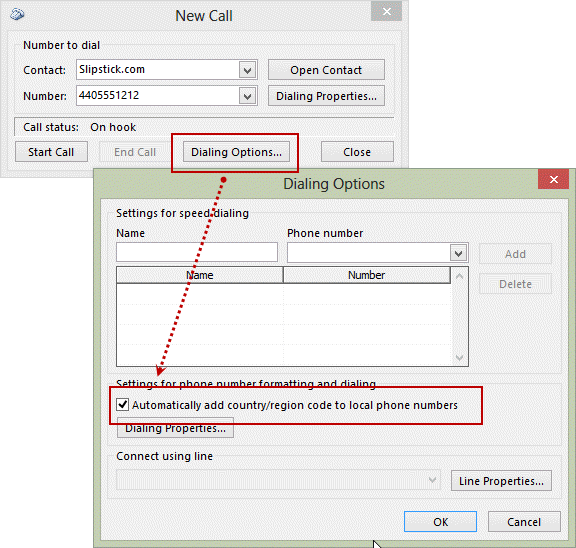
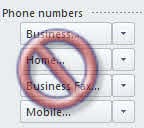 When 'automatically add country code' is not selected in options, avoid touching the Check Phone Number buttons as doing so will add a + and country code to the number. If you do open the dialog, click Cancel to leave the screen, not Ok. Some smartphones don't handle the + well and will be unable to dial the call.
See Phone Number Formatting for Outlook and Smartphones for more information.
About International Format
International format means +xxx (yyy) zzz-zzzz where the elements are
| xxx | Country code | ||
| yyy | Area or city code | ||
| zzz-zzzz | Local number |
For example, a typical U.S. or Canadian number would be +1 (202) 555-1234. The + in front of the country code and parentheses surrounding the area code are key punctuation elements that define this as a number in international format.
For any number in this format, Windows applies the Dialing Properties set for your location. When you set up a location, you specify the country and area code from which you're calling. You can also enter any line access or call waiting codes. You might even include more complex codes in the form of a calling card. (There's lots of information on setting up calling cards in the MSKB article How to Create Custom Calling Card Rules, in the Windows Help file on your system, in my Exchange Client FAQ and in Chapter 3 of The Exchange User's Handbook.)
Here's how the Dialing Properties interact with numbers entered in international format:
- If the country code and area code for the current dialing location match the codes for the number you're dialing, Windows treats it as a local call.
- If only the country codes match, then it's a long-distance call.
- If neither the country code nor area code matches, it's an international call.
Depending on the type of call, different codes are dialed before the number itself. For U.S. calls, a "1" is added before a long-distance call and "011" before an international call. Don't enter the 1 or 011 as part of the phone number; it's built into Windows. (You can change these codes by creating a calling card as part of your dialing location or by editing Telephon.ini following the instructions in the MSKB article Windows 95 - How to Change International Dialing Access Codes. For later versions of Windows, the information appears to be in the [HKEY_LOCAL_MACHINE\SOFTWARE\Microsoft\Windows\CurrentVersion\Telephony\ tree of the Windows registry; make a backup before you change anything. ) Other countries use different codes; they, too, are built into Windows.
If you never, ever travel outside your country, you can enter just the area code and local number, as in (202) 555-1234. Microsoft Outlook will correctly dial such a number as a long-distance number within your country.
If you don't travel outside your local area code, local numbers can be entered without the area code. These will be correctly dialed with the Dialing Properties you set. However, you may see your local area code added automatically when you type in a local number. That's because, for many countries, proper formatting is applied automatically whenever you enter a number with the right number of digits, the area code and country code being added automatically and the correct punctuation applied.
In some countries where automatic formatting does not apply, such as Ireland and the Philippines, if you enter only the local number, Outlook oddly tries to dial the number as if it were in the United States. If this occurs, entering the number in international format should correct the problem. See the MSKB article Fax Uses Incorrect Country Code with Windows NT for a variation on this problem that affects users outside the United States.
When to Lie about Phone Numbers
A common problem occurs when a U.S. or Canadian city has more than one area code and the usual "1" for long-distance numbers must be omitted. Under Windows 95, you need to "lie" to Windows to make these numbers work in Outlook. The best solution is to move to Windows 98, which supports 10-digit dialing for the United States, Canada and various Caribbean islands.
For example, say you live in Atlanta in area code 404, but often dial numbers in neighboring area code 970 that don't need a long-distance "1." Enter such numbers like this:
+1 (404) 970-zzz-zzzz
where zzz-zzzz is the local number.
Because this number is in international format, Windows applies the Dialing Properties. The +1 country code matches your dialing location. So does the (404) area code. Therefore, it treats 970-zzz-zzzz as a local number, adding only whatever local access or call waiting codes you have in the Dialing Properties, or perhaps applying a calling card. See the MSKB article How to Perform 10-Digit Dialing in Windows 95.
There is another method to solving this problem, particularly applicable if you never make long-distance calls with your computer, only local calls. Create a calling card with "G" for local calls (within the same area code) and "F G" for long distance calls. This eliminates the 1 completely for all calls both inside and outside your area code.
A variation on this subject occurs when you have numbers in your own area code that need to be dialed with the +1 long distance prefix and the area code. See the MSKB article Modifying the Toll Prefix List in Windows 95 for one technique for managing these numbers. You can also work with the toll prefix list through the properties for the Microsoft Fax service.
I have found another workaround to allow you to enter phone numbers and have them dialed exactly as entered -- prefix them with a comma or with *67 (where this is recognized as the code for suppressing caller ID information). For example, if you use a calling card for long distance and international calls, you would want toll-free 800 numbers to be dialed without going through the calling card. Enter the number like this:
,18005551234
exactly as you want it dialed. If you need a 9 for an outside line, put that in front, since entering a number this way completely bypasses the Windows dialing properties. So far, I have tried this method only on Windows 95 and only for dialing voice calls, not for faxes. Let me know if it works for you in other situations.
Finally, for faxes, I've modified the Contact form to support 10-digit dialing for faxes as an option. See Creating a "New Fax to Contact" Action.
Automatic Phone Number Formatting
For more than 50 locations, listed below with their country codes, Microsoft Outlook should automatically format the numbers you enter or import into international format or, optionally, format them with just the area code and local number:
| Anguilla (1) | Chile (56) | Nevis (1) |
| Antigua (1) | China (86) | New Zealand (64) |
| Argentina (54) | Cocos-Keeling Islands (61) | Norway (47) |
| Australia (61) | Costa Rica (506) | Oman (968) |
| Austria (43) | Denmark (45) | Portugal (351) |
| Bahamas (1) | Dominica (1) | Puerto Rico (1) |
| Bahrain (973) | Dominican Republic (1) | Saint Lucia (1) |
| Barbados (1) | Ecuador (593) | Saudi Arabia (966) |
| Barbuda (1) | France (33) | Singapore (65) |
| Belarus (375) | Grenada (1) | St. Kitts (1) |
| Belgium (32) | Hong Kong (852) | St. Vincent and the Grenadines (1) |
| Bermuda (1) | India (91) | Trinidad and Tobago (1) |
| Bolivia (591) | Italy (39) | Turkey (90) |
| Brazil (55) | Jamaica (1) | Turks and Caicos Islands (1) |
| British Virgin Islands (1) | Luxembourg (352) | United Arab Emirates (971) |
| Canada (1) | Monaco (33) | United States (1) |
| Cayman Islands (1) | Montserrat (1) | United States Virgin Islands (1) |
| Vatican City (39) |
For automatic formatting to occur, you must have the location set up correctly, and you must enter the number in a format that Microsoft Outlook recognizes as valid for that country.
Australia: For example, local numbers in Australia are 8 digits long. Say, you're in area code 02. If you enter an 8-digit number, such as 87878765, Microsoft Outlook formats it as +61 (02) 8787-8765, adding the +61 country code and (02) area code automatically, based on your location.
United States: In the U.S., according to Microsoft Knowledge Base article Location Settings Determine Phone Number Format, these entry formats should work, whether you're typing them or importing them:
- Eleven digits for international telephone numbers
- Ten digits for telephone numbers outside your local area code
- Seven digits for telephone numbers within your local area code
However, I've had no success getting 11-digit international phone numbers to format automatically.
France: The automatic formatting for France doesn't seem to take into account recent changes in dialing procedures. All numbers must be dialed as 10-digit numbers, with the first two digits being a regional code (01, 02, 03, 04, 05). However, callers from outside France would omit the 0 in the regional code and dial the country code, plus a 9-digit number. My current solution is to enter numbers as +33 (2) 12 34 56 78, rather than try to get the AutoFormat to do anything meaningful. The dialing properties are set with France (33) as the country and the area code as 2, not 02. Also included in the dialing properties is a calling card with the following settings:
| Local calls: | 0FG |
| Long distance calls: | 0FG |
| International calls | 00EFG |
What this means is that, for those local calls, the 0 is always dialed, then a one-digit region code (F), then the local number (G). Calls from other regions would be dialed the same way.
Beyond the above examples, there's no way to know what entry formats are recognized as valid for a particular country other than trial and error. I'll be happy to post more information on particular countries if you figure out additional valid formats that trigger this automatic masking.
FYI, when you are in a location that supports automatic formatting, you can turn off the country code for new numbers added to Contacts. Note, though, that this means you'll need to edit these numbers to add the country code if you ever need to use your Microsoft Outlook Contacts folder in another country.
To block the automatic formatting, you can enter a comma at the beginning of your number. Outlook interprets that as a brief dialing pause, then dials the number exactly as you entered it.
Problems with Imported Numbers
Phone numbers imported from other applications often have two problems. They are generally not in international format, so if you travel a lot, you may not get the dialing properties to work properly. In this case, you may want to update the numbers first, before importing.
Furthermore, even imported numbers with the right formatting are often not recognized by Outlook as being formatted. You can force Outlook to format the number by editing the number, then saving the contact. See the MSKB articles Imported Fax Numbers May Not Work in Outlook and How to Correct Formatting and Parsing of Imported Contacts for suggested procedures.
Related Procedures
To set your location in Microsoft Outlook
- Choose Tools | Options.
- Click the General tab, click Dialing Options, and then click Dialing Properties.
- Enter the information requested, then click OK until all the dialog boxes close.
To omit the country code from new numbers in Outlook 97
- Choose Tools | Options.
- Click the General tab, then click Dialing Options
- Clear the Automatically add country code to local phone numbers check box.
- Click OK twice
To omit the country code from new numbers in Outlook 98 or Outlook 2000
- Switch to the Contacts folder.
- Choose Actions | Call Contact | New Call.
- Click Dialing Options
- Clear the Automatically add country code to local phone numbers check box.
- Click OK twice
The check box in Step 3 (Outlook 97) or 4 (Outlook 98 or 2000) will be available only if you are in a location that supports automatic formatting.
To have an extension dialed after a brief pause
Format the number with a few commas before the extension, like this:
+1 (202) 555-1212,,,,117
To have local fax numbers dialed with the area code and number
See Creating a "New Fax to Contact" Action

Edward Foy says
clicking thee telephone icon in outlook contact used to work fine for me but recently it isn't working and I get the following error
"no Microsoft telephony services are installed"
Windows 10
Diane Poremsky says
What version of Outlook?
You need to have a voice moden installed or a driver that supports it. If you have one installed, you might eed to set a registry key -
HKEY_LOCAL_MACHINE\Software\Microsoft\Office\Outlook\Call Integration
DWORD: TAPIOVERRIDE
Value: 1
https://www.slipstick.com/outlook/people/calling-from-an-outlook-contact-does-not-work/
Edward Foy says
Microsoft® Outlook® for Microsoft 365 MSO (Version 2410 Build 16.0.18129.20100) 64-bit
It was previously dialing through ringcentral but after an update (i suppose) it stopped working and I now get the "no telephony installed" message.
Please see attached registry and advise if I should still add registry key as instructed or elsewhere
Diane Poremsky says
I would try the key and see if it fixes it. Also, if you haven't repaired or reinstalled ring central software, do that.
Bruce says
For me not very helpful. I use win 10 and OL2016 and of course cannot dial my contacts, as I have an 40mg ADSL internet connection and dialup modems don't work ---- used? only for dialling contacts (or so it seems).
Diane Poremsky says
you'd need a driver for the adsl that supports dialog voice calls. That is the only way Outlook will recognise it as being able to do voice calls and set it as an available driver. Sorry.
Mike Lazarus says
For Australia (and nearly all countries with a leading "0" in the area code), you have to drop the "0" if you add the +61.
So: 1234-1234 will only work if you're local,
Becomes 02-1234-1234 which will work anywhere in the country
Or +61-2-1234-1234 will work anywhere in the world (local, country or o'seas)
The bottom format is the best for travelers
Michael Rowe says
I have two contacts that reached me through my my iPhone 6 Plus and are therefore in my contacts as a text message. However, with these two they showed up with a +1 in front of the area code and remaining 7 digits. I wonder if they entered their number into their phone that way and that is why they show up in my address book with the additional +1. The problem arises when I try to sync contacts from Outlook 2013 to those on the phone. I use CompanionLink Pro which does a great job but these contacts are not merged together but remain separate on the iPhone. Suppose I could do a wipe all on the phone first but with 22,00+ contacts that would be so slow and have to be done every time one of these contacs texts or calls (as it would create a new distinct contact). I can merge the numbers manually on the iPhone but this has to be done every time I update contacs with CL Pro sync. Any ideas?
Michelle says
I need step by step instructions on how to make a voice phone call from my Outlook 365 contact. When I click, in Outlook 365 contact, the "call" icon, I get an error message that says "Call Status: No Microsoft telephony services are installed". I do not know what a telephony service is. Do you subscribe and pay for this service? I am a stay at home Mom with disabilities to my hands and fingers and it is difficult for me to push the numbers on the phone. Any help you can give would be greatly appreciated. I use Comcast Xfinity for my land line, cable and internet and I have a Cisco DPC 3941T Modem with voice. My landline cable runs thru my modem.
Len Raphael says
I have the same question as Michelle. In my case I use Jive Communications as my voip phone vendor. They do provide two pieces of software that work well even with Office365 for dialing out over their voip phones. But you do need their service and have to log into your Jive phone phone before you dial the first time.
So I don't need to know the answer, but am very curious.
If I somehow uninstalled business Skype, would the dialing choice Michelle referred to no longer appear when you right clicked on a contact?
rickhamilton says
Dear Diane Poremsky,
In Outlook 2010, I want to autodial extensions after dialing a switchboard number. Your advice was to enter a string of commas after 10-digit phone number, followed by the extension. When I enter that in the Contact record, then save the record, the commas are omitted, and the extension number is appended directly onto the switchboard number. Can you help, Please??? Rick.
Diane Poremsky says
Hmm. it works here. What location are you using in the phone and modem options? (Control panel) It's also possible that it's your modem driver - is this for a regular modem or a VoIP modem?
Jonathan Landon says
A related tip... I have found that if I enter a phone number into an Outlook contact in this format, "(999) 999-9999 ext 12345", when I use my Blackberry Torch to automatically dial from my Outlook Contacts list, it will dial the area code and phone number "(999) 999-9999" then it will pause and give me a dialogue box that asks whether to dial the extension, or cancel.
At work, the voicemail menu on the central number has option 1 as "If you know your party's extension, dial 1, then dial the five-digit extension to be connected."
When I call the central number to my workplace, in the past I've had to hit cancel, then dial voicemail option 1, then the extension. Entering the extension as 1-12345 didn't work, because apparently it needs a pause between option 1 and the five-digit extension.
Because of the information in Diane's article above, I'm going to use this format: "(999) 999-9999 ext 1,,,12345" for numbers at work.
I tried it and got the following sequence of events:
The Blackberry dialed the 7-digit number,*
The dialogue box appeared asking whether to dial the extension "1" or cancel.
When I heard the voicemail menu prompt, I told it to dial the extension.
The Blackberry dialed "1", then gave me a message "Pausing for 6 seconds."
I waited. I never noticed the Blackberry dialing the rest of the number but the next thing I knew the phone was ringing and the person I wanted was on the line.
So apparently it works.
I'm going to experiment to find out how many commas I need to make this work. If each comma is 2 seconds pause, then I imagine I'll only need one, because if I dial the number manually I can dial the voicemail option then straight into the extension without stopping. Apparently the time it takes to move my finger from one button to the next - maybe half a second - is sufficient pause.
Sheila McNally says
I would like to know how to remove numbers from my account. When I use the drop down from a new email, the list shows my mobile number. When I click on Add or change, it only allows me to add, not remove the original numbers.
Diane Poremsky says
I'm not exactly sure where you are looking, but the mobile numbers are shown in the address book because they can be used for text messaging. If you remove the number from the mobile phone field, it should remove it from the address book too.
If that is not where you see it, please be more specific.
Jacob says
Can someone please tell me the name of an internal modem that i can use to dial out from Outlook
Jacob
richardu says
i want to use outlook on windows 7 ultimate to send a pre recorded message to a list of phone numbers can you help
Diane Poremsky says
The only way outlook could do it is if you send an audio file as an attachment to a message and the phones accept email.
Denny Pierre says
Hello!
I need someone to help me please. I am a student in Beijing, China. I came here with my Blackberry phone (Curve 8520) and I am experiencing a problem when dialing stored numbers directly from my phone. The problem is that a plus (+) sign always shows up before the number I am dialing, thus making the call impossible to go through. But if I key in a number a press the send button without storing the number, I will certainly get through with the call. Therefore, I only have this problem when dialing a stored number on the phone.
For the above reason, I am not using my Blackberry and I will like to use it. Can you please tell me what to do? I will be very appreciative for your kind assistance in this matter.
Thanks in advance for a quick response.
Regards,
Denny Pierre
Diane Poremsky says
These are numbers you synced from outlook? You need to remove the plus sign from outlook (sorry, no good shortcuts for this) and never, ever touch the phone buttons that bring up the Check phone number dialog. (Business, Home, Business Fax, Mobile etc beside the numbers.)